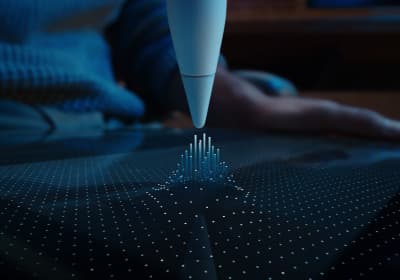
Compatibility first
Apple Pencil compatibility before you buy
Use this when the real risk is ordering the wrong Pencil for your iPad, not choosing between tablets.
Updated Feb 24, 2026 Apple Pencil Pro
Best current buying path.
The best Apple stylus for serious digital art workflows. Expensive, but the control upgrades are real.
Best for: Artists who need pressure nuance, hover behavior, and faster brush control loops.
Avoid if: You mainly write notes and do light sketching where pressure nuance is not central.
A single-product review is useful, but most buyers still need a cleaner answer on budget, Procreate, or Air vs Pro before checking out.
Compatibility first
Use this when the real risk is ordering the wrong Pencil for your iPad, not choosing between tablets.
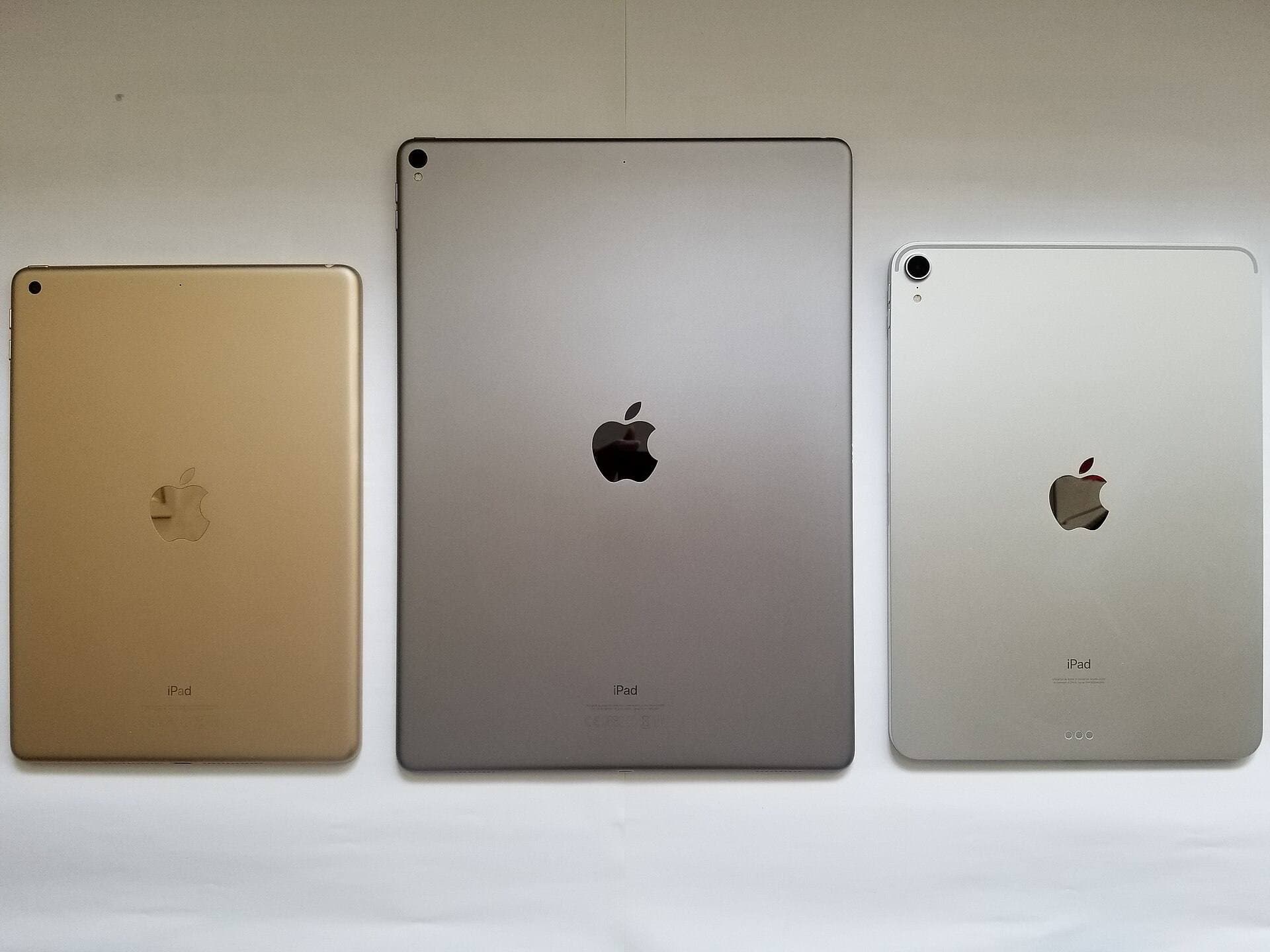
Compare models
The common upgrade question. Start here if you need the shortest path to the sensible buy.
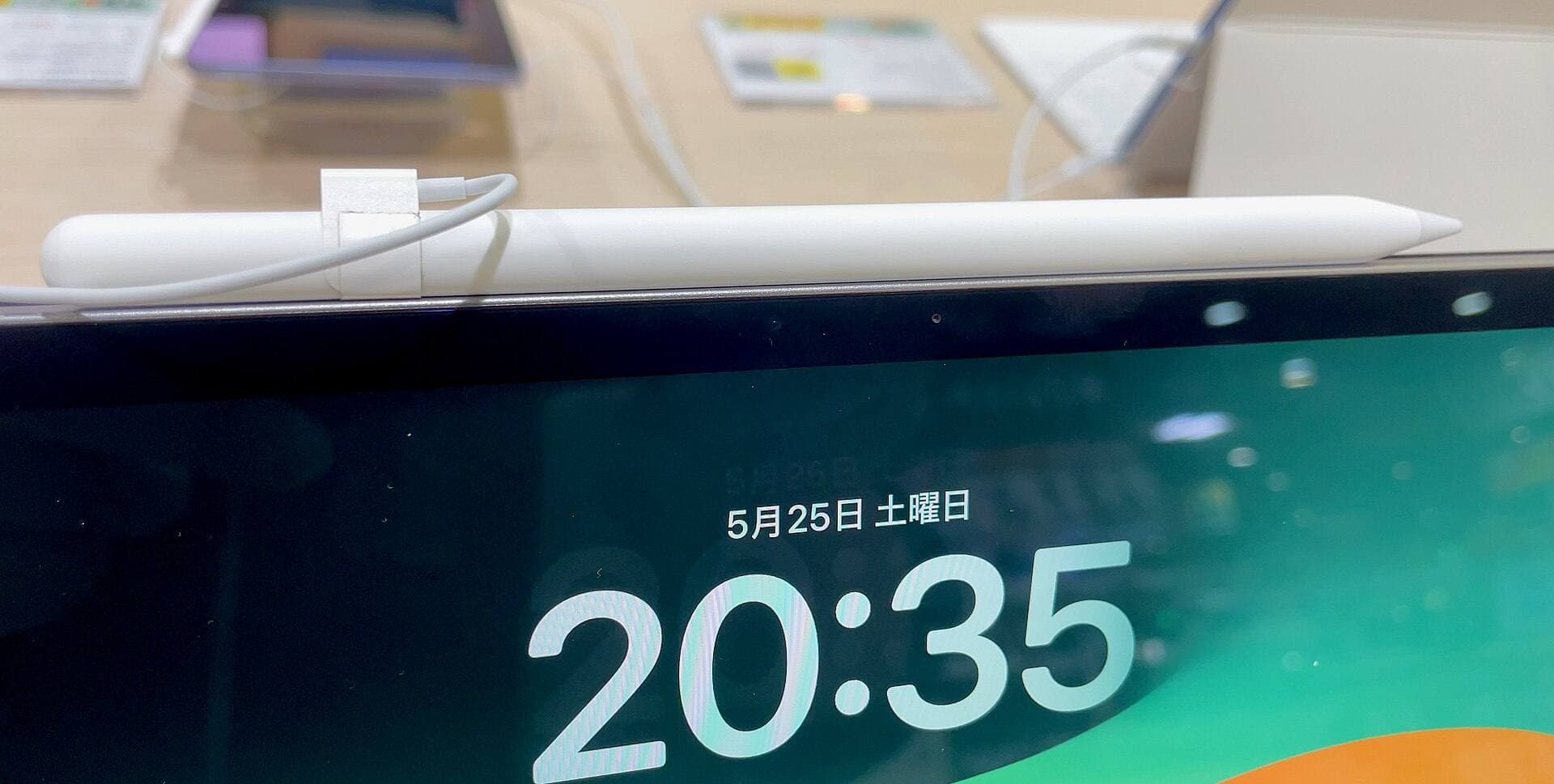
Main art app
Use this when the purchase is mainly about Procreate and you need the safest balance of cost, display feel, and headroom.
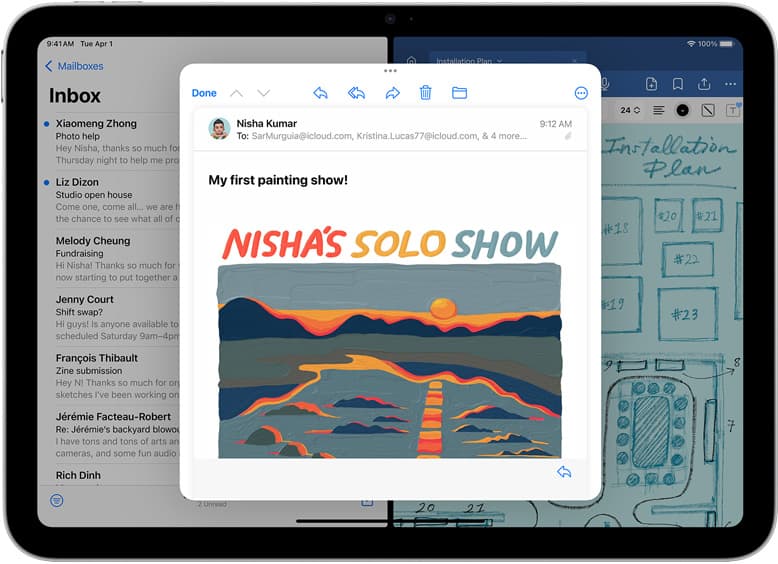
School plus art
Use this when the real purchase is one iPad for notes, PDFs, and regular drawing instead of separate school and art devices.
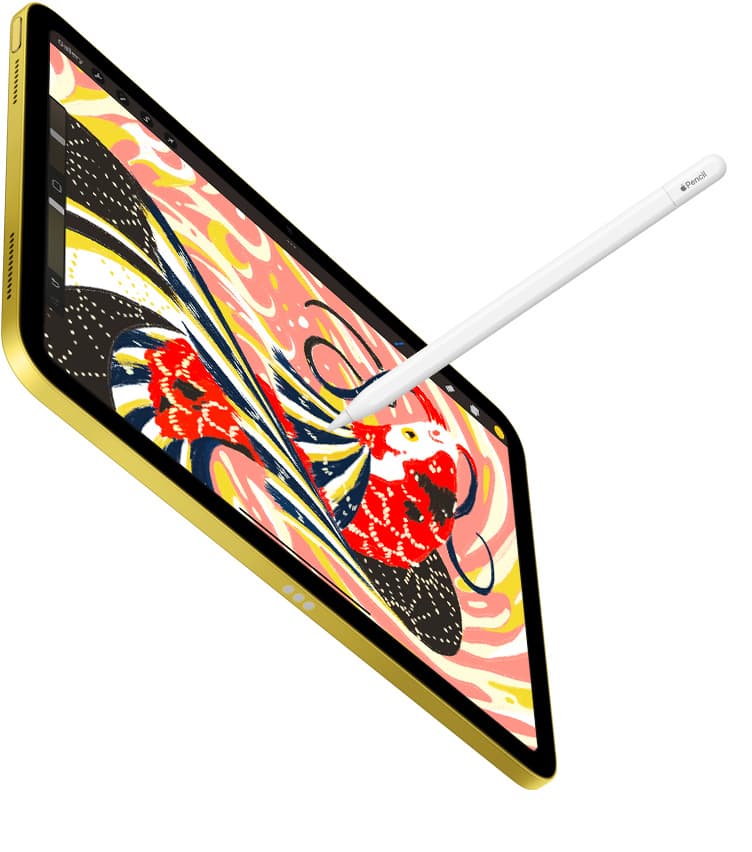
Notes plus drawing
Use this when the real purchase is one iPad for meetings, planning, PDFs, and regular drawing without drifting into the wrong premium tier.
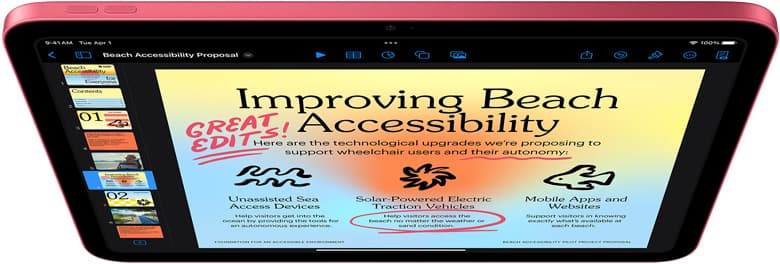
Cases and carry
Use this when the real choice is keyboard case versus draw-first case, not which iPad to buy.
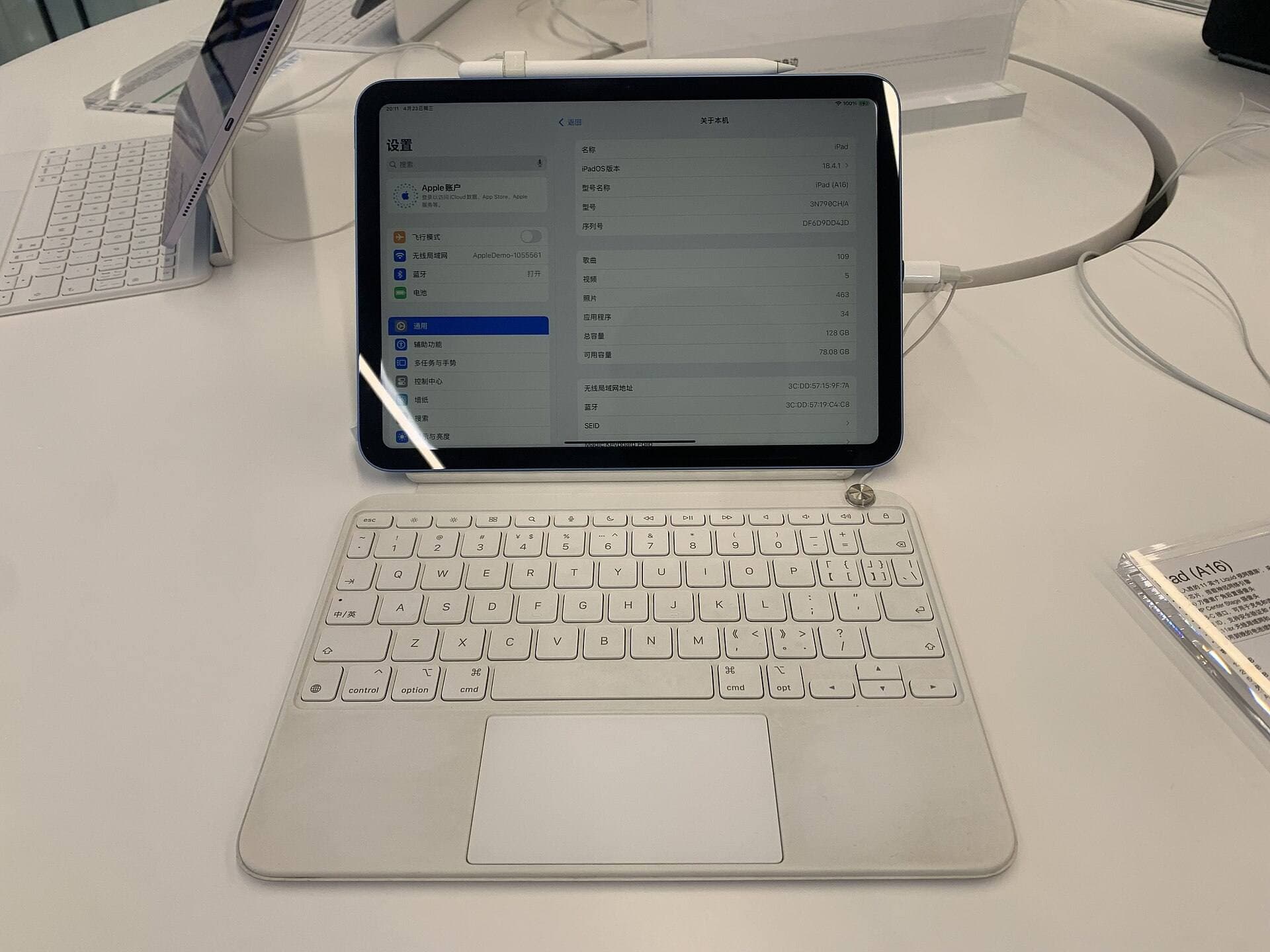
Start with a budget
Use this when you want the best beginner path without drifting into Pro-level overspending.
Pencil Pro improves speed and confidence when your workflow depends on brush behavior.
If your workload is mostly notes and markup, this is easy to overbuy.
Pressure handling and hover workflow improve predictable brush placement and edits.
Squeeze and haptic feedback reduce palette friction in repeated drawing cycles.
Find My support is practical and saves replacement cost over time.
High pricing is hard to justify if you do not actively use its advanced controls.
Compatibility is limited to newer iPad models.
Some users need time to tune app settings before improvements feel obvious.
Check compatibility first, then match app settings to your brush style before judging value.
If budget is tight, fix surface feel and lighting before upgrading stylus tier.
Pros: Best control stack; Useful workflow features; Find My support
Cons: Expensive; Model compatibility limits; Value depends on workflow depth
Send the shortlist, budget, and what you hoped this product would solve. This is for buyers who are close to spending money but still want a cleaner recommendation.
Comparable options and alternatives for this workflow.
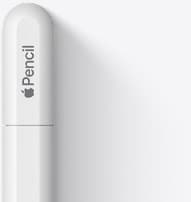
A practical low-cost Apple stylus with broad compatibility, but limited for advanced art control.
Pro: Low cost
Con: No pressure support
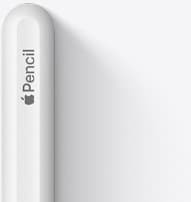
Still a strong stylus on compatible iPads. Good pressure control, but compatibility is the main trap.
Pro: Good pressure control
Con: Compatibility risk
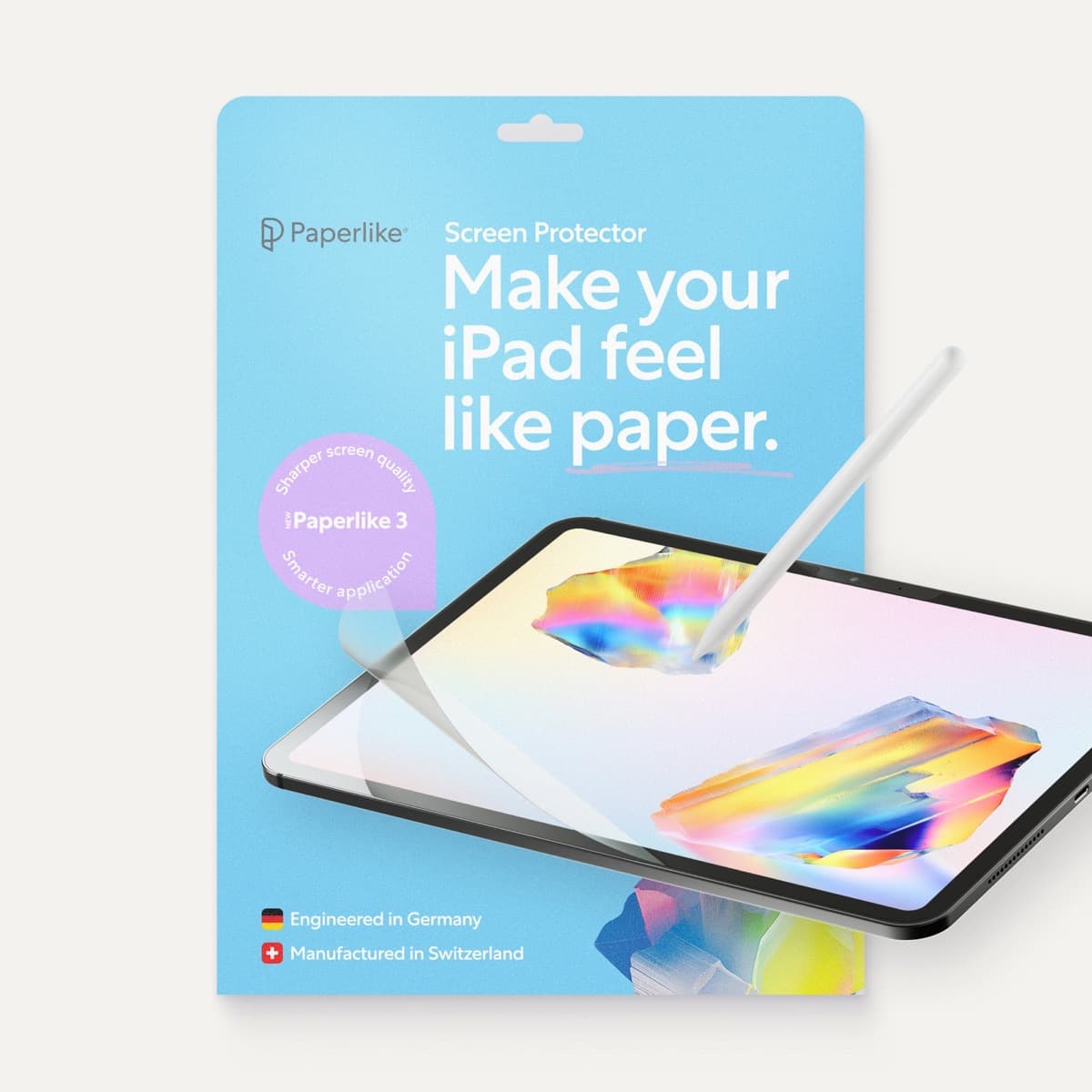
A strong surface-feel upgrade for drawing control. Clarity tradeoff is real and should be expected.
Pro: Better drawing friction
Con: Softer display clarity
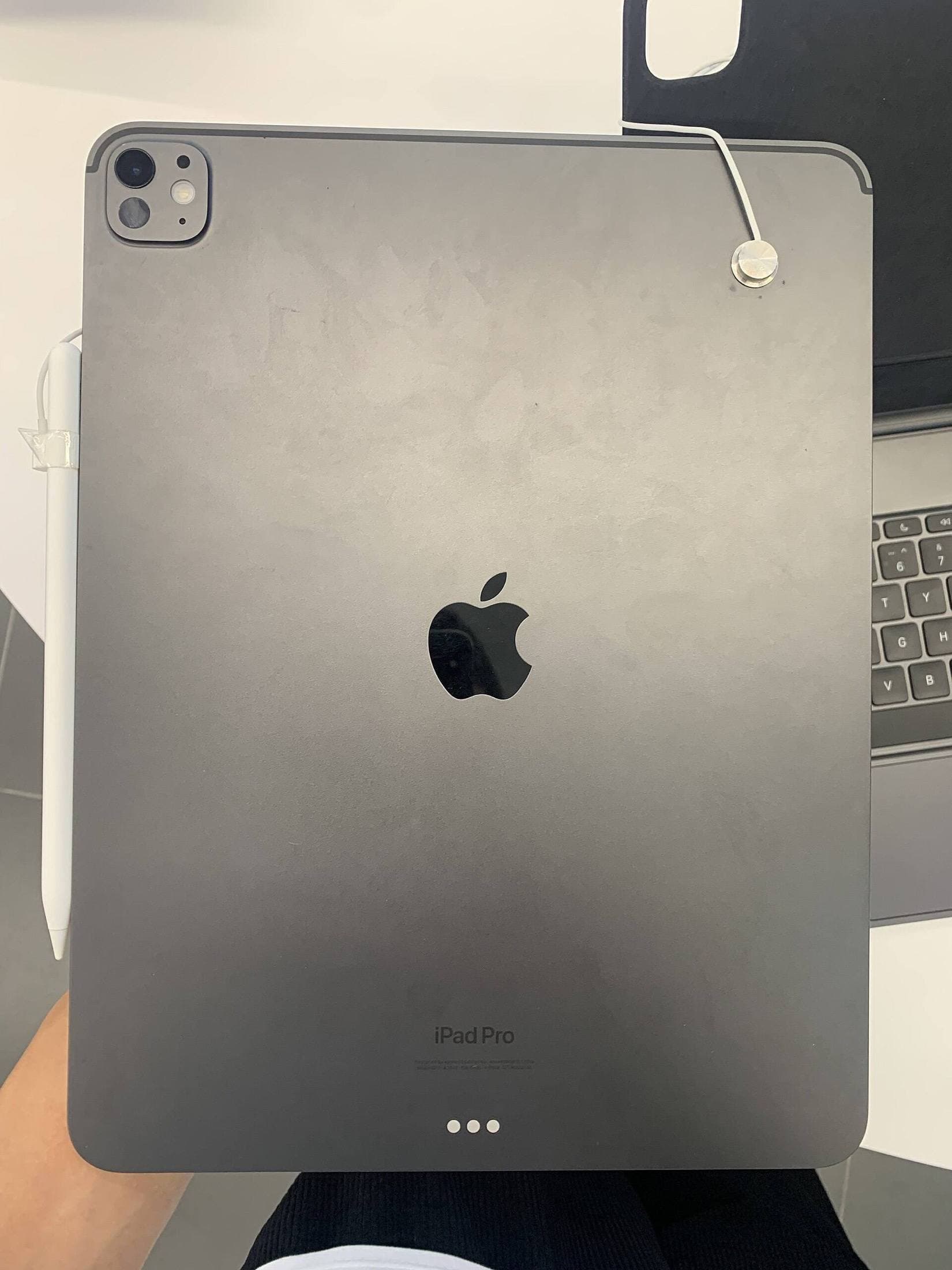
The cleaner drawing-first case for iPad Air users. Better when stability matters most, less compelling when your iPad doubles as a typing machine.
Pro: Stable draw angles
Con: Heavier than slim cases
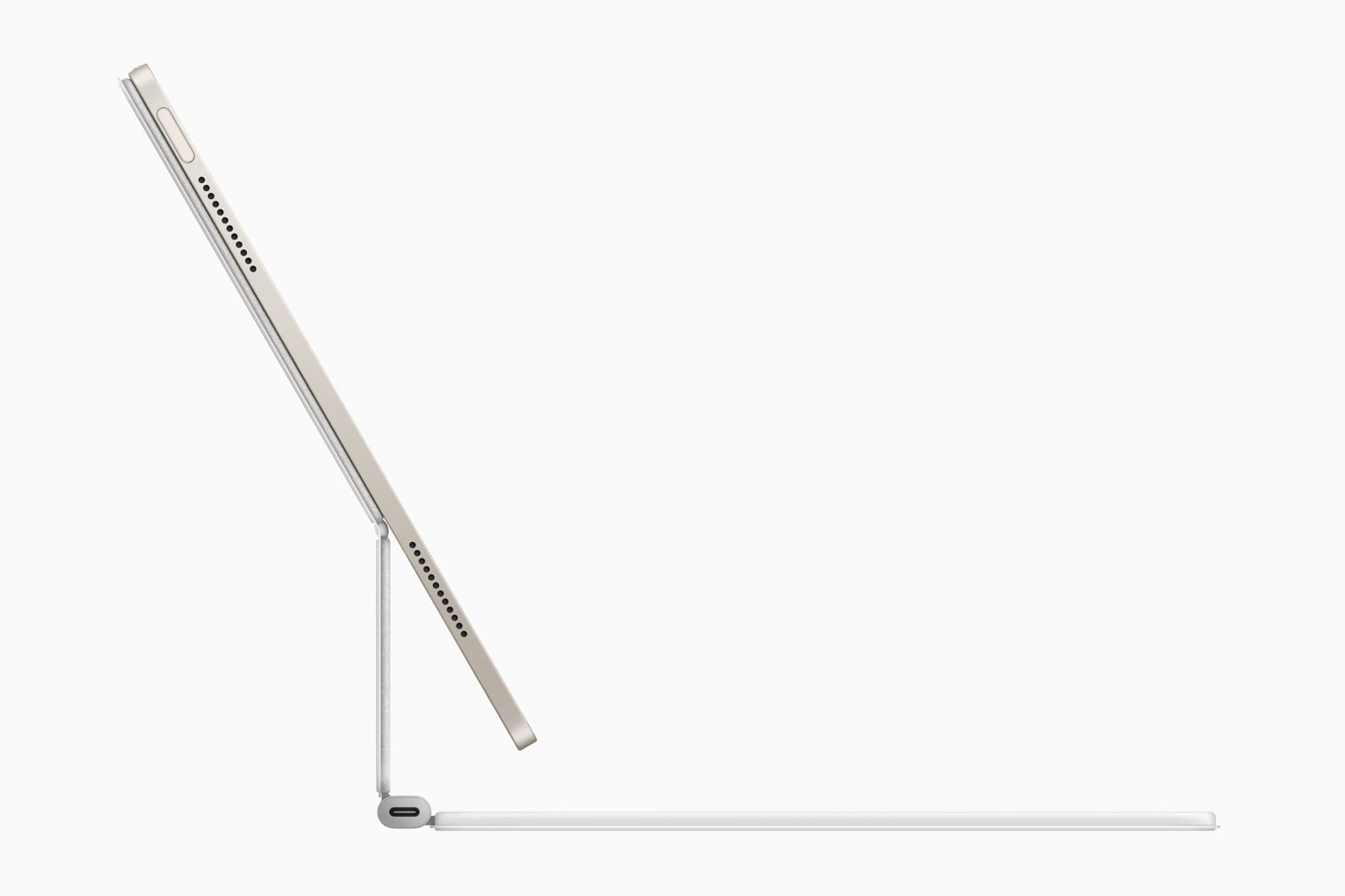
The best hybrid case when notes, planning, and drawing all happen on one iPad. Great utility, but more weight than draw-first buyers need.
Pro: Strong hybrid workflow fit
Con: Bulkier than simple cases
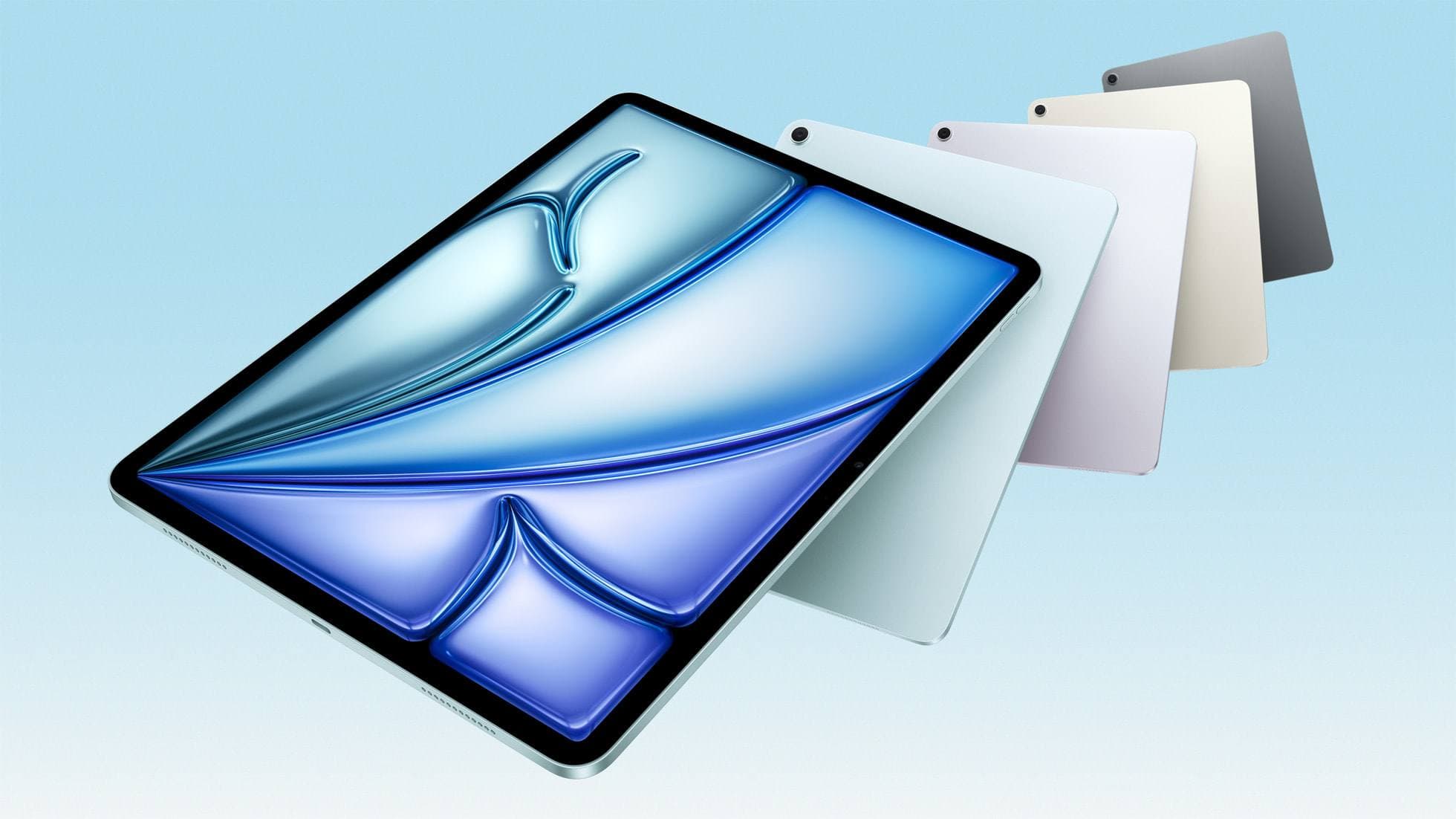
The clean current Air recommendation for most serious hobby artists. Stronger buy logic than old-stock M3 when pricing is close.
Pro: Best current balance
Con: Still 60Hz