Buy Procreate if you want the most versatile, responsive lettering experience on an iPad [1]. Savage Interactive built Procreate as a paid creative application made specifically for iPad, earning a 4.4 rating across tens of thousands of customer reviews [1]. It delivers an immediate inking feel that mimics physical pens, brush markers, and chalk without forcing you through complicated desktop menus [1]. You should skip raster apps entirely only if your lettering must exist as infinite vector curves for signage or logo files, where an app like Affinity Designer 2 for iPad is the better match [2].
Why Procreate leads for lettering artists
Lettering requires distinct pressure dynamics, predictable streamline smoothing, and simple texture layers [1]. Procreate operates as a one-time purchase on iPad, making it straightforward to add to your device without managing ongoing subscriptions [1]. Because it is designed directly for iPadOS, touch controls and stylus interactions integrate cleanly into a focused workspace [1].
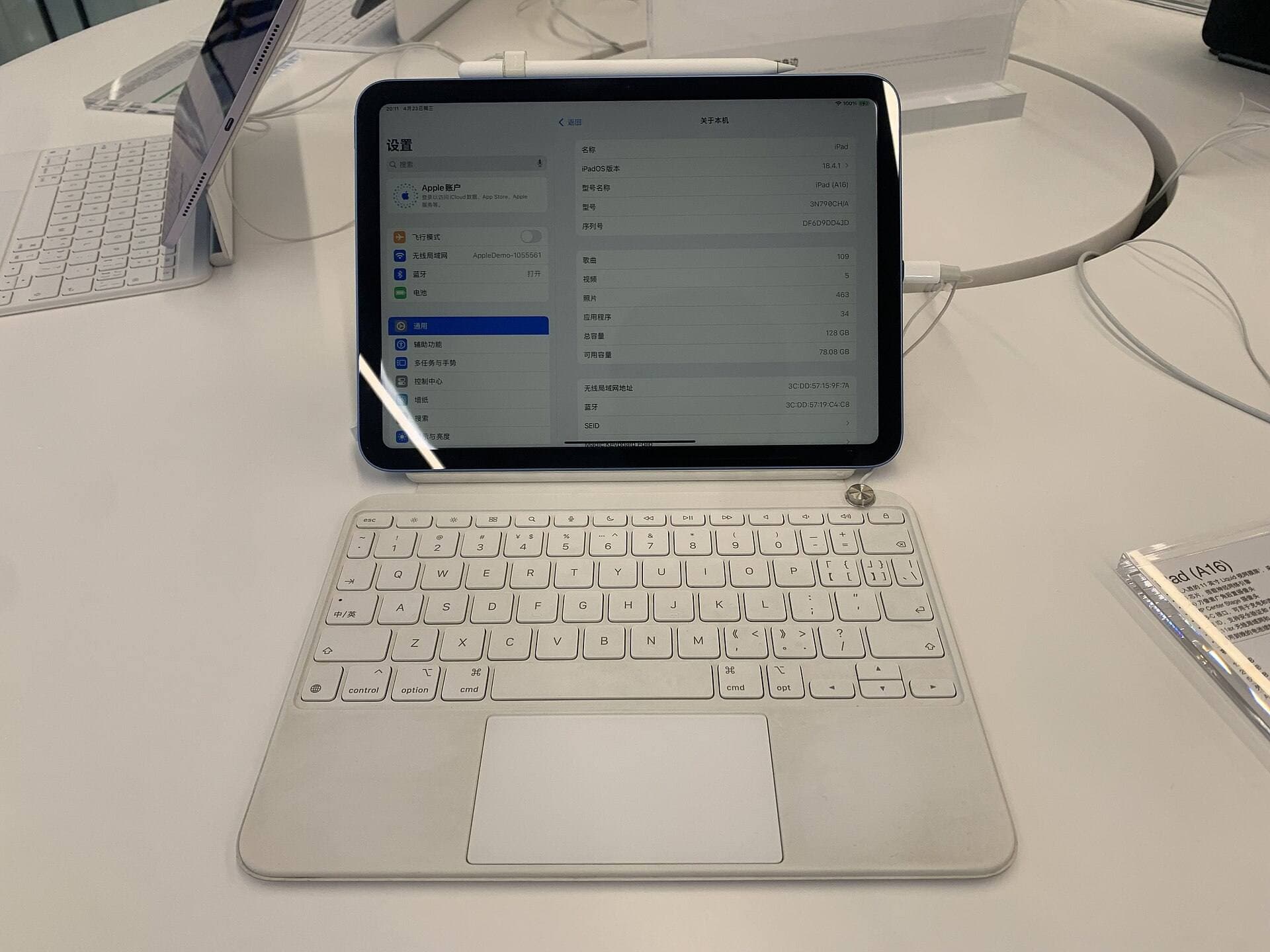
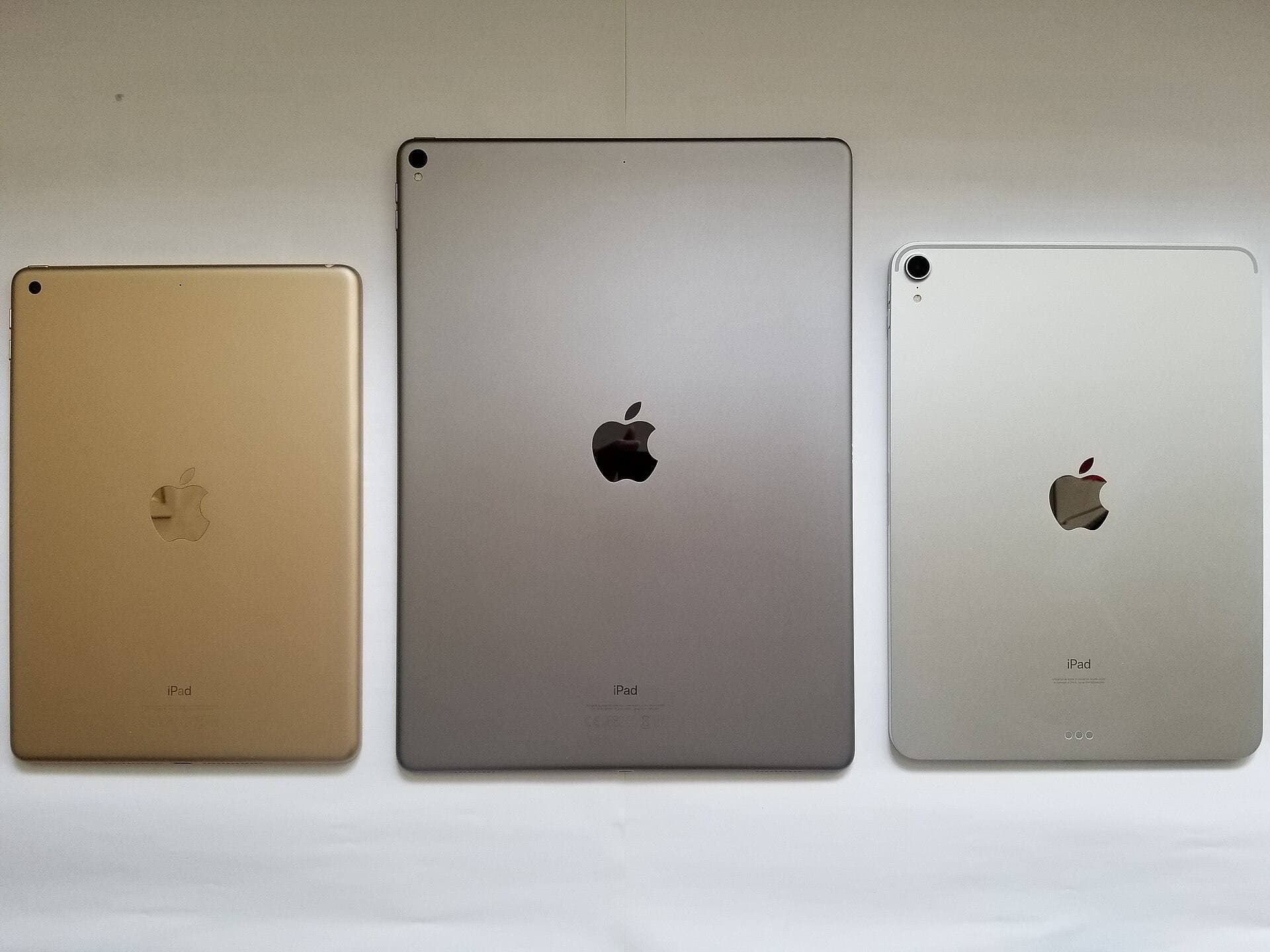
Drawing letters requires constant undo gestures, layer duplication, and quick adjustments to guide grids [1]. Procreate keeps the canvas front and center, so you spend your time shaping ascenders, descenders, and serifs rather than navigating heavy multi-window layouts [1]. Canvas limits correlate with device memory, so picking an iPad model with sufficient system memory allows you to build lettering compositions with plenty of working layers [3]. Letterers who produce social graphics, printable quote posters, and raster editorial illustrations will find Procreate handles their complete process from draft sketch to final export [1].
When to pick free drawing tools like Adobe Fresco
Adobe Fresco: Draw & Paint App is listed by Adobe Inc. as a free download in the Graphics & Design category on the App Store [4]. Fresco presents a capable alternative for lettering artists who want to explore digital inking without an upfront app payment [4]. The listing highlights it as a free, professional drawing and painting app made for everyone, holding a 4.7 rating [4].
Fresco stands out by combining raster brushes with vector inking brushes inside a single workspace [4]. For hand lettering, vector brushes mean your line art stays crisp at any output scale, which helps when you design logos or apparel graphics [4]. If you already rely on Creative Cloud storage, Fresco provides a smooth on-ramp [4]. You should skip Fresco if you prefer an entirely independent, one-time purchase environment that stays completely separate from subscription ecosystems [1].
Vector precision with Affinity Designer 2 and Linearity Curve
Hand lettering frequently overlaps with typography design and commercial brand marks, where client deliverables require clean vector nodes [2]. Affinity Designer 2 for iPad by Serif converts desktop vector capabilities into a touch-focused mobile interface [2]. Holding a 4.7 App Store rating, it provides vector drawing tools that let you manipulate individual bezier nodes, tweak stroke pressure curves, and export clean vector assets [2].
If you prefer dedicated vector drafting, Linearity Curve Graphic Design by Linearity GmbH offers another iPad option [5]. The listing describes it as professional vector art and graphic design software on iPad and iPhone, carrying a 4.5 rating [5]. Linearity Curve is a practical choice for lettering artists who build layout layouts, vector stickers, or monogram logos [5]. You should choose Affinity Designer 2 or Linearity Curve when clients request scale-independent vector assets, but skip them if you only want the organic, textured feel of physical ink brushes [1], [2].
Infinite canvas lettering with Concepts
Concepts by TopHatch is a flexible vector-based sketchbook that holds a 4.7 rating on the App Store [6]. Unlike standard fixed-dimension drawing apps, Concepts operates on an infinite canvas, making it an excellent playground for lettering warmups, phrase exploration, and alphabet practice [6].
Letterers often need room to sketch dozens of layout thumbnails and script variations side by side before settling on a final composition [6]. Concepts lets you zoom in for precise stroke detailing or zoom out to organize your entire lettering concept collection in a single document [6]. Because the strokes are vector-based, you can adjust stroke thickness and color long after drawing each letterform [6]. However, you should skip Concepts if you need traditional pixel-blending modes and textured raster dry-media brushes, which remain Procreate's core strength [1], [6].
Hardware that steadies your strokes
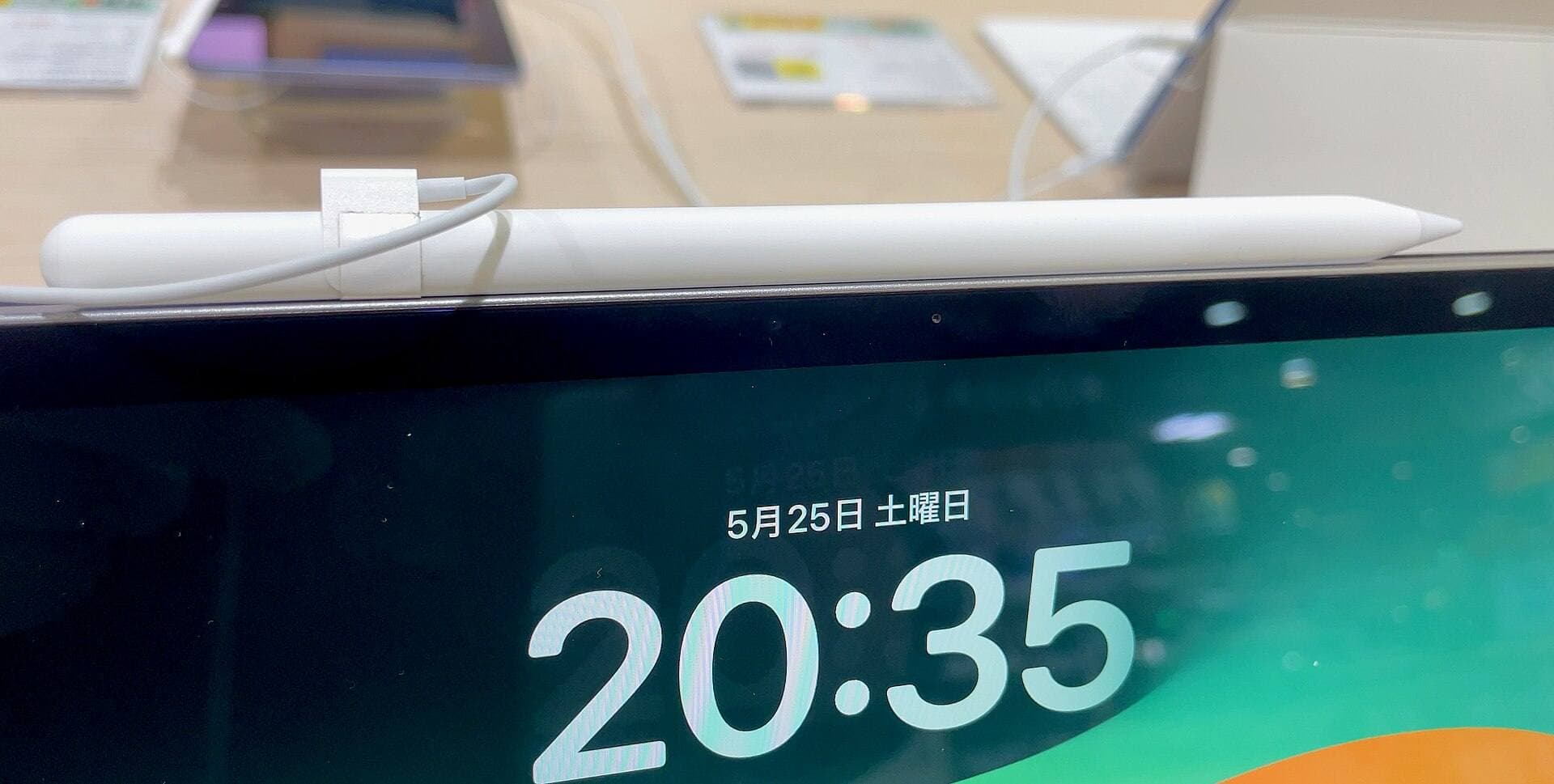
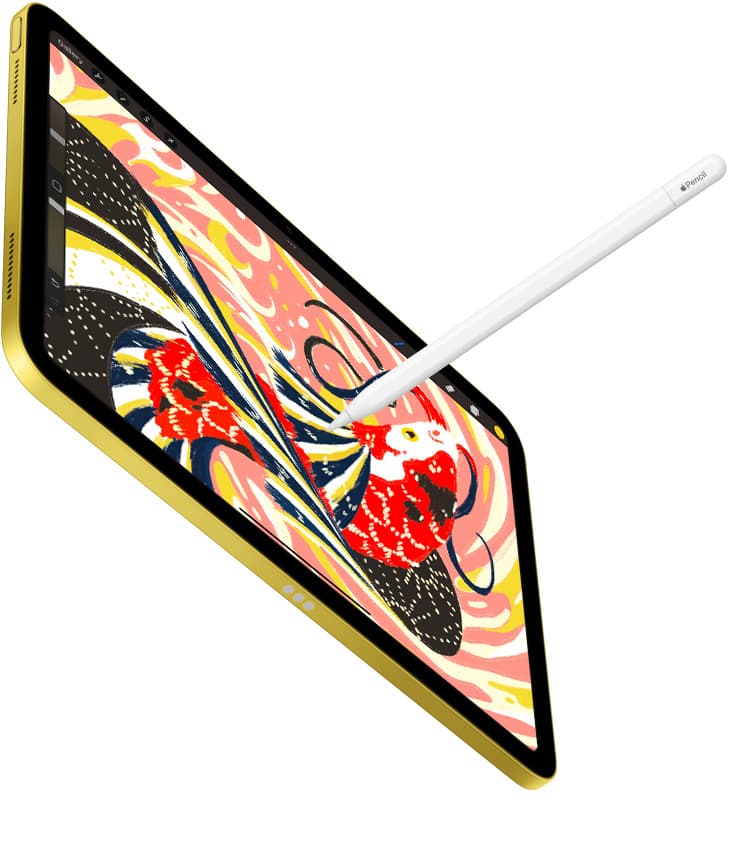
Your software choice only goes as far as your stylus input allows [7]. The Apple Pencil lineup offers varying degrees of mechanical precision depending on the specific model you choose [7]. For dedicated lettering work, tilt and pressure sensitivity are vital features, allowing your strokes to expand on downstrokes and taper neatly on upstrokes [7].
If your iPad supports the Apple Pencil Pro, you gain access to barrel roll, squeeze gestures, and haptic feedback [7], [8]. The squeeze feature allows you to summon palettes or trigger tool switches quickly, while barrel roll rotates shaped brushes as you pivot the stylus barrel [7]. This rotation capability mimics the behavior of flat-edge calligraphy nibs and chisel pens [7]. Before purchasing accessories, verify that your tablet model pairs with your desired Apple Pencil, as Apple Pencil Pro only works with designated modern iPads [7], [8].
Bottom line
For nearly every hand lettering artist, Procreate is the definitive iPad app to buy first [1]. It provides intuitive raster brush physics, accessible layer tools, and an uncluttered interface without recurring monthly fees [1]. If your client deliverables mandate infinitely scalable vector outlines, download Affinity Designer 2 for iPad alongside it [2]. Letterers testing the waters on a tight budget should explore Adobe Fresco as a capable free starting point [4].
Sources
[1] https://apps.apple.com/us/app/id425073498 [2] https://apps.apple.com/us/app/id1616833418 [3] https://help.procreate.com/articles/zlexav-ipad-compatibility [4] https://apps.apple.com/us/app/id1458660369 [5] https://apps.apple.com/us/app/id1219074514 [6] https://apps.apple.com/us/app/id560586497 [7] https://www.apple.com/apple-pencil/ [8] https://support.apple.com/en-us/108937
Recommended gear
Procreate
apps.apple.comPro: One-time purchase
Con: iPad-only
Clip Studio Paint
apps.apple.comPro: Deep comics, vector, ruler, and animation toolset
Con: iPad plan model is less simple than Procreate
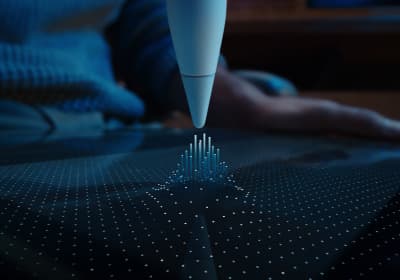
Apple Pencil Pro
amazon.comThe best Apple stylus for serious digital art workflows. Expensive, but the control upgrades are real.
Pro: Best brush-control and hover workflow
Con: Highest price in the lineup
Works only with newer iPad models. Check compatibility.
Apple Pencil (USB-C)
amazon.comA practical low-cost Apple stylus with broad compatibility, but limited for advanced art control.
Pro: Lowest official Apple Pencil cost
Con: No pressure sensitivity for brush work
Compatible with many recent iPads. No pressure support.
Apple Pencil (2nd generation)
amazon.comStill a strong stylus on compatible iPads. Good pressure control, but compatibility is the main trap.
Pro: Pressure support without Pro pricing
Con: Not compatible with newest Pro-only iPads
Only for iPads that support 2nd generation pairing.
Related buying picks
More in this collectionBuyer guide
Best iPad app for perspective drawing
Clip Studio Paint and Procreate offer distinct approaches to vanishing points, specialized rulers, and architectural sketching on iPad.
Buyer guide
Best iPad app for surface pattern design: Procreate versus Clip Studio Paint
Choose Procreate for standalone raster pattern motifs or pick Clip Studio Paint for vector assets and complex pattern tile structures.
Buyer guide
Best iPad app for interior design sketching
Choose Procreate for simple one-time pricing and fast concept illustration, or pick Clip Studio Paint for multi-page floor plans and deep ruler systems.
Buyer guide
Best iPad app for mood boards
Choose between infinite vector canvases and fixed raster boards to assemble your next project visual references on iPad.