





For most knitters, the right pick is two apps: knitCompanion for working from a chart and Procreate for drawing one. knitCompanion's listing describes it as a pattern tracking app for knitters and fiber artists, and it's a free download rated 4.8 from nearly 7,000 ratings [1]. Procreate is the paid drawing app made for iPad, and it's where you'd sketch a colorwork motif on a grid [2]. Skip buying anything new if you only knit from published patterns, because tracking, not drawing, is what you need [1].
Designing a chart versus following one
Knitters often mean two different things by "chart app." One is a place to design: you lay out a motif square by square, try colors, and fix mistakes before you cast on. The other is a place to follow: you open a chart while you knit, mark your row, and keep your place [1].
knitCompanion is plainly built for the second job; its listing calls it a pattern tracking app [1]. Drawing apps like Procreate and Concepts fit the first, since a chart is a grid drawing [2], [3]. Knowing which job you're solving keeps you from buying a design tool when you needed a row counter, or the other way around.
knitCompanion for following and tracking
knitCompanion sits in the Lifestyle category, not Graphics & Design, which matches what it's for: knitting, not illustrating [1]. Its listing describes it as a pattern tracking app for knitters and fiber artists [1]. If your pain is losing your place in a busy chart, this is the tool aimed at that.
Choose it if you knit from charts often. Skip it if your real goal is inventing motifs, because a tracker doesn't replace a drawing canvas [1].
Procreate for drawing your own charts
Procreate is the best general canvas for designing colorwork. Its listing calls it the leading creative application made for iPad, and it's a paid app rated 4.4 from more than 50,000 ratings [2]. A chart is a grid of colored squares, and you can set up a grid layer, fill squares with a hard brush, and keep each color on its own layer to test palettes.
That layer approach is the main reason to design in a drawing app instead of on graph paper: you can recolor a whole motif in seconds. Procreate's compatibility page notes that your iPad's memory sets the canvas size and layer count [5], but a knitting chart is a small file, so nearly any supported iPad handles it [5].
Concepts for vector chart sketches
Concepts is a free download rated 4.7 from more than 26,000 ratings, and its listing calls it a flexible vector-based sketchbook [3]. Vector strokes stay crisp when you scale them, which helps if you print a chart large for knitting or share it as a clean image [3].
Pick it if you like sketching loose ideas first and refining later. If you want the feel of filling in squares with paint, Procreate is the friendlier canvas [2], [3].
Colorwork charts versus texture charts
Not every knitting chart is about color. Colorwork charts, like stranded or intarsia motifs, are grids of colored squares, and a drawing app suits them because each square is a fill [2]. Texture charts, like cables and lace, use symbols for stitches, and drawing those by hand square by square takes more patience [2], [3].
For texture charts, a vector app such as Concepts helps, because you can draw one symbol, duplicate it, and place copies across the grid without redrawing each one [3]. For colorwork, Procreate's fill tools and layers are quicker [2]. If you design both kinds, try your most common chart type in each app before you commit.
Whatever you draw, keep a key beside the chart. A chart is only useful if the knitter, including future you, can tell what each color or symbol means at a glance [1].
Printing and sharing your charts
Many knitters still like a paper chart on the coffee table, even after designing on an iPad. Export the chart as a large, clean image so it prints sharply, and check that the grid lines are dark enough to follow in dim light [2], [3].
If you share patterns with friends or sell them, export a version without your working layers, so the reader sees only the finished chart and its key [2]. Then open that same file in knitCompanion when you knit it yourself, so you're following exactly what others will see [1].
Hardware for chart work
Chart design doesn't need a top-end iPad. Squares and fills are light work, and the bigger question is screen size, because a bigger chart is easier to read while you knit [4]. Apple's comparison page lists the iPad Air with M4 in 11-inch and 13-inch sizes [4]. A 13-inch Air is pleasant for following charts at the couch, while an 11-inch model is easier to keep in a project bag [4].
For drawing charts, any Apple Pencil that suits your iPad works. Apple's feature chart shows Apple Pencil Pro adds hover and squeeze on top of pressure and tilt [6]. Those extras are nice for illustration, but filling grid squares needs accuracy more than pressure [6].
A simple chart workflow
This keeps design and knitting tidy [1], [2]:
- Draw the motif in Procreate on a grid layer, one color per layer [2].
- Check the palette by swapping layer colors before you choose yarn.
- Export a clean image of the finished chart.
- Open it in knitCompanion to track rows while you knit [1].
Bottom line
Use knitCompanion if you need to follow and track charts, and choose Procreate if you want to design your own colorwork [1], [2]. Pick Concepts if vector sketches suit you better [3]. You don't need a Pro iPad for this; an iPad Air in the size you like reading from is plenty [4].
Sources
[1] https://apps.apple.com/us/app/id1058142783 [2] https://apps.apple.com/us/app/id425073498 [3] https://apps.apple.com/us/app/id560586497 [4] https://www.apple.com/ipad/compare/ [5] https://help.procreate.com/articles/zlexav-ipad-compatibility [6] https://www.apple.com/apple-pencil/
Recommended gear
Procreate
apps.apple.comPro: One-time purchase
Con: iPad-only

Apple Pencil Pro
amazon.comThe best Apple stylus for serious digital art workflows. Expensive, but the control upgrades are real.
Pro: Best brush-control and hover workflow
Con: Highest price in the lineup
Works only with newer iPad models. Check compatibility.

iPad Air (M4)
apple.comThe clean current Air recommendation for most serious hobby artists. Stronger buy logic than old-stock M3 when pricing is close.
Pro: Best current balance of price, headroom, and Pencil support
Con: Still 60Hz
Current Air lineup. Choose size, storage, and keyboard path before checkout.
Paperlike 3 (11-inch, 2-pack)
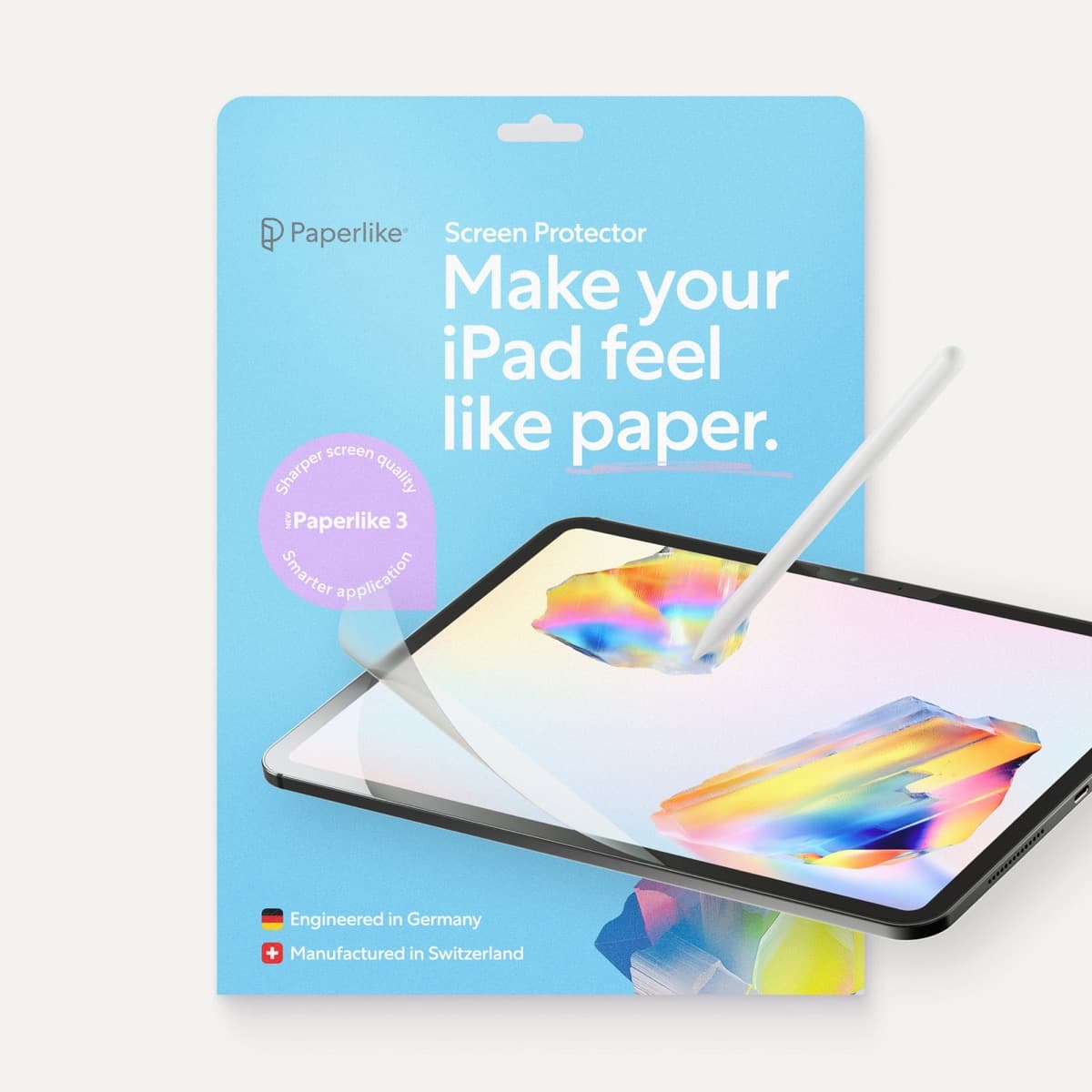
amazon.comA strong surface-feel upgrade for drawing control. Clarity tradeoff is real and should be expected.
Pro: Adds controlled paper-feel friction
Con: Slightly reduces perceived display sharpness
11-inch fit only. Confirm generation before checkout.
Anker 341 USB-C Hub (7-in-1)
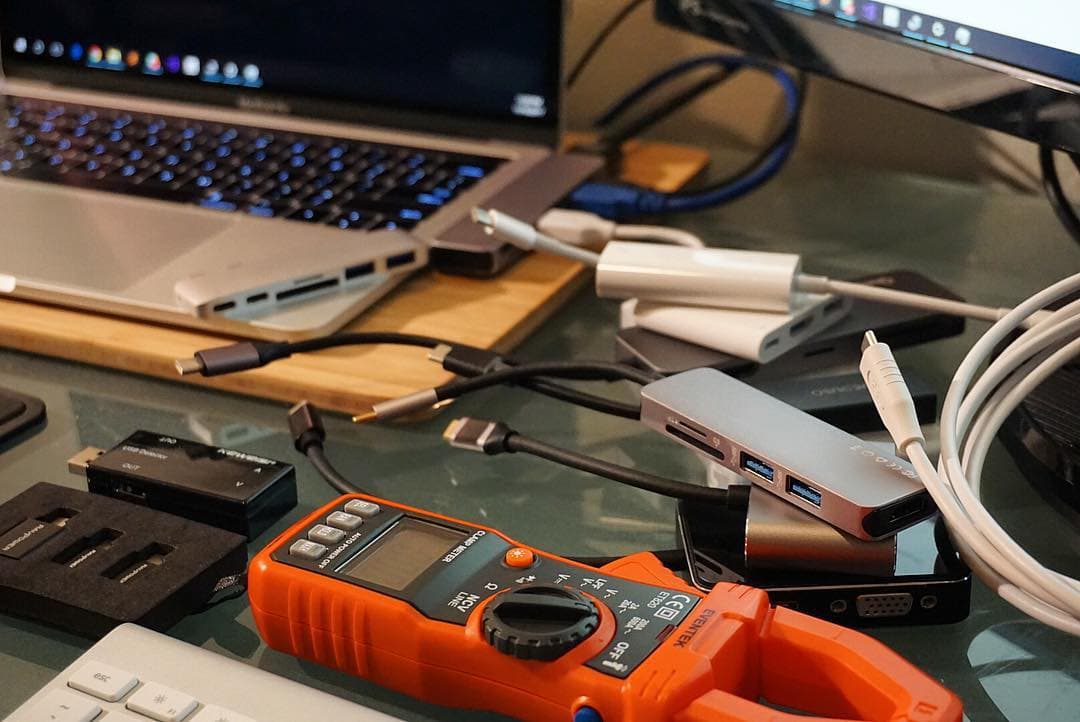
amazon.comA strong everyday port hub for iPad workflows. Good value and layout, with expected bandwidth limits.
Pro: Solid all-around port mix for iPad setups
Con: Not Thunderbolt bandwidth
Check host power pass-through and display output before buying.
Related buying picks
More in this collectionBuyer guide
Best iPad app for jewelry design
Procreate is best for jewelry sketches and renderings, Nomad Sculpt for organic 3D pieces, uMake for precise CAD forms, and Concepts for quick vector design sheets.
Buyer guide
Best iPad app for fantasy map making
Procreate is the best default for painted fantasy maps, Concepts and Affinity Designer 2 suit clean vector maps, and Clip Studio Paint fits maps that live inside comics.
Buyer guide
Best iPad app for color palettes: where each one fits
Adobe Capture pulls palettes from photos, Coolors builds them from scratch, Pantone Connect matches print swatches, and Procreate is where you paint with them.
Buyer guide
Best iPad app for sketching over photos: top picks and tradeoffs
Compare Procreate, Clip Studio Paint, and top free-to-download alternatives to choose the right iPad app for sketching and tracing over photos.