





For most iPad artists, Procreate Dreams is the app to pick for rotoscoping. Its listing calls it an award-winning animation app packed with tools anyone can use, and it's a paid app from the makers of Procreate [1]. Choose Callipeg or RoughAnimator instead if you think like a traditional animator: Callipeg describes frame-by-frame and keyframe tools for hand-drawn 2D animation, and RoughAnimator calls itself a fully featured hand-drawn animation app for iPad [2], [3]. If you only want to try tracing footage, use FlipaClip, which is a free download [4].
What rotoscoping asks of an app
Rotoscoping means drawing over live footage, one frame at a time, to get motion that feels real. On an iPad, that's an animation job, so the app you pick is really an animation app with a video layer underneath your drawings [1], [2].
Look for three things. You need a timeline you can move through quickly, because you'll step frame by frame hundreds of times. You need drawing tools you like, because every frame is a new drawing. And you need to see the footage clearly under your linework [1], [3]. A long rotoscoped shot is mostly repetition, so small annoyances add up fast.
Procreate Dreams for an approachable start
Procreate Dreams is the most approachable of the group. Its listing calls it an award-winning animation app with powerful tools that anyone can use [1]. If you already draw in Procreate, its brush feel will be familiar, which matters when you're drawing the same character across many frames [1].
Its rating is lower than the others, 3.9 from a few hundred ratings, so read recent reviews before you buy if you need a specific feature [1]. Choose it if you want a friendly animation app and you're coming from Procreate.
Callipeg and RoughAnimator for frame-by-frame work
Callipeg is a paid app that describes itself as a professional 2D hand-drawn animation app for iPad and Apple Pencil, with frame-by-frame and keyframe animation in a studio-grade environment [2]. If your rotoscoping is headed into a larger animated short, that traditional structure is the draw.
RoughAnimator is a paid app rated 4.6 from nearly 3,000 ratings, and its listing calls it a fully featured hand-drawn animation application for iPad [3]. It's a good fit for animators who want a straightforward frame-by-frame tool without much extra.
Pick one of these two if you already animate and want a plain frame-by-frame tool. Skip them if you've never animated, because Procreate Dreams or FlipaClip will be easier to learn first [1], [4].
FlipaClip for trying it free
FlipaClip is a free download rated 4.6 from more than 260,000 ratings, and its listing promises a powerful animation app with a super simple interface [4]. That makes it a low-risk way to find out whether you enjoy rotoscoping before you pay for anything.
Use it for short loops, practice shots, and learning the rhythm of tracing frames. Move to a paid app when you outgrow it [4].
Clip Studio Paint if you already use it
Clip Studio Paint also includes animation tools, and its listing offers a free 30-day trial [5]. If you already ink comics in Clip Studio and want a short rotoscoped sequence, staying in one app keeps your brushes and files together [5]. For a dedicated rotoscoping project, the animation-first apps above are the simpler starting point [1], [2].
Getting footage ready to trace
Trim the clip before you draw a line: long clips are tiring to trace and heavy to work with, so trim your footage to the exact shot you need before you bring it into an animation app [1], [2]. A two-second clip traced well teaches you more than a twenty-second clip you abandon halfway.
Decide your frame rate early too. Animators often draw on twos, meaning one new drawing for every two frames, which halves the work and still reads as smooth motion for most shots. Set that up in your app's timeline before you start, since changing it later means redrawing [2], [3].
Finally, lower the footage layer's opacity so your lines stand out against it, and draw on a separate layer above it. You'll want to hide the footage at the end to see whether the drawing moves well on its own [1].
Start with a short test
Before you commit to a paid app, trace the same short clip in a free option like FlipaClip [4]. A walk cycle or a hand wave of about a second is enough. You'll learn whether you enjoy the rhythm of the work and which timeline controls you reach for most.
Then try that clip in the paid app you're leaning toward. If stepping through frames, flipping between drawings, and adjusting the footage feel faster there, that's the app to buy [1], [2], [3].
Hardware for long tracing sessions
Rotoscoping is a lot of small, careful strokes, so your Pencil matters. Apple's feature chart lists pressure, tilt, hover, squeeze, and barrel roll for Apple Pencil Pro [6]. Hover helps you place a line before it lands, which is useful when you're matching an outline frame after frame [6].
Apple's comparison page shows the iPad Air with M4 supports Apple Pencil Pro in 11-inch and 13-inch sizes [7]. A 13-inch screen gives you more room to see footage and timeline together, while an 11-inch model is lighter for long sessions [7].
Bottom line
Choose Procreate Dreams if you want an approachable app to trace footage in [1]. Pick Callipeg or RoughAnimator if you already think in frames and want a traditional animation tool [2], [3]. Start with FlipaClip if you want to try rotoscoping for free [4]. Pair any of them with Apple Pencil Pro if your iPad supports it, since hover and fine control help over hundreds of frames [6], [7].
Sources
[1] https://apps.apple.com/us/app/id1595520602 [2] https://apps.apple.com/us/app/id1456172656 [3] https://apps.apple.com/us/app/id954718244 [4] https://apps.apple.com/us/app/id1101848914 [5] https://apps.apple.com/us/app/id1262985592 [6] https://www.apple.com/apple-pencil/ [7] https://www.apple.com/ipad/compare/
Recommended gear
Procreate
apps.apple.comPro: One-time purchase
Con: iPad-only

Apple Pencil Pro
amazon.comThe best Apple stylus for serious digital art workflows. Expensive, but the control upgrades are real.
Pro: Best brush-control and hover workflow
Con: Highest price in the lineup
Works only with newer iPad models. Check compatibility.

iPad Air (M4)
apple.comThe clean current Air recommendation for most serious hobby artists. Stronger buy logic than old-stock M3 when pricing is close.
Pro: Best current balance of price, headroom, and Pencil support
Con: Still 60Hz
Current Air lineup. Choose size, storage, and keyboard path before checkout.
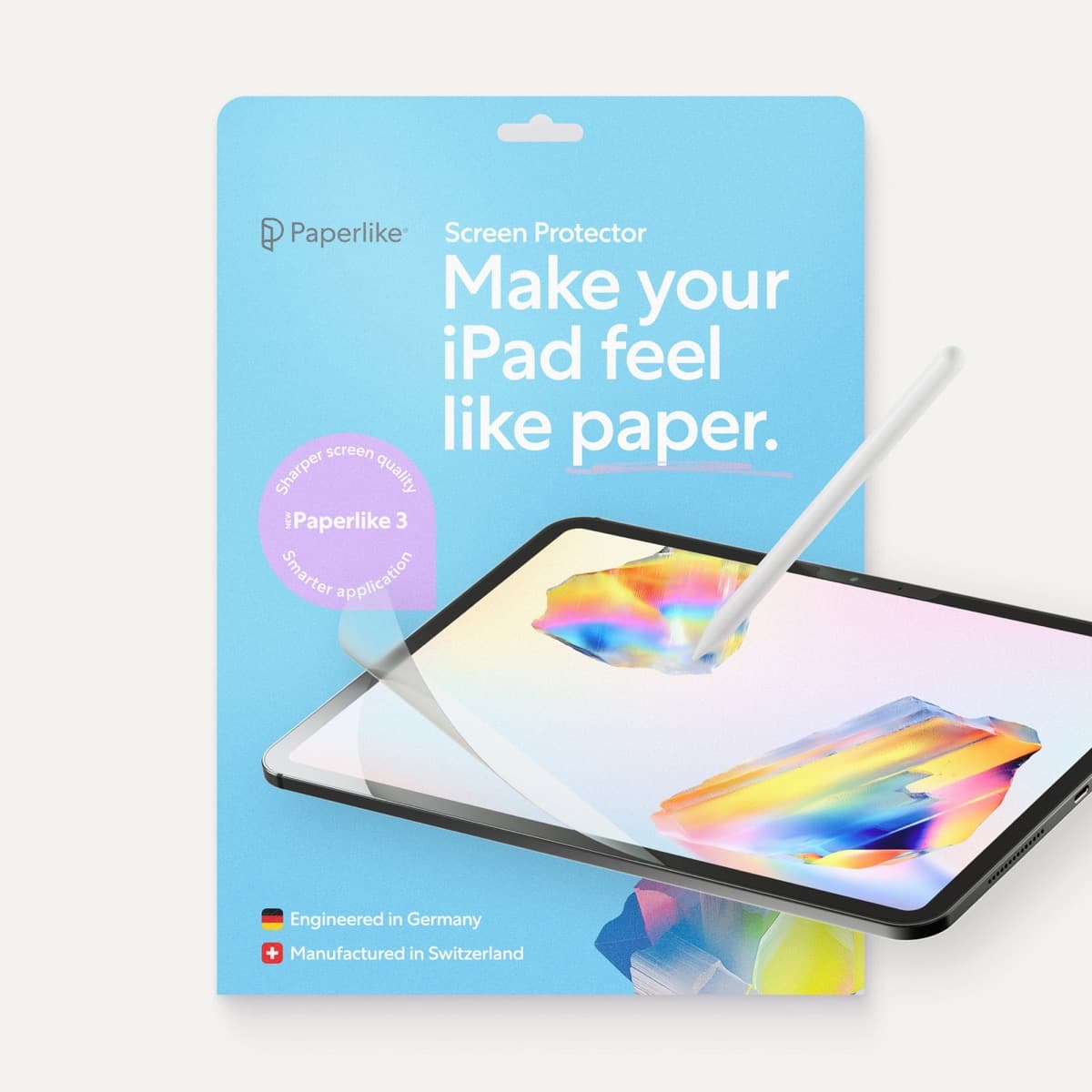
Paperlike 3 (11-inch, 2-pack)
amazon.comA strong surface-feel upgrade for drawing control. Clarity tradeoff is real and should be expected.
Pro: Adds controlled paper-feel friction
Con: Slightly reduces perceived display sharpness
11-inch fit only. Confirm generation before checkout.
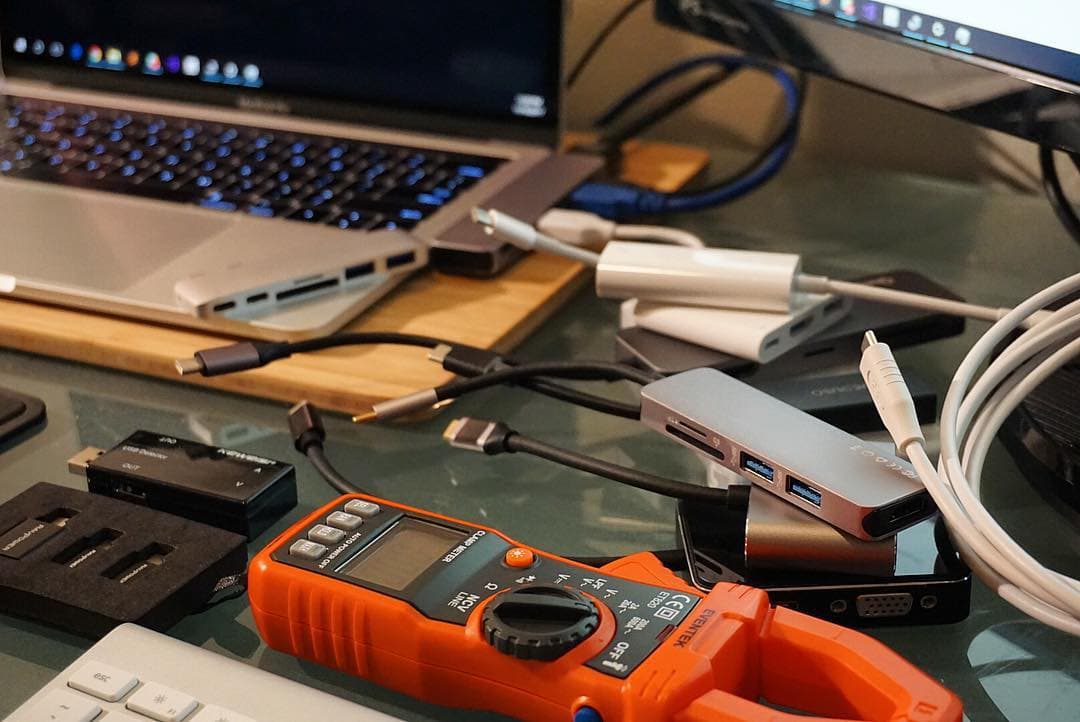
Anker 341 USB-C Hub (7-in-1)
amazon.comA strong everyday port hub for iPad workflows. Good value and layout, with expected bandwidth limits.
Pro: Solid all-around port mix for iPad setups
Con: Not Thunderbolt bandwidth
Check host power pass-through and display output before buying.
Related buying picks
More in this collectionBuyer guide
Best iPad app for sketchnoting
Goodnotes and Notability are the best sketchnoting picks for most people, Concepts suits visual thinkers who want an open canvas, and Procreate suits polished sketchnotes you'll share.
Buyer guide
Best iPad app for sewing pattern design
Affinity Designer 2 or Linearity Curve suit clean, scalable pattern pieces, Concepts suits flexible pattern sketches, and Procreate suits fashion flats and illustrations.
Buyer guide
Best iPad app for knitting chart design
knitCompanion is best for following and tracking charts, Procreate for drawing your own colorwork charts, and Concepts for flexible vector chart sketches.
Buyer guide
Best iPad app for jewelry design
Procreate is best for jewelry sketches and renderings, Nomad Sculpt for organic 3D pieces, uMake for precise CAD forms, and Concepts for quick vector design sheets.