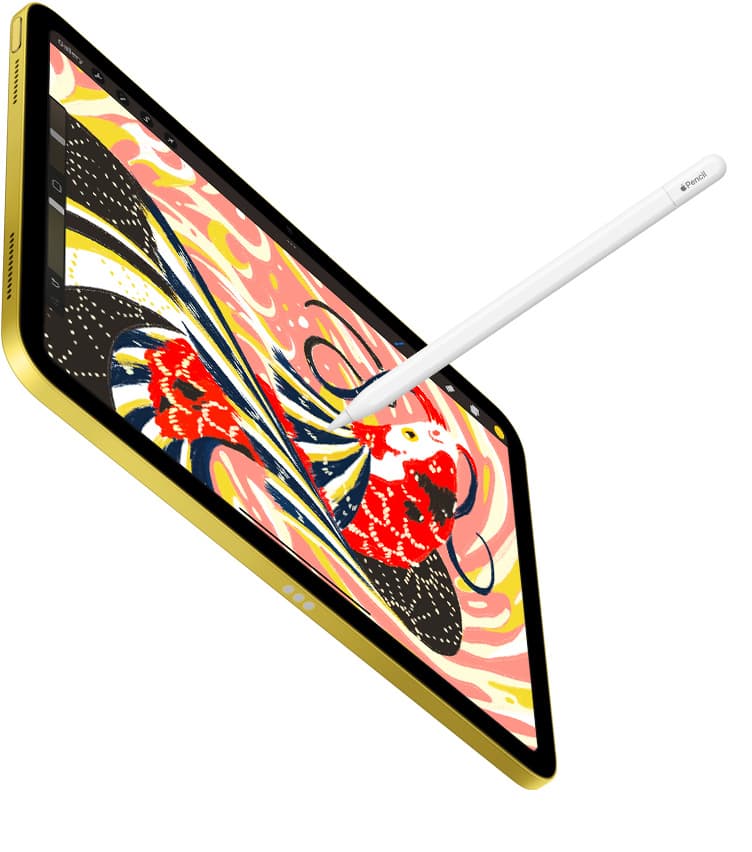
Keep your iPad for now. When a Procreate Dreams export stalls, fails partway, or saves a file you can't open, the cause is almost always free storage, the size of the project, or an app build that's behind, and all three are fixable tonight [4], [8]. Work through the checks below in order. You should buy the iPad Air (M4) only if your animation projects keep running into the memory limits an entry-level iPad imposes, and skip any upgrade until you've exported a trimmed version of the same project successfully [1], [4].
Free up storage before anything else
An export writes a new video file, and iPadOS needs room for the finished movie plus the temporary data the app produces while rendering it. If your iPad is nearly full, that write can fail at the end of a long render, which looks like a broken export even though every frame drew fine [4]. Check Settings for free space, delete old exports and duplicate projects, and offload apps you haven't opened in months before trying again [4], [6].
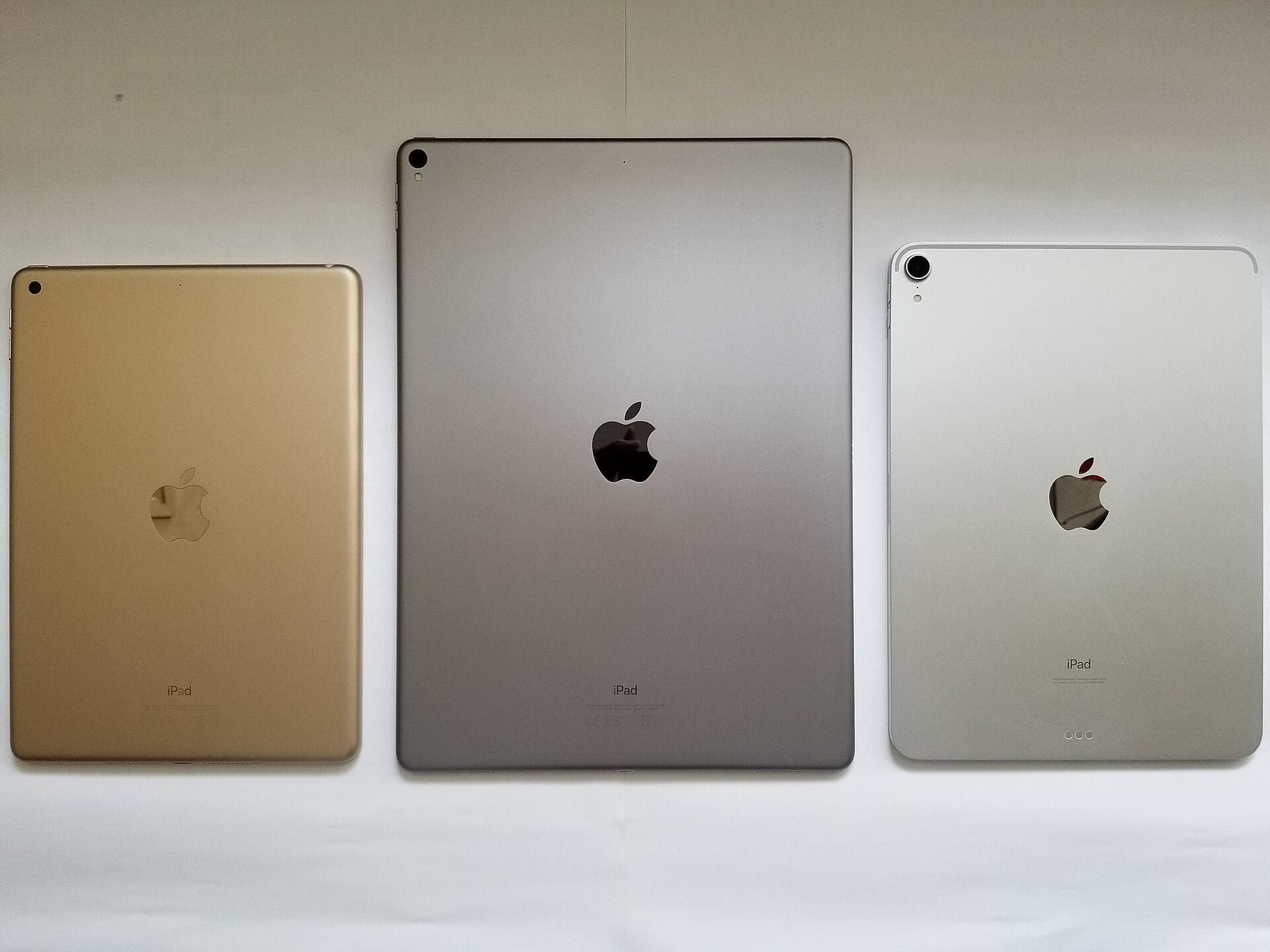
Procreate itself documents that memory shapes what a canvas can hold, with layer limits following the iPad's memory [4]. Dreams is a separate app from the same maker, built for animation, and its projects carry tracks and frames instead of a single canvas, so the storage footprint grows with every scene you add [8]. Apple's comparison page lists each current iPad's storage tiers, which is worth a look if you bought the smallest one and animate often [1].
Shrink the project, then export a short range
If the export fails after you've cleared space, the project is the next suspect. Procreate publishes that bigger canvases get fewer layers because both draw on the same device memory, and an animation stage at print dimensions with dozens of tracks pushes against the same ceiling at export time [4]. Try exporting a short range first, a few seconds from the middle of the timeline. If that lands, the full export is failing on size, and the fix is to flatten finished tracks, group elements, or split the film into scenes you export separately [4], [7].
Check the stage size too. A project headed for a phone screen or a web player doesn't need the dimensions you'd use for print, and the handbook's canvas guidance for Procreate applies to the same memory pool Dreams draws on [4], [7]. Lowering the export resolution is a quick test that tells you a lot about where the limit sits [4].
Update the app and restart the iPad
Procreate ships updates through the App Store, and Dreams does the same under its own listing, so an export bug you're hitting may be one the current build already fixed [5], [8]. Open the App Store, check both apps for pending updates, and confirm your iPadOS version is one the listing supports [5], [8]. A restart after the update clears whatever the last render left in memory and gives the export a clean start [6].
Don't skip the restart because it feels too simple. An iPad that's been awake for days with several apps in the background has less free memory than its spec sheet suggests, and the export is the most memory-hungry thing you'll ask Dreams to do [1], [4].
Check the destination and the format
Where the export goes matters as much as what it contains. Procreate's handbook covers sharing and export for the drawing app, and the habit it teaches carries over: send the movie to the local Files app first, confirm it plays there, and only then move it to Photos or a cloud folder [7]. A cloud destination with its own storage cap can refuse a large file without a clear message, and testing locally rules that out in a minute [6], [7].
If the exported file plays but looks wrong, with missing frames or a black stretch, the project is usually the cause rather than the export, and the short-range test above tells you which scene is responsible [4], [7]. Procreate's FAQ answers the common file and sharing questions for the drawing app, and the same approach of testing a small export before the big one applies to Dreams [6], [7].
When the iPad is the limit
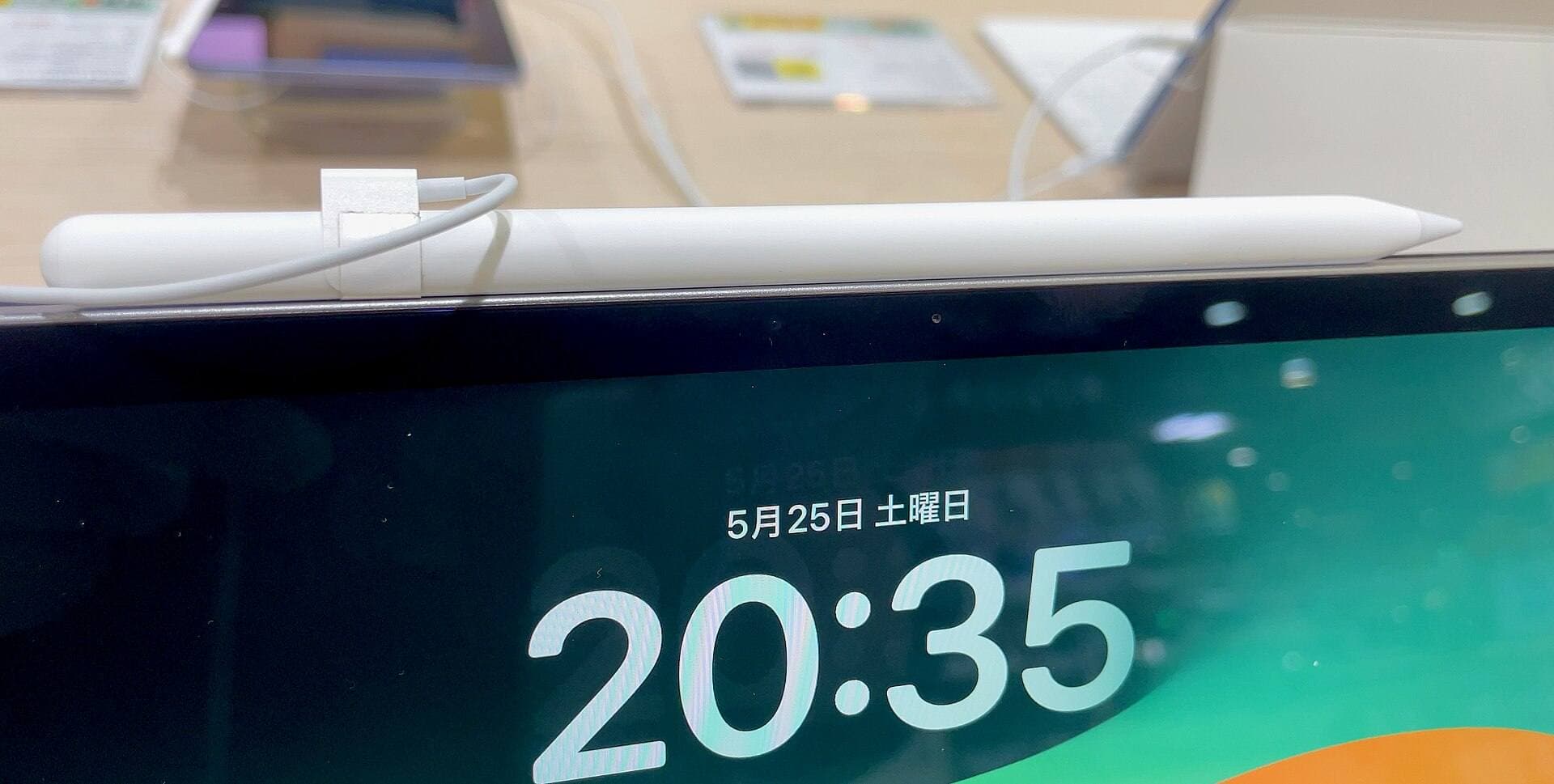
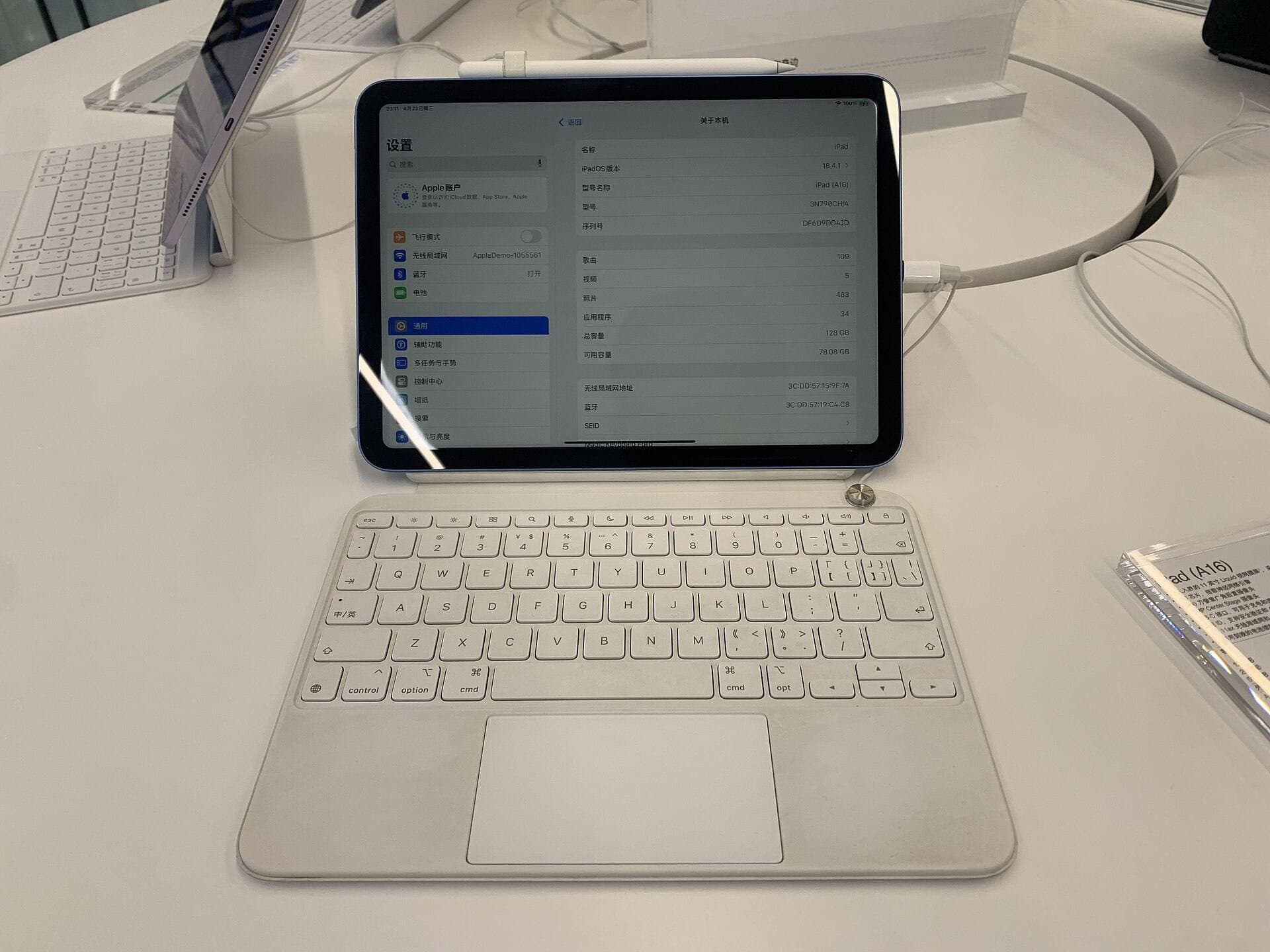
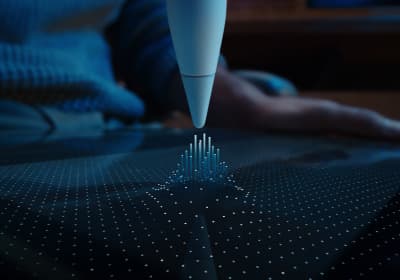
Entry-level hardware has less memory headroom, and Procreate's own compatibility page says plainly that layer and canvas ceilings follow that memory [4]. If you're on the iPad (A16, 11th gen) and every project needs flattening before it exports, you've found the limit of the device rather than a bug [1], [4]. The iPad Air (M4) is the sensible step up: it keeps the price below the Pro, it pairs with the Apple Pencil Pro for squeeze, barrel roll, and hover while you animate, and it gives your projects more room before they hit the ceiling [1], [2], [3].
Buy the Air if your exports fail only on your biggest projects after every fix above [1], [4]. Keep the A16 if a trimmed project exports fine and you animate a few short pieces a month, because the cheaper iPad is still a capable animation tablet for that workload [1], [4]. The Pencil choice follows the iPad: the A16 pairs with the Pencil models Apple lists for it, and the Pencil Pro isn't among them [3].
Bottom line
Keep your iPad and fix the export in this order: free storage, a short-range test, an app update with a restart, and a local export to Files [4], [5], [6]. Most failed exports clear at one of those steps because the problem was room rather than hardware [4]. Buy the iPad Air (M4) only when the same project fails after every step on an entry-level iPad, since the Air's memory headroom and Pencil Pro support are what you're paying for [1], [3], [4].
Sources
[1] https://www.apple.com/ipad/compare/ [2] https://www.apple.com/apple-pencil/ [3] https://support.apple.com/en-us/108937 [4] https://help.procreate.com/articles/zlexav-ipad-compatibility [5] https://apps.apple.com/us/app/procreate/id425073498 [6] https://help.procreate.com/articles/dbgjal-procreate-faq [7] https://help.procreate.com/procreate/handbook [8] https://apps.apple.com/us/app/id1595520602
Recommended gear
iPad Air (M4)
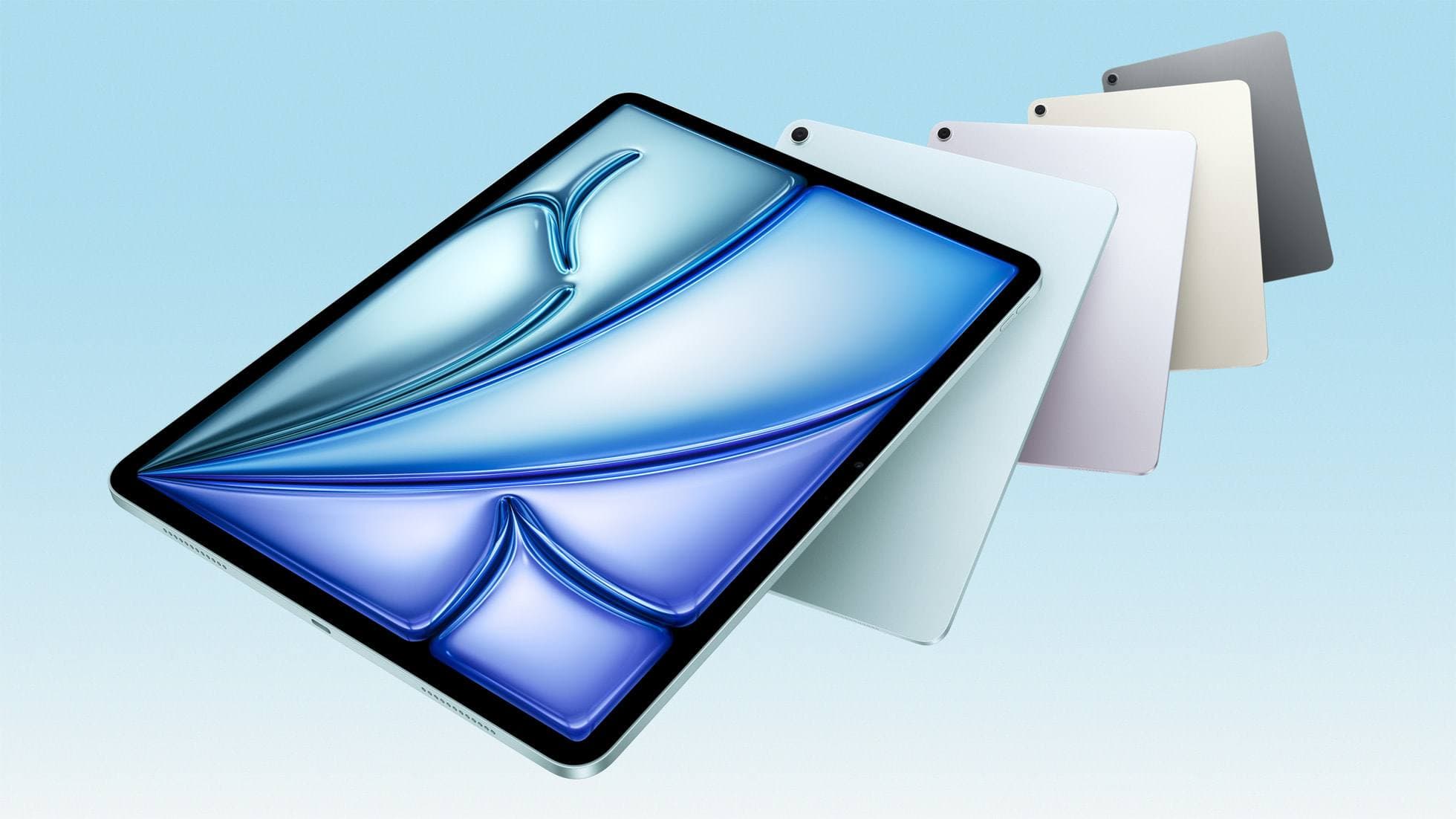
apple.comThe clean current Air recommendation for most serious hobby artists. Stronger buy logic than old-stock M3 when pricing is close.
Pro: Best current balance of price, headroom, and Pencil support
Con: Still 60Hz
Current Air lineup. Choose size, storage, and keyboard path before checkout.
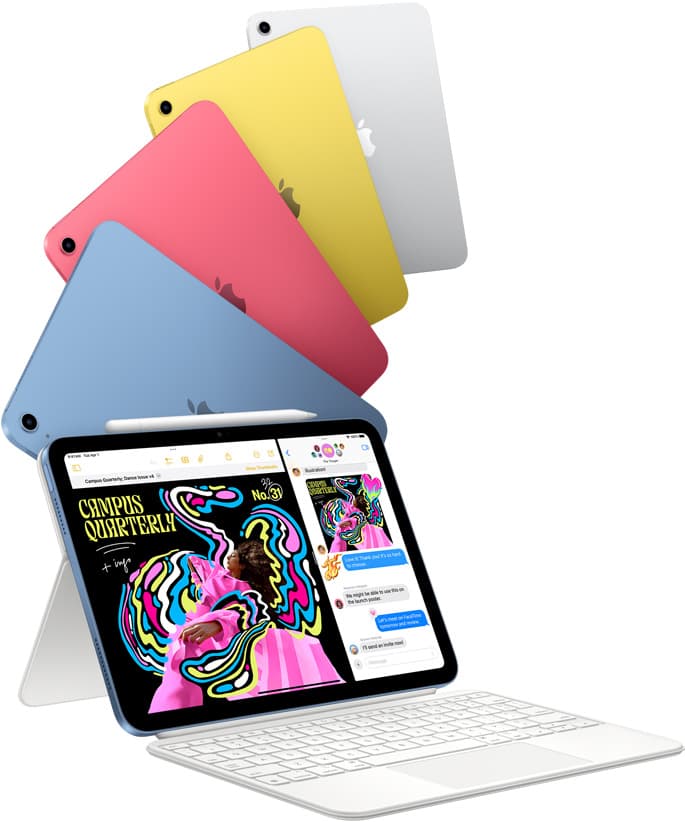
iPad (A16, 11th gen)
amazon.comThe best entry iPad for most artists on a budget. It is not premium, but it is very hard to beat on value.
Pro: Best value iPad right now
Con: No ProMotion display
Search opens with the exact model keywords. Verify size and storage before checkout.
Procreate
apps.apple.comPro: One-time purchase
Con: iPad-only
Apple Pencil Pro
amazon.comThe best Apple stylus for serious digital art workflows. Expensive, but the control upgrades are real.
Pro: Best brush-control and hover workflow
Con: Highest price in the lineup
Works only with newer iPad models. Check compatibility.
Related buying picks
More in this collectionBuyer guide
Best iPad app for rotoscoping
Procreate Dreams is the easiest place to trace over video on an iPad, Callipeg and RoughAnimator suit frame-by-frame animators, and FlipaClip is the friendly free start.
Buyer guide
Best iOS app for graphic design: Choosing between vector and raster tools
Choose Affinity Designer 2 or Adobe Illustrator for vector graphic design on iPadOS, and keep Procreate primarily for raster drawing.
Buyer guide
Best iPad app for knitting chart design
knitCompanion is best for following and tracking charts, Procreate for drawing your own colorwork charts, and Concepts for flexible vector chart sketches.
Buyer guide
Best iPad app for jewelry design
Procreate is best for jewelry sketches and renderings, Nomad Sculpt for organic 3D pieces, uMake for precise CAD forms, and Concepts for quick vector design sheets.