





For most people, the best sketchnoting app is a note app you can draw in: choose Goodnotes or Notability. Goodnotes describes itself as the place to capture ideas from quick notes to big plans, and Notability says it helps you think, learn, and work better, and both are free downloads with hundreds of thousands of ratings [1], [2]. Pick Concepts instead if you sketch ideas on one big canvas rather than pages [3]. Use Procreate when you want to redraw a sketchnote as a finished piece to share [4].
Live notes need a note app
Sketchnoting mixes handwriting, quick drawings, arrows, and boxes, and it usually happens while someone is talking. That's a different job from illustration. Speed and organization matter more than brush variety, because you're keeping up with a lecture or a meeting [1], [2].
Apple's own guide describes drawing and writing with Apple Pencil across iPad apps, including handwriting and Markup [6]. Note apps build on that with notebooks, pages, and search, which is what keeps a semester of sketchnotes findable [1], [2].
Goodnotes for organized notebooks
Goodnotes is a free download rated 4.7 from more than 460,000 ratings, in the Productivity category [1]. Its listing describes it as the place to capture your ideas, from quick notes to big plans [1]. For sketchnoters, that means notebooks for each class or project, with your drawings and handwriting on the same pages.
Choose it if you like a paper notebook feel and want your sketchnotes organized like one. It's the safe default for students [1].
Notability for notes tied to a lecture
Notability is a free download rated 4.8 from more than 450,000 ratings, also in Productivity [2]. Its listing says it helps you think, learn, and work better, from your first lecture to your next big meeting [2]. It's a strong pick for anyone whose sketchnotes start in a class or a meeting.
Try both if you can. Goodnotes and Notability cover the same everyday job, and the right one is the one whose page and pen tools feel natural to you [1], [2].
Concepts for an open canvas
Concepts is a free download rated 4.7 from more than 26,000 ratings, and its listing calls it a flexible vector-based sketchbook for taking ideas from concept to reality [3]. Instead of pages, you get a canvas you can keep extending, which suits mind maps and visual thinking that sprawls [3].
Pick it if you think spatially and don't want page breaks interrupting a diagram. Skip it if you need neat notebooks you'll search later, where Goodnotes or Notability are better organized [1], [3].
Procreate for polished, shareable sketchnotes
Procreate is a paid app rated 4.4 from more than 50,000 ratings, and its listing calls it the leading creative application made for iPad [4]. It isn't a note app, so it's a poor fit for keeping up live. It's a great fit for redrawing your best sketchnote afterward with color and lettering, for a blog post, a slide, or a social post [4].
If you already own Procreate, keep it for that second pass. Don't make it your live notebook [1], [4].
Set up pages before the talk
Sketchnotes go better when the page is ready before the speaker starts. Make a notebook for each class or event, and set up a page with the title, date, and speaker at the top so you're not doing that while the talk begins [1], [2]. A plain or dotted page usually works better than lined paper, since you'll be drawing boxes and arrows as well as writing.
Pick your pens ahead of time too. Two or three pen sizes and a short set of colors are enough, and fewer choices means less fiddling while you listen [1], [2]. Many sketchnoters keep one bold color for headings, one for key ideas, and a gray for connecting lines.
If you use Concepts, set up a rough grid or a few zones on the canvas instead, so ideas have somewhere to land [3].
Reviewing and sharing your notes
A sketchnote is most useful the day after you make it. Spend five minutes going back over the page, filling in anything you abbreviated and circling the two or three ideas that matter most [1], [2].
When you want to share notes with classmates or colleagues, export the page as an image or a PDF from your note app [1], [2]. Save the redrawn, polished version for the pages worth showing publicly, and make that version in Procreate [4].
Pencil and iPad for sketchnoting
Sketchnoting is mostly writing, so any Apple Pencil your iPad supports will work. Apple's feature chart shows Apple Pencil Pro adds hover, squeeze, and barrel roll, while other models skip some of those features [5]. Squeeze can bring up tools quickly in apps that support it, which helps when you switch between pen and highlighter during a talk [5], [6].
Check Apple's pairing page before you buy a Pencil, since each iPad works with specific models [7]. For a sketchnoting iPad, an 11-inch size is a good balance between page room and carrying it to every class [5].
A simple sketchnote routine
This keeps live notes useful [1], [2], [4]:
- Take notes live in Goodnotes or Notability, one notebook per course or project [1], [2].
- Use a few fixed colors: one for headings, one for key ideas, one for questions.
- Leave the drawings rough during the talk and fix only what you'll need later.
- Redraw the best page in Procreate if you want to share it [4].
Bottom line
Choose Goodnotes or Notability for everyday sketchnoting; both are free to start, and the right one is the one that feels better in your hand [1], [2]. Pick Concepts if you think on an open canvas [3]. Keep Procreate for polished sketchnotes you'll share [4]. Check Pencil pairing before you buy, and pick the Pencil your iPad supports [7].
Sources
[1] https://apps.apple.com/us/app/id1444383602 [2] https://apps.apple.com/us/app/id360593530 [3] https://apps.apple.com/us/app/id560586497 [4] https://apps.apple.com/us/app/id425073498 [5] https://www.apple.com/apple-pencil/ [6] https://support.apple.com/guide/ipad/draw-with-apple-pencil-ipadc55b6c7a/ipados [7] https://support.apple.com/en-us/108937
Recommended gear
Procreate
apps.apple.comPro: One-time purchase
Con: iPad-only

Apple Pencil Pro
amazon.comThe best Apple stylus for serious digital art workflows. Expensive, but the control upgrades are real.
Pro: Best brush-control and hover workflow
Con: Highest price in the lineup
Works only with newer iPad models. Check compatibility.

iPad Air (M4)
apple.comThe clean current Air recommendation for most serious hobby artists. Stronger buy logic than old-stock M3 when pricing is close.
Pro: Best current balance of price, headroom, and Pencil support
Con: Still 60Hz
Current Air lineup. Choose size, storage, and keyboard path before checkout.
Paperlike 3 (11-inch, 2-pack)
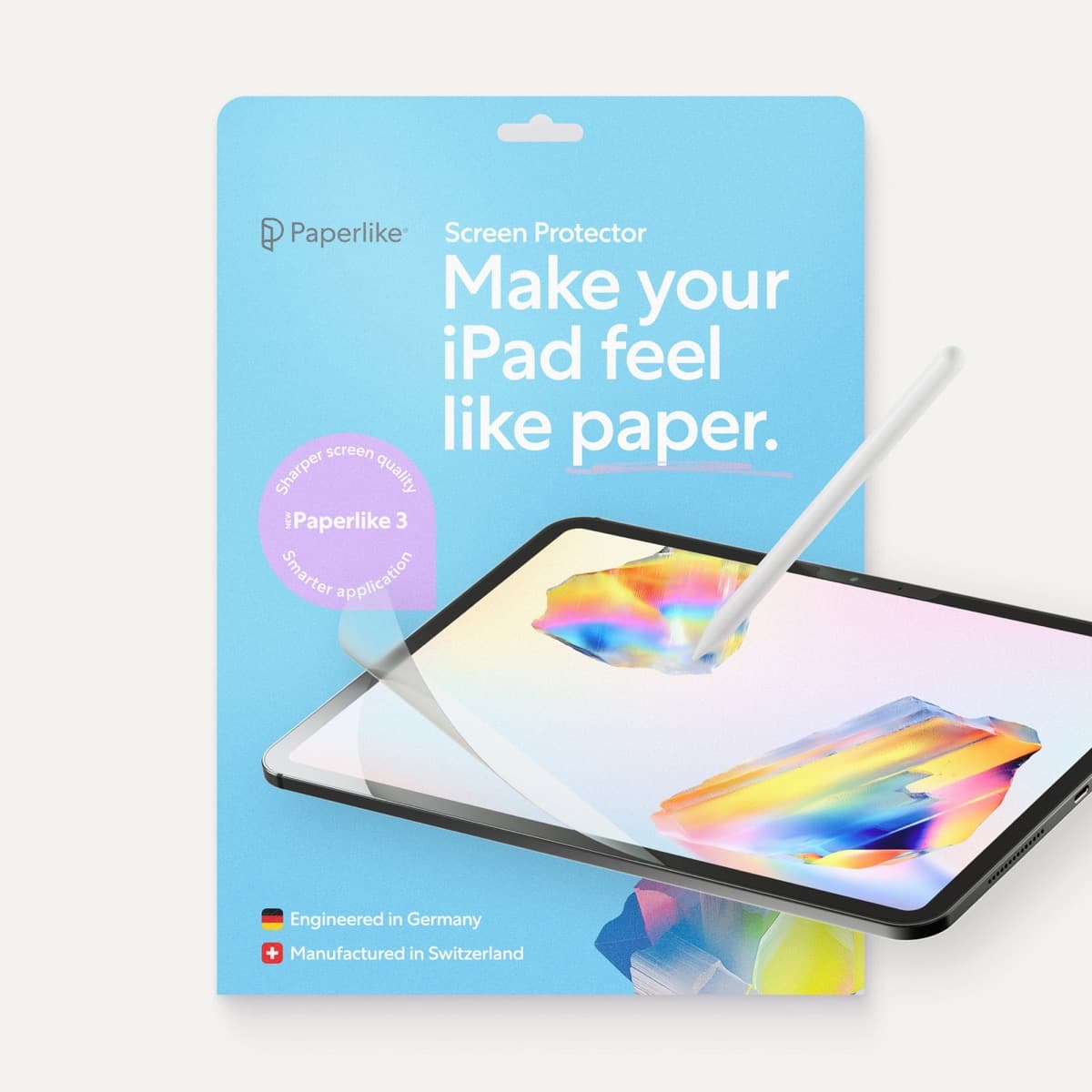
amazon.comA strong surface-feel upgrade for drawing control. Clarity tradeoff is real and should be expected.
Pro: Adds controlled paper-feel friction
Con: Slightly reduces perceived display sharpness
11-inch fit only. Confirm generation before checkout.
Anker 341 USB-C Hub (7-in-1)
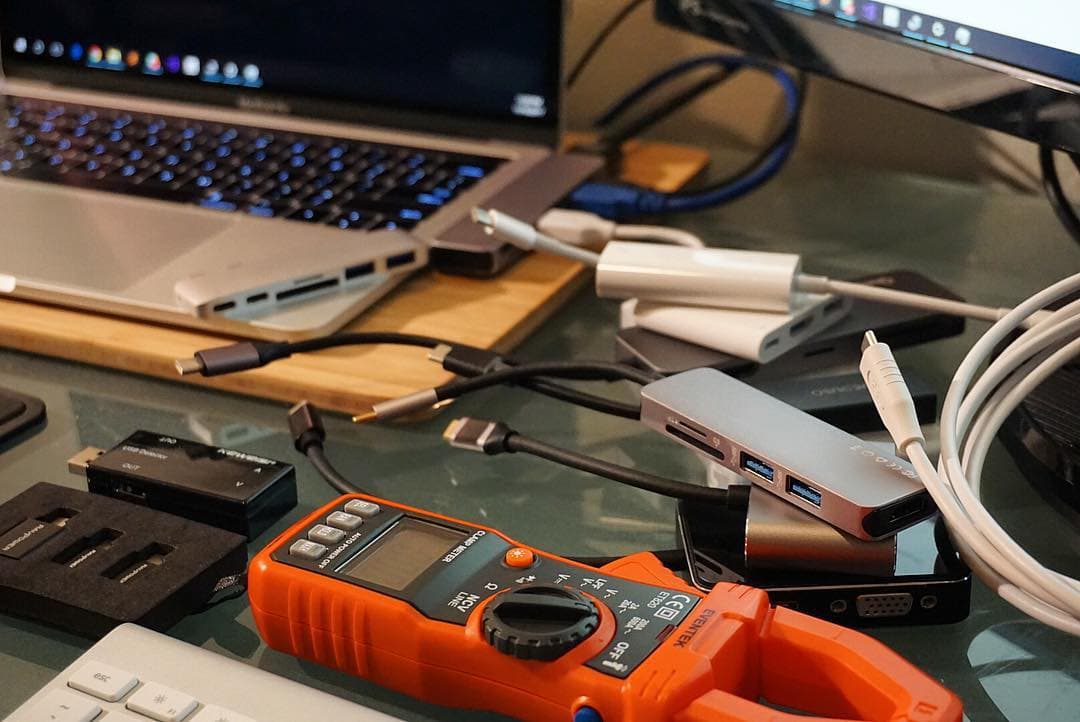
amazon.comA strong everyday port hub for iPad workflows. Good value and layout, with expected bandwidth limits.
Pro: Solid all-around port mix for iPad setups
Con: Not Thunderbolt bandwidth
Check host power pass-through and display output before buying.
Related buying picks
More in this collectionBuyer guide
Best iPad app for sewing pattern design
Affinity Designer 2 or Linearity Curve suit clean, scalable pattern pieces, Concepts suits flexible pattern sketches, and Procreate suits fashion flats and illustrations.
Buyer guide
Best iPad app for rotoscoping
Procreate Dreams is the easiest place to trace over video on an iPad, Callipeg and RoughAnimator suit frame-by-frame animators, and FlipaClip is the friendly free start.
Buyer guide
Best iPad app for knitting chart design
knitCompanion is best for following and tracking charts, Procreate for drawing your own colorwork charts, and Concepts for flexible vector chart sketches.
Buyer guide
Best iPad app for jewelry design
Procreate is best for jewelry sketches and renderings, Nomad Sculpt for organic 3D pieces, uMake for precise CAD forms, and Concepts for quick vector design sheets.