





If you want to draft sewing pattern pieces on an iPad, choose a vector app first: Affinity Designer 2 for iPad or Linearity Curve. Affinity's listing says it brings Serif's Apple Design Award-winning desktop app to the iPad as a touch-focused experience, and Linearity calls Curve professional vector art and graphic design software for iPad [3], [4]. Pick Concepts if you'd rather sketch with vector strokes you can reshape later [2]. Keep Procreate for garment flats and illustrations, and skip it for the pieces you'll cut from [1].
Why pattern pieces want vector
A sewing pattern is a set of shapes that have to keep their exact proportions when they're printed or scaled. A seam line drawn in a painting app is made of pixels, so enlarging it can soften the edges. A vector line is a shape the app redraws cleanly at any size, which is why design apps built on vectors fit pattern drafting better [3], [4].
The other half of pattern work is drawing: flats that show the finished garment, style lines, and illustrations for a pattern cover. Those are pictures, and a painting app is a fine place to make them [1].
Affinity Designer 2 for precise drafting
Affinity Designer 2 for iPad is a free download rated 4.7 from nearly 5,000 ratings [3]. Its listing describes bringing the precision of Serif's desktop app to a touch-focused iPad experience [3]. For pattern work, that precision means clean curves for armholes and necklines and shapes you can duplicate for left and right pieces.
Choose it if you want a traditional design tool and plan to print pattern pieces. Expect a learning curve if you've never used vector software [3].
Linearity Curve as a lighter vector option
Linearity Curve is a free download rated 4.5 from more than 14,000 ratings, and its listing calls it professional vector art and graphic design software on iPad and iPhone [4]. It's worth trying alongside Affinity Designer 2, since both handle the same kind of vector shapes and you may simply prefer one interface [3], [4].
Pick whichever feels more natural after a short test. The skills you build drawing clean curves carry over from one vector app to the other [4].
Concepts for pattern sketches
Concepts is a free download rated 4.7 from more than 26,000 ratings, and it describes itself as a flexible vector-based sketchbook [2]. Its strokes are vectors too, so you can sketch a bodice idea loosely and refine its lines without redrawing it [2].
Use it if you like working in a sketchbook first and drafting later. For finished pattern pieces with exact shapes, a full design app like Affinity Designer 2 gives you more control [2], [3].
Procreate for flats and illustrations
Procreate is a paid app rated 4.4 from more than 50,000 ratings, and its listing calls it the leading creative application made for iPad [1]. It's the friendlier place to draw garment flats, try fabric colors on layers, and make an illustration for a pattern cover or a portfolio [1].
Skip it for the pattern pieces themselves. A painted line is fine for a picture of the garment and the wrong tool for a seam you'll cut along [1], [3].
Checking scale before you cut
The biggest risk in digital pattern drafting is scale. A piece that looks right on screen can print a little too large or small if the export or the printer settings change it, and that small error shows up as a garment that doesn't fit [3], [4]. Add a test square of a known size to every pattern file, and measure it on paper before you cut fabric.
Vector apps make that check easy, because the shapes keep their exact proportions when you export them [3], [4]. If the test square measures right, the rest of the pieces will too. If it's off, fix the print scale instead of redrawing the pattern.
Keep notes on each piece as well: the size, the seam allowance, the grainline, and how many to cut. A pattern with no labels is easy to misread a month later [3].
Which app to start with
If you've never used vector software, try Linearity Curve and Affinity Designer 2 on the same small piece, like a pocket, and keep the one that feels easier [3], [4]. Both are free downloads, so the test costs you nothing but an afternoon [3], [4]. If you mostly want to sketch garments and rarely draft full patterns, Procreate alone may be enough for now [1].
Hardware for pattern work
Pattern pieces benefit from a bigger screen, since you'll see more of a long piece without zooming. Apple's comparison page lists the iPad Air with M4 in 11-inch and 13-inch sizes, and both support Apple Pencil Pro [5]. The 13-inch model is the comfortable pick if you draft often [5].
Apple's Pencil chart lists hover, squeeze, and barrel roll for Apple Pencil Pro, along with pressure and tilt [6]. Hover helps you place a point on a curve precisely before you touch the screen, which is useful when you're adjusting a neckline [6].
A simple drafting workflow
This order keeps pattern files clean [1], [3]:
- Draw a flat of the garment in Procreate so the design is settled before you draft [1].
- Draft each pattern piece as vector shapes in Affinity Designer 2 or Linearity Curve [3], [4].
- Keep seam allowances and grainlines on their own layer so you can show or hide them.
- Export the pieces at full size for printing, and check one measured line on paper before you cut fabric.
Bottom line
Choose Affinity Designer 2 or Linearity Curve for drafting sewing pattern pieces, since precise vector lines are the job [3], [4]. Pick Concepts if you like a vector sketchbook first [2]. Use Procreate for flats and illustrations, not the pieces you'll cut [1]. If you're buying hardware, a 13-inch iPad Air with Apple Pencil Pro gives you room and fine control [5], [6].
Sources
[1] https://apps.apple.com/us/app/id425073498 [2] https://apps.apple.com/us/app/id560586497 [3] https://apps.apple.com/us/app/id1616833418 [4] https://apps.apple.com/us/app/id1219074514 [5] https://www.apple.com/ipad/compare/ [6] https://www.apple.com/apple-pencil/
Recommended gear
Procreate
apps.apple.comPro: One-time purchase
Con: iPad-only

Apple Pencil Pro
amazon.comThe best Apple stylus for serious digital art workflows. Expensive, but the control upgrades are real.
Pro: Best brush-control and hover workflow
Con: Highest price in the lineup
Works only with newer iPad models. Check compatibility.

iPad Air (M4)
apple.comThe clean current Air recommendation for most serious hobby artists. Stronger buy logic than old-stock M3 when pricing is close.
Pro: Best current balance of price, headroom, and Pencil support
Con: Still 60Hz
Current Air lineup. Choose size, storage, and keyboard path before checkout.
Paperlike 3 (11-inch, 2-pack)
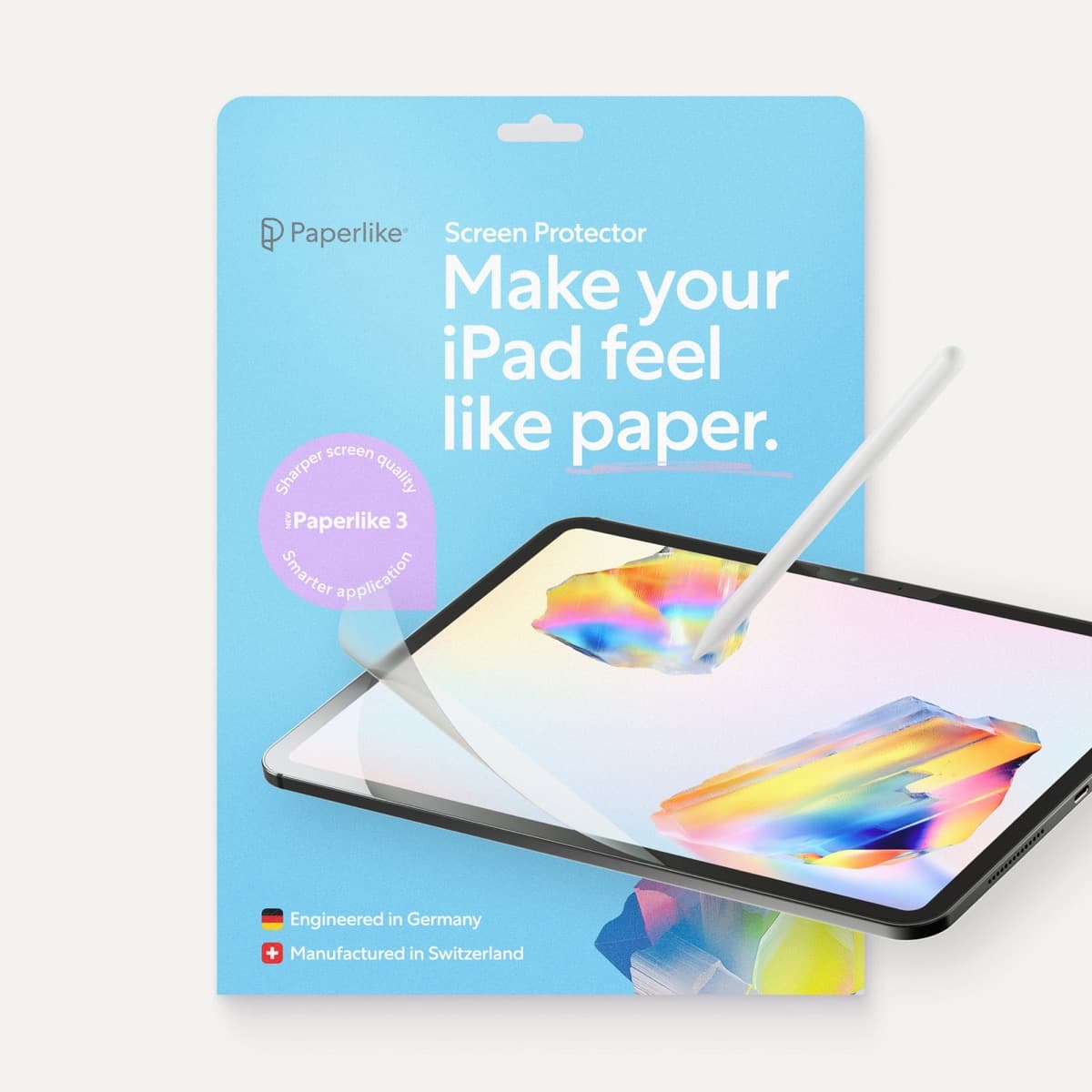
amazon.comA strong surface-feel upgrade for drawing control. Clarity tradeoff is real and should be expected.
Pro: Adds controlled paper-feel friction
Con: Slightly reduces perceived display sharpness
11-inch fit only. Confirm generation before checkout.
Anker 341 USB-C Hub (7-in-1)
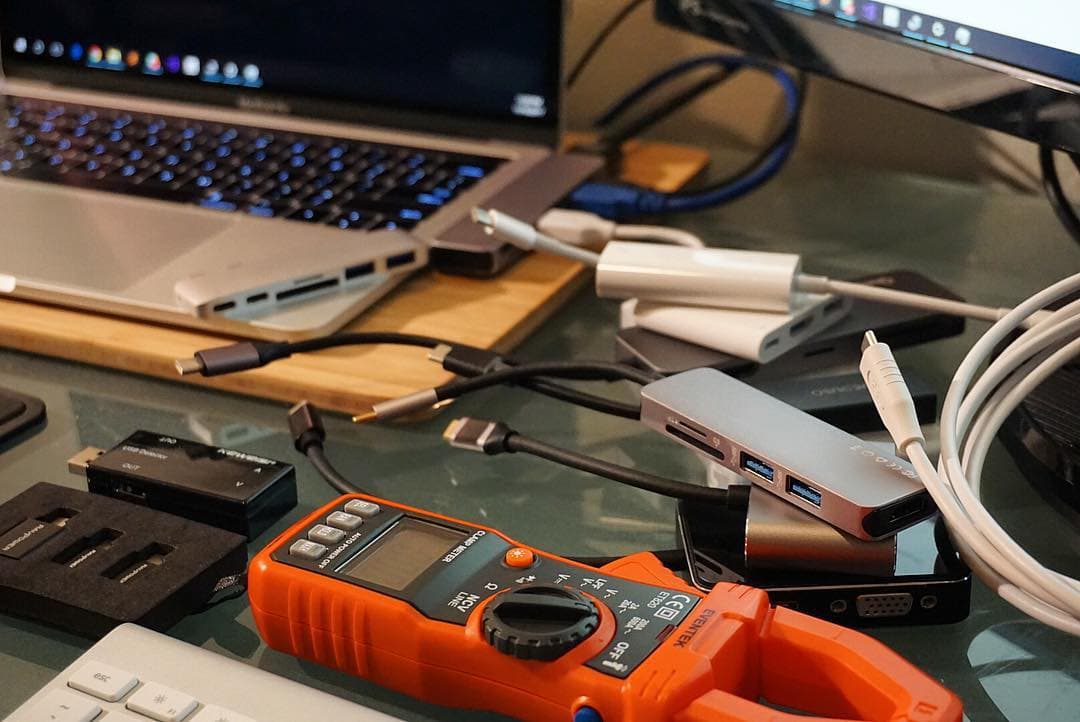
amazon.comA strong everyday port hub for iPad workflows. Good value and layout, with expected bandwidth limits.
Pro: Solid all-around port mix for iPad setups
Con: Not Thunderbolt bandwidth
Check host power pass-through and display output before buying.
Related buying picks
More in this collectionBuyer guide
Best iPad app for fantasy map making
Procreate is the best default for painted fantasy maps, Concepts and Affinity Designer 2 suit clean vector maps, and Clip Studio Paint fits maps that live inside comics.
Buyer guide
Which app is best for fashion designing on iPad
Procreate leads for croquis rendering and textile texture sketching, while vector tools like Concepts and Linearity Curve excel at technical flats.
Buyer guide
Best iPad app for vector art
Compare the best iPad apps for vector art and drawing, from Affinity Designer 2 and Illustrator to Concepts and Linearity Curve.
Buyer guide
Best iPad app for sketchnoting
Goodnotes and Notability are the best sketchnoting picks for most people, Concepts suits visual thinkers who want an open canvas, and Procreate suits polished sketchnotes you'll share.