Desk lighting and iPad angle setup for long drawing sessions
Most iPad discomfort starts with two problems:
- neck flexion from flat-screen posture
- visual strain from glare and harsh contrast
The solution is not complicated. It is a sequence.
Step 1: set angle before brightness
Start with iPad tilt around 25 to 35 degrees, then adjust from there. Research on tablet angle shows reduced neck flexion around raised tilt compared with fully flat setups. [1]
After setting tilt:
- center iPad to torso
- keep elbows close to body
- support forearms so shoulders do not stay elevated
Step 2: remove glare physically
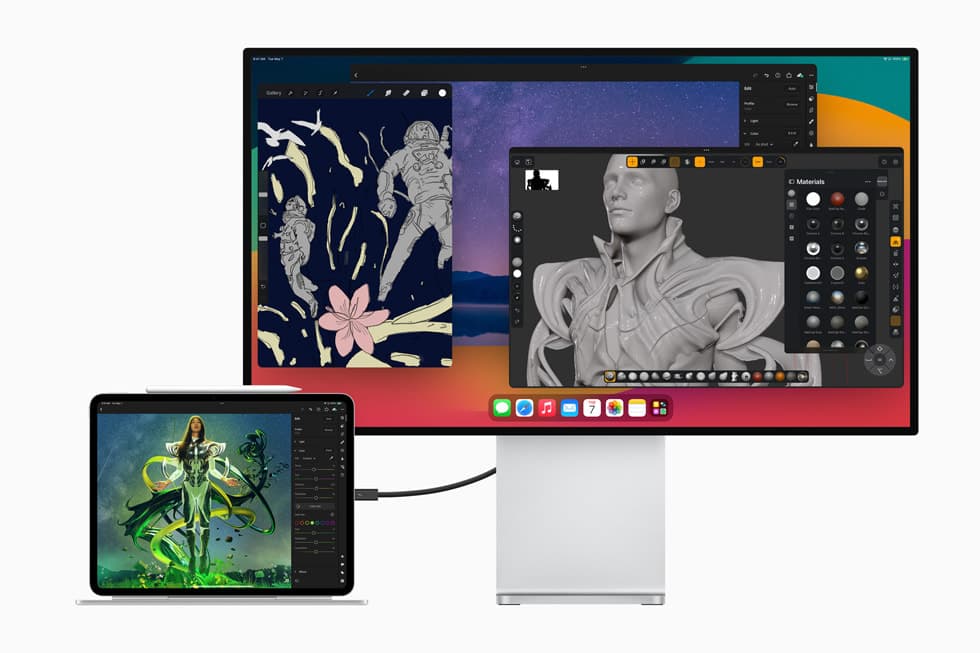
Before changing display brightness, map reflections with a dark full-screen image.
Then adjust:
- lamp placement
- iPad orientation
- blinds or overhead light intensity
CDC and OSHA workstation guidance both emphasize glare reduction through placement and environmental control. [2] [3]
Step 3: use stable lighting targets
You do not need lab-grade instruments, but you need repeatability.
Practical target bands:
- ambient room lighting: moderate and even
- task lighting: enough to see hand, tools, and notes without hotspot reflections
Occupational lighting references for desk and drawing work commonly land in mid-to-higher task-light ranges, depending on task precision. [4] [5]
Step 4: keep color review conditions clean
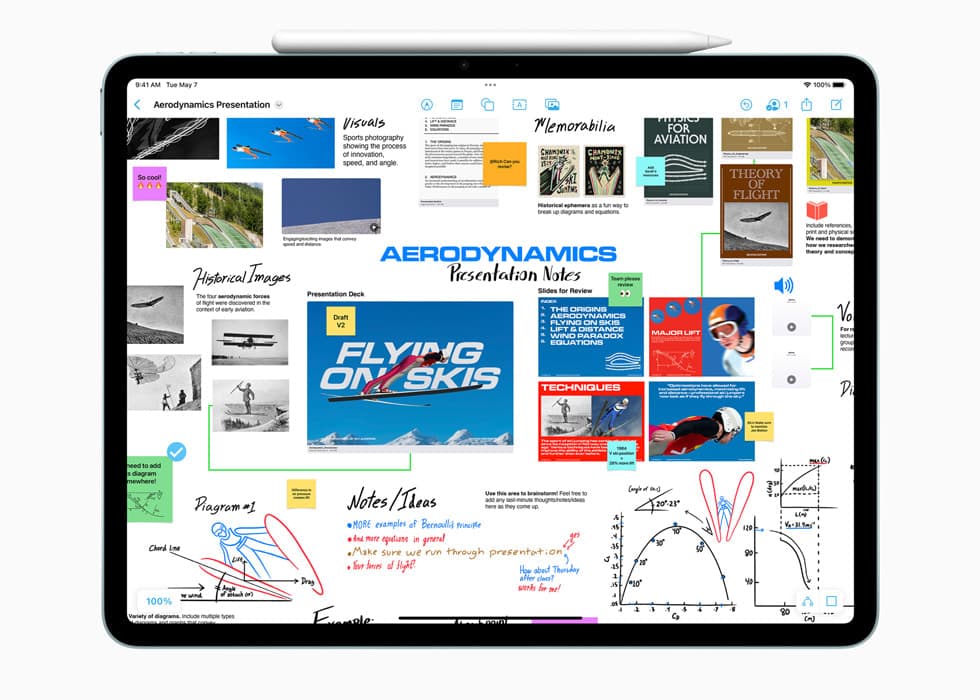
For comfort, True Tone and Night Shift can help. For color-critical decisions, they can shift perception.
Use a simple rule:
- creative drafting: comfort settings are fine
- final color decisions: disable adaptive color shifts
Apple documents how these settings affect display behavior. [6]
Step 5: split your session into two postures
Trying to find one perfect angle for every task usually fails.
Use two positions:
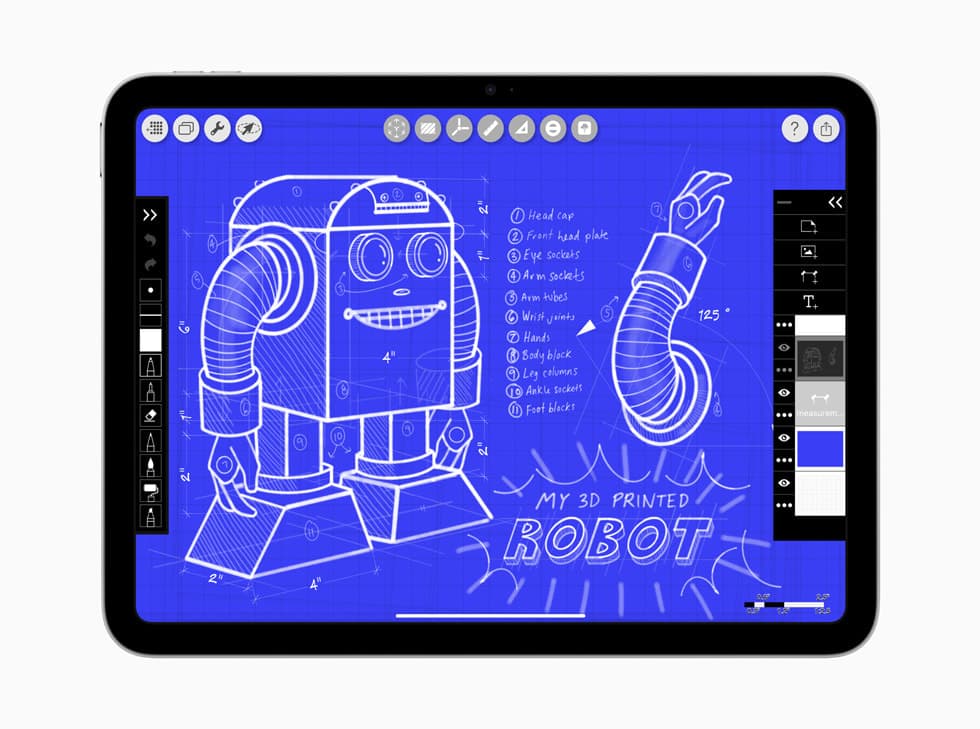
- lower drawing position for line control
- higher review position for composition, text, and reference checks
This reduces static loading by changing demand patterns across the session.
Step 6: use break cadence that is realistic
Do not chase idealized schedules you will not follow. Use a baseline you can sustain:
- every 20 minutes: 20 to 30 seconds of posture shift
- every 60 minutes: short stand-up break
Short movement breaks are linked with reduced discomfort in prolonged workstation use. [2]
Fast troubleshooting by symptom
Neck pain rises quickly:
- raise tilt slightly
- move screen closer
- improve forearm support
Eyes feel dry and tired:
- reduce glare first
- lower brightness slightly
- blink and refocus breaks
Shoulder fatigue rises:
- check elbow support
- reduce reach distance
- lower stand height a little
Desk setup checklist
- iPad centered
- tilt set and tested
- forearms supported
- reflection map cleaned
- display settings set for task type
- break cadence defined
Bottom line
You can get most comfort gains with setup order, not expensive gear. Set posture first, remove reflections second, then tune lighting and display settings to match task type.
<!-- depth-pass-v1 -->Practical application guide
For Desk Lighting and iPad Angle Setup (2026): Reduce Neck and Eye Fatigue, the highest value comes from converting ideas into repeatable workflow decisions. iPad artists who draw for long sessions and want less neck strain, glare, and eye fatigue. should implement one change at a time and measure impact over at least one week before adding complexity.
What to apply first
Start with actions that reduce interruptions and improve consistency:
- standardize your setup sequence,
- reduce unnecessary tool/context switching,
- document one fallback path for failures,
- keep maintenance checks on a fixed weekly cadence.
Measurement framework
Track three metrics for 7 to 14 days:
- session completion rate,
- interruption frequency,
- time-to-start from opening your device to productive work.
If all three improve, keep the change. If not, revert and test the next candidate adjustment.
Common interpretation errors
Error 1: adopting multiple changes at once
You lose signal about what actually improved outcomes.
Error 2: judging based on one-session results
Short tests miss reliability and fatigue effects.
Error 3: optimizing for novelty
New workflows are only valuable if they remain stable under routine use.
Implementation cadence
Use a weekly cycle: test one change, verify under normal load, keep only what reduces friction, and archive what did not help. That cadence compounds into durable productivity gains.
Extra scenario: high-pressure deadline window
For Desk Lighting and iPad Angle Setup (2026): Reduce Neck and Eye Fatigue, keep the lowest-risk path active when deadlines are near: stable setup, no new experimental changes, and one backup route for critical actions. This protects output velocity and reduces failure risk when timing matters most.
Sources
Recommended gear
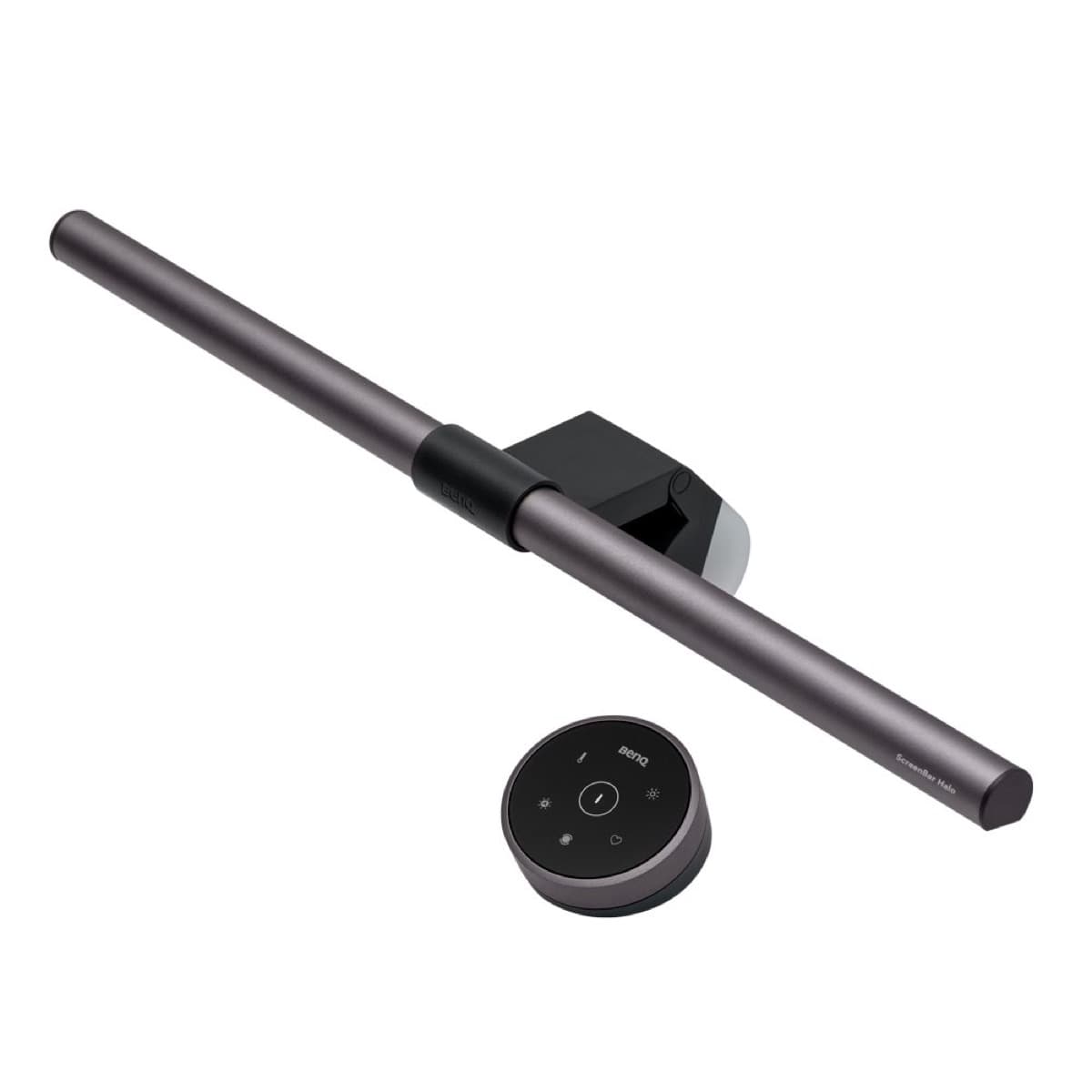
BenQ ScreenBar Halo
amazon.comPro: Reduces desk glare at night
Con: Premium price for a light
Elevation Lab DraftTable
amazon.comPro: Excellent drawing angle support
Con: Takes desk space
Check supported iPad dimensions before buying.
Satechi R1 Stand
amazon.comPro: Affordable and stable
Con: Less reach than arm mounts
Universal stand. Works with most iPad sizes.
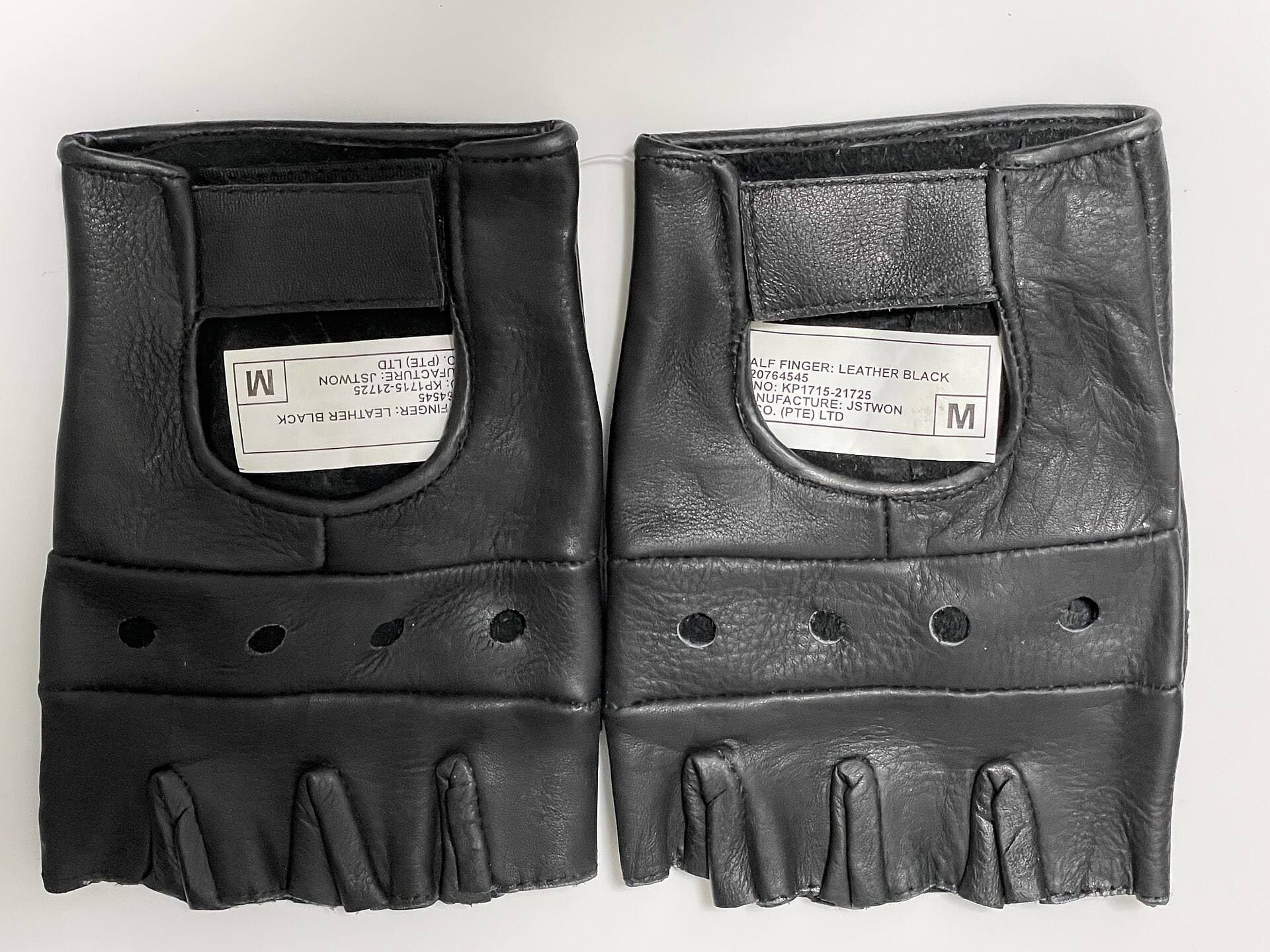
Parblo Drawing Glove
amazon.comPro: Improves glide on glass
Con: Does not fix software rejection
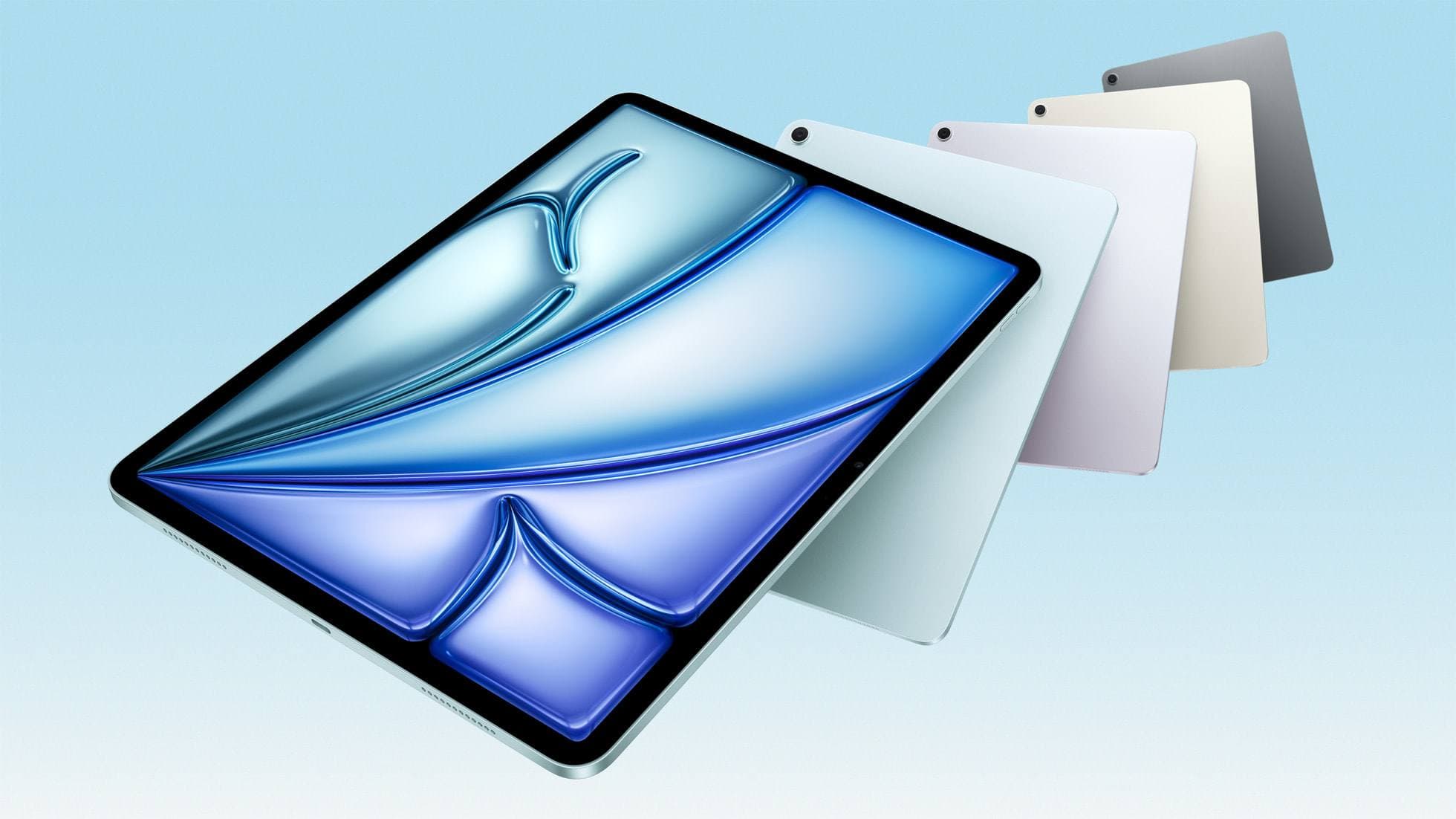
iPad Air (M4)
apple.comThe clean current Air recommendation for most serious hobby artists. Stronger buy logic than old-stock M3 when pricing is close.
Pro: Best current balance of price, headroom, and Pencil support
Con: Still 60Hz
Current Air lineup. Choose size, storage, and keyboard path before checkout.
Related buying picks
More in this collectionBuyer guide
Best Portable iPad Stands for Cafe and Travel Drawing (2026)
Portable iPad stands for artists should prioritize stability on small tables, quick setup, and low packed weight.
Comparison
Best iPad Stand Setup for Couch vs Desk Drawing (2026)
This buyer comparison focuses on comfort and stability. Pick your stand style by posture and session length, not by looks.
Buyer guide
Saving Your Neck: The Best Adjustable iPad Stands for Long Drawing Sessions
You can draw on an iPad anywhere, which is exactly how your neck ends up paying rent.