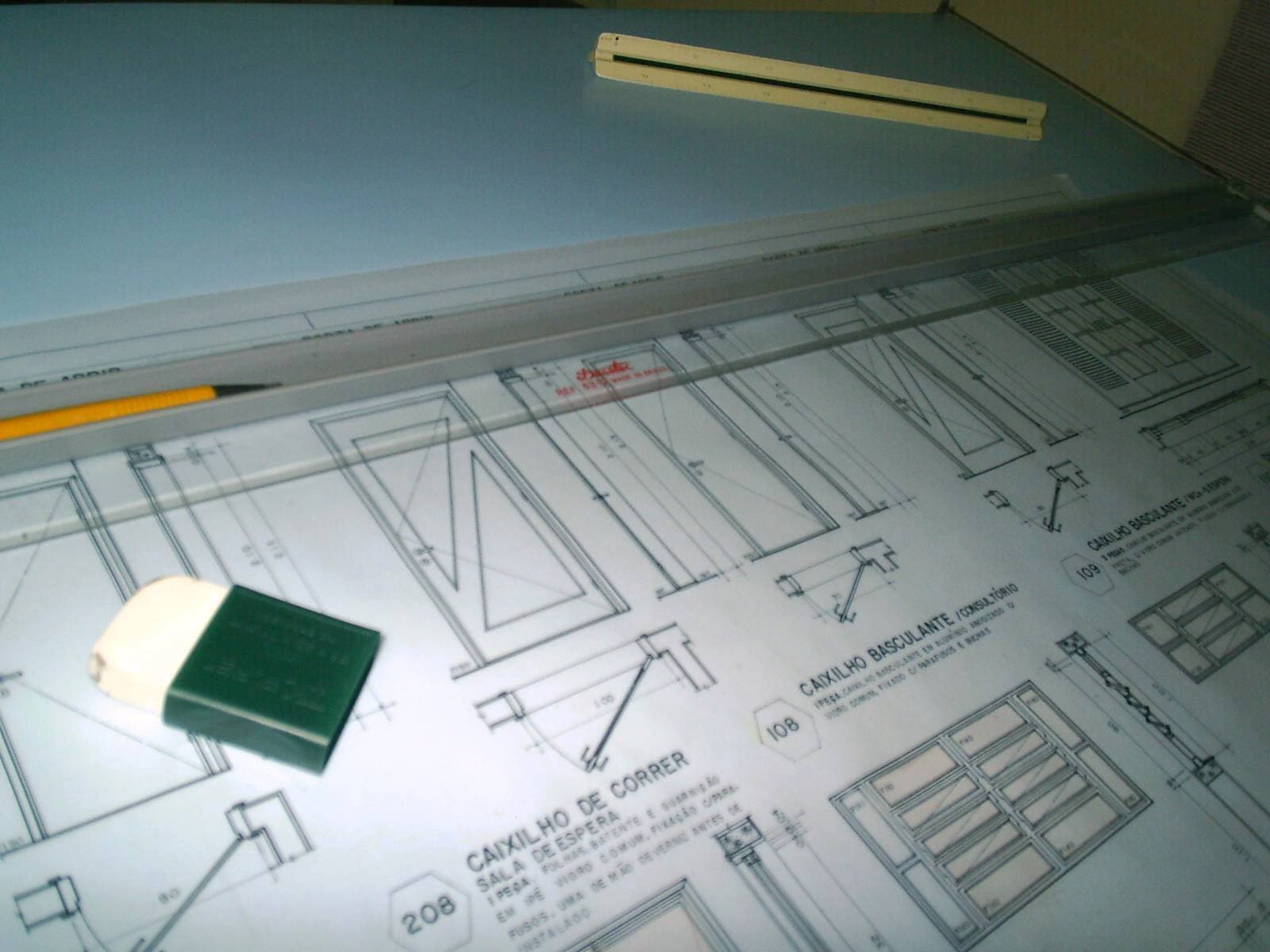
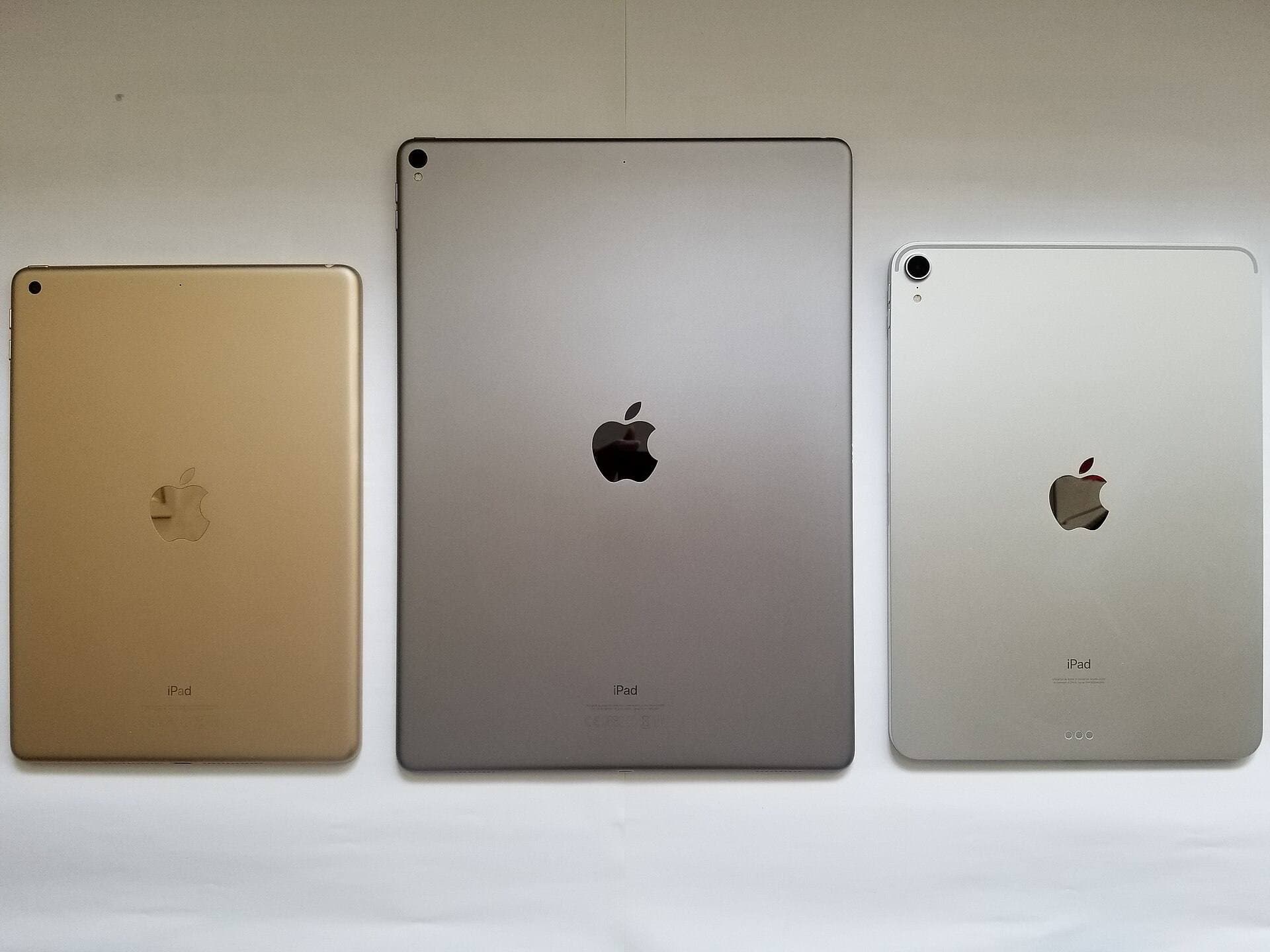
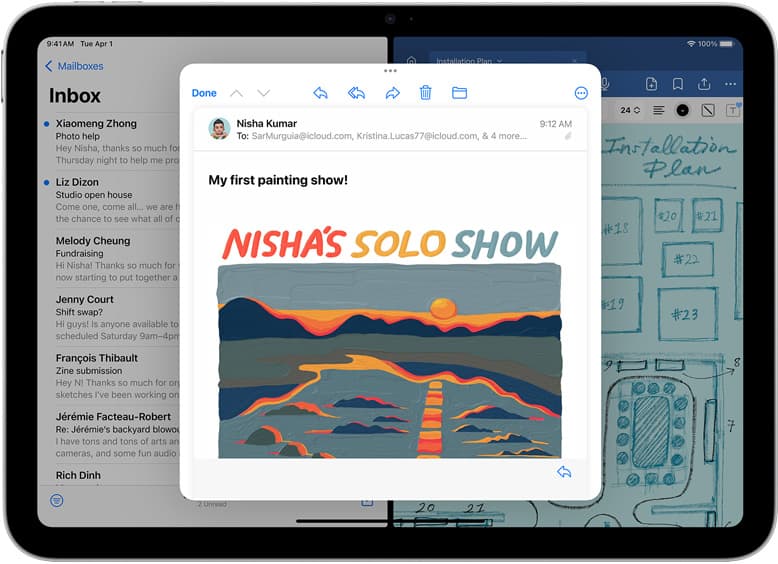
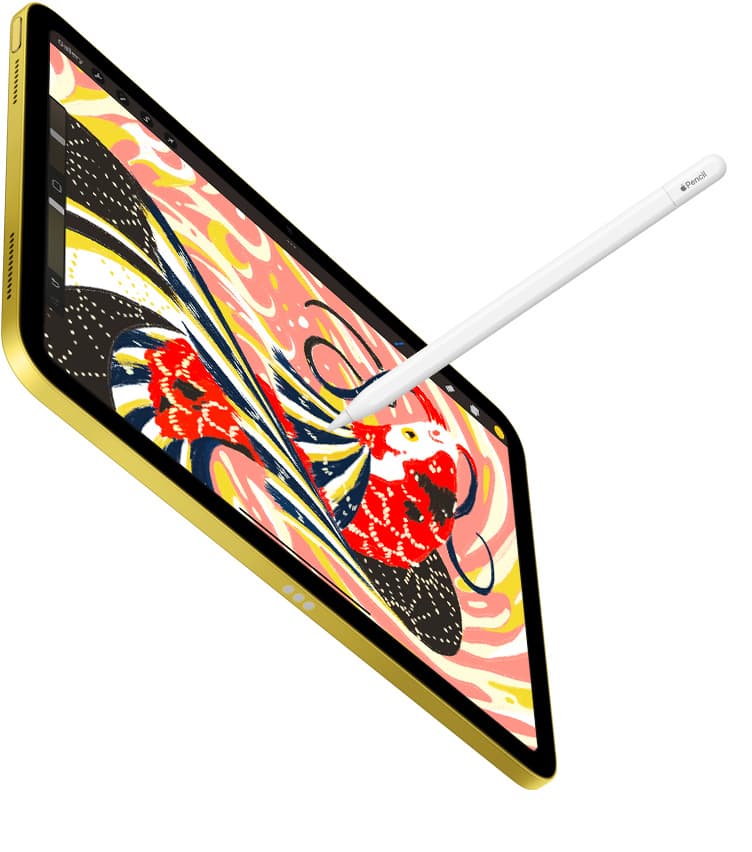
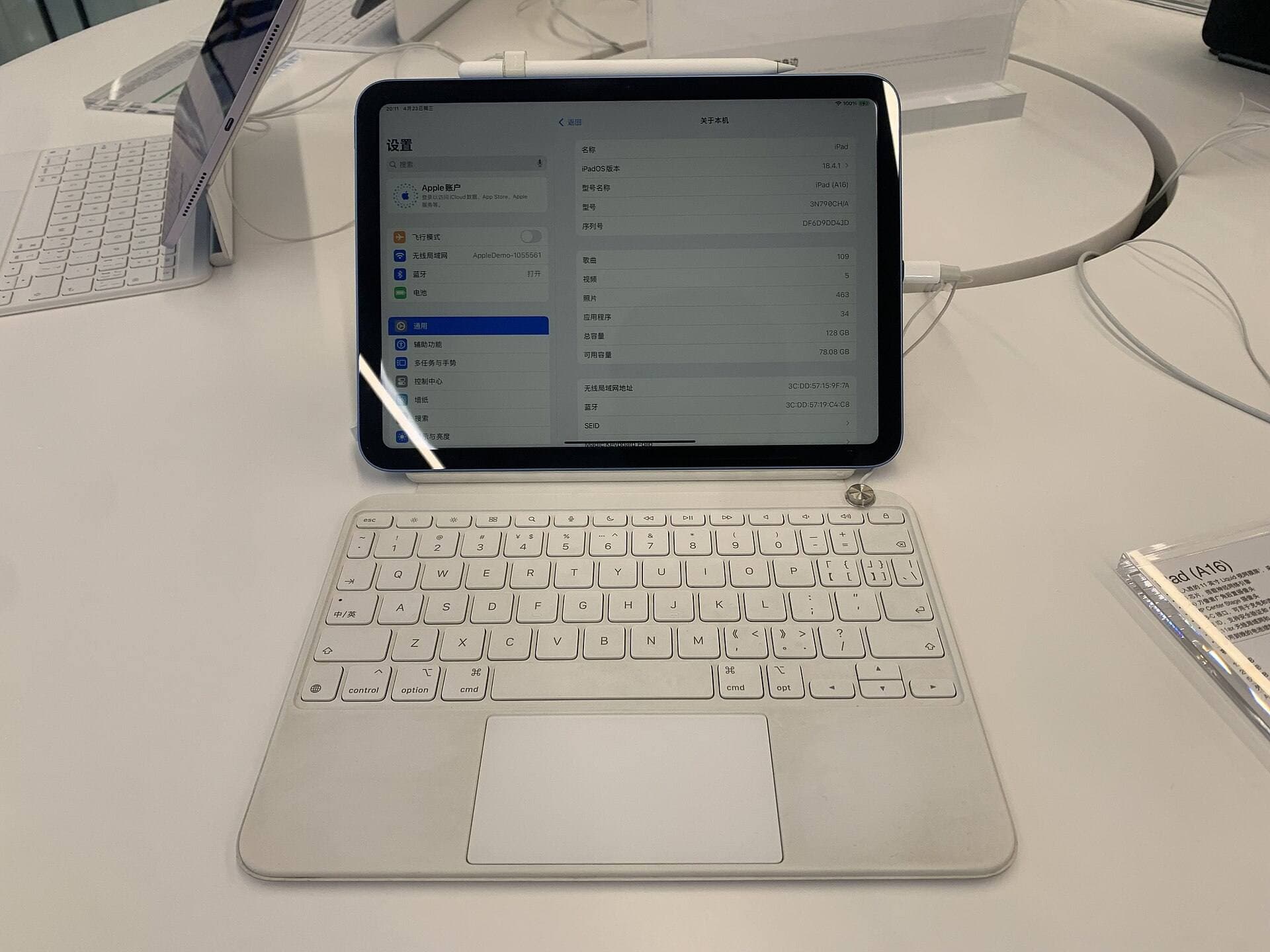
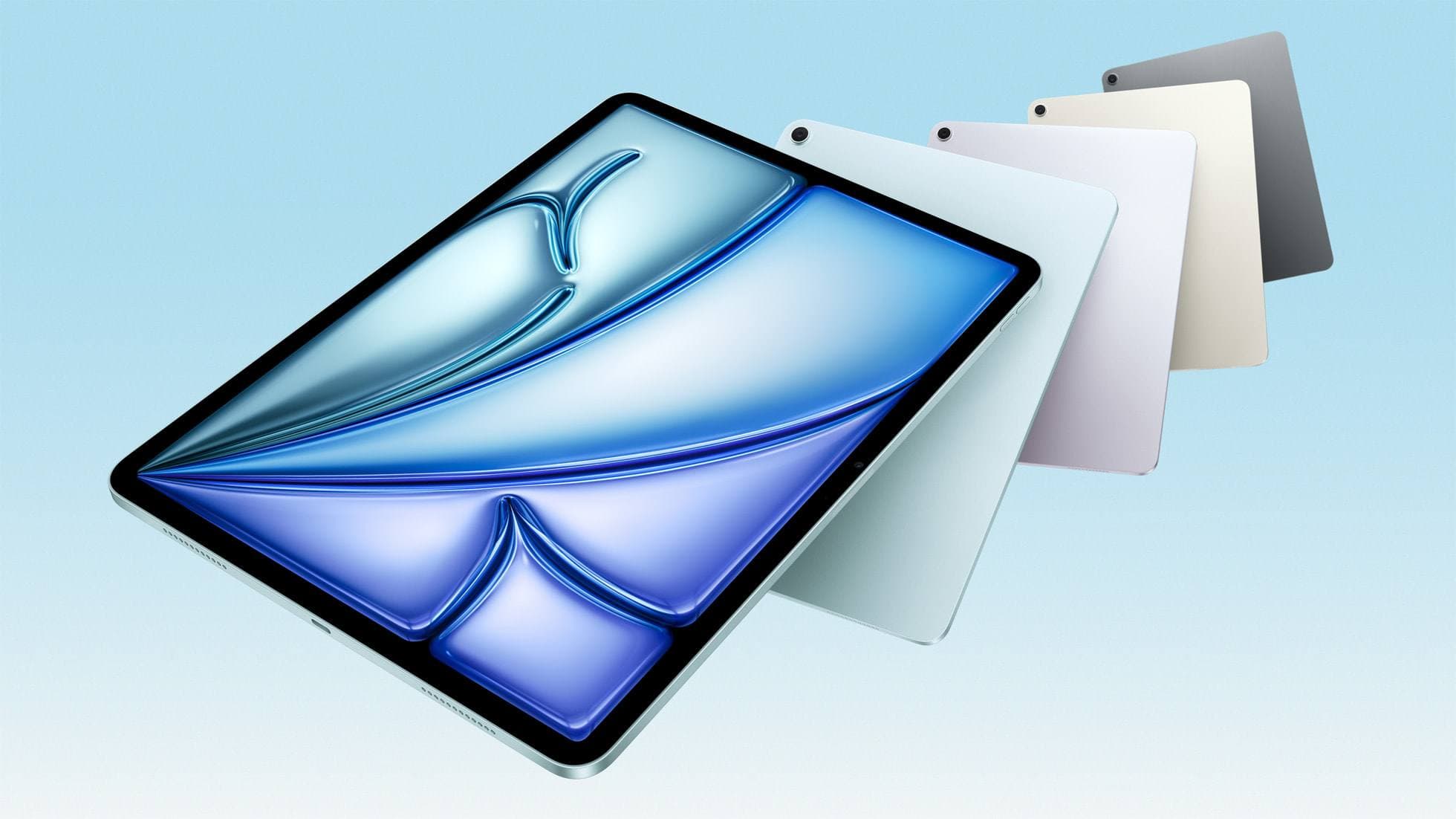
The best stand is the one that keeps your neck, shoulder, and wrist neutral for your real session length. Stand choice controls fatigue rate more than people expect.
Fast decision
- Desk-only drawing: Elevation DraftTable (draft-style, low wobble).
- Mixed couch and desk: Satechi R1 (foldable, quick angle changes).
- Couch drawing with hand pressure or lots of edge work: Sketchboard Pro (board-style support, more surface to brace on).
Couch vs desk: what changes
| What matters | Couch drawing | Desk drawing |
|---|---|---|
| Base stability | Your lap and cushions move. You need a wide base or board-style support. | The desk is stable. Hinge rigidity matters more than base width. |
| Angle changes | You will adjust more often as you recline and shift. | You can set an angle once and keep it for long stretches. |
| Wrist comfort | A slightly lower angle often feels better on a soft surface. | A higher drafting angle helps precision and reduces neck bend. |
| Charging access | Cables get pinched by pillows and blankets. Make sure the port is reachable. | Easier routing, but confirm the stand does not block the port. |
What you are really buying
A stand is not a display piece. It is a stability tool.
Prioritize these in order:
- No wobble under drawing pressure
- Comfortable angles you can hold for long sessions
- Grip that stops sliding
- Port access for charging and accessories
Pick-by-pick notes
Elevation DraftTable
Best for: desk drawing, long sessions, detailed line work.
Choose it if:
- You draw with pressure and hate screen bounce.
- You want a repeatable drafting angle for precision.
- Your setup stays put most days.
Skip it if:
- You mostly draw on a couch and do not have a firm lap surface.
Quick setup: set the angle first, then move keyboard, shortcut remote, and reference screen into reach so you do not lean forward and hunch.
Satechi R1
Best for: mixed couch and desk use, travel, fast setup.
Choose it if:
- You switch between sketching, reading references, and typing.
- You want something that folds up and moves easily.
Skip it if:
- You press hard while drawing and you cannot tolerate any hinge movement.
Quick setup: on a couch, put the base on a firm pillow or lap desk so the stand is not fighting the cushion.
Sketchboard Pro
Best for: couch drawing when you want a board feel and consistent hand support.
Choose it if:
- You want more surface area around the iPad to brace your hand.
- You want a stable lap-friendly drawing surface.
Skip it if:
- You want the smallest, lightest carry option.
Quick setup: treat it like a lap board. Keep both forearms supported so your shoulders do not creep up.
What to test before keeping a stand
Do these checks the first day, not a week later.
- Thirty-minute sketch posture without shoulder lift.
- Palm pressure stability near screen edges.
- Angle micro-adjustments: can you change angle without resetting everything?
- Cable routing while charging: confirm the port stays accessible. Apple has a clear overview of charging and accessories through the iPad USB-C port. [1]
- Slip test: push lightly side to side with your palm. If it walks, return it.
Bottom line
A stand is an ergonomics purchase. If posture improves and drawing sessions get longer without pain, you chose correctly.
Product visuals
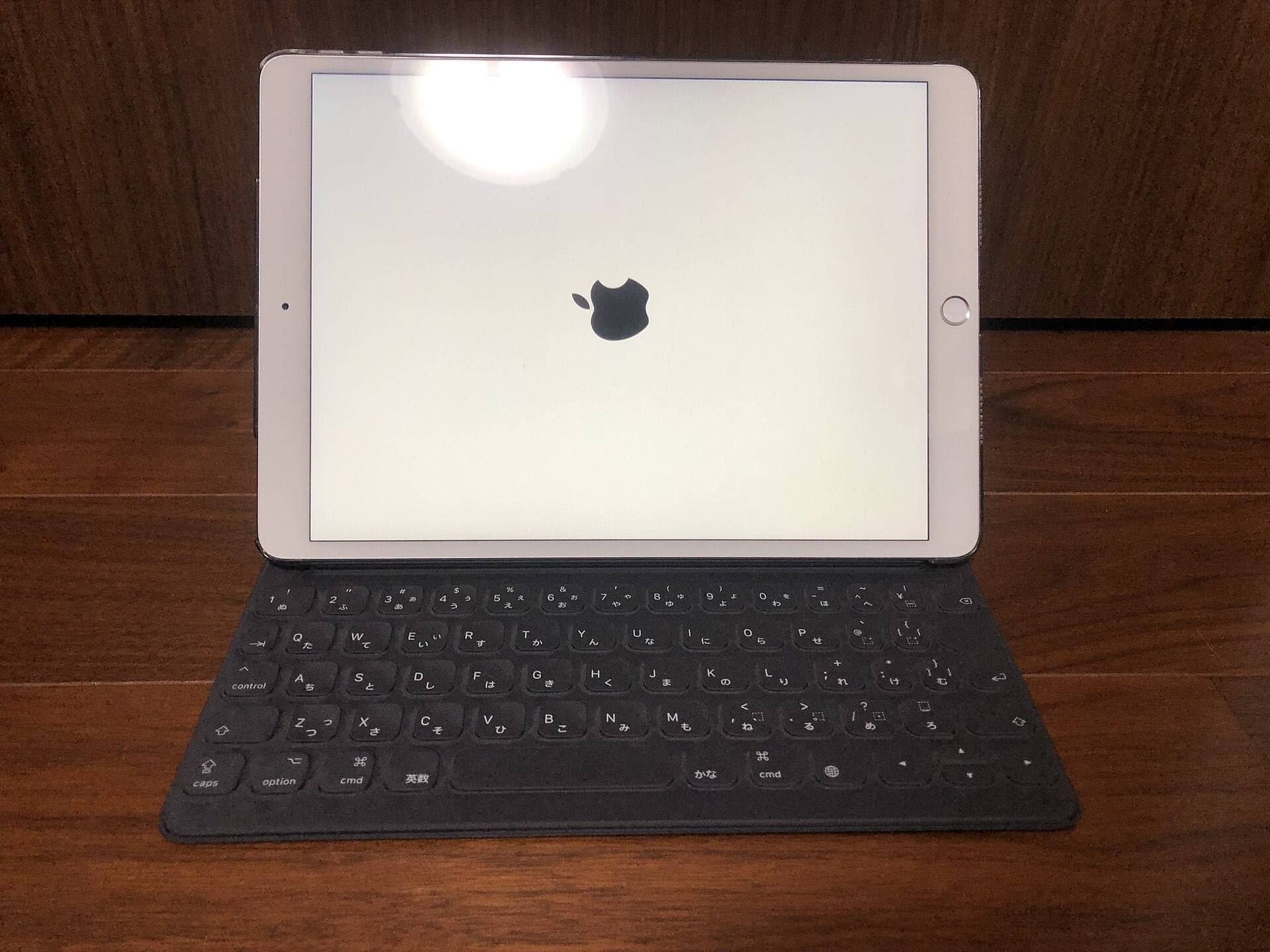
Scenario-based recommendations
For Best iPad Stand Setup for Couch vs Desk Drawing (2026), choose based on operating context, not abstract feature lists. If you run longer focused sessions, prioritize consistency and reduced interruption. If your workflow is mixed and mobile, prioritize portability and fast setup. For Artists deciding which stand type works for long couch and desk drawing sessions., the best option is usually the one that minimizes repeated friction across a full week of use, not the one that wins a single benchmark.
Decision checklist
Before selecting one side of this comparison, answer these questions:
- Which option reduces the most frequent bottleneck in your current workflow?
- Which option remains reliable under your real environment constraints?
- Which option keeps upgrade and replacement costs predictable over 3 to 6 months?
- Which option improves output speed without increasing setup complexity?
If one option wins at least three checks, that is your practical choice.
Common misreads in comparisons
Misread 1: treating headline specs as workflow outcomes
A higher spec does not always produce higher output if setup friction rises.
Misread 2: testing only in ideal conditions
Real usage includes noisy environments, limited outlets, and time pressure.
Misread 3: ignoring transition costs
Switching tools or accessories can create hidden retraining and compatibility overhead.
Misread 4: deciding from short trial windows
Use at least 10 to 14 days to capture reliability and fatigue effects.
Validation plan
Run both options through the same test blocks: 45-minute session, export/backup step, and one travel or mobile setup. Measure interruptions, setup time, and hand comfort. Pick the option with lower interruption frequency and better repeatability.
Extra scenario: high-pressure deadline window
For Best iPad Stand Setup for Couch vs Desk Drawing (2026), keep the lowest-risk path active when deadlines are near: stable setup, no new experimental changes, and one backup route for critical actions. This protects output velocity and reduces failure risk when timing matters most.
Extra scenario: travel or mobile environment
When working outside your main desk, reduce variables. Use your known-good kit, keep cable and power roles fixed, and avoid adding untested components mid-session. This improves consistency and protects session completion rates.
Extra scenario: handoff and collaboration
If your workflow includes sharing files or handing off assets, validate export and sync behavior before the final window. Reliability in handoff steps often matters more than small gains in tool speed.
Sources
Recommended gear
Elevation Lab DraftTable
amazon.comPro: Excellent drawing angle support
Con: Takes desk space
Check supported iPad dimensions before buying.
Satechi R1 Stand
amazon.comPro: Affordable and stable
Con: Less reach than arm mounts
Universal stand. Works with most iPad sizes.
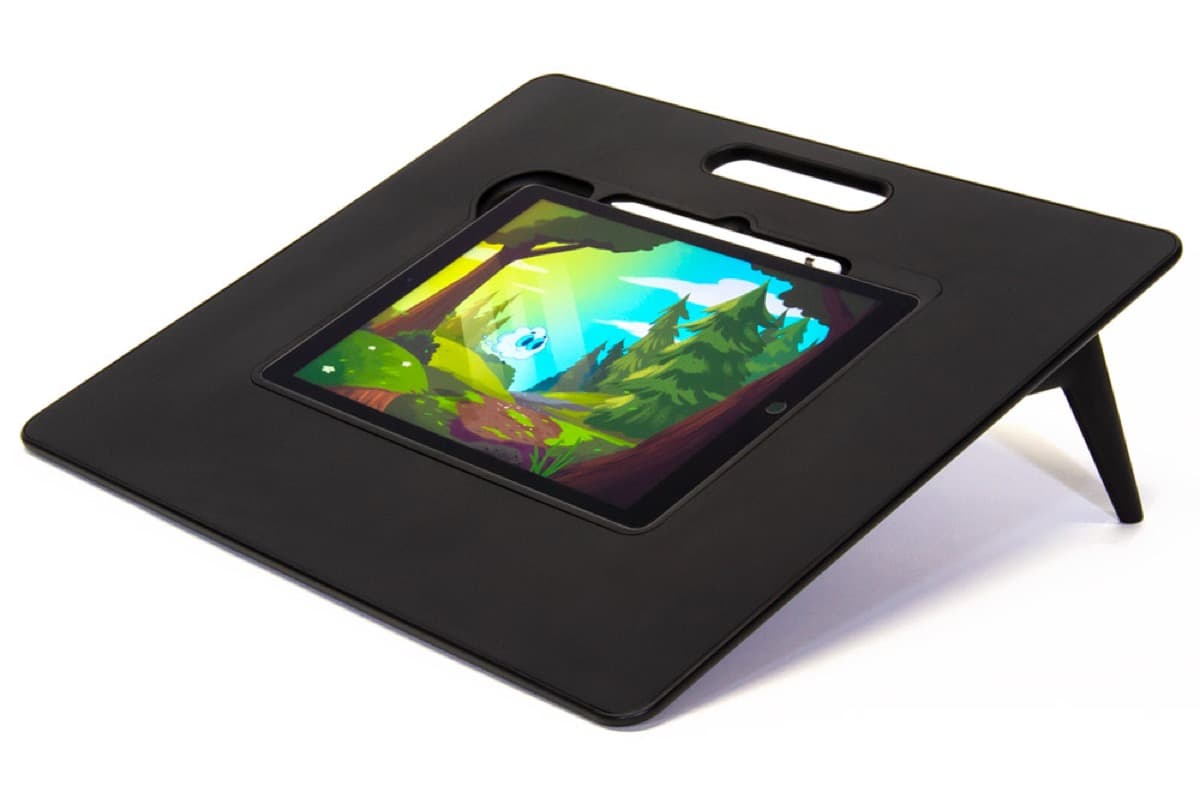
Sketchboard Pro (11-inch)
amazon.comPro: Stable sketchboard-style setup
Con: Bulky for travel
Built around 11-inch iPad sizes.
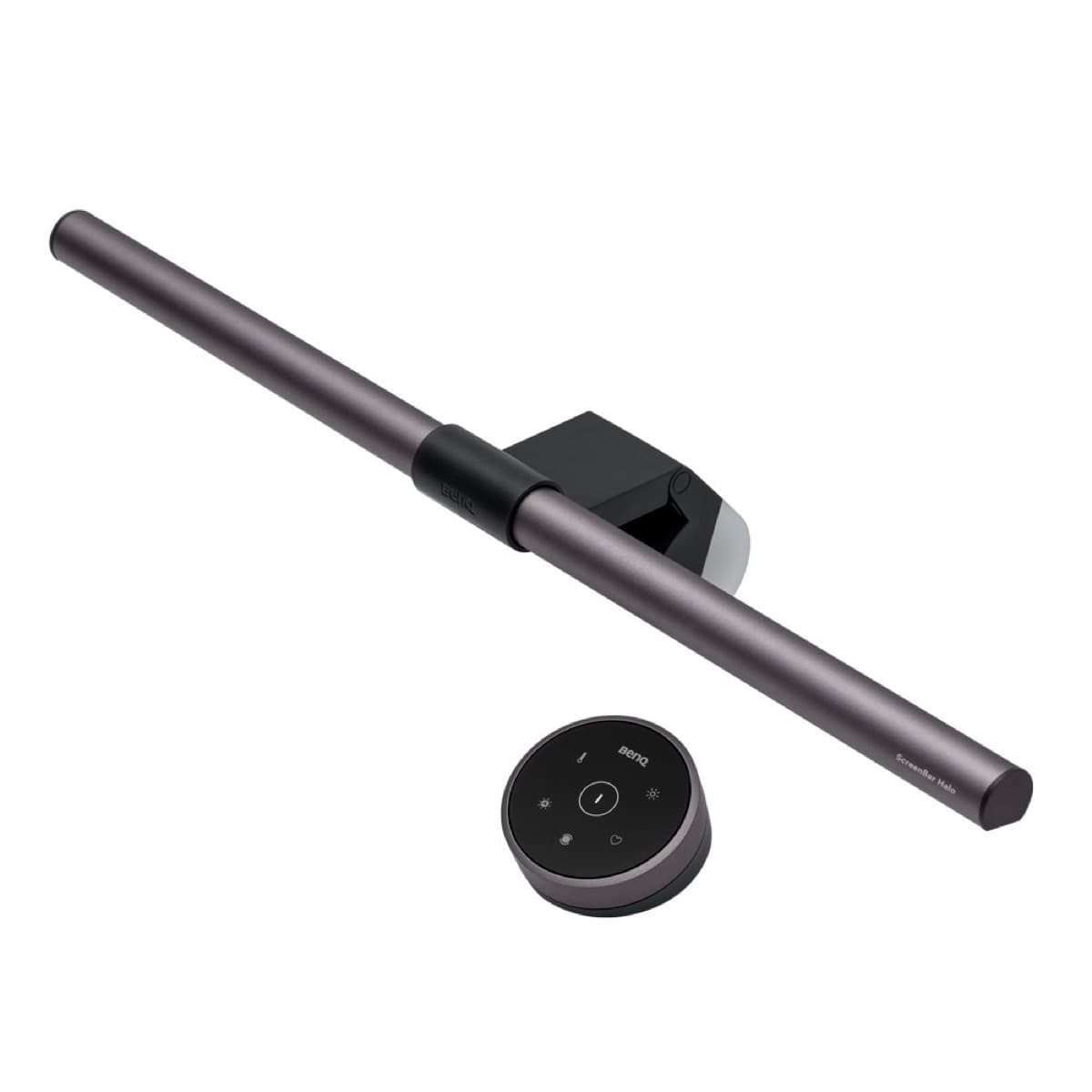
BenQ ScreenBar Halo
amazon.comPro: Reduces desk glare at night
Con: Premium price for a light
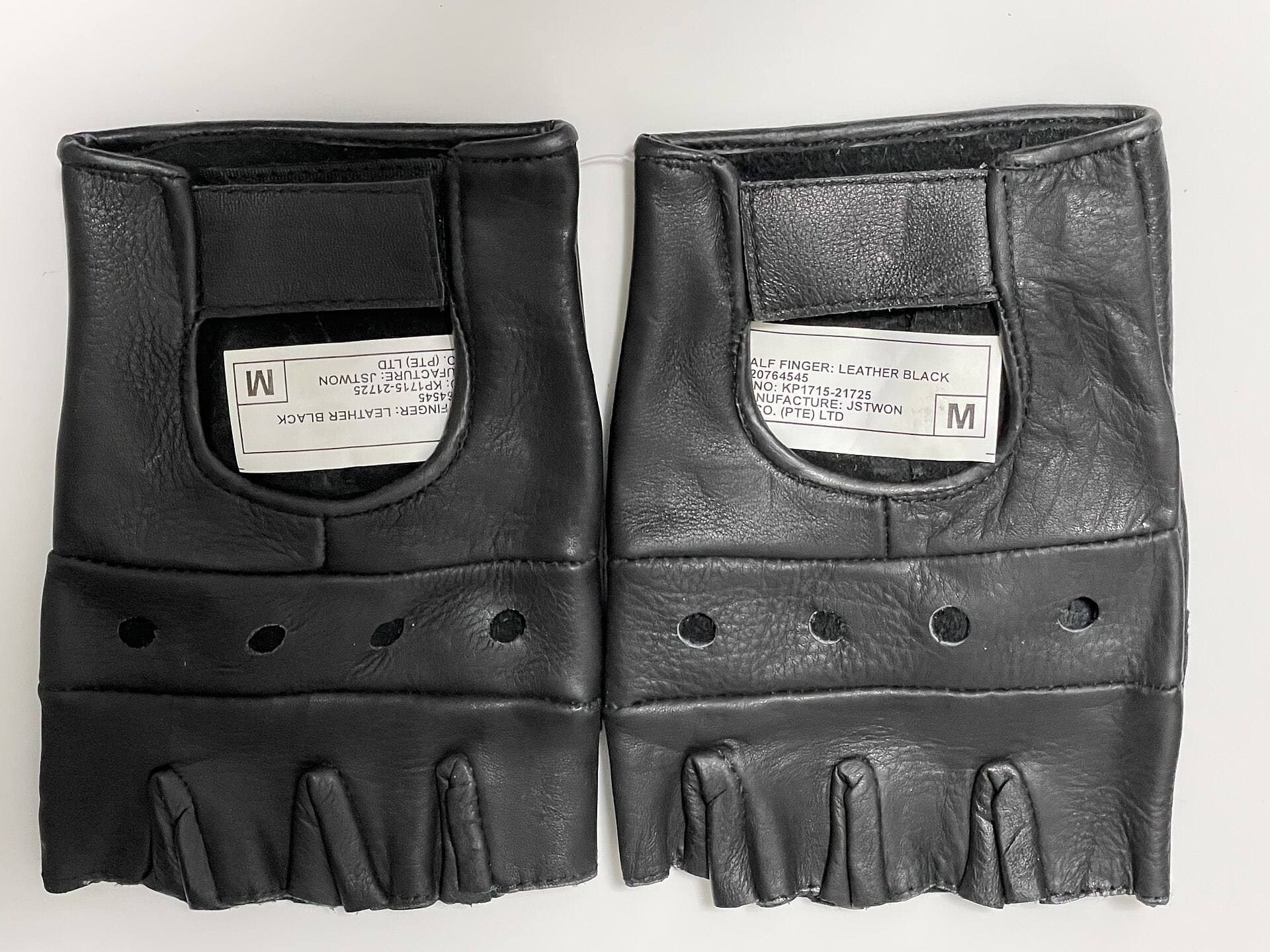
Parblo Drawing Glove
amazon.comPro: Improves glide on glass
Con: Does not fix software rejection
Related buying picks
More in this collectionBuyer guide
Best Portable iPad Stands for Cafe and Travel Drawing (2026)
Portable iPad stands for artists should prioritize stability on small tables, quick setup, and low packed weight.
Buyer guide
Saving Your Neck: The Best Adjustable iPad Stands for Long Drawing Sessions
You can draw on an iPad anywhere, which is exactly how your neck ends up paying rent.