Quick answer
Yes, this is possible, and it is a better plan than panic-buying a cellular iPad just because hotspot data is getting chewed up.
The practical setup is:
On My iPadfor active projects and must-have assetsiCloud Drivefor the full library and cross-device access- external SSD for cold archive and big backup dumps
That means you do not download the whole library at once. You keep the working set local, keep the archive in iCloud, and download folders only when they are about to be used.
For most artists, that is the lowest-drama setup.
The wrong model is "all local" or "all cloud"
Both extremes are annoying.
If everything is local, you fill the iPad early and turn storage into housekeeping.
If everything is cloud-only, your iPad keeps reaching back through your iPhone hotspot for files that should have been ready before the session even started.
The better model is a three-tier library:
Tier 1: active local library
Use On My iPad for:
- current projects
- current reference boards
- brush packs you use weekly
- export folders for work in progress
This is the stuff that should open fast even when internet quality is bad.
Tier 2: iCloud master library
Use one top-level folder in iCloud Drive, such as Creative Library, for:
- finished projects
- older reference packs
- archived texture and brush bundles
- longer-term planning documents
This keeps the same folder structure visible on iPad, iPhone, and Mac without forcing the iPad to store every file locally all the time.
Tier 3: cold archive
Use external storage for the large stuff you do not need living on the iPad:
- old layered projects
- timelapse exports
- video assets
- full monthly backups
Apple supports external storage in Files, so this is a normal iPad workflow, not a weird hack. [1]
What I would do on a 256GB iPad with about 110GB free
If you have a 256GB iPad Pro and roughly 110GB free, you are in a good position. You do not need to hoard every file locally.
I would use these rules:
- Keep roughly 25GB to 40GB free as breathing room for exports, caches, and system updates.
- Keep the active local library in the 20GB to 40GB range unless you have a temporary heavy project.
- Push anything "nice to have" but not "needed this week" back to iCloud or external storage.
That is the boringly correct answer. You have enough space to work comfortably, but not so much space that careless downloading stays invisible forever.
The setup that actually saves hotspot data
1) Put the master library in one named iCloud folder
Do not scatter things across random app folders.
Make one structure and keep it boring:
iCloud Drive/Creative Library/ProjectsiCloud Drive/Creative Library/ReferencesiCloud Drive/Creative Library/BrushesiCloud Drive/Creative Library/Archive
The point is consistency, not aesthetics.
2) Keep a matching local work folder on the iPad
Under On My iPad, create something like:
On My iPad/Active Studio/Current ProjectsOn My iPad/Active Studio/Current ReferencesOn My iPad/Active Studio/Exports
This becomes your hotspot-saving zone.
3) Change browser downloads away from accidental cloud sprawl
If random downloads are landing in iCloud Drive, they can quietly create extra sync traffic across devices.
For a low-data setup, set Safari downloads to an On My iPad folder so downloads land locally first. Apple allows changing the download location in Safari settings on iPad. [2]
That one setting prevents a lot of silent nonsense.
4) Pre-download only what the next session needs
Before a drawing block, trip, or deadline window, download only:
- the current project folder
- the reference board for that project
- the brush set you are actually using
- any export template you know you will need
Do this on normal Wi-Fi, not while already tethered through the phone.
5) Remove local copies after the project cools off
Once a project is delivered, paused, or no longer part of this week's work, remove the local copy and keep the master in iCloud Drive.
That is how you avoid the slow-motion disaster where the iPad turns into a second archive by accident.
"Download as I click" is fine, but not for everything
Your instinct is right: you do not need the full library on-device.
But pure on-demand downloading only works well for:
- old references
- low-priority inspiration folders
- files you might open, but probably will not
It is a bad plan for:
- current client projects
- heavy layered files
- travel days
- any session where losing momentum is expensive
So the better rule is not "stream everything." It is:
pre-download the hot path, stream the cold path.
Does path mismatch across Mac, iPhone, and iPad ruin this?
Not if you structure the library correctly.
The visible location differs across devices, but the library idea does not have to. Keep one stable folder tree in iCloud Drive and one stable local work folder on the iPad. Think in folder names and roles, not in raw absolute paths.
That matters even more if you are designing your own library system or shortcut automation. Hardcoded device-specific paths are fragile. The durable model is:
- one user-chosen library root
- relative folders under that root
- one separate local cache/work folder
That survives device differences much better than pretending the Mac and iPad filesystem views are identical.
Settings worth having if an app gives you the choice
If the app or service gives you storage controls, these are the ones that actually matter:
Download on openinstead ofdownload everythingWi-Fi onlyfor large background downloadsKeep local copiesonly for selected foldersClear downloaded copieswithout deleting the cloud original- a visible local storage cap
- a separate export folder on local storage
If an app refuses to offer any of those and tries to act like every device has infinite space and perfect internet, the app is the problem.
When external SSD is the smarter purchase than cellular
Most artists asking this question do not actually need LTE on the iPad. They need a less stupid storage plan.
A compact SSD is usually the better buy when your problem is:
- large exports
- video reference files
- growing archive history
- backup anxiety
Cellular fixes access. It does not fix library discipline.
If your real pain is "my archive is too big," external storage is the honest solution.
A simple low-data weekly routine
Use this and stop improvising:
- On Wi-Fi, pre-download the folders needed for the next week.
- Work from the local
Active Studiofolder. - Export finished work locally first.
- Move finals and older project folders back to iCloud Drive.
- Once per week, copy archive-heavy material to SSD.
- If free space drops too far, remove local copies before deleting anything important.
That keeps the iPad responsive and your hotspot usage boring.
Bottom line
Yes, you can absolutely run a local library strategy on iPad and stop wasting shared hotspot data.
The winning setup is not "everything on iCloud" and not "download the whole world." It is:
- a small active library on the iPad,
- a full master library in iCloud Drive,
- download-on-demand for cold folders,
- and external storage for the bulky archive.
If you want the companion pieces, read Offline-First iPad Creative Workflows (2026): Apps, Backups, and Travel Reliability and 64GB vs 256GB: How Much Storage Do You Really Need for Digital Art?.
Sources
Recommended gear
Samsung T7 Portable SSD
amazon.comOne of the safest SSD buys for iPad creators. Fast, stable, and easy to trust for backup routines.
Pro: Fast and reliable backup drive
Con: Extra cable to carry
Choose capacity (1TB/2TB) based on project size.
SanDisk Extreme Portable SSD
amazon.comPro: Rugged and compact
Con: Can run hot under heavy copy
Good for large Procreate backup workflows.
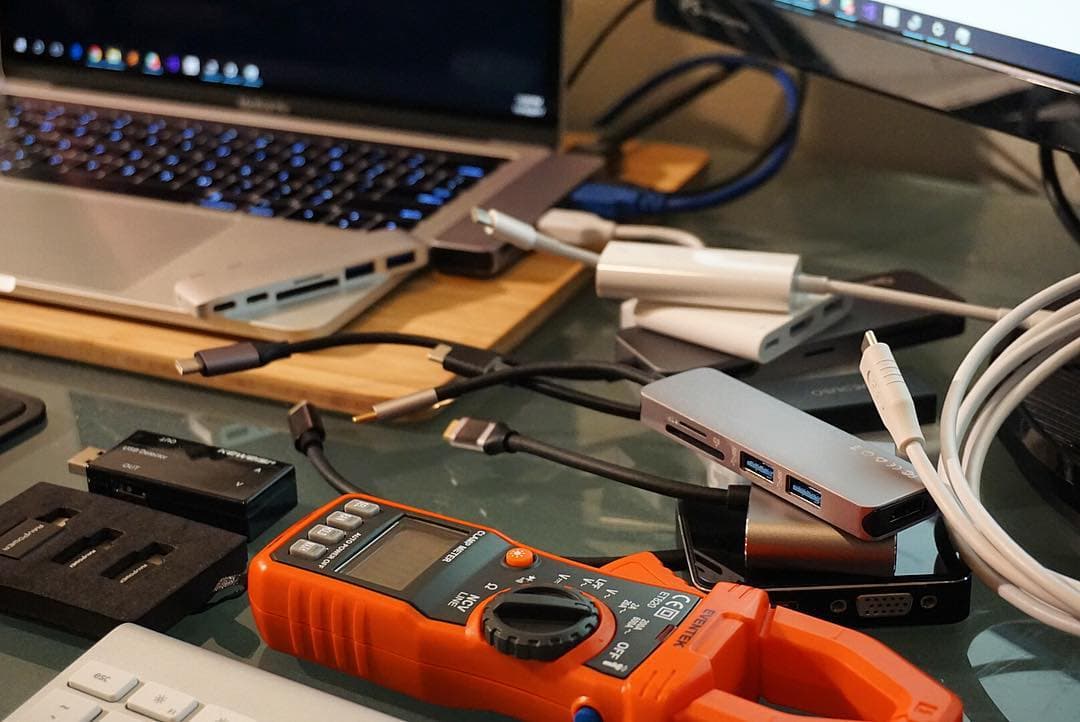
Anker 341 USB-C Hub (7-in-1)
amazon.comA strong everyday port hub for iPad workflows. Good value and layout, with expected bandwidth limits.
Pro: Solid all-around port mix for iPad setups
Con: Not Thunderbolt bandwidth
Check host power pass-through and display output before buying.
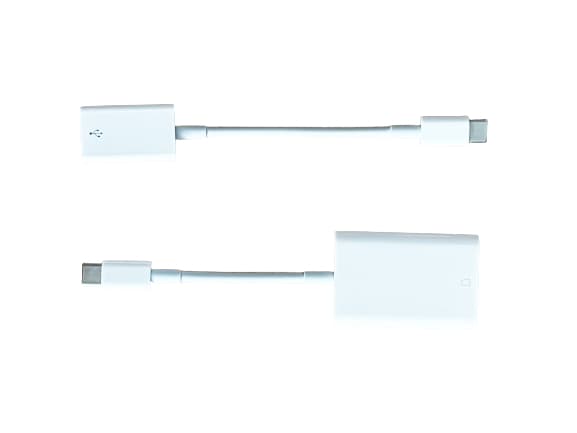
Apple USB-C to SD Card Reader
apple.comPro: Strong compatibility with iPadOS import flow
Con: No built-in microSD slot
Simple and stable option for SD workflows on iPad.
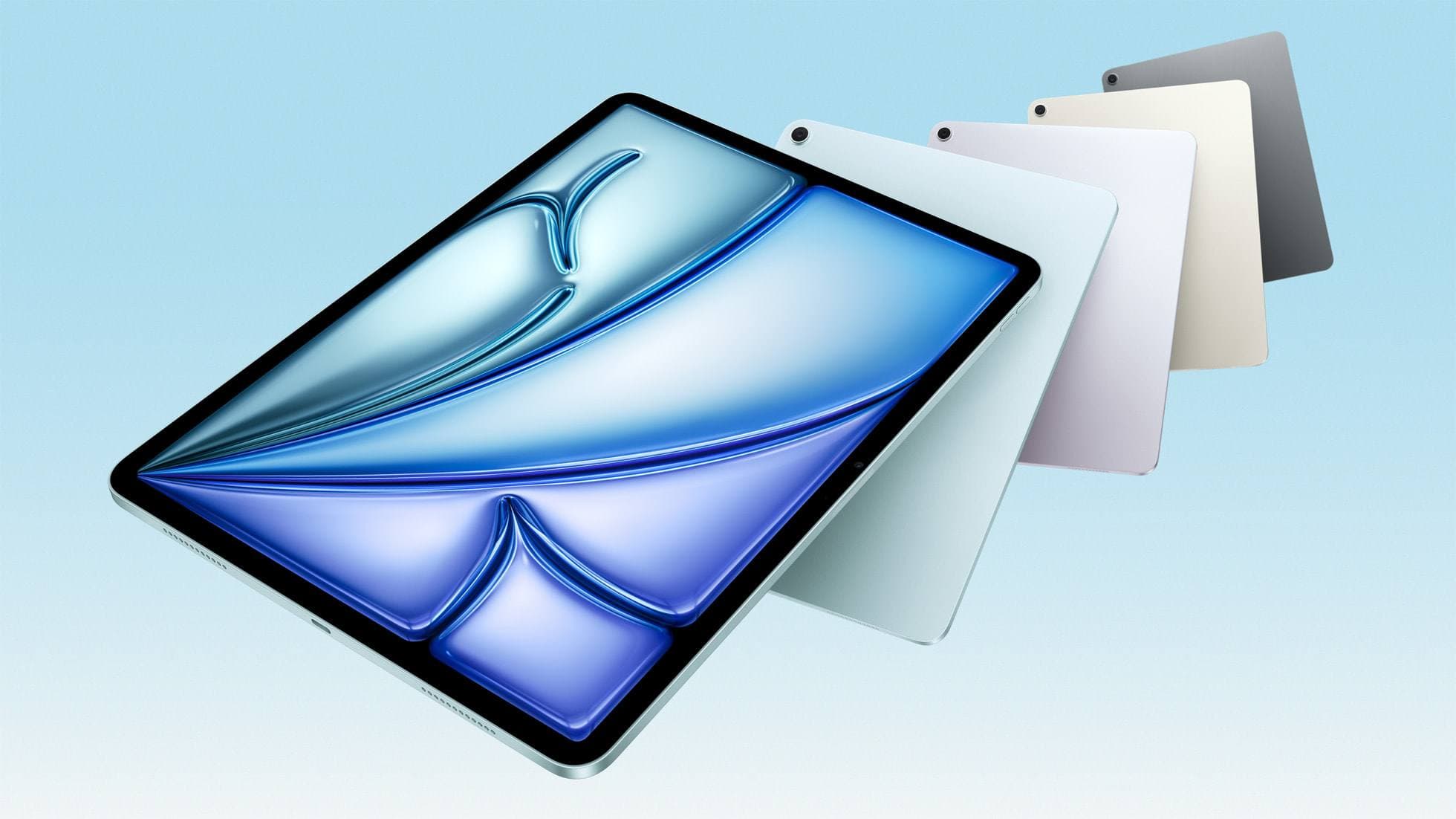
iPad Air (M4)
apple.comThe clean current Air recommendation for most serious hobby artists. Stronger buy logic than old-stock M3 when pricing is close.
Pro: Best current balance of price, headroom, and Pencil support
Con: Still 60Hz
Current Air lineup. Choose size, storage, and keyboard path before checkout.
Related buying picks
More in this collectionBuyer guide
Travel Charging Setup for iPad Artists (2026): One-Bag Power Kit
A travel charging setup works when charger, power bank, and cables have fixed roles and you run the same simple routine at airports, hotels, and cafes.
Buyer guide
Best SD and microSD Card Readers for iPad Creators (2026)
Card reader speed on iPad depends on card bus, reader bus, and iPad port limits. Buy for your actual ingest workflow, not label hype.
Buyer guide
Best SSD and Card Reader Kit for iPad Creators (2026)
This BOFU buyer guide pairs one reliable SSD with one reader path so imports, backups, and exports stay fast and predictable.
Buyer guide
External SSDs for iPad Artists in 2026: What Works in Files
Practical guide for iPad artists: external SSD picks, how Files handles drives, what fails, and a simple Procreate backup routine you can restore.