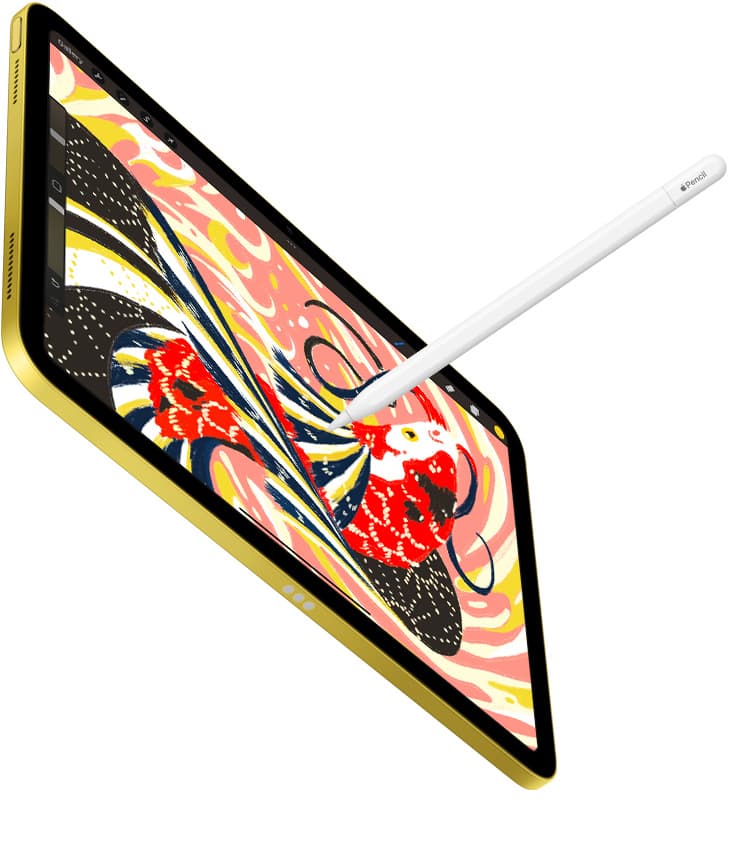
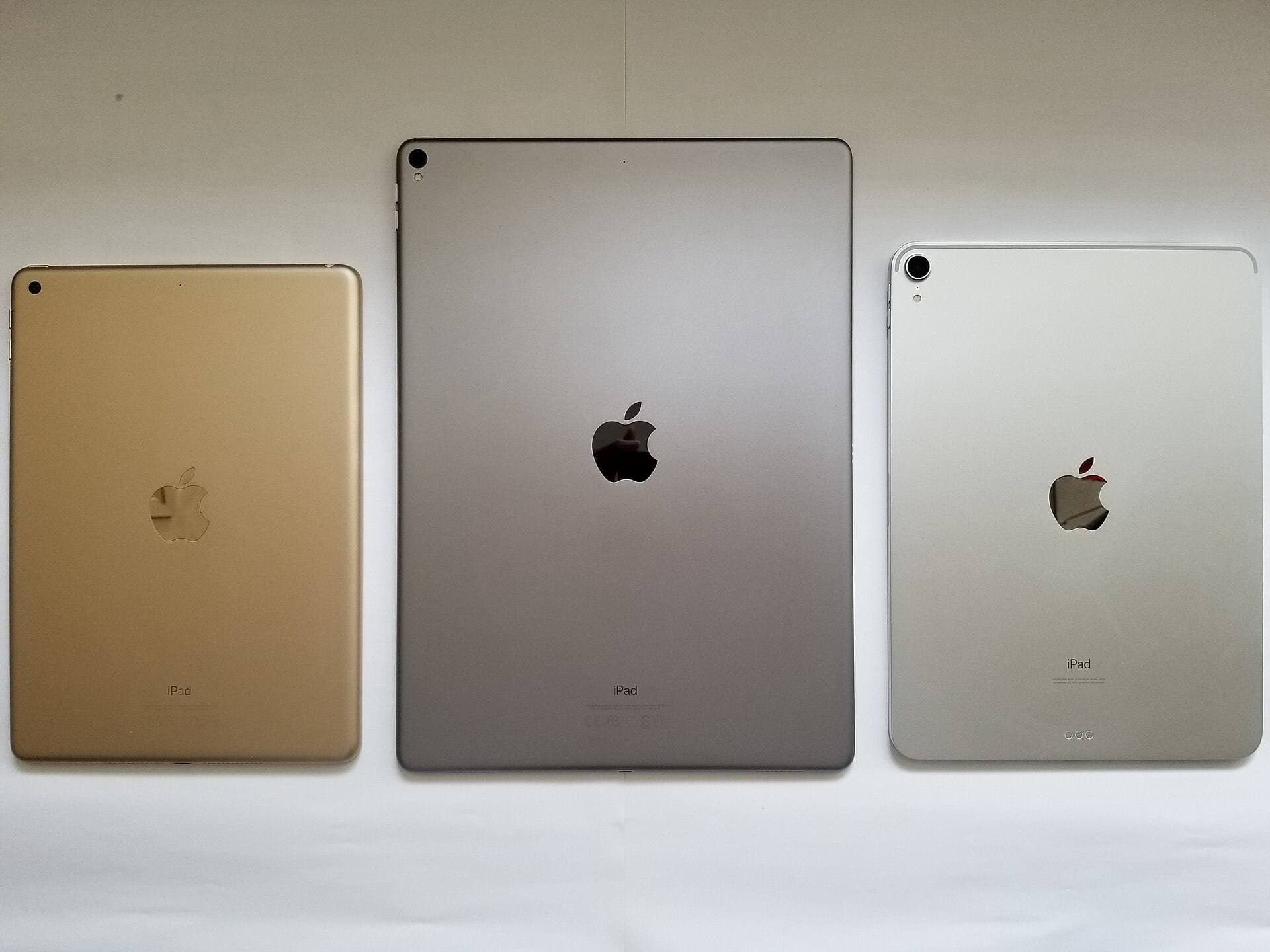
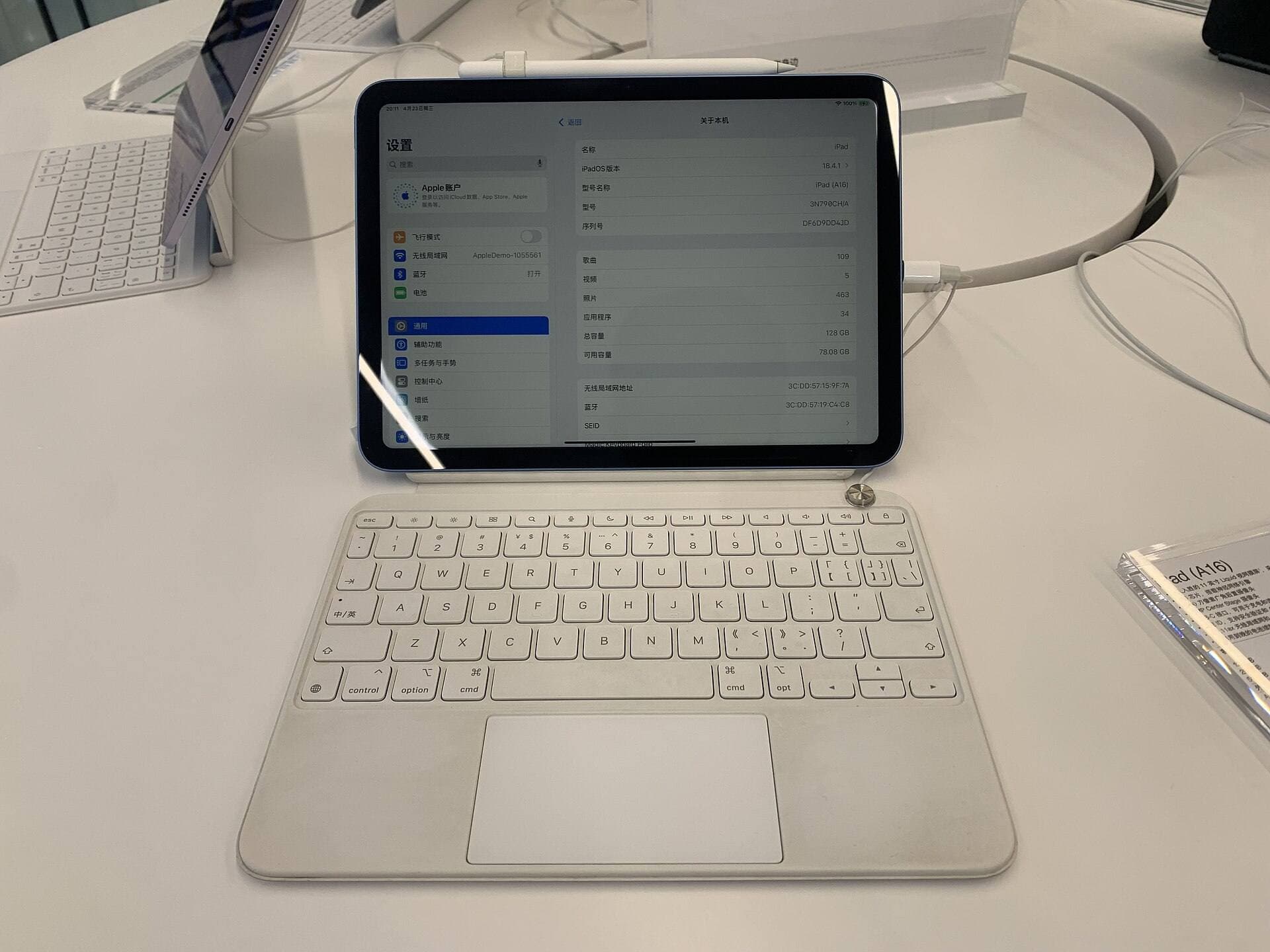
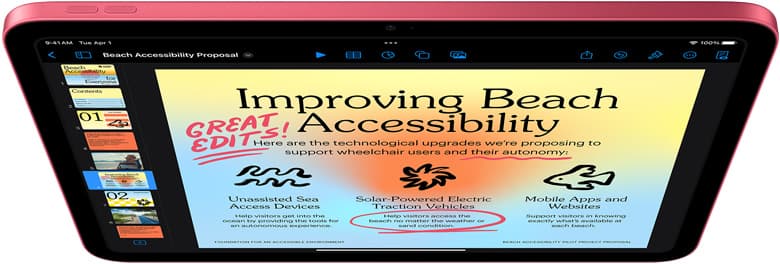
The best iPad for sticker making in 2026 is the 11-inch iPad Air (M4) with Apple Pencil Pro. It gives you enough canvas for Procreate artwork, enough size for checking cut lines and exports, and enough portability to sit beside a Cricut or printer without taking over the whole table.
Buy the iPad (A16) with Apple Pencil (USB-C) if budget matters more than premium Pencil feel. Buy the iPad mini only when small size is the whole point. Skip iPad Pro unless sticker art is paid, frequent, and demanding enough that the better display pays you back.
Quick answer
| Sticker workflow | Best iPad | Why |
|---|---|---|
| Most makers | 11-inch iPad Air (M4) | Best balance of canvas, Pencil support, storage options, and price |
| Budget starter | iPad (A16) | Good enough for simple sticker art and uploads when total kit cost matters |
| Tiny craft table | iPad mini (A17 Pro) | Great companion device, cramped as the only design surface |
| Paid illustration shop | iPad Pro | Worth it only when display feel and heavy files are already business-critical |
The money answer is boring: Air first, complete setup second, Pro only after you have proof.
Why this topic is worth a page
"Best iPad for sticker making" is not generic art traffic. It is a workflow search. The person has a thing they want to make and probably a machine, printer, app, or shop idea nearby.
That makes this a better affiliate target than broad "best iPad" content. The reader needs a setup:
- draw or assemble the sticker,
- export the right file,
- upload or place it,
- print and cut,
- keep the files organized enough to repeat the process.
What the iPad has to do
1. Draw clean sticker art
Procreate is a common iPad choice because it is simple enough to start and deep enough to make polished art. Procreate's share options include formats such as PNG with transparency, PSD, PDF, JPEG, and TIFF, which matters because sticker work often needs transparent exports or layered backups. [1]
For sticker making, the iPad should make drawing feel easy, not turn every icon and outline into finger gymnastics.
2. Export files without drama
Procreate warns that artwork lives locally inside the app unless you export or back it up, so a real sticker workflow needs file discipline. [2]
At minimum, keep:
- editable
.procreatefiles, - transparent PNG exports,
- final print/cut versions,
- and dated backup folders.
3. Support the cut workflow
Cricut Design Space supports uploaded image formats including SVG, PNG, JPG, BMP, GIF, and DXF, with some platform caveats. Cricut's upload guide notes that DXF is not supported in Design Space for iOS and Android, which is exactly why testing your real file path matters before you promise products. [3]
Cricut also has a Create Sticker tool in Design Space, with Cricut Access and version requirements. The iPad can be useful here, but a desktop fallback is still sane for heavier business workflows. [4]
4. Fit beside the making gear
Sticker making is physical. The iPad has to share space with mats, sticker paper, a printer, tools, scraps, packaging, and maybe a cutting machine.
That is why 11 inches is the best default. A 13-inch iPad feels great for drawing, but it can be annoying on a crowded craft table.
Best overall: 11-inch iPad Air (M4)
This is the safest buy for most sticker makers.
Why it wins:
- supports Apple Pencil Pro, [5]
- big enough for drawing and layout checks,
- easier to fit beside crafting gear than a 13-inch tablet,
- cheaper than Pro,
- strong enough for normal Procreate sticker work,
- still useful for notes, references, browser uploads, and shop admin.
If you sell stickers, get enough storage to avoid constant cleanup. 256GB is the low-stress middle if budget allows.
Budget pick: iPad (A16)
The base iPad is a real starter setup if your sticker workflow is simple.
Choose it if:
- you are testing the hobby,
- the budget is tight,
- your stickers are simple icons, labels, or planner assets,
- you can live with Apple Pencil (USB-C),
- and you would rather start making now than wait for the perfect kit.
The tradeoff is Pencil path. The base iPad does not use Apple Pencil Pro. Check Apple's official compatibility list before buying. [5]
Portable pick: iPad mini
The mini can be excellent as a companion device for references, quick sketches, and craft-table control. It is less ideal as the only sticker design surface because fine alignment, typography, and sheet layout get cramped.
Choose mini only if:
- space is very tight,
- you already have a larger computer or tablet,
- or portability matters more than comfort.
When iPad Pro is worth it
iPad Pro makes sense if sticker work is already paid and art-heavy:
- detailed illustration,
- large sticker sheets,
- frequent client revisions,
- dense layer stacks,
- heavy Procreate files,
- color-sensitive product previews.
If that is not your current reality, Air is calmer. Do not buy Pro as a motivational speech.
App choices
Procreate
Best for drawing original sticker art and exporting transparent PNGs or editable backups. [1][2]
Cricut Design Space
Best for Cricut-specific print and cut workflows. Test uploads on the device you will actually use because platform limitations matter. [3][4]
Goodnotes
Good for digital planner stickers and reusable elements. Goodnotes' Elements tool can save reusable stickers and objects inside collections, which is useful if your sticker work is planner-first rather than cutting-machine-first. [6]
Recommended setup
For most sticker makers:
- 11-inch iPad Air (M4)
- Apple Pencil Pro
- 256GB storage if budget allows
- Procreate for art
- Design Space for Cricut output
- a boring file export folder
- a Mac or PC available for heavy shop/admin work
If budget is tight, step down to the base iPad before you step down into waiting forever.
Common mistakes
Buying the biggest iPad before measuring the table
Sticker making uses physical space. Bigger screen does not automatically mean better workflow.
Exporting only final PNGs
Keep editable files. If a customer wants a change, rebuilding a sticker from a flattened export is slow pain.
Assuming every Cricut feature works the same everywhere
Cricut's own docs show platform-specific details and requirements. Test iPad, desktop, and mobile paths before deadlines. [3][4]
Treating storage as optional
Sticker art creates duplicates: source files, transparent exports, print sheets, resized versions, thumbnails, and mockups. Storage discipline is part of the business.
FAQ
Can you make stickers on an iPad?
Yes. You can draw artwork in Procreate, export files, and use apps like Cricut Design Space or Goodnotes depending on whether you are making physical stickers or digital planner stickers. [1][3][6]
What iPad is best for making stickers?
For most people, the 11-inch iPad Air (M4) is the best balance of screen size, Apple Pencil Pro support, portability, and price. [5][7]
Is the base iPad enough for sticker making?
Yes for beginner and simple workflows. Choose the base iPad if budget matters most and you can accept Apple Pencil (USB-C). Move to Air when drawing feel and longer-term headroom matter.
Is iPad mini good for sticker making?
It is good as a companion or tiny setup, but cramped as your only design device. It works best when portability and table space matter more than layout comfort.
Do I need Procreate for sticker making?
No, but it is one of the easiest iPad drawing paths. If you mainly assemble planner stickers, Goodnotes may matter more. If you mainly cut physical stickers with Cricut, Design Space is part of the workflow. [3][6]
What storage should sticker makers buy?
If budget allows, 256GB is the calmer choice. Sticker projects create lots of versions and exports. You can survive with less, but you need better cleanup habits.
Bottom line
Buy the 11-inch iPad Air (M4) with Apple Pencil Pro for the best sticker-making default. Buy the base iPad with Apple Pencil (USB-C) if cost matters most. Buy the mini only when small size is the win. Buy Pro only when paid art work makes the premium earn its keep.
Sources
Recommended gear
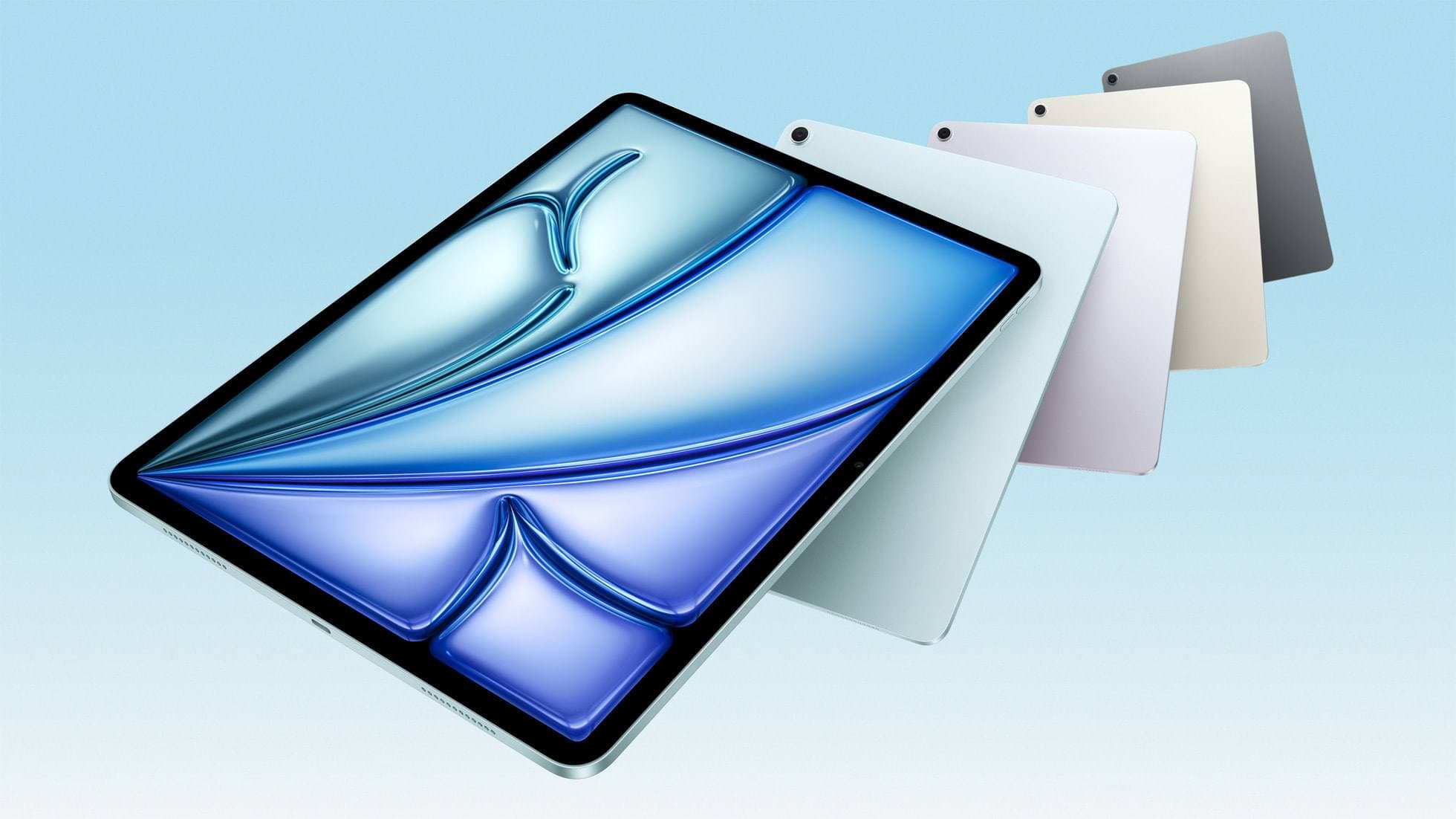
iPad Air (M4)
apple.comThe clean current Air recommendation for most serious hobby artists. Stronger buy logic than old-stock M3 when pricing is close.
Pro: Best current balance of price, headroom, and Pencil support
Con: Still 60Hz
Current Air lineup. Choose size, storage, and keyboard path before checkout.
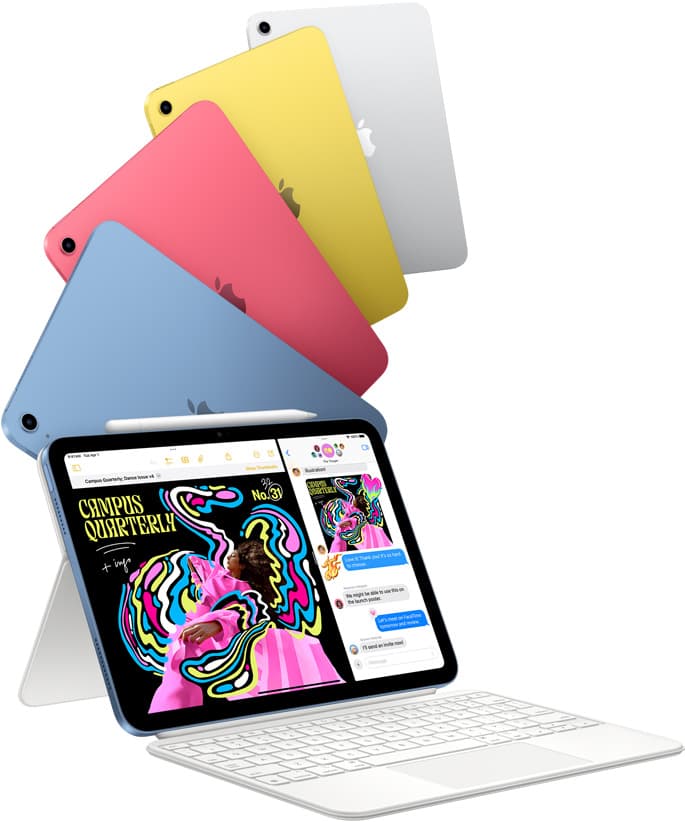
iPad (A16, 11th gen)
amazon.comThe best entry iPad for most artists on a budget. It is not premium, but it is very hard to beat on value.
Pro: Best value iPad right now
Con: No ProMotion display
Search opens with the exact model keywords. Verify size and storage before checkout.
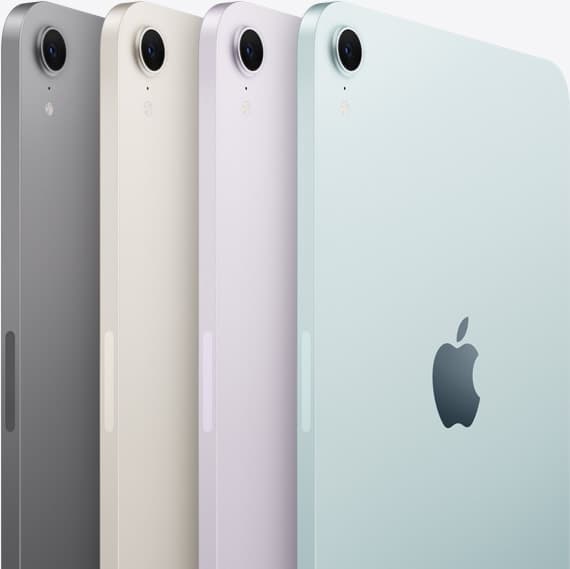
iPad mini (A17 Pro)
amazon.comThe most portable real iPad for drawing. It wins on mobility and loses on workspace.
Pro: Most portable drawing iPad
Con: Small canvas for detailed work
Search opens with iPad mini A17 Pro terms. Verify model number before buying.
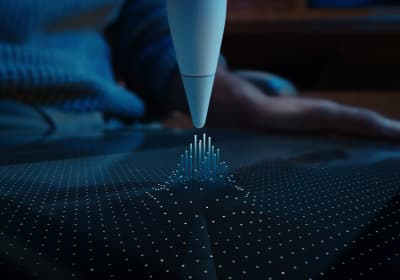
Apple Pencil Pro
amazon.comThe best Apple stylus for serious digital art workflows. Expensive, but the control upgrades are real.
Pro: Best brush-control and hover workflow
Con: Highest price in the lineup
Works only with newer iPad models. Check compatibility.
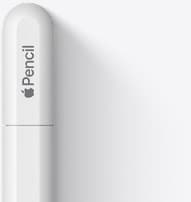
Apple Pencil (USB-C)
amazon.comA practical low-cost Apple stylus with broad compatibility, but limited for advanced art control.
Pro: Lowest official Apple Pencil cost
Con: No pressure sensitivity for brush work
Compatible with many recent iPads. No pressure support.
Related buying picks
More in this collectionBuyer guide
Best iPad for Cricut stickers: Air vs baseline setup guide
Choose between the iPad Air and baseline iPad for designing, exporting, and cutting custom stickers with Cricut Design Space.
Comparison
iPad vs laptop for Cricut: how to choose your cutting setup
Compare operating system support, Apple Pencil illustration workflows, and file uploads to decide whether an iPad or a laptop fits your Cricut cutting setup.
Buyer guide
Best iPad for Cricut and Procreate in 2026
The best one-tablet setup for Cricut and Procreate is usually the 11-inch iPad Air with Apple Pencil Pro; buy the base iPad for budget projects and keep a Mac or PC nearby for heavier Design Space work.
Buyer guide
Best tablet for tattoo design: Choosing the right iPad for stencils and flash
Compare iPad Air, iPad Pro, and iPad mini options to find the right drawing tablet and Apple Pencil pairing for tattoo stencils and studio design.