
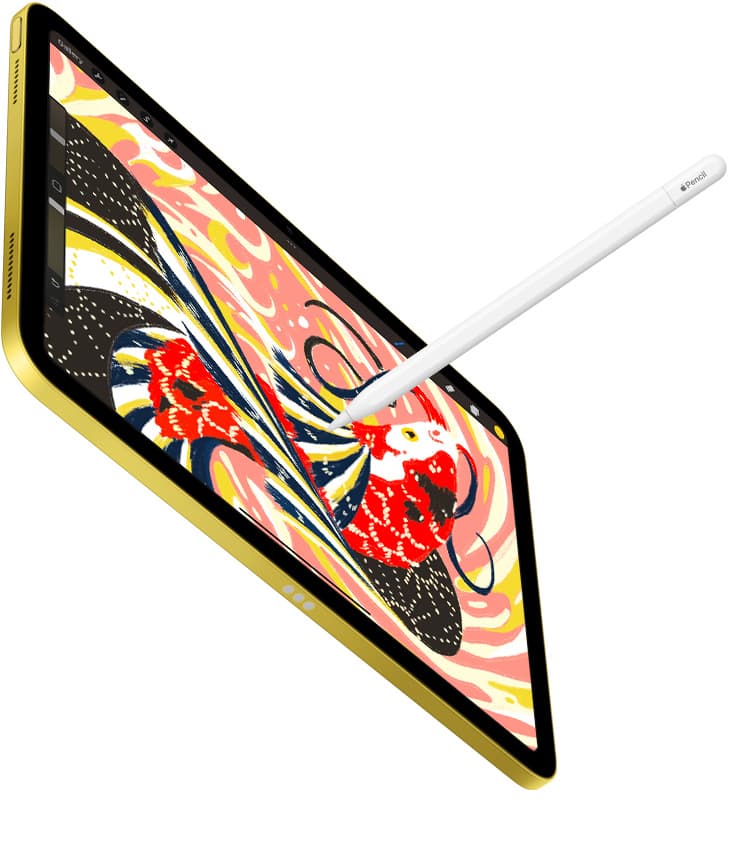
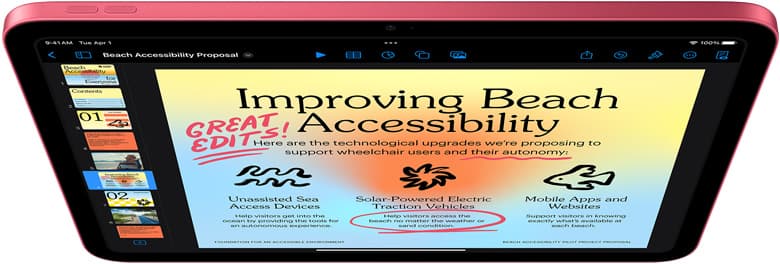
The best iPad app for tattoo design in 2026 is Procreate for most artists and apprentices. It is fast for sketching, easy to teach, comfortable with Apple Pencil, and simple enough to use during client revision work without turning the consult into a software demo.
Clip Studio Paint is the best second app to consider when you need rulers, vectors, 3D references, comic-style production tools, or a workflow that also lives on desktop.
This page is about digital design tools only. It is not tattoo technique, hygiene, medical, legal, or stencil-procedure advice. Follow trained shop practice and local rules for the real tattoo process.
Quick answer
| Use case | Best app | Why |
|---|---|---|
| Most tattoo sketches and flash | Procreate | Fast, direct, low-friction drawing |
| Client revision sessions | Procreate | Easy to open, mark up, and export |
| Rulers, vectors, dense setup | Clip Studio Paint | Deeper production toolset |
| Portfolio and final presentation | Procreate plus Files discipline | Simple exports and clean previews |
| Cross-device studio workflow | Clip Studio Paint | Broader device support |
If you are still choosing hardware, read Best iPad for Tattoo Design in 2026.
What a tattoo-design app actually has to do
The app is not the business. The app supports the business.
For tattoo design, the digital workflow usually needs:
- fast rough sketching,
- clean line revision,
- reference layers,
- shape and placement exploration,
- client preview exports,
- version control,
- portfolio cleanup,
- and backup habits that do not depend on memory.
An app with 900 features is not automatically better. The best app is the one you can use quickly while the client, shop schedule, and design idea are still moving.
Best overall: Procreate
Procreate is the default recommendation because it is simple where tattoo design needs speed. Apple's App Store page describes Procreate as built around iPad and Apple Pencil, with brushes, layers, time-lapse, import/export, and other core illustration tools. [1]
Use Procreate for:
- flash sheets,
- custom sketch ideas,
- quick redraws,
- reference-layer studies,
- lineweight exploration,
- client preview exports,
- and general iPad drawing practice.
The winning trait is not that Procreate can do everything. It is that it gets out of the way quickly.
Best advanced option: Clip Studio Paint
Clip Studio Paint is the app to consider when Procreate starts feeling too simple for your workflow.
Its App Store listing and official site emphasize brushes, materials, 3D models, comic features, animation, vectors, rulers, cloud storage, and support across iPad, iPhone, Android, Windows, and macOS. [3][4]
Use Clip Studio Paint if you need:
- ruler-heavy designs,
- vector line corrections,
- reusable materials,
- 3D reference poses,
- comic or manga side work,
- multi-device production,
- or a deeper studio interface.
Do not choose it just because it sounds more professional. Choose it when the extra depth solves a problem you already have.
App choice by tattoo workflow
Flash sheets
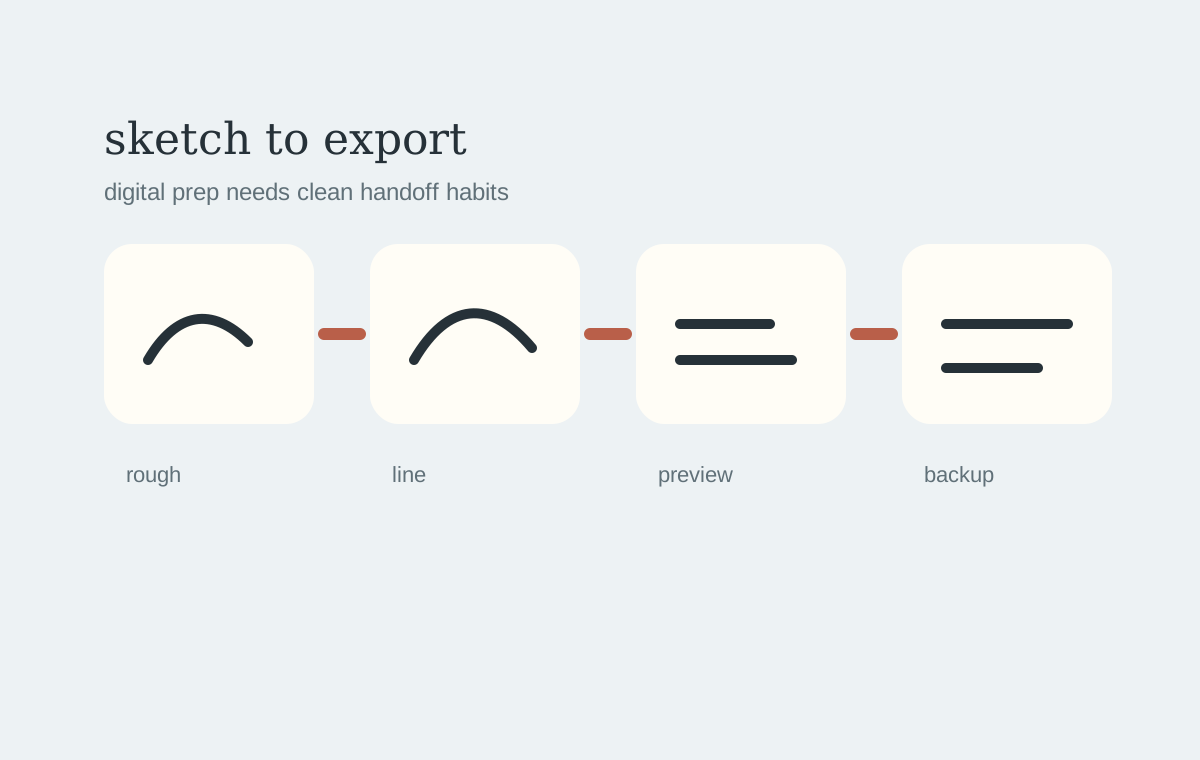
Start in Procreate. It is fast for roughing, inking, grouping, and exporting previews. Keep the editable file separate from the image you show or send.
Client revisions
Procreate again. A revision session rewards speed. The app should not make you hunt for basic tools while someone is waiting.
Precision geometry
Clip Studio Paint becomes more useful when rulers and vector-style cleanup matter. This is especially true for ornamental, geometric, panel-like, or repeatable work.
Portfolio cleanup
Either app can work. The important part is file discipline: finished export, editable source, date, client-safe naming, and backup.
The iPad setup that pairs with these apps
For most tattoo-design app buyers, the hardware recommendation is:
- 11-inch iPad Air (M4),
- Apple Pencil Pro,
- Procreate,
- optional Clip Studio Paint if the workflow needs it,
- a stable case or drawing board,
- and a backup routine.
Apple's Pencil compatibility chart is worth checking before any purchase because Pencil support depends on the iPad model. [5]
If the iPad itself is still undecided, the hardware answer is here: Best iPad for Tattoo Design in 2026.
Free tattoo design app searches
Search suggestions often include "best free tattoo design app for iPad." The honest answer is that free can be useful for practice, but paid tools usually make sense faster when the work is tied to clients or portfolio assets.
The low-stress rule:
- use free tools for trying digital drawing,
- buy Procreate when you know iPad sketching will stick,
- add Clip Studio Paint only for a specific production reason.
Do not pile up five apps before you have one clean workflow.
File hygiene matters more than the app
This is where many artists lose time.
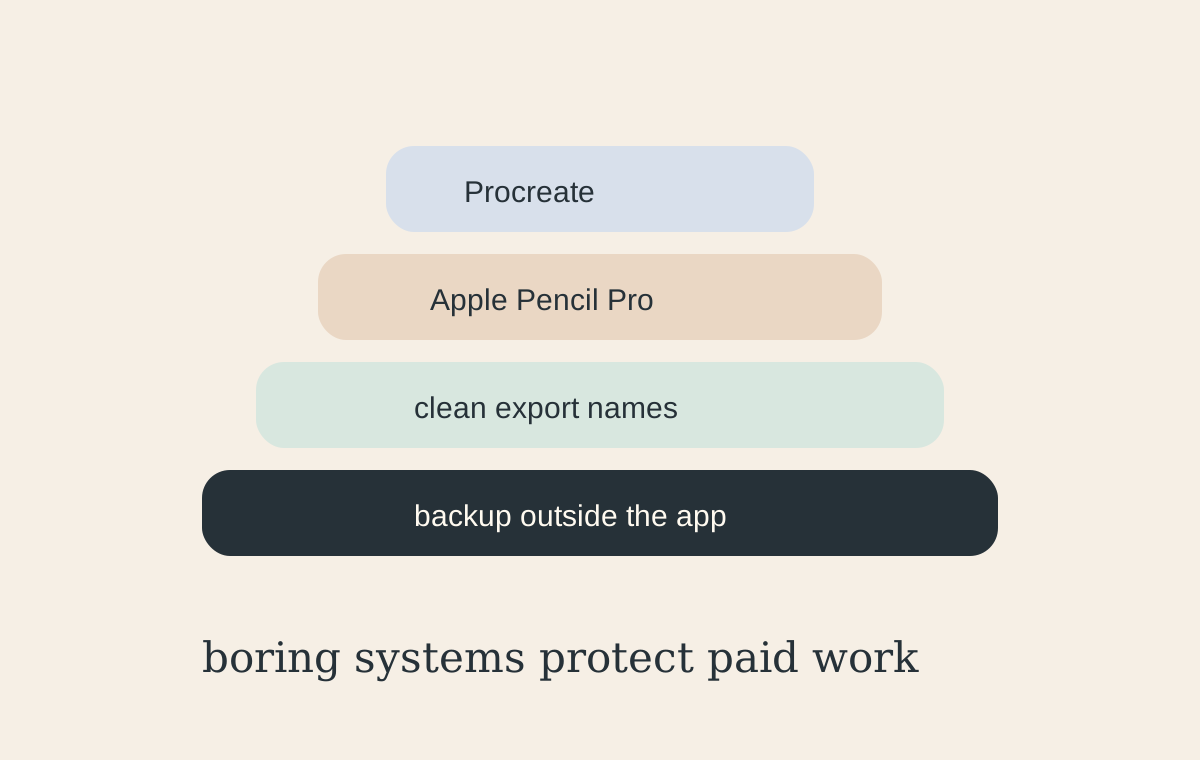
Use boring names:
- client-name-design-v01,
- client-name-design-v02,
- flash-sheet-month-year,
- export-preview,
- editable-source.
Back up the editable files outside the app. A beautiful drawing trapped in one local library is not a business asset. It is a risk.
Bottom line
Use Procreate as the default iPad app for tattoo design. It is the fastest path for sketches, flash, revisions, and client previews.
Use Clip Studio Paint when you need deeper production tools, not because complexity feels more serious.
The profitable, low-stress stack is not exotic: iPad Air, Apple Pencil Pro, Procreate, clean exports, and backups.
Sources
[1] https://apps.apple.com/us/app/procreate/id425073498 [2] https://help.procreate.com/articles/dbgjal-procreate-faq [3] https://apps.apple.com/us/app/clip-studio-paint/id1262985592 [4] https://www.clipstudio.net/en/ [5] https://support.apple.com/en-kg/guide/ipad/ipad47ee2e98/ipados
Recommended gear
Procreate
apps.apple.comPro: One-time purchase
Con: iPad-only
Clip Studio Paint
apps.apple.comPro: Deep comics, vector, ruler, and animation toolset
Con: iPad plan model is less simple than Procreate
iPad Air (M4)
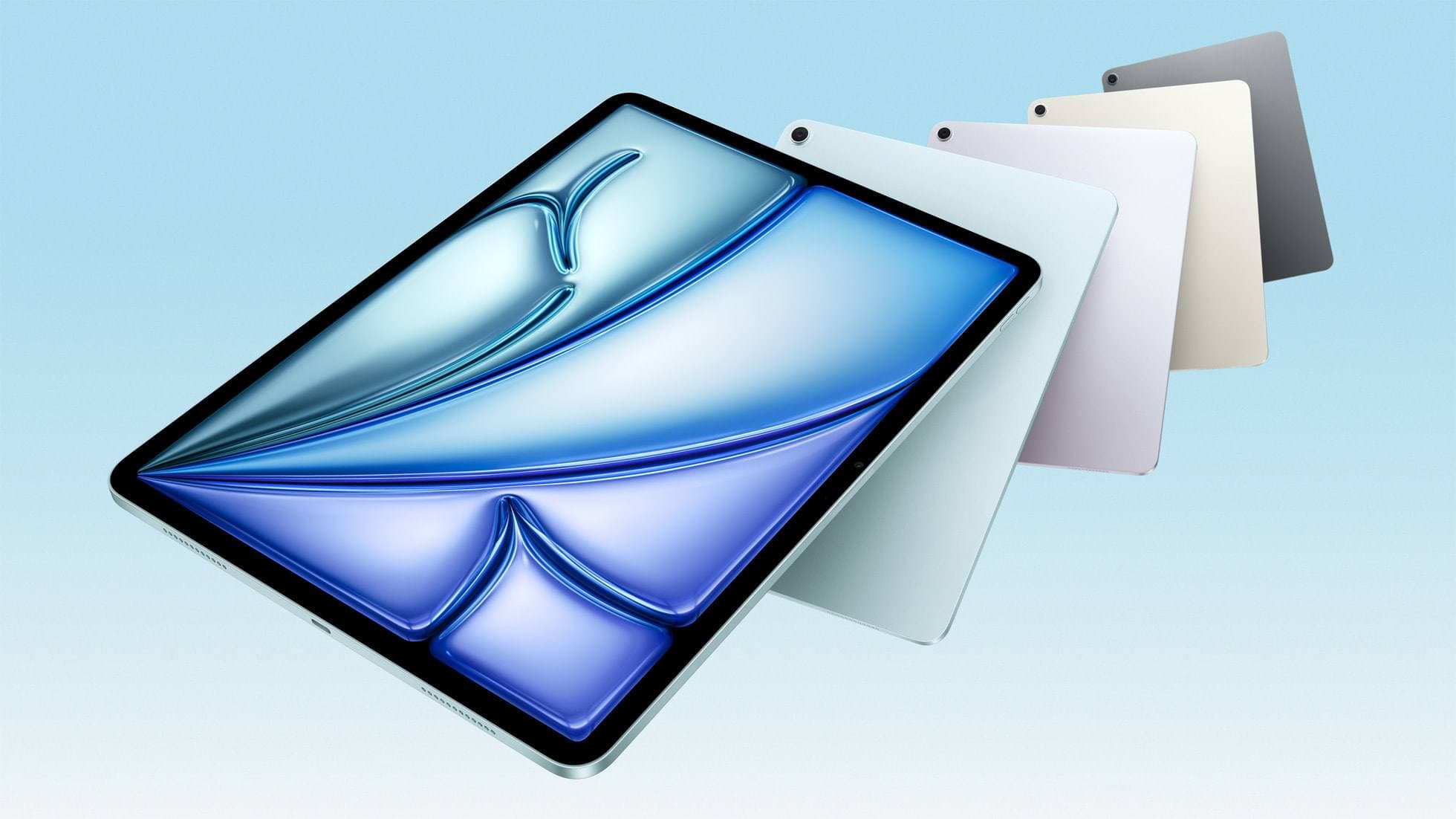
apple.comThe clean current Air recommendation for most serious hobby artists. Stronger buy logic than old-stock M3 when pricing is close.
Pro: Best current balance of price, headroom, and Pencil support
Con: Still 60Hz
Current Air lineup. Choose size, storage, and keyboard path before checkout.
Apple Pencil Pro
amazon.comThe best Apple stylus for serious digital art workflows. Expensive, but the control upgrades are real.
Pro: Best brush-control and hover workflow
Con: Highest price in the lineup
Works only with newer iPad models. Check compatibility.
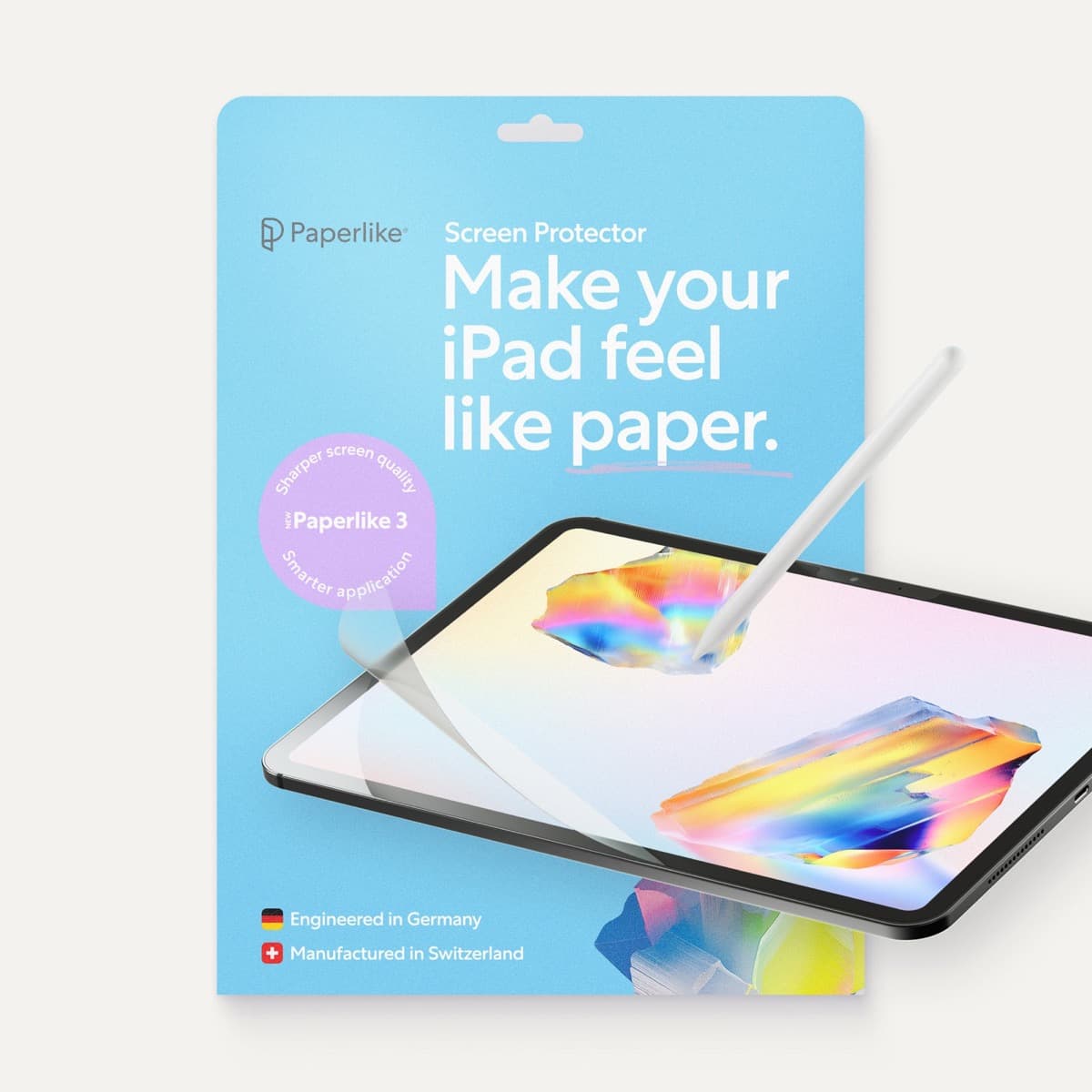
Paperlike 3 (11-inch, 2-pack)
amazon.comA strong surface-feel upgrade for drawing control. Clarity tradeoff is real and should be expected.
Pro: Adds controlled paper-feel friction
Con: Slightly reduces perceived display sharpness
11-inch fit only. Confirm generation before checkout.
Related buying picks
More in this collectionComparison
Procreate vs Clip Studio Paint on iPad in 2026
Procreate is the low-friction iPad art app for most beginners and solo illustrators; Clip Studio Paint is better when comics, vectors, rulers, animation, or desktop handoff matter more than simplicity.
Buyer guide
Best Bluetooth Shortcut Remotes for Procreate and iPad Drawing (2026)
The right shortcut remote reduces repetitive hand movement, but only if it behaves like a keyboard and supports reliable mapping.
Comparison
Procreate Dreams in 2026: Strengths, Weak Points, Alternatives
A practical 2026 review of Procreate Dreams 2: strengths, weak points, and the best iPad animation alternatives by use case, with workflow tips.
Buyer guide
Portable iPad Keyboard Travel Kit (2026): Write, Sketch, Pack Fast
How to build a portable iPad writing and sketch kit for cafes and transit, including keyboard format choices, setup flow, and compatibility checks.