





If you're designing jewelry on an iPad, buy Procreate first for sketches and polished renderings, then add a 3D app only when you need a model. Procreate is a paid app made for iPad and rated 4.4 from more than 50,000 App Store ratings [1]. For 3D, choose Nomad Sculpt when the piece is organic, like a carved ring or a leaf pendant, since its listing describes clay, flatten, smooth, and mask brushes for shaping [2]. Pick uMake when you need precise CAD forms; its listing calls it an award-winning CAD app for iPad [4].
Drawing a piece versus modeling it
Jewelry work on a tablet usually starts the same way it does on paper: a sheet of thumbnails, then a cleaner rendering for yourself or a client. That's drawing work, and a painting app handles it well [1].
Modeling is a different job. If the design is heading to a caster or a 3D printer, or you want to spin it around to check proportions, you need a 3D app [2], [4]. The two kinds of 3D app pull in different directions. Sculpting apps push and pull a digital lump of clay, which suits flowing, organic shapes [2]. CAD apps build precise solids, which suits settings, bands, and parts that have to fit together [4]. Decide which one your work is closer to before you add a second paid app [2], [4].
Procreate for sketches and renderings
Procreate is the most useful single app for jewelers who sketch. Its listing calls it the leading creative application made for iPad [1]. You can thumbnail a collection, render metal and stones on separate layers, and export a clean image for a client message or a portfolio.
Choose it if most of your design time is drawing. Skip it as your only tool if you need a model a caster can use, because a painting is still a picture [1].
Nomad Sculpt for organic 3D pieces
Nomad Sculpt is a paid app rated 4.8 from more than 14,000 ratings [2]. Its listing names sculpting tools like clay, flatten, smooth, and mask brushes for shaping a creation [2]. That brush-driven way of working suits rings with carved texture, botanical pendants, and anything that looks hand-formed.
Pick it if your style is sculptural. Skip it if your designs are mostly geometric, where you'll spend effort fighting the clay to get clean edges [2].
uMake for precise CAD forms
uMake is a free download rated 4.2 from nearly 4,000 ratings [4]. Its listing describes creating professional 3D CAD models, architectural designs, and product concepts, and says it was named iPad Pro App of the Year [4]. For jewelry, that precision is what you want for bands, bezels, and parts that need exact relationships.
Choose it if your pieces are geometric or you're designing parts to a measurement. Skip it if you mostly need to show a client an idea, because a sketch gets there faster [1], [4].
Concepts for quick design sheets
Concepts is a free download rated 4.7 from more than 26,000 ratings, and it describes itself as a flexible vector-based sketchbook [3]. For jewelers, vector strokes mean you can resize and reshape a sketched bangle or a chain layout without redrawing it [3].
Use it for design sheets you'll keep editing, like a collection plan with several variations. If you prefer a painted look for renderings, Procreate is the better canvas [1], [3].
Sharing designs with clients and makers
Most jewelry designs leave the iPad as an image or a file for someone else. A client wants to see what they're paying for, and a caster or a 3D print service wants a model [1], [2]. Plan the hand-off early so you aren't redrawing a design in a second app at the end.
For clients, a clean rendering from Procreate is often all you need: show the piece from the front and one angle, with metal and stone colors that are close to the real materials [1]. For makers, a 3D app is the starting point, and uMake's listing describes building professional 3D CAD models, which is the kind of file a production step expects [4]. Ask your caster or print service what file type they accept before you model, so the app you choose can produce it.
If you sculpt organic pieces in Nomad Sculpt, render a few still images from the model for the client as well. One model can then serve both conversations [2].
Which app to buy first
Buy one app at a time. If you mostly sketch, start with Procreate and stop there until a project needs a model [1]. If you already know your work is sculptural or geometric, start with Nomad Sculpt or uMake and add a drawing app later for presentation sheets [2], [4].
Hardware for jewelry work
Jewelry drawings are small and detailed, so Pencil control matters more than screen size. Apple's feature chart lists pressure sensitivity, tilt, hover, squeeze, and barrel roll for Apple Pencil Pro [5]. Hover is handy for seeing where a fine stroke will land before it touches the canvas [5].
Apple's comparison page shows the iPad Air with M4 supports Apple Pencil Pro in both 11-inch and 13-inch sizes [6]. An 11-inch Air is a sensible jeweler's kit: light enough to bring to the bench, with the Pencil features that help with fine detail [6]. Check Procreate's compatibility page as well, since your iPad's memory sets the canvas size and layer count you get for big rendering files [7].
Bottom line
Buy Procreate if jewelry design for you means sketches and renderings [1]. Add Nomad Sculpt for organic 3D pieces or uMake for precise CAD forms, but pick the one that matches your style instead of both [2], [4]. Keep Concepts in mind for editable design sheets [3]. Pair it with Apple Pencil Pro on an iPad Air if you're buying hardware for detail work [5], [6].
Sources
[1] https://apps.apple.com/us/app/id425073498 [2] https://apps.apple.com/us/app/id1519508653 [3] https://apps.apple.com/us/app/id560586497 [4] https://apps.apple.com/us/app/id1042246861 [5] https://www.apple.com/apple-pencil/ [6] https://www.apple.com/ipad/compare/ [7] https://help.procreate.com/articles/zlexav-ipad-compatibility
Recommended gear
Procreate
apps.apple.comPro: One-time purchase
Con: iPad-only

Apple Pencil Pro
amazon.comThe best Apple stylus for serious digital art workflows. Expensive, but the control upgrades are real.
Pro: Best brush-control and hover workflow
Con: Highest price in the lineup
Works only with newer iPad models. Check compatibility.

iPad Air (M4)
apple.comThe clean current Air recommendation for most serious hobby artists. Stronger buy logic than old-stock M3 when pricing is close.
Pro: Best current balance of price, headroom, and Pencil support
Con: Still 60Hz
Current Air lineup. Choose size, storage, and keyboard path before checkout.
Paperlike 3 (11-inch, 2-pack)
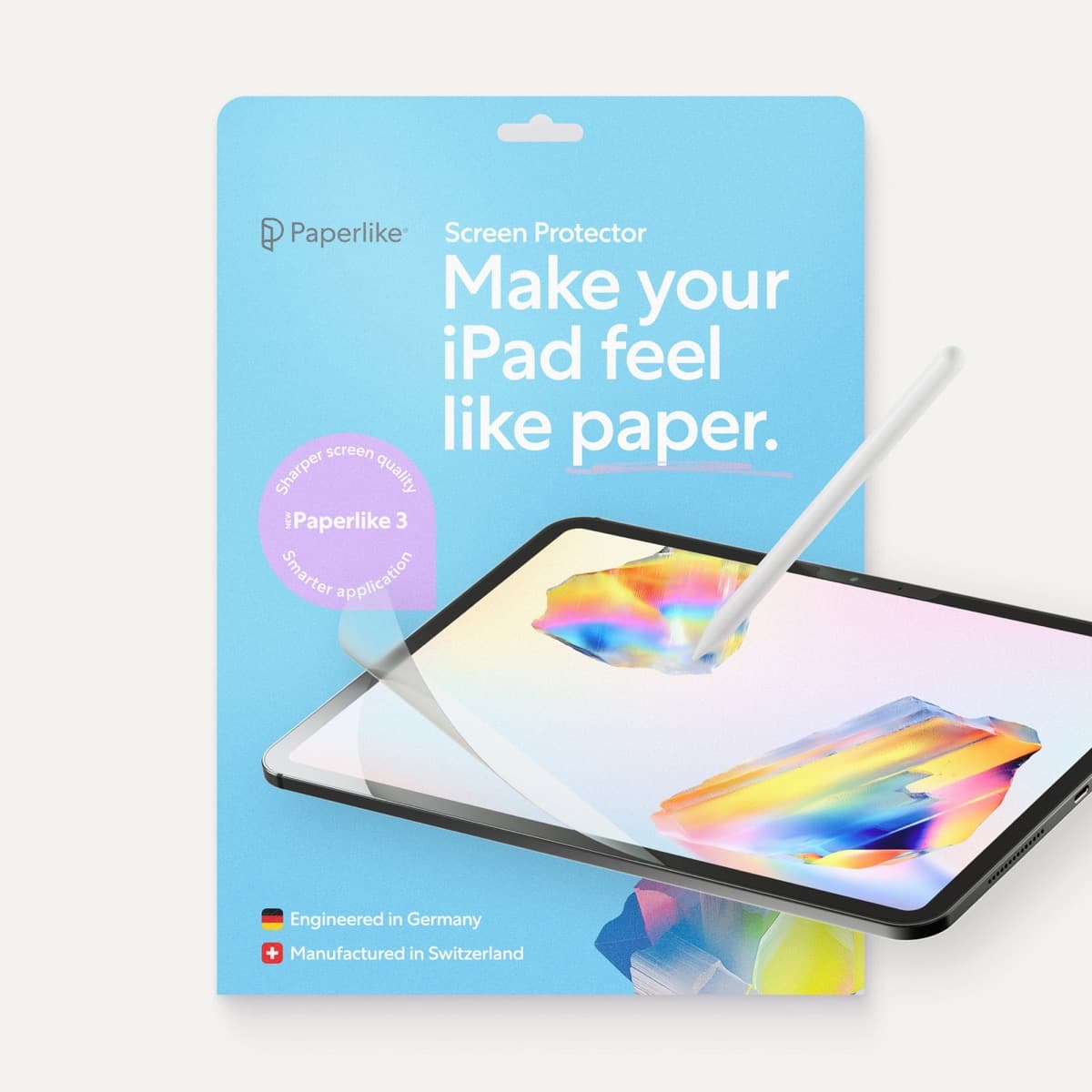
amazon.comA strong surface-feel upgrade for drawing control. Clarity tradeoff is real and should be expected.
Pro: Adds controlled paper-feel friction
Con: Slightly reduces perceived display sharpness
11-inch fit only. Confirm generation before checkout.
Anker 341 USB-C Hub (7-in-1)
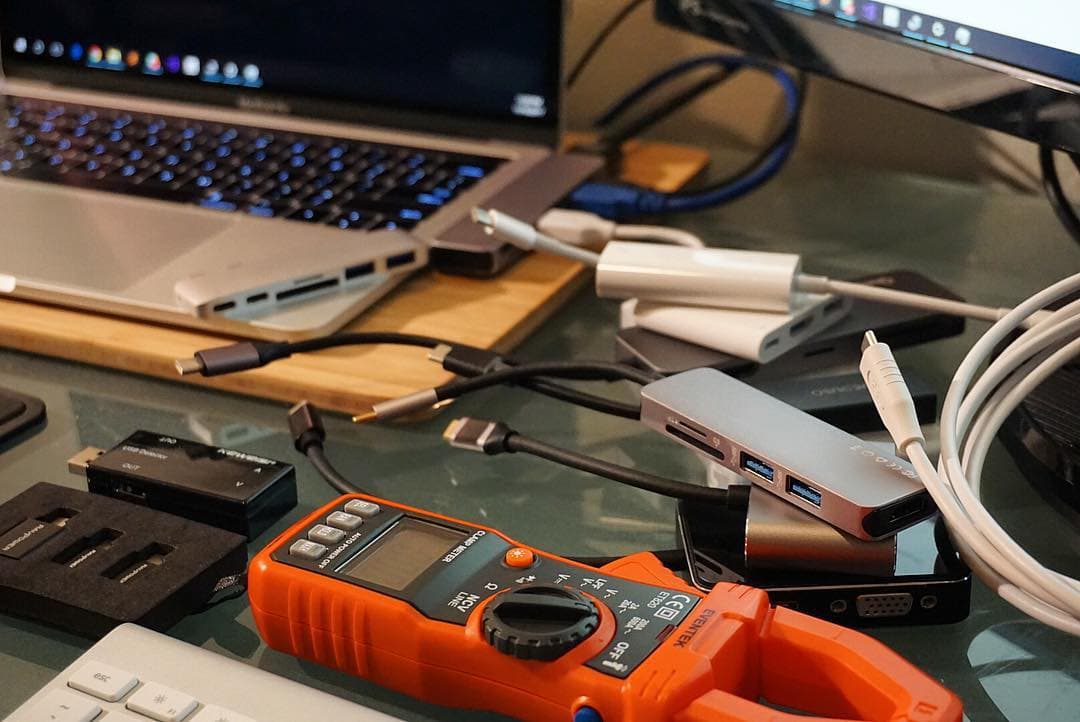
amazon.comA strong everyday port hub for iPad workflows. Good value and layout, with expected bandwidth limits.
Pro: Solid all-around port mix for iPad setups
Con: Not Thunderbolt bandwidth
Check host power pass-through and display output before buying.
Related buying picks
More in this collectionBuyer guide
Best iPad app for knitting chart design
knitCompanion is best for following and tracking charts, Procreate for drawing your own colorwork charts, and Concepts for flexible vector chart sketches.
Buyer guide
Best iPad app for fantasy map making
Procreate is the best default for painted fantasy maps, Concepts and Affinity Designer 2 suit clean vector maps, and Clip Studio Paint fits maps that live inside comics.
Buyer guide
Best iPad app for color palettes: where each one fits
Adobe Capture pulls palettes from photos, Coolors builds them from scratch, Pantone Connect matches print swatches, and Procreate is where you paint with them.
Buyer guide
Best iPad app for sketching over photos: top picks and tradeoffs
Compare Procreate, Clip Studio Paint, and top free-to-download alternatives to choose the right iPad app for sketching and tracing over photos.