





Buy Procreate if your iPad is your main drawing tool and you're willing to pay once. It's a paid app made for iPad, rated 4.4 from more than 50,000 App Store ratings, and its listing calls it the leading creative application made for iPad [1]. Choose ibis Paint X if you want to start free or you already draw on a phone: it's a free download rated 4.7 from more than 300,000 ratings, and its listing pitches it to everyone who wants to draw and animate freely [2]. Both are real art apps. The better one depends on how you pay and where you draw.
The short answer by situation
- You draw on an iPad most days and want one app to grow into: Procreate [1].
- You're testing whether digital art is for you and don't want to spend yet: ibis Paint X [2].
- You sketch on your phone on the go and finish on the iPad: ibis Paint X, since it's a free App Store download you can keep on both devices, while Procreate is made for iPad [2], [1].
- You want the app most iPad tutorials and brush packs are made for: Procreate [1].
That last point matters more than it sounds. When you get stuck, the size of the community around an app is what gets you unstuck, and Procreate's rating count shows how many iPad artists use it [1].
Price and what you're paying for
Procreate is a paid app, while ibis Paint X is a free download [1], [2]. That's the clearest difference between them, and for a beginner it can decide the whole question. If you're not sure you'll keep drawing, a free start is the sensible move [2].
If you already know you'll draw for years, a one-time purchase is easy to justify. Procreate's own listing frames it as made for iPad, so you're paying for an app designed around that one device [1]. Check the current price on the App Store before you buy, since prices change.
Drawing feel on the iPad
Procreate is built only for iPad, and that focus shows in how it treats the big screen and Apple Pencil [1]. If you work on an iPad with Apple Pencil Pro, Apple lists pressure, tilt, hover, squeeze, and barrel roll for that Pencil, and those features matter most in apps tuned for iPad drawing [4].
ibis Paint X is a strong drawing app too, with a huge user base behind its rating [2]. Some artists prefer its layout because they learned on a phone. Try a short sketch in each before you decide; feel is personal, and a ten-minute test tells you more than any feature list [1], [2].
Comics, line art, and animation
Both apps get used for comics and line art. ibis Paint X's listing explicitly mentions drawing and animating, which is worth knowing if you want simple animation alongside illustration in one free app [2]. Procreate focuses on illustration, and Savage, its maker, sells animation separately as Procreate Dreams [1].
If you're planning serious comic work with panels and lettering, you may end up comparing both of these with Clip Studio Paint as well. For general illustration and fan art, either of these two is enough to start [1], [2].
Which iPad suits each app
Both apps run on current iPads, and Procreate publishes which iPads it supports and explains that the iPad's memory sets canvas size and layer limits [3]. That page is worth reading before you buy an older or base-model iPad for large canvases [3].
Apple's comparison page shows the iPad Air with M4 supports Apple Pencil Pro in 11-inch and 13-inch sizes, which makes it a sensible all-round pick for either app [5]. If you're on a tighter budget, a base iPad still runs both; just check which Pencil it pairs with on Apple's compatibility page before you buy one [6].
Brushes, layers, and big canvases
Both apps give you brushes and layers, the two tools you'll use most. The difference shows up on large, layered pieces. Procreate's compatibility page explains that your iPad's memory sets the maximum canvas size and how many layers you get, so a big illustration on an older iPad may run out of layers sooner than you'd like [3]. Plan canvas size before you start a large piece, whichever app you choose.
Brush libraries are a matter of taste. Procreate's large user base means many artists sell and share brush packs for it, which is part of why it's popular with illustrators [1]. ibis Paint X's very large rating count shows a big community of its own, and its built-in brushes are enough for most casual work [2].
Who should skip each one
Skip Procreate if you aren't sure you'll keep drawing, or you want the same app on your phone, since it's made for iPad and costs money up front [1]. Skip ibis Paint X if you've already decided the iPad is your main studio and you want the app most iPad tutorials assume you're using [1], [2]. There's no shame in either path; plenty of working artists began with a free app and switched later.
Moving between the two later
You aren't locked in. Many artists start in ibis Paint X because it's free, then move to Procreate when they want an iPad-first app [1], [2]. Others keep ibis Paint X on their phone for quick sketches even after buying Procreate for the iPad.
If you switch, expect a week of relearning gestures and menus, and keep your old app installed until you've finished any open projects [1], [2].
Bottom line
Choose Procreate if your iPad is your main drawing tool and you'll pay once for an app built for it [1]. Choose ibis Paint X if you want to start free or draw on a phone and an iPad [2]. Read Procreate's compatibility page before you pick an iPad for big canvases, and pair either app with a Pencil your iPad supports [3], [6].
Sources
[1] https://apps.apple.com/us/app/id425073498 [2] https://apps.apple.com/us/app/id450722833 [3] https://help.procreate.com/articles/zlexav-ipad-compatibility [4] https://www.apple.com/apple-pencil/ [5] https://www.apple.com/ipad/compare/ [6] https://support.apple.com/en-us/108937
Recommended gear
Procreate
apps.apple.comPro: One-time purchase
Con: iPad-only

iPad Air (M4)
apple.comThe clean current Air recommendation for most serious hobby artists. Stronger buy logic than old-stock M3 when pricing is close.
Pro: Best current balance of price, headroom, and Pencil support
Con: Still 60Hz
Current Air lineup. Choose size, storage, and keyboard path before checkout.

Apple Pencil Pro
amazon.comThe best Apple stylus for serious digital art workflows. Expensive, but the control upgrades are real.
Pro: Best brush-control and hover workflow
Con: Highest price in the lineup
Works only with newer iPad models. Check compatibility.
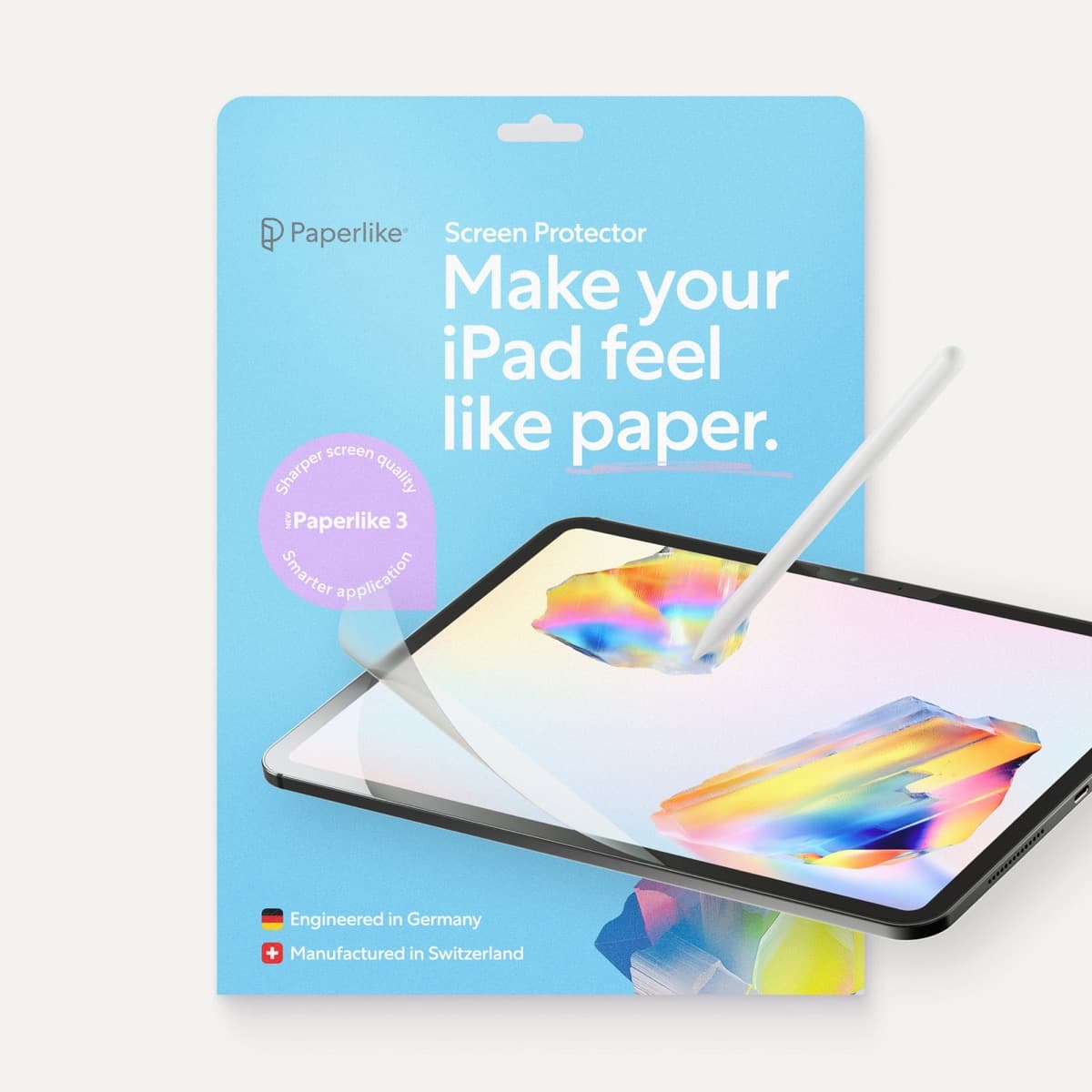
Paperlike 3 (11-inch, 2-pack)
amazon.comA strong surface-feel upgrade for drawing control. Clarity tradeoff is real and should be expected.
Pro: Adds controlled paper-feel friction
Con: Slightly reduces perceived display sharpness
11-inch fit only. Confirm generation before checkout.
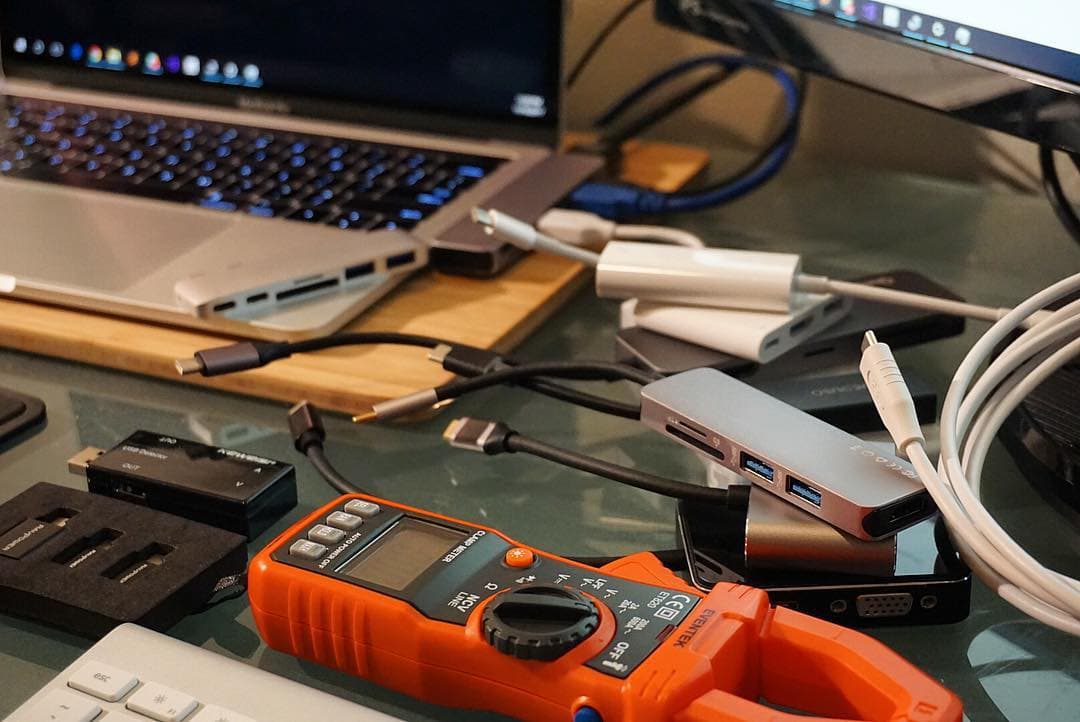
Anker 341 USB-C Hub (7-in-1)
amazon.comA strong everyday port hub for iPad workflows. Good value and layout, with expected bandwidth limits.
Pro: Solid all-around port mix for iPad setups
Con: Not Thunderbolt bandwidth
Check host power pass-through and display output before buying.
Related buying picks
More in this collectionComparison
Clip Studio Paint vs ibis Paint on iPad
Clip Studio Paint is the better choice for serious comics and multi-page work on iPad, while ibis Paint X is the better free choice for casual drawing and phone-to-iPad sketching.
Buyer guide
Best iPad for digital art beginners
Get the iPad Air (M4) if you want the Apple Pencil Pro toolset, or pick the base iPad (A16) if you want a capable digital sketchpad at the lowest entry cost.
Buyer guide
Is iPad 10th gen good for Procreate?
The iPad 10th gen handles Procreate well for everyday digital art, but stylus pairing limits and base hardware shape how far you can push large files.
Buyer guide
Best iPad for storyboard artists: our buyer guide
Choose the right iPad for storyboarding based on screen size, Apple Pencil Pro features, and canvas layer limits.