





Start with Adobe Capture if your colors come from the world around you, and use Coolors if you'd rather generate a palette from a blank slate. Adobe's listing says Capture turns your images into color palettes, vectors, fonts, and patterns, and it's a free download [1]. Coolors calls itself a color palettes app and website, and it's free too [2]. Skip a dedicated palette app entirely if you only paint in Procreate and like mixing as you go, because the painting app is where those colors end up anyway [4].
Pick by where your colors start
Pick the app by where your palette starts. If a palette begins with a photo of a market stall, a sunset, or a fabric sample, you want a tool that samples an image, and that's what Adobe's listing describes Capture doing [1]. If a palette begins with a mood, a brand word, or a client brief, a generator that hands you combinations to accept or reject is faster, which is the job Coolors puts front and center [2].
A third start is a printed swatch. Pantone Connect is the Pantone Color app for designers and color experts, according to its listing, and it sits in the Reference category rather than Graphics & Design [3]. That tells you what it's for: looking up and matching named print colors, not sketching.
- Photo first: Adobe Capture [1]
- Blank page or brief first: Coolors [2]
- Print swatch first: Pantone Connect [3]
- Canvas first: Procreate's own color tools [4]
Adobe Capture for palettes from photos
Capture is the pick for illustrators who collect color from reference. Point it at a photo and you're working from colors that already sit together in real light, which is a good shortcut when your own picks keep coming out muddy [1]. It's a free download with a 4.8 rating from more than 24,000 App Store ratings, so it isn't a niche experiment [1].
Choose it if you shoot your own reference or keep a camera roll of textures and scenes. Skip it if you never start from images, because its main trick is sampling them [1].
Coolors for generated palettes
Coolors is the faster route when you don't have a source image and want options now. Its listing calls it the most loved color palettes app and website, and it's a free download rated 4.8 from more than 10,000 ratings [2]. The appeal is speed: you see a palette, keep the colors you like, and keep looking for the rest.
Use it for brand boards, poster work, or any project where you're testing several directions before you commit. Skip it if you already know your colors and only need somewhere to store them, since a painting app's palette panel does that job [2], [4].
Pantone Connect only for print matching
Pantone Connect earns a place when a client or printer speaks in Pantone numbers. Its listing describes it as the essential Pantone Color iOS app for designers and color experts [3]. It's a free download, but its rating is much lower than the others, 3.1 from a few hundred ratings, so treat it as a lookup tool for a specific job rather than a daily sketching companion [3].
Buy into it if you design packaging, merch, or anything that goes to a print shop with named colors, and skip it for screen-only illustration [3].
Where Procreate fits
Whatever app builds the palette, most iPad illustrators paint in Procreate, a paid app with more than 50,000 App Store ratings [4]. Think of the palette apps as the place colors are found and Procreate as the place they're used. Keeping that split simple stops you from rebuilding the same palette in three places [4].
If you're choosing hardware for this kind of work, the iPad Air with M4 is a sensible middle pick: Apple's comparison page lists it with Apple Pencil Pro support, and that's the Pencil with the fullest feature list on Apple's own chart [6], [5]. A palette app runs fine without a Pro iPad, since the painting you do afterward is what sets the hardware bar [6].
A simple palette routine
A routine keeps palettes useful instead of piling up. Here's one that works with the apps above [1], [2], [4]:
- Collect: sample a reference photo in Capture or generate options in Coolors [1], [2].
- Trim: keep five to eight colors, including one dark and one light anchor.
- Move: recreate the keepers in Procreate's palette so they're one tap away while painting [4].
- Test: paint a small thumbnail with only those colors before you start the real piece.
Don't skip the test step: a palette that looks good as swatches can still fail on a canvas, and a thumbnail tells you in minutes [4].
Bottom line
Choose Adobe Capture when your colors start in photos and Coolors when they start from nothing; both are free downloads with strong ratings [1], [2]. Add Pantone Connect only for print matching [3]. Keep Procreate as the canvas where those palettes get used, and don't let a palette app become a second place to paint [4].
Sources
[1] https://apps.apple.com/us/app/id1040200189 [2] https://apps.apple.com/us/app/id956480678 [3] https://apps.apple.com/us/app/id1491023737 [4] https://apps.apple.com/us/app/id425073498 [5] https://www.apple.com/apple-pencil/ [6] https://www.apple.com/ipad/compare/
Recommended gear
Procreate
apps.apple.comPro: One-time purchase
Con: iPad-only

Apple Pencil Pro
amazon.comThe best Apple stylus for serious digital art workflows. Expensive, but the control upgrades are real.
Pro: Best brush-control and hover workflow
Con: Highest price in the lineup
Works only with newer iPad models. Check compatibility.

iPad Air (M4)
apple.comThe clean current Air recommendation for most serious hobby artists. Stronger buy logic than old-stock M3 when pricing is close.
Pro: Best current balance of price, headroom, and Pencil support
Con: Still 60Hz
Current Air lineup. Choose size, storage, and keyboard path before checkout.
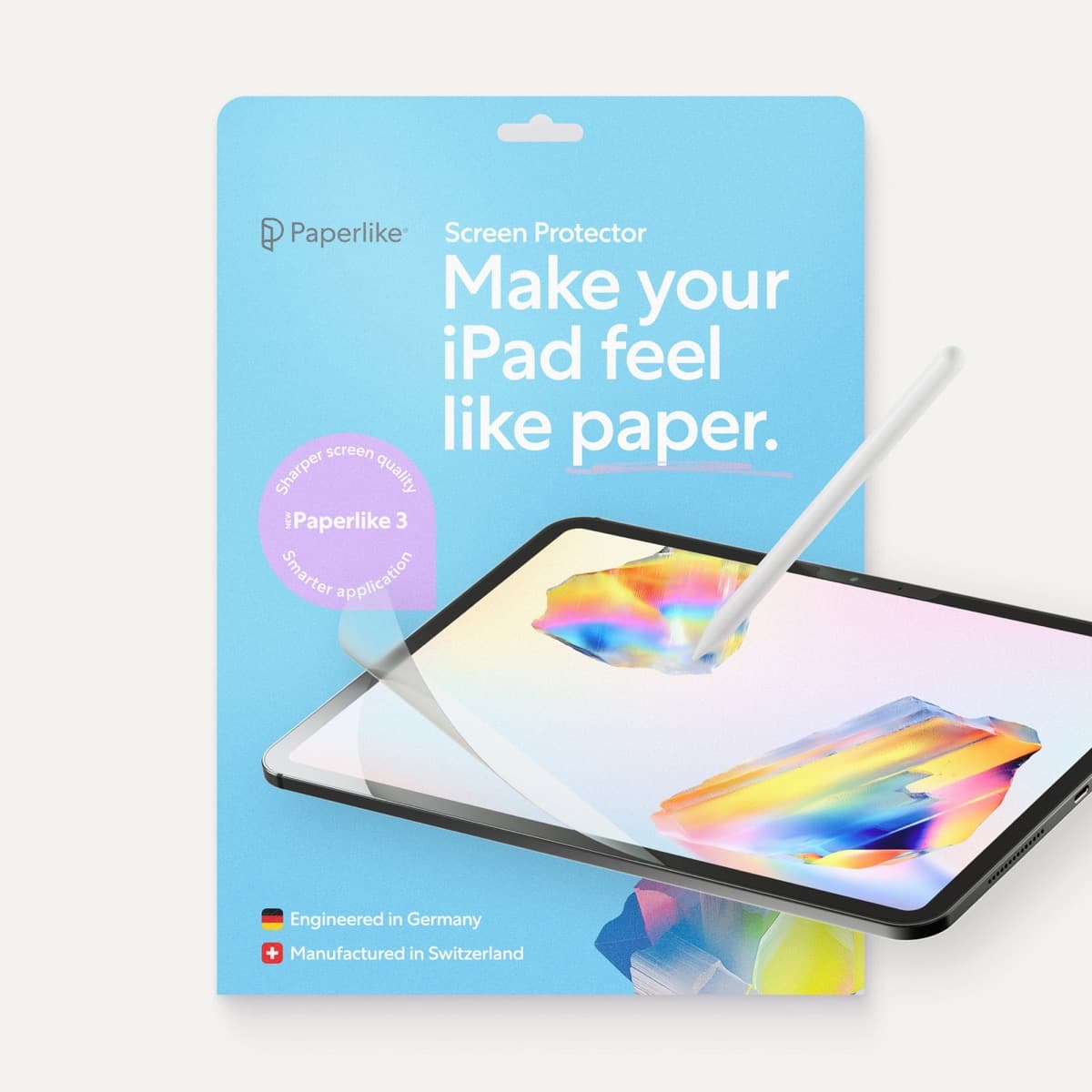
Paperlike 3 (11-inch, 2-pack)
amazon.comA strong surface-feel upgrade for drawing control. Clarity tradeoff is real and should be expected.
Pro: Adds controlled paper-feel friction
Con: Slightly reduces perceived display sharpness
11-inch fit only. Confirm generation before checkout.
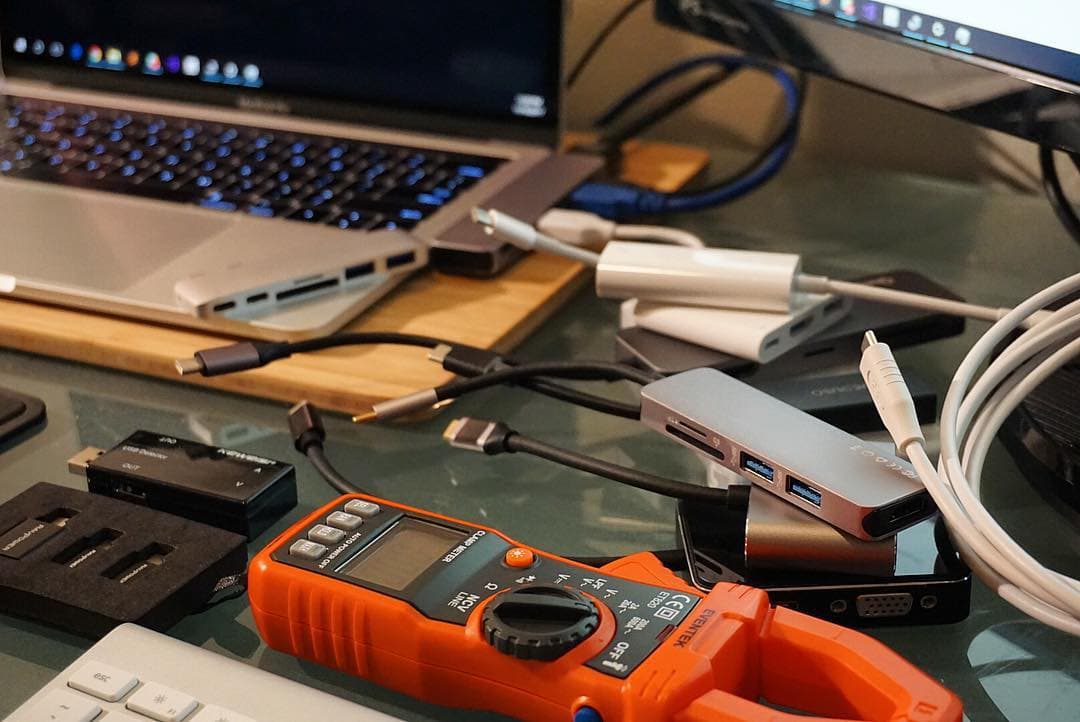
Anker 341 USB-C Hub (7-in-1)
amazon.comA strong everyday port hub for iPad workflows. Good value and layout, with expected bandwidth limits.
Pro: Solid all-around port mix for iPad setups
Con: Not Thunderbolt bandwidth
Check host power pass-through and display output before buying.
Related buying picks
More in this collectionBuyer guide
Best iPad app for knitting chart design
knitCompanion is best for following and tracking charts, Procreate for drawing your own colorwork charts, and Concepts for flexible vector chart sketches.
Buyer guide
Best iPad app for jewelry design
Procreate is best for jewelry sketches and renderings, Nomad Sculpt for organic 3D pieces, uMake for precise CAD forms, and Concepts for quick vector design sheets.
Buyer guide
Best iPad app for fantasy map making
Procreate is the best default for painted fantasy maps, Concepts and Affinity Designer 2 suit clean vector maps, and Clip Studio Paint fits maps that live inside comics.
Buyer guide
Best iPad app for sketching over photos: top picks and tradeoffs
Compare Procreate, Clip Studio Paint, and top free-to-download alternatives to choose the right iPad app for sketching and tracing over photos.