





If you're an illustrator who wants to start animating, choose Procreate Dreams. Its listing calls it an award-winning animation app with powerful tools that anyone can use [1]. If you already animate and want a traditional setup, pick Callipeg: its listing describes a professional 2D hand-drawn animation app for iPad and Apple Pencil with frame-by-frame and keyframe tools in a studio-grade environment [2]. Both are paid apps, so it's worth knowing which kind of animator you are before you buy one [1], [2].
The short answer by situation
- You draw in Procreate and want to make your illustrations move: Procreate Dreams [1].
- You learned animation on paper or in desktop software and want those habits on iPad: Callipeg [2].
- You're making a longer animated short with many scenes: Callipeg's studio-grade framing fits that kind of project [2].
- You want short loops and social clips with little setup: Procreate Dreams [1].
Both are tuned for different starting points, and neither is the wrong one.
Procreate Dreams: approachable first
Procreate Dreams comes from Savage Interactive, the same developer behind Procreate [1], [3]. Its listing leans on approachability: powerful tools that anyone can use [1]. For an illustrator, that familiar maker and focus on ease are the main reasons to start here.
Its App Store rating is 3.9 from a few hundred ratings, a modest score and a small count for an app from such a well-known maker [1]. Read a few recent reviews for the specific features you need before you buy, especially if you plan to export long projects [1].
Callipeg: a studio on the iPad
Callipeg is a paid app from Enoben, rated 3.6 from more than 800 ratings [2]. What sets it apart in its listing is the language of traditional animation: frame-by-frame and keyframe tools in a comprehensive, studio-grade environment [2]. If you think in keys, inbetweens, and exposure sheets, that's the vocabulary you want an app to speak.
Expect a steeper start if you've never animated. Studio-style tools reward people who already know the workflow [2].
Ratings and what they mean
Both apps have fairly low App Store ratings compared with general drawing apps, 3.9 for Procreate Dreams and 3.6 for Callipeg [1], [2]. Low ratings on animation apps often reflect how demanding animation is, since a missing feature or a crash on a long project frustrates people more than in a quick sketch app.
Don't treat either rating as a verdict. Treat it as a reason to test your real workflow, for example a ten-second scene, before you commit to a long project in either app [1], [2].
Other names you'll see
Comparisons of these two often mention other iPad animation apps too, like RoughAnimator or FlipaClip. If you're unsure whether you'll stick with animation, a free app is a cheap way to find out before you buy either of these [1], [2]. If you already own Procreate, Procreate Dreams is the most natural next step, since the maker and brush feel are familiar [1], [3].
Run the same test scene in both
The fairest way to choose is one small scene animated twice. Pick something with a clear motion, like a ball bounce or a head turn, and keep it under five seconds [1], [2]. Animate it once in each app from rough sketch to clean line.
While you work, notice three things. How quickly can you flip between the current frame and the one before it? How easy is it to change the timing of a single drawing? And how does exporting the finished clip go [1], [2]? Those are the moments you'll repeat hundreds of times on a real project, so small differences there decide which app you'll enjoy.
Both apps are paid, so this test means buying both or watching someone else run it first [1], [2]. If you can only buy one, use the situations above to pick, and give yourself a week before judging it.
Where each fits in a bigger workflow
Many iPad animators don't use one app for everything. Illustrators often paint backgrounds and character designs in Procreate, then animate in Procreate Dreams, keeping the same maker's tools across both steps [1], [3]. Animators coming from studio software may keep Callipeg for the animation itself and use other apps for backgrounds and compositing [2].
Decide which step of your work is the animation and which steps are art around it. The app you'll spend the most hours in is the one to get right first [1], [2].
iPad and Pencil for animation
Animation is many drawings in a row, so Pencil control and screen space matter. Apple's Pencil chart lists pressure, tilt, hover, squeeze, and barrel roll for Apple Pencil Pro [4]. Hover is useful when you're matching a line to the previous frame, because you can see where the stroke will land [4].
Apple's comparison page shows the iPad Air with M4 supports Apple Pencil Pro in 11-inch and 13-inch sizes [5]. A 13-inch screen leaves more room for the timeline and the drawing together, which is a real comfort in an animation app [5]. Check Apple's pairing page for your exact iPad before buying a Pencil [6].
Bottom line
Choose Procreate Dreams if you're an illustrator who wants an approachable way into animation, especially if you already use Procreate [1], [3]. Pick Callipeg if you already animate and want frame-by-frame and keyframe tools in a studio-style app [2]. Test a short scene in either before you start a long project, and pair it with an iPad and Pencil that support hover if you can [4], [5].
Sources
[1] https://apps.apple.com/us/app/id1595520602 [2] https://apps.apple.com/us/app/id1456172656 [3] https://apps.apple.com/us/app/procreate/id425073498 [4] https://www.apple.com/apple-pencil/ [5] https://www.apple.com/ipad/compare/ [6] https://support.apple.com/en-us/108937
Recommended gear
Procreate
apps.apple.comPro: One-time purchase
Con: iPad-only

iPad Air (M4)
apple.comThe clean current Air recommendation for most serious hobby artists. Stronger buy logic than old-stock M3 when pricing is close.
Pro: Best current balance of price, headroom, and Pencil support
Con: Still 60Hz
Current Air lineup. Choose size, storage, and keyboard path before checkout.

Apple Pencil Pro
amazon.comThe best Apple stylus for serious digital art workflows. Expensive, but the control upgrades are real.
Pro: Best brush-control and hover workflow
Con: Highest price in the lineup
Works only with newer iPad models. Check compatibility.
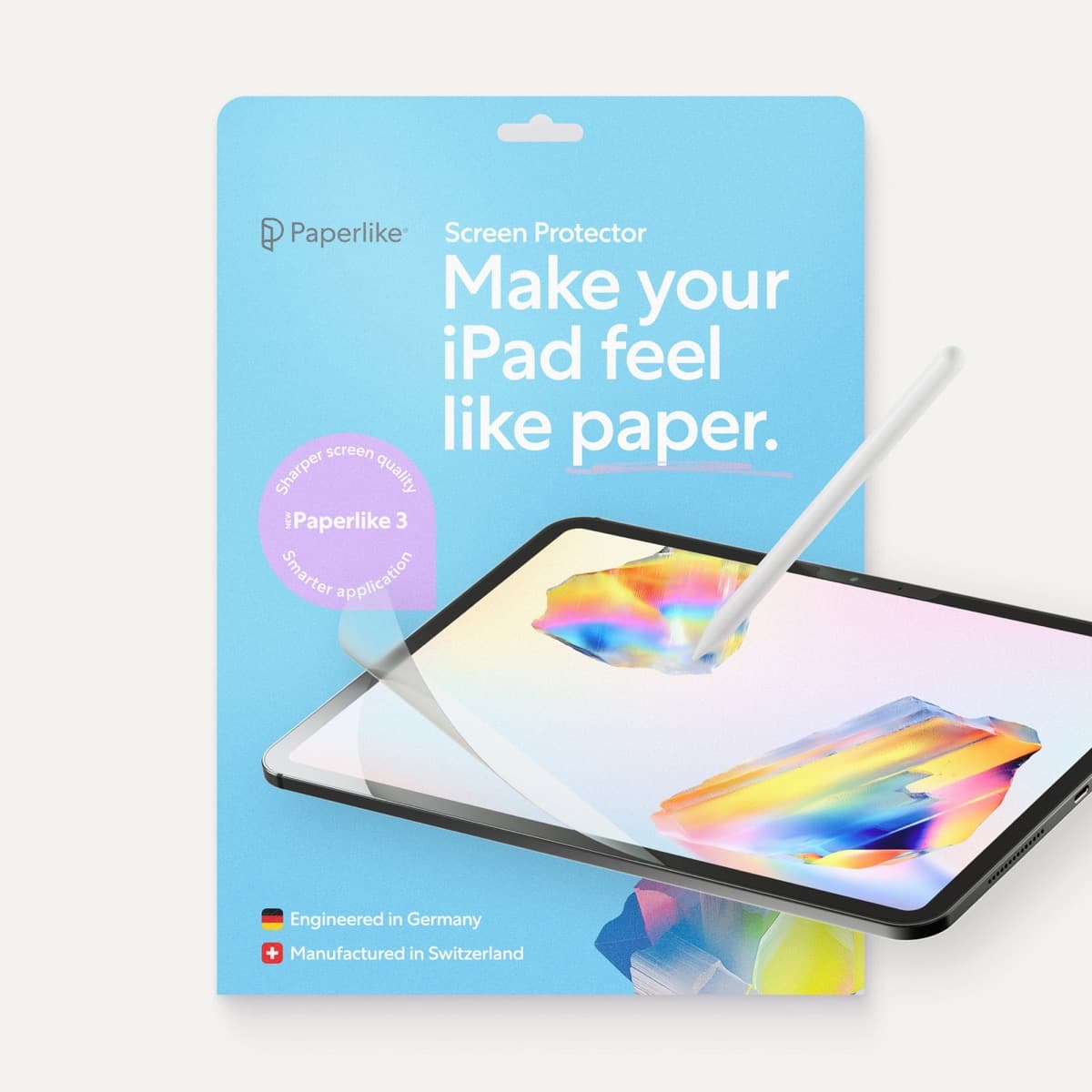
Paperlike 3 (11-inch, 2-pack)
amazon.comA strong surface-feel upgrade for drawing control. Clarity tradeoff is real and should be expected.
Pro: Adds controlled paper-feel friction
Con: Slightly reduces perceived display sharpness
11-inch fit only. Confirm generation before checkout.
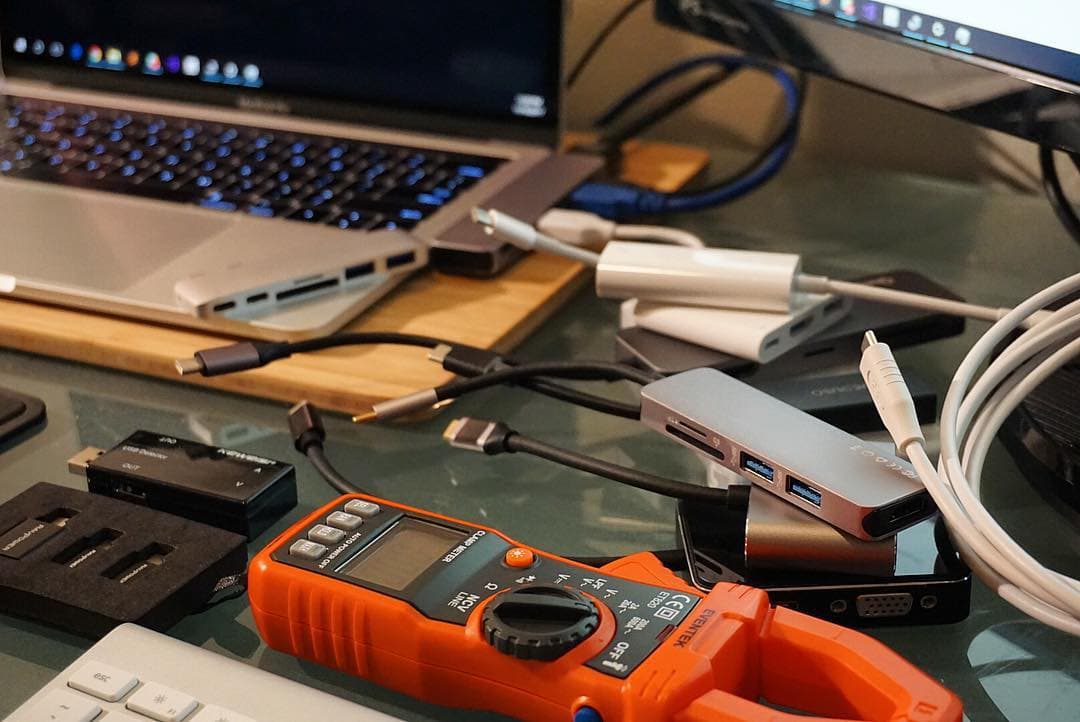
Anker 341 USB-C Hub (7-in-1)
amazon.comA strong everyday port hub for iPad workflows. Good value and layout, with expected bandwidth limits.
Pro: Solid all-around port mix for iPad setups
Con: Not Thunderbolt bandwidth
Check host power pass-through and display output before buying.
Related buying picks
More in this collectionComparison
iPad or drawing tablet for animation: Choosing your best studio setup
Decide between an all-in-one iPad and a dedicated drawing tablet for 2D or 3D animation work.
Comparison
Clip Studio Paint vs ibis Paint on iPad
Clip Studio Paint is the better choice for serious comics and multi-page work on iPad, while ibis Paint X is the better free choice for casual drawing and phone-to-iPad sketching.
Comparison
Affinity Designer vs Adobe Illustrator on iPad
Adobe Illustrator on iPad is the better pick if you work in Adobe's ecosystem or with clients who do, while Affinity Designer 2 suits designers who want a full vector app that isn't tied to Adobe.
Comparison
Procreate vs ibis Paint: which is better on iPad
Procreate is the better pick for most iPad artists who'll pay once, while ibis Paint X is the better pick for free drawing and for anyone who also draws on a phone.