





Choose Adobe Illustrator on iPad if your work already lives in Adobe's world: clients send Illustrator files, or you finish projects in Illustrator on a desktop. Its listing describes making logos, illustrations, graphics, and more, and it's a free download rated 4.5 from more than 38,000 ratings [2]. Pick Affinity Designer 2 for iPad if you want a full vector app that isn't tied to Adobe. Its listing says it brings Serif's Apple Design Award-winning desktop app to the iPad as a touch-focused experience, and it's a free download rated 4.7 from nearly 5,000 ratings [1].
The short answer by situation
- Agency, freelance, or client work where Illustrator files are expected: Adobe Illustrator [2].
- You already pay for Adobe apps and want the iPad to match: Adobe Illustrator [2].
- You'd rather avoid Adobe and still want a desktop-class vector tool: Affinity Designer 2 [1].
- You use Serif's desktop Affinity apps already: Affinity Designer 2, built from that desktop app [1].
Both are capable. The ecosystem around your work usually decides it.
Adobe Illustrator on iPad
Adobe's listing for Illustrator on iPad keeps the pitch simple: create logos, illustrations, graphics, and more [2]. Its biggest strength is the one Adobe is known for, which is that Illustrator files are a common format in design work. If you're handing files to a print shop, an agency, or a client team that uses Illustrator, staying in Adobe's app reduces friction [2].
It's a free download on the App Store [2]. Check what you get for free and what's part of an Adobe plan before you build your workflow on it, since Adobe's pricing changes.
Affinity Designer 2 for iPad
Affinity Designer 2 for iPad comes from Serif, and its listing describes taking the power and precision of the desktop app and turning it into a touch-focused creative experience [1]. That desktop pedigree is the reason designers pick it: you get a full vector tool rather than a cut-down mobile version [1].
It's a free download too [1]. Its rating is higher than Illustrator's on iPad, though from far fewer ratings, so treat that as a good sign rather than a final word [1], [2].
Files and handing work off
The practical question is what happens after you finish a design. If a client asks for an Illustrator file, Adobe Illustrator is the direct answer [2]. If clients only want exported files, like a PNG, PDF, or SVG, either app can deliver, and the choice comes down to which one you enjoy working in [1], [2].
Before you commit, do one real job in each: a logo or a poster, exported the way your client wants it. You'll learn more from that than from any feature table [1], [2].
Cost and accounts
Both apps are free downloads on the App Store, but that's where the similarity ends [1], [2]. Adobe Illustrator on iPad sits inside Adobe's account system, so expect to sign in with an Adobe account and check which features need a paid plan [2]. Affinity Designer 2 comes from Serif, a separate company, so you won't need an Adobe account at all to use it [1].
That account question matters more than it seems. If you already pay for Adobe apps for photo or video work, Illustrator on iPad may cost you nothing extra [2]. If you don't, Affinity Designer 2 lets you skip adding a new subscription to your monthly bills [1]. Read each listing's in-app purchase section on the App Store before you choose, since that's where the current terms are shown [1], [2].
Learning curve
If you've used either desktop app, you'll have a head start on its iPad version. Affinity's listing says its iPad app takes the desktop app's precision into a touch-focused experience, so the core tools will feel familiar to desktop Affinity users [1]. Illustrator users will recognize the tools and ideas from Adobe's desktop app as well [2].
If you're new to vector design, both apps take a few weeks to feel natural. Pick one, follow a beginner course for it, and make three small real projects before you judge it [1], [2]. Switching back and forth early makes both feel harder than they are.
Touch and Pencil workflow
Both apps are built for touch and Apple Pencil on iPad, and Affinity's listing specifically calls out a touch-focused experience [1]. Vector work leans on precision more than pressure, so placing points and adjusting curves accurately matters most.
Apple's Pencil chart lists hover for Apple Pencil Pro and other models on supported iPads, and hover helps you see where a point will land before you tap [3]. Squeeze and barrel roll are extras on Apple Pencil Pro that some apps use for tool palettes and brush angle [3].
Which iPad suits vector design
Vector design isn't as heavy as large painted canvases, but complex files with many objects still benefit from a newer chip. Apple's comparison page lists the iPad Air with M4 in 11-inch and 13-inch sizes, and the iPad Pro with M5 with the Ultra Retina XDR display [4]. The 13-inch Air is a sensible designer's pick: lots of room for panels and artboards without Pro pricing [4].
A base iPad with the A16 chip can still run vector apps for lighter work [4]. Check which Apple Pencil it pairs with on Apple's compatibility page before buying, since Pencil support differs across the lineup [5].
Bottom line
Choose Adobe Illustrator on iPad if your clients or desktop workflow expect Adobe files [2]. Pick Affinity Designer 2 if you want a full, desktop-derived vector app outside Adobe [1]. Test one real job in each before deciding, and pair either with a 13-inch iPad Air if you want room for artboards [4].
Sources
[1] https://apps.apple.com/us/app/id1616833418 [2] https://apps.apple.com/us/app/id1018784575 [3] https://www.apple.com/apple-pencil/ [4] https://www.apple.com/ipad/compare/ [5] https://support.apple.com/en-us/108937
Recommended gear

iPad Air (M4)
apple.comThe clean current Air recommendation for most serious hobby artists. Stronger buy logic than old-stock M3 when pricing is close.
Pro: Best current balance of price, headroom, and Pencil support
Con: Still 60Hz
Current Air lineup. Choose size, storage, and keyboard path before checkout.
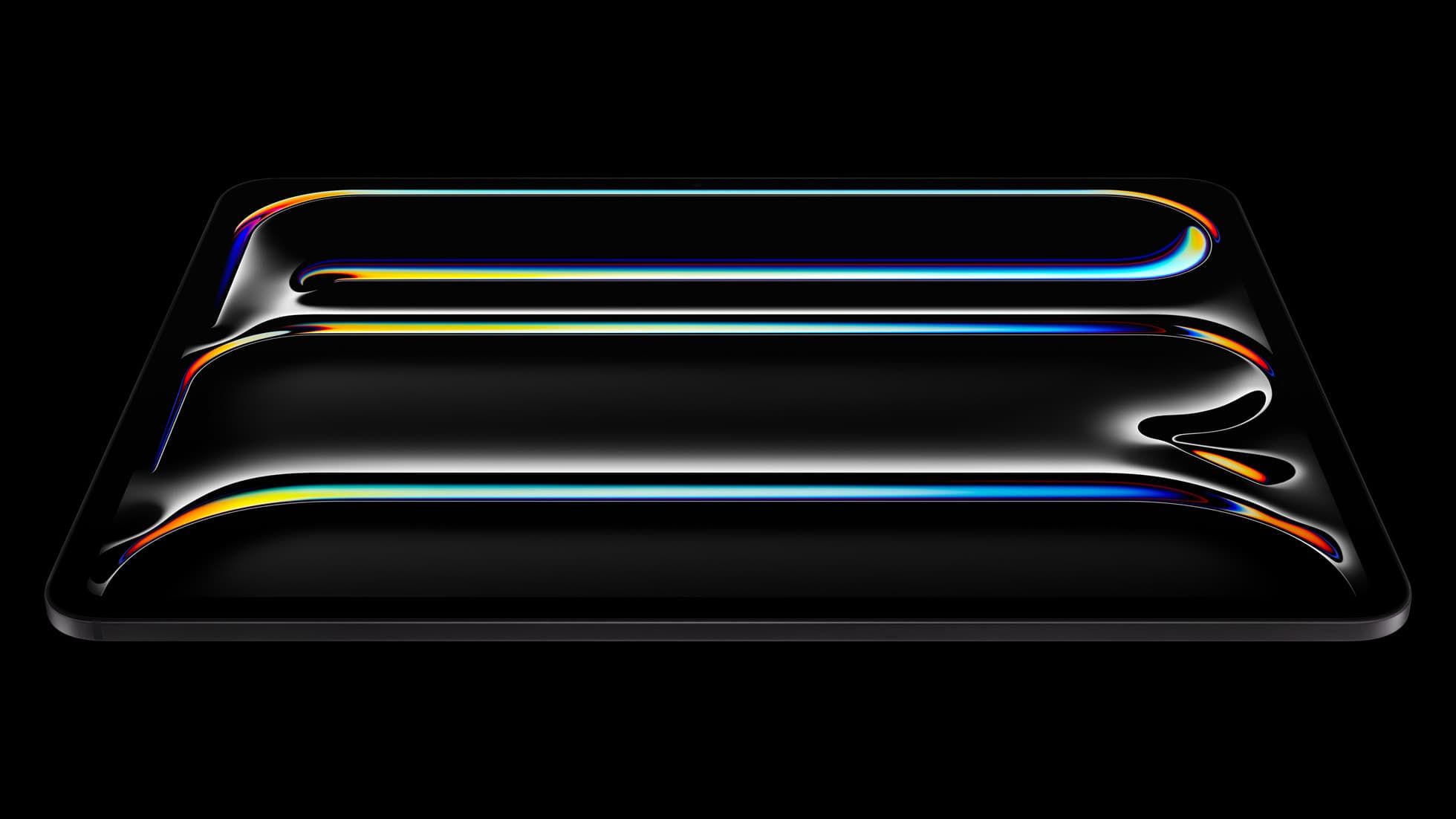
iPad Pro (M5)
amazon.comThe best iPad for drawing feel and premium workflow comfort, but many buyers still overpay for it.
Pro: Best iPad display and ProMotion feel
Con: Highest price in the lineup
Search opens with iPad Pro terms. Check year, chip, and screen size.
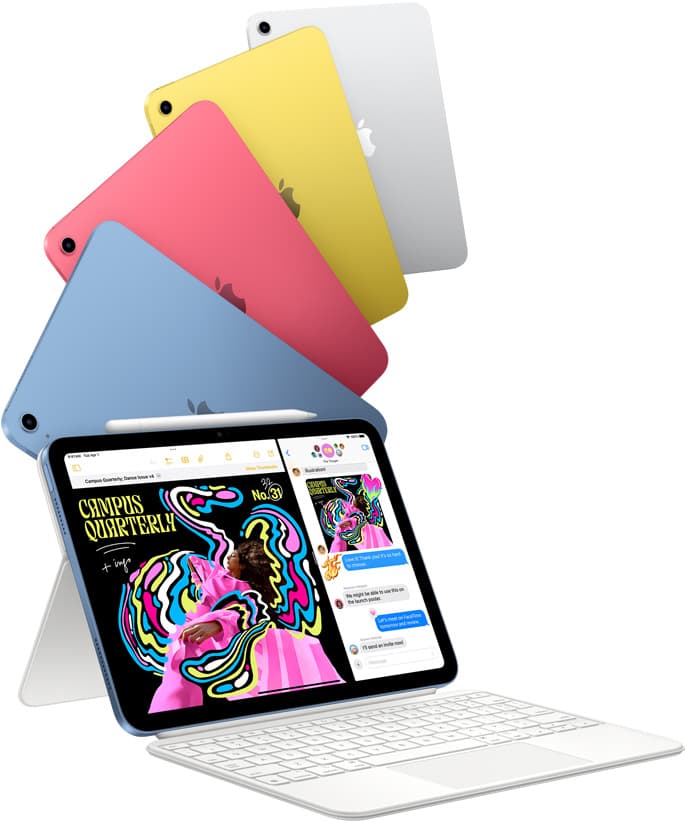
iPad (A16, 11th gen)
amazon.comThe best entry iPad for most artists on a budget. It is not premium, but it is very hard to beat on value.
Pro: Best value iPad right now
Con: No ProMotion display
Search opens with the exact model keywords. Verify size and storage before checkout.

Apple Pencil Pro
amazon.comThe best Apple stylus for serious digital art workflows. Expensive, but the control upgrades are real.
Pro: Best brush-control and hover workflow
Con: Highest price in the lineup
Works only with newer iPad models. Check compatibility.
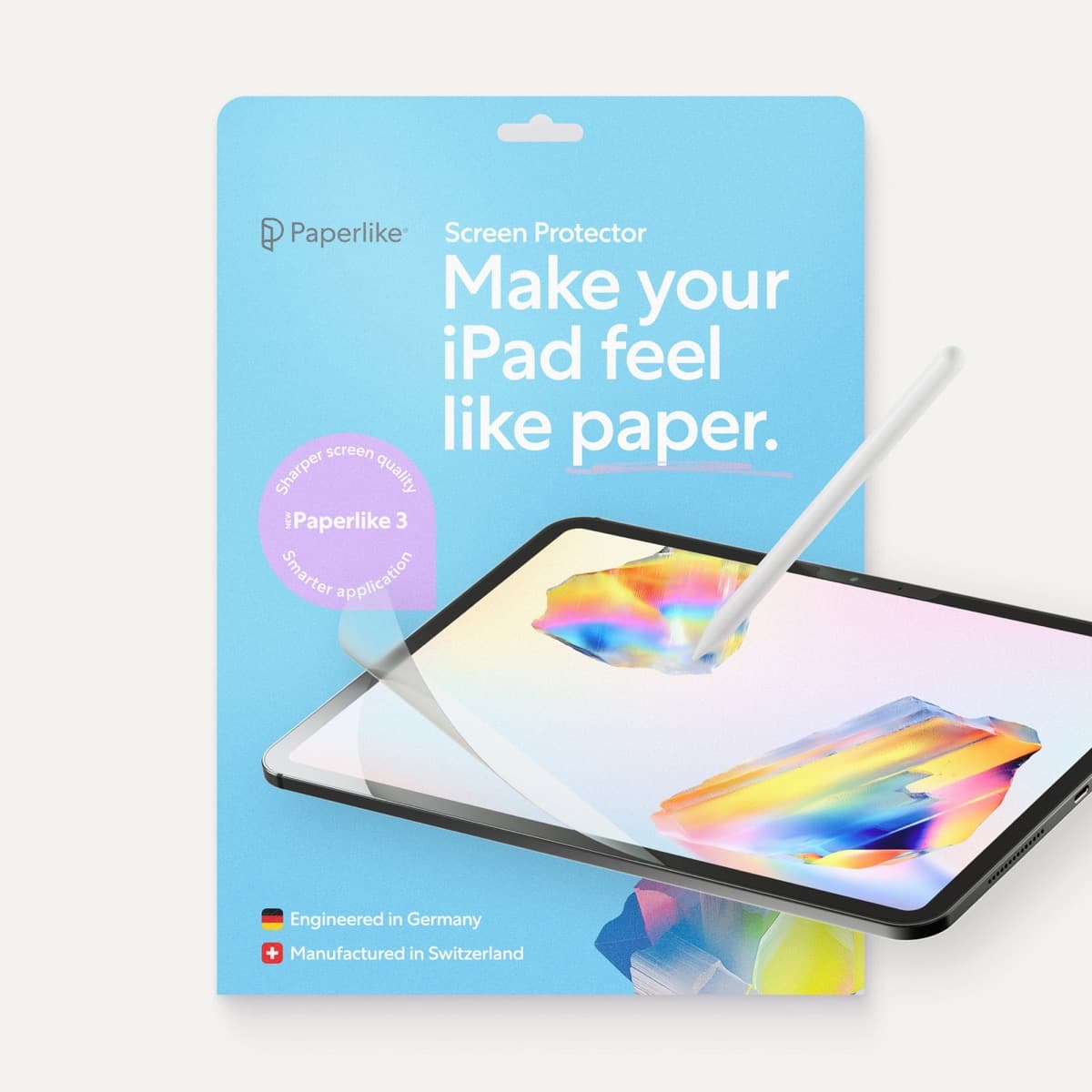
Paperlike 3 (11-inch, 2-pack)
amazon.comA strong surface-feel upgrade for drawing control. Clarity tradeoff is real and should be expected.
Pro: Adds controlled paper-feel friction
Con: Slightly reduces perceived display sharpness
11-inch fit only. Confirm generation before checkout.
Related buying picks
More in this collectionComparison
Callipeg vs Procreate Dreams for iPad animation
Procreate Dreams is the friendlier pick for illustrators who want to start animating, while Callipeg suits animators who want a traditional frame-by-frame and keyframe studio on iPad.
Comparison
Clip Studio Paint vs ibis Paint on iPad
Clip Studio Paint is the better choice for serious comics and multi-page work on iPad, while ibis Paint X is the better free choice for casual drawing and phone-to-iPad sketching.
Comparison
Procreate vs ibis Paint: which is better on iPad
Procreate is the better pick for most iPad artists who'll pay once, while ibis Paint X is the better pick for free drawing and for anyone who also draws on a phone.
Buyer guide
Best iPad for logo design
Choose the iPad Air with the M4 chip for the best mix of vector precision, Apple Pencil Pro support, and balanced pricing.