





Buy the iPad Air (M4) if you want one portable device that runs iPad animation apps and accepts direct Apple Pencil input [1], [2], [5]. Choose a desktop pen tablet instead if the exact animation software, plug-ins, or file pipeline you must use is available only on your Mac or PC [4].
An iPad combines the display, computer, apps, and compatible Pencil in one device [1], [5]. Wacom's pen-tablet line instead supplies drawing input to a connected computer [4]. Resolve the choice by listing required software first, then deciding whether portability or access to the desktop environment matters more.
Standalone mobility against desktop animation suites
The most fundamental difference between an iPad and a traditional pen tablet is where the software runs. A screenless pen tablet requires a connected computer, and the application runs on that host rather than on the tablet [4]. This makes the computer's operating system and available applications part of the purchase decision.
An iPad can run animation apps on the device and draw directly on its display with a compatible Apple Pencil [1], [2], [5]. That is the simpler travel setup because it does not require a host computer beside the drawing surface. Confirm the export formats you need in the chosen app before treating it as a complete delivery workflow [2], [3].
The iPad route still has a software boundary. Procreate Dreams and Clip Studio Paint document substantial iPad feature sets, but those listings do not guarantee compatibility with a studio's desktop-only application, plug-in, or automation [2], [3]. If delivery must occur inside a named desktop package, verify that requirement before buying; an iPad may then be a sketching companion rather than the primary workstation.
Software capabilities: Procreate Dreams and Clip Studio Paint
The software landscape determines whether an iPad can handle your complete animation workload. In recent years, dedicated animation apps have made the iPad a fully capable production tool for hand-drawn projects. Procreate Dreams brings multi-track timelines, performative record gestures, and high-resolution video playback directly to iPad hardware, tailored specifically for multi-touch and Apple Pencil inputs [2]. For hand-drawn frame-by-frame work, the responsiveness of the pencil on glass feels fluid and intuitive [2].
Clip Studio Paint spans desktop and iPad platforms and advertises animation alongside its illustration and comic tools [3]. That can reduce workflow differences for an existing Clip Studio user, but it does not prove that every desktop feature, shortcut, plug-in, or file behaves identically. Compare the current platform details for the specific tools you use [3].
Desktop pen tablets hold the practical advantage when the required application or plug-in runs only on the connected computer [4]. Write down the exact deliverable and software version before shopping. If the pipeline is iPad-native, the iPad remains viable; if it depends on an unsupported desktop tool, the host-computer route wins regardless of tablet specifications [2], [3], [4].
Screen response, refresh rates, and Apple Pencil accuracy
Wacom lists pen tablets that separate the drawing surface from the computer display [4]. Some artists prefer looking at the monitor while drawing on the desk; others prefer placing the pen directly over the image. Neither arrangement is universally more ergonomic, so test the hand-to-eye mapping rather than relying on a category claim [4].
An iPad places your stylus directly over the pixels [1]. For frame-by-frame linework, many artists find this direct visual connection faster and more natural than indirect tablets. However, the standard glass face of an iPad is slicker than the textured matte plastic found on dedicated pen tablets, often prompting animators to add matte screen protectors or switch to high-friction tips.
Stylus features also differ. Apple documents compatibility and features for each Apple Pencil model, including Apple Pencil Pro controls on supported iPads [5]. Wacom lists the pens and controls bundled with its tablet models [4]. Compare the exact Pencil or pen included with the device, since charging, buttons, pressure support, and shortcut behavior are product-specific rather than universal category traits [4], [5].
The iPad Pro lineup includes ProMotion, while the Air and baseline models use different display technology [1]. ProMotion may feel more fluid while drawing or moving through a timeline, but Apple's comparison page does not promise less fatigue or better animation output. Test the same scene on both displays if refresh behavior is important to you [1].
Comparing iPad models for animation pipelines
If you determine that an iPad fits your animation workflow, select a model by matching its listed features with a representative project in your chosen app [1], [2], [3].
The iPad Air (M4) represents the sweet spot for many animators because it supports Apple Pencil Pro and sits below the Pro in the lineup [1], [5]. Procreate Dreams and Clip Studio Paint are both available on iPad, but their listings do not establish an unlimited project ceiling [2], [3]. Test a representative scene before choosing storage and screen size.
The iPad Pro (M5) provides Apple's premium display option and supports Apple Pencil Pro [1], [5]. Buy it when a direct comparison shows that its display features matter to your drawing, or when another listed configuration requirement points to the Pro. Working professionally does not by itself establish that need [1].
The iPad (A16, 11th gen) is the cost-first option. It lacks ProMotion and does not support Apple Pencil Pro [1], [5]. Consider it for learning and light projects only after checking your app's compatibility and building a representative scene; skip it when a listed Pencil or display feature is a firm requirement [1], [2], [3], [5].
Bottom line
Choose an iPad if you want animation apps and direct-on-display Pencil input in one portable device [1], [2], [3], [5]. For most creators, the iPad Air (M4) is the balanced choice because it supports Apple Pencil Pro without being the top model. Upgrade to the iPad Pro (M5) only when a side-by-side drawing test establishes ProMotion as a requirement [1], [5].
Skip the iPad when your required software or plug-ins are unavailable on iPadOS. In that case, a pen tablet connected to the computer that runs the required application is the direct fit [4].
Sources
[1] https://www.apple.com/ipad/compare/ [2] https://apps.apple.com/us/app/procreate-dreams/id1595520602 [3] https://apps.apple.com/us/app/clip-studio-paint/id1262985592 [4] https://www.wacom.com/en-us/products/pen-tablets [5] https://support.apple.com/en-us/108937
Recommended gear

iPad Air (M4)
apple.comThe clean current Air recommendation for most serious hobby artists. Stronger buy logic than old-stock M3 when pricing is close.
Pro: Best current balance of price, headroom, and Pencil support
Con: Still 60Hz
Current Air lineup. Choose size, storage, and keyboard path before checkout.
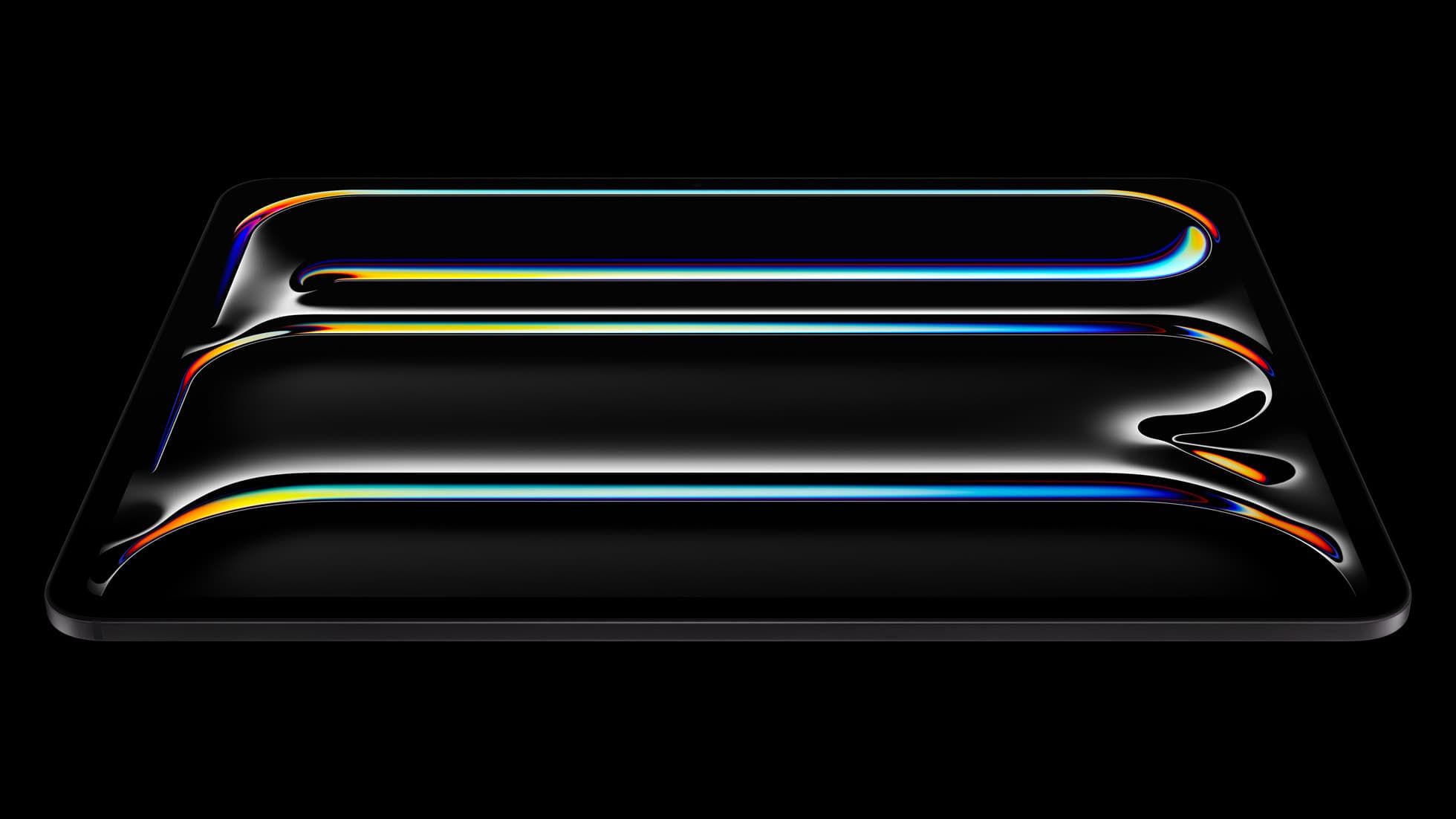
iPad Pro (M5)
amazon.comThe best iPad for drawing feel and premium workflow comfort, but many buyers still overpay for it.
Pro: Best iPad display and ProMotion feel
Con: Highest price in the lineup
Search opens with iPad Pro terms. Check year, chip, and screen size.
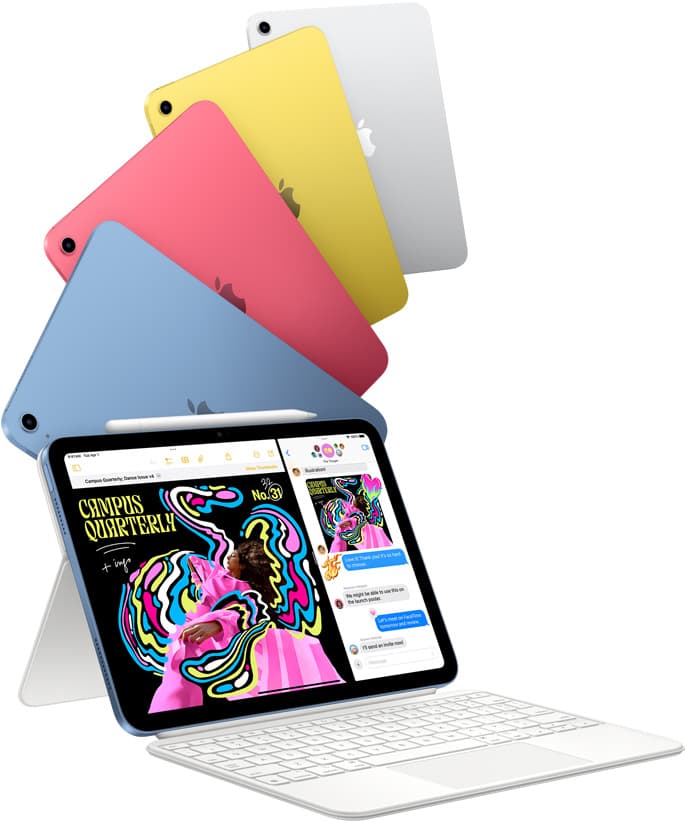
iPad (A16, 11th gen)
amazon.comThe best entry iPad for most artists on a budget. It is not premium, but it is very hard to beat on value.
Pro: Best value iPad right now
Con: No ProMotion display
Search opens with the exact model keywords. Verify size and storage before checkout.

Apple Pencil Pro
amazon.comThe best Apple stylus for serious digital art workflows. Expensive, but the control upgrades are real.
Pro: Best brush-control and hover workflow
Con: Highest price in the lineup
Works only with newer iPad models. Check compatibility.
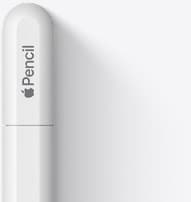
Apple Pencil (USB-C)
amazon.comA practical low-cost Apple stylus with broad compatibility, but limited for advanced art control.
Pro: Lowest official Apple Pencil cost
Con: No pressure sensitivity for brush work
Compatible with many recent iPads. No pressure support.
Related buying picks
More in this collectionBuyer guide
Is 128GB enough for Procreate Dreams on iPad?
A 128GB iPad handles active animation projects if you offload finished work, but 256GB remains safer for storing video assets locally.
Buyer guide
Best iPad for animation: How to choose your creative setup
Compare the best iPads for 2D animation, timeline performance, and stylus responsiveness to match your workflow and budget.
Comparison
Callipeg vs Procreate Dreams for iPad animation
Procreate Dreams is the friendlier pick for illustrators who want to start animating, while Callipeg suits animators who want a traditional frame-by-frame and keyframe studio on iPad.
Buyer guide
Best iPad for logo design
Choose the iPad Air with the M4 chip for the best mix of vector precision, Apple Pencil Pro support, and balanced pricing.