





Keep your current iPad if merging your layers and scaling down canvas dimensions brings back responsive brushwork, but buy the iPad Air (M4) if you need Apple Pencil Pro support without paying Pro tier pricing [1], [2]. If you are on an older baseline model, software adjustments cost nothing and often solve your immediate input delays [4]. Skip the iPad Pro (M5) unless you know you want its ProMotion display and premium hardware for intensive weekly workloads [1]. Here is how to evaluate your setup, fix software bottlenecks, and choose the right hardware if an upgrade is unavoidable.
Why drawing apps slow down on baseline hardware
When a drawing app struggles on an iPad, the issue usually traces back to how digital painting software interacts with system memory and processing architecture [4]. Digital art applications generate high-resolution bitmap buffers for every active layer in your document [4]. As you add more strokes, custom textures, or complex blending modes, your iPad must calculate those visual changes in real time against the screen's refresh rate [1].
Baseline iPads, such as the iPad (A16, 11th gen), use standard 60Hz displays and mobile processors built for standard tasks [1]. While these chips handle general sketching well, working on large multi-layer illustrations places demands on system memory that can push baseline hardware to its operating thresholds [1], [4]. Apple outlines distinct processor tiers across its lineup, moving from the A-series chips in entry models up to desktop-class M-series silicon in the iPad Air and iPad Pro [1].
Hardware differences also extend to how your stylus communicates with the tablet [2], [3]. If you use an entry-level iPad, you might be using the Apple Pencil (USB-C) or an older stylus option, which lacks advanced features like pressure sensitivity [2], [3]. Newer styluses like the Apple Pencil Pro include barrel roll, squeeze, and haptic feedback, but they require compatible host hardware such as the iPad Air (M4) or iPad Pro (M5) [1], [2], [3]. When input feels sluggish, it is worth checking whether the bottleneck comes from your file configuration, your stylus model, or your iPad's underlying processor [1], [2].
How canvas resolution and layer counts strain system memory
Digital art documentation shows that available device memory directly limits the maximum layer count a drawing application can allocate to any given canvas [4]. When you create an illustration with excessive pixel dimensions, the memory footprint per layer multiplies rapidly [4]. If you build complex character art or webcomics with dozens of unmerged layers on high pixel dimensions, the app must manage enormous chunks of memory simultaneously [4].
To troubleshoot sluggish drawing performance inside your app, start by optimizing your canvas settings [4]. If your document is set to print resolutions like 300 DPI across thousands of pixels, lower the dimensions to match your actual export target [4]. For digital viewing on social media, ultra-high resolutions are rarely necessary and simply consume memory that your tablet could otherwise allocate to rendering strokes [4].
Layer hygiene is the next critical adjustment [4]. Merging finished sketch layers, line art iterations, and flat color groups into single layers drastically reduces the memory overhead required to track changes [4]. Digital art engines allocate layer counts based directly on device memory, meaning leaner documents run within a much safer operational envelope [4]. Before you conclude that your iPad is broken, prune your unused layers, flatten completed background elements, and test if your brush response improves [4].
Deciding between software adjustments and an iPad upgrade
Before spending money on a replacement tablet, test whether your performance issues vanish on smaller, fresh canvases [4]. Open a standard screen-resolution canvas with only two or three layers, pick your standard inking brush, and sketch [4]. If the stylus tracks smoothly without drag on this simple document, your iPad hardware is still functional, and your performance bottleneck is tied entirely to project scale and memory limits [4].
When workflow optimization cannot solve your problems, upgrading hardware becomes a logical next step [1]. If your client briefs, commercial printing standards, or complex illustration processes require massive canvas resolutions and heavy layer stacks, you will consistently hit the boundaries of an entry-level iPad [1], [4]. In those situations, keeping an entry tablet leads to continuous workflow friction [1].
Buying an upgraded tablet does not mean you should immediately purchase the most expensive model on the market [1]. You should match your purchase to the specific hardware features you lack, such as Apple Pencil Pro compatibility, larger physical screen sizes, or higher-tier internal silicon [1], [2]. Knowing your real technical requirements prevents you from overspending on flagship features you might never need [1].
Comparing the iPad Air, iPad Pro, and base iPad for art
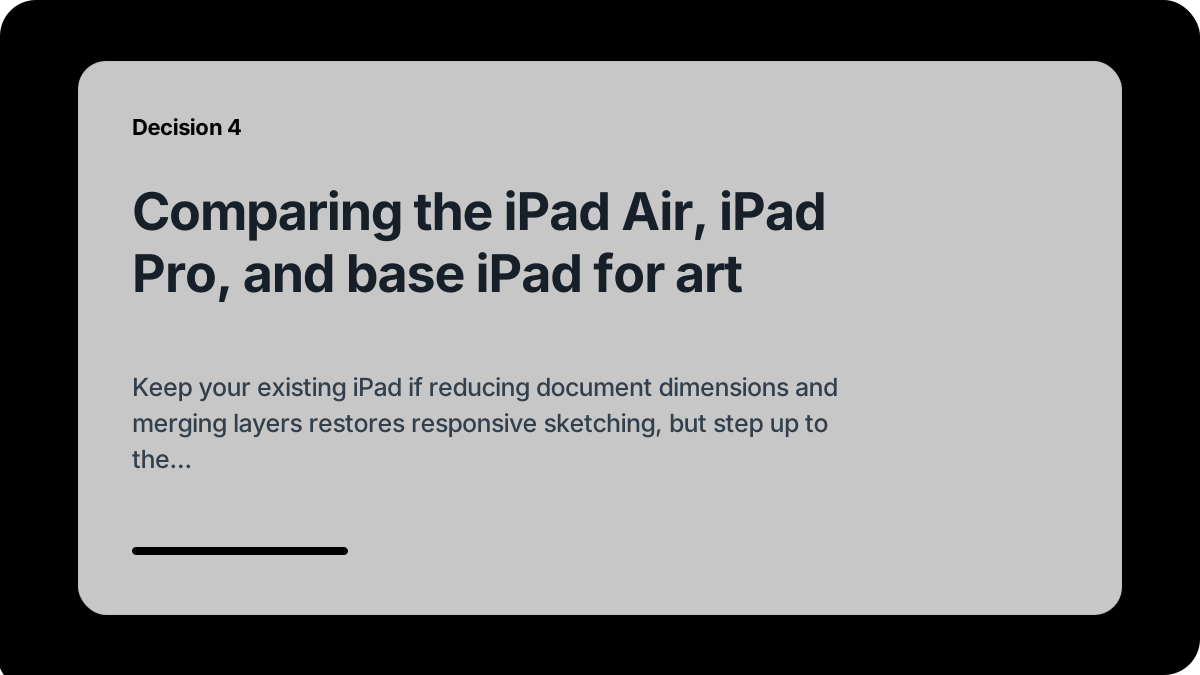
For artists who decide to replace their current setup, Apple offers distinct tiers across the iPad family [1]. The iPad (A16, 11th gen) remains the current mainstream choice and the best default when total kit cost matters more than prestige [1]. It features an A16 chip and supports the Apple Pencil (USB-C), making it a budget-conscious starting point, though it lacks a ProMotion display and Apple Pencil Pro support [1], [2], [3]. If you keep your canvases modest, the A16 model handles everyday sketching at a very low total investment [1].
The iPad Air (M4) represents the best step-up when you want Apple Pencil Pro support without paying Pro pricing [1], [3]. Powered by the M4 chip, the iPad Air gives you access to advanced stylus features like barrel roll, squeeze, and haptic feedback, alongside Apple Pencil hover when using compatible hardware [1], [2]. It is available in both 11-inch and 13-inch display sizes, allowing you to choose a larger canvas area without jumping to the premium price tier [1]. Its main limitation is that it remains a 60Hz display, meaning it does not offer the faster ProMotion refresh rates found on the Pro line [1].
The iPad Pro (M5) is Apple's current premium tablet, featuring the M5 chip and an Ultra Retina XDR display with ProMotion technology up to 120Hz [1]. It is worth paying for only when display feel or heavier weekly workloads justify the higher financial investment [1]. Like the Air, it pairs with the Apple Pencil Pro for advanced tool switching and input precision [1], [2], [3]. However, because it carries the highest price in the lineup, artists on a defined budget can safely skip it and choose the iPad Air (M4) instead [1].
Bottom line
If ibis Paint or other art apps feel sluggish on your current iPad, resolve software bottlenecks before shopping for new hardware [4]. Downscale bloated canvas sizes, merge redundant layers, and verify that basic brush strokes perform normally on a fresh document [4]. Doing so often restores a workable drawing experience on the tablet you already own [4].
When your creative work genuinely outgrows an entry-level setup, buy the iPad Air (M4) [1]. It delivers the best balance of headroom and price in the current lineup, giving you compatibility with the Apple Pencil Pro without forcing you into top-tier tablet pricing [1], [2]. Skip the iPad Pro (M5) unless you specifically demand a 120Hz ProMotion display, and skip the baseline iPad (A16) if you require advanced stylus tools for your daily illustration workflow [1], [2].
Sources
[1] https://www.apple.com/ipad/compare/ [2] https://www.apple.com/apple-pencil/ [3] https://support.apple.com/en-us/108937 [4] https://help.procreate.com/articles/zlexav-ipad-compatibility
Recommended gear
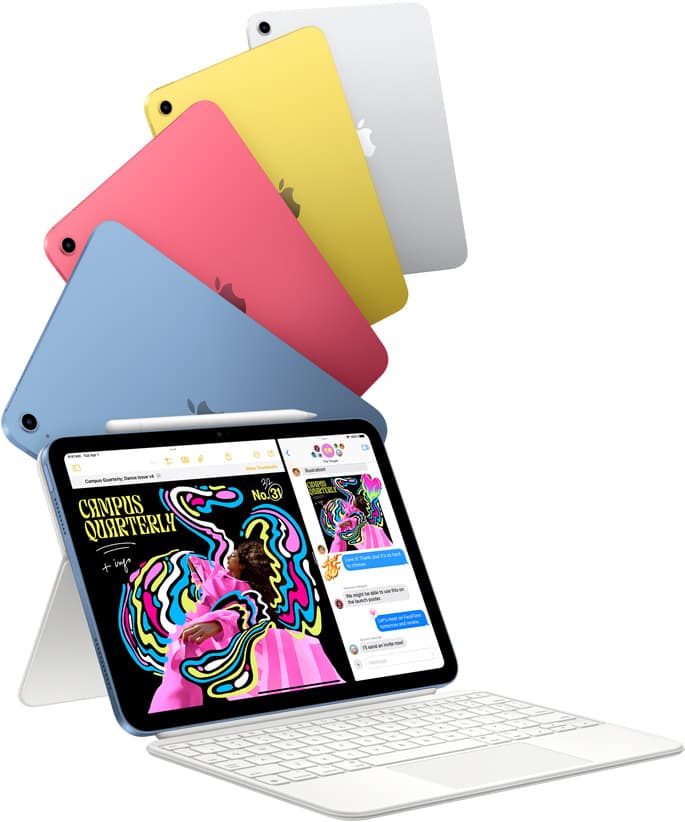
iPad (A16, 11th gen)
amazon.comThe best entry iPad for most artists on a budget. It is not premium, but it is very hard to beat on value.
Pro: Best value iPad right now
Con: No ProMotion display
Search opens with the exact model keywords. Verify size and storage before checkout.

iPad Air (M4)
apple.comThe clean current Air recommendation for most serious hobby artists. Stronger buy logic than old-stock M3 when pricing is close.
Pro: Best current balance of price, headroom, and Pencil support
Con: Still 60Hz
Current Air lineup. Choose size, storage, and keyboard path before checkout.
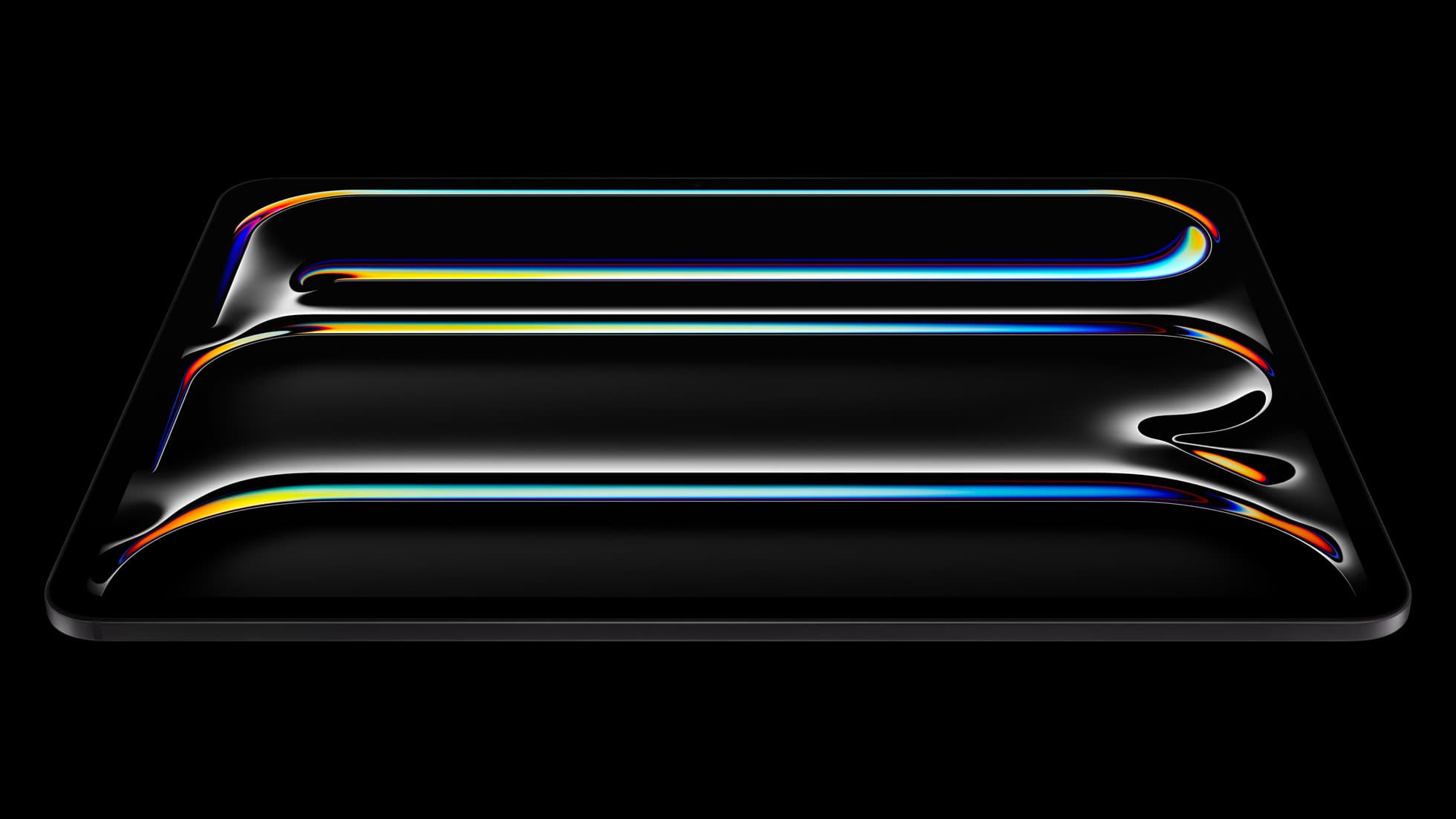
iPad Pro (M5)
amazon.comThe best iPad for drawing feel and premium workflow comfort, but many buyers still overpay for it.
Pro: Best iPad display and ProMotion feel
Con: Highest price in the lineup
Search opens with iPad Pro terms. Check year, chip, and screen size.

Apple Pencil Pro
amazon.comThe best Apple stylus for serious digital art workflows. Expensive, but the control upgrades are real.
Pro: Best brush-control and hover workflow
Con: Highest price in the lineup
Works only with newer iPad models. Check compatibility.
Apple Pencil (USB-C)
amazon.comA practical low-cost Apple stylus with broad compatibility, but limited for advanced art control.
Pro: Lowest official Apple Pencil cost
Con: No pressure sensitivity for brush work
Compatible with many recent iPads. No pressure support.
Related buying picks
More in this collectionComparison
Procreate vs Adobe Fresco on iPad: how to choose your drawing app
Compare Procreate and Adobe Fresco on iPad to pick the right drawing app, stylus features, and tablet setup for your workflow.
Buyer guide
Is iPad Pro overkill for Procreate?
For most artists using Procreate, an iPad Pro is overkill when an iPad Air with Apple Pencil Pro delivers the same core drawing features and layer headroom.
Buyer guide
Best drawing tablet for surface pattern design: iPad Air vs iPad Pro
Choose the iPad Air with Apple Pencil Pro for repeat pattern design, or step up to the iPad Pro if high-resolution layer limits dictate your production.
Comparison
iPad vs reMarkable for note taking: which device belongs in your bag
Choose an iPad Air or iPad Pro if you need color, layered sketches, and active stylus tools, but skip the iPad if you only want a distraction-free monochrome notebook.