





Choose Clip Studio Paint if you're making comics, webtoons, or anything with many pages. Its maker, CELSYS, offers a free 30-day trial on the App Store, and the app is rated 4.7 from more than 14,000 ratings [4]. Pick ibis Paint X if you want a free app for casual drawing, or you sketch on your phone and finish on the iPad; it's a free download rated 4.7 from more than 300,000 ratings, aimed at everyone who wants to draw and animate freely [5]. Skip paying for Clip Studio until you know you need its comic tools.
The short answer by situation
- Ongoing comic or webtoon series with panels and lettering: Clip Studio Paint [3], [4].
- Fan art, casual sketches, and learning to draw on a budget: ibis Paint X [5].
- You also work on a desktop computer and want the same app there: Clip Studio Paint, since CELSYS makes it across devices [2].
- You draw mostly on a phone and sometimes on an iPad: ibis Paint X [5].
Both apps are good. They're aimed at different amounts of commitment.
Where Clip Studio Paint pulls ahead
Clip Studio Paint's official site presents it as a tool for illustration, comics, and animation, and its depth is the reason comic artists pick it [2]. For long-form work, that means tools for page layouts, panels, rulers, and text that a general drawing app doesn't focus on [2], [3].
The trade-off is cost and complexity. The listing starts you on a free 30-day trial, and after that it runs on a plan, which is less simple than paying once [4]. Plan for a learning curve too; deep tools take longer to learn [2].
Where ibis Paint X pulls ahead
ibis Paint X is free to download, and that alone makes it the easy first app for a lot of people [5]. Its huge rating count shows how widely it's used, so tutorials and community help are easy to find [5].
It's also comfortable for people who learned to draw on a phone. If your habit is quick sketches on the bus and finishing at home on an iPad, ibis Paint X keeps one familiar tool on both [5].
Comics and webtoons specifically
If comics are your goal, decide how serious the project is. For short strips and practice pages, ibis Paint X is enough, and its listing mentions animating as well as drawing [5]. For a series you'll update for months, the structure Clip Studio Paint gives you for pages, panels, and lettering saves time on every chapter [2], [3].
A practical path is to start your first strips in ibis Paint X, then trial Clip Studio Paint when you're planning a longer series. The 30-day trial is long enough to make a few real pages and see if the workflow is worth the plan [4], [5].
Cost over a year of drawing
Price works differently in these two apps, so compare them over the time you'll actually use them. ibis Paint X is a free download, which means you can draw for months without spending anything [5]. Clip Studio Paint starts with a free 30-day trial and then runs on a plan, according to its listing [4]. Over a year, that plan is a real cost, and it only makes sense if you're using the tools it adds.
A fair test is to keep a log during the trial month. If you reach for page layouts, panel tools, and lettering every week, the plan is likely worth it [2], [4]. If you mostly paint single illustrations, the free app or a one-time purchase like Procreate may be the better value [1], [5].
Learning curve and help
ibis Paint X has a huge user base, with more than 300,000 ratings on its listing, so tutorials for common tasks are easy to find [5]. That makes it a forgiving first app if you're new to digital drawing.
Clip Studio Paint has more to learn because it does more [2]. Budget time in the first weeks for setting up your brushes, page templates, and shortcuts, and follow a beginner tutorial series instead of guessing [2], [3]. That setup work pays back on every comic page after it.
What about Procreate
Many iPad artists also look at Procreate, a paid app made only for iPad [1]. It sits between these two: a one-time purchase with strong illustration tools, but without Clip Studio's comic-specific depth [1], [3]. If you mostly paint illustrations and rarely make multi-page comics, it's worth a look alongside ibis Paint X [1], [5].
Which iPad suits these apps
For comics, screen size and Pencil support matter more than raw speed. Apple's comparison page lists the iPad Air with M4 in 11-inch and 13-inch sizes and the iPad Pro with M5 with its Ultra Retina XDR display, both with Apple Pencil Pro support [6]. A 13-inch Air is a sensible comic artist's pick, since you'll see a full page with less zooming [6].
Apple's Pencil chart lists pressure, tilt, hover, squeeze, and barrel roll for Apple Pencil Pro, and pressure is what gives inked lines their thick-to-thin weight [7]. Whatever iPad you choose, check which Pencil it pairs with on Apple's compatibility page [8].
Bottom line
Choose Clip Studio Paint if you're making comics, webtoons, or multi-page work, and use the 30-day trial to make sure the plan is worth it [3], [4]. Choose ibis Paint X if you want a free app for casual drawing or phone-to-iPad sketching [5]. Pair either with an iPad Air or iPad Pro that supports Apple Pencil Pro if you're inking seriously [6], [7].
Sources
[1] https://apps.apple.com/us/app/procreate/id425073498 [2] https://www.clipstudio.net/en/ [3] https://apps.apple.com/us/app/clip-studio-paint/id1262985592 [4] https://apps.apple.com/us/app/id1262985592 [5] https://apps.apple.com/us/app/id450722833 [6] https://www.apple.com/ipad/compare/ [7] https://www.apple.com/apple-pencil/ [8] https://support.apple.com/en-us/108937
Recommended gear
Clip Studio Paint
apps.apple.comPro: Deep comics, vector, ruler, and animation toolset
Con: iPad plan model is less simple than Procreate

iPad Air (M4)
apple.comThe clean current Air recommendation for most serious hobby artists. Stronger buy logic than old-stock M3 when pricing is close.
Pro: Best current balance of price, headroom, and Pencil support
Con: Still 60Hz
Current Air lineup. Choose size, storage, and keyboard path before checkout.
iPad Pro (M5)
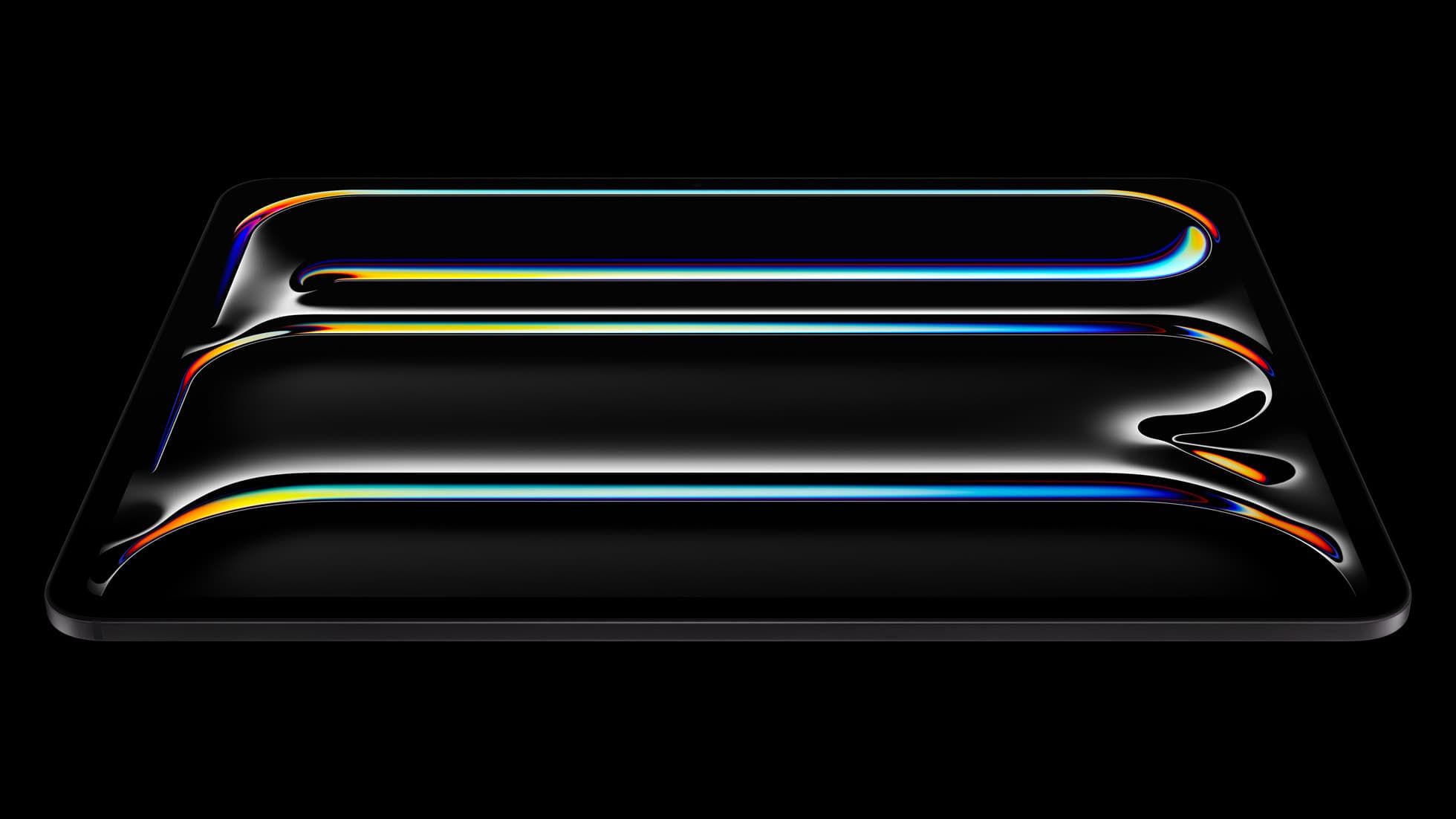
amazon.comThe best iPad for drawing feel and premium workflow comfort, but many buyers still overpay for it.
Pro: Best iPad display and ProMotion feel
Con: Highest price in the lineup
Search opens with iPad Pro terms. Check year, chip, and screen size.

Apple Pencil Pro
amazon.comThe best Apple stylus for serious digital art workflows. Expensive, but the control upgrades are real.
Pro: Best brush-control and hover workflow
Con: Highest price in the lineup
Works only with newer iPad models. Check compatibility.
Paperlike 3 (11-inch, 2-pack)
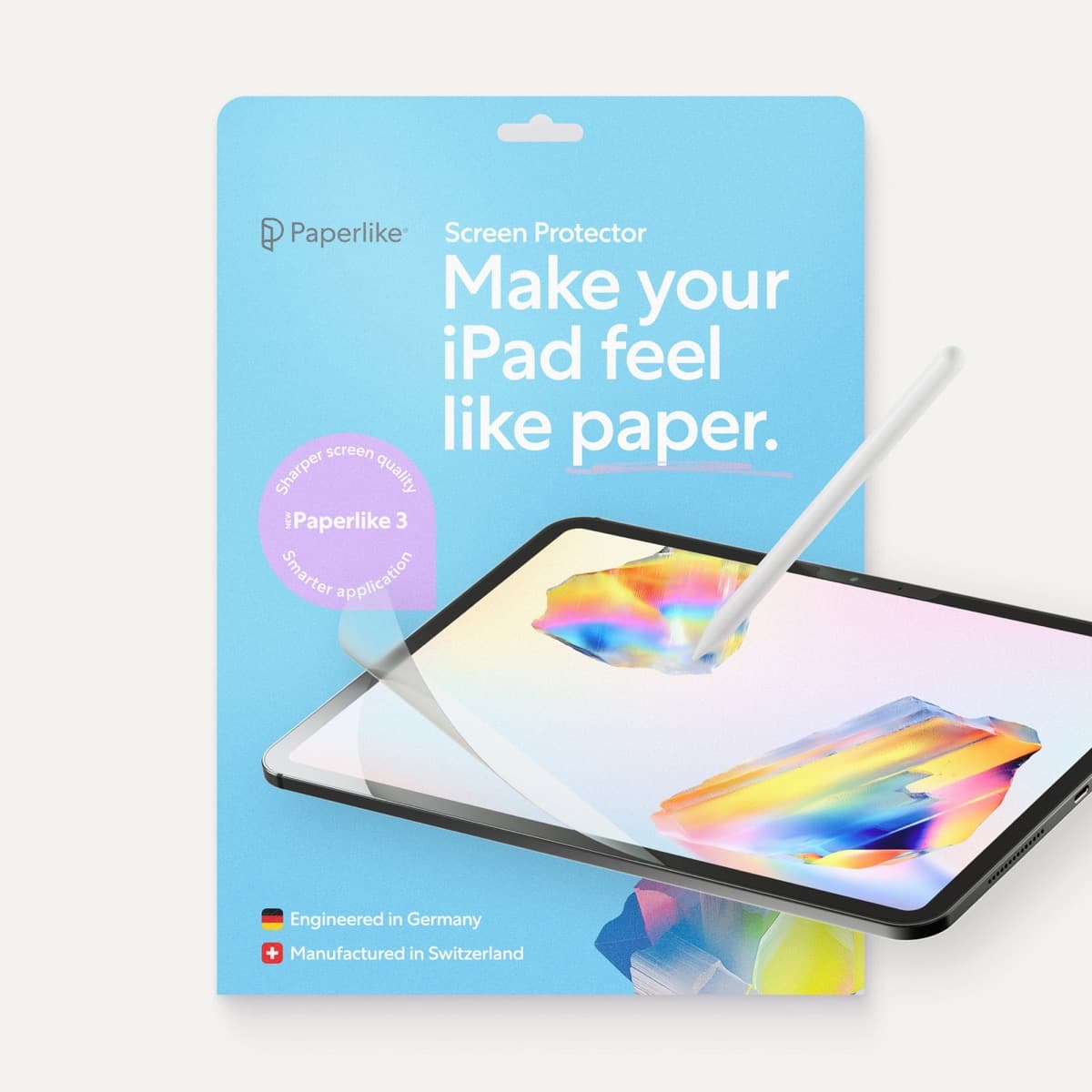
amazon.comA strong surface-feel upgrade for drawing control. Clarity tradeoff is real and should be expected.
Pro: Adds controlled paper-feel friction
Con: Slightly reduces perceived display sharpness
11-inch fit only. Confirm generation before checkout.
Related buying picks
More in this collectionComparison
Procreate vs ibis Paint: which is better on iPad
Procreate is the better pick for most iPad artists who'll pay once, while ibis Paint X is the better pick for free drawing and for anyone who also draws on a phone.
Comparison
Callipeg vs Procreate Dreams for iPad animation
Procreate Dreams is the friendlier pick for illustrators who want to start animating, while Callipeg suits animators who want a traditional frame-by-frame and keyframe studio on iPad.
Comparison
Affinity Designer vs Adobe Illustrator on iPad
Adobe Illustrator on iPad is the better pick if you work in Adobe's ecosystem or with clients who do, while Affinity Designer 2 suits designers who want a full vector app that isn't tied to Adobe.
Buyer guide
Is iPad Air enough for Clip Studio Paint?
The iPad Air provides full Apple Pencil Pro support and enough chip headroom to run Clip Studio Paint without paying Pro prices.