For tattoo design and stencil preparation, buy the iPad Air (M4) paired with the Apple Pencil Pro as the standard recommendation [1], [3]. This setup provides pressure sensitivity, barrel roll rotation, and squeeze shortcuts without requiring the premium expense of flagship hardware [1], [2]. Choose the iPad Pro (M5) if you specifically want a 120Hz ProMotion display and top-tier specifications [1]. Choose the iPad mini (A17 Pro) if portability during travel and guest spots matters more than screen area [1]. Skip the standard iPad (A16) if your design workflow relies on Apple Pencil Pro features [1], [3].
Why the stylus matters for stencil line work
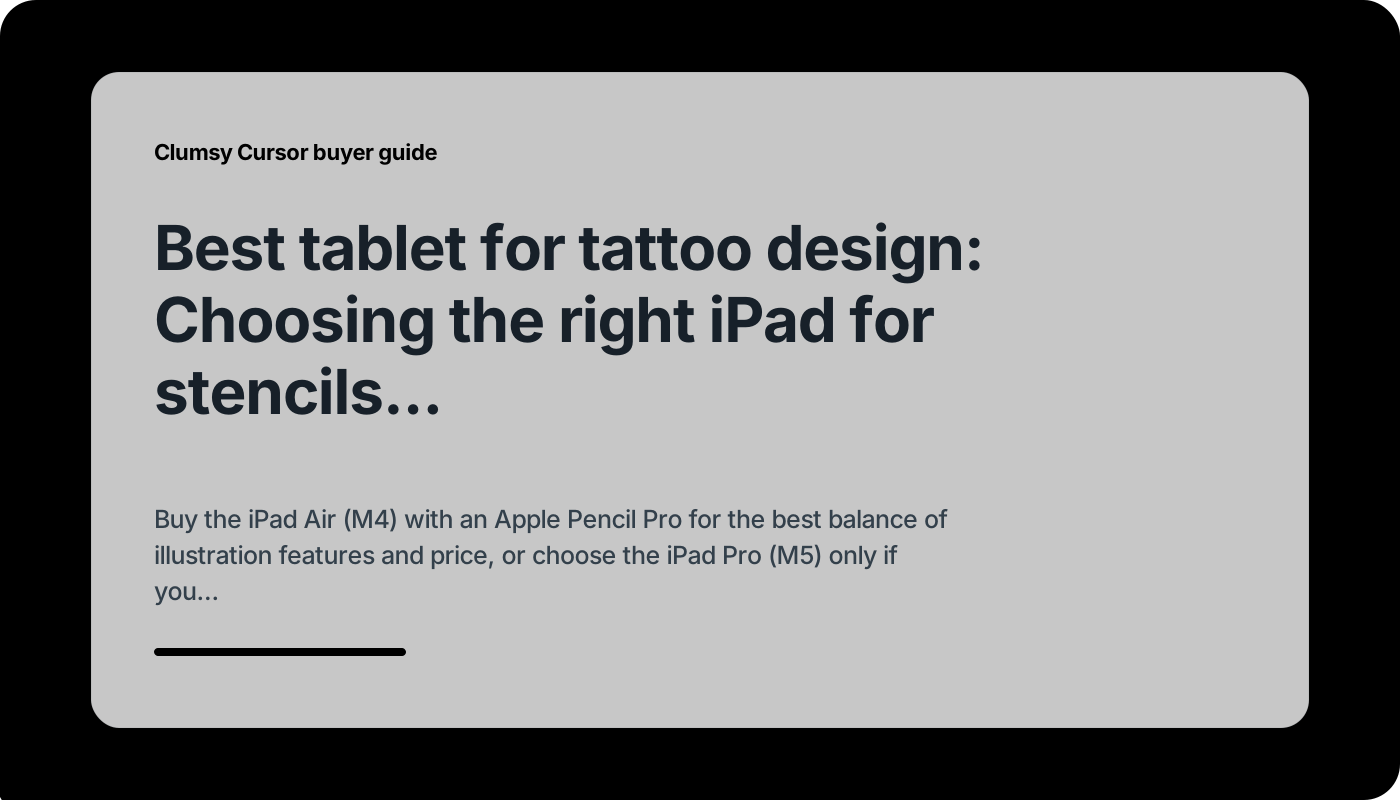
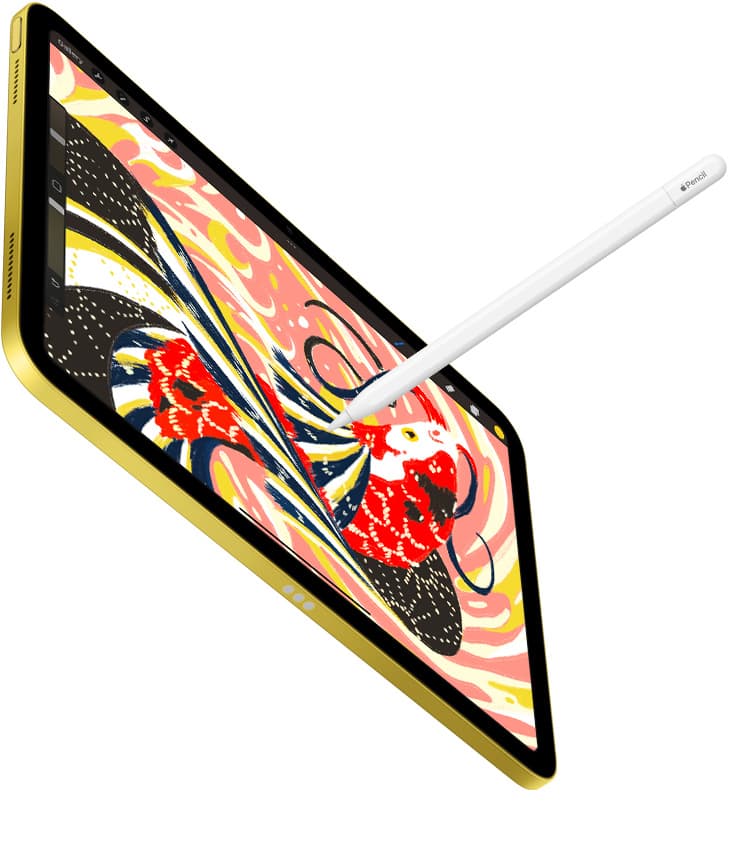
Creating clean tattoo linework and nuanced stencil tracings requires direct physical control over line weight and tool selection. The Apple Pencil Pro introduces hardware capabilities built for digital artists, including pressure sensitivity, tilt detection, barrel roll, squeeze gestures, and haptic feedback [2]. Barrel roll uses an internal gyroscope so rotating the pencil body alters the orientation of shaped brushes, giving artists immediate control over directional linework, flat chisel strokes, and calligraphy brushes [2]. The squeeze sensor allows you to press the barrel to summon tool palettes, switch brushes, or change layers without tapping menus, while haptics provide physical confirmation [2].
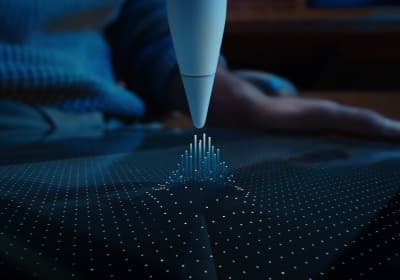
In contrast, the Apple Pencil (USB-C) pairs with current iPad models but omits pressure sensitivity, squeeze, barrel roll, and haptic feedback entirely [2], [3]. For tattoo artists, pressure sensitivity is a core tool for tapering linework naturally from thick outlines to delicate details. Because the Apple Pencil (USB-C) lacks pressure sensitivity, artists must manually adjust brush sliders to alter line thickness [2]. The Apple Pencil Pro requires specific iPad hardware, pairing with models such as the iPad Air (M4), iPad Pro (M5), and iPad mini (A17 Pro), but it does not pair with the standard entry-level iPad [1], [3].
Charging and pairing mechanics also influence studio convenience. The Apple Pencil Pro attaches magnetically to the side of compatible iPads for continuous charging and automatic pairing [2], [3]. The Apple Pencil (USB-C) charges via a sliding end cap and requires a physical USB-C cable for initial pairing, making it less seamless during continuous drawing sessions on a workstation [2], [3]. For professional stencil design, pairing an iPad Air or iPad Pro with the Apple Pencil Pro provides the most complete set of drawing controls [1], [2], [3].
Screen size and canvas workspace options
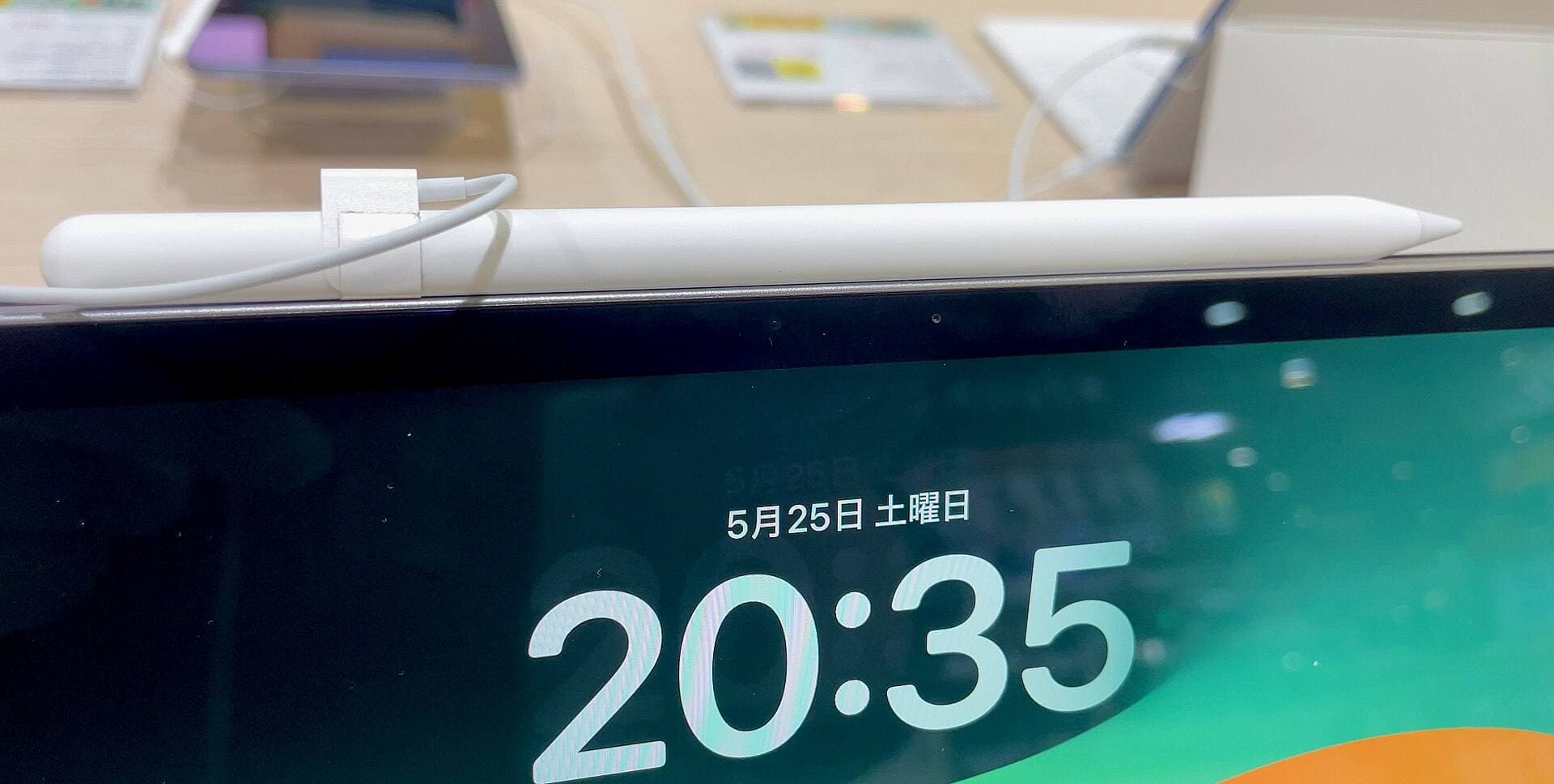
Selecting display size comes down to the physical scope of your tattoo work and how your workstation is arranged. The iPad Air (M4) and iPad Pro (M5) are each sold in two distinct screen sizes: 11-inch and 13-inch [1]. An 11-inch display provides an active drawing surface that fits comfortably on a rolling tattoo tray or medical stand next to a thermal stencil printer [1]. It is lightweight enough to hold easily during client intake consultations or while photographing anatomical placement directly against skin [1].
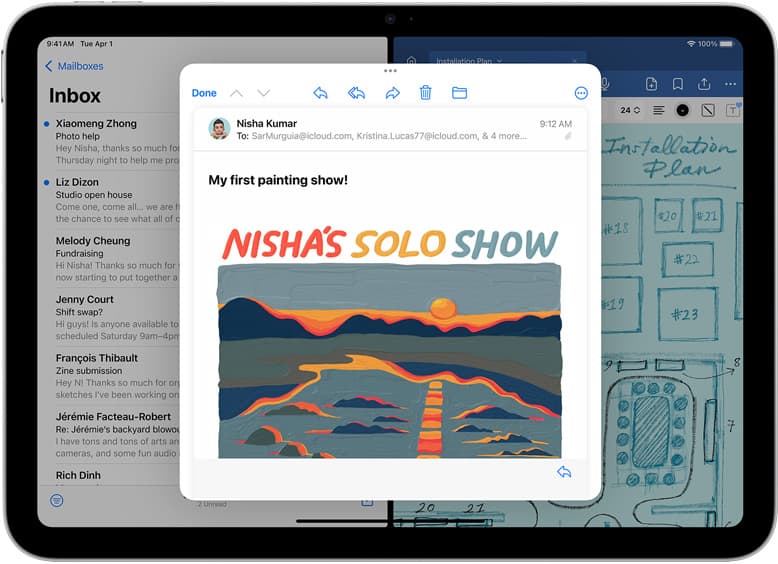
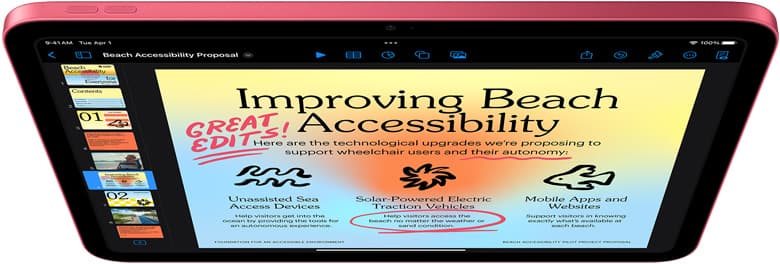
Choosing a 13-inch display yields a substantially larger canvas, giving you enough room to view intricate linework without zooming in and out constantly [1]. When mapping large anatomical zones like full sleeves, chest panels, or full backpieces, the extra visual space makes composition and flow assessment far simpler [1]. You can keep reference photos, color palettes, and anatomy templates visible on screen alongside your primary drawing canvas without feeling cramped [1], [4]. The tradeoff is physical bulk, as a 13-inch device requires a larger footprint on your studio desk or travel bag [1].
At the smallest end, the iPad mini (A17 Pro) features an 8.3-inch Liquid Retina display [1]. While it supports the Apple Pencil Pro, drawing complex multi-element compositions on an 8.3-inch screen requires constant canvas navigation [1], [2]. The mini excels as a portable sketchbook for travel or quick stencil touch-ups, but it is too small to serve as an ideal primary tablet for large tattoo projects [1].
Layer limits and memory considerations in Procreate
Procreate is the industry-standard software across tattoo shops for sketching flash, planning stencils, and editing client references [4], [5]. A critical operational detail inside Procreate is how the app manages layer limits. Maximum layer limits per canvas are not fixed arbitrary numbers; they are strictly determined by the device's installed system RAM and the canvas dimensions chosen by the user [4]. Large-format projects configured at 300 DPI for sharp physical stencil printing consume memory rapidly, which shrinks the total layer count available [4].
Tattoo stencils frequently require multiple independent layers. An artist might maintain separate layers for the raw reference photo, body contour guides, basic rough linework, final dark outline passes, and light gray shading references [4]. If your iPad has limited system memory, you may run into layer caps that force you to merge passes prematurely, limiting your ability to edit individual stencil components later [4].
Devices powered by Apple silicon chips, like the iPad Air (M4) and iPad Pro (M5), include higher memory configurations that accommodate generous layer counts on high-resolution canvases [1], [4]. The base iPad (A16) uses Apple's standard A-series chip, providing lower memory capacity that results in fewer layers on matching canvas sizes [1], [4]. For artists preparing high-resolution flash sheets or multi-layer stencil files, opting for M-series hardware ensures you do not hit restrictive layer limits during production [1], [4].
Choosing between iPad Air, iPad Pro, and iPad mini
The iPad Air (M4) is the most balanced choice for tattooers today [1]. It supports the Apple Pencil Pro, giving you full access to barrel roll, pressure sensitivity, and squeeze gestures without paying the steep cost of a Pro model [1], [2], [3]. Its Liquid Retina display operates at 60Hz, which is entirely adequate for pulling steady line art and rendering stencils [1]. You can configure it with either an 11-inch or 13-inch display depending on your preference for mobility or workspace area [1].
The iPad Pro (M5) is the premium alternative, distinguished primarily by its Ultra Retina XDR display and ProMotion technology with adaptive refresh rates up to 120Hz [1]. ProMotion makes pencil strokes appear with less visual delay on screen, providing a slightly smoother drawing experience when executing fast, loose line work [1]. The Pro also includes higher storage tiers reaching up to 2TB, along with Thunderbolt connectivity for fast external data drives [1]. However, these additions come with a higher price, making the Pro an optional luxury rather than a functional necessity for standard tattoo design [1].
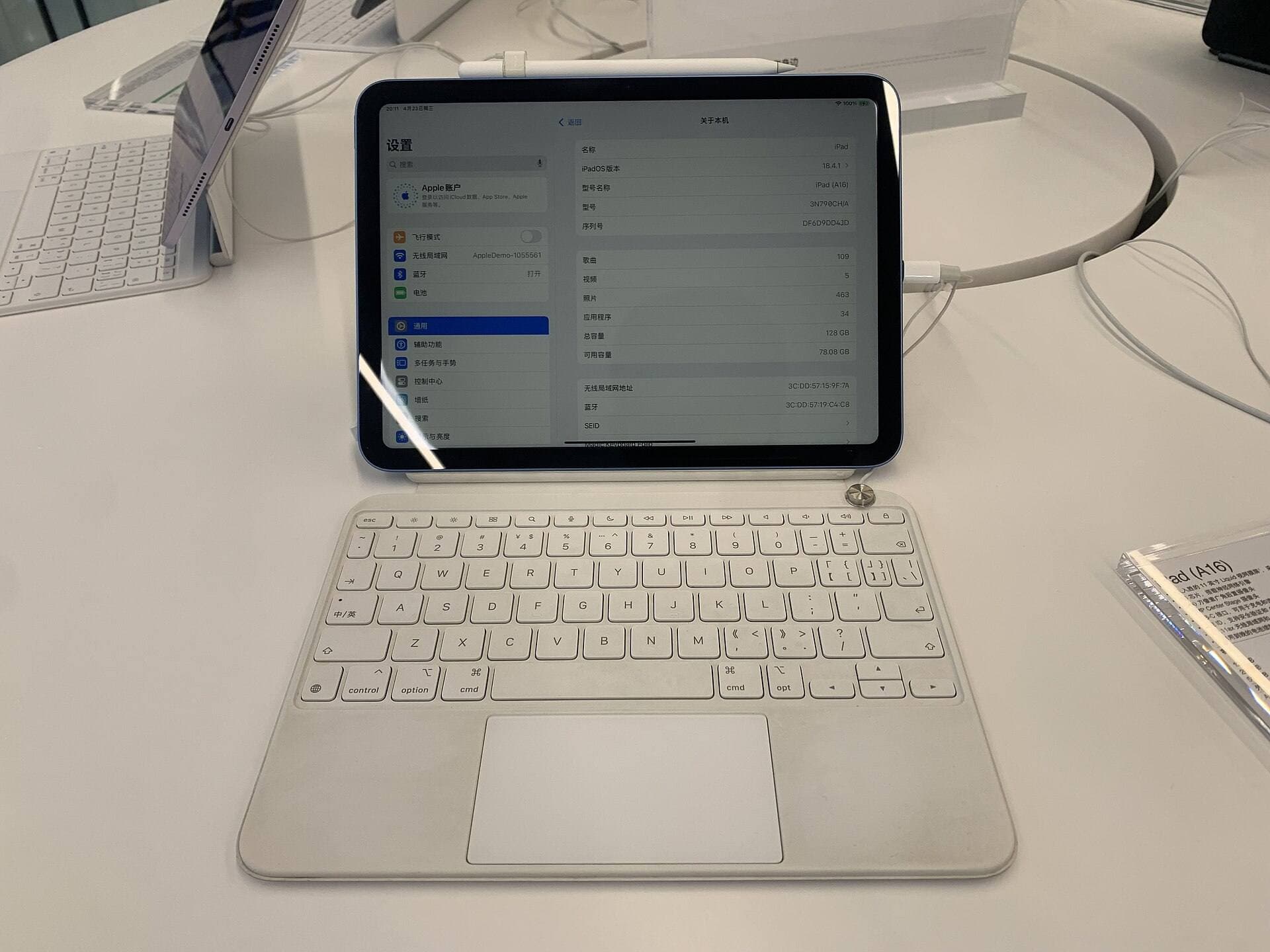
The entry-level iPad (A16) is a budget tablet that falls short for serious tattoo design workflows due to accessory limitations. It does not support the Apple Pencil Pro, pairing instead with the Apple Pencil (USB-C) or first-generation Apple Pencil [1], [3]. Because the USB-C pencil lacks pressure sensitivity and the first-generation pencil lacks modern charging convenience, the base iPad compromises your drawing control [2], [3]. Finally, the iPad mini (A17 Pro) is a specialized option, ideal for guest artists who want Apple Pencil Pro support in a pocketable design, but limited by its 8.3-inch screen size [1], [2].
Bottom line
For nearly every tattoo artist, the iPad Air (M4) combined with the Apple Pencil Pro is the best purchase choice [1], [2], [3]. It delivers pressure sensitivity, barrel roll, magnetic wireless charging, and ample layer headroom in Procreate across both 11-inch and 13-inch sizes [1], [2], [4]. Buy the iPad Pro (M5) if you insist on a 120Hz ProMotion screen and want the absolute highest display performance [1]. Skip the base iPad (A16) because it lacks Apple Pencil Pro compatibility, and skip the iPad mini (A17 Pro) unless your priority is absolute travel convenience over canvas space [1], [2], [3].
Sources
[1] https://www.apple.com/ipad/compare/ [2] https://www.apple.com/apple-pencil/ [3] https://support.apple.com/en-us/108937 [4] https://help.procreate.com/articles/zlexav-ipad-compatibility [5] https://apps.apple.com/us/app/procreate/id425073498
Recommended gear
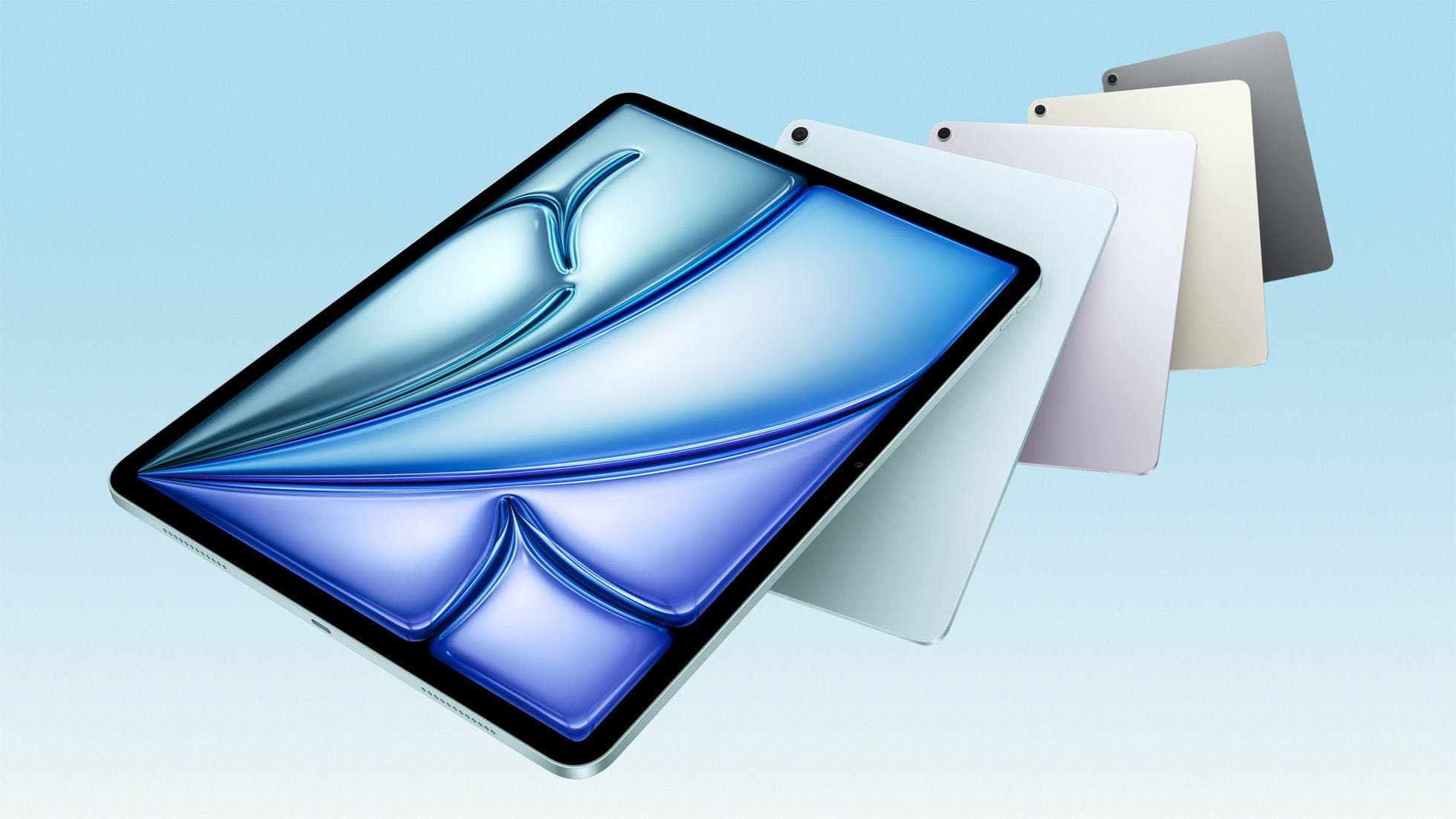
iPad Air (M4)
apple.comThe clean current Air recommendation for most serious hobby artists. Stronger buy logic than old-stock M3 when pricing is close.
Pro: Best current balance of price, headroom, and Pencil support
Con: Still 60Hz
Current Air lineup. Choose size, storage, and keyboard path before checkout.
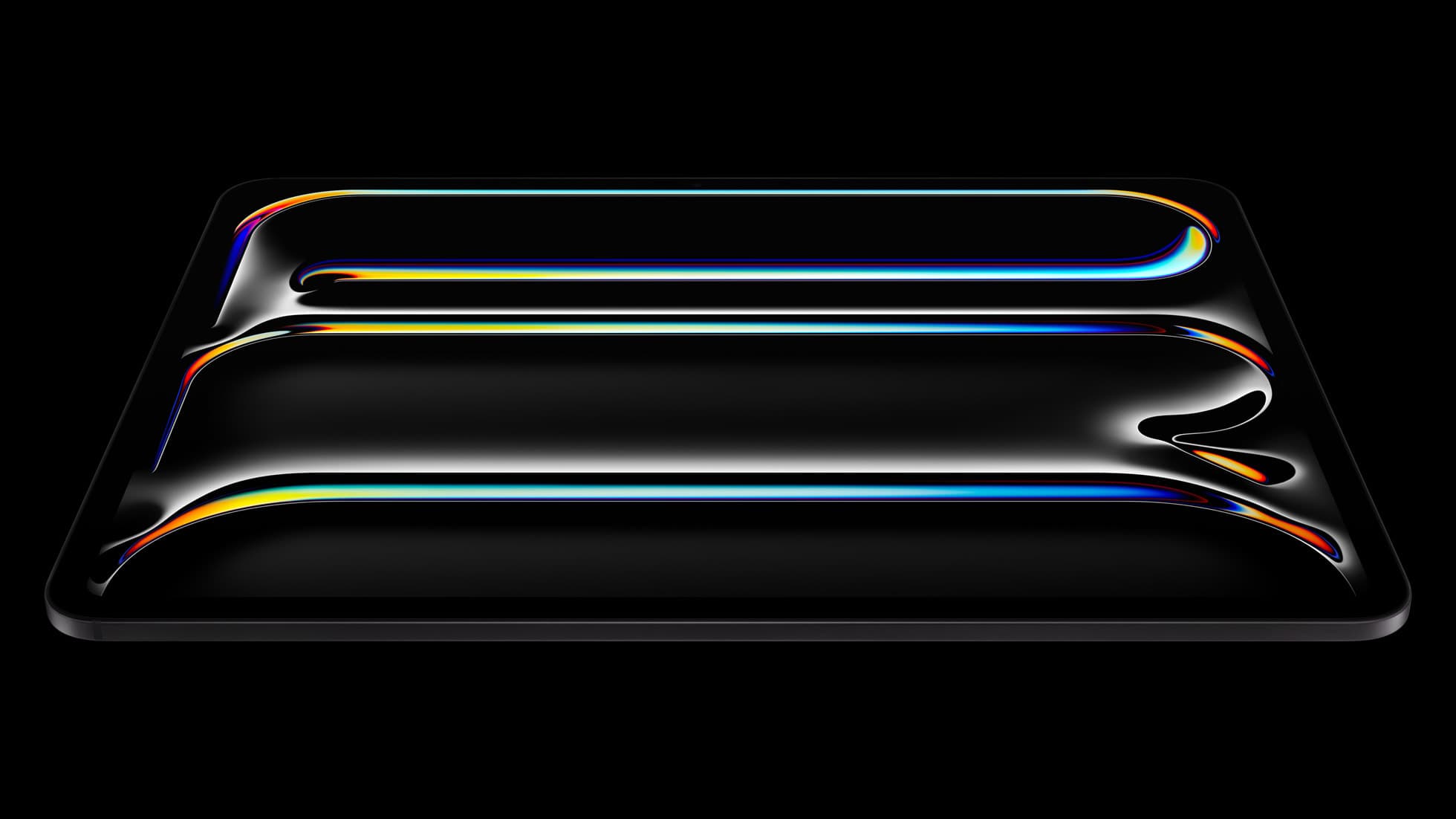
iPad Pro (M5)
amazon.comThe best iPad for drawing feel and premium workflow comfort, but many buyers still overpay for it.
Pro: Best iPad display and ProMotion feel
Con: Highest price in the lineup
Search opens with iPad Pro terms. Check year, chip, and screen size.
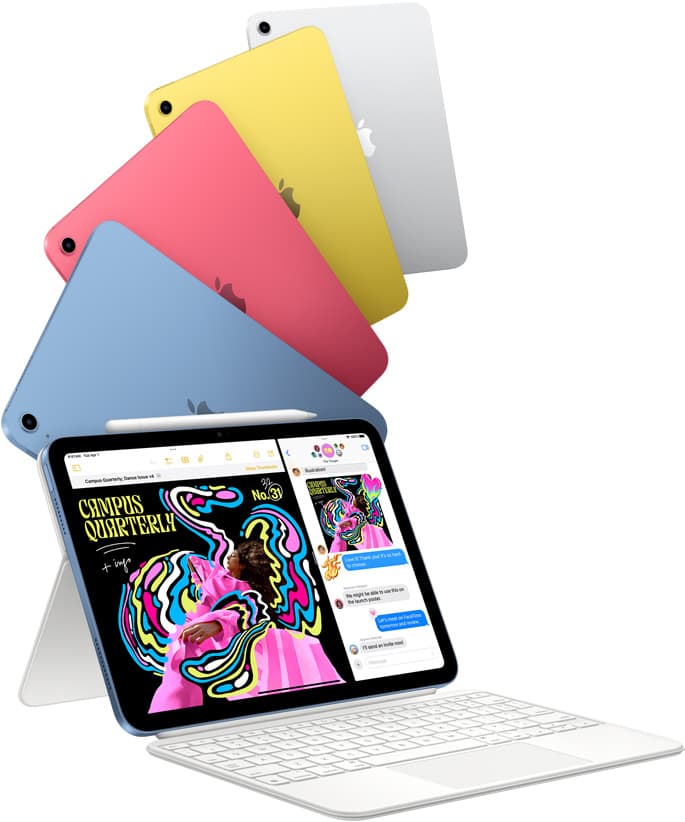
iPad (A16, 11th gen)
amazon.comThe best entry iPad for most artists on a budget. It is not premium, but it is very hard to beat on value.
Pro: Best value iPad right now
Con: No ProMotion display
Search opens with the exact model keywords. Verify size and storage before checkout.
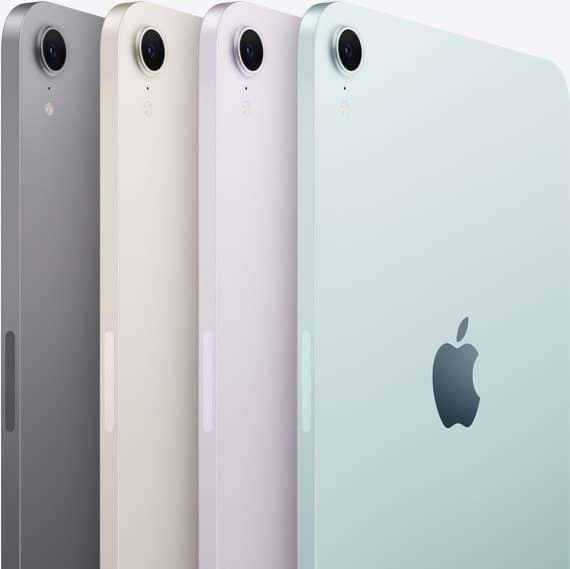
iPad mini (A17 Pro)
amazon.comThe most portable real iPad for drawing. It wins on mobility and loses on workspace.
Pro: Most portable drawing iPad
Con: Small canvas for detailed work
Search opens with iPad mini A17 Pro terms. Verify model number before buying.
Related buying picks
More in this collectionBuyer guide
Best iPad app for drawing tattoos and the hardware to run it
Procreate paired with an Apple Pencil Pro and iPad Air M4 gives tattoo artists the best balance of layer headroom, precision tools, and hardware value.
Buyer guide
Best iPad for Tattoo Design in 2026
Tattoo artists and apprentices should usually start with the 11-inch iPad Air and Apple Pencil Pro, then move to iPad Pro only when larger, paid studio workflows justify the display upgrade.
Buyer guide
Is an 11-inch iPad enough for comic art?
An 11-inch iPad provides ample space for sketching, inking, and paneling comic pages when paired with the right Apple Pencil and app workflow.
Comparison
iPad vs laptop for Cricut: how to choose your cutting setup
Compare operating system support, Apple Pencil illustration workflows, and file uploads to decide whether an iPad or a laptop fits your Cricut cutting setup.