





Buy an iPad Air (M4) with an Apple Pencil Pro if you want to draw your own cut files directly on screen before sending them to your machine [1], [2], [6]. Keep or buy a traditional laptop if your crafting workflow centers on ready-made cut files, offline desktop features, or mouse-driven layout work [6]. Cricut supports both environments, but they serve different parts of the making process [6].
An iPad functions as a dual-purpose device for illustrators: it is both a digital drafting table and a Cricut controller [4], [6]. An iPad paired with an Apple Pencil allows you to sketch original lettering, clean up raster shapes, and upload assets directly into Cricut Design Space [2], [7]. In contrast, a laptop running macOS or Windows handles heavy multi-window multitasking and uses the desktop build of Cricut Design Space, but it requires an external graphics tablet if you plan to draw by hand [6]. Choosing between them comes down to whether direct stylus illustration or desktop computing matters more to your routine.
Cricut Design Space system requirements across platforms
Cricut publishes official system requirements for running Cricut Design Space on Windows, macOS, iOS, and iPadOS devices [6]. The software requires a compatible operating system, sufficient memory, and an active internet connection or qualifying offline support depending on the platform version [6]. Both Mac and Windows laptops run the desktop release, while Apple tablets run the mobile iPadOS app available from the App Store [6].
Because Cricut maintains different releases for desktop operating systems and mobile operating systems, the user interfaces reflect their respective platforms [6]. The desktop application relies on mouse or trackpad navigation, standard menu bars, and traditional file dialogs [6]. The iPadOS app uses a touch-first interface designed for taps, swipes, and stylus selections [6]. Users who rely on complex multi-layered cut files or precise numerical sizing often prefer the desktop layout [6]. Crafters who want portable cutting controls often find the iPadOS app sufficient for organizing mats and sending jobs to their machines [6].
When evaluating a laptop against an iPad, verify that your machine meets Cricut's minimum requirements for processor architecture and operating system versions [6]. A machine that fails to meet these documented baselines will not install or run Cricut Design Space properly [6]. Both platforms connect to Cricut cutting machines, making your input method the primary functional difference [6].
Hand-drawn designs and Apple Pencil support
The biggest advantage of choosing an iPad over a laptop is native stylus input [1], [2]. Laptops generally do not support direct on-screen Apple Pencil drawing, requiring you to attach an external drawing pad if you want digital inking capabilities [2], [6]. On an iPad, the display works as an integrated digital canvas [1].
Apple offers different levels of stylus integration depending on the iPad hardware [1], [2], [3]. The entry-level iPad (A16, 11th gen) provides standard digital drawing capabilities [1]. For users wanting advanced brush dynamics, the iPad Air (M4) pairs with the Apple Pencil Pro [1], [3]. The Apple Pencil Pro includes features such as pressure sensitivity, tilt detection, barrel roll, squeeze gestures, haptic feedback, and Apple Pencil hover [2]. Squeeze opens tool palettes quickly, while barrel roll rotates shaped brushes as you turn the stylus barrel [2].
Drawing apps like Procreate operate exclusively on iPadOS and take direct advantage of these Apple Pencil features [2], [4], [5]. Procreate allows artists to ink custom stickers, design hand-lettered quotes, and sketch vinyl graphics directly onto high-resolution canvases [4], [5]. In Procreate, your available layer count is tied directly to the iPad hardware memory and your selected canvas dimensions [4]. Drawing on an iPad lets you craft original graphics from scratch without sitting at an office desk [1], [4].
File formats and image uploads to Cricut Design Space
Creating artwork is only the first phase of a Cricut workflow; the files must also be imported into Cricut Design Space [7]. Cricut documents support for several standard file formats, including PNG, JPG, GIF, BMP, SVG, and DXF [7]. Understanding how these formats travel between your drawing app and Cricut Design Space helps clarify which device fits your routine best [5], [7].
Vector files like SVG retain paths, anchor points, and clean cut lines at any size [7]. Raster images like PNG and JPG consist of pixel grids that must be cleaned up during the upload process in Cricut Design Space [7]. Procreate exports finished work in formats such as PNG, JPG, and PDF directly from iPadOS [5]. When you upload a raster drawing from Procreate into the iPad Cricut Design Space app, you use Cricut's upload tools to remove backgrounds and convert pixel edges into cut paths [7].
On a laptop, users frequently generate vector SVG assets in desktop illustration suites and upload those vectors straight into the desktop Cricut Design Space [6], [7]. The laptop file system allows you to organize folders of SVG cuts, fonts, and patterns across local storage drives [6]. While the iPad Files app can store and transfer files, traditional desktop folder hierarchies and bulk file renaming remain standard features of macOS and Windows [6]. If your day involves downloading hundreds of SVG files, sorting zip archives, and managing large font libraries, a laptop offers a dedicated file-management setup [6], [7].
Choosing between an iPad setup and a traditional laptop
Deciding between an iPad and a laptop requires looking at your crafting habits and the software you run every week [4], [6]. Neither device fits every user, and both platforms possess clear hardware characteristics [1], [6].
Choose an iPad if you:
- Want to draw custom stickers, original lettering, or apparel designs by hand using an Apple Pencil [1], [2].
- Plan to use iPad-exclusive creative apps like Procreate [4], [5].
- Prefer a portable tablet that you can carry directly to your craft table or vinyl cutter [1], [6].
- Want to combine illustration, photo cleanup, and Cricut mat setup on a single touch screen [1], [7].
Skip an iPad and buy or keep a laptop if you:
- Rely on third-party desktop utilities, macros, or system features that require macOS or Windows [6].
- Never draw by hand and obtain your cut files exclusively from SVG download sites or Design Space access libraries [6], [7].
- Prefer navigating software with a physical keyboard and mouse rather than a mobile touch interface [6].
- Need local file storage structures and zip folder extraction tools standard to desktop operating systems [6].
If you decide on an iPad, hardware selection matters [1]. The iPad (A16, 11th gen) serves as an entry point for everyday mat management and straightforward illustration [1]. The iPad Air (M4) provides a step up for creators who want the advanced features of the Apple Pencil Pro, including hover and squeeze shortcuts, within a light portable design [1], [2], [3].
Bottom line
A laptop is the practical choice if you treat Cricut Design Space strictly as an assembly and cutting hub for pre-made cut files [6], [7]. The desktop environment handles operating system tasks, local file structures, and mouse-based layout tools in accordance with Cricut's system requirements [6].
If you want to sketch original cut lines, paint custom stickers, or letter vinyl designs by hand, the iPad is the superior creative surface [1], [2], [4]. The iPad Air (M4) paired with the Apple Pencil Pro gives you access to Procreate and advanced stylus inputs, allowing you to design and upload original cut files entirely on one machine [1], [2], [3], [5], [7].
Sources
[1] https://www.apple.com/ipad/compare/ [2] https://www.apple.com/apple-pencil/ [3] https://support.apple.com/en-us/108937 [4] https://help.procreate.com/articles/zlexav-ipad-compatibility [5] https://apps.apple.com/us/app/procreate/id425073498 [6] https://help.cricut.com/hc/en-us/articles/360009556033-System-Requirements-Design-Space [7] https://help.cricut.com/hc/en-us/articles/360009556313-How-to-upload-images-into-Design-Space
Recommended gear

iPad Air (M4)
apple.comThe clean current Air recommendation for most serious hobby artists. Stronger buy logic than old-stock M3 when pricing is close.
Pro: Best current balance of price, headroom, and Pencil support
Con: Still 60Hz
Current Air lineup. Choose size, storage, and keyboard path before checkout.
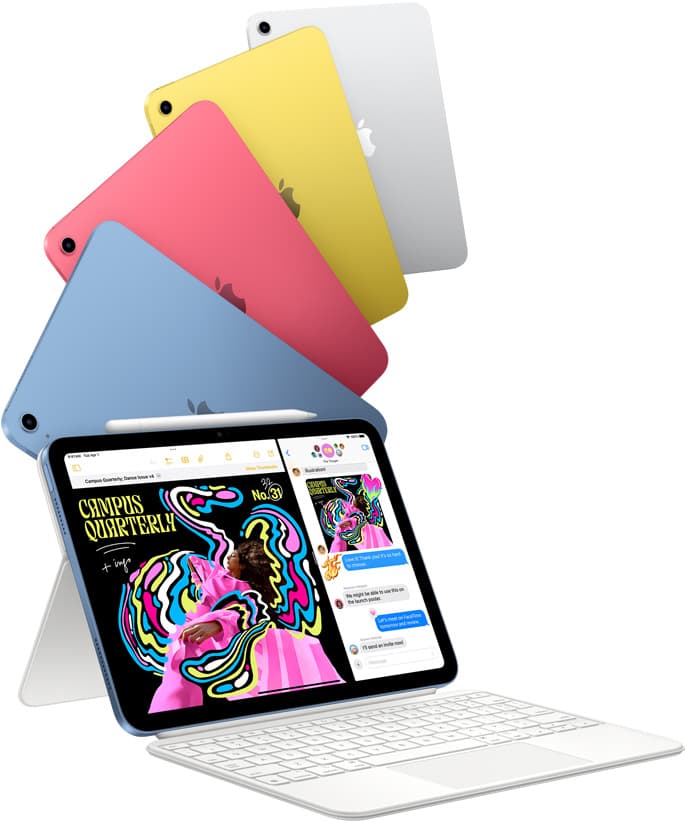
iPad (A16, 11th gen)
amazon.comThe best entry iPad for most artists on a budget. It is not premium, but it is very hard to beat on value.
Pro: Best value iPad right now
Con: No ProMotion display
Search opens with the exact model keywords. Verify size and storage before checkout.

Apple Pencil Pro
amazon.comThe best Apple stylus for serious digital art workflows. Expensive, but the control upgrades are real.
Pro: Best brush-control and hover workflow
Con: Highest price in the lineup
Works only with newer iPad models. Check compatibility.
Procreate
apps.apple.comPro: One-time purchase
Con: iPad-only
Related buying picks
More in this collectionBuyer guide
Best iPad for t shirt design
Pick the right iPad and Apple Pencil pairing for creating production-ready t-shirt graphics.
Buyer guide
Best iPad for sublimation design: How to pick the right screen and chip
Compare iPad models for sublimation art so you get the layer counts, Apple Pencil features, and screen size your printing projects require.
Buyer guide
Is a 64GB iPad enough for Procreate?
A 64GB iPad can run Procreate; decide whether it is enough by measuring your active canvases and the device storage already in use.
Buyer guide
Best iPad for logo design
Choose the iPad Air with the M4 chip for the best mix of vector precision, Apple Pencil Pro support, and balanced pricing.