





Buy the iPad Air (M4) if you need a dedicated tablet for 2D animation and frame-by-frame illustration without paying top-tier hardware prices [1]. It pairs with the Apple Pencil Pro, runs major animation tools like Procreate Dreams and Clip Studio Paint, and features an M4 processor that gives you plenty of processing headroom [1], [2], [8]. Skip the iPad Air only if your drawing style demands the smoother 120Hz refresh rate of Apple's ProMotion screen, in which case the iPad Pro (M5) is the necessary choice [1]. For most creators working across timelines and storyboards, the current Air hits the practical sweet spot [1].
Apple Silicon processing and timeline demands
Animation software places continuous demands on system resources, particularly when managing multi-track audio, video references, and layered frames [8]. The iPad Air runs on the Apple M4 chip, providing the core architecture shared across modern Apple computing lines [1]. In dedicated timeline applications like Procreate Dreams, this hardware handles multi-touch timeline navigation, real-time performance capture, and playback without requiring a desktop workstation setup [8].
Memory management directly dictates your production limits in raster-based illustration and animation [4]. In applications like Procreate, total available device memory determines the maximum layer count for any selected canvas resolution [4]. Because higher-resolution project files consume more layer allocations per frame, having the memory configuration of modern M-series devices provides higher layer ceilings than entry-level consumer models [1], [4]. The iPad Air (M4) delivers this balance of memory and computing power directly into mobile animation setups [1].
Creators who assemble heavy commercial sequences or work on dense timelines every day might look toward the iPad Pro (M5) for long-term production headroom [1]. However, the iPad Air shares the core architecture that software vendors optimize for when building animation engines for iPadOS [1], [8]. For storyboard artists, student animators, and independent character designers, the Air offers ample capability for primary production [1].
Apple Pencil Pro compatibility and drawing tools
Drawing control forms the core of hand-drawn animation, where subtle variations in line weight define volume and motion [2], [6]. The iPad Air (M4) supports the Apple Pencil Pro, giving animators access to Apple's latest stylus input features [1], [3]. This includes barrel roll, which uses an internal gyroscope to let you rotate shaped brush tips as you draw [2]. It also provides haptic feedback, squeeze gestures to summon tool palettes, pressure sensitivity, tilt detection, and Apple Pencil hover [2].
Apple Pencil hover allows you to preview the exact placement and size of your brush mark before your tip contacts the glass [2]. In animation software, this visual indicator simplifies precise line work when matching adjacent keyframes [2], [8]. The entry-level iPad (A16) does not support the Apple Pencil Pro, leaving it restricted to standard styluses without squeeze, barrel roll, or hover capabilities [1], [2], [3].
Artists who prioritize expressive inking will find the iPad Air provides the exact same stylus feature set found on the flagship iPad Pro [1], [2]. The pairing and charging setup remains fully magnetic along the flat side of the tablet, keeping the Apple Pencil Pro charged and ready between drawing sequences [1], [2]. This ensures that your input precision remains identical whether you draw on an Air or a Pro [1].
Display size, refresh rate, and the ProMotion question
The most noticeable distinction between the iPad Air and the iPad Pro rests in the display panel [1]. The iPad Air utilizes a 60Hz display, whereas the iPad Pro (M5) features a ProMotion screen with refresh rates reaching up to 120Hz [1]. In drawing and animating, a higher refresh rate updates the visual line closer to the physical stylus tip as you drag it across the screen surface [1], [2].
For some animators, the faster optical response of ProMotion creates a more convincing simulation of traditional paper [1]. If your drawing technique involves rapid, sweeping strokes and you notice display latency easily, the iPad Pro (M5) provides that specific physical feel [1]. However, the actual vector or raster output generated by the application remains technically identical on both screens [1], [4]. The 60Hz screen on the iPad Air accurately captures every pressure curve, tilt angle, and coordinate point registered by the Apple Pencil Pro [1], [2].
Screen real estate also impacts timeline navigation and UI management [8]. The iPad Air is offered in both an 11-inch and a 13-inch display size [1]. Opting for the 13-inch iPad Air provides expansive canvas space alongside open timeline panels in apps like Procreate Dreams, giving you the working area of a large tablet without paying the substantial premium for an equivalent 13-inch iPad Pro [1], [8].
Animation software ecosystem on iPadOS
Modern animation workflows on iPadOS rely on a mature ecosystem of professional creative suites [5], [6], [8]. Procreate Dreams was built specifically for touch and Apple Pencil input, offering multi-track timeline editing, keyframe interpolation, raster frame-by-frame animation, and audio track integration [8]. The iPad Air easily satisfies the hardware requirements for Procreate Dreams, allowing animators to sketch, paint, and sequence within a unified environment [1], [8].
Clip Studio Paint represents another industry standard for 2D animation and comic creation, running natively on iPadOS [6], [7]. The app features complete timeline animation controls, exposure sheets, onion skinning, and vector line editing [6], [7]. Because Clip Studio Paint mirrors its desktop counterpart on iPadOS, having an M-series chip like the M4 in the iPad Air ensures smooth handling of complex vector layers and frame sequences [1], [6].
For traditional frame-by-frame sketching, standard Procreate also includes an Animation Assist mode [5]. This feature transforms standard canvas layers into sequential frames, complete with onion skin previews and looping options [4], [5]. Because Procreate layer counts are governed by available device memory, the iPad Air provides generous frame limits for short animated clips, animated stickers, and character loops [4], [5].
Who should buy the iPad Air and who should look elsewhere
The iPad Air (M4) is the ideal choice for independent animators, visual development artists, and students who need a portable studio device [1]. It delivers full Apple Pencil Pro support, generous memory configurations, and reliable M4 processing without pushing your budget into the upper tiers of Apple's lineup [1], [2]. Buyers who want maximum drawing area on a reasonable budget can select the 13-inch iPad Air to spread out their timelines comfortably [1], [8].
The standard iPad (A16) is the option to buy if budget is your singular concern [1]. However, animators should note that the A16 model lacks Apple Pencil Pro support, missing out on hover, barrel roll, and pressure-sensitive squeeze actions [1], [2], [3]. It also features less processing overhead for multi-track timeline files [1], [8].
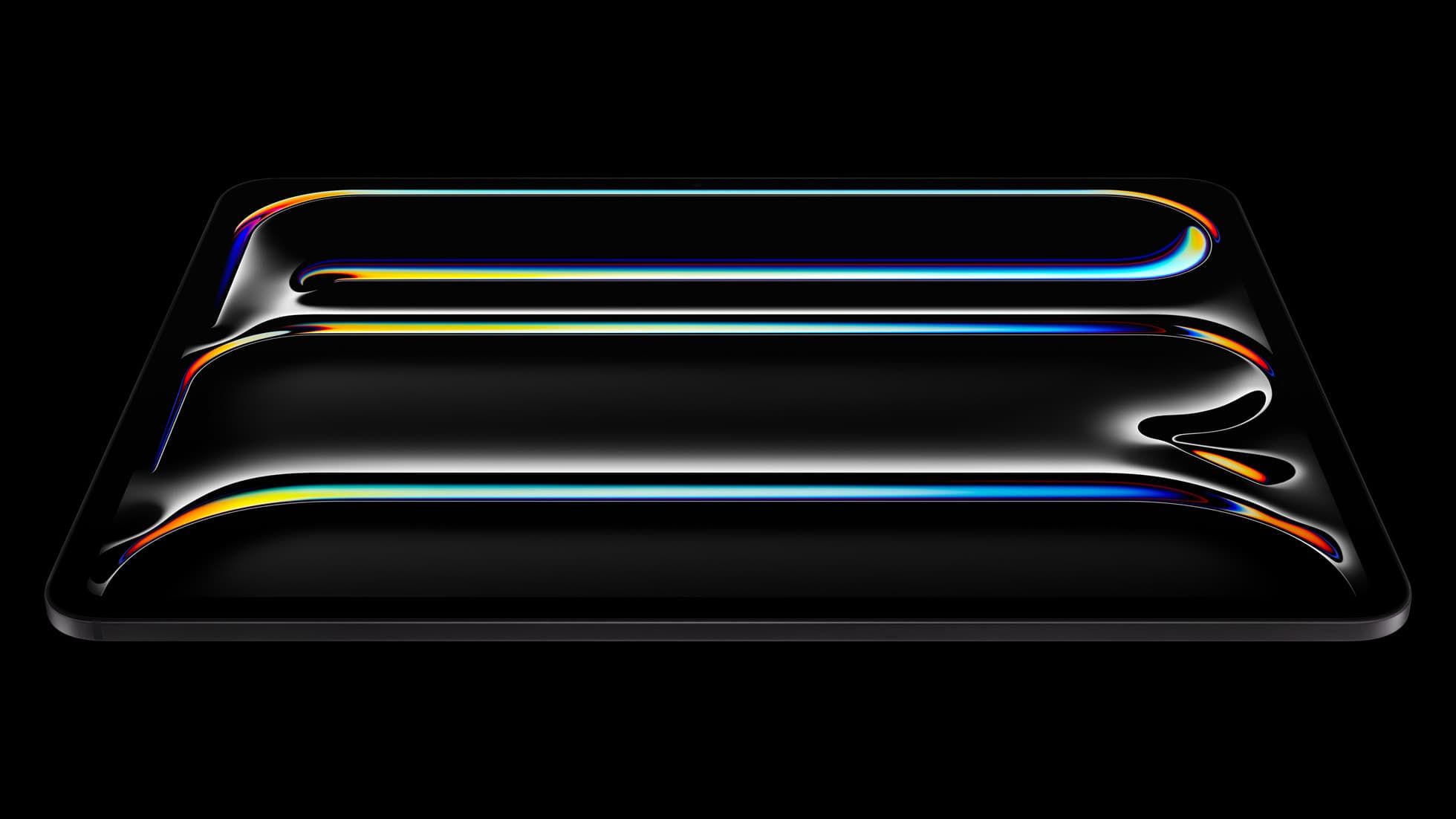
Conversely, you should skip the iPad Air and buy the iPad Pro (M5) if your weekly commercial workload demands the absolute finest display Apple produces [1]. The ProMotion display and tandem OLED panel on the Pro model offer an elevated visual experience that justifies its cost for high-volume production studios and uncompromising line artists [1]. If ProMotion is not an absolute requirement for your drawing hand, the iPad Air remains the smarter financial choice [1].
Bottom line
The iPad Air (M4) is more than enough tablet for modern 2D animation, storyboarding, and frame-by-frame illustration [1], [8]. It supports the Apple Pencil Pro with all of its advanced input features, runs standard applications like Procreate Dreams and Clip Studio Paint, and offers display sizes up to 13 inches [1], [2], [6], [8]. Unless you specifically require the 120Hz ProMotion screen of the iPad Pro (M5), the iPad Air delivers the best balance of hardware capability and practical value for your animation workspace [1].
Sources
[1] https://www.apple.com/ipad/compare/ [2] https://www.apple.com/apple-pencil/ [3] https://support.apple.com/en-us/108937 [4] https://help.procreate.com/articles/zlexav-ipad-compatibility [5] https://apps.apple.com/us/app/procreate/id425073498 [6] https://apps.apple.com/us/app/clip-studio-paint/id1262985592 [7] https://www.clipstudio.net/en/ [8] https://apps.apple.com/us/app/procreate-dreams/id1595520602
Recommended gear

iPad Air (M4)
apple.comThe clean current Air recommendation for most serious hobby artists. Stronger buy logic than old-stock M3 when pricing is close.
Pro: Best current balance of price, headroom, and Pencil support
Con: Still 60Hz
Current Air lineup. Choose size, storage, and keyboard path before checkout.
iPad Pro (M5)
amazon.comThe best iPad for drawing feel and premium workflow comfort, but many buyers still overpay for it.
Pro: Best iPad display and ProMotion feel
Con: Highest price in the lineup
Search opens with iPad Pro terms. Check year, chip, and screen size.
iPad (A16, 11th gen)
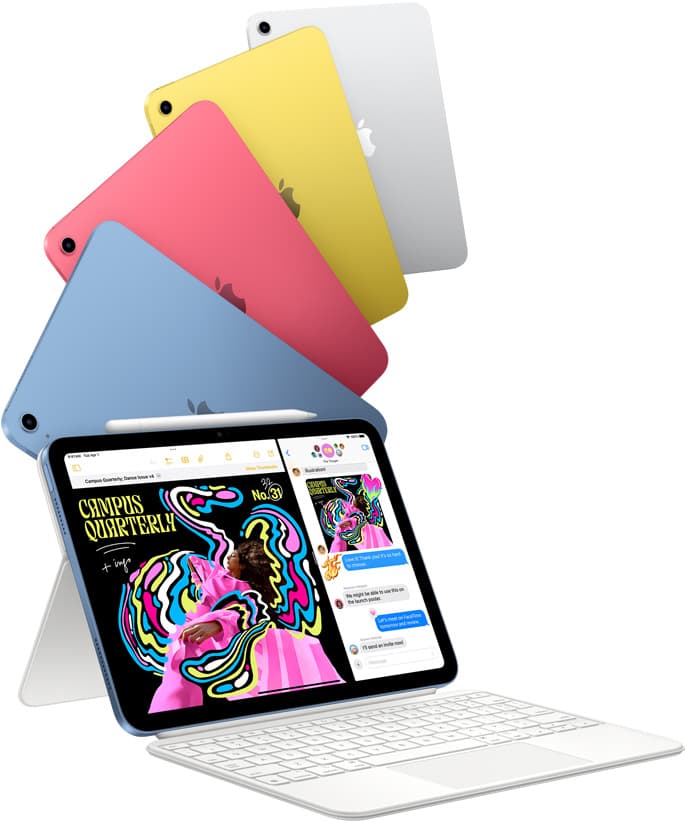
amazon.comThe best entry iPad for most artists on a budget. It is not premium, but it is very hard to beat on value.
Pro: Best value iPad right now
Con: No ProMotion display
Search opens with the exact model keywords. Verify size and storage before checkout.

Apple Pencil Pro
amazon.comThe best Apple stylus for serious digital art workflows. Expensive, but the control upgrades are real.
Pro: Best brush-control and hover workflow
Con: Highest price in the lineup
Works only with newer iPad models. Check compatibility.
Apple Pencil (USB-C)
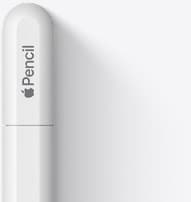
amazon.comA practical low-cost Apple stylus with broad compatibility, but limited for advanced art control.
Pro: Lowest official Apple Pencil cost
Con: No pressure sensitivity for brush work
Compatible with many recent iPads. No pressure support.
Related buying picks
More in this collectionBuyer guide
Is iPad Pro overkill for Procreate?
For most artists using Procreate, an iPad Pro is overkill when an iPad Air with Apple Pencil Pro delivers the same core drawing features and layer headroom.
Buyer guide
Best drawing tablet for surface pattern design: iPad Air vs iPad Pro
Choose the iPad Air with Apple Pencil Pro for repeat pattern design, or step up to the iPad Pro if high-resolution layer limits dictate your production.
Buyer guide
Best tablet for 3d sculpting: how to choose your iPad setup
Compare the best iPads for digital 3D sculpting based on Apple Pencil Pro features, screen hardware, and memory ceilings.
Buyer guide
Best drawing tablet for concept art: iPad picks and trade-offs
For digital concept art, the iPad Air (M4) hits the sweet spot of Apple Pencil Pro features and value, while the iPad Pro (M5) remains the choice for ProMotion display feel.