





An 11-inch iPad is completely enough for comic art, making the 11-inch iPad Air (M4) the practical choice for most illustrators who want Apple Pencil Pro support without paying premium Pro prices [1], [2]. If you demand the highest refresh rate and the most advanced display technology Apple offers, buy the iPad Pro (M5), but skip it if you are watching your budget [1]. Artists on a strict budget should pick the iPad (A16), though they will miss out on Apple Pencil Pro features and ProMotion [1], [3]. Skip the 11-inch size only if you require a large visual workspace that displays full print spreads alongside complex tool palettes without zooming [6], [7].
Screen real estate and multi-panel comic workflows
Drawing comics involves more than sketching a single subject on an open canvas. Sequential art requires managing panel borders, speech bubbles, background perspectives, and script notes across multiple pages [6], [7]. On an 11-inch display, you have plenty of room to ink detailed foreground figures or construct dynamic panel layouts, but the physical area requires frequent zooming and panning [1], [6].
Dedicated comic software like Clip Studio Paint includes interface elements such as toolbars, sub-tool palettes, layer menus, and navigation windows [6], [7]. When these utility windows are docked on an 11-inch screen, the usable drawing canvas shrinks [6]. You can collapse panels to maximize active drawing area, or keep them floating to access ink pens, tones, and perspective rulers quickly [6], [7]. Artists who work with minimal interface layouts find the 11-inch footprint compact and easy to rotate on a desk, whereas artists who demand side-by-side reference windows alongside full page layouts might feel cramped [1], [6].
For creators building vertical-scroll webtoons, the 11-inch display aspect ratio matches modern digital viewing habits closely [6], [7]. Navigating long vertical strips on an 11-inch screen provides a clear picture of panel pacing and reading rhythm without forcing you to carry an unwieldy tablet on the go [1], [6].
Apple Pencil features for inking and lettering
Linework is the foundation of traditional and digital comics, and Apple Pencil compatibility changes depending on which iPad you buy [2], [3]. The iPad Air (M4) and iPad Pro (M5) pair with the Apple Pencil Pro, which includes pressure sensitivity, tilt detection, barrel roll, haptic feedback, a squeeze sensor, and Pencil hover [1], [2]. The base iPad (A16) supports the Apple Pencil (USB-C) and the first-generation Apple Pencil, but does not support the Apple Pencil Pro [1], [3].
Pressure sensitivity is essential for creating dynamic line weights that define comic figures, contours, and expressive hatching [2]. With the Apple Pencil Pro, barrel roll lets you rotate shaped nibs or flat inking brushes smoothly as you angle your wrist [2]. The squeeze gesture allows comic inkers to switch tools, bring up contextual quick menus, or clear actions without reaching for on-screen buttons [2]. Haptic feedback gives a physical pulse when tools engage, confirming inputs while you concentrate on inking delicate panel boundaries [2].
Pencil hover detects the stylus tip before it touches the glass [2]. In comic creation, hover lets you preview brush size, tone patterns, and cursor placement accurately over speech balloons and intricate linework before laying down digital ink [2]. If you choose the base iPad (A16) paired with the Apple Pencil (USB-C), you lose pressure sensitivity entirely, which restricts your ability to vary stroke thickness through hand pressure alone [2], [3].
Layer limits and canvas sizes in comic apps
Comic pages destined for physical print usually demand higher canvas resolutions than digital illustrations, often running at 300 to 600 dots per inch. In raster illustration apps like Procreate, canvas resolution and physical device memory directly determine the maximum number of layers available per document [4], [5]. A multi-layer comic workflow that separates rough sketches, panel borders, ink linework, flat colors, background art, screen tones, sound effects, and text layers can consume dozens of layers on a single page [4], [5].
Because Procreate caps layer counts based on available system memory, working at high print resolutions on lower-tier hardware forces artists to merge layers or create separate project files for inking and coloring [4], [5]. The iPad Air (M4) and iPad Pro (M5) provide more modern memory architecture than the entry-level iPad (A16), giving creators broader margins when establishing complex layer stacks for intricate comic compositions [1], [4].
Clip Studio Paint manages files differently, catering directly to sequential production with dedicated multi-page document managers and vector inking layers [6], [7]. Vector inking layers allow you to resize, edit control points, and clean up line intersections without pixel degradation [6], [7]. While Clip Studio Paint handles high-resolution comic pages capably across iPad models, larger files containing numerous vector strokes and 3D reference figures place greater demands on device memory and processing power [6], [7].
Choosing between iPad Air, iPad Pro, and base iPad
Selecting the right 11-inch device comes down to balancing display technology, stylus utility, and production requirements [1]. The iPad Air (M4) provides the most balanced setup for the majority of comic artists [1]. It supports the Apple Pencil Pro, houses the M4 processor, and fits comfortably on drawing stands or in commuter bags [1], [2]. Its screen runs at a standard 60Hz refresh rate rather than ProMotion, but it offers all core stylus features needed for full digital comic production [1], [2].
Buy the iPad Pro (M5) if you want Apple's top-tier display tech and a ProMotion refresh rate [1]. ProMotion renders pencil strokes with reduced visual latency, making the stroke appear closer to the physical nib as you sweep rapid hatching marks across a panel [1]. The iPad Pro (M5) also features Apple's most advanced display construction, making it appealing to artists who color pages for professional print houses and demand strict visual standards [1]. Skip the iPad Pro if you only need a reliable digital sketchbook and inking surface, as the iPad Air delivers the same Apple Pencil Pro drawing tools at a lower tier [1], [2].
Choose the base iPad (A16) if you want to enter digital comic art while spending the minimum amount possible on Apple hardware [1]. The iPad (A16) handles drawing applications like Procreate and Clip Studio Paint, but it lacks Apple Pencil Pro support, meaning you miss out on barrel roll, squeeze shortcuts, and haptics [1], [2], [3]. Skip the base iPad if you plan to ink detailed, variable-width comic linework with modern Apple Pencil hardware [2], [3].
Bottom line
An 11-inch iPad is plenty of tablet for drafting, inking, coloring, and lettering professional-grade comics [1], [6]. The 11-inch iPad Air (M4) remains the best overall option for comic artists because it unlocks the full capabilities of the Apple Pencil Pro, including pressure control, squeeze shortcuts, and barrel roll [1], [2]. Creators who prioritize ProMotion display response should step up to the iPad Pro (M5), while cost-sensitive beginners can use the iPad (A16) as a functional starting point [1]. Unless you refuse to zoom into panels or must see two print pages side by side continuously, an 11-inch screen will serve your comic drawing workflow effectively [1], [6], [7].
Sources
[1] https://www.apple.com/ipad/compare/ [2] https://www.apple.com/apple-pencil/ [3] https://support.apple.com/en-us/108937 [4] https://help.procreate.com/articles/zlexav-ipad-compatibility [5] https://apps.apple.com/us/app/procreate/id425073498 [6] https://apps.apple.com/us/app/clip-studio-paint/id1262985592 [7] https://www.clipstudio.net/en/
Recommended gear

iPad Air (M4)
apple.comThe clean current Air recommendation for most serious hobby artists. Stronger buy logic than old-stock M3 when pricing is close.
Pro: Best current balance of price, headroom, and Pencil support
Con: Still 60Hz
Current Air lineup. Choose size, storage, and keyboard path before checkout.
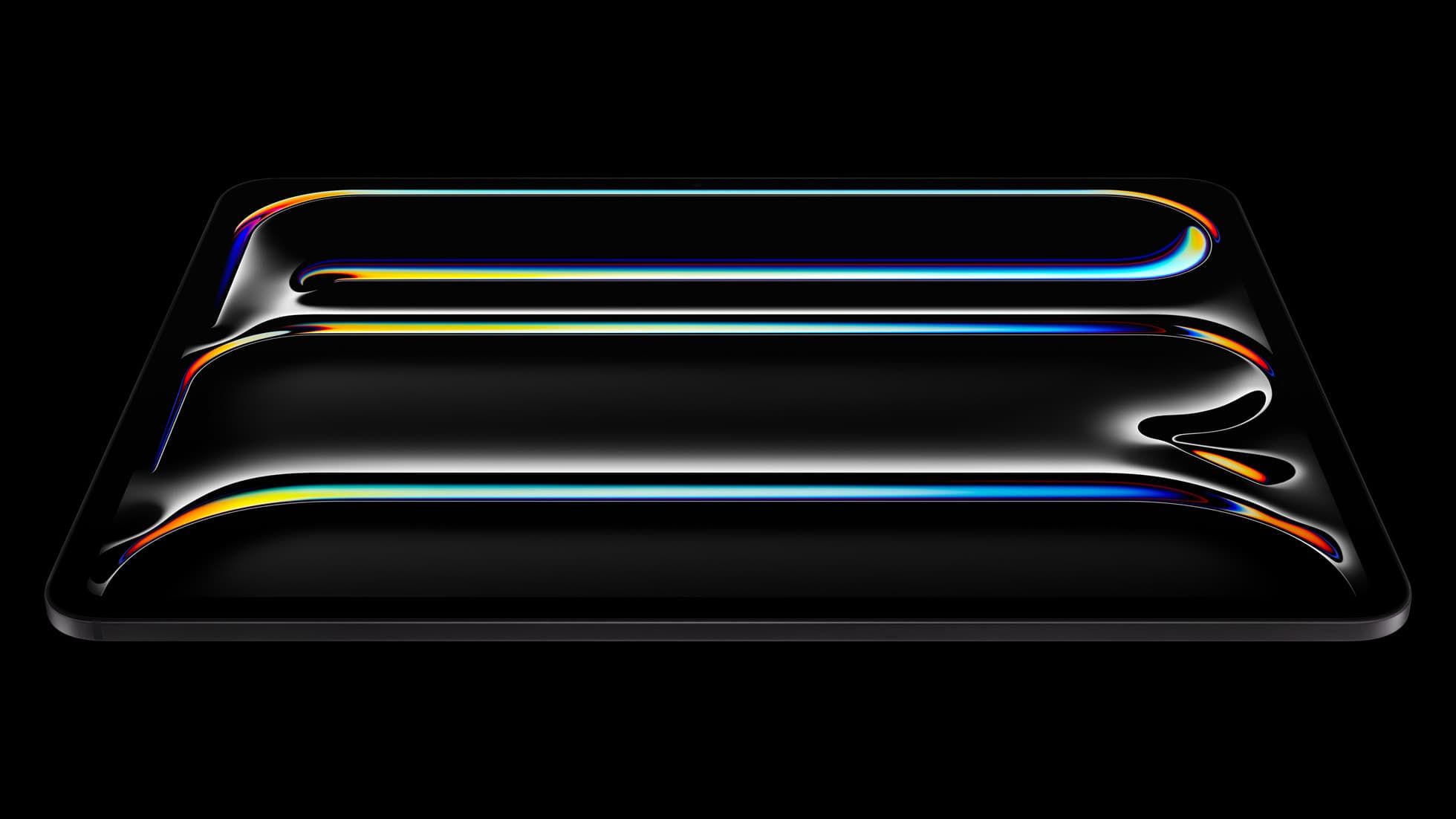
iPad Pro (M5)
amazon.comThe best iPad for drawing feel and premium workflow comfort, but many buyers still overpay for it.
Pro: Best iPad display and ProMotion feel
Con: Highest price in the lineup
Search opens with iPad Pro terms. Check year, chip, and screen size.
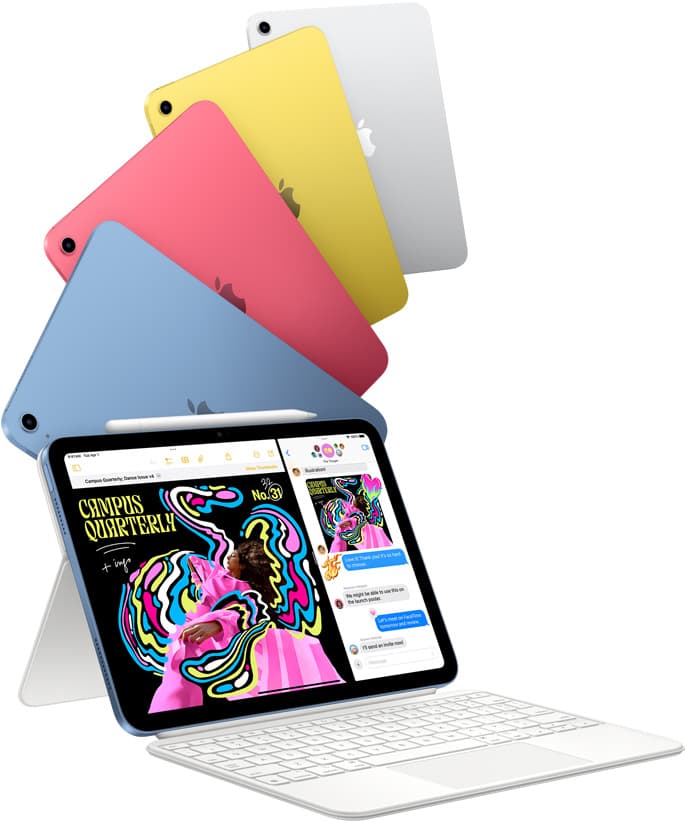
iPad (A16, 11th gen)
amazon.comThe best entry iPad for most artists on a budget. It is not premium, but it is very hard to beat on value.
Pro: Best value iPad right now
Con: No ProMotion display
Search opens with the exact model keywords. Verify size and storage before checkout.

Apple Pencil Pro
amazon.comThe best Apple stylus for serious digital art workflows. Expensive, but the control upgrades are real.
Pro: Best brush-control and hover workflow
Con: Highest price in the lineup
Works only with newer iPad models. Check compatibility.
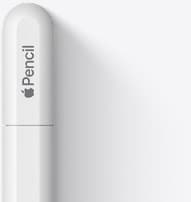
Apple Pencil (USB-C)
amazon.comA practical low-cost Apple stylus with broad compatibility, but limited for advanced art control.
Pro: Lowest official Apple Pencil cost
Con: No pressure sensitivity for brush work
Compatible with many recent iPads. No pressure support.
Related buying picks
More in this collectionBuyer guide
Best iPad for logo design
Choose the iPad Air with the M4 chip for the best mix of vector precision, Apple Pencil Pro support, and balanced pricing.
Buyer guide
Best iPad for digital painting: Which model should you buy?
Choose the right iPad for digital painting based on screen space, Apple Pencil features, and layer capacity.
Buyer guide
Best iPad for digital art beginners
Get the iPad Air (M4) if you want the Apple Pencil Pro toolset, or pick the base iPad (A16) if you want a capable digital sketchpad at the lowest entry cost.
Buyer guide
Best iPad for t shirt design
Pick the right iPad and Apple Pencil pairing for creating production-ready t-shirt graphics.