






Buy the iPad Air (M4) if you want modern Apple Pencil Pro support for drawing and photo editing without paying top-tier prices [1], [2]. The iPad Pro (M5) is the right purchase only if your weekly workload demands the highest display tier and ProMotion [1]. Artists on a strict budget should choose the iPad (A16, 11th gen), while sketchers who prioritize pocket portability over workspace area should pick the iPad mini (A17 Pro) [1]. Skip upgrading your existing tablet if your current iPad already runs your required software and supports pressure-sensitive stylus input [2], [4].
Matching Apple Pencil features to drawing and retouching
Drawing and retouching workflows rely heavily on how the stylus communicates with the tablet glass [2]. Apple Pencil Pro adds squeeze detection, barrel roll orientation, and haptic feedback to the drawing process [2]. These specific hardware capabilities let compatible apps assign tool switches, palette shortcuts, and brush orientation directly to physical hand gestures [2], [5]. If your retouching routine involves switching quickly between clone stamps, masks, and adjustment brushes, having squeeze shortcuts directly on the barrel streamlines tool selection [2].
For illustration, barrel roll relies on internal gyroscopes in Apple Pencil Pro to rotate shaped brushes as you pivot your hand [2]. This tool behavior alters stroke marks dynamically in apps like Procreate [2], [5]. However, only specific iPad hardware pairs with Apple Pencil Pro, including the iPad Air (M4), iPad Pro (M5), and iPad mini (A17 Pro) [1], [3]. If you choose the entry-level iPad (A16), stylus compatibility shifts to Apple Pencil (USB-C) or Apple Pencil (1st generation) depending on the port configuration and adapter [1], [3]. The Apple Pencil (USB-C) provides tilt sensitivity, magnetic attachment, and low latency, but it omits pressure sensitivity [2], [3]. Because pressure sensitivity is fundamental for varying line weight in inks and opacity in photo masks, pure art and retouching workflows favor setups that retain full pressure response [2].
Screen real estate and color for editing workflows
Photo editing and layered illustration place distinct demands on display dimensions and screen technology [1]. Apple equips the iPad Pro (M5) with its most advanced display hardware and ProMotion adaptive refresh rates [1]. A high refresh rate alters how quickly visual feedback updates under the stylus tip as you pull strokes across the screen [1], [2]. Furthermore, the larger display options in the Pro and Air lines give editors room to keep interface panels, layer stacks, and histogram inspectors visible without completely covering the canvas [1], [4].
In contrast, the iPad Air (M4) uses a 60Hz display panel rather than ProMotion [1]. While its color coverage matches wide color standards listed on Apple's comparison sheet, the physical refresh rate remains fixed [1]. For photo retouching, color consistency and screen size often matter more than high refresh rates, making the Air panel practical for detailed grading and localized spot cleanup [1]. The iPad mini (A17 Pro) features an 8.3-inch screen, which provides an exceptionally compact form factor but limits the usable canvas area once photo adjustment sliders and toolbars populate the interface [1]. Choosing screen size therefore involves deciding how many palette menus you need open simultaneously during an edit session [1], [4].
Memory, layer limits, and multi-app multitasking
Every photo editing and painting application must operate within device memory boundaries [4]. In raster graphics apps such as Procreate, the maximum number of layers permitted per canvas is strictly governed by the amount of RAM available on the specific iPad model and the pixel dimensions of your document [4], [5]. Working on large-format print files with dozens of adjustment layers requires significantly more memory headroom than sketching simple social graphics at screen resolution [4].
Apple outfits the iPad Air (M4) and iPad Pro (M5) with desktop-class M-series processors, which provide higher memory capacities across standard configurations than entry-level consumer tablets [1], [4]. When you run complex layered files in Procreate while keeping reference photos open in Slide Over or Split View, this extra RAM headroom ensures the software does not restrict your layer counts prematurely [1], [4], [5]. If you select the iPad (A16), the lower system memory profile reduces the maximum layers available on large canvases [1], [4]. Retouchers working with composite images containing multiple exposure passes, masks, and clean-up plates must review these hardware layer thresholds before selecting their base storage and hardware tier [4].
Who should buy each iPad model
Selecting the right tablet requires matching your personal budget to the hardware features that directly impact your daily work [1].
- Buy the iPad Air (M4) if you want the best balance of price and creative capability [1]. It supports Apple Pencil Pro, provides sufficient memory for layered files, and offers a comfortable canvas size for both photo retouching and digital painting [1], [2], [4]. Skip this model only if you refuse to work without a ProMotion display [1].
- Buy the iPad Pro (M5) if your budget permits paying for Apple's best display technology and ProMotion refresh rates [1]. It is the right option for working illustrators and commercial photo editors who spend long daily sessions at the screen and want maximum hardware specifications [1]. Skip the iPad Pro if you only paint as a weekend hobby, because the Air delivers identical Apple Pencil Pro gesture support [1], [2].
- Buy the iPad (A16) if you need a functional digital art tablet at the lowest possible equipment price [1]. It handles core drawing software and mobile photo editing tools reliably [1], [4], [5]. Skip it if you need pressure sensitivity paired with modern magnetic wireless charging, as it lacks Apple Pencil Pro compatibility [1], [2], [3].
- Buy the iPad mini (A17 Pro) if portability is your single highest priority [1]. It pairs with Apple Pencil Pro, making it a capable pocket sketchbook and field companion for photo culling [1], [2], [3]. Skip the mini if you do extensive studio photo retouching, because the 8.3-inch screen leaves little room for tool palettes alongside your image [1].
Storage choices for photographers and digital painters
Photo libraries and high-resolution illustration files consume local drive space rapidly [1], [5]. RAW image files from modern cameras require substantial temporary storage while importing, developing, and exporting batches [1]. In addition, Procreate automatically records time-lapse video of your drawing process by default, which gradually increases canvas file sizes on your drive [5].
Apple offers different starting storage capacities across its lineup [1]. The entry-level tiers on base models can fill quickly once you install several full-featured editing applications, cache offline image previews, and store active drawing project bundles [1], [5]. For serious creative work, buying a model with at least one step up from the base storage tier is practical if you travel without external SSD drives [1]. While iPads with USB-C ports support external storage connections for transferring project archives, working directly from internal memory remains the smoothest approach for mobile sessions [1].
Bottom line
The iPad Air (M4) stands out as the most balanced recommendation for combined photo editing and drawing [1]. It provides direct compatibility with Apple Pencil Pro gestures like barrel roll and squeeze, offers expansive canvas space, and includes the processing power required for high layer counts in Procreate [1], [2], [4]. Choose the iPad Pro (M5) only if you require Apple's premier display hardware and ProMotion refresh rates [1]. If keeping startup costs low is your primary goal, select the iPad (A16), but note its limitations regarding Apple Pencil Pro input features [1], [2], [3].
Sources
[1] https://www.apple.com/ipad/compare/ [2] https://www.apple.com/apple-pencil/ [3] https://support.apple.com/en-us/108937 [4] https://help.procreate.com/articles/zlexav-ipad-compatibility [5] https://apps.apple.com/us/app/procreate/id425073498
Recommended gear

iPad Air (M4)
apple.comThe clean current Air recommendation for most serious hobby artists. Stronger buy logic than old-stock M3 when pricing is close.
Pro: Best current balance of price, headroom, and Pencil support
Con: Still 60Hz
Current Air lineup. Choose size, storage, and keyboard path before checkout.
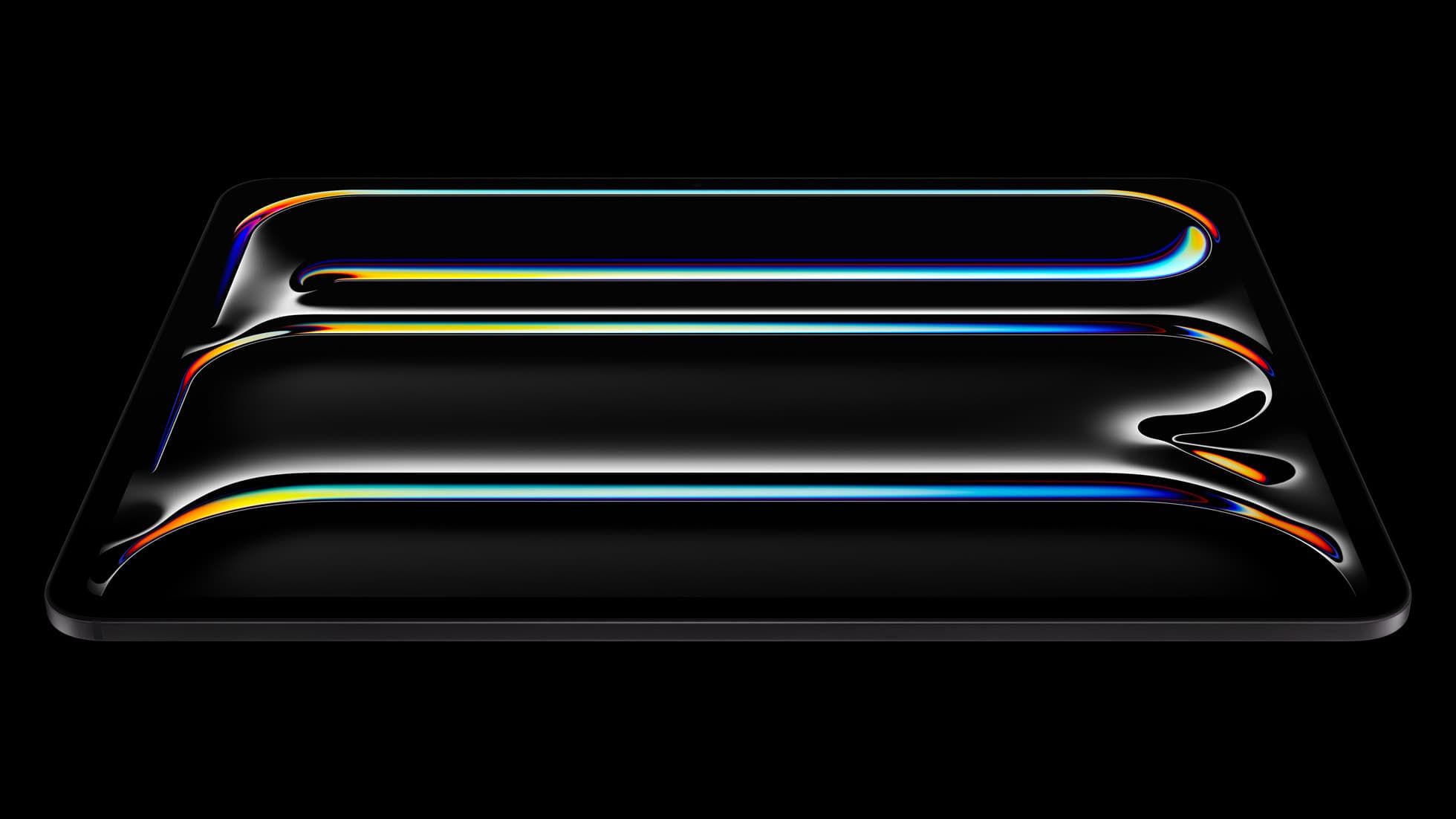
iPad Pro (M5)
amazon.comThe best iPad for drawing feel and premium workflow comfort, but many buyers still overpay for it.
Pro: Best iPad display and ProMotion feel
Con: Highest price in the lineup
Search opens with iPad Pro terms. Check year, chip, and screen size.
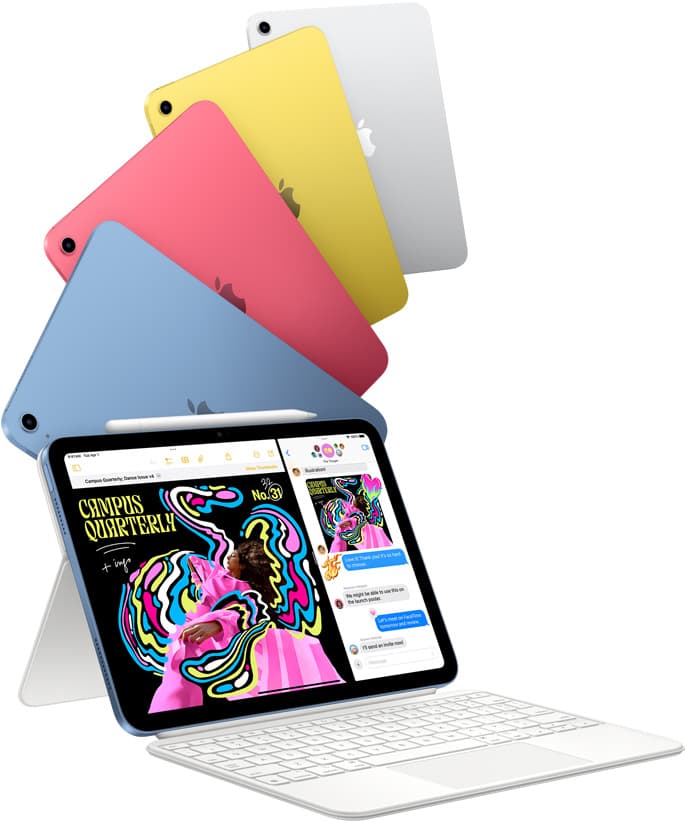
iPad (A16, 11th gen)
amazon.comThe best entry iPad for most artists on a budget. It is not premium, but it is very hard to beat on value.
Pro: Best value iPad right now
Con: No ProMotion display
Search opens with the exact model keywords. Verify size and storage before checkout.
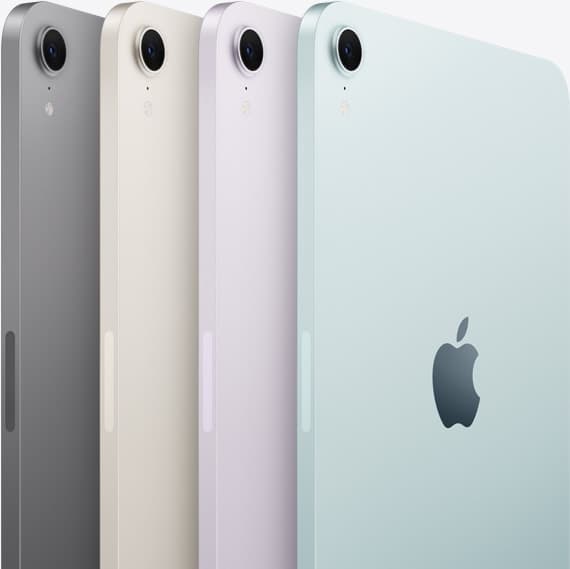
iPad mini (A17 Pro)
amazon.comThe most portable real iPad for drawing. It wins on mobility and loses on workspace.
Pro: Most portable drawing iPad
Con: Small canvas for detailed work
Search opens with iPad mini A17 Pro terms. Verify model number before buying.
Related buying picks
More in this collectionBuyer guide
Best iPad for digital art beginners
Get the iPad Air (M4) if you want the Apple Pencil Pro toolset, or pick the base iPad (A16) if you want a capable digital sketchpad at the lowest entry cost.
Buyer guide
Is iPad 10th gen good for Procreate?
The iPad 10th gen handles Procreate well for everyday digital art, but stylus pairing limits and base hardware shape how far you can push large files.
Buyer guide
Best iPad for storyboard artists: our buyer guide
Choose the right iPad for storyboarding based on screen size, Apple Pencil Pro features, and canvas layer limits.
Buyer guide
Best iPad for medical illustration
Choose the right iPad and Apple Pencil setup for medical illustration based on stylus precision, canvas size, and layer limits.