






If you plan to paint or ink naturally in Procreate, skip the Apple Pencil (USB-C) and choose a pressure-sensitive model like the Apple Pencil Pro [1], [2]. The Apple Pencil (USB-C) works inside Procreate, but it lacks pressure sensitivity [1], [4]. That omission prevents you from varying line width, grain density, or opacity simply by pressing harder against the screen [1], [3]. You should buy the Apple Pencil (USB-C) only if your workflow focuses on precise vector-style line art, note-taking, flat-color illustration, or technical drafting where constant stroke thickness is desirable [1], [6]. Artists wanting expressive, responsive brush strokes will quickly feel limited by the hardware [1], [3].
Core hardware differences between Apple Pencil models
Apple designed the Apple Pencil (USB-C) as an accessible stylus option, but reaching that lower tier required stripping out several physical sensors found on higher-end styluses [1]. The USB-C model includes tilt sensitivity, low latency, and pixel-perfect precision [1]. It features a flat edge that attaches magnetically to the side of compatible iPad enclosures for storage, though it doesn't charge magnetically [1], [2]. Instead, it pairs and charges through a sliding cap that conceals a physical USB-C port [1].
By contrast, premium models like the Apple Pencil Pro offer a much wider array of internal hardware features [1]. The Apple Pencil Pro includes pressure sensitivity, magnetic pairing and wireless charging, tool-switching double-tap gestures, haptic feedback, a squeeze sensor, and a gyroscope for barrel roll rotation [1]. The Apple Pencil (USB-C) contains none of those features [1]. While both models register input accurately across iPadOS, the mechanical and sensory feedback loops differ substantially [1], [6].
Compatibility also dictates your hardware choices across the iPad lineup [2]. The Apple Pencil (USB-C) works across a wide range of tablets, including the base iPad, iPad Air, and iPad Pro models that feature USB-C ports [2], [7]. The Apple Pencil Pro connects exclusively to newer iPad Air and iPad Pro hardware [1], [2]. If you use a mainstream entry device such as the iPad with an A16 chip, the Apple Pencil (USB-C) is supported directly, whereas the Apple Pencil Pro can't pair with it [1], [2].
How the absence of pressure sensitivity affects Procreate brushes
Procreate relies heavily on pressure dynamics to translate physical hand movements into digital media [3], [4]. In the app Brush Studio, almost every default brush maps pressure to properties like size, opacity, flow, bleed, and color mixing [3]. When you press down harder with a pressure-capable stylus, an inking pen produces a thicker stroke, a graphite pencil deposits darker tone, and an oil brush blends into underlying wet paint [3], [4].
With the Apple Pencil (USB-C), Procreate receives location and angle data, but zero pressure values [1], [3]. Every stroke behaves as if it were drawn with a mechanical drafting pen or technical marker [1], [6]. If you want a line to become wider or darker, you must manually stop, drag the size or opacity slider on the edge of the canvas interface, and resume drawing [3], [4]. This manual adjustment interrupts continuous line work and prevents calligraphic flourishes during natural hand motion [1], [3].
For some creative disciplines, uniform stroke output isn't an obstacle [1], [6]. Artists working in cel-shaded art, graphic lettering, geometric patterns, pattern design, or comic flatting often prefer uniform stroke widths [4]. In those scenarios, removing variable hand pressure can even prevent accidental wobbles or inconsistent line weight [1], [3]. However, traditional painters, portrait artists, and calligraphers will find the lack of pressure tracking directly interferes with the natural flow of their craft [1], [3].
Tilt sensitivity and hover features in digital drawing
Although the Apple Pencil (USB-C) omits pressure sensors, it retains full tilt sensitivity [1]. Procreate brushes can read the angle between the stylus shaft and the tablet surface to alter the appearance of your marks [1], [3]. For example, shading with the side of an Apple Pencil tip activates broader, softer textures on charcoal and pencil brushes, just like a physical pencil angled against paper [1], [3], [6].
Tilt alone can't replace the subtle responsiveness of pressure, but it provides a secondary layer of control [1], [3]. You can set up custom brushes in Procreate that use tilt angles to trigger wider brush shapes or varied grain textures [3]. For landscape block-ins, large wash areas, and rough charcoal layouts, tilt control gives the Apple Pencil (USB-C) significantly more utility than generic capacitive styluses that treat all contacts as blunt touches [1], [6].
Hover functionality is another area where the Apple Pencil (USB-C) delivers utility, provided your iPad hardware supports it [1], [2]. On supported iPad models, Apple Pencil hover allows the tablet to track the position of the tip suspended up to twelve millimeters above the screen [1], [6]. Inside Procreate, hover lets you preview the exact brush footprint, size, and opacity before your stylus touches the glass [1], [4], [6]. This preview function helps prevent misaligned strokes and unwanted marks, giving you greater confidence when placing fine lines [1], [6].
Choosing the right stylus for your drawing workflow
Deciding whether the Apple Pencil (USB-C) is enough comes down to the specific drawing styles you pursue and the hardware you already own [1], [2]. If you are pairing your stylus with an entry-level device like the iPad with an A16 chip for hobby work, note-taking, and basic graphic art, the Apple Pencil (USB-C) offers a functional entry point without unnecessary complexity [1], [2], [7]. You can create finished illustrations, export high-resolution canvases, and use Procreate layers fully within the memory limits of your iPad [4], [5].
You should buy the Apple Pencil (USB-C) if:
- Your artwork consists primarily of uniform line art, technical sketches, cartoons, or graphic patterns [1], [4].
- You use Procreate primarily for wireframes, diagrams, or storyboard layout sketches [4], [6].
- You need a dedicated stylus for note-taking, navigation, and occasional hobby illustration on a compatible iPad [1], [2].
- Your iPad model doesn't support the Apple Pencil Pro, and you prefer an official Apple stylus with native tilt and hover support [1], [2].
You should skip the Apple Pencil (USB-C) and choose the Apple Pencil Pro if:
- Your tablet is compatible with the Apple Pencil Pro [1], [2].
- Your primary style involves digital painting, soft watercolor blending, or traditional inking with varied line weights [1], [3].
- You want physical shortcuts such as the squeeze gesture to trigger tool palettes and haptic feedback to confirm selections [1], [6].
- You want barrel roll support to rotate shaped brushes and calligraphy tips dynamically while drawing [1], [6].
Bottom line
The Apple Pencil (USB-C) functions reliably inside Procreate for navigation, basic sketching, and fixed-width linework, but it isn't a complete digital painting instrument [1], [3], [4]. Without pressure sensitivity, it forces you to adjust brush sizes manually and eliminates expressive stroke variation [1], [3]. If your iPad supports the Apple Pencil Pro, investing in the advanced model provides the pressure sensitivity, haptic feedback, and barrel roll controls necessary for a traditional art experience [1], [2]. Choose the Apple Pencil (USB-C) only when budget constraints or hardware compatibility make it your only practical option, or if your artwork never requires pressure dynamics [1], [2].
Sources
[1] https://www.apple.com/apple-pencil/ [2] https://support.apple.com/en-us/108937 [3] https://help.procreate.com/procreate/handbook/5.2/interface-gestures/pencil [4] https://apps.apple.com/us/app/procreate/id425073498 [5] https://help.procreate.com/articles/zlexav-ipad-compatibility [6] https://support.apple.com/guide/ipad/draw-with-apple-pencil-ipadc55b6c7a/ipados [7] https://www.apple.com/ipad/compare/
Recommended gear
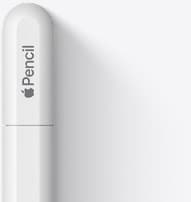
Apple Pencil (USB-C)
amazon.comA practical low-cost Apple stylus with broad compatibility, but limited for advanced art control.
Pro: Lowest official Apple Pencil cost
Con: No pressure sensitivity for brush work
Compatible with many recent iPads. No pressure support.

Apple Pencil Pro
amazon.comThe best Apple stylus for serious digital art workflows. Expensive, but the control upgrades are real.
Pro: Best brush-control and hover workflow
Con: Highest price in the lineup
Works only with newer iPad models. Check compatibility.
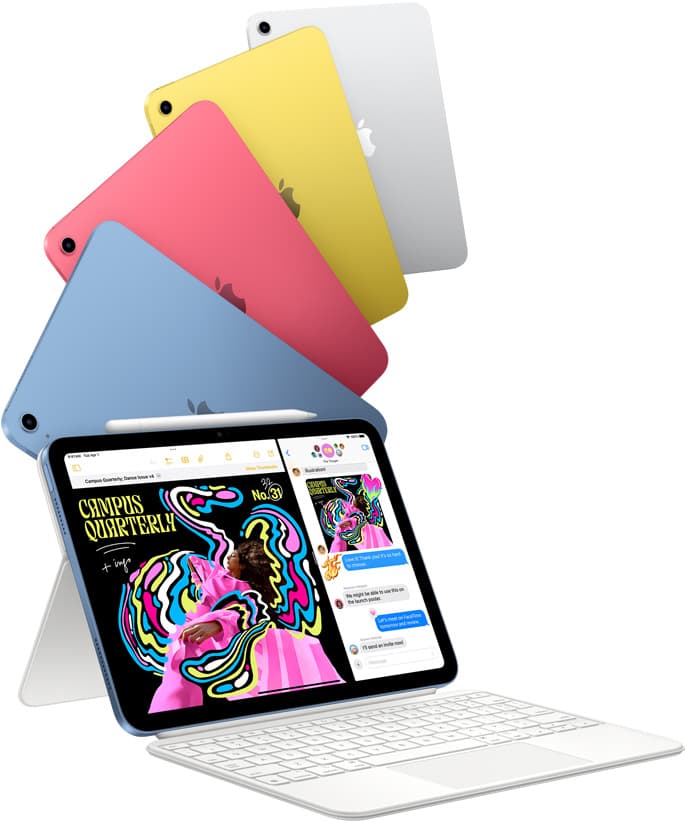
iPad (A16, 11th gen)
amazon.comThe best entry iPad for most artists on a budget. It is not premium, but it is very hard to beat on value.
Pro: Best value iPad right now
Con: No ProMotion display
Search opens with the exact model keywords. Verify size and storage before checkout.
Procreate
apps.apple.comPro: One-time purchase
Con: iPad-only
Related buying picks
More in this collectionBuyer guide
Apple Pencil for 3D sculpting: Which model should you buy?
Choose Apple Pencil Pro if your iPad supports it, keep Apple Pencil 2nd generation on older models, and skip Apple Pencil USB-C due to its lack of pressure sensitivity.
Buyer guide
Best Apple Pencil for pixel art: Which stylus fits your grid?
Pixel art relies on exact placement rather than pen pressure, making Apple Pencil compatibility and budget your main buying factors.
Buyer guide
Choosing the best Apple Pencil for anime drawing
Anime line art demands pressure sensitivity, making Apple Pencil Pro or the 2nd generation model essential over the USB-C option.
Buyer guide
Apple Pencil for comic inking: Complete buyer guide
Choose the right Apple Pencil for digital comic inking based on line weight control, tablet compatibility, and glass friction.