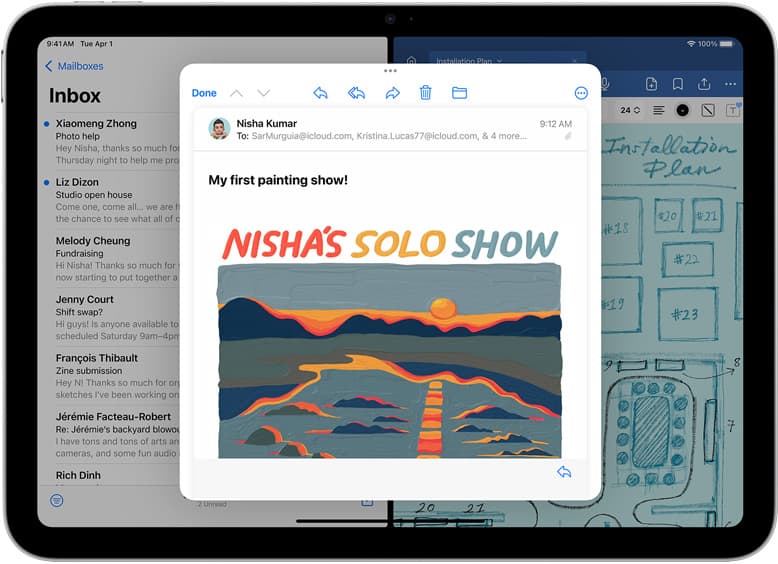
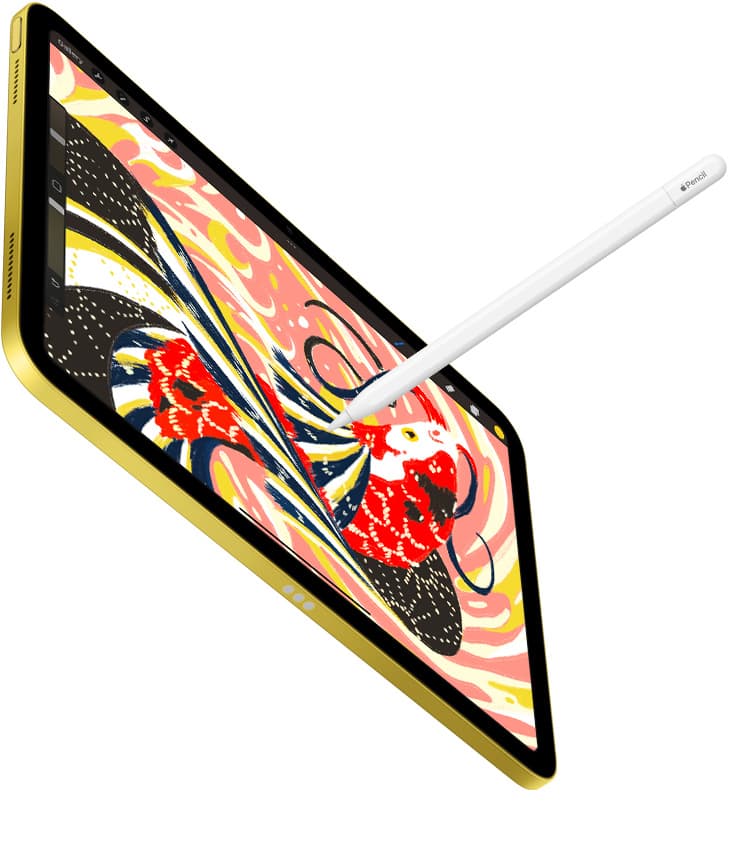
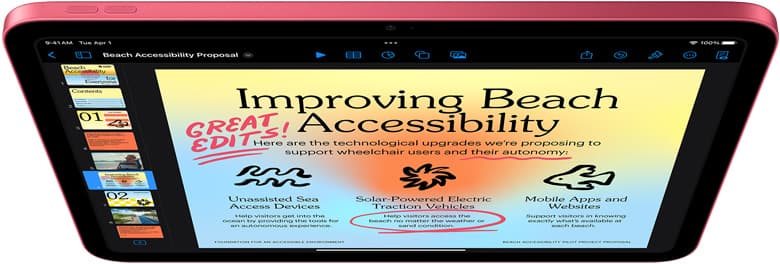
Buy Procreate alongside an iPad Air M4 and an Apple Pencil Pro if you need a dedicated digital workstation for flash design and stencils [1], [4], [5]. Procreate remains the standard illustration app on iPadOS because of its layered workflow, brush customization, and direct export options [5]. Skip the baseline iPad A16 if you want pressure sensitivity and advanced gestures, because current budget setups lack pairing support for Apple Pencil Pro [1], [3]. If your studio workload demands the highest possible layer counts on massive full-back mural canvases, buy the iPad Pro M5 instead [1], [4]. For everyone else, the iPad Air M4 hits the best operational balance [1].
Why Procreate remains the standard tattoo design app on iPad
Digital tattoo preparation requires precise line weights, reliable stencil creation, and swift visual reference layering. Procreate on iPadOS fulfills these exact functional needs through its dedicated digital art feature set [5]. The app allows artists to import client reference photos, build structural line art on separate layers, and invert or isolate outlines specifically for thermal stencil printers [5].
Layer organization is central to tattoo design. A typical workflow involves a rough anatomical sketch layer, a photo reference layer, a refined line art layer, and individual shading or color study layers [5]. Procreate handles these multi-layered documents natively, providing quick access to blend modes, layer opacity, and alpha locks [5]. This structure lets you adjust stencil transparency against skin tone photographs before committing to an outline [5].
Software stability and broad adoption across the tattoo industry also mean shared resources. Flash stamps, specialized lining brushes, and skin tone color swatches are widely distributed in native Procreate brush set formats [5]. For apprentices and working tattooers alike, using the industry standard application eliminates file conversion hurdles when sharing working files across different artists in a shared studio space [5].
How canvas resolution and iPad memory affect tattoo stencils
Tattoo stencils require crisp physical prints at exact physical dimensions. Printing a blurry line leads to a poor stencil transfer, which means your digital canvas must be set to 300 DPI at the real-world scale of the intended tattoo [4]. However, creating high-resolution canvases increases the memory burden on iPadOS [4].
In Procreate, maximum layer counts are strictly determined by the total available RAM of your specific iPad model and the physical pixel dimensions of your canvas [4]. When you create an expansive canvas, such as a full sleeve or a complete back piece at 300 DPI, the software caps the number of layers you can create to stay within system memory boundaries [4]. If your hardware has lower unified memory, your layer limit drops significantly on large projects [4].
The iPad Air M4 and iPad Pro M5 provide substantially more memory headroom for large projects than entry-level devices [1], [4]. An entry-level iPad A16 can handle medium flash sheets, isolated palm-sized designs, and traditional stencil outlines [1], [4]. But if you prefer building complex color realism projects with dozens of reference layers, the hardware memory in an M4 or M5 device prevents you from hitting layer boundaries mid-project [1], [4].
Apple Pencil features that matter for lining and shading
The software application is only half of the drawing experience; your choice of stylus dictates how you interact with the digital canvas. Apple offers several stylus options with different hardware capabilities, making the stylus pairing an essential buying choice [2], [3].
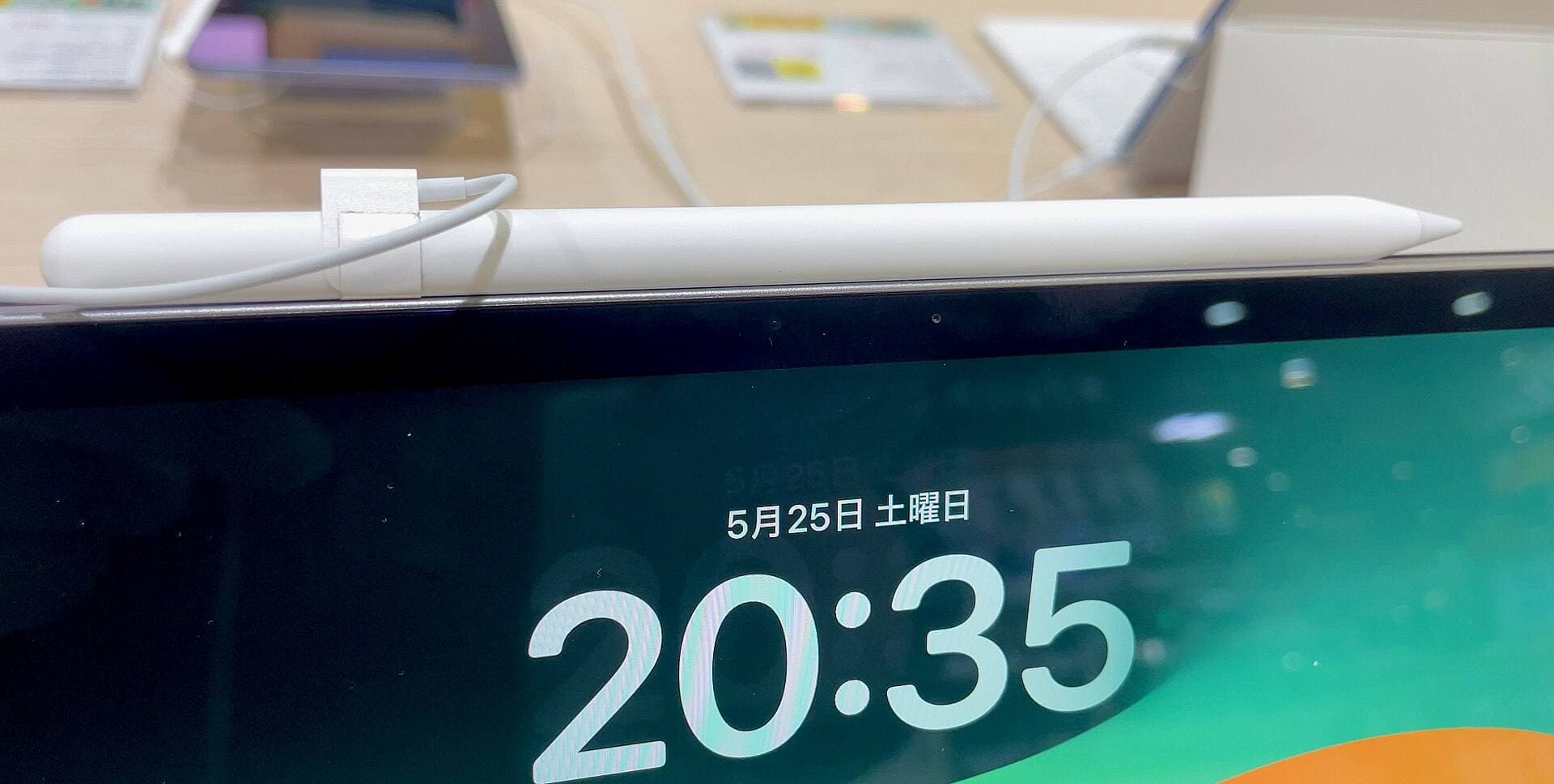
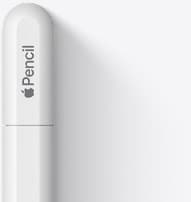
For line work, pressure sensitivity and tilt detection are critical [2]. When pulling an outline for a traditional tattoo stencil, varying pressure allows you to mimic the tapering lines of physical grouping needles [2]. The Apple Pencil Pro and Apple Pencil second generation provide both pressure sensitivity and tilt functionality, whereas the budget Apple Pencil USB-C lacks pressure sensitivity entirely [2]. Tattoo artists should avoid styluses lacking pressure sensitivity, as flat vector-style strokes do not replicate actual hand motions [2].
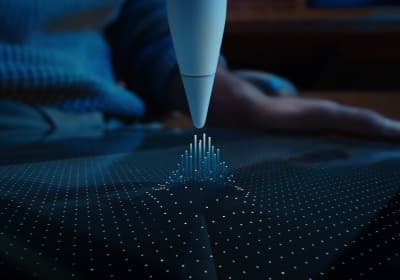
The Apple Pencil Pro introduces specific input methods that streamline active studio drawing [2]. It features barrel roll, which uses an internal gyroscope to rotate shaped brushes as you turn the stylus barrel [2]. This tool is valuable for flat or angled needle brushes used in traditional Japanese wind bars or wide calligraphy fills [2]. Additionally, the squeeze gesture allows artists to bring up a quick tool palette or switch between an inking pen and an eraser without lifting their hand from the screen [2]. These features are supported on the iPad Air M4 and iPad Pro M5, but are absent from the baseline iPad A16 [1], [3].
Choosing between iPad Air, iPad Pro, and the base iPad
Selecting your hardware comes down to balancing stylus compatibility, canvas resolution requirements, and your equipment budget [1], [3]. Every model in the lineup runs iPadOS and supports drawing software, but the drawing hardware differs considerably [1], [4].
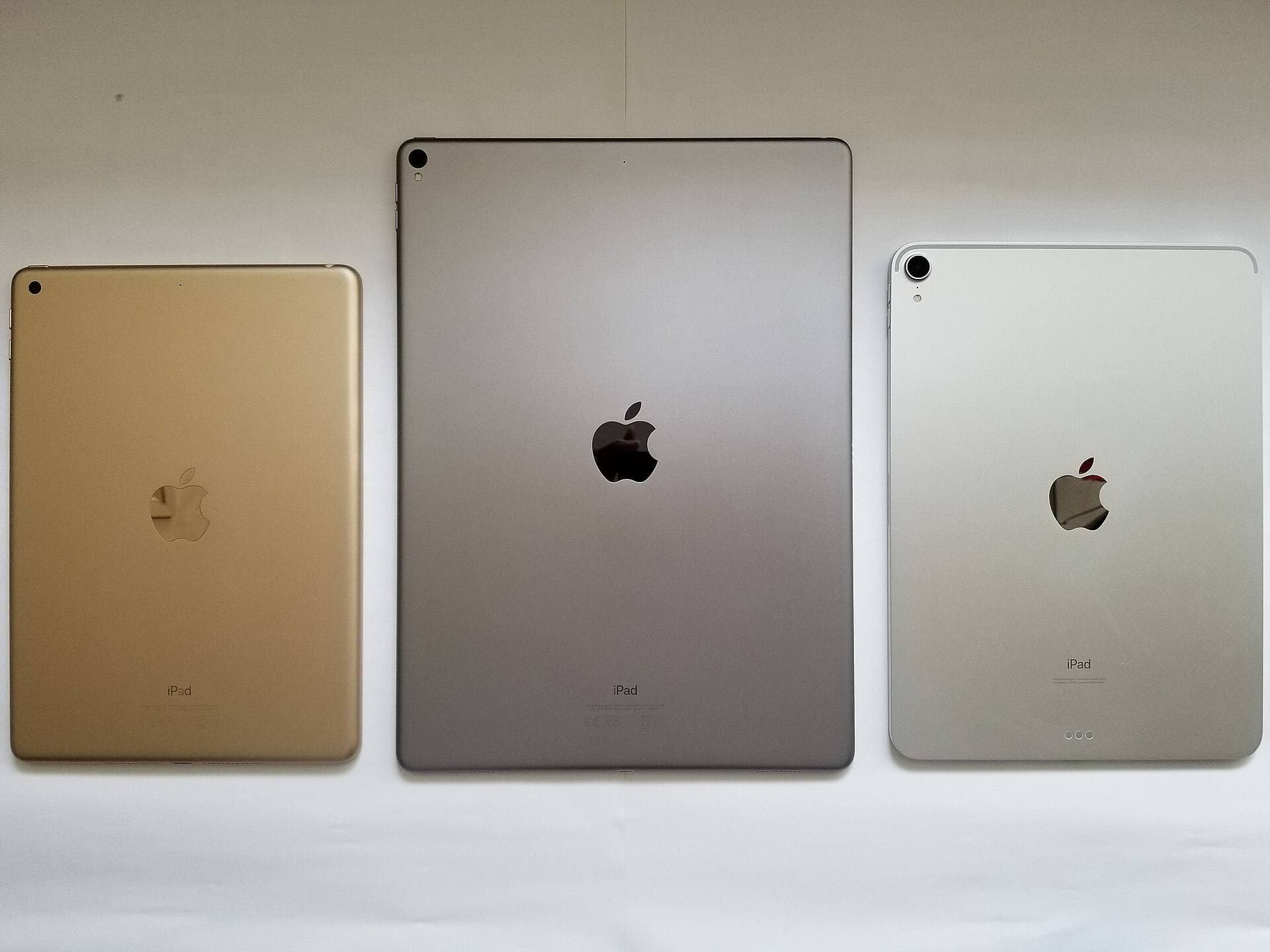
The iPad Air M4 is the most practical choice for most tattoo artists [1]. It supports the Apple Pencil Pro, giving you access to pressure sensitivity, tilt, haptic feedback, squeeze gestures, and barrel roll [1], [2], [3]. It is available in both 11-inch and 13-inch display sizes, allowing you to choose between portable station drawing and a broader canvas for large pieces [1]. While its display operates at a standard 60Hz refresh rate rather than Apple ProMotion, its overall memory and M4 processing power handle multi-layer Procreate files comfortably [1], [4].
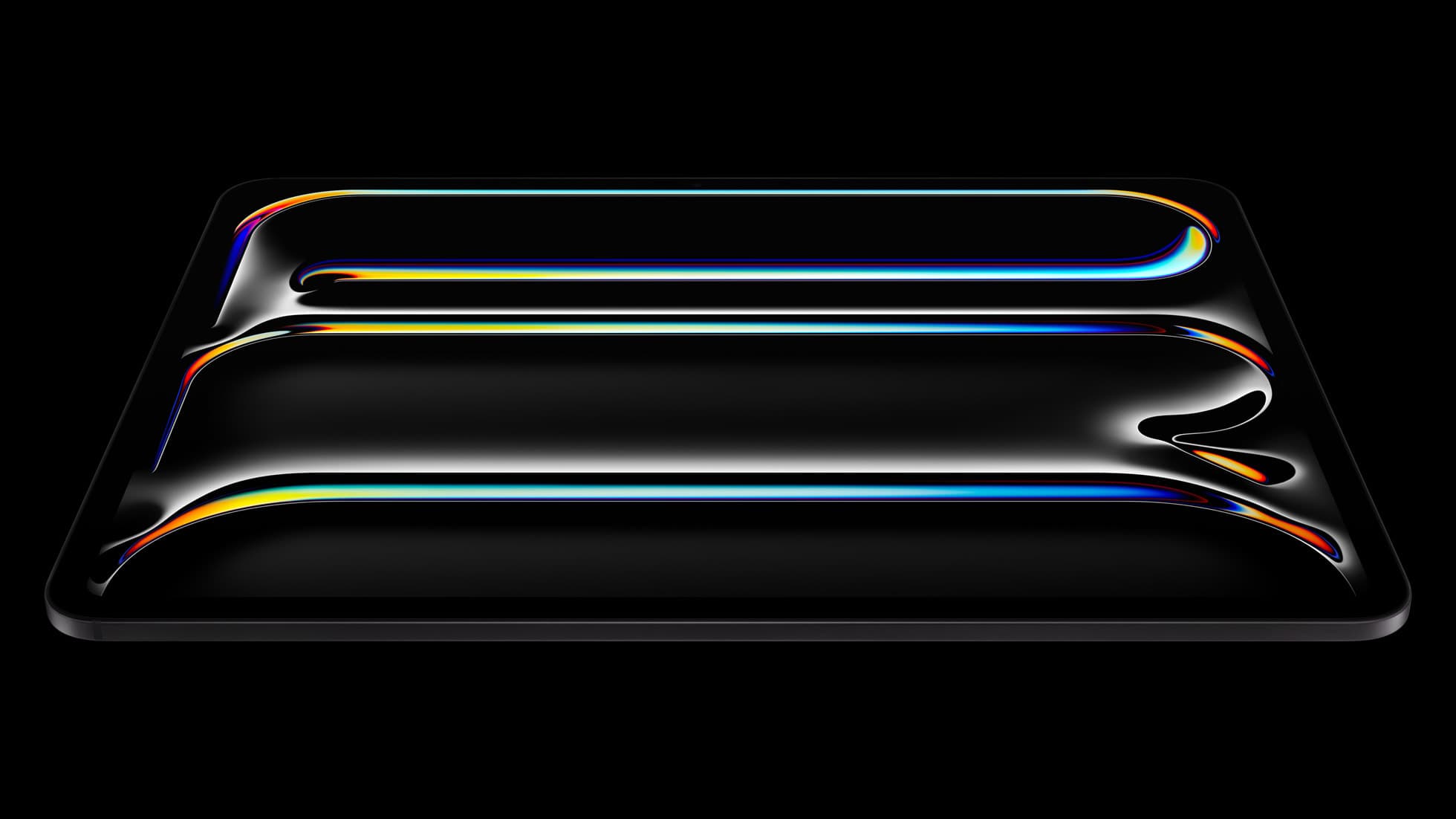
The iPad Pro M5 is the flagship option designed for artists who refuse hardware compromises [1]. It features an Ultra Retina XDR display with ProMotion technology, delivering refresh rates up to 120Hz [1]. The faster refresh rate provides an immediate visual response beneath the Pencil tip [1]. The M5 chip configuration also yields the highest layer limits possible in Procreate on iPadOS [1], [4]. Buy the iPad Pro M5 if you work on intricate multi-layered projects every day and want the smoothest display hardware Apple manufactures [1]. Skip it if you primarily produce simple two-layer line stencils, because the extra price tag will not change your final stencil transfer [1].
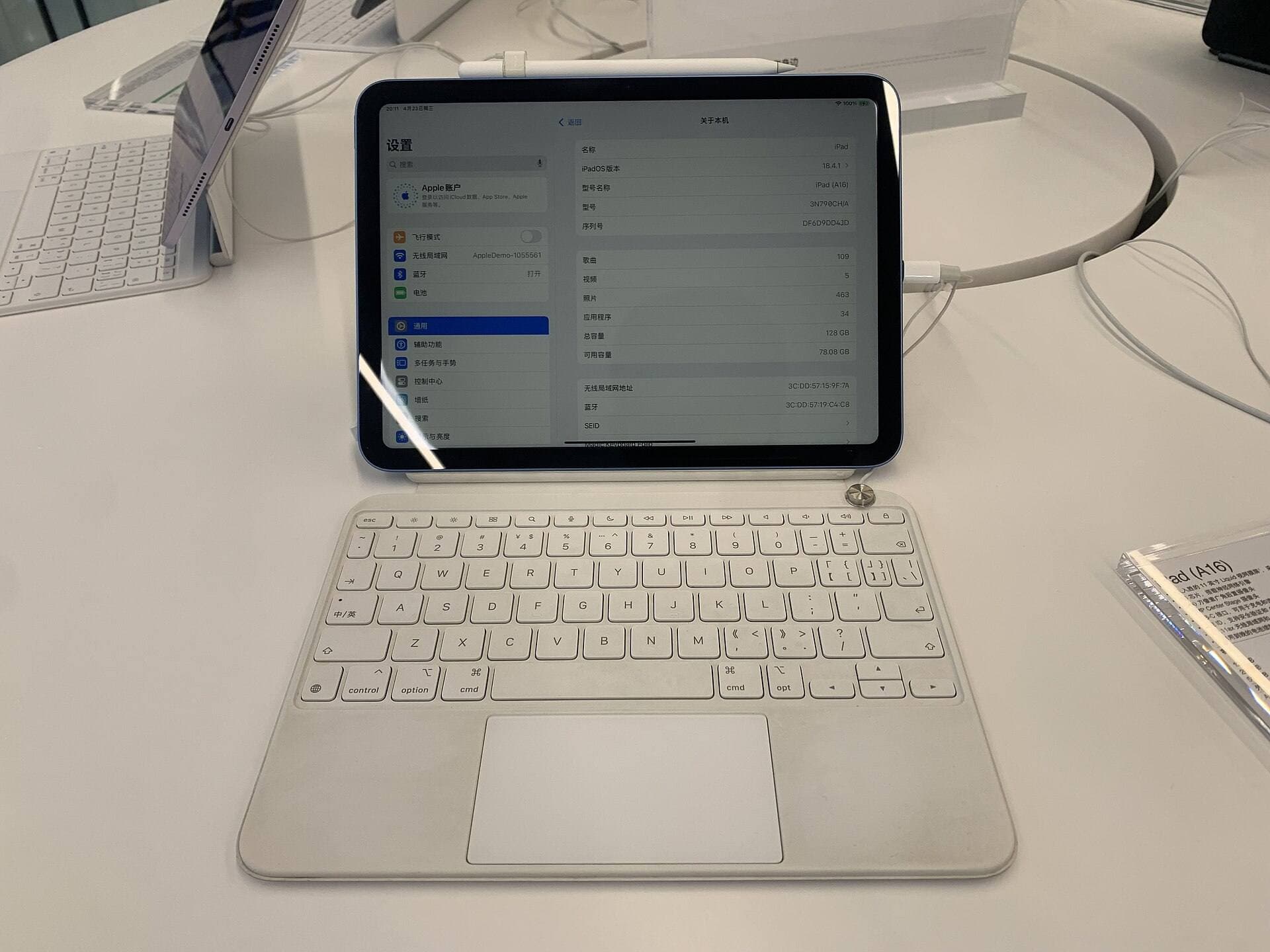
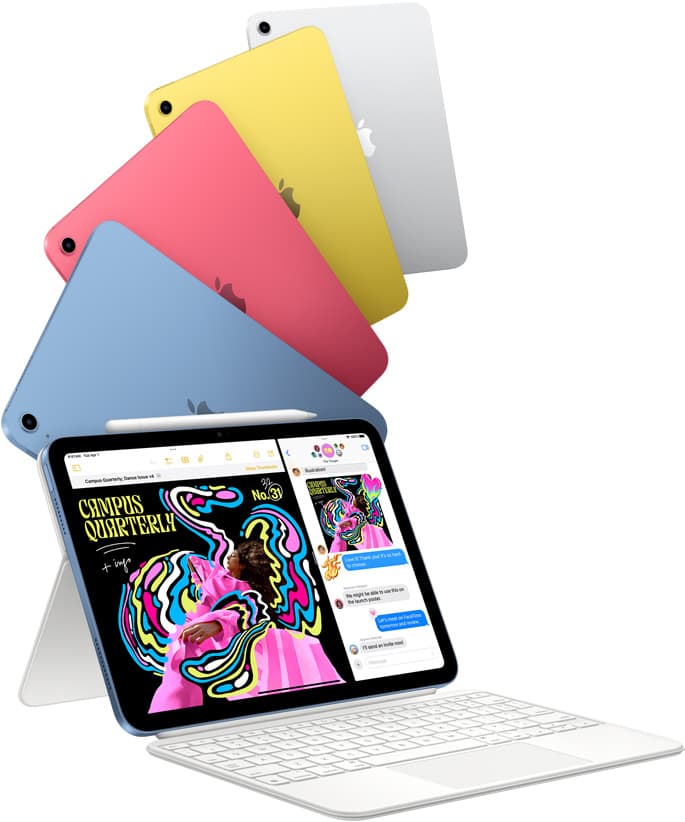
The base iPad A16 is best suited for apprentices or artists on a tight budget who prioritize value above specialized hardware features [1]. It runs Procreate and produces clean, print-ready files [1], [4], [5]. However, it only supports the Apple Pencil USB-C or the first-generation Apple Pencil via an adapter [3]. Because the Apple Pencil USB-C lacks pressure sensitivity, creating dynamic linework is more cumbersome on this setup [2]. Choose the iPad A16 only if keeping upfront costs low is your absolute primary goal, and verify your stylus compatibility before purchasing [1], [3].
Bottom line
Procreate is the undisputed software leader for drawing tattoos, generating stencils, and preparing flash art on iPadOS [5]. To get the most out of its toolset, your hardware must support active pressure sensitivity and adequate layer limits [2], [4].
Buy the iPad Air M4 combined with the Apple Pencil Pro [1], [3]. This pairing gives you barrel roll for dynamic needle brushes, squeeze shortcuts for quick layer adjustments, and enough memory to run high-resolution 300 DPI canvases without restrictive layer caps [1], [2], [4]. Upgrade to the iPad Pro M5 only if you demand a 120Hz ProMotion display and maximum memory for massive illustration projects [1], [4]. Skip the iPad A16 unless your budget is strictly constrained, as its lack of Apple Pencil Pro support limits your stylus control [1], [2], [3].
Sources
[1] https://www.apple.com/ipad/compare/ [2] https://www.apple.com/apple-pencil/ [3] https://support.apple.com/en-us/108937 [4] https://help.procreate.com/articles/zlexav-ipad-compatibility [5] https://apps.apple.com/us/app/procreate/id425073498
Recommended gear
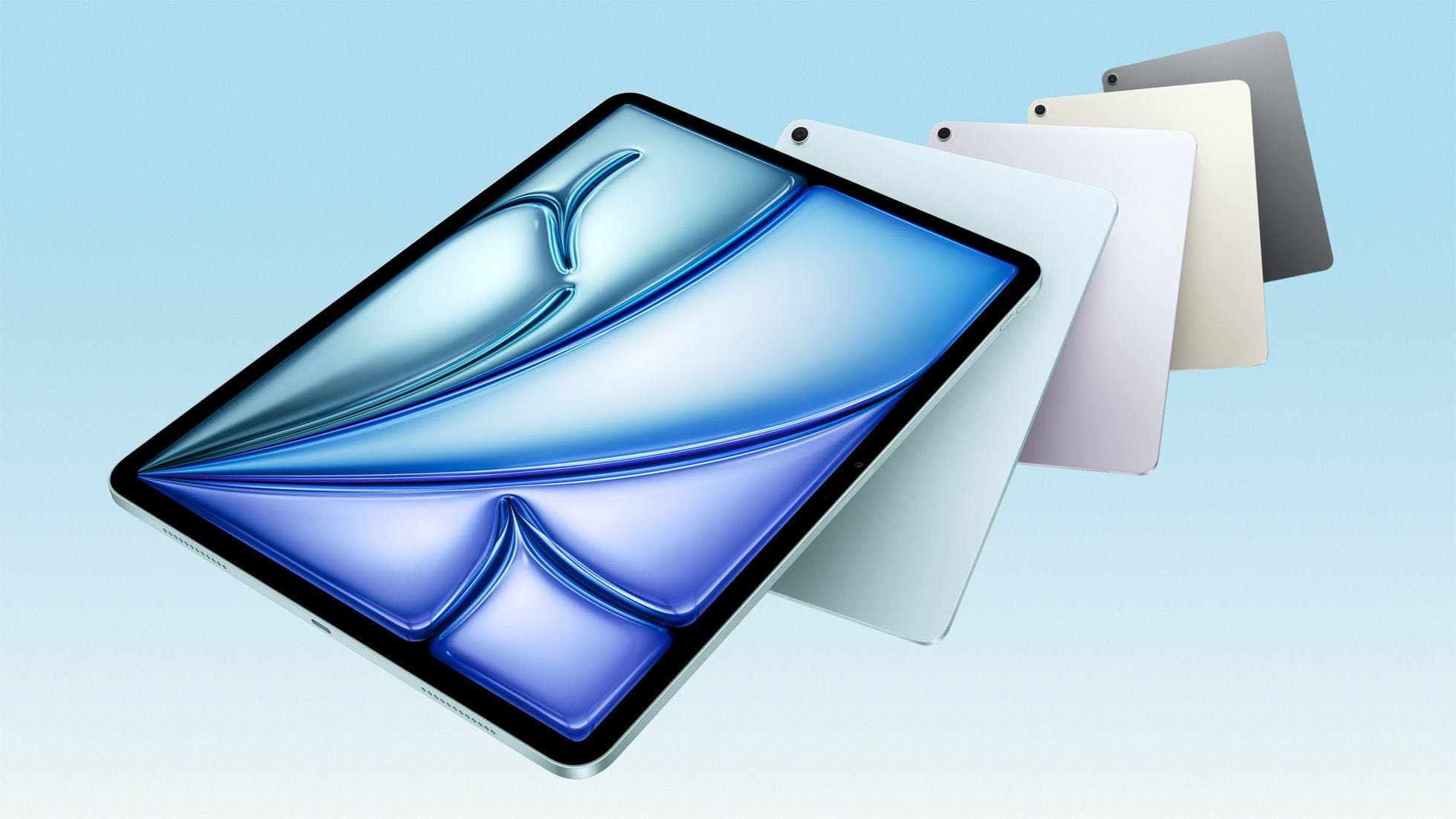
iPad Air (M4)
apple.comThe clean current Air recommendation for most serious hobby artists. Stronger buy logic than old-stock M3 when pricing is close.
Pro: Best current balance of price, headroom, and Pencil support
Con: Still 60Hz
Current Air lineup. Choose size, storage, and keyboard path before checkout.
iPad Pro (M5)
amazon.comThe best iPad for drawing feel and premium workflow comfort, but many buyers still overpay for it.
Pro: Best iPad display and ProMotion feel
Con: Highest price in the lineup
Search opens with iPad Pro terms. Check year, chip, and screen size.
iPad (A16, 11th gen)
amazon.comThe best entry iPad for most artists on a budget. It is not premium, but it is very hard to beat on value.
Pro: Best value iPad right now
Con: No ProMotion display
Search opens with the exact model keywords. Verify size and storage before checkout.
Apple Pencil Pro
amazon.comThe best Apple stylus for serious digital art workflows. Expensive, but the control upgrades are real.
Pro: Best brush-control and hover workflow
Con: Highest price in the lineup
Works only with newer iPad models. Check compatibility.
Apple Pencil (USB-C)
amazon.comA practical low-cost Apple stylus with broad compatibility, but limited for advanced art control.
Pro: Lowest official Apple Pencil cost
Con: No pressure sensitivity for brush work
Compatible with many recent iPads. No pressure support.
Related buying picks
More in this collectionBuyer guide
Best tablet for tattoo design: Choosing the right iPad for stencils and flash
Compare iPad Air, iPad Pro, and iPad mini options to find the right drawing tablet and Apple Pencil pairing for tattoo stencils and studio design.
Buyer guide
Is a 64GB iPad enough for Procreate?
A 64GB iPad can run Procreate; decide whether it is enough by measuring your active canvases and the device storage already in use.
Buyer guide
Best iPad for lettering and calligraphy
Choose the iPad Air for barrel roll calligraphy tools without paying Pro prices, or pick the iPad Pro if you need 120Hz ProMotion for fast flourishing.
Buyer guide
Best iPad for Tattoo Design in 2026
Tattoo artists and apprentices should usually start with the 11-inch iPad Air and Apple Pencil Pro, then move to iPad Pro only when larger, paid studio workflows justify the display upgrade.