





Buy Procreate if you want an expressive, touch-first workspace for cutting, layering, and painting mixed-media digital collages on your iPad [1]. Procreate is a paid download in the App Store Graphics and Design category and uses a straightforward one-time purchase model [1]. If your collage workflow demands desktop-grade photo editing tools rather than drawing brushes, download Affinity Photo 2 instead [2]. If you only need to assemble quick social graphics or promotional layouts, choose Adobe Express [3]. For artists who want to paint, blend, and composite paper textures directly with an Apple Pencil, Procreate is the most capable tool to buy [1], [4].
Why Procreate leads for mixed-media collage
Digital collage on an iPad is fundamentally about assembling varied visual sources. You import photos, cut out paper fragments, add drawn elements, and blend textures across separate planes. Procreate is built around this tactile canvas model [1]. Because it is a dedicated creative app made for iPad, the interface keeps clutter off your working area so you can focus on arranging cutouts and manipulating layers with finger gestures or a stylus [1].
Procreate also gives you direct control over blending and digital paint integration [1]. Many collage artists do not simply paste images side by side; they paint over raw edges, add ink lines, and adjust layer opacity to create unified compositions. The app is a one-time purchase rather than a recurring subscription, making it a reliable option for artists who prefer owning their creative tools outright [1].
Artists who should buy Procreate include illustrators, printmakers, and mixed-media creators who treat collage as an extension of hand-drawn art [1]. If your goal is to sketch over vintage photos, add paint strokes, and organize layers manually, Procreate is your best primary app [1]. Skip it only if your project demands automated template snapping or technical photo correction curves [2], [3].
Managing layer limits and canvas dimensions
Collage projects place heavy demands on system memory because every scrap of paper, isolated photo, and painted mark sits on an independent layer. In Procreate, your maximum layer count is tied directly to your iPad memory and your chosen canvas dimensions [4]. When you build a large, high-resolution document for print, the software caps the number of available layers to match device resources [4].
Understanding this relationship prevents frustrating project stops [4]. If you build a collage with dozens of clipped items on an older or lower-memory tablet, you might hit the layer cap sooner than expected [4]. In those situations, you must merge layers together or group finished clusters to free up space for fresh cutouts [4].
Because Procreate allocates layers based on physical device memory, artists planning large physical prints should check their iPad specifications before starting expansive files [4], [5]. If you frequently build collages with numerous unmerged elements at poster dimensions, you will want an iPad configuration with higher memory overhead [4], [5]. For standard digital publishing or moderate print sizes, standard canvas dimensions leave ample layers for detailed multi-source layouts [4].
Dedicated photo editors versus drawing apps
Procreate is primarily an illustration workspace, which means certain specialized image-editing tasks are better handled elsewhere [1], [2]. Affinity Photo 2 for iPad is listed in the Photo and Video category as a desktop-grade, professional photo editor [2]. While Procreate focuses on natural media brushes and direct drawing, Affinity Photo 2 targets deep photo composition, detailed masking channels, and non-destructive adjustments [2].
If your collage style leans closer to surrealist photo manipulation than mixed-media painting, Affinity Photo 2 is a strong alternative [2]. It provides technical image-correction tools, advanced selection brushes, and detailed color controls that go beyond regular canvas painting [2]. Photographers who build composite art using raw image files will appreciate Affinity Photo 2 more than a pure drawing app [2].
Another option in the Graphics and Design category is Adobe Fresco, which is a free download built for drawing and painting [6]. Fresco offers a flexible workspace for combining vector lines with pixel-based paintings and imported images [6]. However, for artists who want complete ownership without managing cloud accounts, Procreate remains the simpler, more self-contained app to buy and keep on your iPad [1].
Quick layout tools and mood board alternatives
Not every collage requires precision masking or hand-drawn ink lines. Some creators need to assemble quick mood boards, social media banners, or promotional announcements. For those tasks, fully manual illustration apps can feel slower than necessary [1], [3].
Adobe Express is a free download designed to create on-brand content quickly [3]. It sits in the Graphics and Design category and prioritizes rapid layouts, text templates, and social dimensions [3]. If your collage is meant to announce an event or showcase a seasonal mood board for clients, Adobe Express reaches an export much faster than building assets manually in Procreate [1], [3].
Picsart is another popular choice in the Photo and Video category, providing an all-in-one photo editor and design studio [7]. It is a free download that features automated editing tools and quick design elements [7]. While Picsart is handy for fast image remixing, it lacks the precise manual brush control and file flexibility that fine artists require [1], [7].
If your goal is open-ended visual research or spatial brainstorming rather than a finished piece of art, Apple's Freeform app is a useful free download in the Productivity category [8]. Freeform lets you drop images, links, sketches, and notes onto an expansive digital board [8]. It is ideal for gathering reference materials before you start assembling your final collage in Procreate [1], [8].
Selecting the right iPad and pencil hardware
Software capability is only half the equation; your stylus and tablet determine how natural the collage-making process feels in practice [4], [9]. Precision cutting is a central chore in digital collage. You spend significant time tracing around silhouettes to separate people, objects, and textures from their backgrounds. Doing this with an Apple Pencil is vastly more accurate than using a finger [9].
The Apple Pencil Pro introduces advanced inputs such as squeeze, barrel roll, and haptic feedback, alongside pressure sensitivity and Apple Pencil hover [9]. Squeeze and double-tap gestures allow quick tool switching without breaking your rhythm while outlining assets [9]. Barrel roll gives precise orientation control when using shaped brushes or directional stamps [9]. Hover shows you exactly where your brush tip will land before you touch the screen, which helps when placing delicate textures or fine eraser marks [9].
Hardware compatibility must guide your purchasing path. The Apple Pencil Pro works only with newer iPad models, including the iPad Air M4 lineup [9], [10]. The iPad Air M4 provides a strong balance of chip performance, modern storage options, and Apple Pencil Pro support without stepping into Pro-level hardware pricing [5], [9], [10]. If you already own an older iPad that uses the first or second-generation Apple Pencil, your existing hardware is still compatible with Procreate and fully capable of producing multi-layer collages [4], [10]. Upgrade your tablet only if you are constantly bumping into layer limits on large canvases or want access to newer Pencil Pro features [4], [9].
Bottom line
Procreate is the best all-around iPad app for digital collage artists who want a natural, expressive workspace for drawing, painting, and compositing mixed-media assets [1]. It delivers an uncluttered interface, powerful blend modes, and a clean one-time purchase structure that avoids ongoing subscription costs [1].
Choose Procreate if you want to combine paper textures, hand-drawn ink, and photographic cutouts on a responsive, touch-friendly canvas [1]. Pick Affinity Photo 2 instead if your collage work demands desktop-style photo retouching, advanced clipping masks, and raw image processing [2]. Install Adobe Express if you simply need fast, templated promotional collages for social channels [3]. For artists seeking a tactile, sketchbook-style collage process on iPad, pairing Procreate with an Apple Pencil is the winning combination [1], [9].
Sources
[1] https://apps.apple.com/us/app/id425073498 [2] https://apps.apple.com/us/app/id1616823773 [3] https://apps.apple.com/us/app/id1051937863 [4] https://help.procreate.com/articles/zlexav-ipad-compatibility [5] https://www.apple.com/ipad/compare/ [6] https://apps.apple.com/us/app/id1458660369 [7] https://apps.apple.com/us/app/id587366035 [8] https://apps.apple.com/us/app/id6443742539 [9] https://www.apple.com/apple-pencil/ [10] https://support.apple.com/en-us/108937
Recommended gear
Procreate
apps.apple.comPro: One-time purchase
Con: iPad-only

iPad Air (M4)
apple.comThe clean current Air recommendation for most serious hobby artists. Stronger buy logic than old-stock M3 when pricing is close.
Pro: Best current balance of price, headroom, and Pencil support
Con: Still 60Hz
Current Air lineup. Choose size, storage, and keyboard path before checkout.

Apple Pencil Pro
amazon.comThe best Apple stylus for serious digital art workflows. Expensive, but the control upgrades are real.
Pro: Best brush-control and hover workflow
Con: Highest price in the lineup
Works only with newer iPad models. Check compatibility.
Apple Pencil (USB-C)
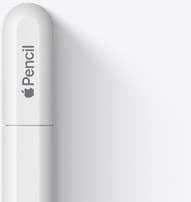
amazon.comA practical low-cost Apple stylus with broad compatibility, but limited for advanced art control.
Pro: Lowest official Apple Pencil cost
Con: No pressure sensitivity for brush work
Compatible with many recent iPads. No pressure support.
Apple Pencil (2nd generation)
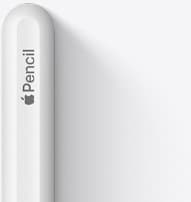
amazon.comStill a strong stylus on compatible iPads. Good pressure control, but compatibility is the main trap.
Pro: Pressure support without Pro pricing
Con: Not compatible with newest Pro-only iPads
Only for iPads that support 2nd generation pairing.
Related buying picks
More in this collectionBuyer guide
Best iPad app for sketching over photos: top picks and tradeoffs
Compare Procreate, Clip Studio Paint, and top free-to-download alternatives to choose the right iPad app for sketching and tracing over photos.
Buyer guide
Best iPad app for sketching designs
Pick Procreate for straightforward one-time digital sketching, or choose Clip Studio Paint if you need specialized comic tools, vectors, and multi-page layouts.
Buyer guide
Best iPad app for webtoon creation
Clip Studio Paint is the best overall iPad app for serialized webtoons, while Procreate suits artists wanting a one-time purchase for standalone panels.
Buyer guide
Best iPad app for making fonts: what to install today
Choose between dedicated font editors, free handwriting generators, and companion vector apps for your iPad typography workflow.