Procreate Dreams in 2026: strengths, weak points, and best alternatives by use case
Procreate Dreams started as a specific goal: do 2D animation on an iPad without forcing you into a desktop style interface. By early 2026, Dreams 2 has turned that goal into a much more complete tool, especially for artists who already draw in Procreate and want to animate without rebuilding their workflow from scratch. [1]
This review focuses on practical questions:
- What Dreams does well right now
- Where it still costs you time or quality
- What to use instead, based on the kind of animation you are making
What Procreate Dreams actually is
Dreams is built around a Movie, a Stage, and a Timeline. The Timeline holds tracks. Tracks hold content like drawings, flipbooks, video, audio, and text. [2]
The part that matters is how you work with that Timeline. Dreams uses three modes:
- Compose: arrange tracks and content, set timing, and position elements on the Stage.
- Perform: record your touch or Pencil input to generate keyframes.
- Keyframe: add and edit keyframes directly for movement and effects. [2]
If you have ever bounced between a drawing app and a video editor, this mode system is the main difference. Compose is your edit bay. Flipbook is your light table. Perform is your quick blocking pass.
Flipbook is the frame by frame core
Flipbook is Dreams’ frame by frame container. You enter Draw and Paint mode and animate across multiple drawing tracks inside the flipbook. Each track can use opacity, blend modes, and masking options, so you can build animation layers without turning your Timeline into a mess. [3]
Two details are easy to miss but matter in real projects:
- Flipbook supports multiple drawing tracks in one container. [3]
- When audio lines up with your flipbook, scrubbing frames previews the audio, which makes hand synced actions much faster than exporting and guessing. [3]
Sharing and export are built into the workflow
Dreams has two layers of exporting:
- Share: fast exports for common outputs
- Advanced Export: full control over format, codec, resolution, and more. [4]
Share includes:
- Video export as MP4
- Animated GIF export
- Frames as images as a PNG sequence
- Current frame as a PNG
- Procreate Dreams project export as a DRM file, with an optional full undo history export from the Theater view. [4]
Advanced Export adds practical control you will care about once you publish work outside your camera roll:
- MP4 or MOV container choice
- Apple ProRes options, including ProRes 4444 for alpha channel transparency, and a note that ProRes requires MOV
- Audio encoding options (Linear PCM or AAC)
- PNG, JPG, TIFF, and TGA options when exporting frames as images. [5]
Dreams also supports exports like MP4 and MOV in H264, HEVC, and ProRes codecs, plus transparent video and PNG sequences with transparency, which matters if you plan to composite elsewhere. [6]
Current strengths in 2026
1. A real hybrid of drawing and animation tools
Dreams is not trying to be only frame by frame or only keyframes. It combines:
- Flipbook for drawn animation
- Keyframes for movement, scale, rotation, warps, and effects
- Optional video and audio tracks
- Text for titles, credits, and captions. [2]
This hybrid approach is its biggest strength for small to medium projects on an iPad: short clips, looping scenes, music driven animations, and mixed media pieces.
2. Perform mode makes blocking fast
Perform mode is a simple idea with real payoff: you record your motions directly. Instead of placing keyframes for every move, you can:
- Move content on the Stage
- Scale and rotate it
- Record filter changes as you go. [2]
This is not a replacement for clean keyframe work, but it is an efficient way to block timing and motion, especially for hobbyists who think in gestures first.
3. Dreams 2 fixed several early dealbreakers
If you tried Dreams near launch and bounced off, it is worth knowing what Dreams 2 changed. The Dreams 2 update added or significantly expanded:
- A redesigned flipbook that supports multiple tracks and additional properties
- Selections and transform workflows that were missing or limited in early versions
- Brush library improvements, including new animation brushes and iCloud sync of brushes
- Customizable keyboard shortcuts
- A reworked GIF export system
- Transparent video import and export, specifically calling out HEVC and ProRes 4444 support
- Timeline improvements like better multi select behavior. [1]
4. Export options cover most hobbyist and small pro pipelines
For publishing online, Dreams does what you need: video exports and GIFs. For workflows that go beyond social platforms, Dreams now gives you stronger options:
- PNG sequences with transparency for compositing pipelines
- ProRes codecs, including a ProRes 4444 option that supports alpha
- Control over resolution presets like 1080p and 4K. [5]
5. Simple pricing and broad iPad support
Dreams is a one time purchase and does not use subscriptions. The US price is listed as $12.99, with regional pricing varying. [7]
Compatibility is also broad, but performance is not uniform. Procreate publishes an iPad compatibility chart that lists supported models and the maximum content and video tracks those devices can handle, with notes that limits depend on project settings. [8]
Practical takeaway: Dreams runs on many iPads, but heavy projects are still a hardware problem, not a settings problem.
6. DRM project sharing is useful when you treat it like source control
Dreams can export a DRM project file that keeps your elements and arrangement. It can also export a version with full undo history from the Theater view, with an explicit warning that these files can be hefty depending on undo states and complexity. [4]
That is valuable if you work in scenes and want to archive a source file before flattening to video.
Current weak points in 2026
Dreams 2 is much stronger than Dreams 1, but it still has sharp edges. These are the ones that most often force a tool change.
1. It is not a full video editor for finishing
Dreams can trim and arrange content, and it can export clean video in modern codecs. [4]
But if your project depends on serious finishing work, you will hit the ceiling quickly:
- Detailed audio editing and mixing
- Color grading and shot matching
- Delivery formats for different platforms and clients
In those cases, treat Dreams as your animation and compositing stage, then finish in a dedicated editor. DaVinci Resolve for iPad is positioned as a combined editing and color correction tool, which is exactly the gap Dreams does not try to fill. [9]
2. Rig based character animation is still better elsewhere
Dreams is excellent for drawn animation and for keyframing transformations of content. What it does not try to be is a rig based character tool where you build a reusable puppet and animate it through bones, IK, and deformers.
If your plan is cut out animation with lots of reuse and minimal redraw, Toon Squid is the iPad app that is explicitly built for that workflow. It lists bones, inverse kinematics constraints, mesh deformation, and symbols among its core features. [10]
Use Dreams for hand drawn or hybrid work. Use Toon Squid when the character is a rig you want to reuse across shots.
3. Project interchange is limited
Dreams exports:
- Video (MP4 or MOV)
- GIF
- Still frames and frame sequences
- DRM project files. [4]
That covers most publishing needs, but it is not designed around interop with desktop animation suites. If you need to hand off layered scenes, Toon Squid calls out PSD export and SVG import, which can be a better bridge to other tools. [10]
Workaround inside Dreams: export PNG sequences with transparency, then composite in your finishing app.
4. Storage and performance management are not optional
Two official notes spell out the reality:
- PNG image sequences can take substantial space for large, high resolution projects. [4]
- DRM exports with full undo history can be hefty depending on undo states and file complexity. [4]
Add the device side constraints from the iPad compatibility chart, and the practical workflow becomes clear:
- Work at 1080p unless you have a reason not to
- Split long projects into separate movies by scene
- Only export full undo history when you truly need an archive version. [8]
5. The UI rewards commitment, not casual dabbling
This is not a feature checklist issue, it is a workflow reality. Dreams is fast when you internalize:
- What belongs in Compose vs Perform vs Keyframe
- When a flipbook is the right container
- How multi select and track organization works. [2]
If you want something you can open once a month and be productive instantly, you may be happier in a simpler frame by frame app.
Best alternatives by use case
Dreams is a strong default for iPad animation now, but it is not the best tool for every job. Here is the shortest map that still holds up.
| Use case | Best pick | Why |
|---|---|---|
| Hand drawn animation with some keyframed motion and simple compositing | Procreate Dreams 2 | Flipbook plus keyframes plus strong export options in one app. [3] |
| Traditional frame by frame workflow, timeline heavy projects | Callipeg | Built as a professional 2D animation environment with frame by frame focus and advanced onion skin tools. [11] |
| Rigged characters, symbol reuse, vector shapes, puppet animation | Toon Squid | Explicit bones, IK constraints, mesh deformation, vector shapes, SVG import, and PSD export. [10] |
| Quick rough animation tests and lightweight GIF output | RoughAnimator | Simple frame by frame workflow with exports like video, GIF, and PNG image sequences. [12] |
| Looping GIFs from illustrations you already made in Procreate | Procreate for iPad (Animation Assist) | Procreate can export animations as animated GIF, PNG, MP4, or HEVC without building a full Dreams timeline. [13] |
| Final edit, color, and more serious delivery | DaVinci Resolve for iPad | A dedicated editor that emphasizes both editing and color correction. [9] |
A good mental model is this: Dreams is the iPad first hybrid animator. The alternatives win when you need either a very traditional frame workflow, a rigging workflow, or a real finishing suite.
Three practical workflows that work well in 2026
Workflow 1: A short hand drawn scene with audio sync
- Start a new movie and keep the resolution modest while you animate.
- Create a background as a Drawing so it persists across the scene.
- Animate characters inside a Flipbook so you can manage frame by frame work without cluttering the main Timeline.
- Add audio, then scrub in Flipbook to sync key actions using audio preview.
- Export a MOV with a ProRes codec if you want higher quality for editing later. [3]
Finish the cut in a dedicated editor if you need real audio mixing or color work. [9]
Workflow 2: Social media loop with minimal pain
- Animate the core loop in a Flipbook.
- Use Perform mode to add simple camera style motion like a push in or shake.
- Export as an animated GIF using Dreams’ export system. [3]
If you only need a basic loop and you already drew everything in Procreate, you can also export directly from Procreate’s animation share options. [13]
Workflow 3: Transparent overlays for compositing
If you want hand drawn effects like smoke, sparkles, or highlights that sit on top of video later:
- Animate the effect in Dreams on a transparent background.
- Export as MOV using ProRes 4444 so the output supports alpha channel transparency. [5]
Dreams 2 also highlights transparent video workflows with HEVC and ProRes 4444 support, which is useful if you want to round trip into a larger edit. [1]
Bottom line
In 2026, Procreate Dreams is at its best when you want one iPad app that can handle drawing, frame by frame animation, keyframes, and practical exports without subscriptions. [7]
It is still not the best pick for rig based character animation or for serious finishing. Use Dreams for what it is built to do, and switch tools only when your project demands a different workflow.
Sources
- Procreate Dreams: overview, pricing, and FAQs (Procreate) [7]
- Procreate Dreams: App Store listing (Apple) [14]
- Procreate Dreams 2: update at a glance (Procreate Help Center) [1]
- Procreate Dreams Handbook: Timeline and Modes [2]
- Procreate Dreams Handbook: Flipbook [3]
- Procreate Dreams Handbook: Share and Advanced Export [4]
- Procreate Dreams: iPad compatibility and track limits (Procreate Help Center) [8]
- Procreate Handbook: Share Animation (Animation Assist export formats) [13]
- Toon Squid: App Store listing [10]
- Callipeg: App Store listing [11]
- RoughAnimator: user guide [12]
- DaVinci Resolve for iPad: App Store listing [9]
Sources
Recommended gear
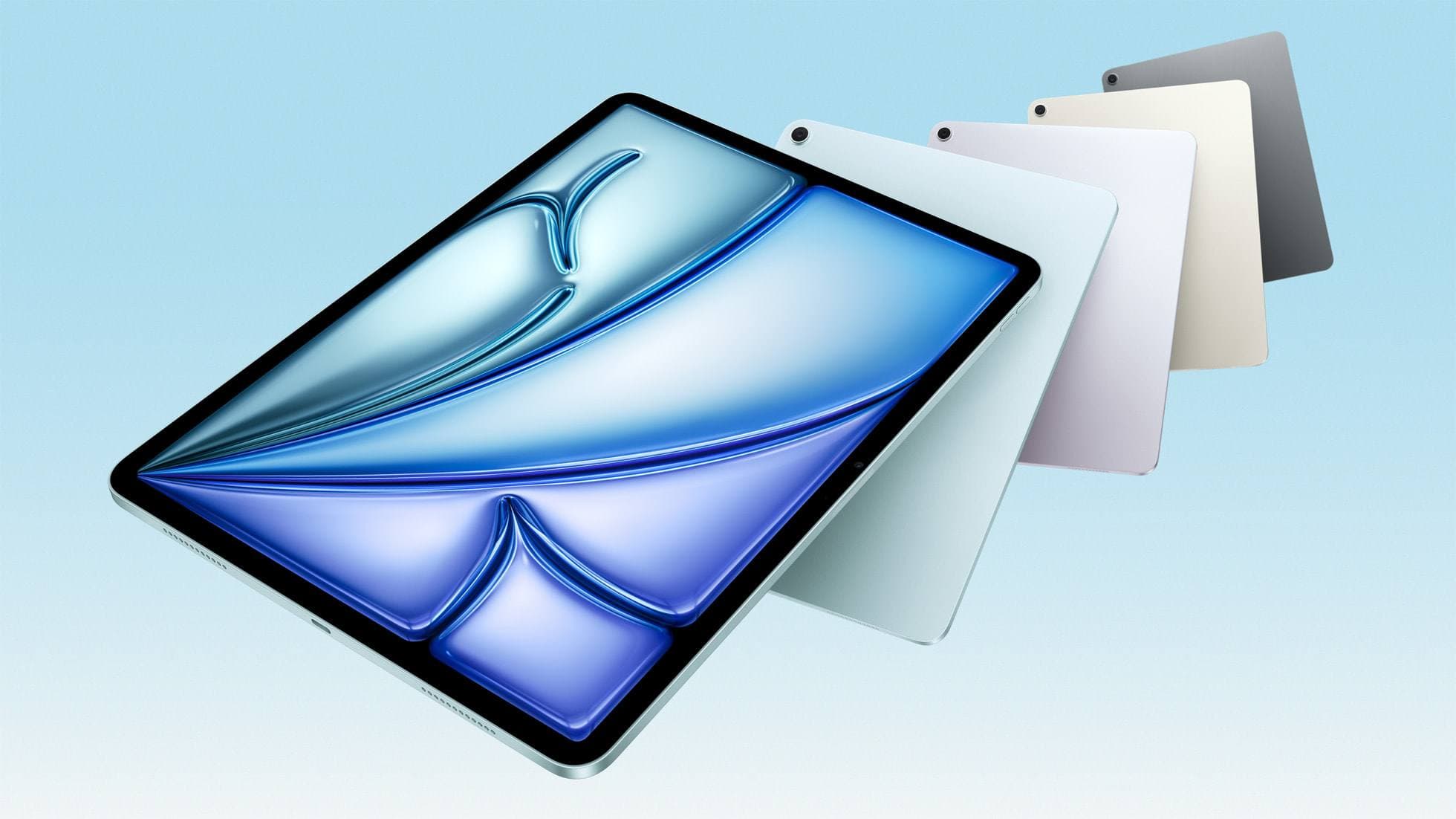
iPad Air (M3)
amazon.comStill a smart Air buy when the discount is real. Harder to justify when pricing drifts too close to the current model.
Pro: Strong prior-gen value when the discount is real
Con: Not the current Air lineup
This is the prior-gen Air. Confirm the discount against the current Air before checkout.
iPad Pro (M5)
amazon.comThe best iPad for drawing feel and premium workflow comfort, but many buyers still overpay for it.
Pro: Best iPad display and ProMotion feel
Con: Highest price in the lineup
Search opens with iPad Pro terms. Check year, chip, and screen size.
Apple Pencil Pro
amazon.comThe best Apple stylus for serious digital art workflows. Expensive, but the control upgrades are real.
Pro: Best brush-control and hover workflow
Con: Highest price in the lineup
Works only with newer iPad models. Check compatibility.
Procreate
apps.apple.comPro: One-time purchase
Con: iPad-only
Clip Studio Paint
apps.apple.comPro: Deep comics, vector, ruler, and animation toolset
Con: iPad plan model is less simple than Procreate
Related buying picks
More in this collectionBuyer guide
Best Bluetooth Shortcut Remotes for Procreate and iPad Drawing (2026)
The right shortcut remote reduces repetitive hand movement, but only if it behaves like a keyboard and supports reliable mapping.
Buyer guide
Best iPad app for tattoo design in 2026
Procreate is the best default iPad app for tattoo design because it is fast for sketching, flash, reference layers, and client revisions; Clip Studio Paint is the upgrade path for rulers, vectors, comics, and studio-style depth.
Comparison
Procreate vs Clip Studio Paint on iPad in 2026
Procreate is the low-friction iPad art app for most beginners and solo illustrators; Clip Studio Paint is better when comics, vectors, rulers, animation, or desktop handoff matter more than simplicity.
Buyer guide
Portable iPad Keyboard Travel Kit (2026): Write, Sketch, Pack Fast
How to build a portable iPad writing and sketch kit for cafes and transit, including keyboard format choices, setup flow, and compatibility checks.