

Offline-first iPad creative workflows for travel in 2026
Travel exposes every hidden dependency in your workflow. The app opens, but your assets are cloud-only. Export works, but backup fails because your drive format is wrong. Offline-first planning catches each of these before you leave.
What offline-first means in practice
An app is travel-reliable only if it can do these with Wi-Fi off:
- open existing projects
- create new projects
- import local assets
- export to local storage
Anything that needs recurring license checks or cloud-only resources requires planning before departure.
Build one local Offline Kit folder
In Files, create a folder under On My iPad and put only critical working assets there:
- references
- texture packs
- brush sets
- templates
- export presets
Do not assume iCloud placeholders are always available when network quality drops. If your real pain is iPhone hotspot burn rather than full travel offline risk, use a stricter local-library setup: Save Hotspot Data on iPad: Local Library + iCloud Setup (2026).
App behavior to pre-check before flights
Procreate
Core drawing is local-first, but cloud sync features still need internet when used.
Affinity apps
Initial activation and account checks should be validated before travel day.
LumaFusion and media libraries
Third-party stock integrations can require internet until assets are cached locally.
Clip Studio Paint
License verification requirements need explicit preflight checks.
This is risk classification and says nothing about how good each app is.
External storage rules that prevent last-minute failures
Apple's iPad external storage guidance is clear on format and partition support. Use that as your baseline before trips. [1]
Travel-safe rules:
- single data partition
- supported file system
- test read and write before departure

Daily export and backup loop
Minimal loop:
- export current work to local On My iPad folder
- copy that folder to external SSD at end of day
- verify files open before deleting nothing
Do not wait until the final day of travel to backup.
Airplane Mode reliability test
Night before travel, do this complete test:
- enable Airplane Mode
- restart iPad
- open each core app
- open one real project
- import one asset from local Files
- export one output file
- copy output to external storage
If this passes, your workflow is likely ready.
Reconnect workflow after travel
When stable internet returns:
- copy external backup to long-term storage first
- then sync cloud services
- only then update apps
This order reduces risk from file-format or app-version surprises.
Common offline mistakes
- cloud-only assets not cached locally
- no backup path outside iPad internal storage
- untested hub or card-reader chain
- app updates installed right before departure
Minimal stack that stays manageable
For most artists, one simple stack wins:
- one primary creation app
- one export path
- one external backup target
- one reliable hub/cable path
Complexity is fragility.
Bottom line
Offline-first is not about never using cloud tools. It is about making cloud optional during the hours that matter most.
<!-- depth-pass-v1 -->Step-by-step recovery path
When troubleshooting Offline-First iPad Creative Workflows (2026): Apps, Backups, and Travel Reliability, apply fixes in layers. Start with the lowest-risk configuration change, verify, then move to hardware or workflow changes only if the issue persists. For Artists and creators who travel with iPad and need reliable work without constant internet access., this prevents unnecessary spend and preserves a clear diagnostic trail.
- Reproduce the problem in a controlled setup.
- Remove non-essential accessories and adapters.
- Test core path reliability (power, input, and app behavior).
- Reintroduce components one at a time.
- Lock the first stable configuration.
Verification checklist
Confirm the issue is actually fixed by running the same workload that previously failed:
- one full session at normal duration,
- one heavy action block (export/sync/render),
- one idle-and-resume cycle,
- one reconnect or wake cycle where relevant.
If failures do not recur across these checks, the fix is production-ready.
Prevention policy
To avoid repeat failures:
- keep a fixed baseline profile for your working setup,
- maintain one backup path for critical operations,
- log changes that affect reliability,
- replace unstable components before they become intermittent blockers.
Escalation triggers
Escalate from workflow fix to hardware replacement only when:
- the same fault repeats after controlled retesting,
- multiple known-good cables/adapters fail in the same path,
- the issue affects paid or deadline-sensitive sessions twice in one week.
This keeps troubleshooting rational and prevents expensive guesswork.
Extra scenario: high-pressure deadline window
For Offline-First iPad Creative Workflows (2026): Apps, Backups, and Travel Reliability, keep the lowest-risk path active when deadlines are near: stable setup, no new experimental changes, and one backup route for critical actions. This protects output velocity and reduces failure risk when timing matters most.
Sources
Recommended gear
Samsung T7 Portable SSD
amazon.comOne of the safest SSD buys for iPad creators. Fast, stable, and easy to trust for backup routines.
Pro: Fast and reliable backup drive
Con: Extra cable to carry
Choose capacity (1TB/2TB) based on project size.
Anker 341 USB-C Hub (7-in-1)
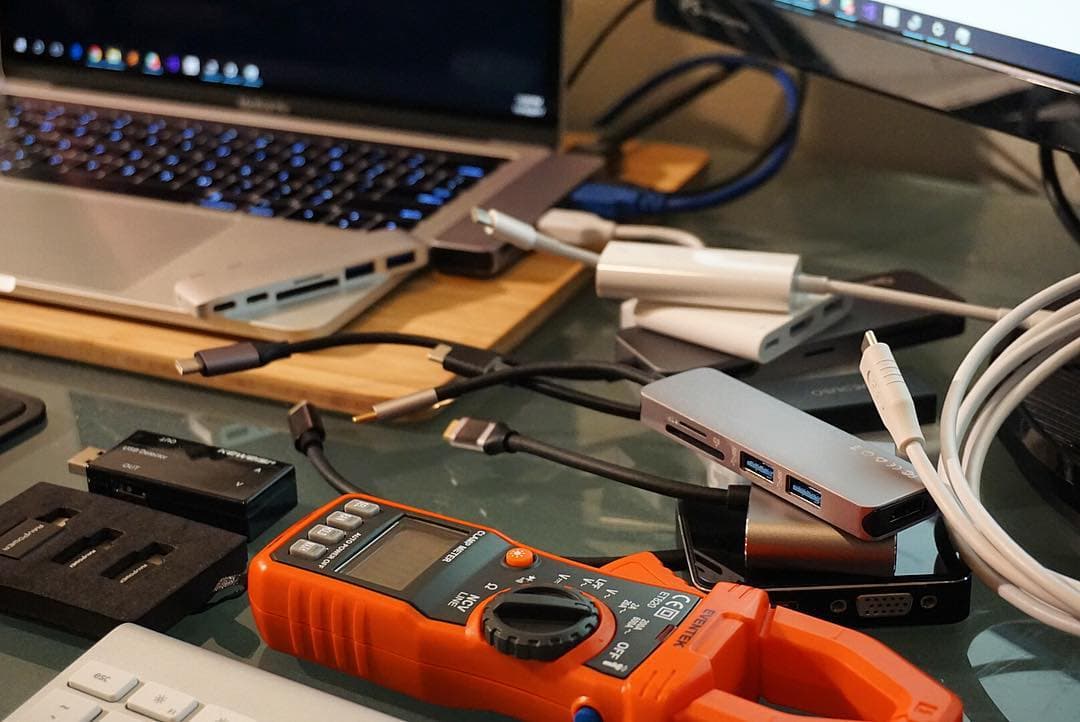
amazon.comA strong everyday port hub for iPad workflows. Good value and layout, with expected bandwidth limits.
Pro: Solid all-around port mix for iPad setups
Con: Not Thunderbolt bandwidth
Check host power pass-through and display output before buying.
Apple USB-C Charge Cable (1m)
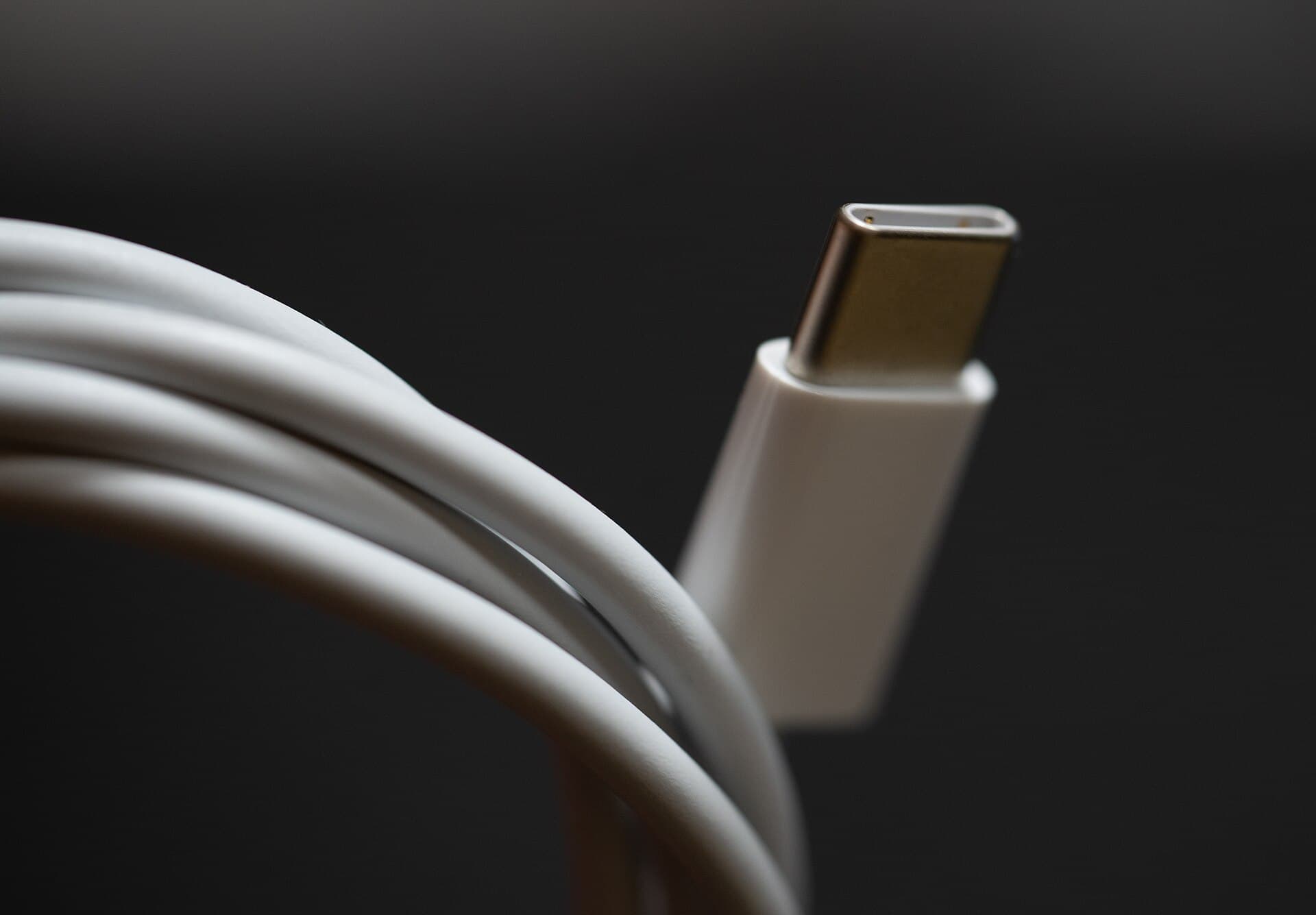
apple.comPro: Consistent Apple compatibility
Con: Shorter length than many desk setups need
Good baseline cable for charging and simple data sync.
Procreate
apps.apple.comPro: One-time purchase
Con: iPad-only
Clip Studio Paint
apps.apple.comPro: Deep comics, vector, ruler, and animation toolset
Con: iPad plan model is less simple than Procreate
Related buying picks
More in this collectionBuyer guide
Travel Charging Setup for iPad Artists (2026): One-Bag Power Kit
A travel charging setup works when charger, power bank, and cables have fixed roles and you run the same simple routine at airports, hotels, and cafes.
Buyer guide
Best Bluetooth Shortcut Remotes for Procreate and iPad Drawing (2026)
The right shortcut remote reduces repetitive hand movement, but only if it behaves like a keyboard and supports reliable mapping.
Comparison
Procreate Dreams in 2026: Strengths, Weak Points, Alternatives
A practical 2026 review of Procreate Dreams 2: strengths, weak points, and the best iPad animation alternatives by use case, with workflow tips.
Buyer guide
Best iPad app for tattoo design in 2026
Procreate is the best default iPad app for tattoo design because it is fast for sketching, flash, reference layers, and client revisions; Clip Studio Paint is the upgrade path for rulers, vectors, comics, and studio-style depth.