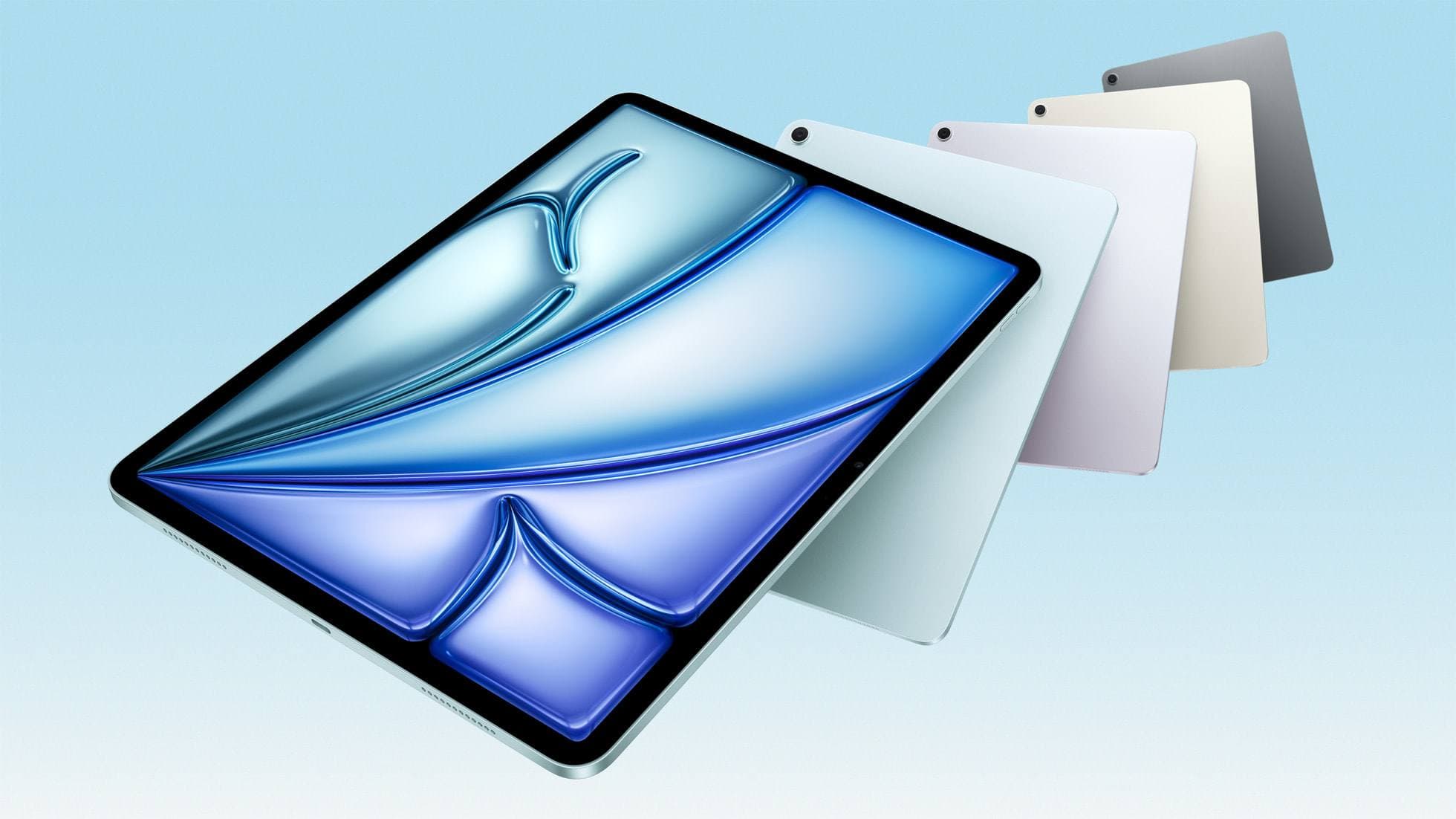
Shortcut remotes are one of the highest-leverage upgrades for Procreate workflows, but only when set up correctly.
Most buyers choose by button count. That is usually wrong. The real decision is whether the device can reliably send keyboard-style input to iPad apps and whether your mapping plan is simple enough to become muscle memory.
What makes a shortcut remote useful on iPad
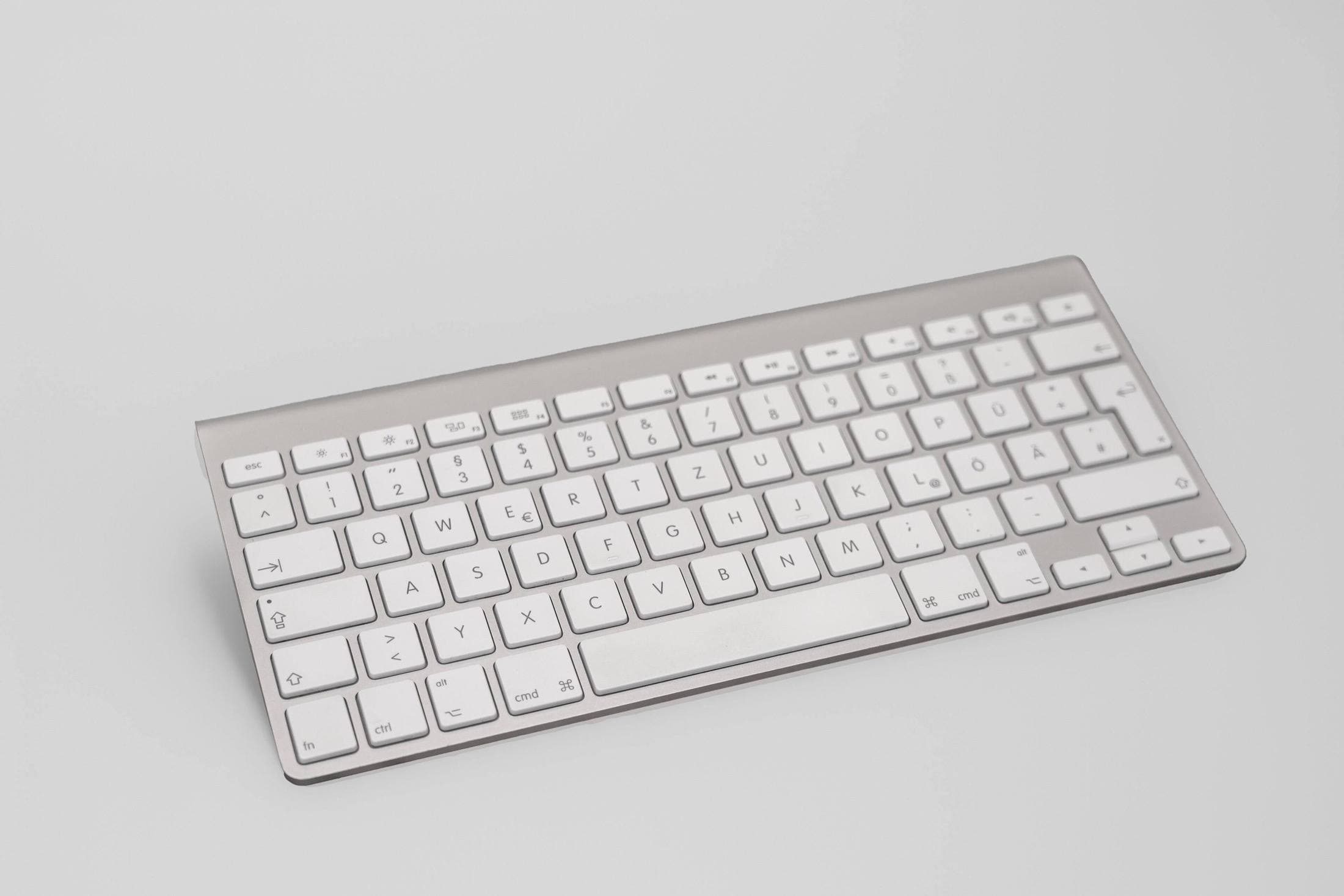
For iPad drawing, a remote should behave like a compact hardware keyboard. Procreate exposes keyboard shortcut behavior and relies on key events for clean action triggering.[1]
Minimum requirements:
- stable Bluetooth reconnect behavior,
- keyboard mode or keyboard-emulation mode,
- configurable key mapping,
- predictable wake-from-sleep behavior.
If a listing cannot explain these clearly, skip it.
The biggest mistake: overmapping
Artists often map 20 to 30 actions on day one, then remember none of them under pressure.
Start with 8 to 12 high-frequency actions and keep layout stable for two weeks.
Strong starter map:
- Undo
- Redo
- Brush size up
- Brush size down
- Brush tool
- Eraser tool
- Selection
- Transform
- Layers
- Color picker
A smaller, consistent map beats a huge map you cannot recall without looking.
Remote categories and tradeoffs
Compact programmable remotes
Best for artists who want minimal footprint and one-hand operation next to the iPad.
Advantages:
- easy to pack,
- fast access with low desk clutter,
- good fit for travel and cafe sessions.
Tradeoffs:
- smaller controls can be fatiguing for long sessions,
- initial setup can require careful profile configuration.
Mid-size controller-style remotes
Best for artists who want larger controls and stronger tactile separation.
Advantages:
- easier to use by feel,
- better comfort for long sessions,
- lower accidental press risk for some users.
Tradeoffs:
- more desk space,
- slower carry workflow,
- can feel bulky in compact travel kits.
Labeled artist-first remotes
Best for creators who prefer less setup and more guided mapping out of the box.
Advantages:
- faster onboarding,
- clearer default layout,
- often easier for beginners.
Tradeoffs:
- less flexible mapping depth on some models,
- premium pricing vs generic programmable options.
Practical picks
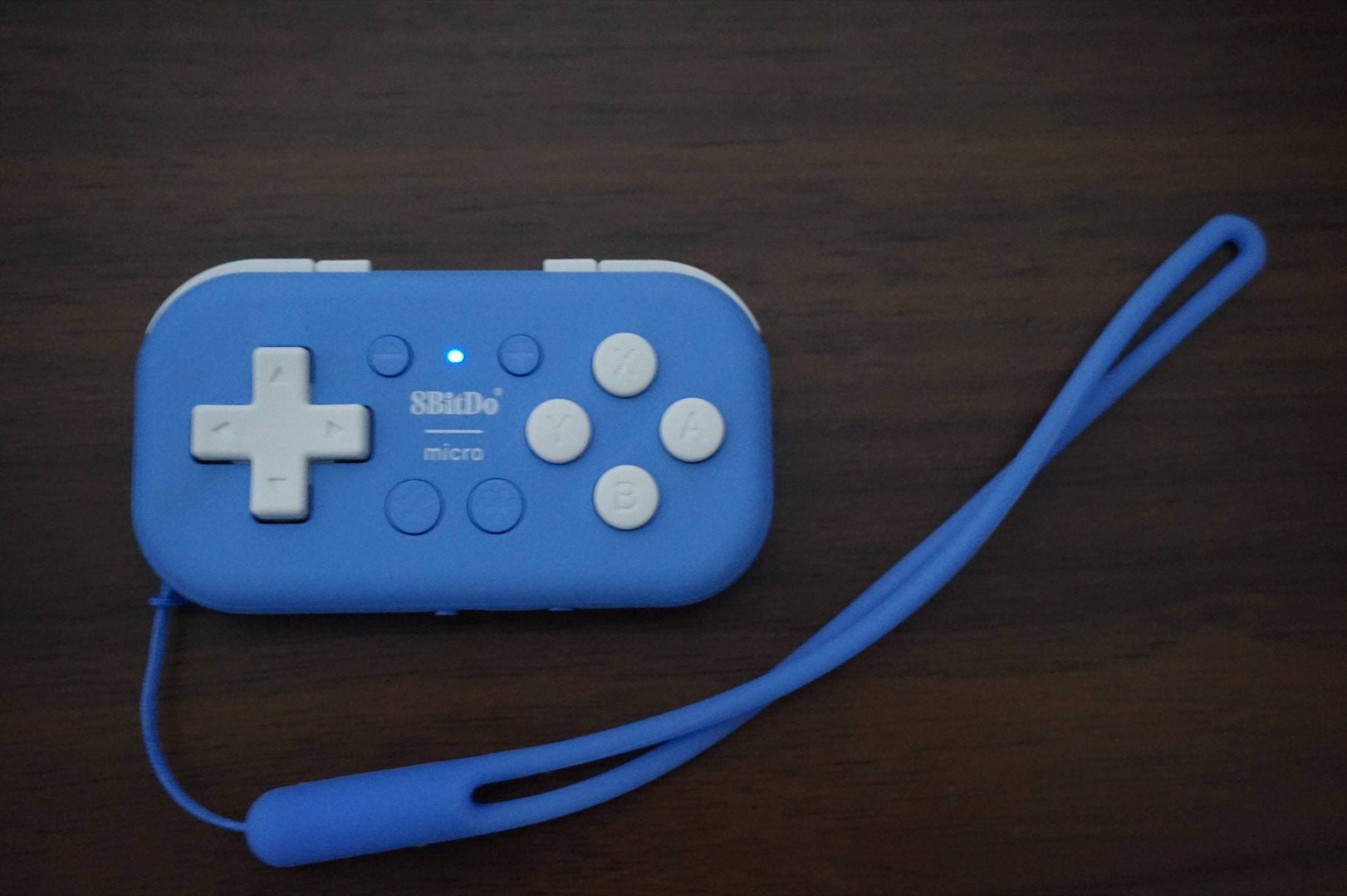
8BitDo Micro
Good for compact desks and travel kits where minimal size matters. Works best when configured in keyboard-compatible mode with a focused map.
JCPAL ProGuide
Good for Procreate-first users who want clearer labeled controls and faster initial setup.
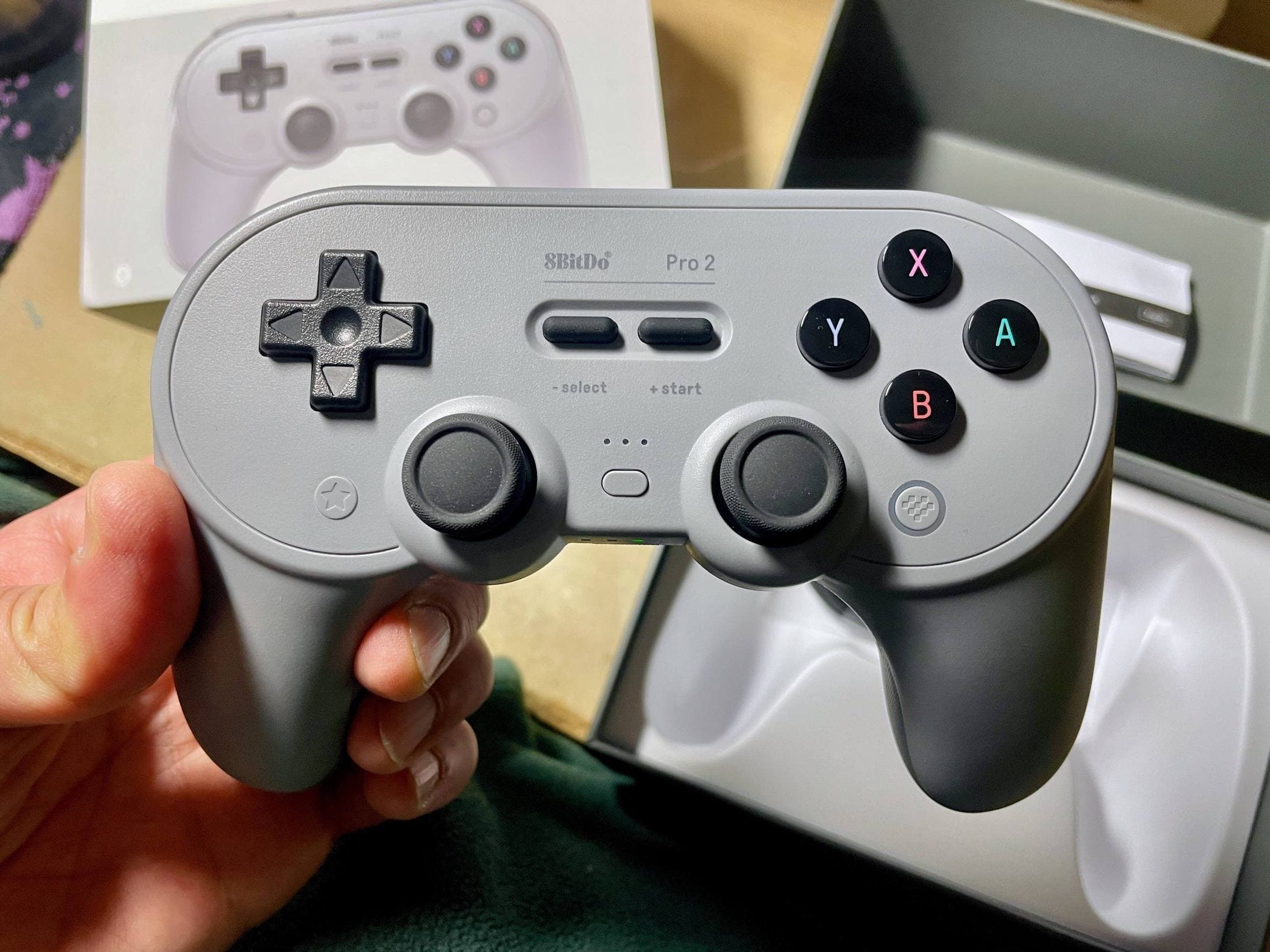
8BitDo Pro 2
Good for users who prefer larger controls and long-session comfort over bag compactness.
How to map for speed, not novelty
Mapping should follow movement frequency, not feature excitement.
Rule 1: center high-frequency actions
Undo/Redo and brush-size controls should sit under your easiest thumb movement.
Rule 2: separate destructive actions
Put clear, safe spacing between critical actions like clear layer, merge, or delete.
Rule 3: keep one profile per app context
If you switch between Procreate and note apps, use separate profiles instead of one overloaded profile.
Rule 4: avoid remapping weekly
Frequent changes reset muscle memory and remove speed benefits.
Setup flow (10-minute implementation)
- Pair the remote with iPad and verify stable reconnect.
- Set remote to keyboard-like mode.
- Map your top 10 actions only.
- Test in a real canvas for 15 minutes.
- Adjust no more than two buttons after first test.
- Lock mapping for at least one week.
This process captures most benefits quickly with minimal churn.
Reliability tests before production use
Run this checklist before using the remote on paid work:
- reconnect from Bluetooth settings after idle,
- confirm no double-trigger behavior,
- verify Undo/Redo consistency at speed,
- test one-hour session for disconnect events,
- test after iPad sleep/wake cycles.
If it fails any of these, fix profile/setup first or replace the device.
Ergonomics and strain reduction
Shortcut remotes reduce repetitive reach and reduce gesture overload on the non-drawing hand.
Where they help most:
- long inking sessions,
- heavy layer and transform workflows,
- repetitive undo/redo cycles,
- mixed drawing + editing sessions.
They help less when your workflow is mostly rough sketching with minimal tool switching.
Travel workflow guidance
For mobile workflows, treat the remote as part of your fixed kit:
- keep it in the same pouch location,
- keep one profile only for travel use,
- run a two-minute reconnect test before leaving,
- carry one backup input option (compact keyboard or on-screen shortcuts).
Predictability matters more than theoretical feature depth.
Common buying mistakes
Mistake 1: buying controller-only devices
Controller mode alone may not map cleanly to Procreate keyboard shortcuts.
Mistake 2: buying by button count
More buttons can reduce reliability and increase cognitive load.
Mistake 3: no profile discipline
Constantly changing mappings prevents muscle memory.
Mistake 4: ignoring reconnect behavior
A remote that disconnects after short idle periods kills flow.
Mistake 5: no fallback input plan
Always keep one backup path if remote fails mid-session.
Who should buy now vs later
Buy now if:
- you switch tools constantly,
- undo/redo frequency is high,
- you feel non-drawing-hand fatigue in long sessions.
Wait if:
- your workflow is still beginner-level and unstable,
- you have not yet learned base Procreate shortcuts,
- your main bottleneck is canvas planning, not tool-switch speed.
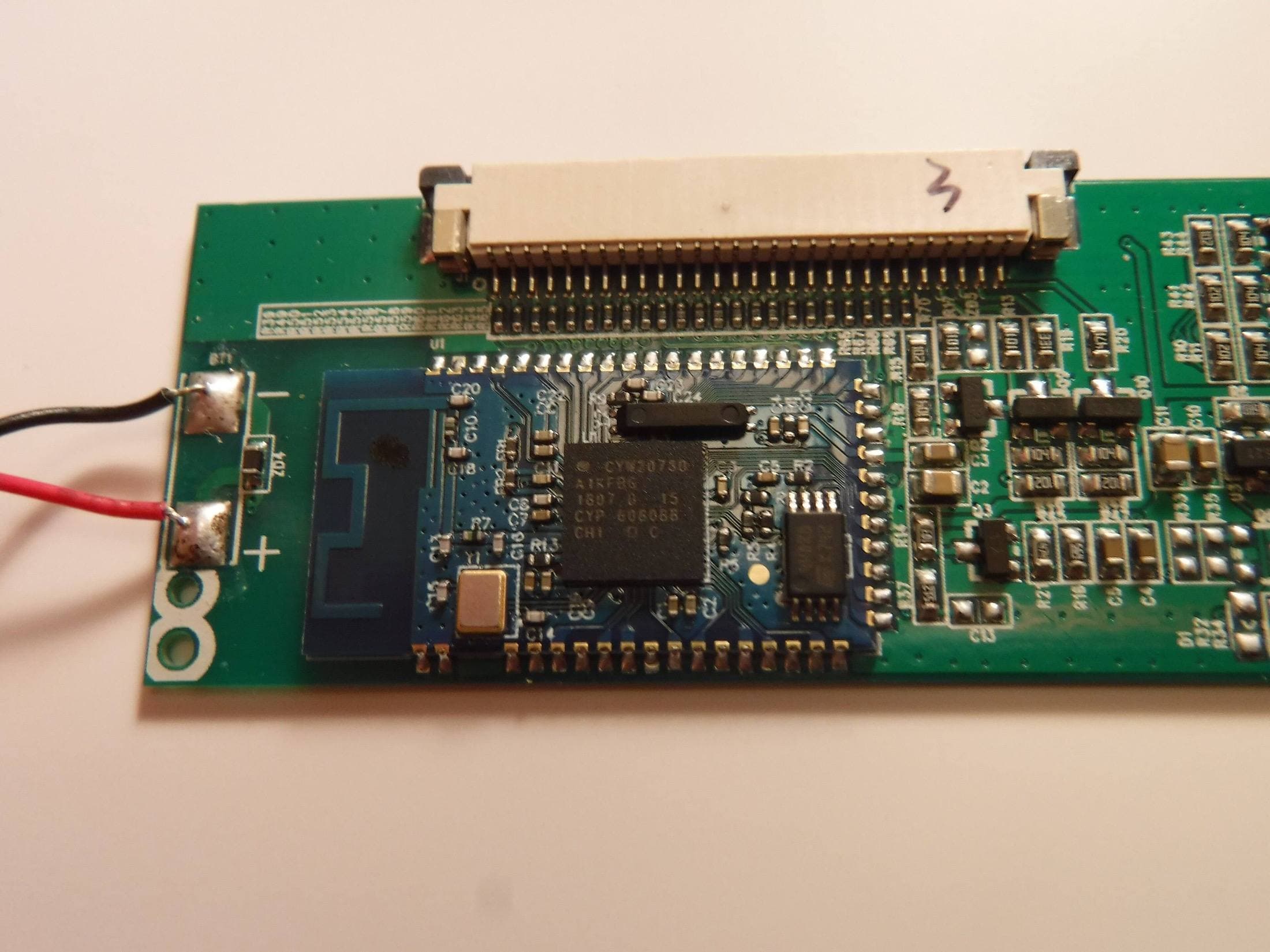
Product visuals
Bottom line
The best Bluetooth shortcut remote for Procreate is not the one with the most controls. It is the one that acts like a stable keyboard, reconnects reliably, and supports a small, deliberate shortcut map you can use without looking.
If you keep mappings simple and stable, a good remote can remove repetitive hand strain and increase output speed in a way most accessory upgrades cannot.
Sources
Recommended gear
8BitDo Micro Bluetooth Controller
amazon.comPro: Very compact with flexible key mapping
Con: Small buttons may not suit every hand
Set keyboard mode and map shortcuts before first drawing session.
JCPAL ProGuide Controller
amazon.comPro: Purpose-built layout for drawing shortcuts
Con: Less flexible than fully programmable controllers
Built around Procreate shortcuts and iPad use patterns.
8BitDo Pro 2 Bluetooth Controller
amazon.comPro: Comfortable size and consistent Bluetooth behavior
Con: Bulky compared with tiny shortcut remotes
Useful if you want larger controls for frequent shortcut use.
Procreate
apps.apple.comPro: One-time purchase
Con: iPad-only
Clip Studio Paint
apps.apple.comPro: Deep comics, vector, ruler, and animation toolset
Con: iPad plan model is less simple than Procreate
Related buying picks
More in this collectionBuyer guide
Portable iPad Keyboard Travel Kit (2026): Write, Sketch, Pack Fast
How to build a portable iPad writing and sketch kit for cafes and transit, including keyboard format choices, setup flow, and compatibility checks.
Buyer guide
Travel Charging Setup for iPad Artists (2026): One-Bag Power Kit
A travel charging setup works when charger, power bank, and cables have fixed roles and you run the same simple routine at airports, hotels, and cafes.
Buyer guide
Best SD and microSD Card Readers for iPad Creators (2026)
Card reader speed on iPad depends on card bus, reader bus, and iPad port limits. Buy for your actual ingest workflow, not label hype.
Buyer guide
Best USB-C Cables for iPad Artists (2026): Charging, Transfer Speed, and Durability
Most USB-C cable problems come from buying by connector shape instead of charging and data requirements.