
Portable iPad keyboard and sketch kit for travel in 2026
The best travel kit is not the one with the most accessories. It is the one you can deploy in under two minutes anywhere.
Most portable iPad workflows fail because setup is inconsistent: keyboard is buried in bag, cable path is messy, stand angle is wrong, and Pencil is floating loose. Fixing that system produces bigger gains than chasing small keyboard-spec differences.
Step 1: choose your keyboard path once
You need one primary path, not two competing setups.
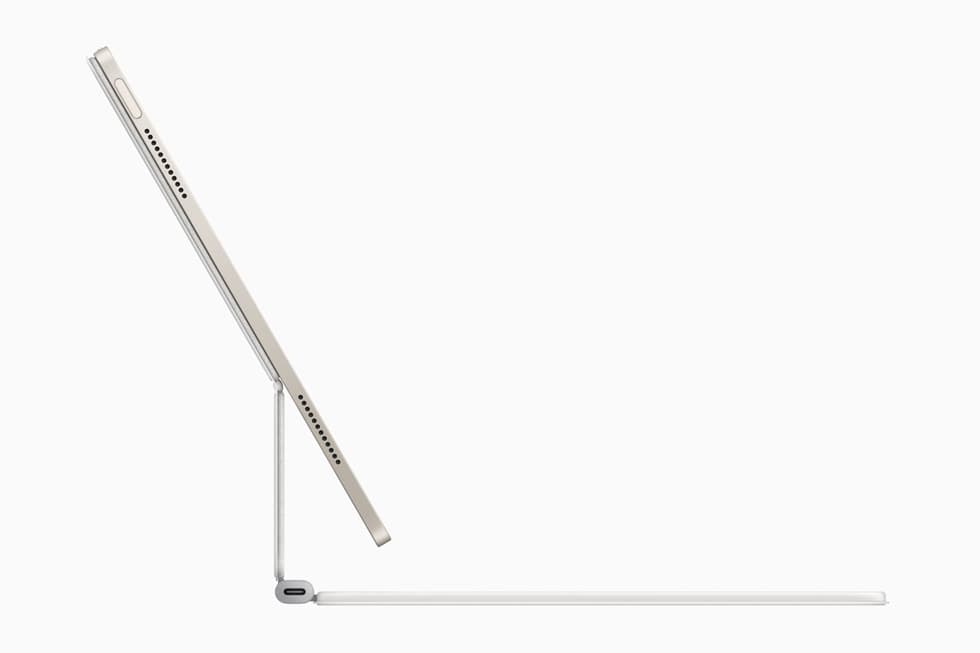
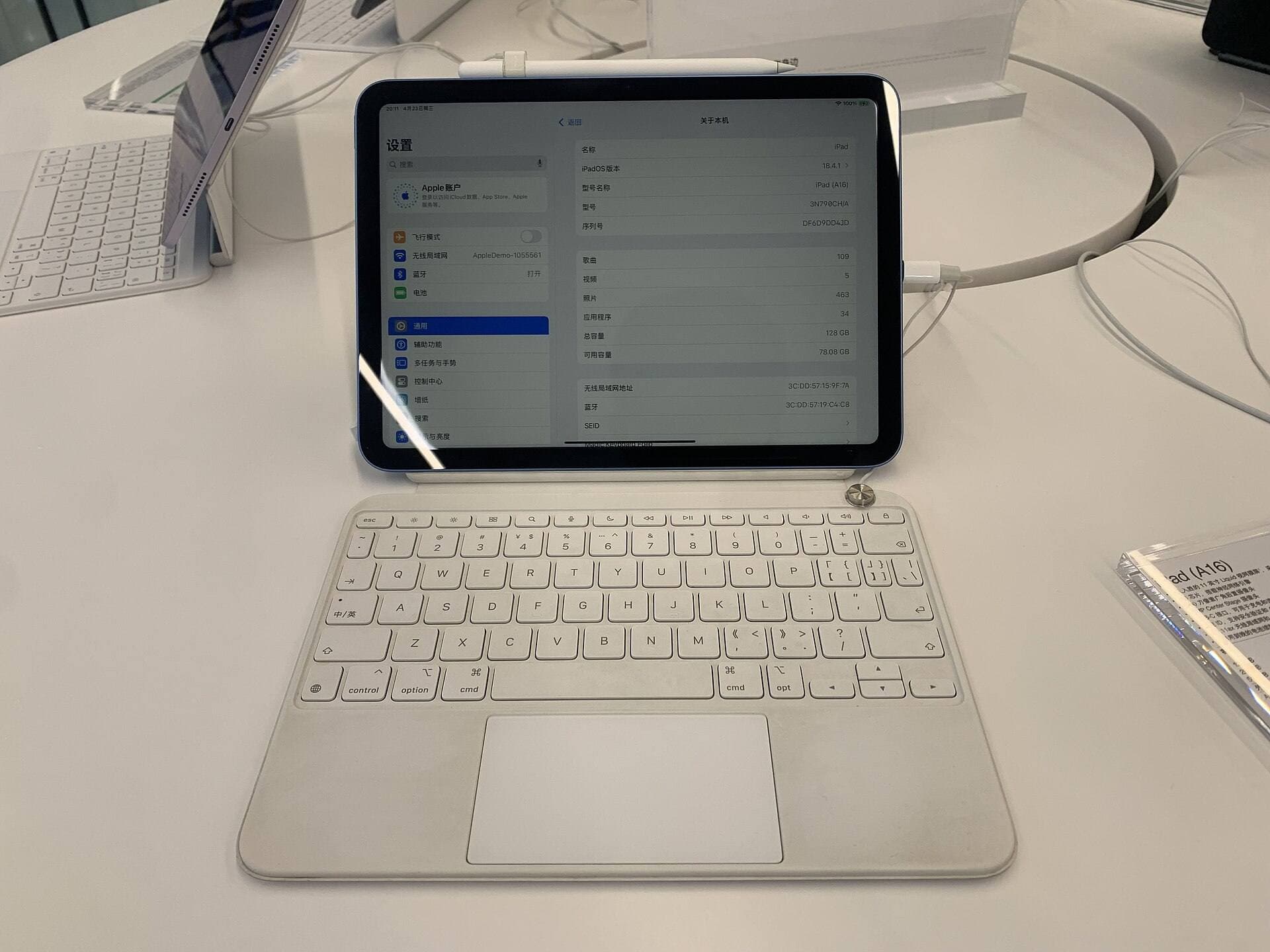
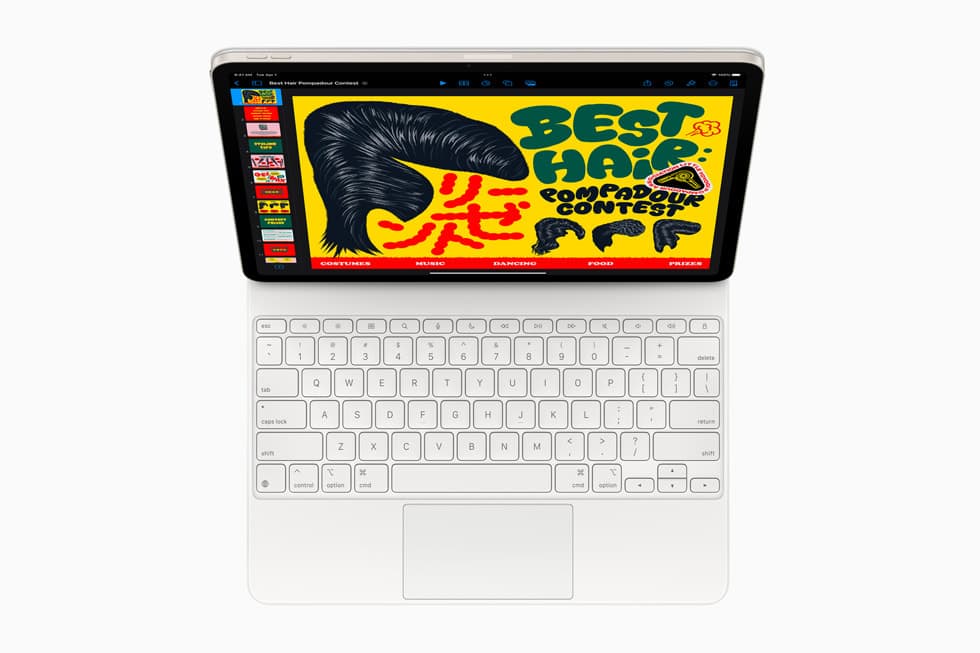
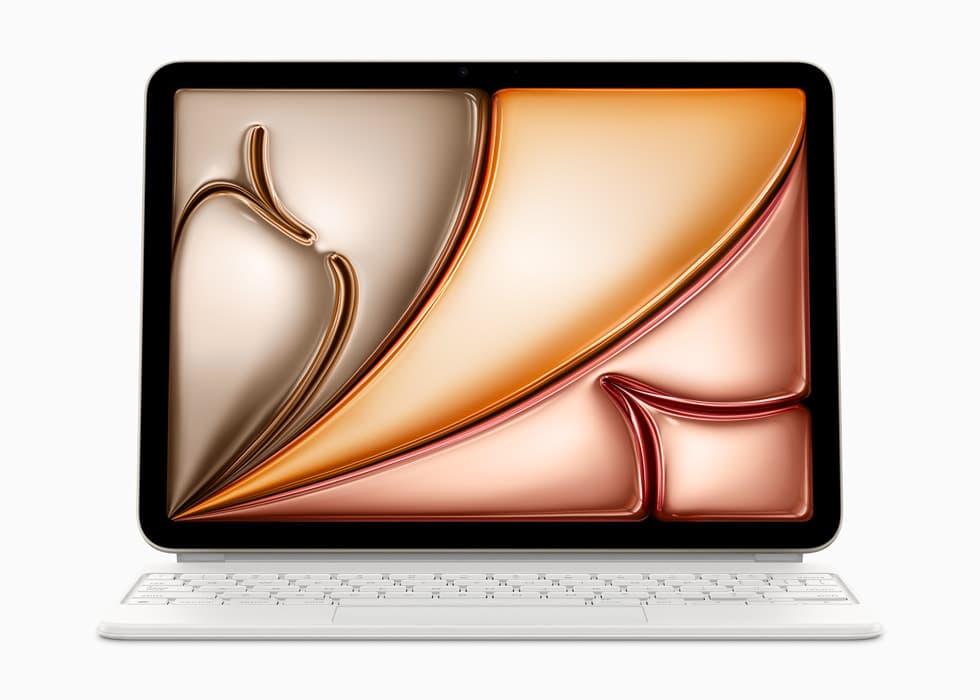
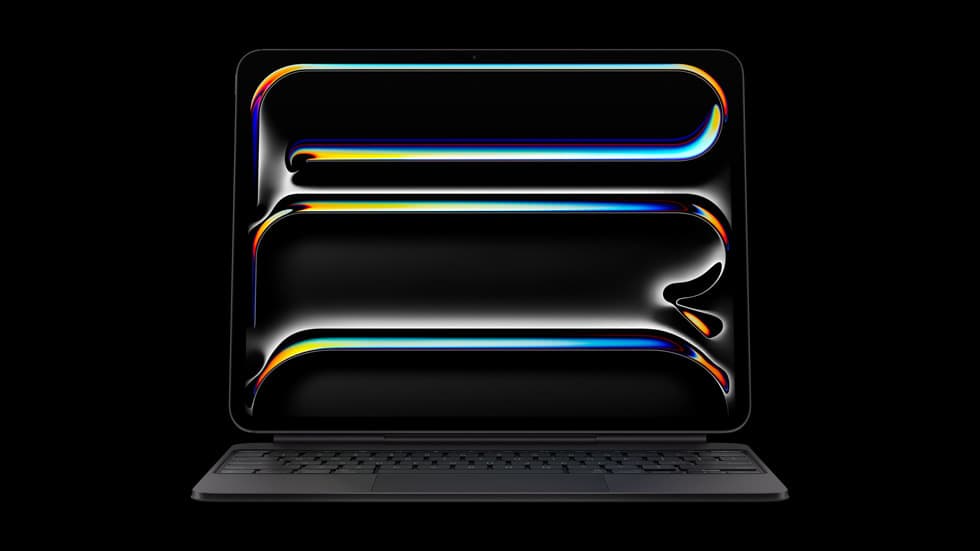
Path A: keyboard case
Best when you type on unstable surfaces like trains or lap setups.
Advantages:
- fewer separate pieces,
- faster open-and-type flow,
- better lap stability.
Tradeoffs:
- heavier carry,
- less freedom for drawing-only angle changes,
- bulk cost when you only need sketch mode.
Path B: separate keyboard + stand
Best when you mostly work on tables and want flexibility between writing and drawing posture.
Advantages:
- lighter iPad in hand for drawing,
- easier ergonomic separation of screen and keys,
- modular setup for different environments.
Tradeoffs:
- more pieces to manage,
- lower lap stability,
- slightly longer setup unless pouch system is disciplined.
Step 2: build a role-based kit
Treat every item as a role, not as a gadget.
Core roles:
- input role: keyboard,
- drawing role: Pencil,
- support role: stand or keyboard hinge,
- power role: one reliable charger + one cable,
- cleanup role: cloth + pouch structure.
When every role is clear, packing and setup become automatic.
Step 3: optimize for setup speed
Your target is full deploy in under 120 seconds.
Recommended sequence:
- place iPad at intended angle,
- place keyboard centered to your body,
- connect cable only if needed,
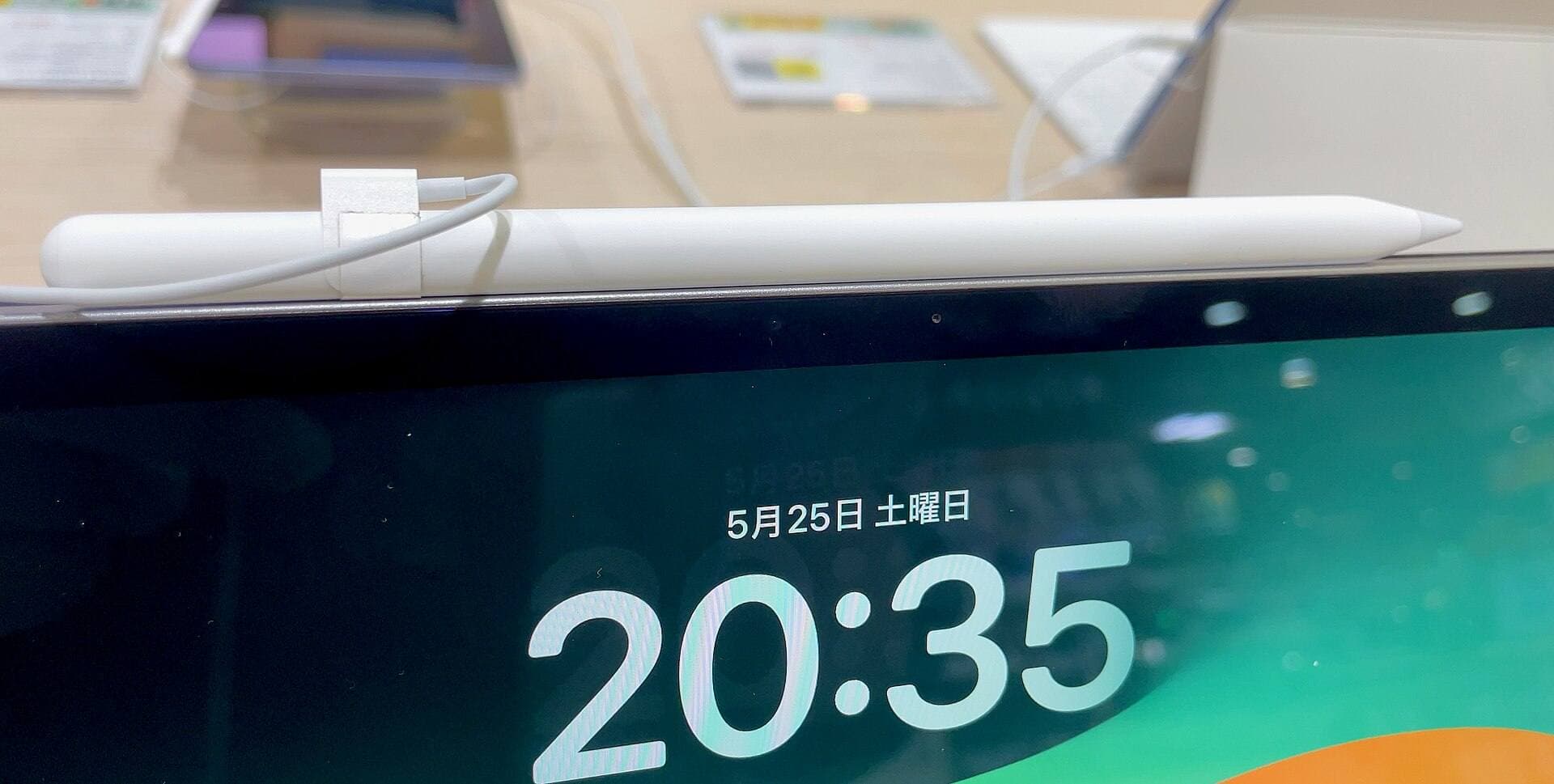
- attach Pencil magnetically when not in hand,
- run one shortcut to verify input focus.
This sequence removes most travel friction.
Keyboard behavior that actually matters on iPadOS
Skip marketing noise and validate real behavior:
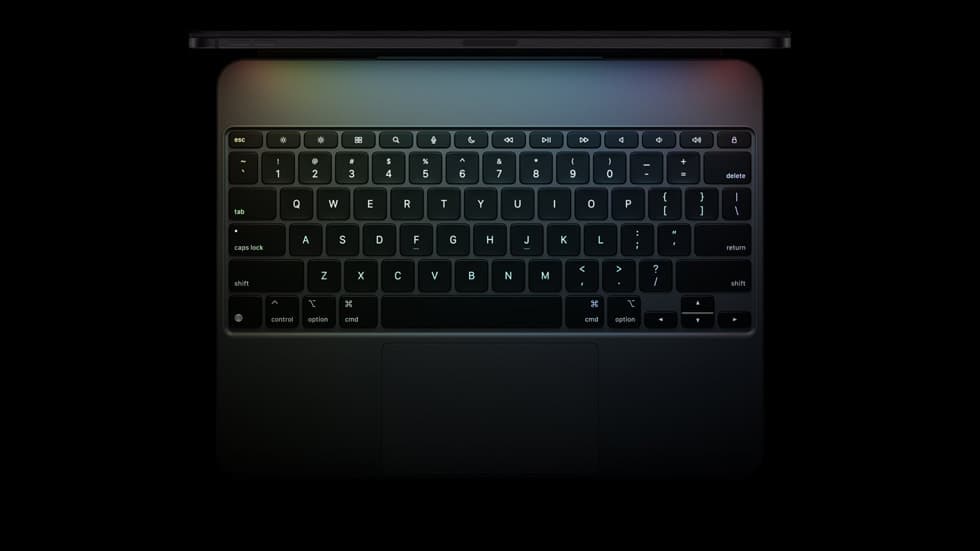
- command-key shortcuts work in your main apps,
- modifier key remapping is available,
- reconnect from sleep is stable,
- layout matches your muscle memory.
Apple documents hardware keyboard shortcut behavior and settings on iPad.[1]
Ergonomic split: writing posture vs drawing posture
A common mistake is forcing one angle for both tasks.
Better approach:
- use higher angle for writing and planning,
- use lower stable angle for sketching,
- keep transitions simple with no major repositioning.
A kit that supports quick posture shifts improves session duration and comfort.
Travel environments and kit tuning
Cafe workflow
- prioritize fast table claim and quick deploy,
- minimize footprint so charger, drink, and iPad can coexist,
- keep one cable length that fits typical outlet distance.
Train workflow
- use keyboard-case path when table stability is limited,
- avoid multi-piece setups that slide during movement,
- keep Pencil secured when not drawing.
Airport workflow
- deploy only core mode first,
- use power bank/charger path with minimal cable clutter,
- keep security-friendly pouch layout so re-pack is fast.
What to keep in your pouch
Always-carry layer
- iPad,
- Pencil,
- one trusted cable,
- compact charger.
Writing layer
- keyboard case or compact Bluetooth keyboard.
Sketch layer
- compact stand (if using separate keyboard),
- microfiber cloth,
- optional glove if you already know it helps.
Do not carry accessories you have not used in the last two weeks.
Common failure points and fixes
Failure: keyboard reconnect lag
Fix: re-pair and test wake cycles before travel days.
Failure: unstable draw angle
Fix: lock one known-good angle and stop constant micro-adjustments.
Failure: forgotten cable or dead accessory
Fix: fixed pouch slots and pre-leave checklist.
Failure: Pencil handling chaos
Fix: keep magnetic attachment as default rest state.
Failure: too many kit variants
Fix: one primary setup, one backup only.
Decision framework for upgrades
Upgrade only if a recurring bottleneck remains after two weeks of disciplined setup.
Good upgrade signals:
- repeated keyboard disconnects,
- posture fatigue despite stable setup,
- too much setup time from multi-part kit,
- frequent travel context changes needing faster transitions.
Bad upgrade signals:
- buying from comparison anxiety,
- adding gear before stabilizing routine,
- duplicating roles already covered.
Practical product fit
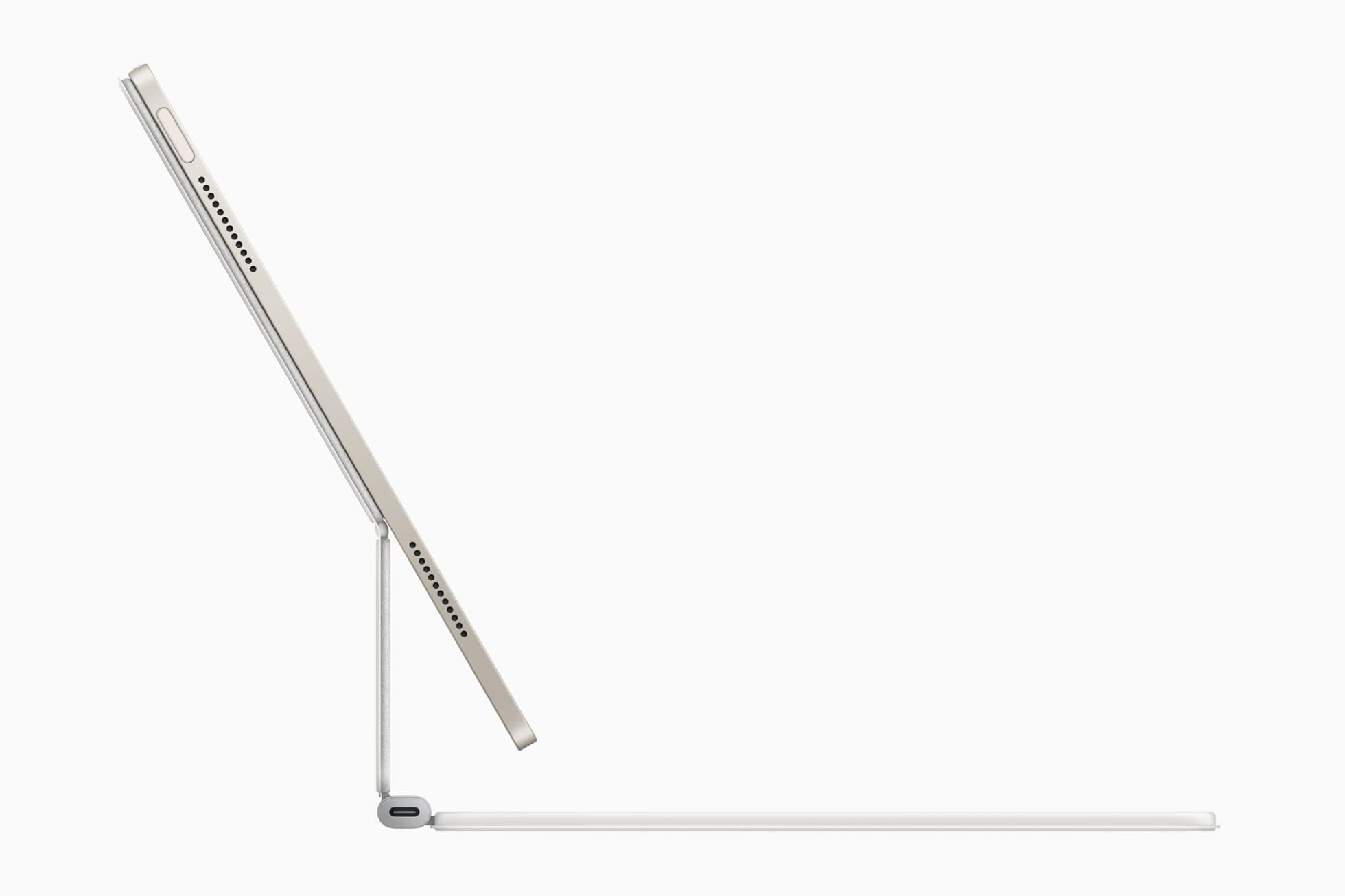
Combo Touch
Good for users who need frequent typing plus sketching and want integrated stability.
Satechi R1
Good as modular stand companion in separate keyboard workflows.
Apple Pencil Pro
Core input tool for sketch precision; keep compatibility checks current.[2]
Two-week implementation plan
Days 1 to 4
Use only baseline kit and measure setup time.
Days 5 to 8
Refine pouch organization and keyboard angle process.
Days 9 to 11
Stress test in two environments (home + one travel location).
Days 12 to 14
Remove unused items and lock final travel kit.
Minimal shortcut starter pack for travel
To reduce setup time further, keep one standard shortcut pack across your main writing and drawing apps:
- app switch,
- undo/redo,
- search,
- quick note capture,
- one tool-switch action in your drawing app.
The fewer custom bindings you maintain, the easier it is to stay productive in noisy environments like trains and cafes.
If you often switch between client writing and sketch revision, this shortcut consistency can save more time than upgrading keyboard hardware.
Quick maintenance checklist
Run this weekly before travel days:
- keyboard battery level above threshold,
- Bluetooth reconnect test after sleep,
- cable integrity check,
- Pencil attachment check,
- pouch layout reset.
Reliability from routine is the main differentiator in mobile iPad workflows.
Bottom line
Portable iPad productivity is mostly a system design problem.
Choose one keyboard path, assign clear roles to each item, and optimize setup under two minutes. A stable, repeatable travel kit will outperform a larger, feature-rich kit that you deploy inconsistently.
Sources
Recommended gear
Satechi R1 Stand
amazon.comPro: Affordable and stable
Con: Less reach than arm mounts
Universal stand. Works with most iPad sizes.
Apple Pencil Pro
amazon.comThe best Apple stylus for serious digital art workflows. Expensive, but the control upgrades are real.
Pro: Best brush-control and hover workflow
Con: Highest price in the lineup
Works only with newer iPad models. Check compatibility.
Logitech Combo Touch for iPad Air 11
apple.comThe best hybrid case when notes, planning, and drawing all happen on one iPad. Great utility, but more weight than draw-first buyers need.
Pro: Flexible kickstand plus detachable keyboard
Con: Bulkier than a simple folio
Confirm exact 11-inch iPad Air generation compatibility before purchase.
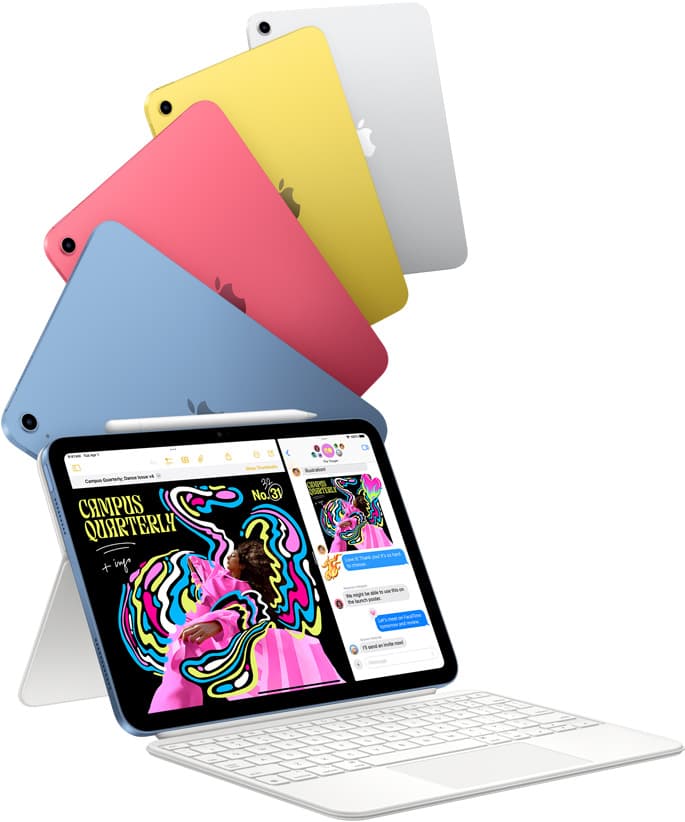
iPad (A16, 11th gen)
amazon.comThe best entry iPad for most artists on a budget. It is not premium, but it is very hard to beat on value.
Pro: Best value iPad right now
Con: No ProMotion display
Search opens with the exact model keywords. Verify size and storage before checkout.
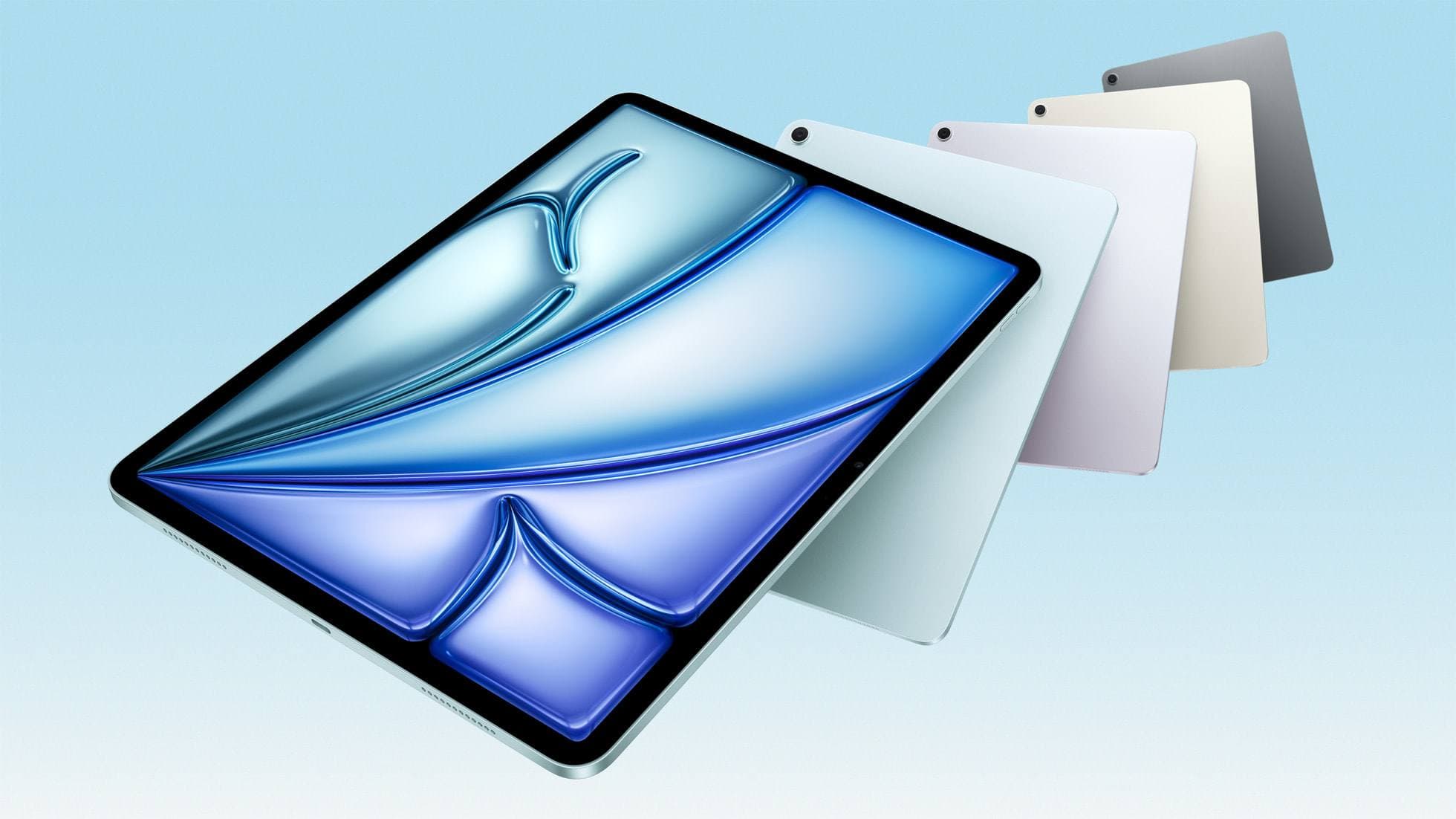
iPad Air (M4)
apple.comThe clean current Air recommendation for most serious hobby artists. Stronger buy logic than old-stock M3 when pricing is close.
Pro: Best current balance of price, headroom, and Pencil support
Con: Still 60Hz
Current Air lineup. Choose size, storage, and keyboard path before checkout.
Related buying picks
More in this collectionBuyer guide
Travel Charging Setup for iPad Artists (2026): One-Bag Power Kit
A travel charging setup works when charger, power bank, and cables have fixed roles and you run the same simple routine at airports, hotels, and cafes.
Buyer guide
Best SD and microSD Card Readers for iPad Creators (2026)
Card reader speed on iPad depends on card bus, reader bus, and iPad port limits. Buy for your actual ingest workflow, not label hype.
Buyer guide
Best USB-C Cables for iPad Artists (2026): Charging, Transfer Speed, and Durability
Most USB-C cable problems come from buying by connector shape instead of charging and data requirements.
Buyer guide
Best USB-C Hubs for iPad Artists (2026): Ports, Power, and Display Stability
The best USB-C hub for iPad art work is the one that keeps power and display stable while handling your real accessory stack.