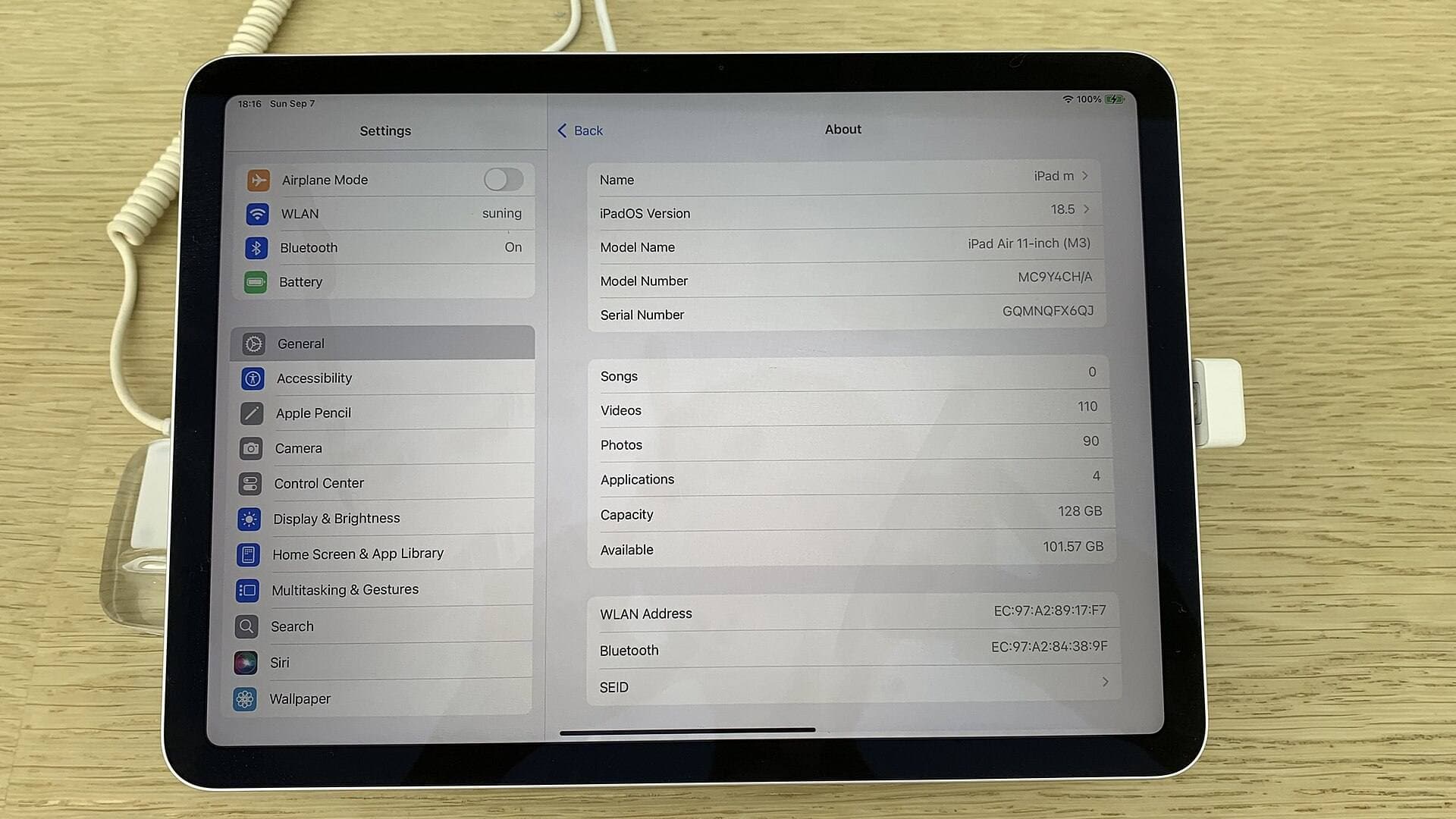
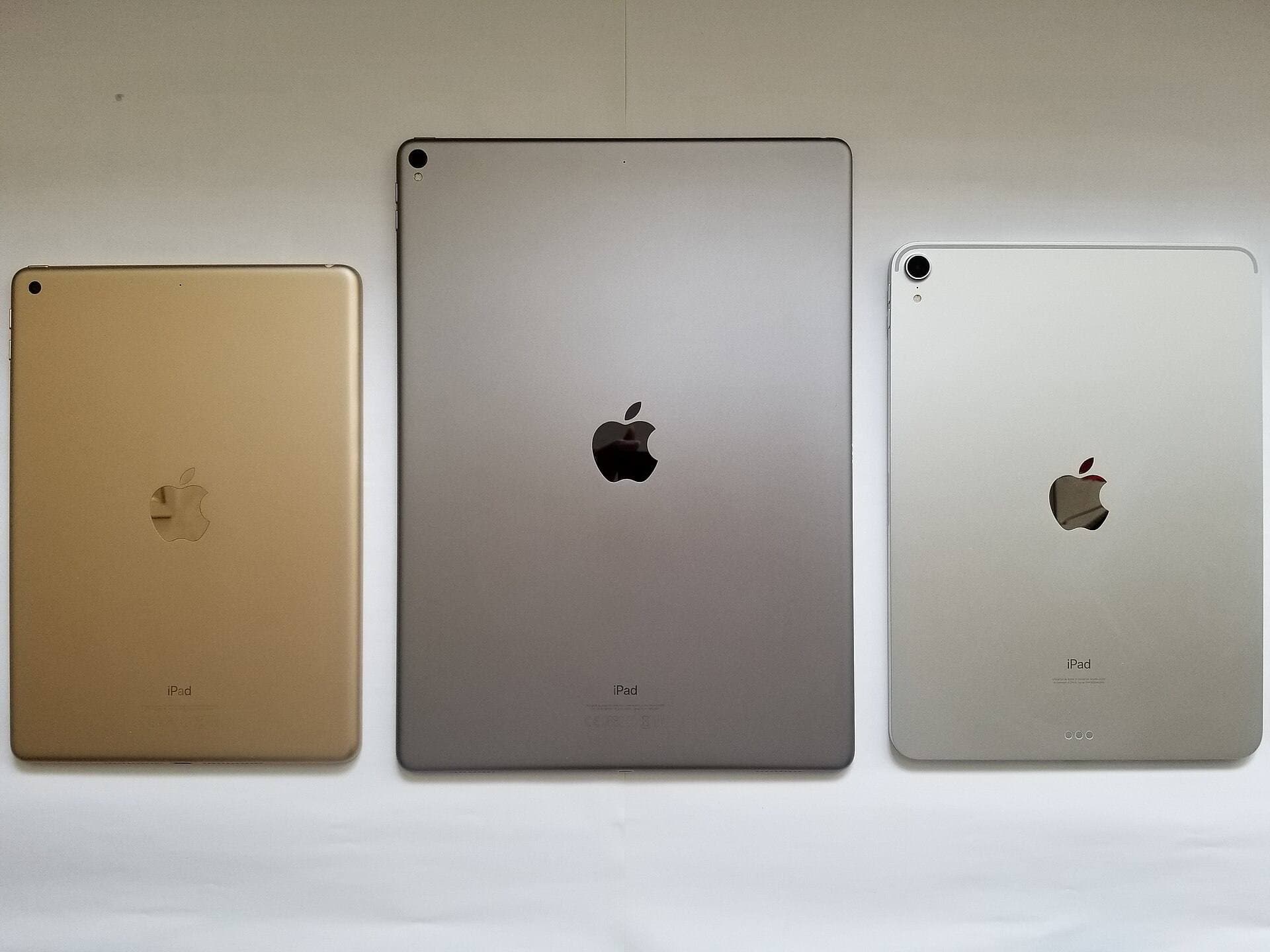
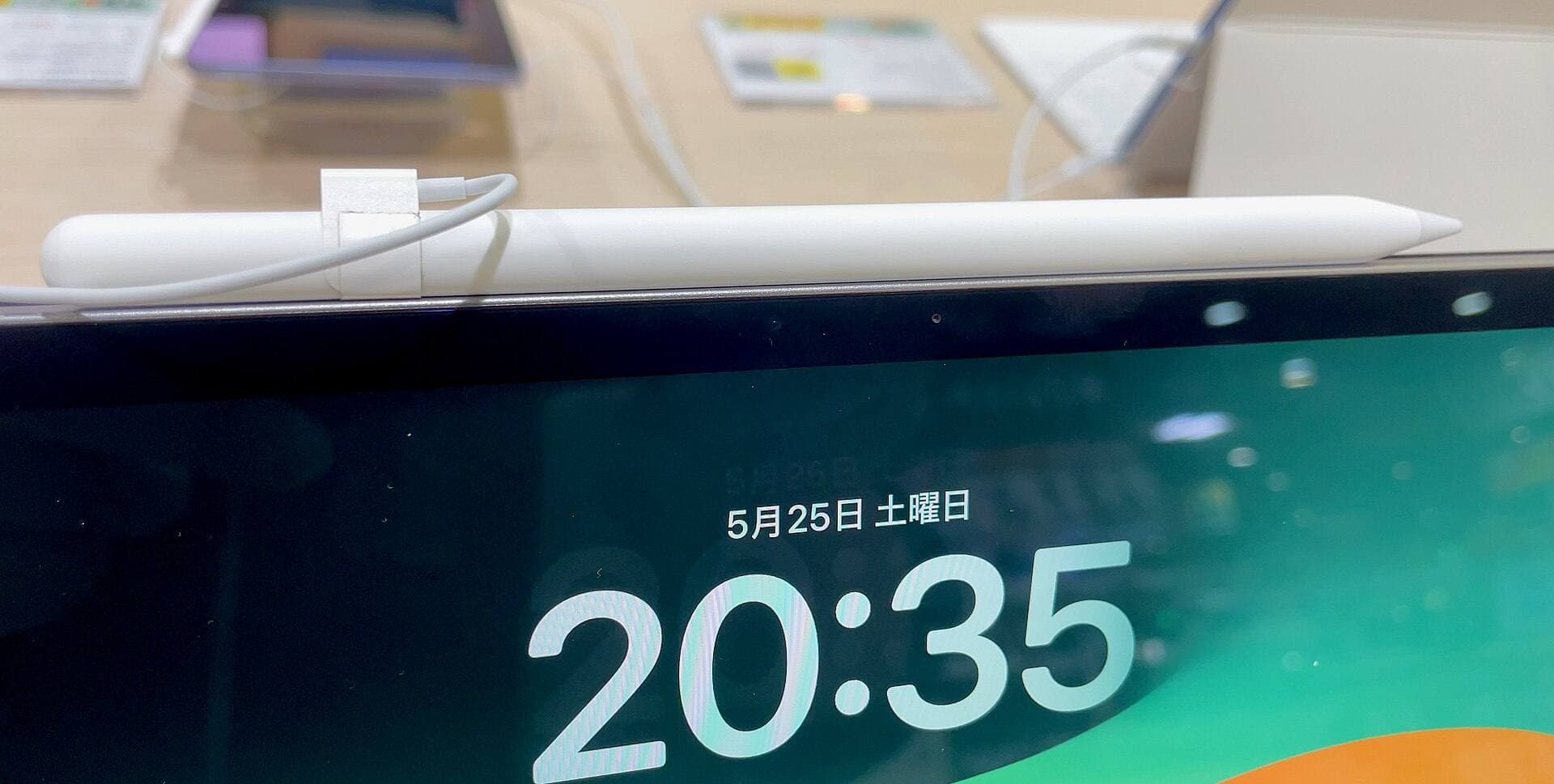
iPadOS 26 includes many headline features, but most artists only need a short list. The upgrade matters when it helps you keep focus, move files faster, and avoid setup failures in the middle of work.
The short list
If you want the short answer, focus on these:
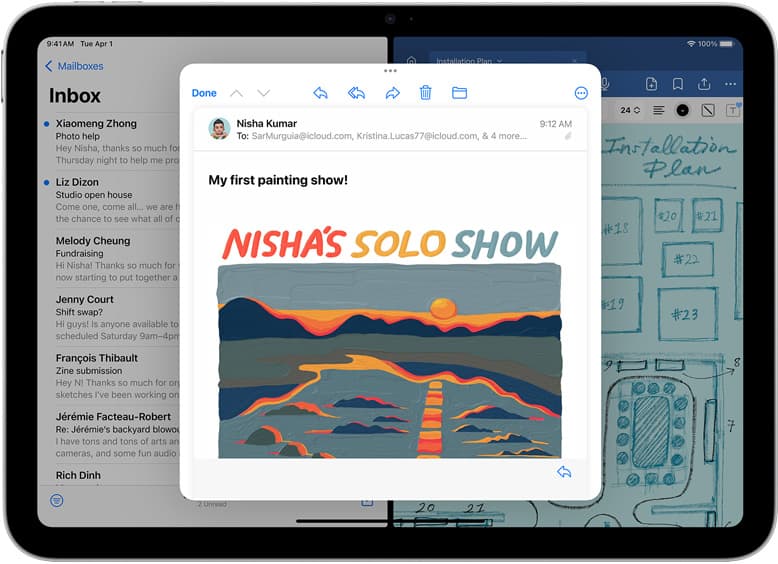
- Better app windowing and arrangement for reference plus canvas workflows.
- Better file movement between apps and external storage.
- More stable external display workflows for desk setups.
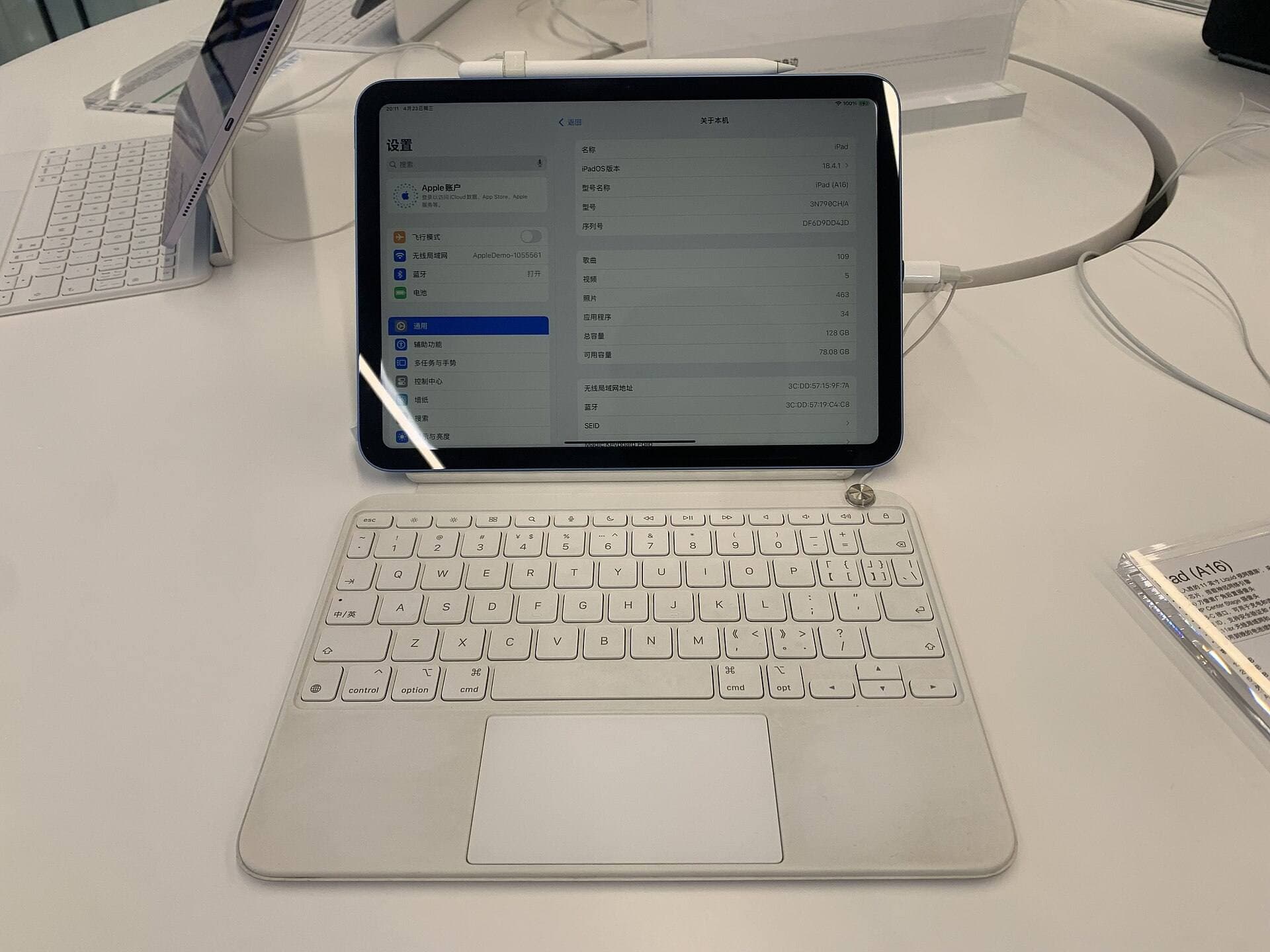
- Better continuity with keyboard and pointer input.
Everything else is secondary for drawing speed and consistency.
1) Windowing changes that reduce context switching

What it changes in practice:
- Fewer gestures to get back to your previous layout.
- Better continuity when switching between drawing and export tasks.
- Less accidental full-screen takeover from one app.
2) File workflows are less annoying
Large projects create friction in three places: export, transfer, and backup. iPadOS 26 improves file handling and external drive behavior enough that this part finally feels less fragile.
For creators, this matters most when you:
- export many versions per project,
- move files to SSD at the end of each day,
- share projects between iPad and desktop.
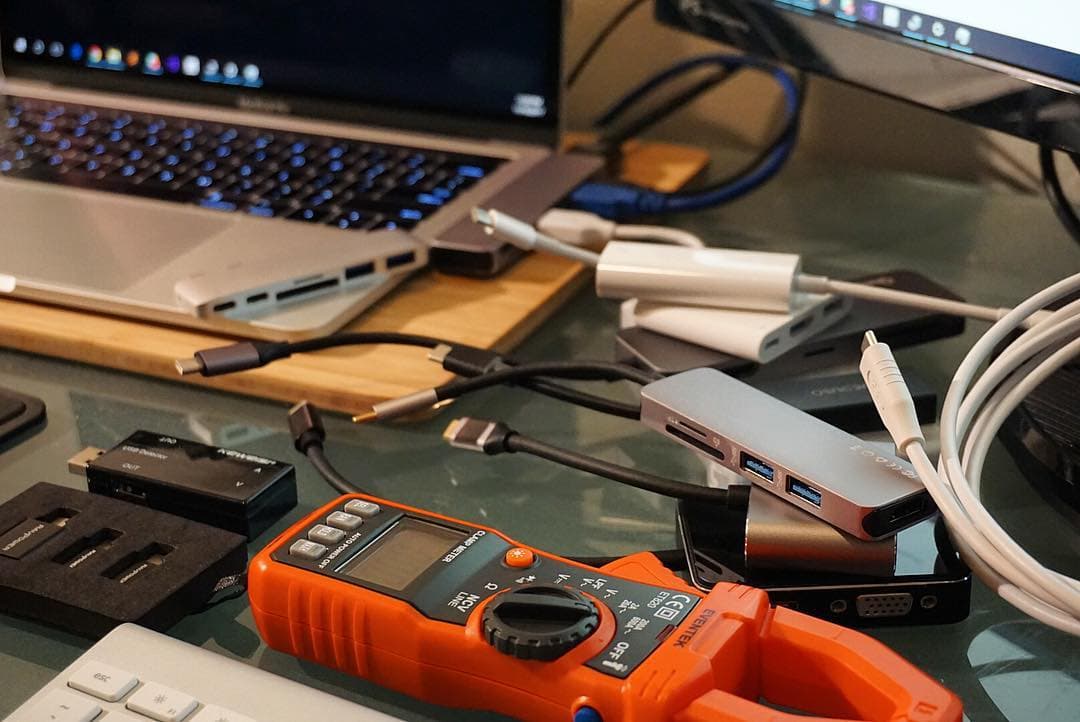
Reliable USB-C accessories still matter. A stable hub and SSD will save more time than any single software tip.
3) App behavior and handoff


Your practical checklist:
- Confirm your core apps are updated for iPadOS 26.
- Test one full project loop: sketch, reference, export, backup.
- Fix bottlenecks early, usually cables, hubs, or storage throughput.
4) Should you update immediately?
Yes, if your setup is simple and you can test in one focused session.
Wait one or two point updates if:
- your work is client-critical this week,
- you rely on niche plug-ins or accessory firmware,
- your current system is stable and you have a deadline.
Buying note for this upgrade cycle
For this cycle, the best spend is often accessories that remove failure points:
- A stable USB-C hub for desk mode.
- A reliable display adapter if you present work externally.
- A fast SSD so backup and transfer do not block your flow.
That is why this article links workflow hardware instead of new iPads by default.
Sources
[1] https://www.apple.com/ipados/ipados-preview/ [2] https://support.apple.com/guide/ipad/connect-to-an-external-display-ipad2f4f9e36/ipados [3] https://support.apple.com/guide/ipad/external-storage-devices-ipad75b7b23f/ipados [4] https://help.procreate.com/procreate/handbook [5] https://apps.apple.com/us/app/procreate/id425073498
<!-- depth-pass-v1 -->Practical application guide
For iPadOS 26 for Artists: 9 Changes That Actually Matter, the highest value comes from converting ideas into repeatable workflow decisions. iPad artists planning their 2026 setup and software workflow. should implement one change at a time and measure impact over at least one week before adding complexity.
What to apply first
Start with actions that reduce interruptions and improve consistency:
- standardize your setup sequence,
- reduce unnecessary tool/context switching,
- document one fallback path for failures,
- keep maintenance checks on a fixed weekly cadence.
Measurement framework
Track three metrics for 7 to 14 days:
- session completion rate,
- interruption frequency,
- time-to-start from opening your device to productive work.
If all three improve, keep the change. If not, revert and test the next candidate adjustment.
Common interpretation errors
Error 1: adopting multiple changes at once
You lose signal about what actually improved outcomes.
Error 2: judging based on one-session results
Short tests miss reliability and fatigue effects.
Error 3: optimizing for novelty
New workflows are only valuable if they remain stable under routine use.
Implementation cadence
Use a weekly cycle: test one change, verify under normal load, keep only what reduces friction, and archive what did not help. That cadence compounds into durable productivity gains.
Extra scenario: high-pressure deadline window
For iPadOS 26 for Artists: 9 Changes That Actually Matter, keep the lowest-risk path active when deadlines are near: stable setup, no new experimental changes, and one backup route for critical actions. This protects output velocity and reduces failure risk when timing matters most.
Extra scenario: travel or mobile environment
When working outside your main desk, reduce variables. Use your known-good kit, keep cable and power roles fixed, and avoid adding untested components mid-session. This improves consistency and protects session completion rates.
Recommended gear
Anker 341 USB-C Hub (7-in-1)
amazon.comA strong everyday port hub for iPad workflows. Good value and layout, with expected bandwidth limits.
Pro: Solid all-around port mix for iPad setups
Con: Not Thunderbolt bandwidth
Check host power pass-through and display output before buying.
Samsung T7 Portable SSD
amazon.comOne of the safest SSD buys for iPad creators. Fast, stable, and easy to trust for backup routines.
Pro: Fast and reliable backup drive
Con: Extra cable to carry
Choose capacity (1TB/2TB) based on project size.
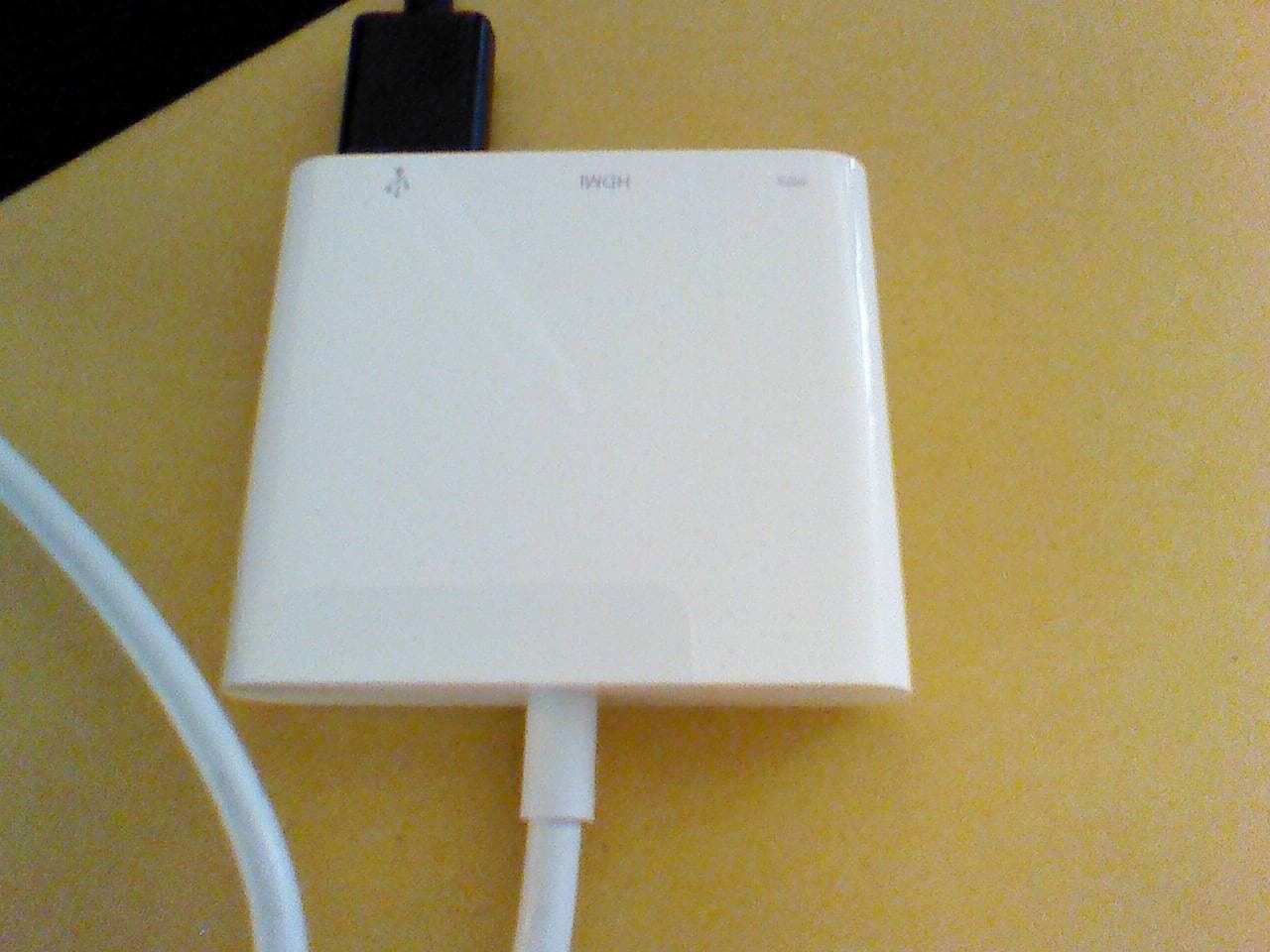
Apple USB-C Digital AV Multiport Adapter
apple.comPro: Reliable display output with Apple hardware
Con: Higher cost than generic adapters
Best fit when you need HDMI plus charging in one compact adapter.
Procreate
apps.apple.comPro: One-time purchase
Con: iPad-only
Clip Studio Paint
apps.apple.comPro: Deep comics, vector, ruler, and animation toolset
Con: iPad plan model is less simple than Procreate
Related buying picks
More in this collectionBuyer guide
Best Bluetooth Shortcut Remotes for Procreate and iPad Drawing (2026)
The right shortcut remote reduces repetitive hand movement, but only if it behaves like a keyboard and supports reliable mapping.
Comparison
Procreate Dreams in 2026: Strengths, Weak Points, Alternatives
A practical 2026 review of Procreate Dreams 2: strengths, weak points, and the best iPad animation alternatives by use case, with workflow tips.
Buyer guide
Best iPad app for tattoo design in 2026
Procreate is the best default iPad app for tattoo design because it is fast for sketching, flash, reference layers, and client revisions; Clip Studio Paint is the upgrade path for rulers, vectors, comics, and studio-style depth.
Comparison
Procreate vs Clip Studio Paint on iPad in 2026
Procreate is the low-friction iPad art app for most beginners and solo illustrators; Clip Studio Paint is better when comics, vectors, rulers, animation, or desktop handoff matter more than simplicity.