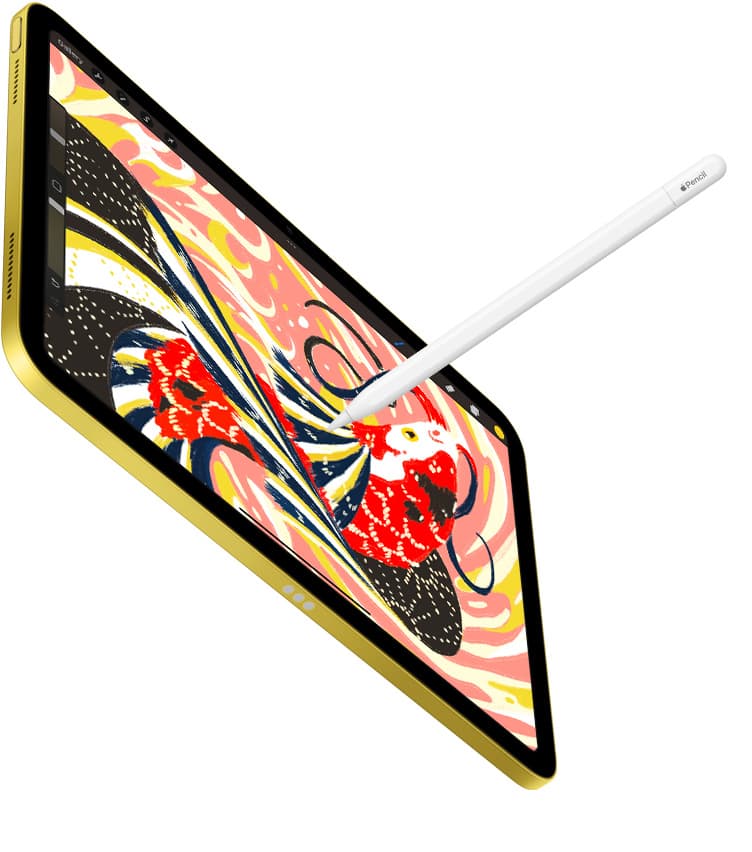
If your primary goal on the iPad is sprite design, retro game assets, or low-resolution canvas creation, skip general drawing programs and choose a dedicated tool like Pixquare, Pixel Studio, or Pixaki 4 Pro [1], [2], [3]. General illustration applications like Procreate are built for high-resolution freehand sketching, painting, and blending, which introduces unnecessary friction when you want precise pixel placement [5]. Artists who only need a single canvas every few months can keep Procreate if they already own it, but anyone doing frequent sprite work or frame animation should download a purpose-built pixel editor [1], [5].
Free-to-download options for new pixel artists
Starting with pixel art on an iPad does not require an immediate upfront purchase, as multiple dedicated editors offer free downloads on the App Store [1], [2]. Two prominent options in the Graphics and Design category are Pixquare and Pixel Studio [1], [2]. Son Nguyen publishes Pixquare, which is listed as a free download and holds an average rating of 4.8 out of 5 across 3,195 App Store ratings [1]. The App Store listing positions Pixquare as a pixel art editor recommended for pixel artists, game developers, and creators [1]. Because it is a free download, you can install it on your iPad immediately to test its canvas interaction before committing to any locked features or upgrades [1].
Pixel Studio, created by Farida Yarullina, is another free download option designed directly for pixel art creation [2]. The App Store listing notes that Pixel Studio is a pixel art editor for artists and game developers, carrying a 4.7 out of 5 rating from 6,002 user reviews [2]. Having over six thousand recorded ratings makes it one of the most widely reviewed dedicated pixel editors available on iPadOS [2]. Both Pixquare and Pixel Studio present straightforward entry points for creators who want to explore pixel grids without paying upfront fees [1], [2].
If you are testing the medium to see if low-resolution sprite work fits your creative routine, download Pixquare or Pixel Studio first [1], [2]. Skipping paid software at the start lets you confirm whether you prefer stylus control or touch navigation for grid-based art without spending money on tools you might abandon [1], [2].
Dedicated paid and production tools: Pixaki 4 Pro and Resprite
For artists seeking apps presented as professional production software, Pixaki 4 Pro and Resprite represent two different commercial approaches [3], [4]. Pixaki 4 Pro by Rizer Creative Ltd is sold as a paid application in the App Store Graphics and Design category, maintaining a 4.1 out of 5 rating across 135 customer reviews [3]. The official listing claims Pixaki is the best pixel art app for iPad, focusing entirely on tablet-first pixel production [3]. Because Pixaki 4 Pro requires an upfront purchase rather than offering an open free tier, it appeals primarily to buyers who prefer paying once for professional utility without dealing with free download tier limitations [3].
Resprite offers an alternative path for creators who want a dedicated studio layout [4]. Published by Jiaxing Fengeon Software co., ltd., Resprite: pixel art studio is categorized under Graphics and Design as a free download [4]. It carries a 4.7 out of 5 rating based on 1,434 user ratings [4]. The official App Store description labels Resprite as a professional pixel art editor, putting it in direct competition with Pixquare and Pixaki 4 Pro [1], [3], [4].
Choosing between these production tools comes down to your preferred acquisition model and rating volume [3], [4]. Buyers who want an upfront paid application with an established history on iPad can choose Pixaki 4 Pro, while those who prefer sampling a professional studio layout without an upfront charge should install Resprite or Pixquare [1], [3], [4].
Why general illustration tools like Procreate require workarounds
Procreate by Savage Interactive Pty Ltd is a paid application and stands as one of the most popular creative tools on iPad, carrying a 4.4 out of 5 rating from 50,703 ratings [5]. The listing notes that Procreate is the leading creative application made for iPad, aimed at creative professionals and aspiring artists [5]. However, Procreate is built fundamentally for digital painting, inking, and multi-layered raster illustration rather than indexed color grids or low-resolution sprite manipulation [5].
Attempting to create pixel art inside Procreate requires several manual compromises [5], [6]. Because Procreate does not feature dedicated pixel drawing modes or native sprite-sheet assembly, artists must manually adjust standard brushes down to single-pixel dimensions, turn off interpolation during scaling, and disable antialiasing on selection tools [5]. Furthermore, Procreate ties canvas dimensions and layer limits directly to device memory, meaning very small canvases behave identically to standard painting canvases under iPadOS memory rules [6].
Keep Procreate if you already own it and only want to make an occasional pixel avatar using a custom single-pixel hard round brush [5]. Skip Procreate if you are buying an app specifically for pixel art or sprite animation, because dedicated editors like Pixquare, Pixel Studio, and Pixaki 4 Pro provide native tools built around pixel grids right out of the box [1], [2], [3], [5].
Matching your pixel art app to iPad hardware and Apple Pencil features
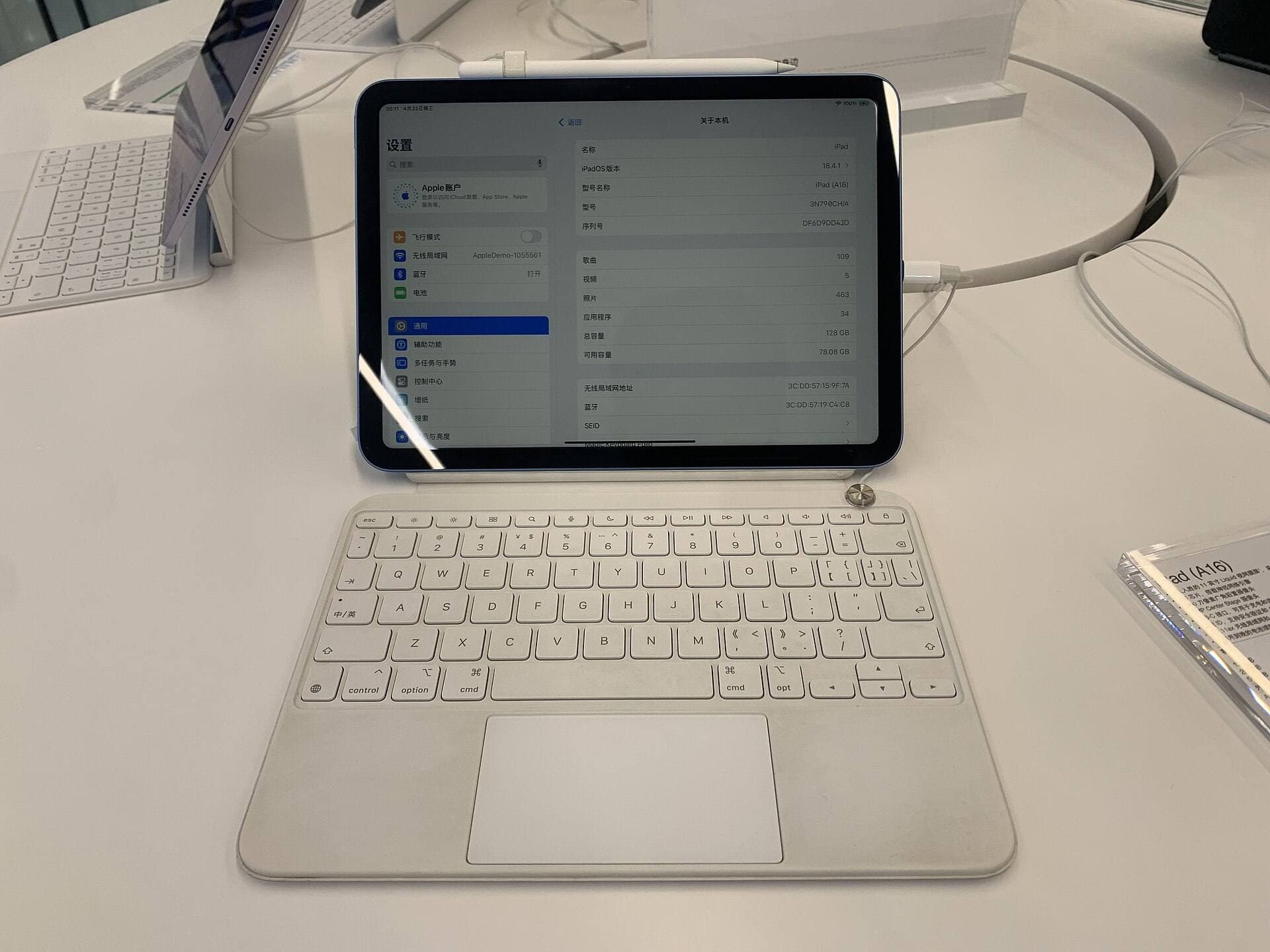
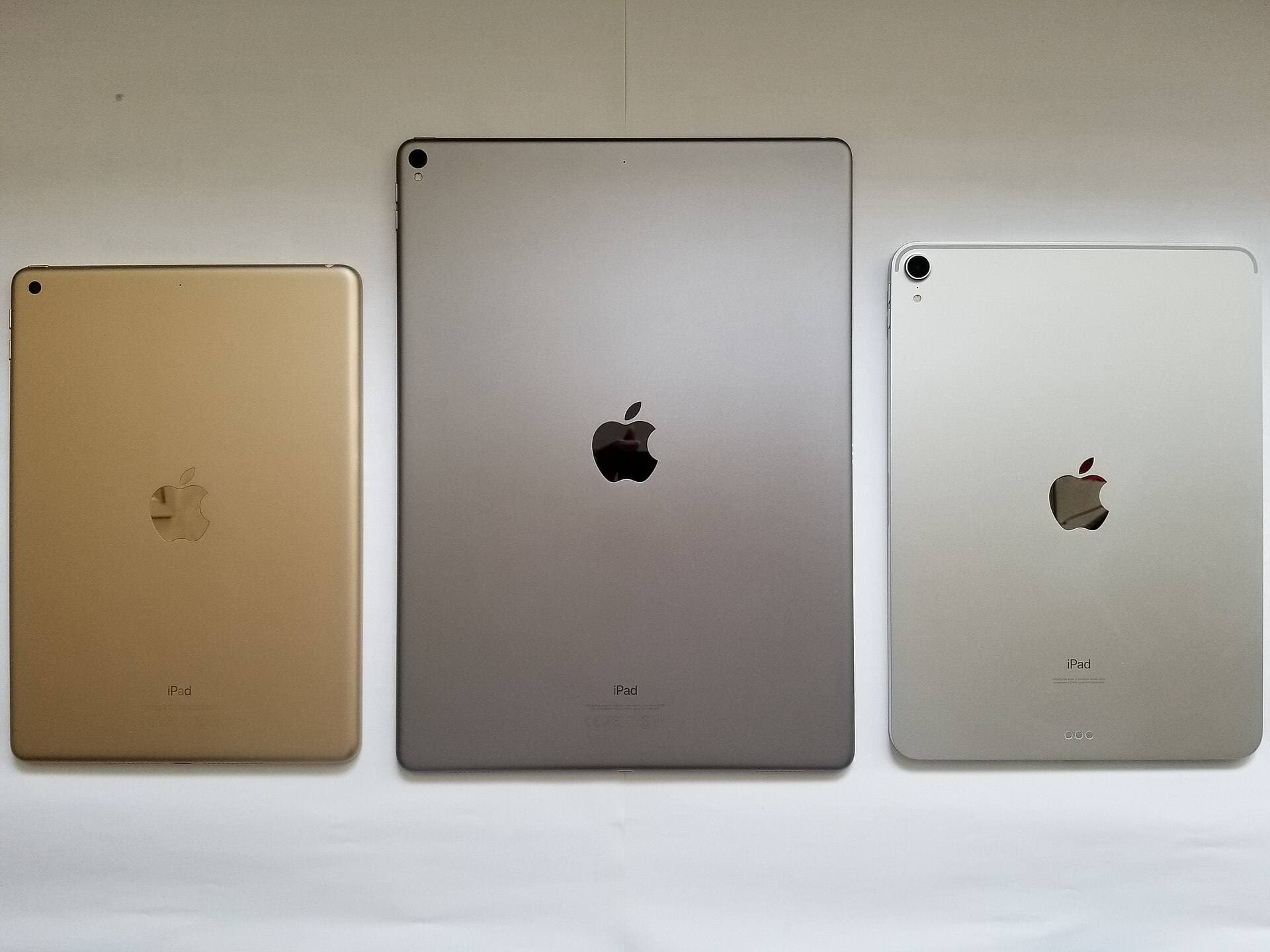
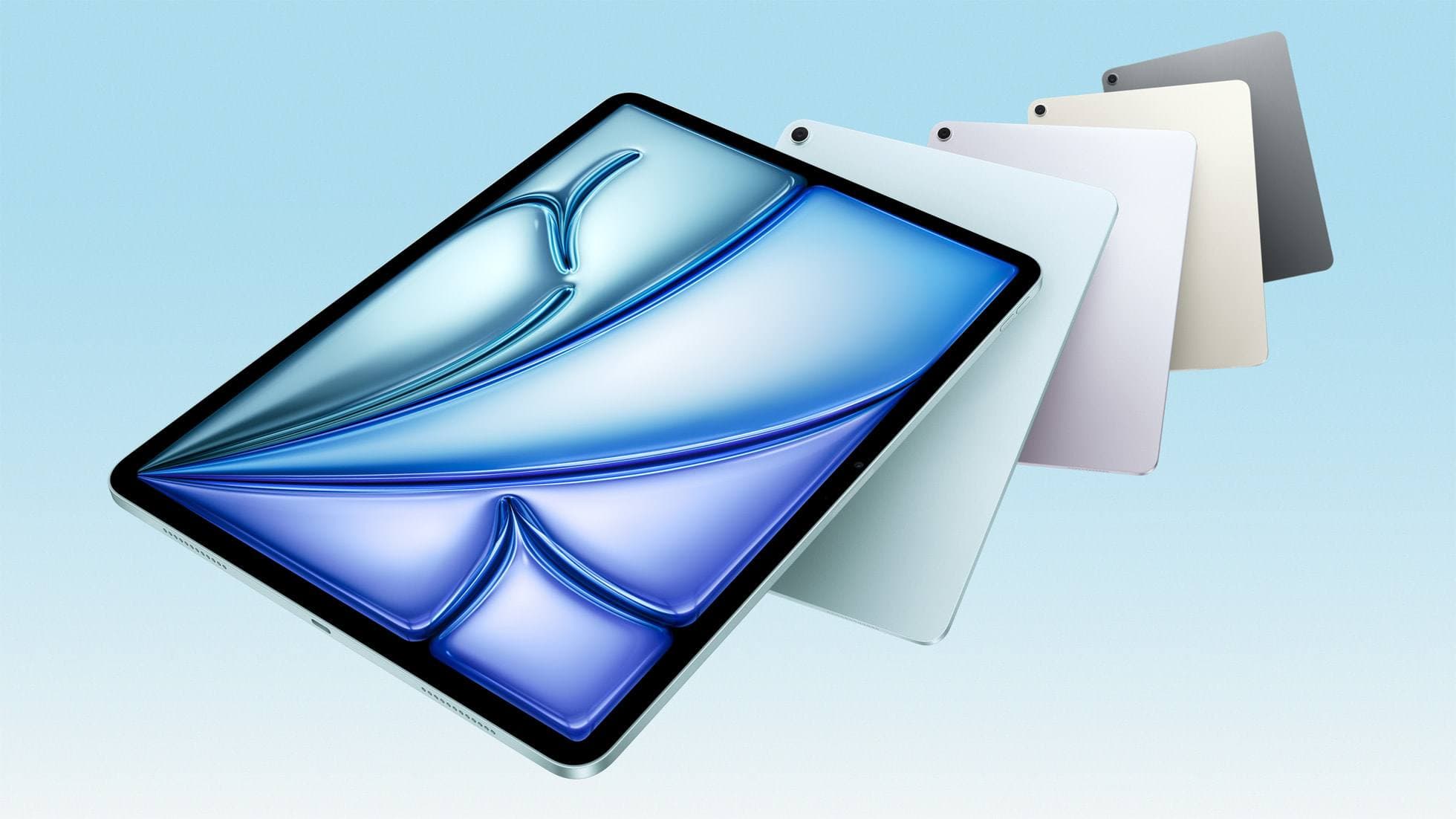
Running dedicated pixel art applications does not require the most expensive hardware configuration, but your choice of iPad and stylus influences how you navigate the workspace [7], [8], [9]. Apple offers multiple tablet tiers, including the iPad Air with the M4 chip, which pairs with the Apple Pencil Pro and the Apple Pencil USB-C [8], [9]. The iPad Air M4 provides a balance of modern hardware headroom and accessory compatibility without stepping into Pro-tier pricing [9].
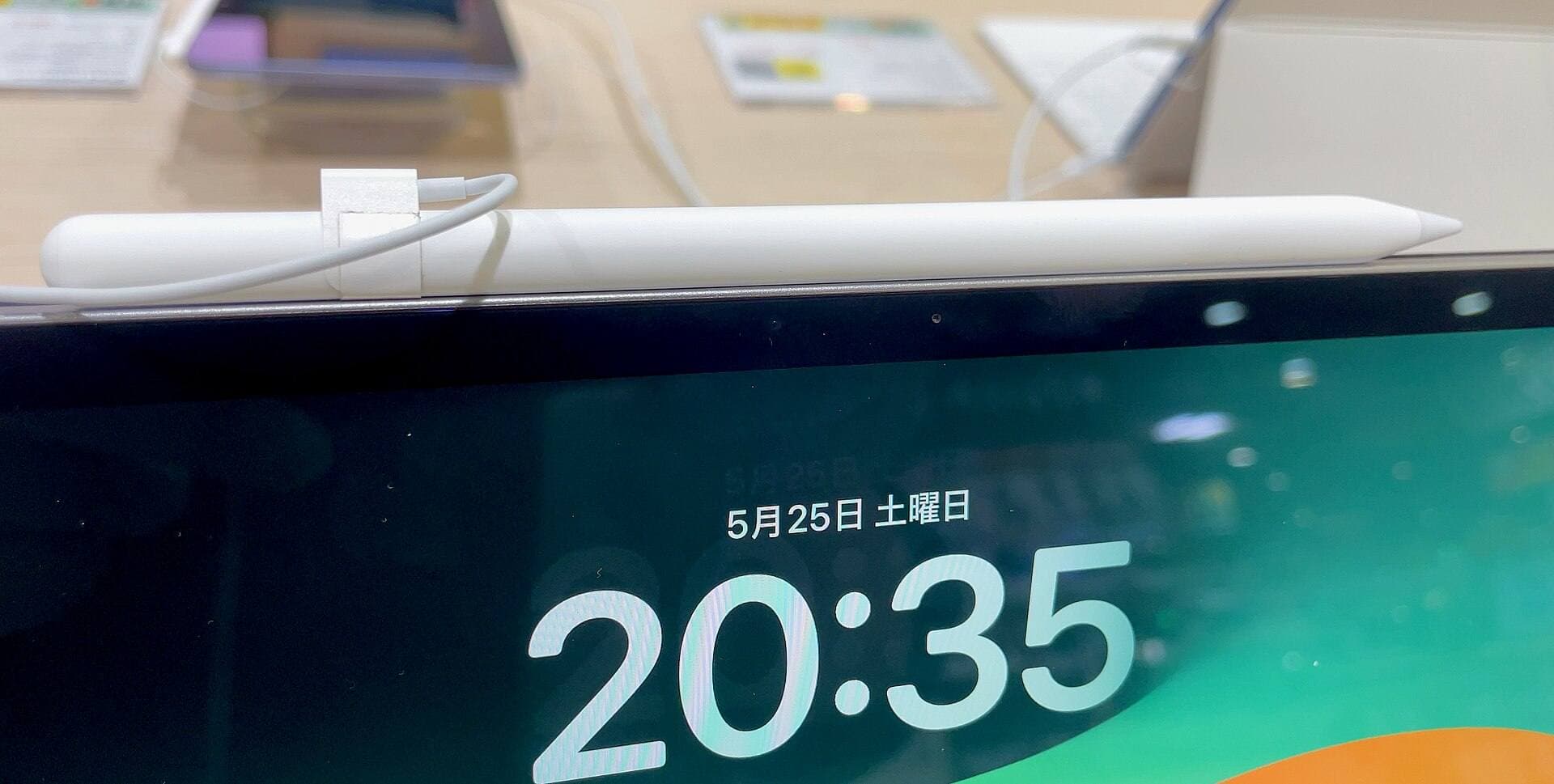
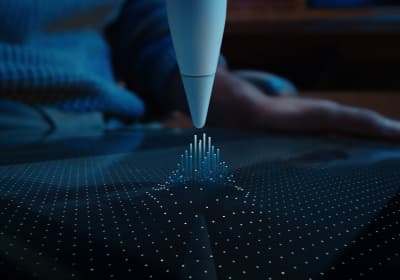
When choosing an Apple Pencil, consider which physical features matter for your grid work [7], [8]. The Apple Pencil Pro supports pressure sensitivity, tilt, hover, double tap, squeeze, barrel roll, and haptic feedback [7]. The Apple Pencil USB-C supports tilt and hover on compatible iPads, but it does not support pressure sensitivity, double tap, squeeze, barrel roll, or haptic feedback [7].
For pure pixel art, pressure sensitivity is rarely necessary because pixels are binary blocks of color rather than pressure-modulated strokes [7]. However, features like hover and double tap can assist when selecting colors or previewing your cursor over an individual pixel grid cell [7]. Apple Pencil hover allows compatible iPad models to detect the stylus tip above the display screen before making contact [7]. Make sure to check Apple's pairing guidelines, because the Apple Pencil Pro only works with specific newer hardware like the M4 iPad models, while the Apple Pencil USB-C pairs broadly across USB-C iPad models [8].
Bottom line
Do not buy Procreate solely for pixel art when dedicated apps provide native toolsets designed for low-resolution graphics [1], [3], [5]. If you want a free download to start making sprites immediately, install Pixquare or Pixel Studio from the App Store [1], [2]. If you want a paid, focused iPad app built exclusively for pixel creation, buy Pixaki 4 Pro [3]. For hardware, an iPad Air M4 paired with a compatible Apple Pencil delivers plenty of capability and accessory support for any pixel art workflow [7], [8], [9].
Sources
[1] https://apps.apple.com/us/app/id1659428179 [2] https://apps.apple.com/us/app/id1404203859 [3] https://apps.apple.com/us/app/id1447665380 [4] https://apps.apple.com/us/app/id1662335989 [5] https://apps.apple.com/us/app/id425073498 [6] https://help.procreate.com/articles/zlexav-ipad-compatibility [7] https://www.apple.com/apple-pencil/ [8] https://support.apple.com/en-us/108937 [9] https://www.apple.com/ipad/compare/
Recommended gear
Procreate
apps.apple.comPro: One-time purchase
Con: iPad-only
Apple Pencil Pro
amazon.comThe best Apple stylus for serious digital art workflows. Expensive, but the control upgrades are real.
Pro: Best brush-control and hover workflow
Con: Highest price in the lineup
Works only with newer iPad models. Check compatibility.
iPad Air (M4)
apple.comThe clean current Air recommendation for most serious hobby artists. Stronger buy logic than old-stock M3 when pricing is close.
Pro: Best current balance of price, headroom, and Pencil support
Con: Still 60Hz
Current Air lineup. Choose size, storage, and keyboard path before checkout.
Apple Pencil (USB-C)
amazon.comA practical low-cost Apple stylus with broad compatibility, but limited for advanced art control.
Pro: Lowest official Apple Pencil cost
Con: No pressure sensitivity for brush work
Compatible with many recent iPads. No pressure support.
Apple Pencil (2nd generation)
amazon.comStill a strong stylus on compatible iPads. Good pressure control, but compatibility is the main trap.
Pro: Pressure support without Pro pricing
Con: Not compatible with newest Pro-only iPads
Only for iPads that support 2nd generation pairing.
Related buying picks
More in this collectionBuyer guide
Best coloring app for iPad kids: guided pages or open digital canvas
Choose Lake for structured coloring books or step up to Procreate when older kids outgrow premade templates.
Buyer guide
Best iPad app for watercolor painting: top choices and stylus pairings
Pick the right iPad watercolor app based on pricing model, live brush needs, and Apple Pencil hardware compatibility.
Buyer guide
Best iPad app for oil painting: Top choices compared
Compare Procreate, Adobe Fresco, and other leading iPad apps to choose the best digital oil painting workflow for your stylus and budget.
Buyer guide
Best iPad app for comics: Clip Studio Paint vs Procreate and alternatives
Clip Studio Paint is the best overall iPad app for multi-page comics and paneling, while Procreate remains the top one-time purchase for standalone illustration.