





If you're buying a tablet primarily for pixel art, buy the iPad (A16) [1]. Pixel art relies on precise placement across low-resolution grids, so you don't need workstation chips or high-end graphics processing to build sprites, tilesets, or animations [1], [4]. You should skip the expensive iPad Pro (M5) because high-refresh display hardware and extreme chip performance won't change your pixel drafting results [1]. If you want Apple Pencil Pro features like squeeze shortcuts and haptics, choose the iPad Air (M4) instead [1], [2]. If you want a pocketable digital sketchbook for quick sprite edits while traveling, pick the iPad mini (A17 Pro) [1].
Why pixel art changes tablet hardware priorities
When you create standard digital paintings, your device handles large multi-layered files with dynamic blending brushes [4], [5]. In pixel art, your canvas resolution is usually compact, often ranging from 16 by 16 pixels up to standard retro resolutions like 320 by 240 pixels. Because pixel counts stay small, memory ceilings and layer restrictions are rarely an obstacle on modern iPads [4]. Procreate connects canvas dimensions directly to system memory when allocating maximum layers, meaning lower canvas dimensions naturally unlock dozens or hundreds of working layers even on entry hardware [4].
Processing power is similarly less demanding for pixel work than for high-resolution concept art. Apple equips the standard iPad with the A16 chip, which provides plenty of computing headroom to run drawing tools, manage color palettes, and handle sprite sheets [1]. Paying extra for M-series processing power does not make your pixel grid snappier or change how square pixels snap into place [1]. Unless you plan to combine your pixel art with massive 4K background illustrations or digital painting projects in Procreate, an entry-level iPad covers your technical needs [4], [5].
Apple Pencil features that matter for grid drawing
Traditional digital painting relies heavily on pressure sensitivity to vary brush opacity and line weight smoothly [2], [6]. In pixel art, however, pressure sensitivity is often disabled because artists need uniform single-pixel placement with zero opacity falloff. You want every stylus tap to deposit full, opaque color directly into your chosen grid coordinate. This reality shifts your stylus requirements away from pressure dynamics and toward physical input precision and quick tool selection [2].
Apple Pencil Pro introduces squeeze detection, haptic feedback, and barrel roll [2]. For pixel artists, the squeeze sensor and haptic response provide quick access to palette pickers, eraser swaps, or undo actions right from your grip [2]. The Apple Pencil Pro only works with select models, including the iPad Air (M4) and iPad mini (A17 Pro), while the iPad (A16) uses standard Apple Pencil options that exclude those squeeze shortcuts [1], [3]. If your workflow depends on hardware-level stylus toggles, pairing the iPad Air (M4) with the Apple Pencil Pro gives you that shortcut integration [1], [2], [3]. If you don't mind tapping on-screen menus or using touch gestures, the standard Apple Pencil paired with the iPad (A16) provides exact tip tracking at a lower total kit cost [1], [2], [3].
Choosing between the iPad (A16), iPad mini, and iPad Air
Choosing the right iPad for pixel art comes down to screen area, stylus compatibility, and how you hold the device. The iPad (A16) provides an expansive screen that gives you ample room for floating toolbars, reference images, and palette docks alongside your grid [1]. For most artists setting up at a desk or working on the couch, this standard display strikes a practical balance between drawing space and overall affordability [1]. It is the easiest recommendation for beginners and indie game developers who want a dedicated touchscreen interface without paying for premium extras [1].
The iPad mini (A17 Pro) offers a distinctly compact form factor that appeals to artists who travel or sketch during commutes [1]. With its smaller display, your active drawing area shrinks, which means you will zoom and pan across your canvas more frequently [1]. However, the iPad mini (A17 Pro) supports the Apple Pencil Pro, giving you squeeze controls and haptics in a device that fits easily into one hand [1], [2], [3]. You should buy the iPad mini if travel portability is your top priority, but skip it if you prefer resting your wrist on the glass while working on larger sprite sheets [1].
The iPad Air (M4) bridges the gap by offering full Apple Pencil Pro support on a larger display format [1], [3]. Apple builds the iPad Air with the M4 chip, providing extended headroom if you switch between pixel art, layered vector assets, and video animation [1], [4]. You should buy the iPad Air (M4) if you know your creative interests extend into heavy raster illustration where Apple Pencil Pro features and high canvas layer limits matter [1], [2], [4]. You should skip it if your sole focus is making pixel art sprites, because the extra hardware power will remain largely unused [1], [4].
Traditional screenless pen tablets versus touch displays
Before buying an iPad, it's worth evaluating whether a pen tablet like a Wacom Intuos better fits your current desktop pipeline [6]. Dedicated pen tablets plug directly into Mac or PC computers, operating as digitizers without built-in screens [6]. Many veteran pixel artists prefer desktop setups because specialized PC software provides deep keyboard shortcut integration and tilemap export tools. If you already work primarily in desktop game engines, a traditional pen tablet lets you draw with your existing monitors and keyboard shortcuts [6].
However, direct-touch tablets like the iPad provide an immediate tactile link between your hand and the grid [1]. Tapping pixels directly on the glass can feel more natural than coordinating hand movements on a blank desk tablet while staring up at a monitor [1], [6]. Additionally, touch interfaces let you pinch to zoom instantly and rotate canvases using simple multi-touch finger gestures [5]. If you want an all-in-one portable workstation where you can sketch sprites anywhere without sitting at a computer desk, the iPad remains the more versatile option [1], [5].
Bottom line
For most people looking to draw sprites, icons, and retro assets, the iPad (A16) is the best buy [1]. Pixel art does not push modern hardware limits, making the baseline model fully capable of running art apps and handling extensive layers on small grid sizes [1], [4]. You should buy the iPad (A16) if you want a reliable touch screen for pixel work without paying for power you won't use [1].
Upgrade to the iPad Air (M4) only if you want the squeeze shortcuts and haptics of the Apple Pencil Pro, or if you regularly create complex non-pixel illustrations alongside your sprite projects [1], [2], [3]. Choose the iPad mini (A17 Pro) if portability matters most and you want a pocketable drawing device [1]. Skip the iPad Pro (M5) entirely for pixel art, as its high-refresh display and high price don't provide practical advantages for grid-based drawing [1].
Sources
[1] https://www.apple.com/ipad/compare/ [2] https://www.apple.com/apple-pencil/ [3] https://support.apple.com/en-us/108937 [4] https://help.procreate.com/articles/zlexav-ipad-compatibility [5] https://apps.apple.com/us/app/procreate/id425073498 [6] https://www.wacom.com/en-us/products/pen-tablets
Recommended gear
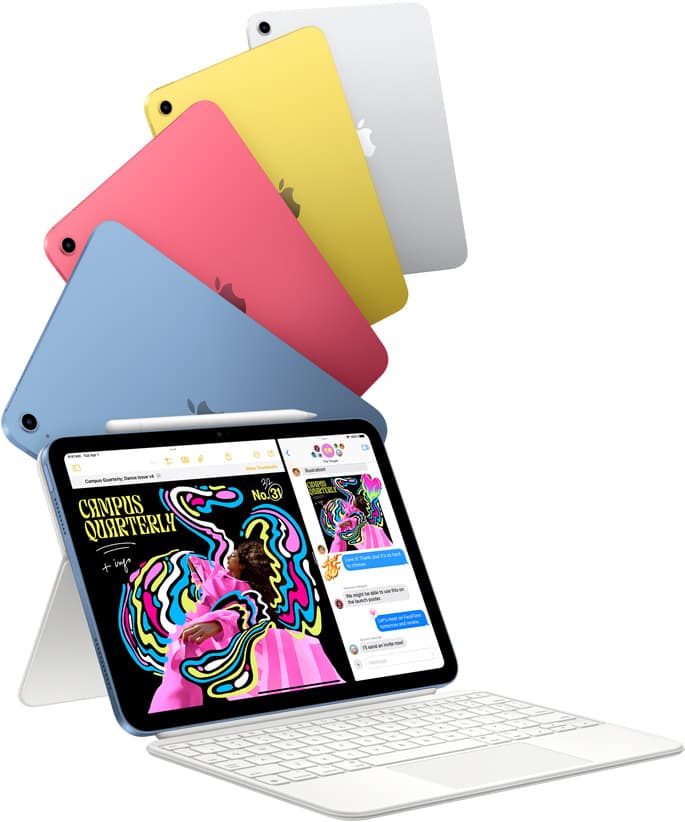
iPad (A16, 11th gen)
amazon.comThe best entry iPad for most artists on a budget. It is not premium, but it is very hard to beat on value.
Pro: Best value iPad right now
Con: No ProMotion display
Search opens with the exact model keywords. Verify size and storage before checkout.

iPad Air (M4)
apple.comThe clean current Air recommendation for most serious hobby artists. Stronger buy logic than old-stock M3 when pricing is close.
Pro: Best current balance of price, headroom, and Pencil support
Con: Still 60Hz
Current Air lineup. Choose size, storage, and keyboard path before checkout.
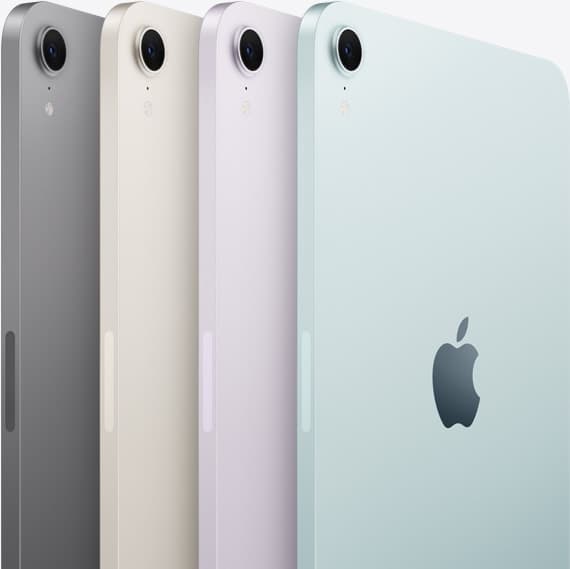
iPad mini (A17 Pro)
amazon.comThe most portable real iPad for drawing. It wins on mobility and loses on workspace.
Pro: Most portable drawing iPad
Con: Small canvas for detailed work
Search opens with iPad mini A17 Pro terms. Verify model number before buying.

Apple Pencil Pro
amazon.comThe best Apple stylus for serious digital art workflows. Expensive, but the control upgrades are real.
Pro: Best brush-control and hover workflow
Con: Highest price in the lineup
Works only with newer iPad models. Check compatibility.
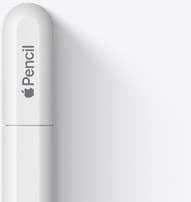
Apple Pencil (USB-C)
amazon.comA practical low-cost Apple stylus with broad compatibility, but limited for advanced art control.
Pro: Lowest official Apple Pencil cost
Con: No pressure sensitivity for brush work
Compatible with many recent iPads. No pressure support.
Related buying picks
More in this collectionComparison
iPad vs Samsung tablet for drawing: which setup to choose
Choose an iPad if your art workflow relies on Procreate and Apple Pencil tools, and pick the iPad Air for the best balance of features.
Buyer guide
Is 8GB RAM enough for Procreate?
For most digital illustrators, 8GB of RAM provides ample layer headroom in Procreate across standard print and web canvas sizes.
Buyer guide
Best iPad for logo design
Choose the iPad Air with the M4 chip for the best mix of vector precision, Apple Pencil Pro support, and balanced pricing.
Buyer guide
Best iPad for digital painting: Which model should you buy?
Choose the right iPad for digital painting based on screen space, Apple Pencil features, and layer capacity.