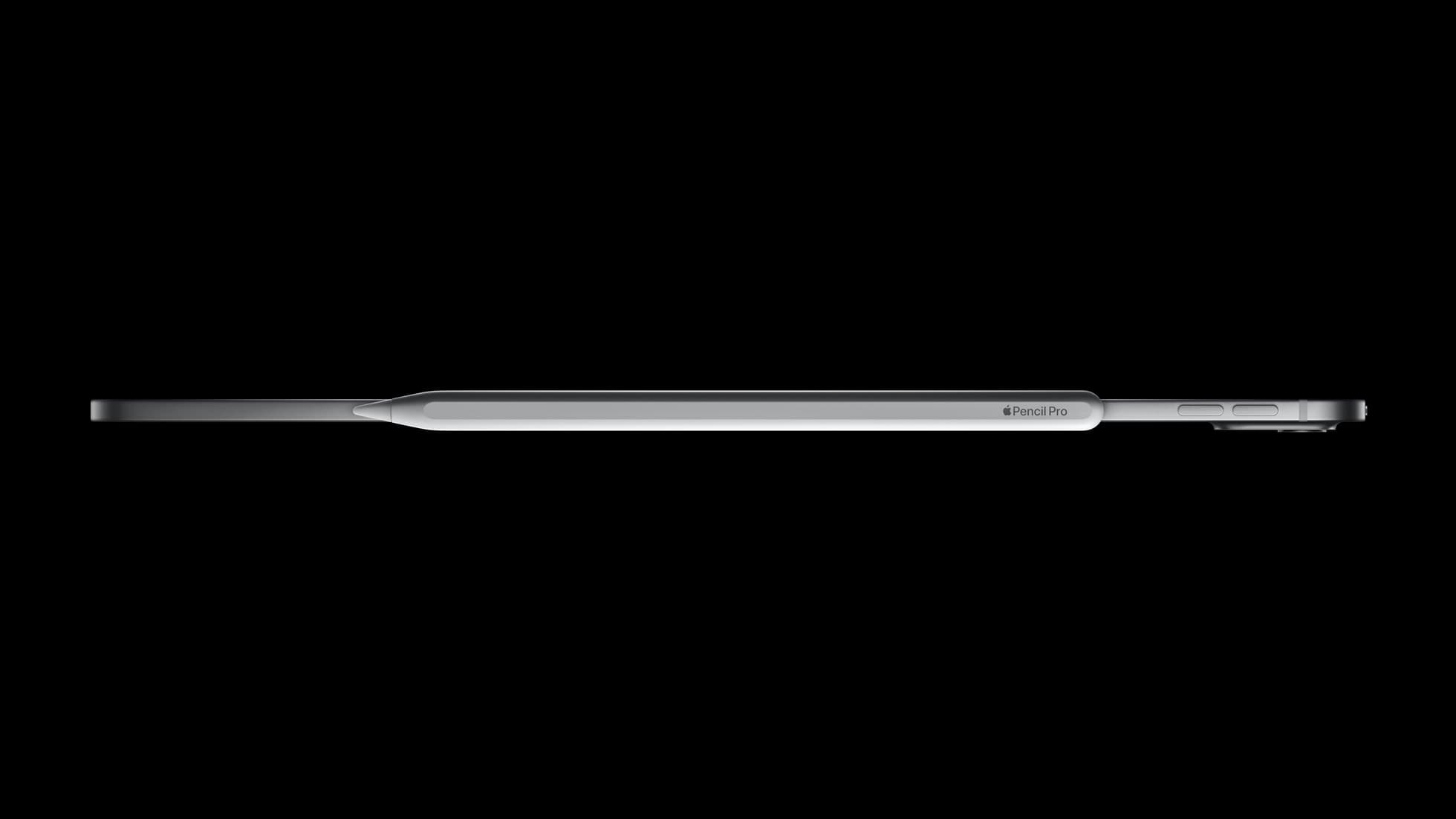
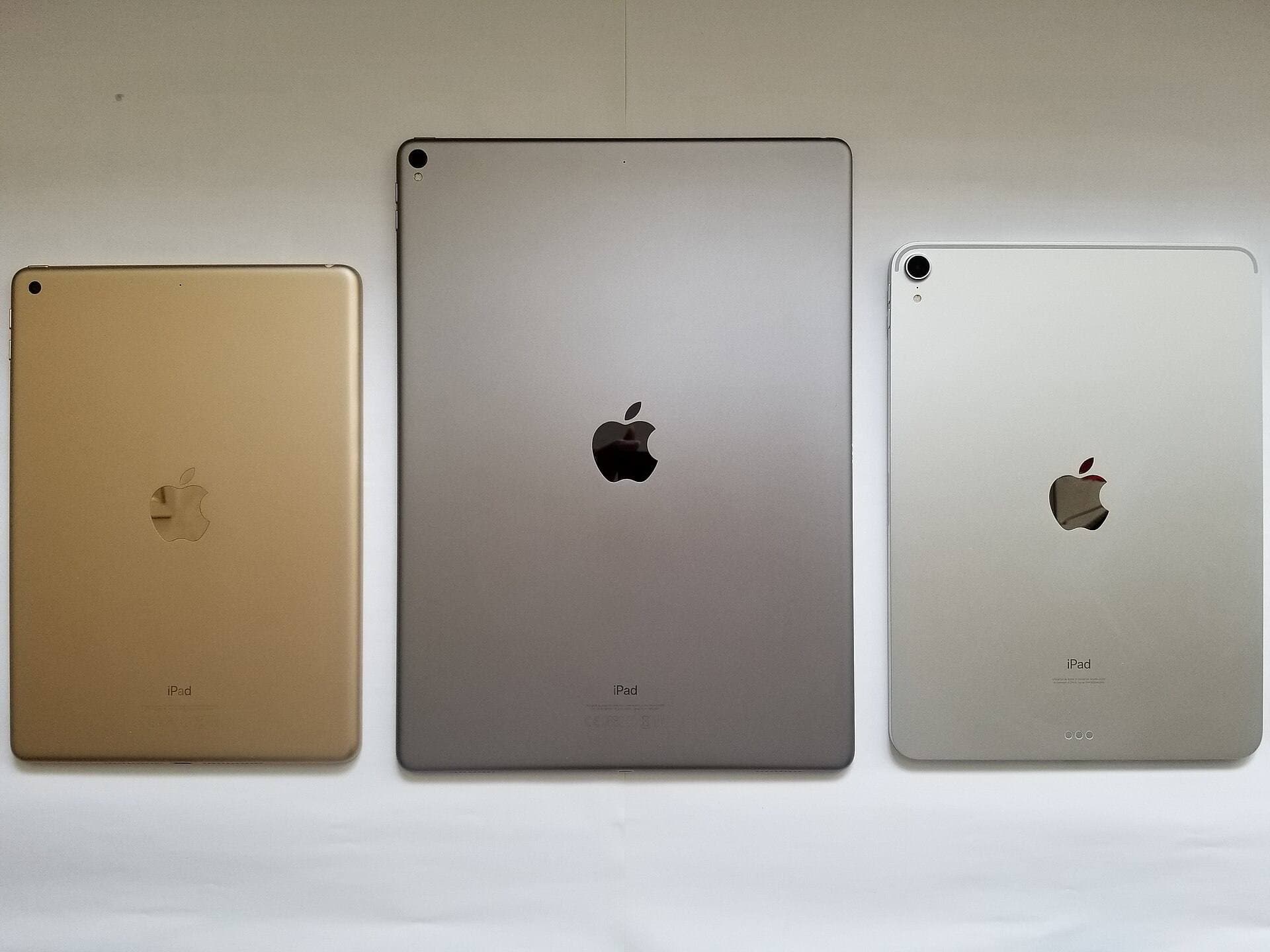
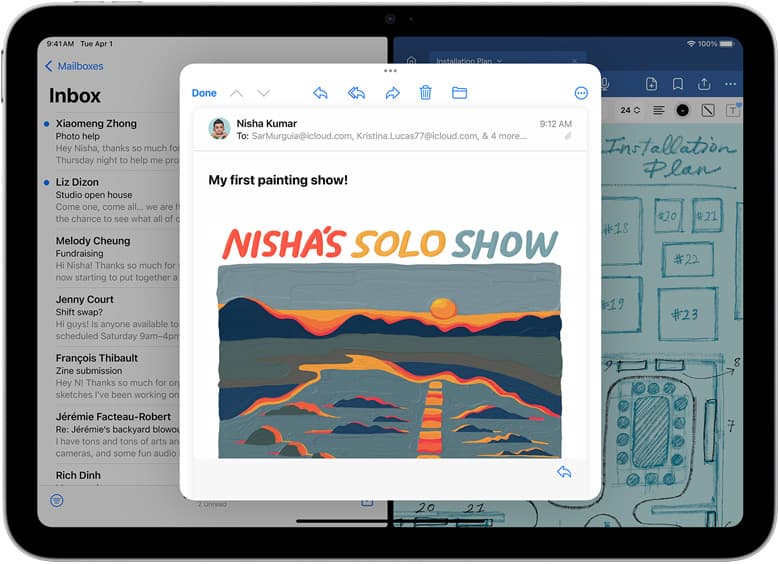
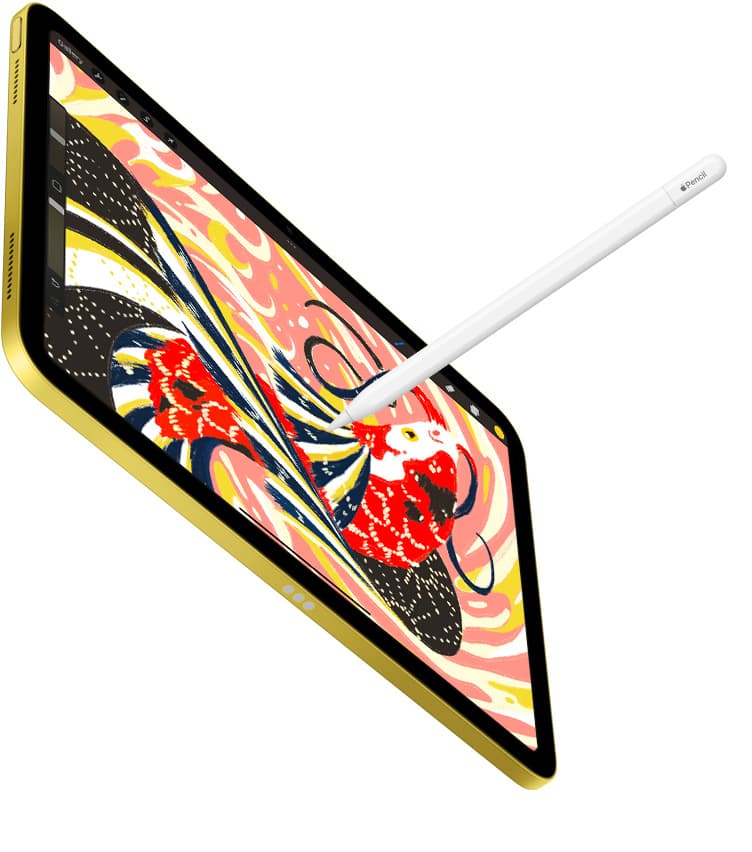
Buying the wrong Pencil is easy because the names are similar and compatibility is strict. Start with your exact iPad model, then choose features.
Fast decision
- Apple Pencil Pro: Best overall when your iPad supports it and you want the full feature set. Apple positions it as the top tier option. [2]
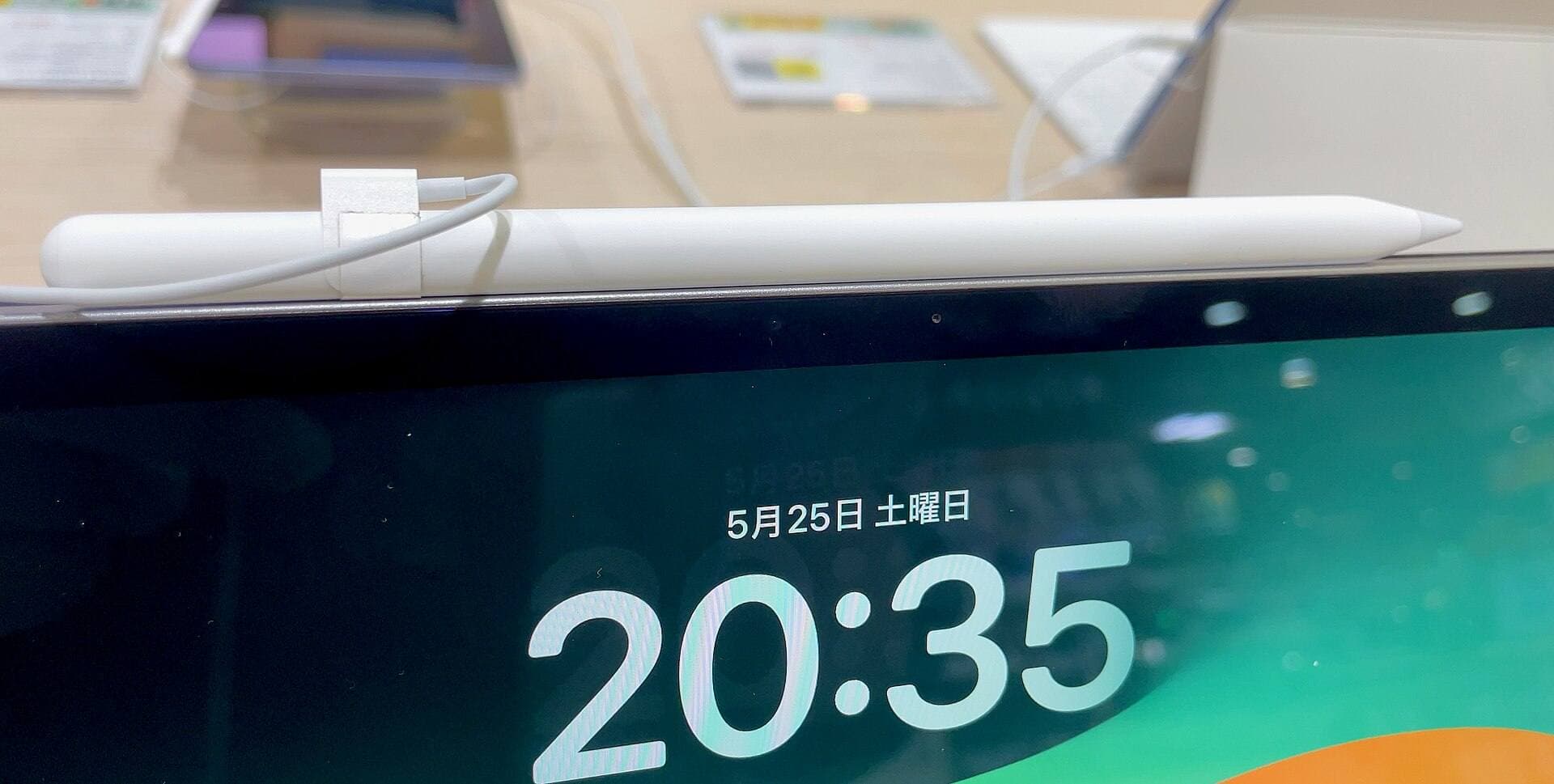
- Apple Pencil USB-C: Lowest-cost official option for notes and basic sketching. Skip it if you need pressure-sensitive brushes. [2]
- Apple Pencil (2nd generation): Solid pick only if your iPad supports it and you want pressure sensitivity with magnetic charging. [2]
If your iPad supports only one of these, the decision is already made. Confirm that first. [1]
Quick comparison
| What matters | Pencil Pro | Pencil (2nd generation) | Pencil (USB-C) |
|---|---|---|---|
| Must match iPad compatibility | Yes [1] | Yes [1] | Yes [1] |
| Pressure sensitivity | Yes [2] | Yes [2] | No [2] |
| Best fit | Drawing, design, heavy Pencil workflows | Drawing and notes on compatible older iPads | Notes, markup, light sketching |
| Charging style | Attaches and charges on supported iPads [2] | Attaches and charges on supported iPads [2] | Charges with USB-C cable [2] |
What actually matters
1) Compatibility
Always verify the official compatibility list first. [1] If your iPad does not support a model, the rest of the comparison is irrelevant.
Quick way to identify your exact iPad:
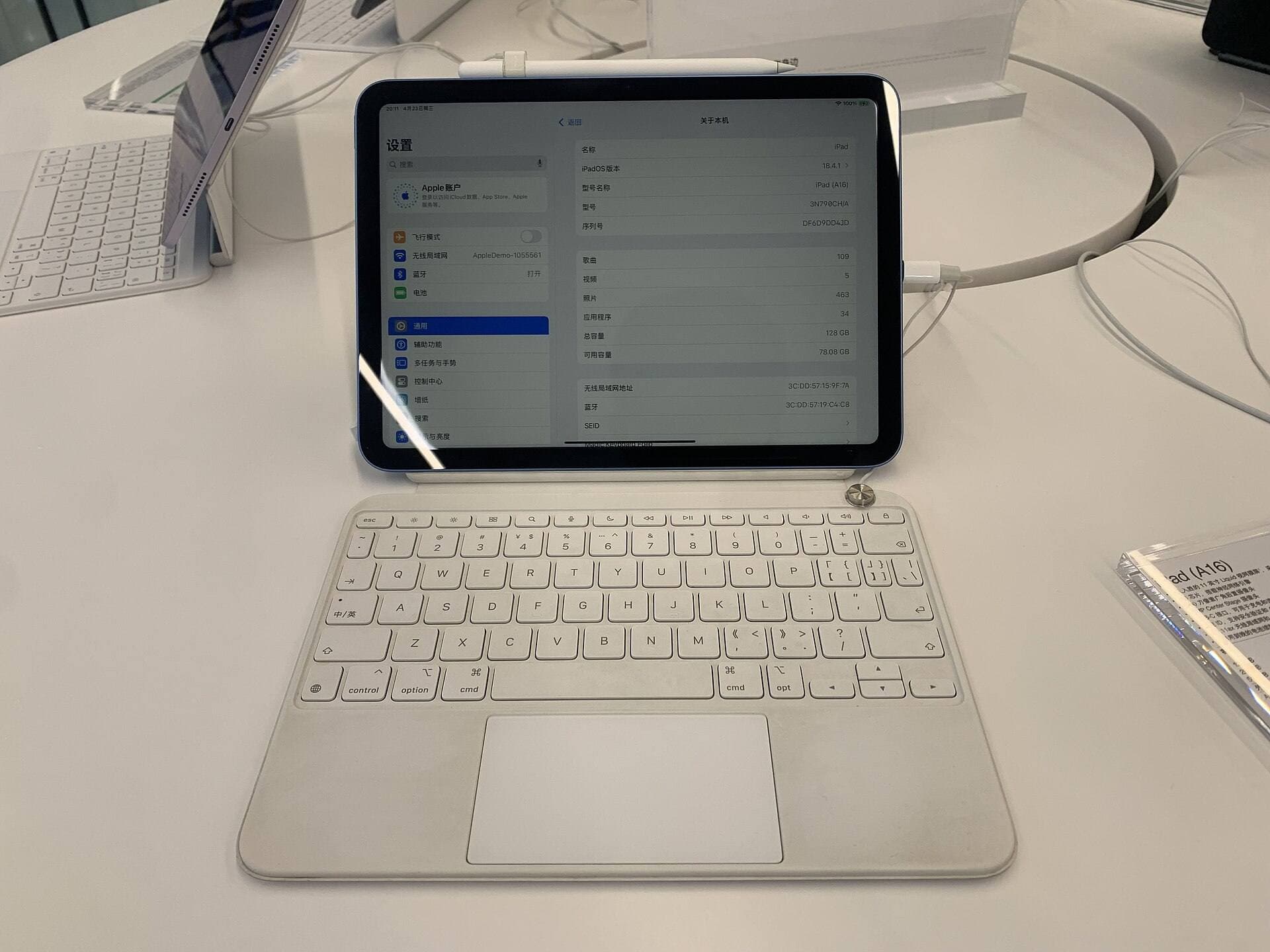
- On iPad: Settings > General > About
- Note the Model Name (and if needed, the Model Number)
- Match it against Apple’s compatibility table. [1]
Some iPads support more than one Apple Pencil model. If yours does, keep reading and choose based on features and budget.
2) Pressure and workflow feel
If you rely on brush pressure control for art, shading, or line weight, do not buy Apple Pencil (USB-C). It does not support pressure sensitivity. [2]
If your work is mostly:
- Handwritten notes
- PDF markup
- Planning and rough sketches
…then USB-C can be enough, as long as you accept the simpler feel.
3) Charging and daily friction
Charging is where people get annoyed after the purchase.
- Pencil Pro and Pencil (2nd generation) are designed to store and charge when attached to supported iPads. [2]
- Pencil (USB-C) uses a cable for charging. [2]
If you use your Pencil daily, fewer charging steps usually wins.
4) Total cost
Plan for the real spend, the Pencil plus what keeps it running:
- Extra tips (they wear over time)
- A reliable charging setup (especially if you choose USB-C)
Bottom line
- Check compatibility first. [1]
- If pressure sensitivity matters, choose Pencil Pro (best) or Pencil (2nd generation) (only if your iPad supports it). [2]
- If you want the lowest-cost official Pencil for notes and basic sketching, choose Pencil (USB-C). [2]
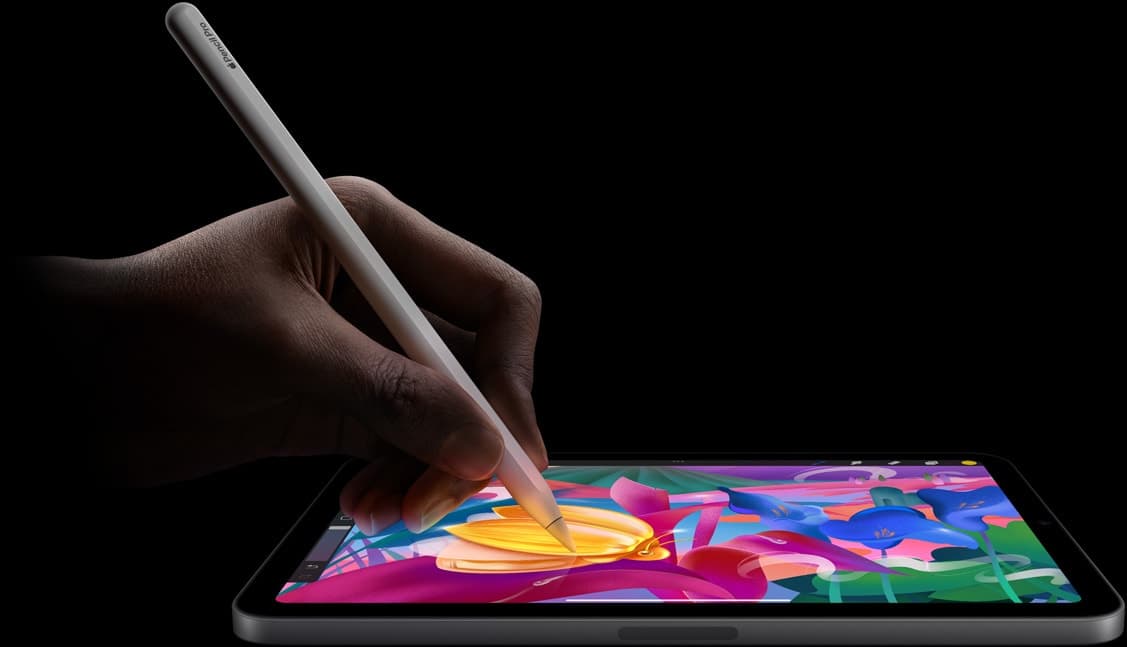
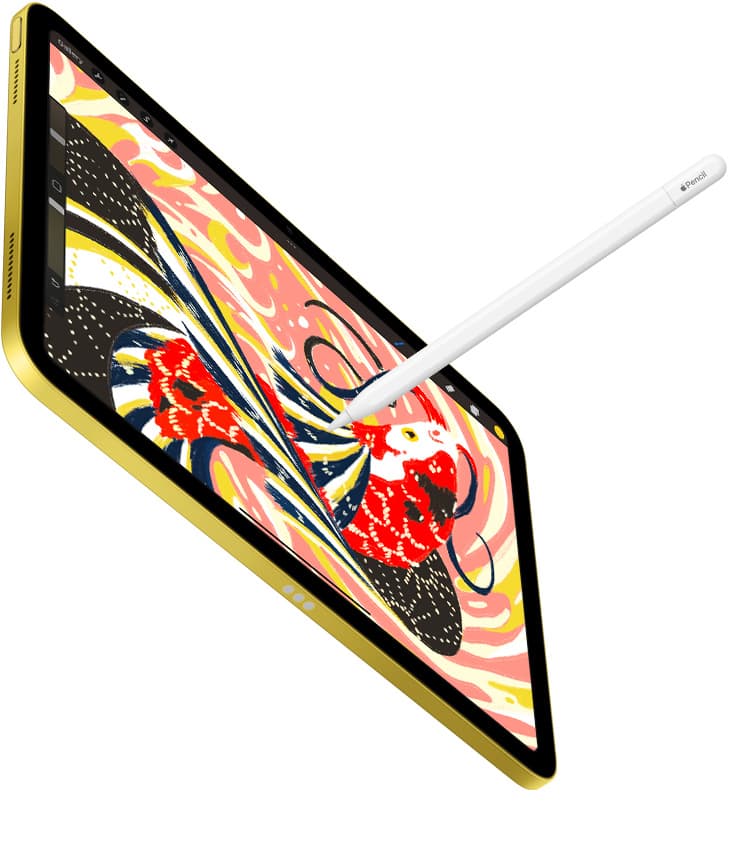
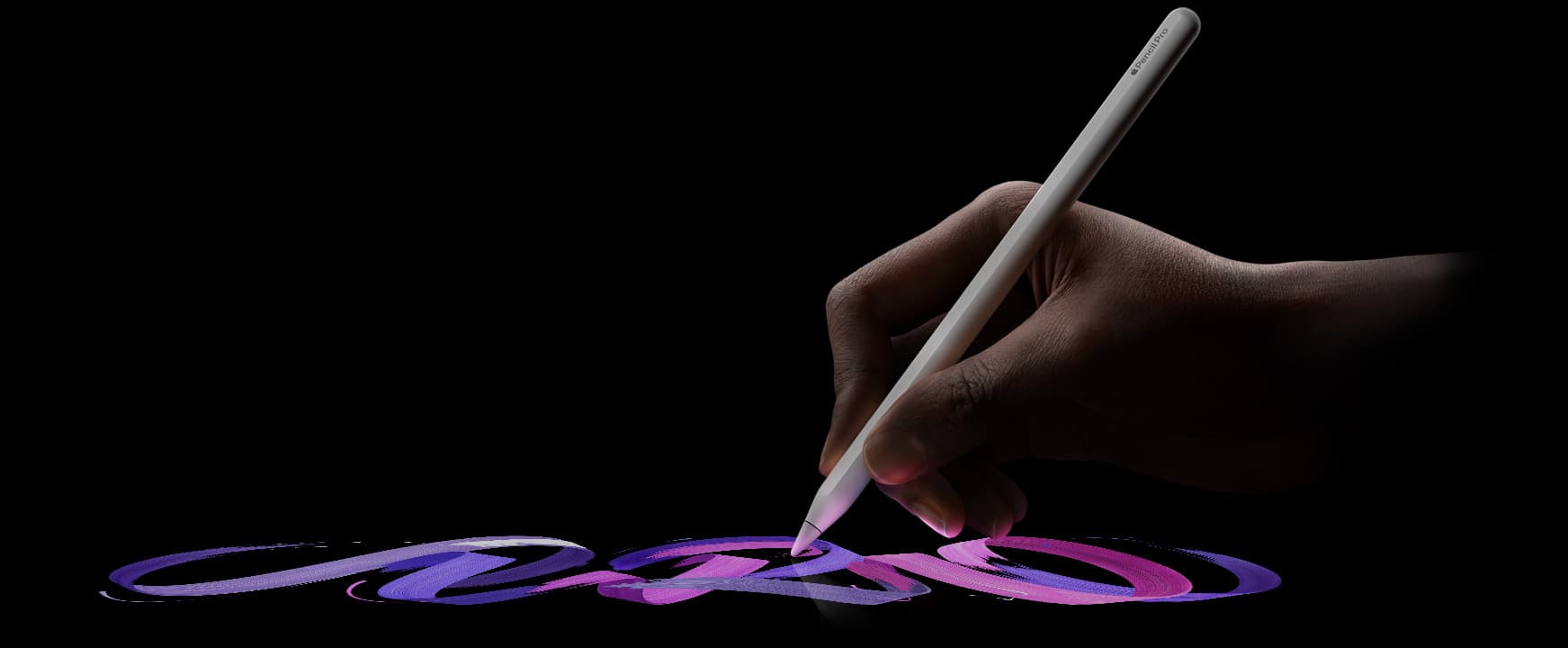
Product visuals
Scenario-based recommendations
For Apple Pencil Pro vs Pencil 2 vs Pencil USB-C (2026 Buyer Guide), choose based on operating context, not abstract feature lists. If you run longer focused sessions, prioritize consistency and reduced interruption. If your workflow is mixed and mobile, prioritize portability and fast setup. For iPad buyers deciding which Apple Pencil model to buy in one pass., the best option is usually the one that minimizes repeated friction across a full week of use, not the one that wins a single benchmark.
Decision checklist
Before selecting one side of this comparison, answer these questions:
- Which option reduces the most frequent bottleneck in your current workflow?
- Which option remains reliable under your real environment constraints?
- Which option keeps upgrade and replacement costs predictable over 3 to 6 months?
- Which option improves output speed without increasing setup complexity?
If one option wins at least three checks, that is your practical choice.
Common misreads in comparisons
Misread 1: treating headline specs as workflow outcomes
A higher spec does not always produce higher output if setup friction rises.
Misread 2: testing only in ideal conditions
Real usage includes noisy environments, limited outlets, and time pressure.
Misread 3: ignoring transition costs
Switching tools or accessories can create hidden retraining and compatibility overhead.
Misread 4: deciding from short trial windows
Use at least 10 to 14 days to capture reliability and fatigue effects.
Validation plan
Run both options through the same test blocks: 45-minute session, export/backup step, and one travel or mobile setup. Measure interruptions, setup time, and hand comfort. Pick the option with lower interruption frequency and better repeatability.
Extra scenario: high-pressure deadline window
For Apple Pencil Pro vs Pencil 2 vs Pencil USB-C (2026 Buyer Guide), keep the lowest-risk path active when deadlines are near: stable setup, no new experimental changes, and one backup route for critical actions. This protects output velocity and reduces failure risk when timing matters most.
Extra scenario: travel or mobile environment
When working outside your main desk, reduce variables. Use your known-good kit, keep cable and power roles fixed, and avoid adding untested components mid-session. This improves consistency and protects session completion rates.
Extra scenario: handoff and collaboration
If your workflow includes sharing files or handing off assets, validate export and sync behavior before the final window. Reliability in handoff steps often matters more than small gains in tool speed.
Extra scenario: maintenance week
Schedule a short maintenance pass each week: verify connections, refresh baselines, and remove dead steps from your setup. Small maintenance habits prevent recurring disruption and preserve long-term workflow quality.
Extra scenario: high-pressure deadline window
For Apple Pencil Pro vs Pencil 2 vs Pencil USB-C (2026 Buyer Guide), keep the lowest-risk path active when deadlines are near: stable setup, no new experimental changes, and one backup route for critical actions. This protects output velocity and reduces failure risk when timing matters most.
Sources
Recommended gear
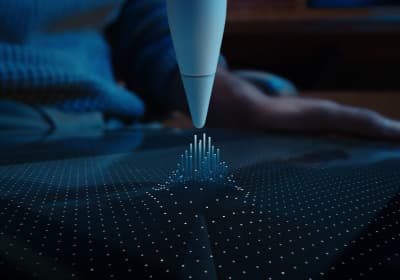
Apple Pencil Pro
amazon.comThe best Apple stylus for serious digital art workflows. Expensive, but the control upgrades are real.
Pro: Best brush-control and hover workflow
Con: Highest price in the lineup
Works only with newer iPad models. Check compatibility.
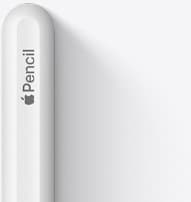
Apple Pencil (2nd generation)
amazon.comStill a strong stylus on compatible iPads. Good pressure control, but compatibility is the main trap.
Pro: Pressure support without Pro pricing
Con: Not compatible with newest Pro-only iPads
Only for iPads that support 2nd generation pairing.
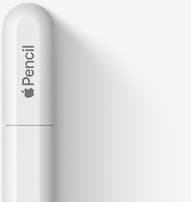
Apple Pencil (USB-C)
amazon.comA practical low-cost Apple stylus with broad compatibility, but limited for advanced art control.
Pro: Lowest official Apple Pencil cost
Con: No pressure sensitivity for brush work
Compatible with many recent iPads. No pressure support.
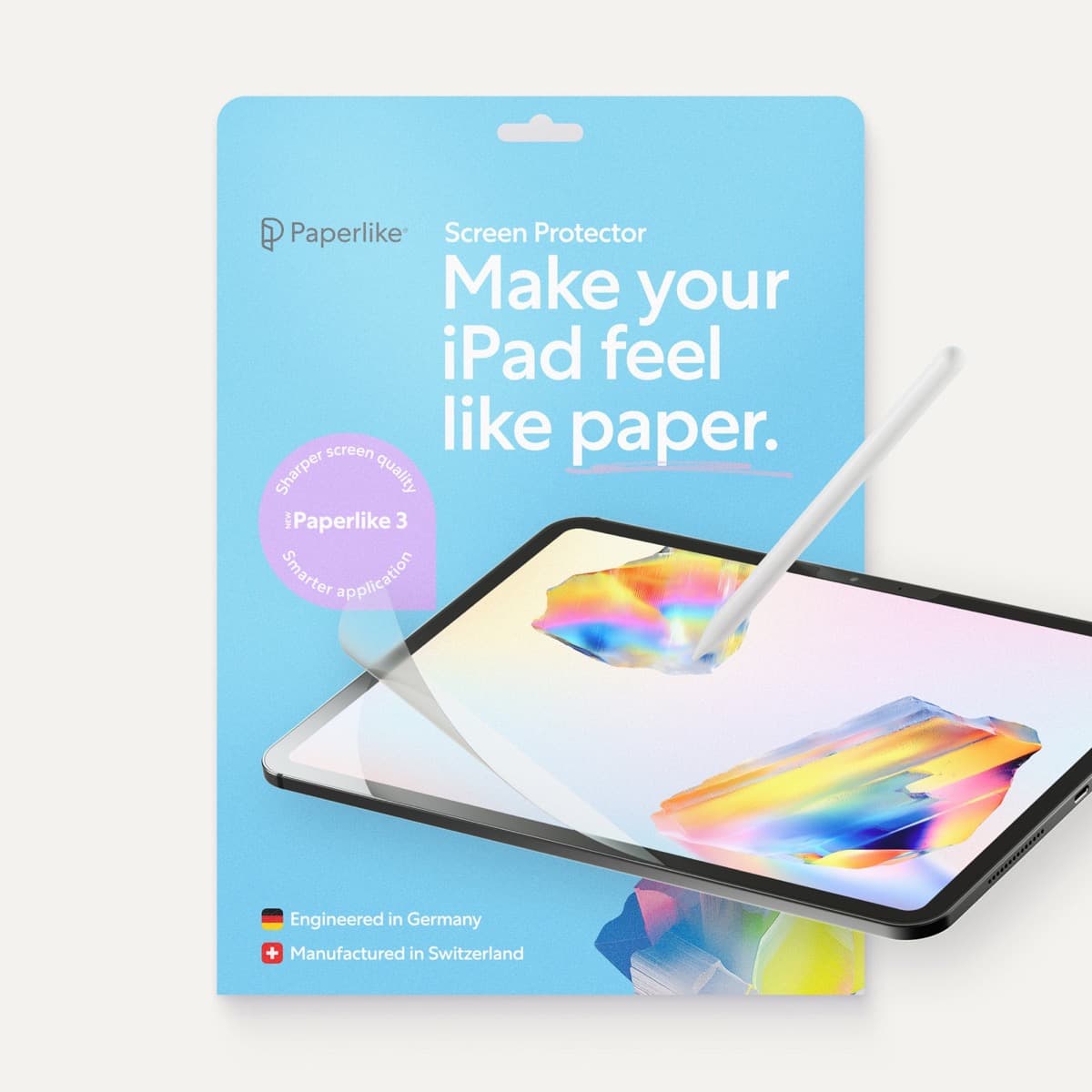
Paperlike 3 (11-inch, 2-pack)
amazon.comA strong surface-feel upgrade for drawing control. Clarity tradeoff is real and should be expected.
Pro: Adds controlled paper-feel friction
Con: Slightly reduces perceived display sharpness
11-inch fit only. Confirm generation before checkout.
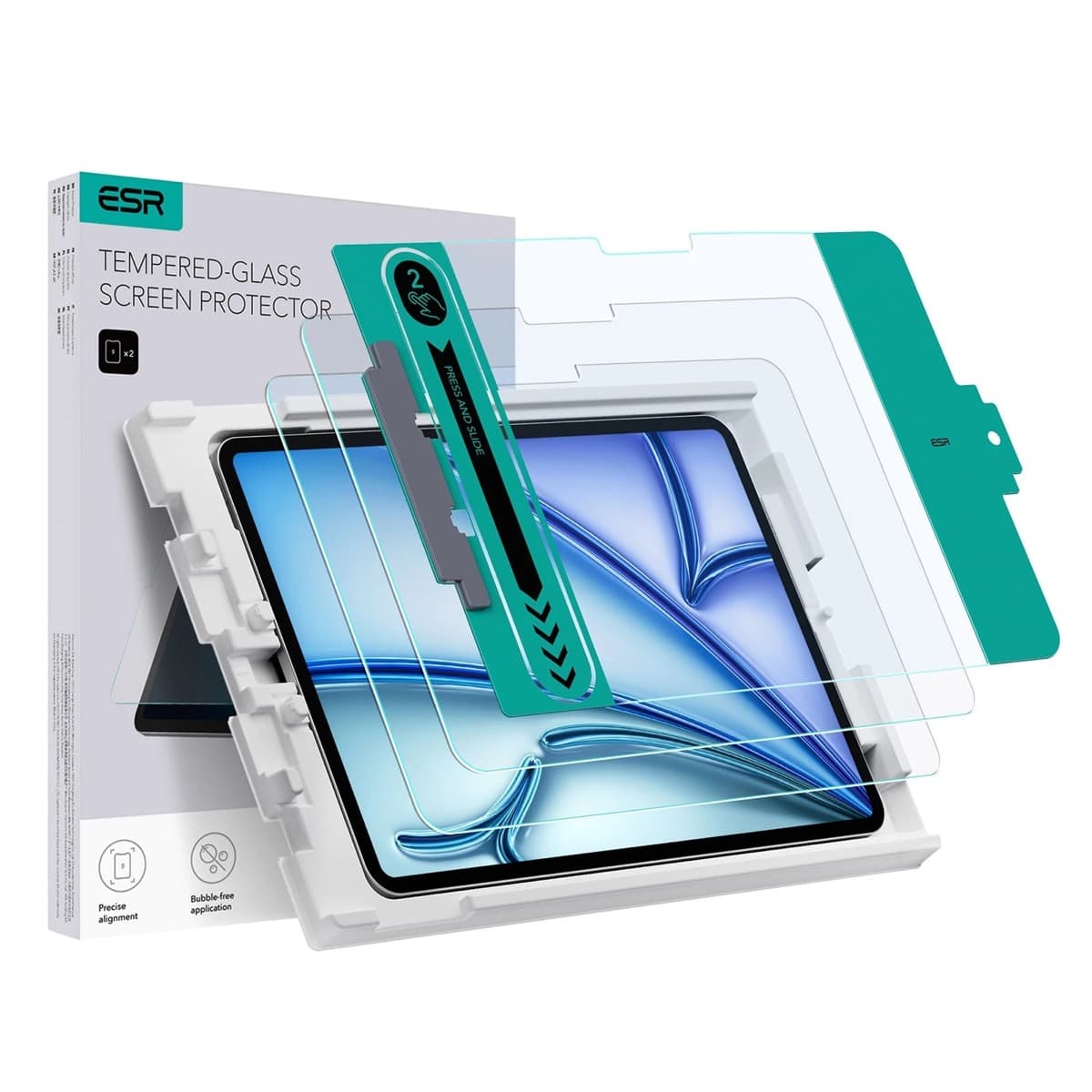
ESR Armorite Tempered Glass (11-inch)
amazon.comHigh-clarity protector with strong value. Great for visibility, less ideal for friction-seeking artists.
Pro: Very clear image with strong scratch resistance
Con: Minimal drawing friction compared with matte films
11-inch fit only. Verify exact iPad generation.
Related buying picks
More in this collectionBuyer guide
Apple Pencil Compatibility Guide (2026): Which iPad Works With Which Pencil?
Compatibility decides the right Apple Pencil before features do. This guide maps current and older iPads to the Pencil models that actually work.
Comparison
Apple Pencil Pro vs Apple Pencil USB-C in 2026: Which Should You Buy?
Most artists should choose Apple Pencil Pro only when pressure control and hover are central to their workflow, not by default.
Buyer guide
Best Apple Pencil Budget Bundle (2026): What to Buy and Skip
Build a low-cost but reliable Apple Pencil setup by buying one Pencil tier, one tip pack strategy, and skipping low-value extras.
Buyer guide
Best Apple Pencil Alternatives (2026): Is Apple Pencil Worth It?
Apple Pencil is worth paying for when pressure, reliability, and workflow speed matter daily. Here is when cheaper stylus options are enough.