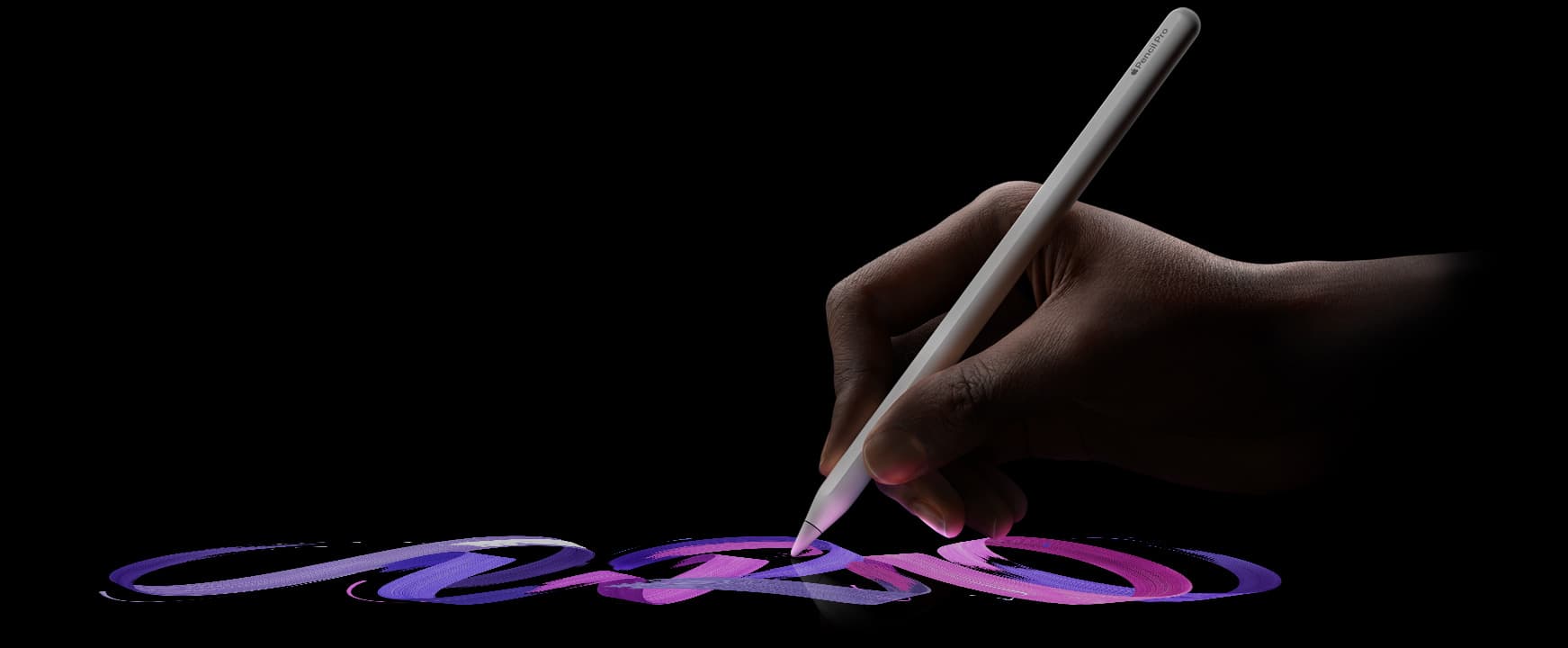
If you are comparing Apple Pencil vs cheaper stylus options, start with one question: will missing pressure and reliability slow you down every session?
If yes, buy Apple Pencil and move on. If no, a cheaper stylus can be good enough for notes, markup, and light sketching.
This guide focuses on practical buying decisions:
- when Apple Pencil Pro or 2nd gen is worth full price,
- when Apple Pencil (USB-C) is the smarter value,
- when non-Apple stylus options are acceptable.
Related reads
- Buying Refurbished: How to Get a Safe Deal on an Apple Pencil
- Silicone vs. Foam: Finding the Most Comfortable Grip for Apple Pencil
- Do You Need a Drawing Glove? Rejection Issues Explained
- Apple Pencil Pro vs Apple Pencil USB-C in 2026: What You Actually Need
1) The only question that matters
Forget the marketing words for a second. A stylus is a promise: that your iPad can behave like paper for drawing, and like a computer for everything else.
The Apple Pencil is the “native” stylus: the one iPadOS and major creative apps are tuned around. Alternatives range from excellent to barely-better-than-a-finger. That’s why opinions get weirdly emotional: people aren’t just buying a stick. They’re buying a workflow.
Rule of thumb: pay for less friction, not “more features.”
If you’ll notice a compromise every five minutes, spend the money. If you’ll notice it once a week, don’t.
The friction points are predictable: pressure sensitivity (do strokes respond like real ink?), reliability (does it connect instantly, every time?), charging + storage (does it live on your iPad or in your bag?), and software integration (do your apps actually know what to do with it?).
2) The compatibility trap
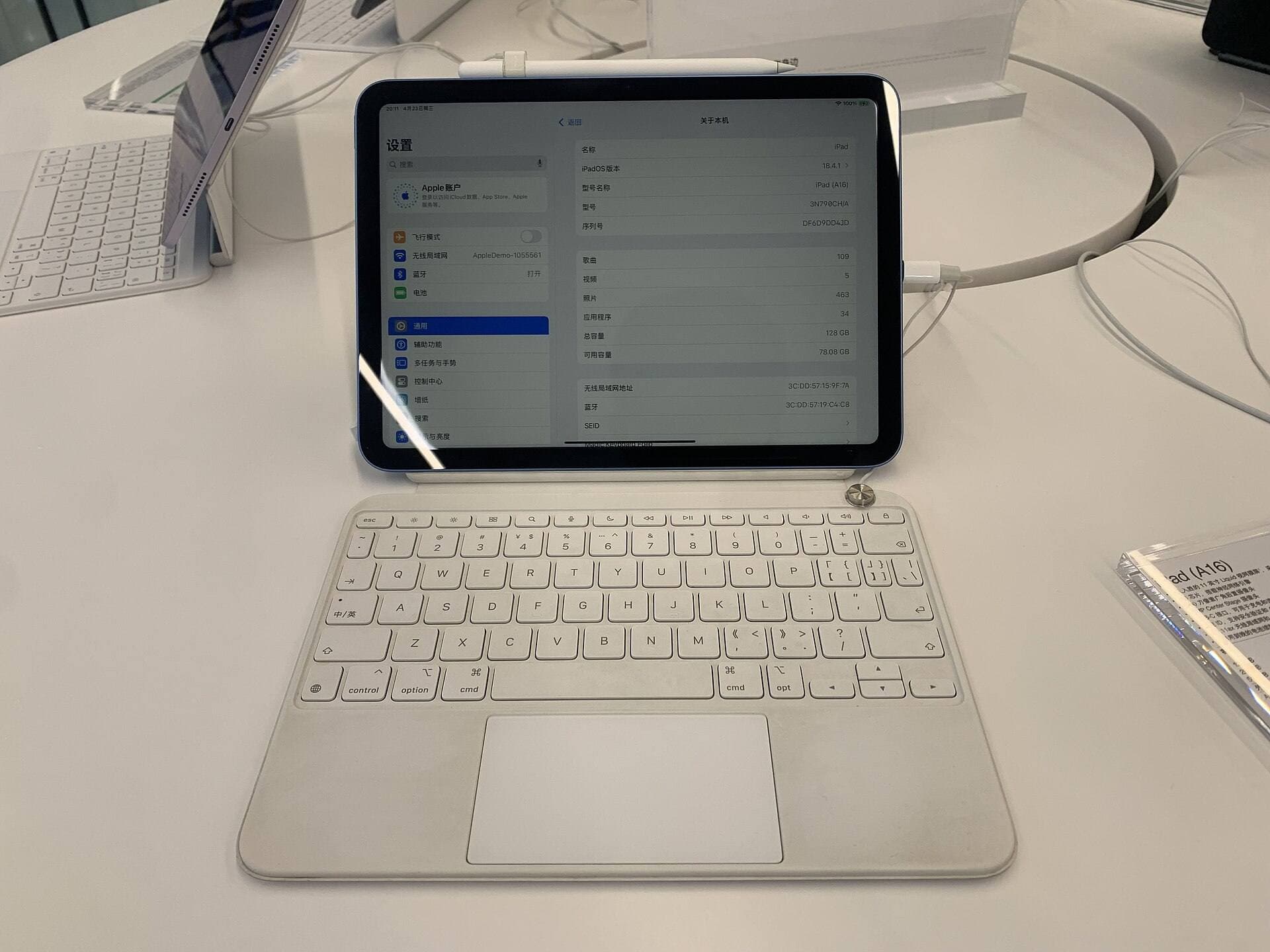
Before we even talk “worth it,” you need to know a brutal truth: you often don’t get to choose the Pencil you want, you get to choose the Pencil your iPad supports. Apple Pencil Pro, Apple Pencil (USB-C), Apple Pencil (2nd gen), and Apple Pencil (1st gen) all exist in 2026, and compatibility is device-specific. Apple publishes both an interactive chooser and a compatibility list. [1] [2]
Apple Pencil Pro
Newest “premium” Pencil. Adds squeeze, barrel roll, haptics, and Find My. Works only with newer iPads. [1] [3]
Apple Pencil (USB-C)
Budget Apple Pencil. Great for notes + markup. Crucially: no pressure sensitivity and no double-tap. [1] [4]
Apple Pencil (2nd gen)
Still a favorite for many iPads with magnetic charging + double-tap. Same MSRP as Pro, but different compatibility. [5]
Apple Pencil (1st gen)
Older design. Still the only official option for some iPads, and still a good drawing tool if that’s your situation. [6]
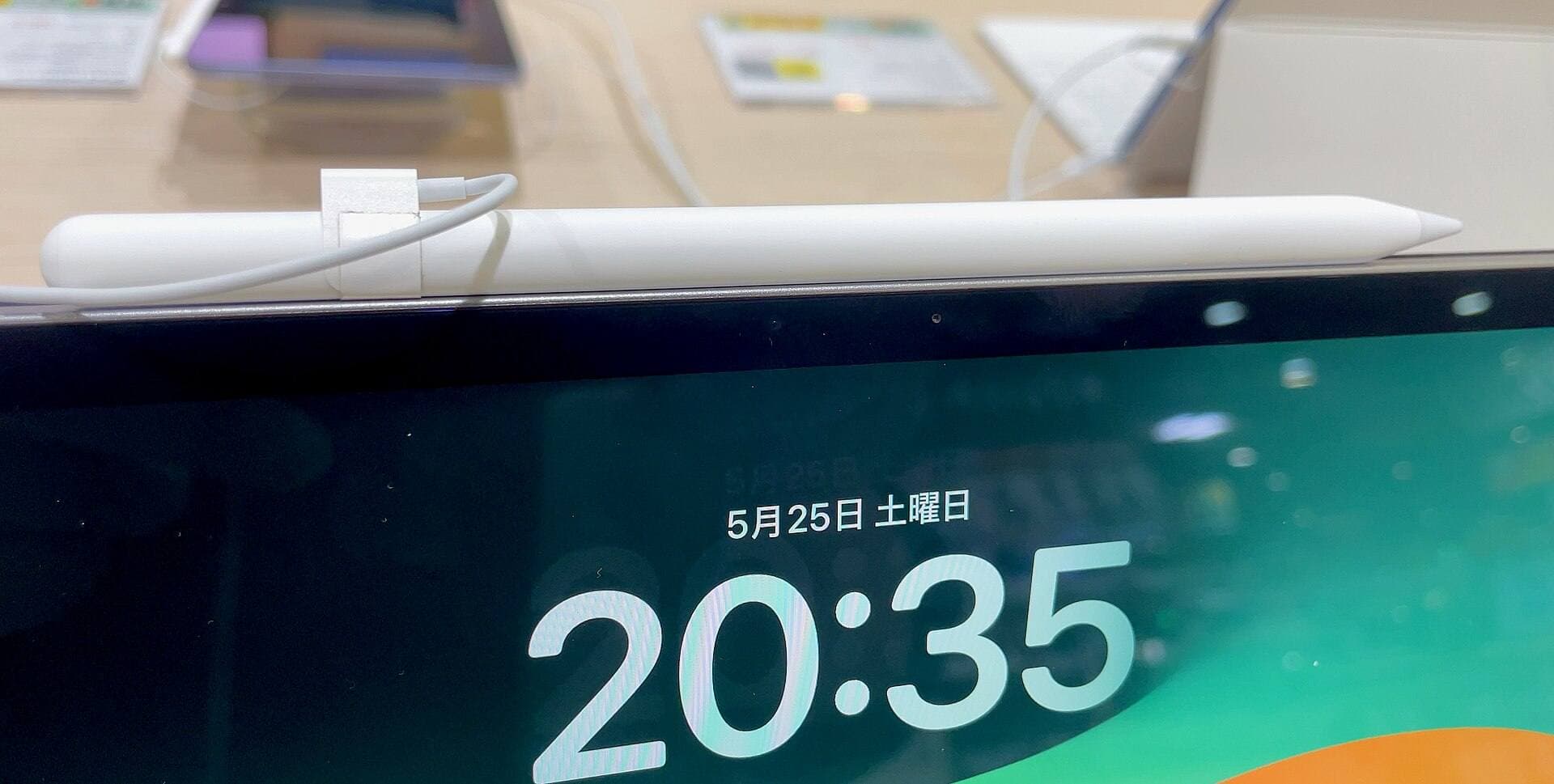
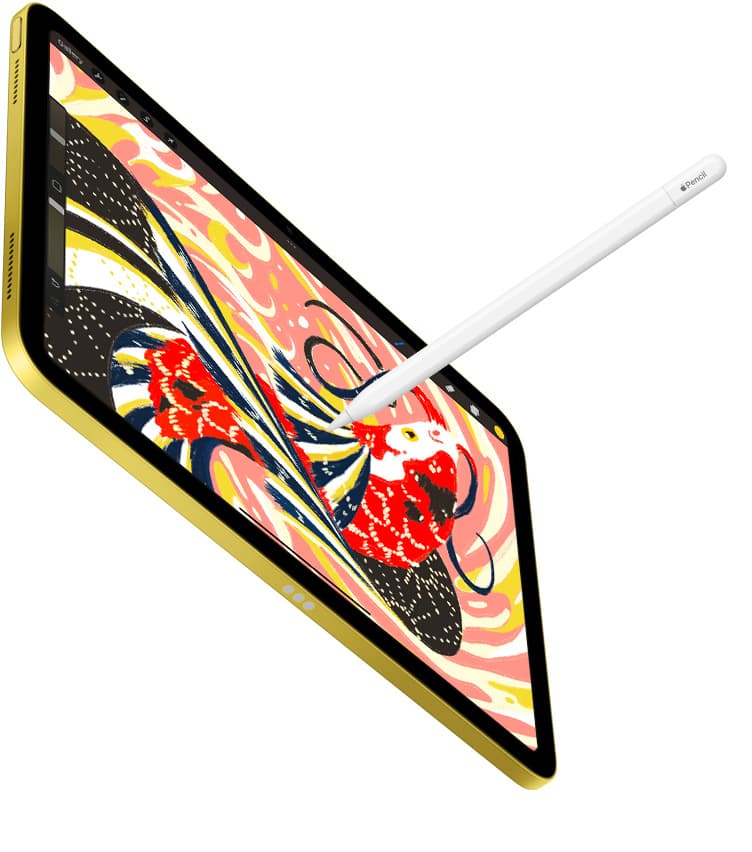
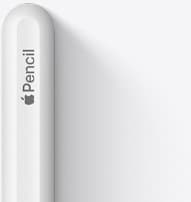
Magnetic attachment is a small convenience that becomes a big deal after your 50th “where did I put the stylus?” moment. Image: Apple.
If this feels like more complexity than necessary… yes. But it also acts like a quiet upsell: once your iPad supports the expensive Pencil, the expensive Pencil suddenly feels like “the right one.” (To be fair: sometimes it genuinely is.)
3) What you pay for with Apple Pencil
Apple’s pricing sets the stage: Apple Pencil Pro is $129; Apple Pencil (2nd gen) is $129; Apple Pencil (USB-C) is $79; Apple Pencil (1st gen) is $99 (US pricing as listed by Apple). [3] [4] [5] [6]
| Model | Best at | What you give up | Price signal |
|---|---|---|---|
| Apple Pencil Pro | Illustration + “pro” workflows, especially brushes that benefit from squeeze/barrel roll and hover previews. | Not available for many older iPads. (And you are paying for delight, not necessity.) | $129 |
| Apple Pencil (2nd gen) | Drawing + notes on many “pre-Pro” modern iPads. Great charging/storage and quick tool switching. | No squeeze/haptics/Find My; not compatible with the newest iPads that require Pencil Pro. | $129 |
| Apple Pencil (USB-C) | Notes, markup, studying, light sketching. | No pressure sensitivity, no double-tap, and no wireless pairing/charging when attached. [1] | $79 |
| Apple Pencil (1st gen) | Older iPads that still deserve a serious stylus. | Older charging/pairing ergonomics compared to newer models. | $99 |
If you’re wondering why I’m hammering pressure sensitivity: it’s the difference between “this feels like ink” and “this feels like a nice mouse pointer.” Apple’s own feature comparison notes that pressure sensitivity is supported on Apple Pencil Pro, but not on Apple Pencil (USB-C). [1]
Apple Pencil (USB-C). The budget model from Apple, useful, but intentionally missing the signature artist feature: pressure sensitivity. [4] [1]
The “Pro” features: helpful, not magical
Pencil Pro’s new tricks, squeeze to pull up a tool palette, barrel roll for rotated brushes, and haptic feedback, are real upgrades if your apps and your muscle memory can use them. Apple documents these features directly on the Apple Pencil page. [1]
Harsh but fair: if you mostly highlight PDFs and write grocery lists, Pencil Pro’s “advanced” features are overkill. They’re not “bad value.” They’re just value you’re not actually cashing in.
4) Alternatives that are actually worth considering
Stylus alternatives tend to fall into three buckets:
- Apple-tech styluses without pressure (reliable, great for notes, not for expressive drawing)
- Budget active styluses (some are surprisingly good, but quality varies)
- Bluetooth “pressure” styluses (can be powerful, but app support becomes the hidden price)
Bucket A: “Apple Pencil tech, minus pressure” (Logitech Crayon)
The Logitech Crayon is the cleanest non-Apple pick for most students and note-takers. Apple lists it at $69.95 and highlights palm rejection, instant connection, durability (4-foot drop), and up to seven hours of battery life. [7]
But Logitech also states plainly: Crayon isn’t pressure sensitive, there’s “no need to press down hard.” [8] That’s fine for handwriting and markup. It’s limiting for art where line weight should respond to how you press.
Bucket B: Branded budget styluses (example: ZAGG Pro Stylus 2)
ZAGG’s Pro Stylus 2 is a good example of the midrange: it advertises tilt recognition, palm rejection, a replaceable tip, and a battery “up to six and half hours.” It also has a dual-tip design (active tip on one end, capacitive tip on the other). [9]
Pricing is also the point: ZAGG lists an original price of $79.99 and, at the time of capture, shows a lower promo price (meaning it often competes directly with Apple Pencil (USB-C) on cost). [9]
Bucket C: Bluetooth pressure styluses (example: Adonit Note+)
Adonit’s Note+ is interesting because it claims 2,048 levels of pressure sensitivity, tilt support, palm rejection, shortcut buttons, and ~10 hours of continuous use (and it’s currently shown discounted vs. its listed original price). [10]
Here’s the catch, and it’s a big one: Adonit’s own support page says you don’t need Bluetooth pairing for palm rejection and tilt, but for pressure sensitivity and shortcut buttons you have to pair the stylus to a supported app. [11] Translation: your experience can range from “wow” to “why doesn’t this work in my favorite app?”
Hard truth: if your “main app” is Procreate (or another Apple-Pencil-first tool), buying a stylus that needs special app pairing for pressure is gambling with your workflow. The price might be lower, but the risk is higher.
5) The hidden costs no spec sheet tells you
Two styluses can both be “tilt + palm rejection.” One will feel like a tool. The other will feel like a compromise. The difference usually lives in boring details:
Reliability
Does it wake instantly? Does it randomly stop? If you’re in meetings or class, reliability matters more than features.
Charging friction
Magnetic charging feels luxurious, until you live without it. Cables are fine… until you forget the cable.
Tip feel and wear
“Feels like paper” is often code for “your tip will wear faster.” Budget tips can feel scratchy or inconsistent.
Loss anxiety
A Pencil that lives on the iPad gets used. A Pencil that lives in a bag gets lost. Find My on Pencil Pro is not trivial. [3] [1]
Also: replacement tips are a real, recurring cost. Apple sells a 4-pack of Pencil tips for $19. [12] If you use a matte screen protector and draw daily, you will buy these.
Replacement tips are the “printer ink” of the stylus world. Budget accordingly.
6) Verdict: is the Apple Pencil worth it?
Here’s the cleanest answer I can give:
The Apple Pencil is worth the extra money when you’re paying to remove friction you’ll feel constantly, especially pressure sensitivity.
And the Apple Pencil is not worth it when you’re buying it to “be the kind of person” who draws, rather than because you actually draw.
Buy Apple Pencil (Pro / 2nd gen) if…
- You draw or paint regularly, and your style depends on pressure-controlled line weight and opacity. [1]
- You care about predictability: consistent latency, consistent strokes, consistent app support.
- You want the convenience stack: magnetic storage, charging, gestures, hover previews, and (with Pro) Find My. [1] [3]
Skip it (or buy Apple Pencil USB-C / a good alternative) if…
- Your primary use is notes, markup, studying, and planning, where precision + palm rejection matter more than expressive pressure. [4] [7]
- You’d rather spend the difference on a keyboard case, extra storage, or an app subscription you’ll actually use.
- You can live with fewer shortcuts: Apple Pencil (USB-C) gives you tilt and hover support, but not pressure sensitivity or double-tap. [1] [4]
| Your reality | Most sensible pick | Why |
|---|---|---|
| “I draw weekly. I care about brush feel.” | Apple Pencil Pro / 2nd gen | Pressure sensitivity + deep iPadOS/app integration. [1] [3] [5] |
| “I take heavy notes and annotate PDFs.” | Apple Pencil (USB-C) or Logitech Crayon | Lower cost, still precise, palm rejection, solid battery. [4] [7] |
| “I just want a stylus for casual use.” | Branded budget stylus (e.g., ZAGG) | Tilt + palm rejection at a discount can be the sweet spot. [9] |
| “I want pressure, but I’m budget-limited.” | Bluetooth stylus (e.g., Adonit Note+), with caution | Pressure may require app pairing and supported apps; workflow risk. [10] [11] |
If you want the most “adult” way to decide: pick a short list of tasks you’ll do on the iPad every day. Then choose the stylus that makes those tasks feel effortless, not impressive.
Sources & image credits
- Apple Pencil overview + features (comparison table, Pro features, compatibility)
- Apple Support: Apple Pencil compatibility list
- Apple Store: Apple Pencil Pro (price, requirements)
- Apple Store: Apple Pencil (USB-C)
- Apple Store: Apple Pencil (2nd generation)
- Apple Store: Apple Pencil (1st generation)
- Apple Store: Logitech Crayon for iPad
- Logitech PDF: Crayon Do’s and Don’ts (pressure sensitivity note)
- ZAGG: Pro Stylus 2 product page
- Adonit: Note+ product page
- Adonit: Note+ support (Bluetooth pairing requirements)
- Apple Store: Apple Pencil Tips (4 pack)
Notes: Prices shown are the values displayed on the referenced pages at time of writing; promotions can change quickly by region.
Sources
Recommended gear
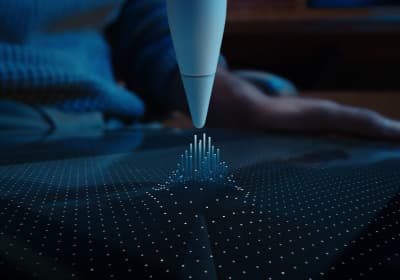
Apple Pencil Pro
amazon.comThe best Apple stylus for serious digital art workflows. Expensive, but the control upgrades are real.
Pro: Best brush-control and hover workflow
Con: Highest price in the lineup
Works only with newer iPad models. Check compatibility.
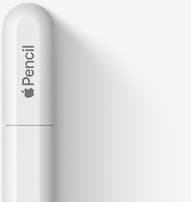
Apple Pencil (USB-C)
amazon.comA practical low-cost Apple stylus with broad compatibility, but limited for advanced art control.
Pro: Lowest official Apple Pencil cost
Con: No pressure sensitivity for brush work
Compatible with many recent iPads. No pressure support.
Apple Pencil (2nd generation)
amazon.comStill a strong stylus on compatible iPads. Good pressure control, but compatibility is the main trap.
Pro: Pressure support without Pro pricing
Con: Not compatible with newest Pro-only iPads
Only for iPads that support 2nd generation pairing.
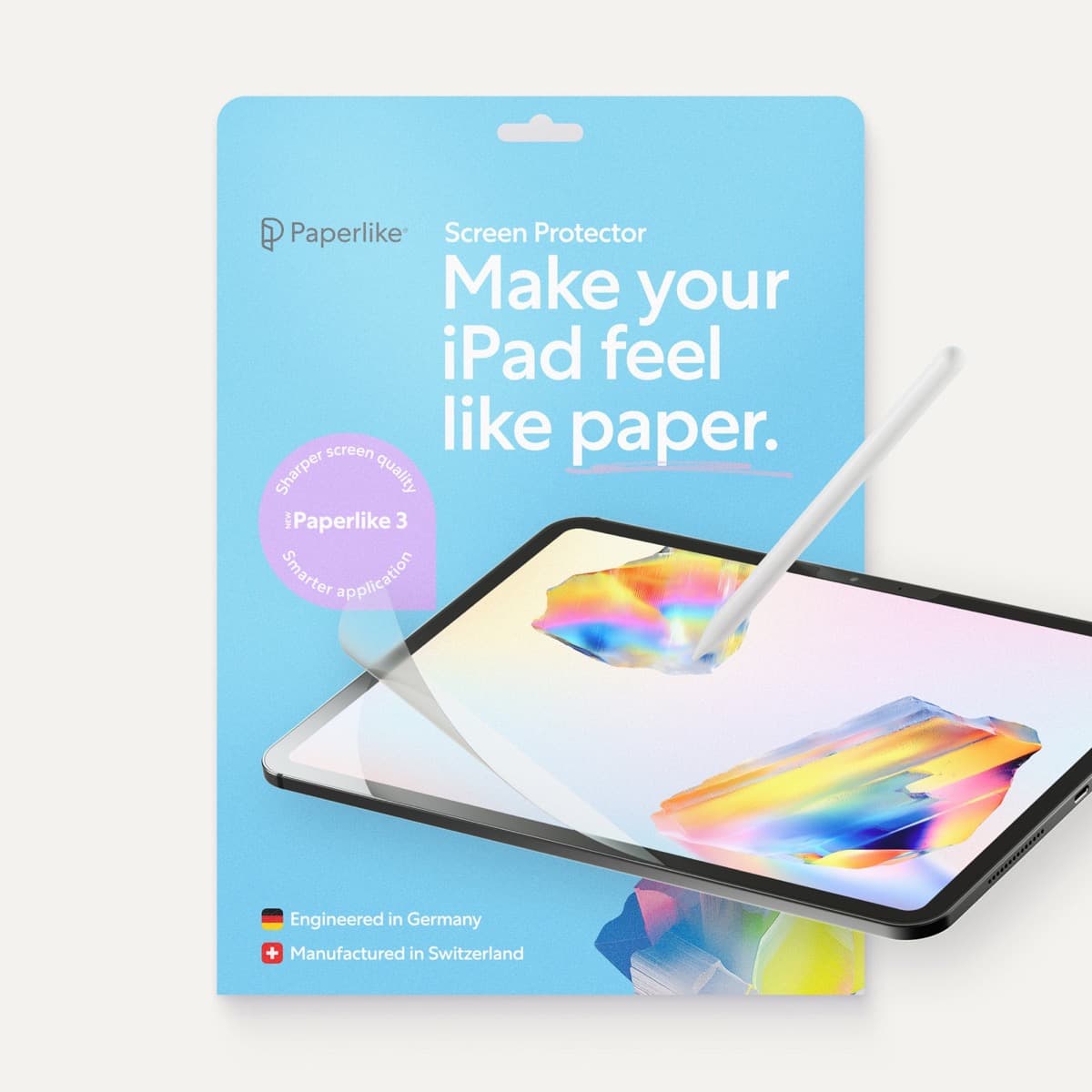
Paperlike 3 (11-inch, 2-pack)
amazon.comA strong surface-feel upgrade for drawing control. Clarity tradeoff is real and should be expected.
Pro: Adds controlled paper-feel friction
Con: Slightly reduces perceived display sharpness
11-inch fit only. Confirm generation before checkout.
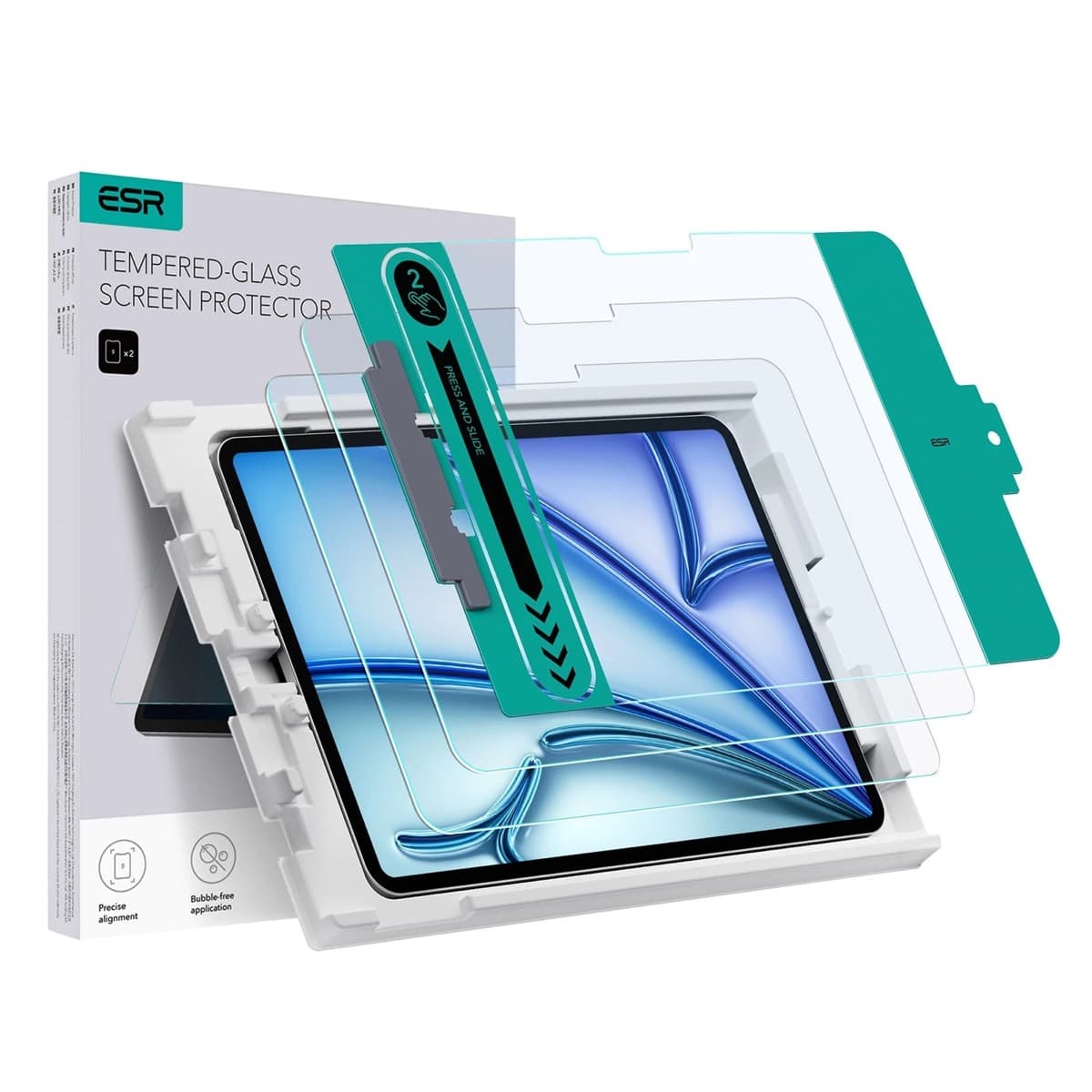
ESR Armorite Tempered Glass (11-inch)
amazon.comHigh-clarity protector with strong value. Great for visibility, less ideal for friction-seeking artists.
Pro: Very clear image with strong scratch resistance
Con: Minimal drawing friction compared with matte films
11-inch fit only. Verify exact iPad generation.
Related buying picks
More in this collectionBuyer guide
Apple Pencil Compatibility Guide (2026): Which iPad Works With Which Pencil?
Compatibility decides the right Apple Pencil before features do. This guide maps current and older iPads to the Pencil models that actually work.
Comparison
Apple Pencil Pro vs Apple Pencil USB-C in 2026: Which Should You Buy?
Most artists should choose Apple Pencil Pro only when pressure control and hover are central to their workflow, not by default.
Buyer guide
Best Apple Pencil Budget Bundle (2026): What to Buy and Skip
Build a low-cost but reliable Apple Pencil setup by buying one Pencil tier, one tip pack strategy, and skipping low-value extras.
Comparison
Apple Pencil Pro vs Pencil 2 vs Pencil USB-C (2026 Buyer Guide)
The right Apple Pencil is a compatibility decision first, then a feature decision. This guide maps both without fluff.