Apple Pencil Pro settings that actually improve line quality
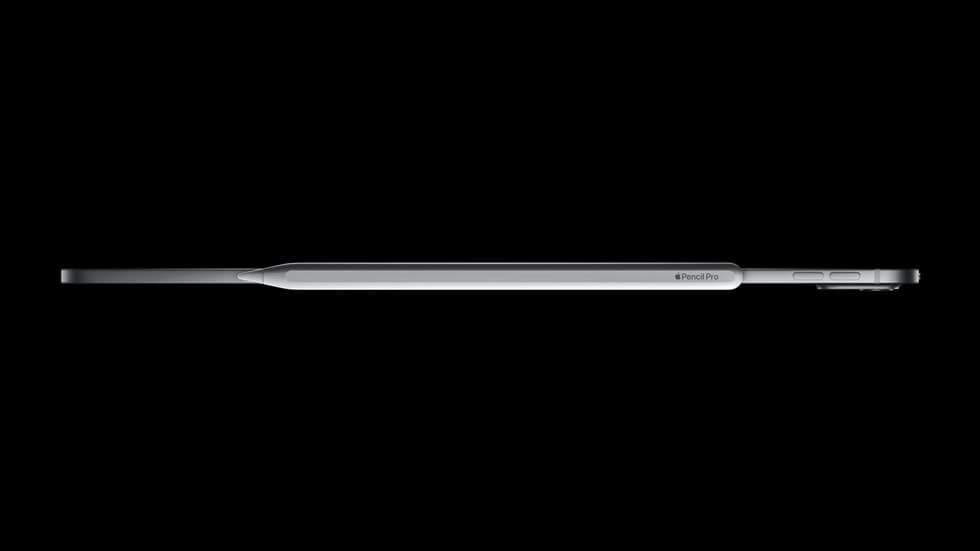
Apple Pencil Pro adds excellent hardware features. The speed gain appears only when system settings, app settings, and hand habits agree.
Baseline test before touching settings
Run this in Notes or Freeform first, then in your main art app:
- 10 slow straight lines
- 10 fast curves
- 10 short precision taps
If the issue appears only in one app, your app settings need tuning. If it appears everywhere, start with system settings and tip condition.
If the problem is delayed strokes rather than line quality, use the troubleshooting order in Why Is My Apple Pencil Lagging in Procreate?.
iPadOS settings that matter most
Path 1: Settings -> Apple Pencil
- squeeze action
- double tap behavior
- hover and haptic behavior on supported models
Path 2: Settings -> Accessibility -> Apple Pencil
- squeeze firmness
- extended range behavior
- double tap duration and tolerance
Apple documents these controls and compatibility expectations. [1]
Recommended starting configuration
- squeeze: tool palette
- double tap: current tool / eraser toggle
- hover: on
- haptics: on
Then tune for accidental triggers:
- if squeeze fires unintentionally, increase firmness
- if deliberate squeeze fails, reduce firmness slightly
- if double tap misfires, slow duration or disable
Procreate tuning sequence
- tune global pressure curve
- tune StreamLine for your primary inking brush
- tune brush-level pressure graph only for stubborn brushes
Working ranges many artists find useful:
- sketching brushes: very low StreamLine
- inking brushes: moderate StreamLine
Procreate documentation on pressure and brush behavior supports this approach. [2]
Physical factors that masquerade as software problems
tip wear
A worn tip can create inconsistent friction, so replace the tip before over-tuning curves.
screen texture
Matte films can improve control but can also increase tip wear and alter feel, so recalibrate pressure after applying one.
hand posture drift
If your wrist and grip angle vary constantly, line consistency drops even with perfect settings.
10-minute daily control drill
Minute 1-2:
- pressure ramps from light to heavy
Minute 3-5:
- straight lines between two points, one pass only
Minute 6-8:
- medium-speed ellipses in bounded boxes
Minute 9-10:
- controlled S-curves at steady speed
Change only one variable per day, which gives a clear signal.
Shortcut mapping that reduces cognitive load
Do not map every action. Map only high-frequency interruptions:
- eyedropper access
- quick tool switch
- shape assist shortcut
Fewer mappings, used consistently, beats complex mappings you forget.
When to stop tuning and just draw
If you have:
- no accidental gesture triggers
- predictable pressure response
- stable line feel across sessions
stop tuning for two weeks and focus on production.
Bottom line
Apple Pencil Pro gives enough control for clean fast work. Most gains come from reducing inconsistency and friction, not from endless settings changes.
<!-- depth-pass-v1 -->Step-by-step recovery path
When troubleshooting Apple Pencil Pro Settings (2026): Cleaner Lines, Fewer Misfires, Faster Flow, apply fixes in layers. Start with the lowest-risk configuration change, verify, then move to hardware or workflow changes only if the issue persists. For Artists who use Apple Pencil Pro and want more predictable line quality and less gesture friction., this prevents unnecessary spend and preserves a clear diagnostic trail.
- Reproduce the problem in a controlled setup.
- Remove non-essential accessories and adapters.
- Test core path reliability (power, input, and app behavior).
- Reintroduce components one at a time.
- Lock the first stable configuration.
Verification checklist
Confirm the issue is actually fixed by running the same workload that previously failed:
- one full session at normal duration,
- one heavy action block (export/sync/render),
- one idle-and-resume cycle,
- one reconnect or wake cycle where relevant.
If failures do not recur across these checks, the fix is production-ready.
Prevention policy
To avoid repeat failures:
- keep a fixed baseline profile for your working setup,
- maintain one backup path for critical operations,
- log changes that affect reliability,
- replace unstable components before they become intermittent blockers.
Escalation triggers
Escalate from workflow fix to hardware replacement only when:
- the same fault repeats after controlled retesting,
- multiple known-good cables/adapters fail in the same path,
- the issue affects paid or deadline-sensitive sessions twice in one week.
This keeps troubleshooting rational and prevents expensive guesswork.
Extra scenario: high-pressure deadline window
For Apple Pencil Pro Settings (2026): Cleaner Lines, Fewer Misfires, Faster Flow, keep the lowest-risk path active when deadlines are near: stable setup, no new experimental changes, and one backup route for critical actions. This protects output velocity and reduces failure risk when timing matters most.
Sources
Recommended gear
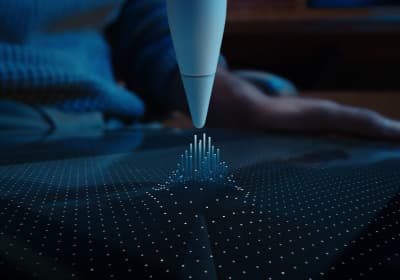
Apple Pencil Pro
amazon.comThe best Apple stylus for serious digital art workflows. Expensive, but the control upgrades are real.
Pro: Best brush-control and hover workflow
Con: Highest price in the lineup
Works only with newer iPad models. Check compatibility.
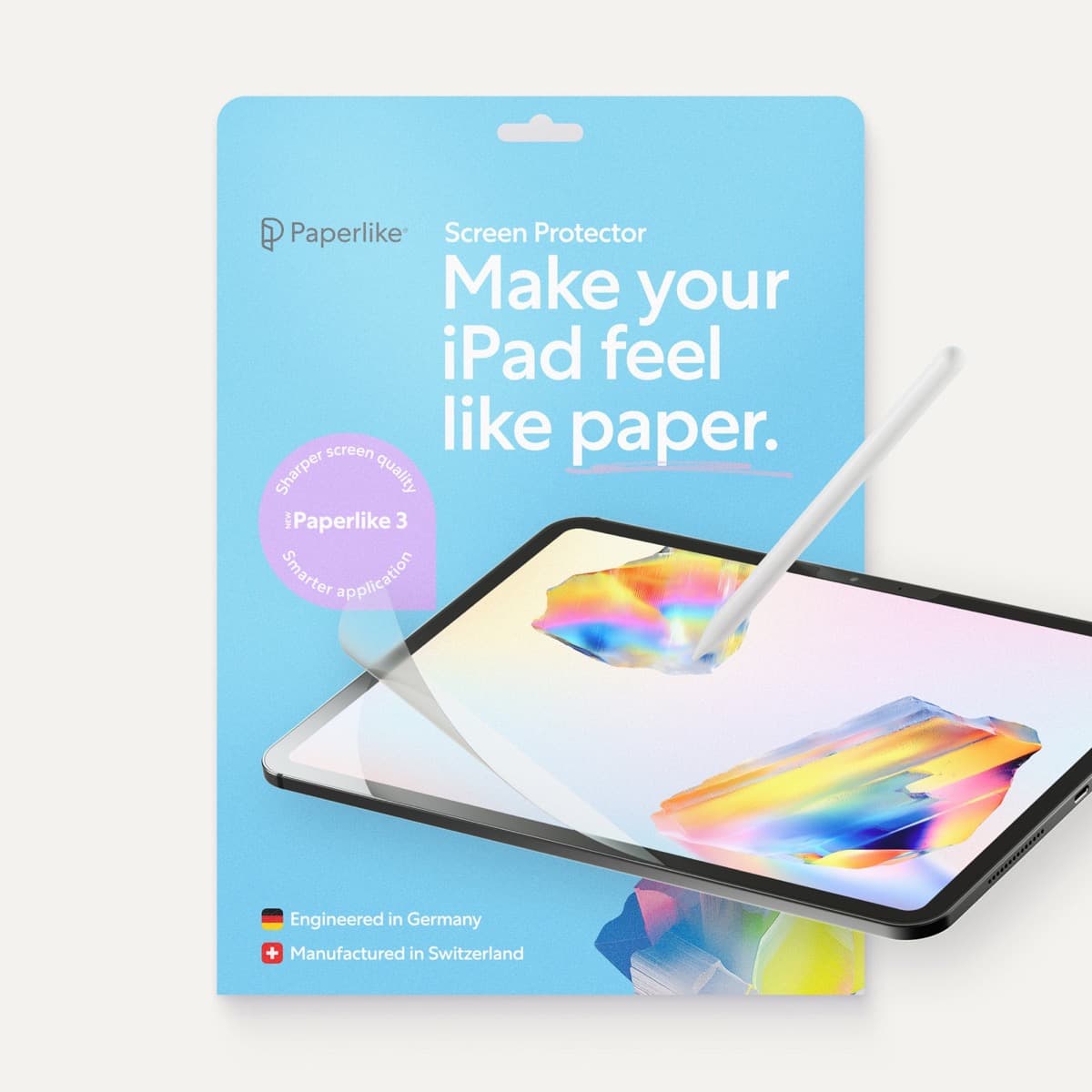
Paperlike 3 (11-inch, 2-pack)
amazon.comA strong surface-feel upgrade for drawing control. Clarity tradeoff is real and should be expected.
Pro: Adds controlled paper-feel friction
Con: Slightly reduces perceived display sharpness
11-inch fit only. Confirm generation before checkout.
Apple Pencil Tips (4-pack)
apple.comPro: Official fit and consistent friction
Con: Costs more than many third-party nib packs
Fits Apple Pencil tips across current Apple Pencil generations.
Apple Pencil (USB-C)
amazon.comA practical low-cost Apple stylus with broad compatibility, but limited for advanced art control.
Pro: Lowest official Apple Pencil cost
Con: No pressure sensitivity for brush work
Compatible with many recent iPads. No pressure support.
Apple Pencil (2nd generation)
amazon.comStill a strong stylus on compatible iPads. Good pressure control, but compatibility is the main trap.
Pro: Pressure support without Pro pricing
Con: Not compatible with newest Pro-only iPads
Only for iPads that support 2nd generation pairing.
Related buying picks
More in this collectionBuyer guide
Is the Apple Pencil USB-C enough for Procreate?
The Apple Pencil (USB-C) functions in Procreate, but the lack of pressure sensitivity makes it a poor fit for expressive brushwork.
Buyer guide
Apple Pencil for comic inking: Complete buyer guide
Choose the right Apple Pencil for digital comic inking based on line weight control, tablet compatibility, and glass friction.
Comparison
Apple Pencil Pro vs Apple Pencil USB-C in 2026: Which Should You Buy?
Most artists should choose Apple Pencil Pro only when pressure control and hover are central to their workflow, not by default.
Buyer guide
Best Apple Pencil for fashion illustration: Stylus guide for designers
Choose the right Apple Pencil for fashion illustration based on pressure sensitivity, barrel roll, iPad compatibility, and screen texture.