If your Apple Pencil is lagging in Procreate, do not buy a new Pencil first. Fix it in this order:
- Check Apple Pencil charge and pairing.
- Restart the iPad and update software.
- Test a tiny blank canvas with a default brush.
- Inspect the Pencil tip and screen protector.
- Check whether the canvas is too large or layer-heavy.
- Reduce brush stabilization or smoothing if it is causing delayed feel.
- Free storage if the whole iPad is sluggish.
- Replace hardware only after the cheap tests fail.
Most "lag" is not one problem. It is a stack of small friction points.
First: define the lag
| What you feel | Likely area |
|---|---|
| Stroke appears late everywhere | Pencil pairing, iPad load, canvas load |
| Stroke is smooth but delayed | Brush stabilization or smoothing |
| Line skips or breaks | Pencil tip, screen protector, pairing, battery |
| Only one artwork lags | Canvas size, layers, effects |
| Whole iPad feels slow | storage, background load, software |
| Pencil will not connect reliably | pairing or compatibility |
That distinction matters because a new Pencil will not fix an oversized canvas, and a storage cleanup will not fix a damaged tip.
Step 1: check pairing, charge, and compatibility
Apple's pairing guidance starts with the boring basics: update iPad software, make sure the Pencil model works with your iPad, and make sure the Pencil has charge. [1]
Do that before tuning Procreate.
Quick checklist:
- confirm your exact iPad supports your Pencil,
- charge the Pencil,
- remove cases or covers if they interfere with magnetic pairing,
- restart the iPad,
- pair again if connection seems unstable.
If the Pencil is not paired cleanly at the system level, Procreate cannot make it feel good.
Step 2: test a tiny clean canvas
Open Procreate and create a small blank canvas. Use a default brush.
If the Pencil feels normal there, your Pencil is probably not the main problem. The lag is likely inside the original artwork: canvas size, layer count, effects, imported images, or brush behavior.
If it still lags on a tiny clean canvas, move toward Pencil, iPad, screen surface, or software causes.
Step 3: check canvas and layer pressure
Procreate says your iPad model determines maximum canvas size, and it notes that canvas size affects layer limits. [2]
Plain English: giant canvases and heavy layers make the iPad work harder. That can feel like Pencil lag even when the Pencil is fine.
Try this:
- duplicate the artwork,
- hide unused reference layers,
- merge safe layers,
- delete abandoned sketch layers,
- crop unused canvas space,
- reduce texture-heavy brushes,
- test the same brush on a smaller canvas.
If the lag improves, the artwork is too heavy for that moment.
Step 4: inspect the tip and screen surface
A worn or loose Pencil tip can make lines feel inconsistent. A rough matte screen protector can also change friction and accelerate tip wear. That may feel like lag, skipping, or scratchy input.
Check:
- is the tip loose?
- is the tip visibly flattened or chipped?
- does the Pencil behave better on another iPad or bare-glass area?
- does the issue happen only on one screen protector?
- does a different brush behave normally?
Replacing tips is cheap compared with replacing the Pencil.
Step 5: understand Procreate brush feel
Procreate's Apple Pencil handbook explains that brushes can respond to pressure and tilt, and that Procreate includes app pressure sensitivity controls. [3]
That means some "lag" is actually brush behavior:
- stabilization,
- smoothing,
- pressure curve,
- heavy texture,
- large brush size,
- complex brush dynamics.
If a brush feels delayed but a simple round brush does not, the Pencil is probably fine.
Step 6: check gestures and accidental input
Procreate's gesture controls can change how touch, Pencil, menus, and shortcuts behave. [4]
If your issue is accidental marks, delayed menus, weird double-tap behavior, or finger input interfering, check gestures before blaming lag.
Good quick tests:
- turn off experimental gesture changes you recently made,
- test without a Bluetooth keyboard or shortcut remote,
- try a default Procreate brush,
- use a blank canvas,
- remove the iPad from a magnetic case or stand if pairing is flaky.
Step 7: check storage and general iPad health
If the whole iPad feels slow, Procreate may just be where you notice it first.
Apple's storage guidance lets you check iPad storage under Settings and remove apps or data you no longer need. [5]
Free up space if:
- the iPad is near full,
- exports are failing,
- apps reload constantly,
- Procreate opens slowly,
- the Photos or Files app is bloated,
- you have huge offline downloads.
Storage cleanup is not glamorous. It is still a real fix when the whole device is choking.
Step 8: use the fix order
Use this order:
- Pairing and charge.
- Restart and update.
- Tiny blank canvas test.
- Default brush test.
- Tip and screen protector inspection.
- Original canvas cleanup.
- Brush stabilization and pressure settings.
- iPad storage cleanup.
- Replacement tip.
- Replacement Pencil only if the same issue survives all tests.
This order protects your money. It also keeps you from turning a software or canvas problem into a hardware purchase.
When to buy something
Buy new tips if the tip is worn, loose, or visibly damaged
This is the lowest-risk hardware purchase.
Consider a different screen surface if the lag is really friction
If the Pencil tracks fine but feels scratchy, sticky, or inconsistent, the protector may be the issue.
Buy a new Pencil only after pairing and tip tests fail
If the Pencil fails across apps, canvases, and after pairing checks, then replacement becomes reasonable.
Upgrade iPad only if the problem is heavy files
If tiny canvases feel fine and only huge artworks lag, the Pencil is not the bottleneck. The workload is.
FAQ
Why is my Apple Pencil lagging only in Procreate?
If it only lags in Procreate, test a small blank canvas with a default brush. If that feels fine, the original file or brush is probably the cause.
Can a Procreate brush make Apple Pencil feel delayed?
Yes. Heavy brushes, stabilization, smoothing, and pressure settings can make the stroke feel different. Test a default brush before blaming the Pencil. [3]
Can canvas size make Apple Pencil lag?
Yes. Larger canvases and heavier layers can make Procreate work harder. Procreate says canvas size and iPad model affect canvas and layer limits. [2]
Does a worn Apple Pencil tip cause lag?
It can cause skipping, roughness, inconsistent lines, or a bad drawing feel. It may feel like lag even if the software is fine.
Should I replace my Apple Pencil?
Not first. Check pairing, charge, compatibility, tip, screen protector, default brush, and a small canvas before replacing the Pencil. [1]
Is Apple Pencil Pro better for Procreate lag?
Apple Pencil Pro is the best current Pencil for supported iPads, but it will not fix a heavy canvas, full storage, or bad brush settings.
Bottom line
Fix Apple Pencil lag in Procreate by isolating the cause. Start with pairing and charge, then test a tiny canvas, inspect the tip and screen surface, clean up the artwork, and check brush behavior. Buy tips before a new Pencil. Upgrade the iPad only when the lag is clearly caused by heavy files.
Sources
Recommended gear
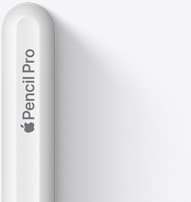
Apple Pencil Pro
amazon.comThe best Apple stylus for serious digital art workflows. Expensive, but the control upgrades are real.
Pro: Best brush-control and hover workflow
Con: Highest price in the lineup
Works only with newer iPad models. Check compatibility.
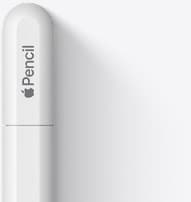
Apple Pencil (USB-C)
amazon.comA practical low-cost Apple stylus with broad compatibility, but limited for advanced art control.
Pro: Lowest official Apple Pencil cost
Con: No pressure sensitivity for brush work
Compatible with many recent iPads. No pressure support.
Apple Pencil Tips (4-pack)
apple.comPro: Official fit and consistent friction
Con: Costs more than many third-party nib packs
Fits Apple Pencil tips across current Apple Pencil generations.
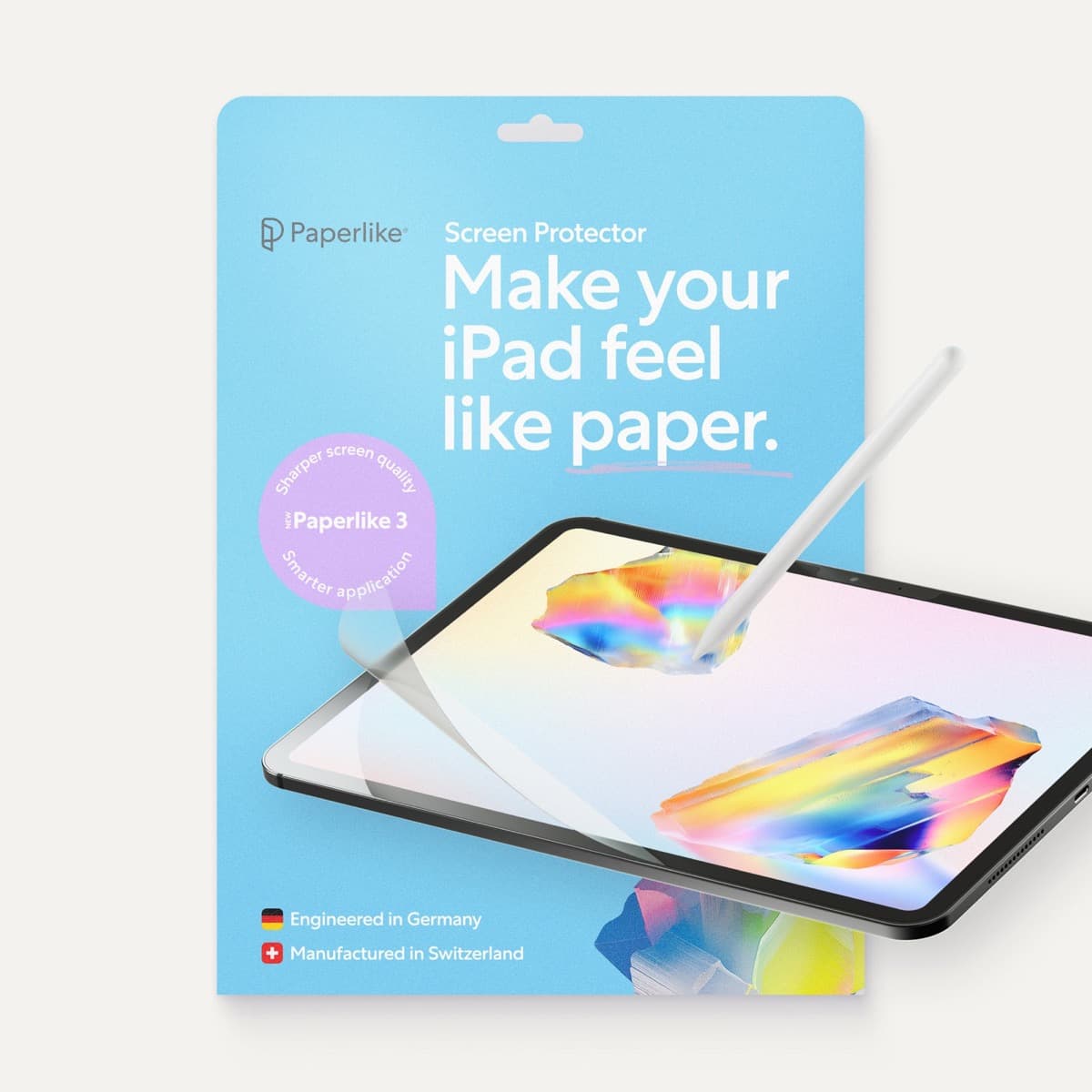
Paperlike 3 (11-inch, 2-pack)
amazon.comA strong surface-feel upgrade for drawing control. Clarity tradeoff is real and should be expected.
Pro: Adds controlled paper-feel friction
Con: Slightly reduces perceived display sharpness
11-inch fit only. Confirm generation before checkout.
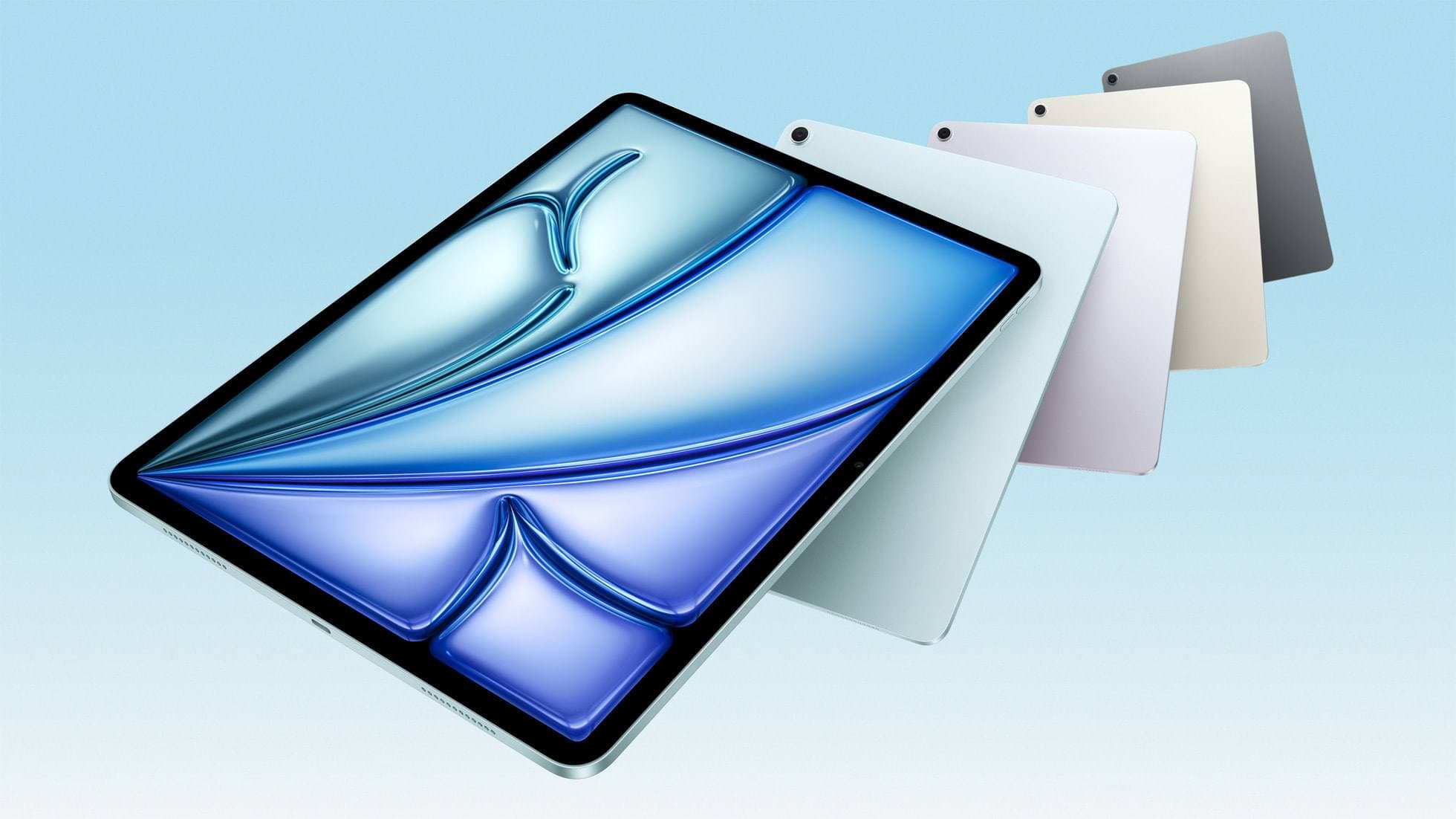
iPad Air (M4)
apple.comThe clean current Air recommendation for most serious hobby artists. Stronger buy logic than old-stock M3 when pricing is close.
Pro: Best current balance of price, headroom, and Pencil support
Con: Still 60Hz
Current Air lineup. Choose size, storage, and keyboard path before checkout.
Related buying picks
More in this collectionBuyer guide
Is the Apple Pencil USB-C enough for Procreate?
The Apple Pencil (USB-C) functions in Procreate, but the lack of pressure sensitivity makes it a poor fit for expressive brushwork.
Buyer guide
Best Apple Pencil for fashion illustration: Stylus guide for designers
Choose the right Apple Pencil for fashion illustration based on pressure sensitivity, barrel roll, iPad compatibility, and screen texture.
Buyer guide
Best Apple Pencil for Cricut Design Space
Cricut Design Space does not use pressure sensitivity, making the Apple Pencil (USB-C) the most practical choice unless you draw outside the app.
Buyer guide
Apple Pencil for comic inking: Complete buyer guide
Choose the right Apple Pencil for digital comic inking based on line weight control, tablet compatibility, and glass friction.