





If you want a freeform board to assemble reference photos and rough sketches without edge restrictions, download Concepts [1]. It's built as a flexible vector-based sketchbook made for planning and developing ideas [1]. If you prefer building textured, layered boards inside a fixed print-ready canvas, buy Procreate as a one-time purchase [2]. Skip Clip Studio Paint if you want quick collage setup without recurring plan management, even though its 30-day trial gives you deep multi-page and ruler toolsets [3]. Your final pick comes down to whether your mood board needs infinite space to expand or structured layers with pixel-level drawing tools [1], [2].
Freeform layout and ideation with Concepts
Mood boards rarely stay inside rigid rectangular boundaries when you begin gathering inspiration. Concepts addresses this by offering a flexible vector-based sketchbook designed specifically to think, plan, and take ideas into reality [1]. It holds a 4.7-star App Store rating across tens of thousands of customer reviews and is available as a free download in the Graphics & Design category [1].
Because Concepts uses a vector engine, you can paste reference imagery, write quick margin notes, and trace contours without worrying that your working surface will suddenly run out of margins [1]. You aren't boxed into a fixed pixel width or height when you start dropping swatches and textures into the workspace [1]. That open canvas helps anyone who gathers references continuously throughout a project rather than planning an exact frame size ahead of time [1].
Who should choose Concepts? Anyone whose mood-boarding style involves loose grouping, branching visual categories, and sprawling image maps should pick it first [1]. It lets you group visual elements organically across an unrestricted expanse [1]. Who should skip it? If you need fixed raster brushes, complex layer clipping masks, or exact physical canvas export resolutions right from the start, a traditional raster illustration app is a better fit [1], [2].
Fixed canvases and layer management in Procreate
Procreate takes the opposite architectural approach from infinite boards, centering its workflow around discrete, raster-based digital canvases [2]. Offered as a paid app by Savage Interactive Pty Ltd, Procreate carries a 4.4-star rating from over 50,000 App Store ratings and remains a standard in the iPad Graphics & Design space [2]. It doesn't rely on a recurring subscription model, which makes it simple to own outright [2].
When building a mood board in Procreate, you set up a defined canvas size before importing your assets [2], [4]. This setup gives you access to extensive digital painting tools, custom textures, and layer blending controls right alongside your pasted reference images [2]. If your mood boards are client presentations that need strict framing, uniform aspect ratios, and painterly color palettes, Procreate's focused layout keeps everything tidy [2].
You need to plan your resolution carefully, however. Procreate links available layer counts directly to your iPad model's memory capacity and the pixel dimensions of your canvas [4]. If you create an oversized board at high resolution to paste dozens of reference pictures, your total allowed layers decrease [4]. That makes Procreate ideal for edited, curated boards rather than bottomless scrapbooks [2], [4].
Multi-page boards and trials with Clip Studio Paint
Clip Studio Paint by CELSYS, Inc. serves creators who want structured visual compilations across multi-page files [3]. The app is available as a free download with an initial 30-day trial and carries a 4.7-star App Store rating [3]. Unlike lightweight sketch apps, Clip Studio Paint brings a deep comics, vector, ruler, and animation toolset directly to iPadOS [3].
For mood-boarding workflows, Clip Studio Paint shines if you assemble project boards into sequential decks or story bibles [3]. You can manage multiple pages within a single working project, set up perspective rulers, and use vector lines alongside raster imagery [3]. This makes it a capable hub when your visual reference board is the blueprint for complex illustration or comic production [3].
Who should choose Clip Studio Paint? Pick it if you plan to move reference collections directly into multi-page comic layouts, design projects, or desktop handoffs [3]. Who should skip it? If you simply want a casual place to stick color palettes and photo clippings, the subscription-based plan model and dense interface add unnecessary overhead compared to one-time apps like Procreate [2], [3].
Free sketching alternatives from Fresco and Sketchbook
If you don't want to spend money immediately, you have solid zero-cost drawing downloads available on the App Store [5], [6], [7]. Adobe Fresco is a free download holding a 4.7-star rating that Adobe positions as a professional drawing and painting app made for everyone [5]. It gives you dedicated drawing and painting tools that make a good foundation for visual exploration and color collecting [5].
Sketchbook by Sketchbook, Inc. is another popular zero-cost starting point, holding a 4.8-star App Store rating from over 200,000 users [6]. The listing highlights its range from quick sketches to fully finished artwork, making it easy to scribble notes and throw down quick color fields beside reference items [6]. Similarly, ibis Paint X holds a 4.7-star rating with an extensive animation and drawing feature set designed to let users create freely without pressure [7].
These free-to-download options work well for assembling simple mood boards when you don't require the infinite vector canvas of Concepts or the deep iPad-tailored raster environment of Procreate [1], [2], [5], [6]. If your mood board is simply an informal visual scratchpad, starting with Sketchbook or Fresco keeps your investment at zero while you establish your workflow [5], [6].
Hardware considerations for canvas size and memory
Your choice of iPad hardware influences how comfortable your mood-boarding setup will feel over time [4], [8]. Because raster apps like Procreate limit the number of active layers based on the amount of device RAM installed in your tablet, choosing an iPad with sufficient memory headroom gives you room for more images, overlays, and color notes on a single canvas [4], [8].
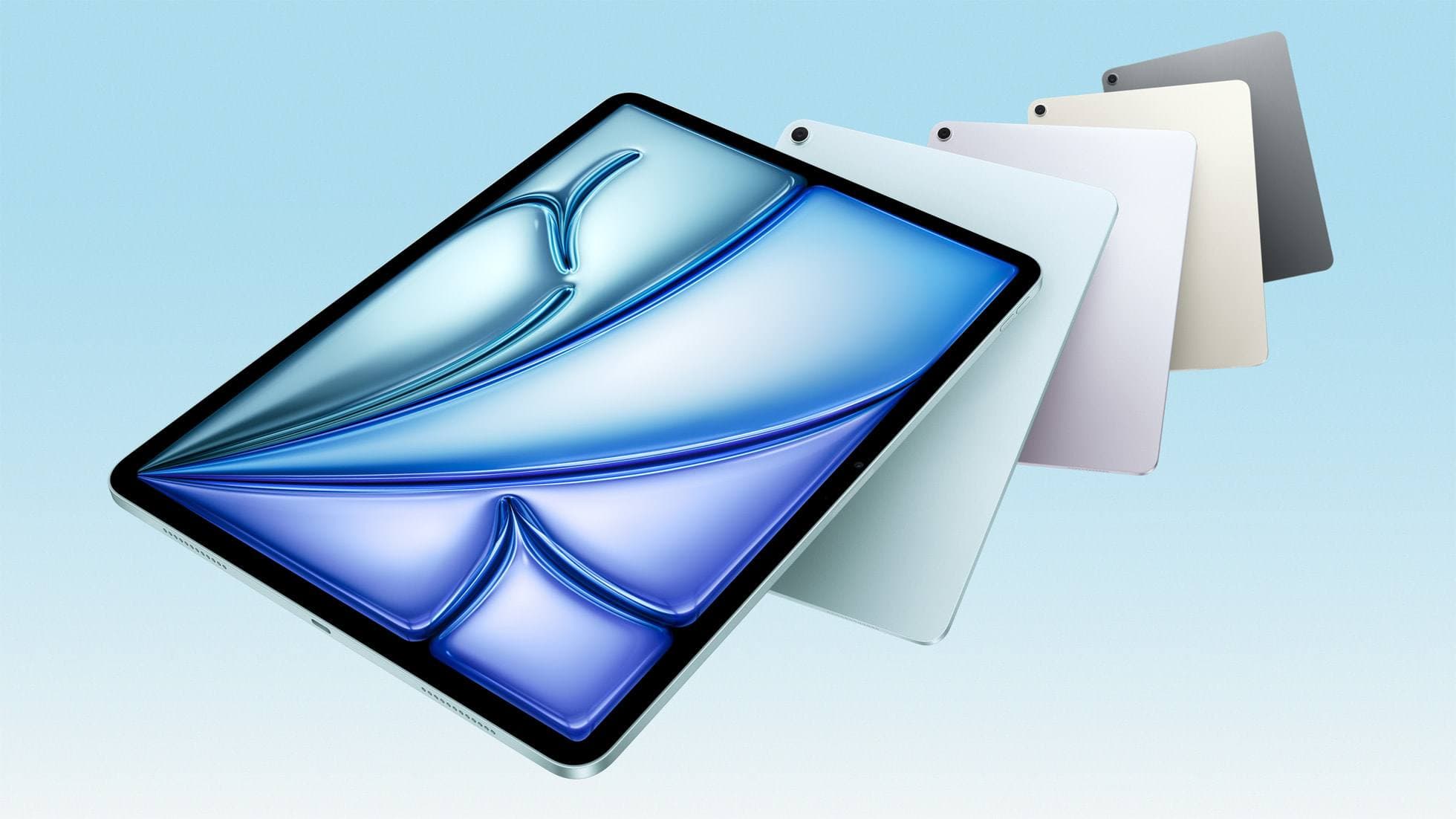
The iPad Air (M4) sits in Apple's current tablet lineup, offering modern chip performance and storage choices alongside Apple Pencil compatibility [8]. It's a sensible middle tier if you want access to advanced Apple Pencil features without paying flagship tablet prices [8], [9]. However, the iPad Air display runs at a standard 60Hz refresh rate rather than the higher refresh rate found on top-tier hardware [8].
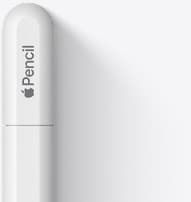
If you pair an iPad Air (M4) with an Apple Pencil Pro, you gain access to barrel roll, squeeze gestures, haptic feedback, and Apple Pencil hover [9], [10]. Apple Pencil Pro pairs and charges magnetically on supported modern iPads, giving you quick tool-switching shortcuts while laying out swatches and sketching annotations on your board [9], [10]. If your iPad only supports the Apple Pencil (USB-C) or earlier models, double-check Apple's compatibility lists, as advanced squeeze and barrel roll features won't be available on those older styluses [9], [10].
Bottom line
If your goal is assembling sprawling mood boards without running out of borders, download Concepts for its flexible vector canvas [1]. It lets you paste references freely, group thoughts visually, and sketch annotations across an open workspace [1]. If you want structured, framed boards with paint textures and one-time software ownership, buy Procreate [2]. You'll trade infinite borders for reliable layer management, provided your iPad has enough memory to support your target canvas dimensions [2], [4]. Skip Clip Studio Paint unless your reference boards feed directly into multi-page comics or desktop production where its trial-and-plan structure makes practical sense [3].
Sources
[1] https://apps.apple.com/us/app/id560586497 [2] https://apps.apple.com/us/app/id425073498 [3] https://apps.apple.com/us/app/id1262985592 [4] https://help.procreate.com/articles/zlexav-ipad-compatibility [5] https://apps.apple.com/us/app/id1458660369 [6] https://apps.apple.com/us/app/id883738213 [7] https://apps.apple.com/us/app/id450722833 [8] https://www.apple.com/ipad/compare/ [9] https://www.apple.com/apple-pencil/ [10] https://support.apple.com/en-us/108937
Recommended gear
Procreate
apps.apple.comPro: One-time purchase
Con: iPad-only
Clip Studio Paint
apps.apple.comPro: Deep comics, vector, ruler, and animation toolset
Con: iPad plan model is less simple than Procreate
iPad Air (M4)
apple.comThe clean current Air recommendation for most serious hobby artists. Stronger buy logic than old-stock M3 when pricing is close.
Pro: Best current balance of price, headroom, and Pencil support
Con: Still 60Hz
Current Air lineup. Choose size, storage, and keyboard path before checkout.

Apple Pencil Pro
amazon.comThe best Apple stylus for serious digital art workflows. Expensive, but the control upgrades are real.
Pro: Best brush-control and hover workflow
Con: Highest price in the lineup
Works only with newer iPad models. Check compatibility.
Apple Pencil (USB-C)
amazon.comA practical low-cost Apple stylus with broad compatibility, but limited for advanced art control.
Pro: Lowest official Apple Pencil cost
Con: No pressure sensitivity for brush work
Compatible with many recent iPads. No pressure support.
Related buying picks
More in this collectionBuyer guide
Best iPad app for surface pattern design: Procreate versus Clip Studio Paint
Choose Procreate for standalone raster pattern motifs or pick Clip Studio Paint for vector assets and complex pattern tile structures.
Buyer guide
Best iPad app for interior design sketching
Choose Procreate for simple one-time pricing and fast concept illustration, or pick Clip Studio Paint for multi-page floor plans and deep ruler systems.
Buyer guide
Best iPad app for embroidery design
Procreate is the top iPad app for drawing embroidery patterns, while Clip Studio Paint and Concepts offer distinct vector and ruler alternatives.
Buyer guide
Best iPad app for character design
Procreate delivers the cleanest raster workflow for turnaround sheets, while Clip Studio Paint offers deeper vector and comic tooling.