





Buy the iPad mini if you prioritize pocketable convenience and single-page writing above all else, but choose the iPad Air (M4) if you rely on detailed two-page weekly spreads, split-screen referencing, or advanced stylus tools [1], [3]. The iPad mini is completely capable of running dedicated digital planning apps, yet its compact glass footprint forces you into a specific style of journaling that relies heavily on zooming and panning [1]. If your planning habit involves sitting at a desk with your schedule, reminders, and sticker sheets open side by side, the larger iPad Air offers a far more forgiving canvas [1].
The reality of planning on a compact screen
Digital planning mimics the feel of paper agendas, calendars, and ring-bound notebooks, but screen dimensions dictate how you interact with those templates [1]. The iPad mini features an 8.3-inch Liquid Retina display, which makes the hardware easy to hold in one hand while standing or commuting [1]. That physical footprint is close to an A5 notebook, which appeals to anyone who dislikes carrying heavy bags [1].
When you import a landscape planner with monthly calendars or multi-column weekly schedules into your tablet, an 8.3-inch screen reduces text and calendar boxes noticeably [1]. To write legibly inside a dated box, you have to zoom in, write your entry, and then zoom back out to see the whole month [1]. On an 11-inch or 13-inch iPad Air, the larger display area lets you view an entire weekly schedule at actual size while still leaving legible room for handwritten notes [1]. If you want your planner to stay visible on your desk as an open dashboard throughout the day, the small screen of the iPad mini can feel cramped [1].
Tool selection between Goodnotes 6 and Notability
The software you select shapes how practical a small screen feels during your daily routine [1]. Goodnotes 6 provides strong templates and folder organization, making it a natural fit for planners who rely on hyperlinked PDF documents and structured notebooks [1]. Its nesting system allows you to organize multiple journals, project trackers, and sticker books inside unified folders [1]. The full suite of features in Goodnotes 6 requires a subscription, but its template handling remains a standard choice for PDF-based planning [1].
Notability approaches digital planning through a fast handwriting workflow that emphasizes continuous scrolling and quick note capture [1]. If you prefer building vertical running logs, meeting agendas, and rapid checklists rather than clicking through tabbed monthly planners, Notability offers a responsive writing experience [1]. Like its competitors, Notability gates certain tools behind a paid tier, so you will want to verify whether the free toolset covers your routine [1]. Both apps sync across devices through cloud storage, which means you can sketch out quick tasks on an iPad mini and review them on a Mac or another tablet later [1].
Apple Pencil compatibility and writing precision
Your choice of iPad directly controls which stylus hardware you can pair with your screen [2], [3]. Apple designs different Pencil models with distinct features such as pressure sensitivity, tilt detection, low latency, and magnetic pairing [2], [3]. The iPad Air (M4) supports Apple Pencil Pro, which brings advanced capabilities like barrel roll, squeeze gestures, haptic feedback, and Apple Pencil hover [1], [2], [3].
Squeeze shortcuts on Apple Pencil Pro let you bring up tool palettes instantly under your pen tip, which eliminates trips back to a static toolbar at the edge of the screen [2]. The barrel roll feature uses an internal gyroscope to rotate shaped brushes and highlighter tools as you turn the stylus barrel [2]. Haptic pulses provide subtle tactile confirmation when you trigger a shortcut gesture [2].
Depending on which generation of iPad mini you choose, compatibility shifts between different stylus models [1], [3]. The iPad mini (6th generation) pairs with Apple Pencil (2nd generation) and Apple Pencil (USB-C), whereas the latest iPad mini (A17 Pro) supports Apple Pencil Pro and Apple Pencil (USB-C) [1], [3]. Apple Pencil (USB-C) offers tilt sensitivity and magnetic storage, but it lacks pressure sensitivity and wireless pairing [2], [3]. If you care about natural calligraphic line variation when decorating your planner with custom scripts, make sure your tablet and stylus combination supports pressure sensitivity [2], [3].
Multitasking and split-screen planning habits
Digital planning rarely happens in total isolation from the rest of your digital life [1]. Most people check their Google Calendar, reference emails, copy tracking numbers, or drag digital stickers from cloud storage while organizing their week [1]. Doing that efficiently on iPadOS requires using Split View or Slide Over to keep two applications visible simultaneously [1].
On the 8.3-inch iPad mini screen, dividing the display between a planning app and a web browser cuts each window down to a narrow vertical strip [1]. Writing comfortably inside a calendar box while Split View is active becomes difficult without aggressive scaling [1]. By contrast, the iPad Air (M4) gives you the physical width to run Goodnotes 6 or Notability on one side while browsing recipes, schedules, or reference documents on the other [1]. If your planning routine depends heavily on dragging stickers, photos, and links directly into your daily logs, the extra screen real estate on the iPad Air makes that process significantly simpler [1].
Who should buy the iPad mini
The iPad mini remains the best choice for anyone who values extreme portability over expansive canvas space [1]. If you want a digital journal that fits inside a coat pocket, small purse, or glove box, no other current iPad matches this form factor [1]. It is ideal for field notes, rapid task lists, grocery checklists, and bullet journaling that uses simple dot-grid paper rather than complex horizontal spreadsheets [1].
Commuters and students who take notes while standing or walking will appreciate how light the iPad mini feels during long sessions [1]. If you already use your phone for deep calendar management and simply want a digital pad to replace a pocket notebook, the iPad mini delivers that experience without taking over your bag [1]. Skip the mini, however, if you plan to keep your tablet propped open on a desk stand all day to serve as an at-a-glance command center [1].
Who should step up to the iPad Air
The iPad Air (M4) is the recommended step-up for anyone who treats digital planning as a visual art form or an extensive organizational hub [1]. With its 11-inch or 13-inch Liquid Retina display, the iPad Air gives you ample space to view full monthly spreads and dense weekly layouts without pinching to zoom every few seconds [1]. You get full support for Apple Pencil Pro, allowing you to use tool-switching squeeze gestures and barrel-roll orientation when lettering titles or highlighting deadlines [1], [2].
While the iPad Air display uses a 60Hz refresh rate rather than the higher refresh rate found on Apple's premium tier, it provides an outstanding balance of performance, processing headroom, and modern stylus features [1], [2]. It is the right purchase for planners who keep several apps open at once, build detailed memory-keeping scrapbooks, or prefer a canvas that feels close to an open, full-sized desk planner [1].
Bottom line
The iPad mini is technically enough for digital planning, but it demands compromises in how you view and interact with larger templates [1]. If your goal is a tiny, grab-and-go notebook replacement for rapid logs and pocket lists, the iPad mini is a delight to carry [1]. But if you want a complete planning desk setup that handles full weekly views, split-screen multitasking, and the expressive shortcut tools of Apple Pencil Pro, choose the iPad Air (M4) instead [1], [2], [3].
Sources
[1] https://www.apple.com/ipad/compare/ [2] https://www.apple.com/apple-pencil/ [3] https://support.apple.com/en-us/108937
Recommended gear
Goodnotes 6
apps.apple.comPro: Strong templates and organization
Con: Subscription for full features
Notability
apps.apple.comPro: Fast handwriting workflow
Con: Feature gating on free tier

Apple Pencil Pro
amazon.comThe best Apple stylus for serious digital art workflows. Expensive, but the control upgrades are real.
Pro: Best brush-control and hover workflow
Con: Highest price in the lineup
Works only with newer iPad models. Check compatibility.
iPad Air (M4)
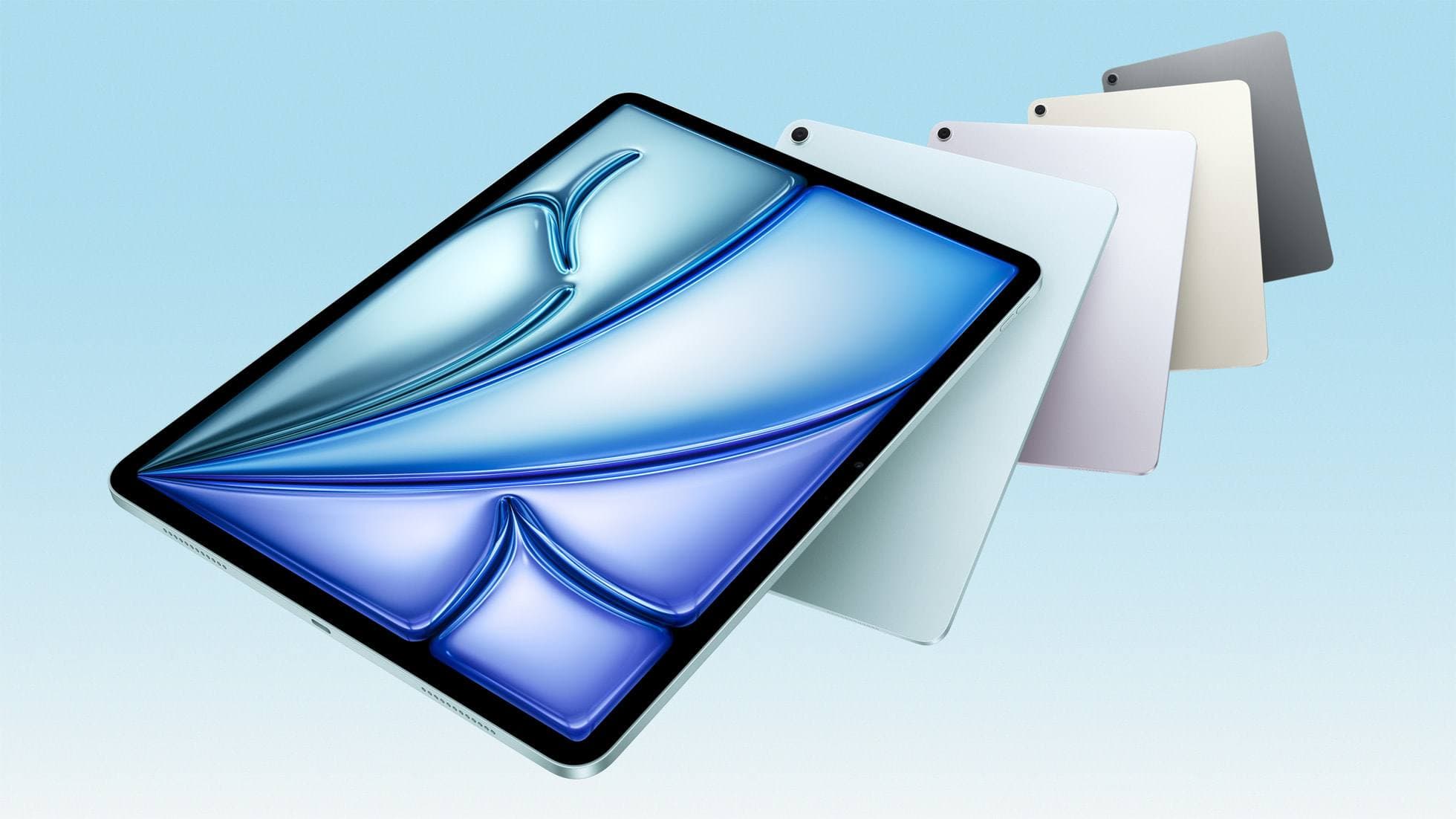
apple.comThe clean current Air recommendation for most serious hobby artists. Stronger buy logic than old-stock M3 when pricing is close.
Pro: Best current balance of price, headroom, and Pencil support
Con: Still 60Hz
Current Air lineup. Choose size, storage, and keyboard path before checkout.
Related buying picks
More in this collectionBuyer guide
Is iPad mini good for animation? Screen size and pencil limits
The iPad mini handles animation apps and Apple Pencil Pro, but its compact screen and layer headroom make it best for quick sketches rather than heavy production timelines.
Buyer guide
Is the iPad Air enough for Nomad Sculpt?
The iPad Air delivers more than enough power and Apple Pencil Pro features for Nomad Sculpt without the Pro model price.
Buyer guide
iPad Air for Procreate: how to choose your animation setup
Here is how the iPad Air compares for creative work, Apple Pencil Pro support, and canvas layer budgets.
Buyer guide
Best drawing tablet for surface pattern design: iPad Air vs iPad Pro
Choose the iPad Air with Apple Pencil Pro for repeat pattern design, or step up to the iPad Pro if high-resolution layer limits dictate your production.