Keep your iPad for now. Adobe Fresco is a free drawing and painting app from Adobe with a 4.7 rating from 62,130 App Store ratings, and when it lags on an iPad the usual causes are a document that's too big for the device's free memory, a canvas full of layers, a nearly full iPad, or brush smoothing you've mistaken for delay [7]. Work through those in order. You should buy the iPad Air (M4) only if an entry-level iPad still drags after every fix, and skip the iPad Pro (M5) unless you want its display for other reasons [1], [4].
Start with the document rather than the device
A painting app on iPad draws on the same memory for every layer and every pixel of canvas. Procreate publishes the clearest statement of this: its layer limit follows the iPad's memory and drops as the canvas grows [4]. Fresco is a different app from a different maker, but it's painting on the same hardware, so a print-size document with dozens of layers is the first thing to suspect when strokes start to trail [4], [7].
Open the document that lags and check its dimensions and layer count. Merge finished layers, delete the hidden ones you've stopped using, and try a copy of the file at screen resolution [4]. If the smaller copy paints smoothly, you've found the cause, and the fix is to work at the size the output needs rather than a size that's safe for every possible print [4].
Free storage, close apps, restart
A full iPad is the next suspect. iPadOS needs free space for the temporary data a painting app writes while you work, and an iPad that's nearly full behaves worse than its chip suggests [1], [4]. Check Settings for free storage, clear old exports and downloads, and offload apps you haven't opened in months [4].
Then restart. An iPad awake for days with several apps in the background has less memory available to Fresco than a fresh one, and a restart is the cheapest test you can run [5]. Update Fresco and iPadOS while you're there, since the App Store listing is where Adobe ships fixes and where it states which iPadOS versions the current build supports [7].
Brush settings that feel like lag
Some of what reads as lag is a setting. Drawing apps smooth strokes by averaging the Pencil's position over time, and Procreate's handbook documents its line-smoothing and stabilization controls as exactly that: a deliberate delay that makes a line look steadier [6]. If the Fresco brush you're using has a smoothing or stabilizing setting turned up, the line trails the tip on purpose [6], [7]. Turn it down on the brush that feels slow and draw a fast scribble; if the trail shrinks, the iPad was never the problem [6].
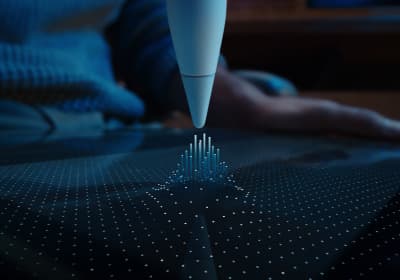
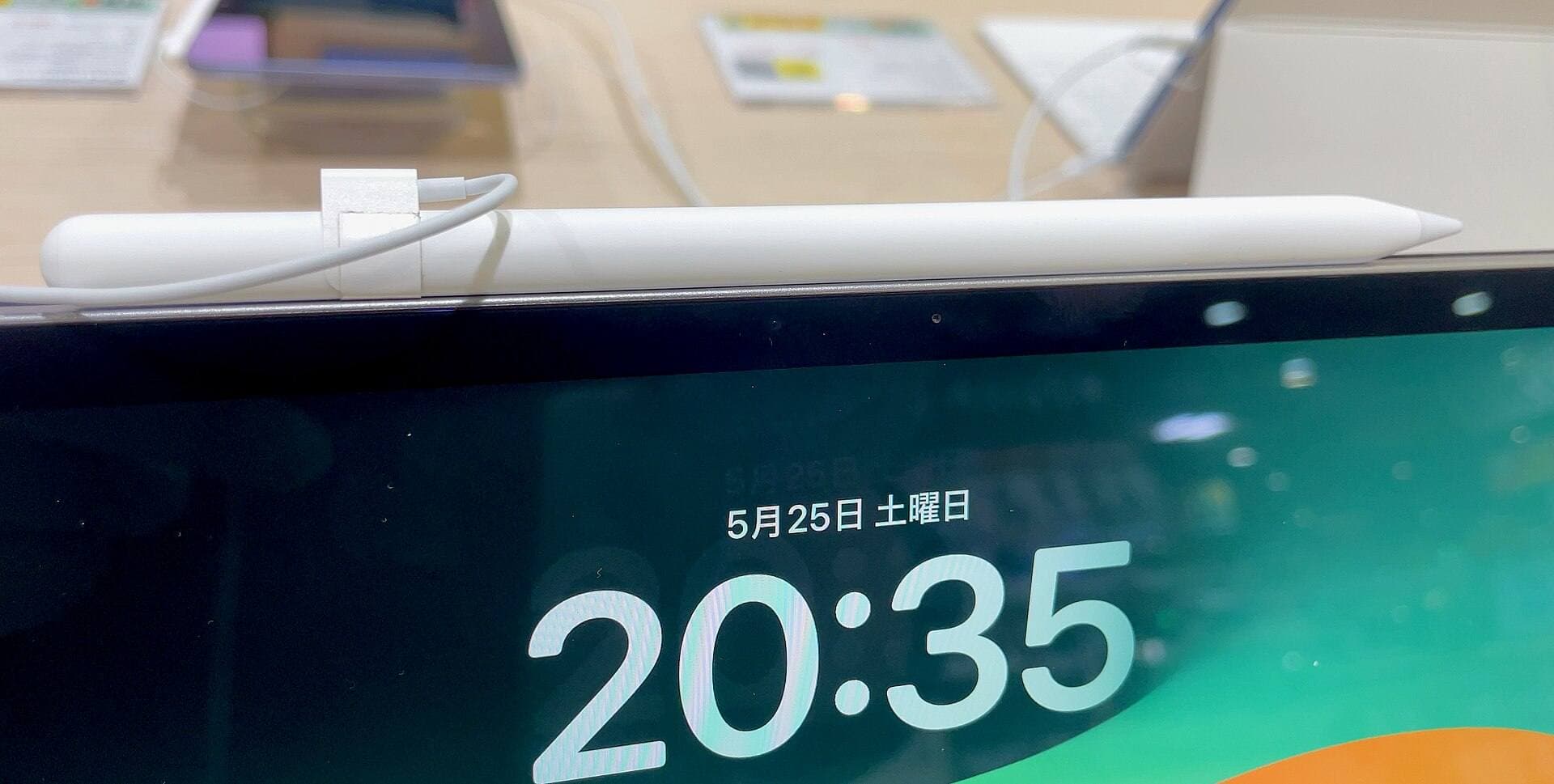
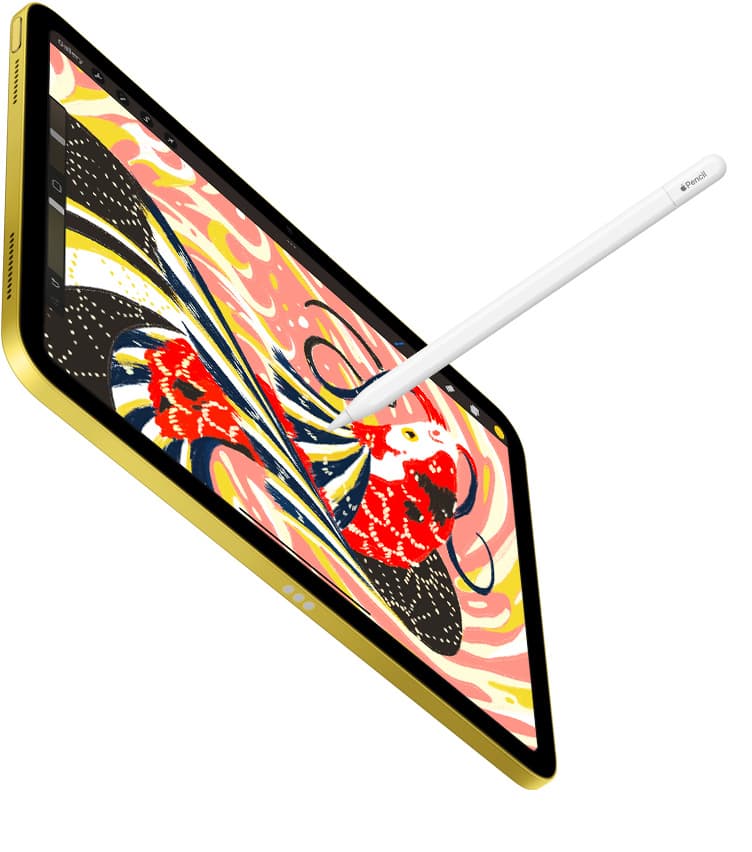
Check the Pencil too. Apple lists which Pencil pairs with which iPad, and a Pencil that's low on charge or paired to a different iPad can drop strokes in a way that looks like app lag [2], [3]. Hover on the Pencil Pro shows the brush footprint before the tip touches down, and if that preview is smooth while the stroke isn't, the brush settings are the place to look [2]. The Pencil Pro's hover, squeeze, and barrel roll are listed on Apple's Pencil page, and none of them change stroke speed; they're conveniences, so don't read their absence on an older Pencil as the source of lag [2].
A two-minute test that sorts the cause
Before you change anything else, open a new document at screen size, pick a basic round brush with smoothing off, and scribble for a minute. If that paints cleanly, the device and the Pencil are fine, and the lag lives in your big document or its brush settings, which is the cheap kind of problem [4], [6]. If even the blank document trails, the iPad is low on memory or storage, or the Pencil is the issue, and the storage and restart steps above are where to spend your time [4], [5].
Keep a note of which test failed. It decides the rest of this guide, and it's the same test to run after each fix so you know what helped rather than guessing from a feeling [6].
Which iPad is the bottleneck
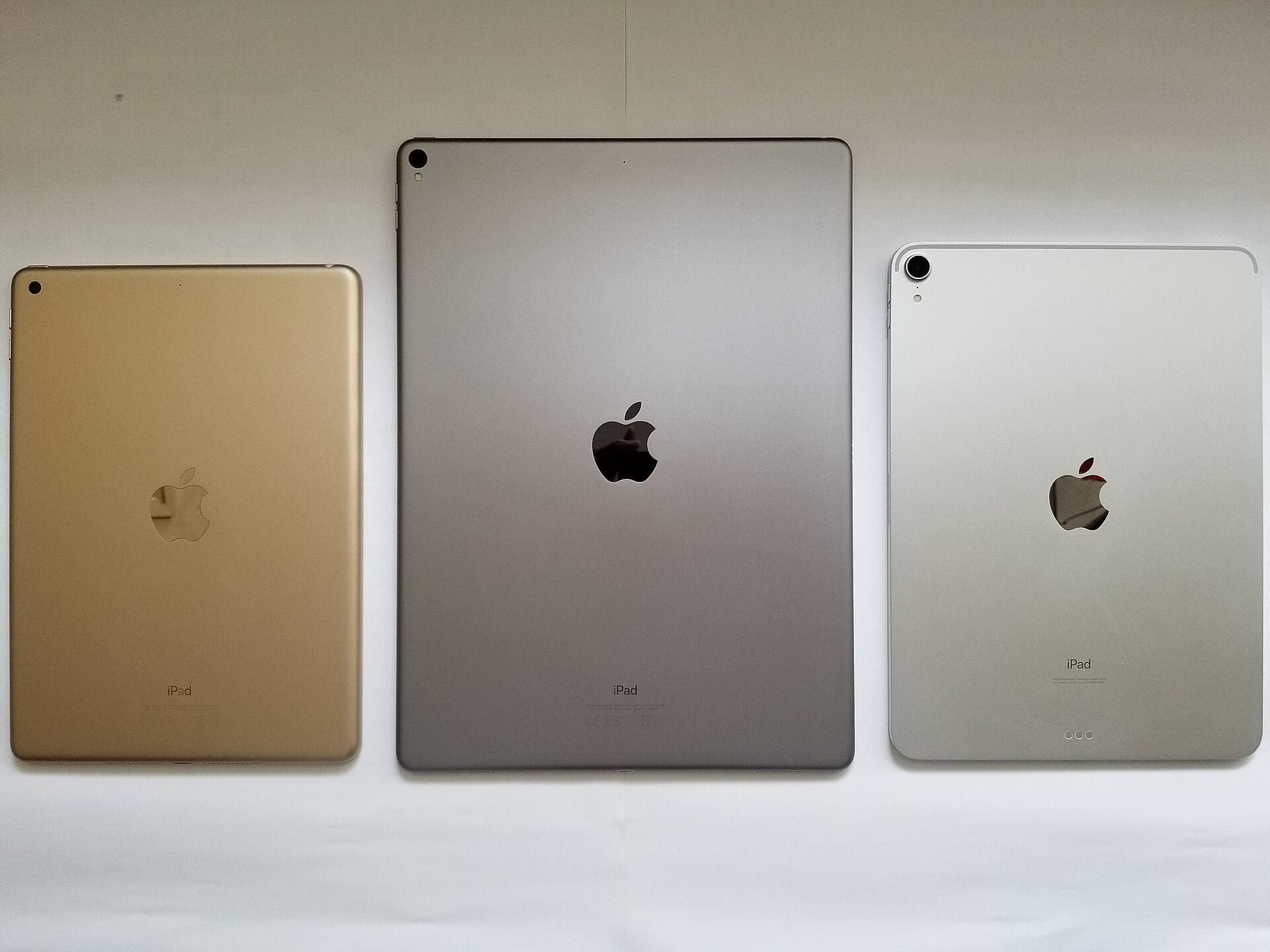
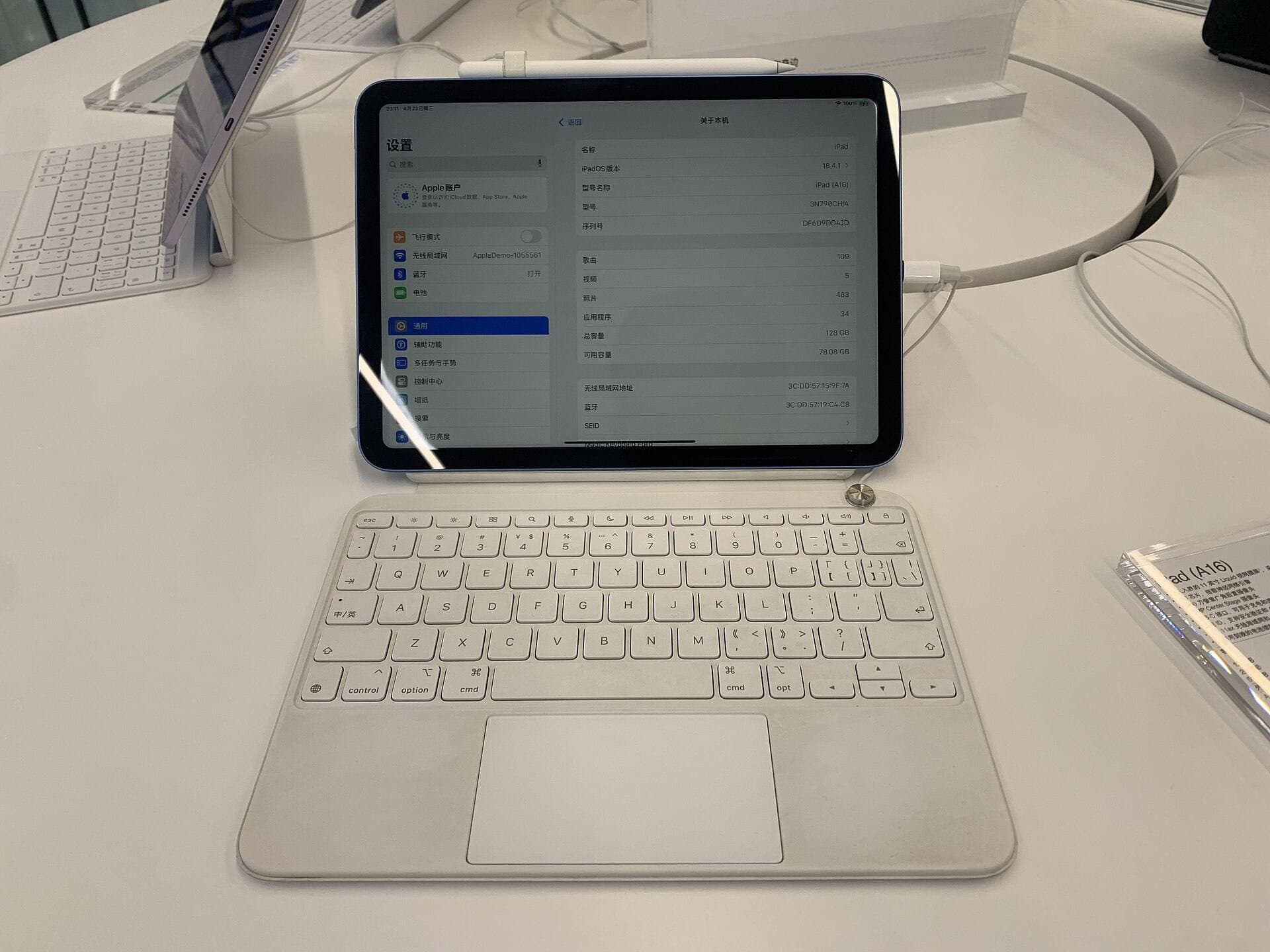
If the trimmed document still drags after a restart with smoothing off, look at the iPad. The iPad (A16, 11th gen) is the best value in the lineup and a fine sketching tablet, but it's the mainstream model with an A-series chip rather than the M-series the Air and Pro carry, and large painted documents are where that difference shows [1], [4]. Storage matters here as well: Apple's comparison page lists each model's storage tiers, and the smallest tier on any of them fills fast with layered painting files, which brings you back to the storage step above [1]. The iPad mini (A17 Pro) is the most portable, and its small canvas tends to keep documents small, so it rarely hits the same wall [1].
The iPad Air (M4) is the sensible step up: an M-series chip, more memory headroom, Apple Pencil Pro support, and a price below the Pro [1], [3]. Buy it if your Fresco documents are print-size with many layers and you paint for pay [1], [4]. The iPad Pro (M5) adds the best iPad display and ProMotion feel at the highest price, and for a lag problem the display is the only reason to pay for it [1]. Keep the A16 if your trimmed documents paint well and you mostly sketch [1], [4].
Bottom line
Fix Fresco lag in this order: shrink the document and cut layers, free storage and restart, update the app, then turn down brush smoothing and check the Pencil [4], [6], [7]. Most lag clears at one of those steps because the cause was the file or the settings rather than the chip [4]. Buy the iPad Air (M4) only if an entry-level iPad still drags on a trimmed document, and treat the Pro as a display purchase rather than a lag fix [1], [3].
Sources
[1] https://www.apple.com/ipad/compare/ [2] https://www.apple.com/apple-pencil/ [3] https://support.apple.com/en-us/108937 [4] https://help.procreate.com/articles/zlexav-ipad-compatibility [5] https://help.procreate.com/articles/dbgjal-procreate-faq [6] https://help.procreate.com/procreate/handbook [7] https://apps.apple.com/us/app/id1458660369
Recommended gear
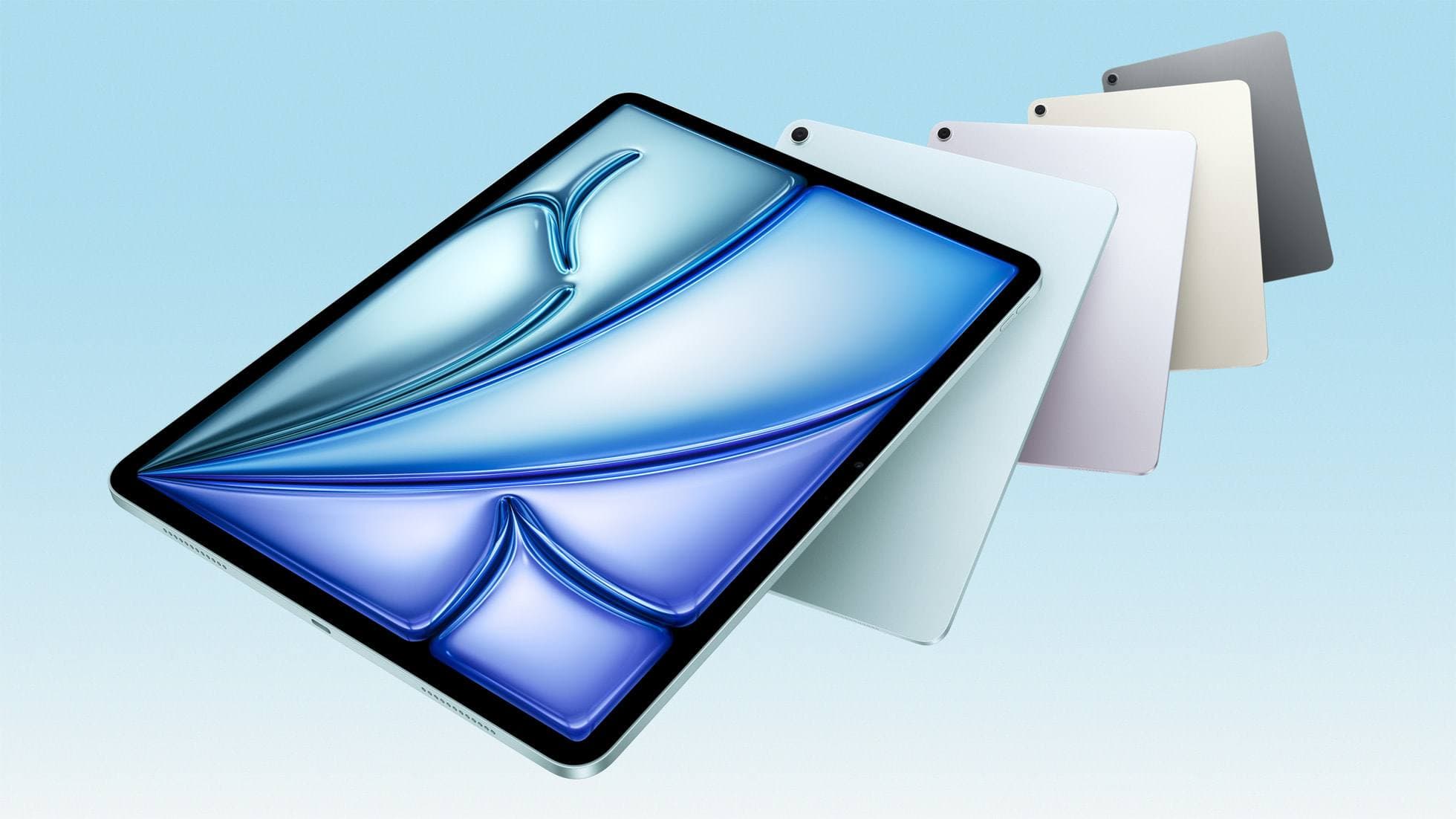
iPad Air (M4)
apple.comThe clean current Air recommendation for most serious hobby artists. Stronger buy logic than old-stock M3 when pricing is close.
Pro: Best current balance of price, headroom, and Pencil support
Con: Still 60Hz
Current Air lineup. Choose size, storage, and keyboard path before checkout.
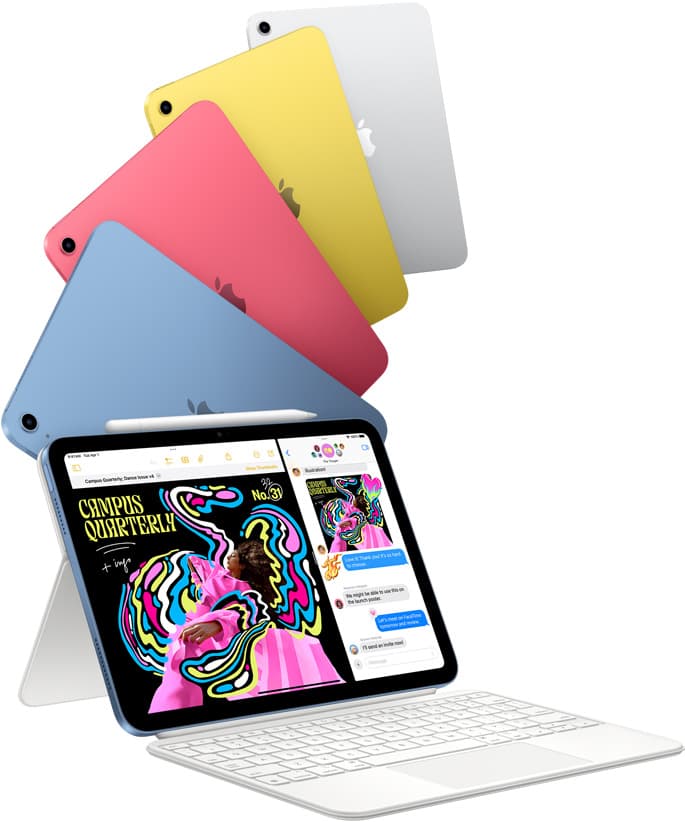
iPad (A16, 11th gen)
amazon.comThe best entry iPad for most artists on a budget. It is not premium, but it is very hard to beat on value.
Pro: Best value iPad right now
Con: No ProMotion display
Search opens with the exact model keywords. Verify size and storage before checkout.
iPad Pro (M5)
amazon.comThe best iPad for drawing feel and premium workflow comfort, but many buyers still overpay for it.
Pro: Best iPad display and ProMotion feel
Con: Highest price in the lineup
Search opens with iPad Pro terms. Check year, chip, and screen size.
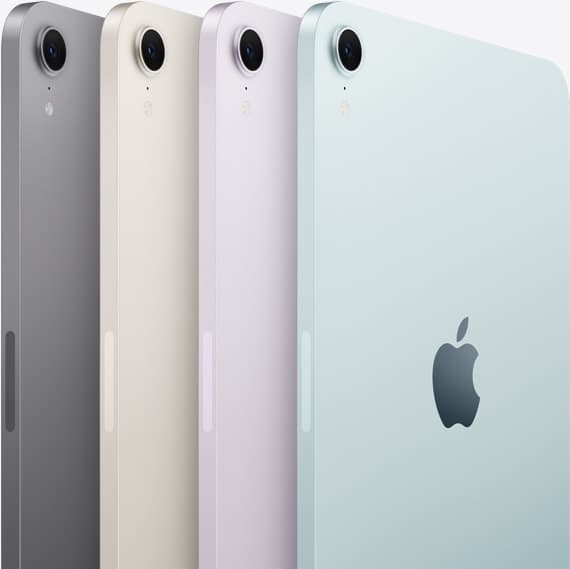
iPad mini (A17 Pro)
amazon.comThe most portable real iPad for drawing. It wins on mobility and loses on workspace.
Pro: Most portable drawing iPad
Con: Small canvas for detailed work
Search opens with iPad mini A17 Pro terms. Verify model number before buying.
Related buying picks
More in this collectionBuyer guide
Best iPad for digital painting: Which model should you buy?
Choose the right iPad for digital painting based on screen space, Apple Pencil features, and layer capacity.
Comparison
Procreate vs Adobe Fresco on iPad: how to choose your drawing app
Compare Procreate and Adobe Fresco on iPad to pick the right drawing app, stylus features, and tablet setup for your workflow.
Buyer guide
Is iPad Pro overkill for Procreate?
For most artists using Procreate, an iPad Pro is overkill when an iPad Air with Apple Pencil Pro delivers the same core drawing features and layer headroom.
Buyer guide
Best drawing tablet for surface pattern design: iPad Air vs iPad Pro
Choose the iPad Air with Apple Pencil Pro for repeat pattern design, or step up to the iPad Pro if high-resolution layer limits dictate your production.