





If you want a pocket-sized digital flipbook for rough sketches, character thumbnails, and short loops, the iPad mini (A17 Pro) is a capable companion that pairs with Apple Pencil Pro [1], [2]. But if you plan to build complex scene files with dozens of drawing layers or long multi-track timelines, skip the mini and buy the iPad Air (M4) [1]. The mini runs modern animation software like Procreate, Procreate Dreams, and Clip Studio Paint [4], [6], [8]. However, its compact 8.3-inch screen leaves very little drawing area once app toolbars and animation scrubbers open on screen [1].
Display size and timeline workspace
The most noticeable constraint on the iPad mini is its physical screen size. The iPad mini (A17 Pro) features an 8.3-inch Liquid Retina display [1]. While that makes the hardware easy to carry in one hand or hold like a sketchbook, animation interfaces require far more on-screen furniture than standard illustration tools [1], [8].
Dedicated animation software relies on persistent controls that shrink the visible drawing canvas. In Procreate, turning on Animation Assist adds an overlay frame timeline along the bottom of the display, reducing your vertical drawing clearance [4], [5]. In Procreate Dreams, the multi-track timeline, playhead, and performance controls occupy substantial interface space alongside the stage [8]. Clip Studio Paint adds floating palettes, cell banks, and a traditional animation timeline to the display [6], [7]. On an 8.3-inch panel, these interface elements crowd your artwork, forcing you to zoom and pan constantly while drawing consecutive frames [1], [6].
If you treat the iPad mini as a portable scratchpad for rough keys, thumbnail passes, or simple GIF loops, the screen dimensions are manageable [1]. You can block out quick motion paths on a train or couch without needing a desk [1]. But if you want to see your full character layout while simultaneously monitoring playback timing across multiple tracks, the small display area becomes a persistent bottleneck [1], [8].
Memory limits and layer ceilings across animation apps
Frame-by-frame animation requires significant device memory because every individual frame behaves like a separate drawing layer [4], [5]. How your iPad handles memory determines how long your animated sequences can be before the software imposes a hard stop [4].
In standard Procreate, canvas size directly dictates maximum layer counts based on available device memory [4]. If you create a high-resolution canvas on the iPad mini, the available layer pool shrinks quickly [1], [4]. Because Procreate's Animation Assist converts each active layer or group into an animation frame, hitting your layer ceiling means hitting your frame ceiling [4], [5]. A 24-frame sequence might consume your entire available layer allowance at print resolutions, forcing you to animate at lower pixel dimensions [4].
Procreate Dreams approaches timelines differently by separating content across tracks, but project complexity still depends on device headroom [1], [8]. Similarly, Clip Studio Paint allows frame-by-frame cel animation, but running extensive timelines with background art and ink layers demands careful file management [6], [7]. If you plan to produce finished short films with detailed multi-layered assets, larger iPads with M-series processors offer more headroom for demanding workflows [1]. The iPad mini (A17 Pro) remains best suited for short studies, animatics, and secondary scene work rather than monolithic master projects [1], [4].
Choosing between Apple Pencil Pro and Apple Pencil USB-C
Your stylus choice heavily shapes the animation experience on the iPad mini (A17 Pro), which supports both Apple Pencil Pro and Apple Pencil (USB-C) [1], [3]. For anyone doing serious drawing or inking, the difference between these two styluses is substantial [2].
Apple Pencil Pro includes pressure sensitivity, tilt detection, barrel roll, squeeze gestures, and haptic feedback [2]. Pressure sensitivity is essential for natural animation clean-up, allowing you to taper line ends, vary stroke weight, and create dynamic character inks without constantly stopping to adjust brush sliders [2], [5]. Barrel roll uses an internal gyroscope so you can rotate shaped brush tips as you sketch, while the squeeze sensor brings up tool palettes directly under your hand to save screen space [2]. It also charges and pairs magnetically directly on the edge of the iPad mini [1], [2].
Apple Pencil (USB-C) costs less and includes tilt detection and Apple Pencil hover, but it completely lacks pressure sensitivity [2]. Without pressure sensitivity, every mark you place maintains a uniform thickness unless the specific brush scales by speed or tilt [2]. For rough pose layout and quick timing charts, that might suffice [2]. But for clean inking, organic line art, and expressive brushwork across animation frames, skipping pressure sensitivity creates unnecessary friction [2], [5]. If you buy the iPad mini for animation, pair it with Apple Pencil Pro [1], [2].
When to step up to iPad Air instead
For many creators, the iPad Air (M4) is the more practical long-term investment for animation [1]. While the iPad mini excels purely at portability, the iPad Air provides an 11-inch or 13-inch Liquid Retina display that fundamentally changes how you interact with animation software [1].
The extra screen real estate on the iPad Air gives your timeline room to breathe [1], [8]. In Procreate Dreams or Clip Studio Paint, you can keep your drawing canvas at a comfortable size while viewing your audio tracks, video references, and frame cels at the same time [1], [6], [8]. You spend less time zooming in and out just to tap a specific keyframe on the scrubber [1].
The iPad Air (M4) also uses Apple's M4 processor and supports Apple Pencil Pro, giving you the same advanced stylus gestures, barrel roll control, and pressure responsiveness found on the iPad mini [1], [2]. The Air display still runs at a 60Hz refresh rate rather than the 120Hz found on Pro iPads, but its expanded canvas area and desktop-class chip make it far easier to manage complex animation files [1]. If your iPad will be your primary workstation for digital animation rather than a pocket sketchbook, choose the iPad Air [1].
Bottom line
The iPad mini (A17 Pro) is a good tool for animation if your expectations match its physical format [1]. Buy the iPad mini if you want an ultra-portable digital sketchbook for rough character poses, thumbnail loops, and quick motion tests on the go [1]. It runs top animation apps like Procreate, Procreate Dreams, and Clip Studio Paint, and its compatibility with Apple Pencil Pro provides excellent line control and squeeze shortcuts [1], [2], [5], [6], [8].
Skip the iPad mini if you need a primary workstation for multi-track productions, high-resolution clean-up, or lengthy frame counts [1], [4]. The small 8.3-inch panel gets crowded once timelines and toolbars open, and layer limits in Procreate restrict the length of high-detail sequences [1], [4]. For dedicated animation work, step up to the iPad Air (M4) paired with Apple Pencil Pro to get the workspace you need [1], [2].
Sources
[1] https://www.apple.com/ipad/compare/ [2] https://www.apple.com/apple-pencil/ [3] https://support.apple.com/en-us/108937 [4] https://help.procreate.com/articles/zlexav-ipad-compatibility [5] https://apps.apple.com/us/app/procreate/id425073498 [6] https://apps.apple.com/us/app/clip-studio-paint/id1262985592 [7] https://www.clipstudio.net/en/ [8] https://apps.apple.com/us/app/procreate-dreams/id1595520602
Recommended gear
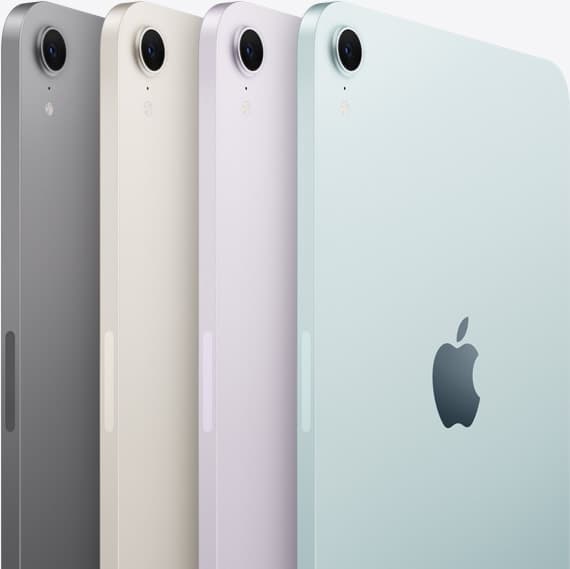
iPad mini (A17 Pro)
amazon.comThe most portable real iPad for drawing. It wins on mobility and loses on workspace.
Pro: Most portable drawing iPad
Con: Small canvas for detailed work
Search opens with iPad mini A17 Pro terms. Verify model number before buying.
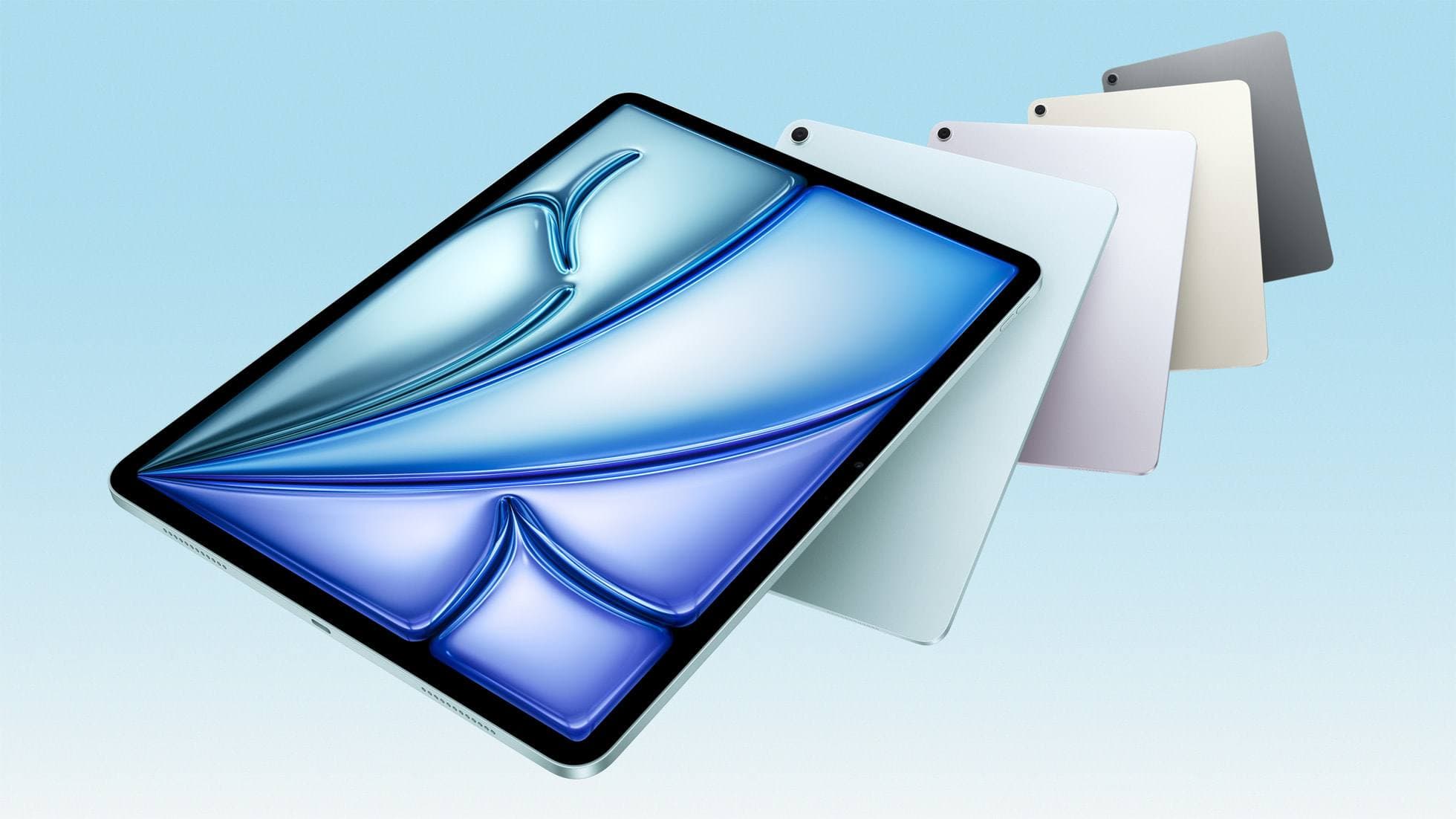
iPad Air (M4)
apple.comThe clean current Air recommendation for most serious hobby artists. Stronger buy logic than old-stock M3 when pricing is close.
Pro: Best current balance of price, headroom, and Pencil support
Con: Still 60Hz
Current Air lineup. Choose size, storage, and keyboard path before checkout.

Apple Pencil Pro
amazon.comThe best Apple stylus for serious digital art workflows. Expensive, but the control upgrades are real.
Pro: Best brush-control and hover workflow
Con: Highest price in the lineup
Works only with newer iPad models. Check compatibility.
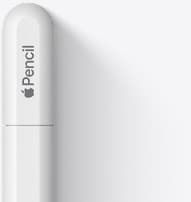
Apple Pencil (USB-C)
amazon.comA practical low-cost Apple stylus with broad compatibility, but limited for advanced art control.
Pro: Lowest official Apple Pencil cost
Con: No pressure sensitivity for brush work
Compatible with many recent iPads. No pressure support.
Related buying picks
More in this collectionBuyer guide
Is the iPad mini enough for digital planning?
The iPad mini works well for pocket planning on the go, but an iPad Air gives you the screen space and Apple Pencil Pro features needed for complex layouts.
Buyer guide
Is the iPad Air enough for Nomad Sculpt?
The iPad Air delivers more than enough power and Apple Pencil Pro features for Nomad Sculpt without the Pro model price.
Buyer guide
iPad Air for Procreate: how to choose your animation setup
Here is how the iPad Air compares for creative work, Apple Pencil Pro support, and canvas layer budgets.
Buyer guide
Is the iPad Air enough for animation?
The iPad Air delivers Apple Silicon processing and Apple Pencil Pro support, making it plenty capable for animation without stepping up to Pro pricing.