Buy Procreate if you want to draw hand embroidery motifs, trace pattern references, or build hoop layouts on an iPad [1]. It's a paid purchase in the Graphics & Design category without recurring subscription fees [1]. If you want dedicated vector line editing and multi-page project management, subscribe to Clip Studio Paint instead after its 30-day trial [2]. Skip specialized digitizing software on iPadOS, because iPad drawing apps focus on creating line art and visual templates rather than generating raw machine stitch files [1], [2].
Embroidery planning breaks down into two practical paths: drawing clear template art for hand stitching or transfer paper, and drafting clean line work that you later import into desktop digitizing programs. Choosing the right iPad app depends on how you build your motifs, whether you prefer raster or vector lines, and how you want to pay for software [1], [2].
Procreate for raster stitch sketching and hoop planning
Procreate is the benchmark drawing application made for iPad [1]. For embroidery designers, it works as a digital lightbox and sketchpad where you can import reference photos, adjust opacity, and ink clean linework for printing onto water-soluble stabilizer or tracing paper [1]. Savage Interactive sells Procreate as a paid app rather than a recurring subscription, making it the most sensible purchase for crafters who dislike ongoing software bills [1].
Layer management in Procreate lets you separate your design elements cleanly [1], [5]. You can keep your circular hoop boundary on one layer, rough floral drafts on a middle layer, and final stitch outlines on top [1]. Procreate's maximum layer limit depends directly on your canvas dimensions and the hardware memory of your iPad [5]. If you create massive print canvases for large tapestry work, your layer count decreases on devices with less memory [5]. For typical 4-inch to 8-inch hoop templates at standard print resolutions, however, Procreate gives you plenty of layers to organize outline colors and stitch guides [1], [5].
Who should buy Procreate: Hand embroiderers, surface pattern designers, and illustrators who want an easy, one-time purchase to trace references, color-block thread areas, and print transfer patterns [1].
Who should skip Procreate: Anyone who requires native vector stroke editing, or designers who need built-in geometric symmetry rulers for multi-page production sheets [1], [2].
Clip Studio Paint for vector inking and ruler precision
Clip Studio Paint offers a different toolset tailored toward technical inking, vector lines, and comic production [2]. The app is a free download that includes a 30-day trial before requiring a plan [2]. While Procreate commits your pencil strokes to raster pixels, Clip Studio Paint provides a deep vector toolset where strokes remain editable paths [2].
For embroidery designers, vector drawing provides a concrete advantage: you can resize outlines without pixel degradation, tweak path anchor points, and adjust stroke thickness after drawing [2]. This makes it easier to match specific embroidery floss strand weights directly on screen. Clip Studio Paint also includes specialized perspective and geometric rulers that help when drafting symmetrical mandalas, borders, and repeat patterns for textiles [2].
Who should buy Clip Studio Paint: Designers drafting detailed geometric lace, sashiko patterns, or multi-page design collections who benefit from vector path adjustment and advanced rulers [2].
Who should skip Clip Studio Paint: Casual crafters who dislike subscription pricing or prefer the simpler, distraction-free interface of Procreate [1], [2].
Alternative vector and sketching apps to consider
If neither Procreate nor Clip Studio Paint fits your workflow, the App Store features several alternative graphics apps with different pricing models and canvas styles [3], [4].
Concepts is a flexible vector-based sketchbook that uses an infinite canvas [3]. It is a free download in the Graphics & Design category [3]. Because the canvas does not lock you into fixed pixel boundaries, Concepts lets you draft multiple hoop variants, border ideas, and thread color palettes side by side in a single file [3]. Every stroke remains an editable vector object, which simplifies transferring clean design files to desktop tracing tools [3].
Adobe Fresco is another drawing and painting option available as a free download from Adobe [4]. Fresco combines raster brushes with vector brushes on the same canvas [4]. If you like sketching your shading with organic textures while keeping the outer structural outlines as sharp vector paths, Fresco lets you do both in one workspace [4].
ibis Paint X, Sketchbook, and Infinite Painter are also free downloads in the App Store for general sketching and pattern drafting, giving you broad choices if you want to test drawing mechanics before committing money [1], [2].
Hardware pairing: Apple Pencil and iPad selection
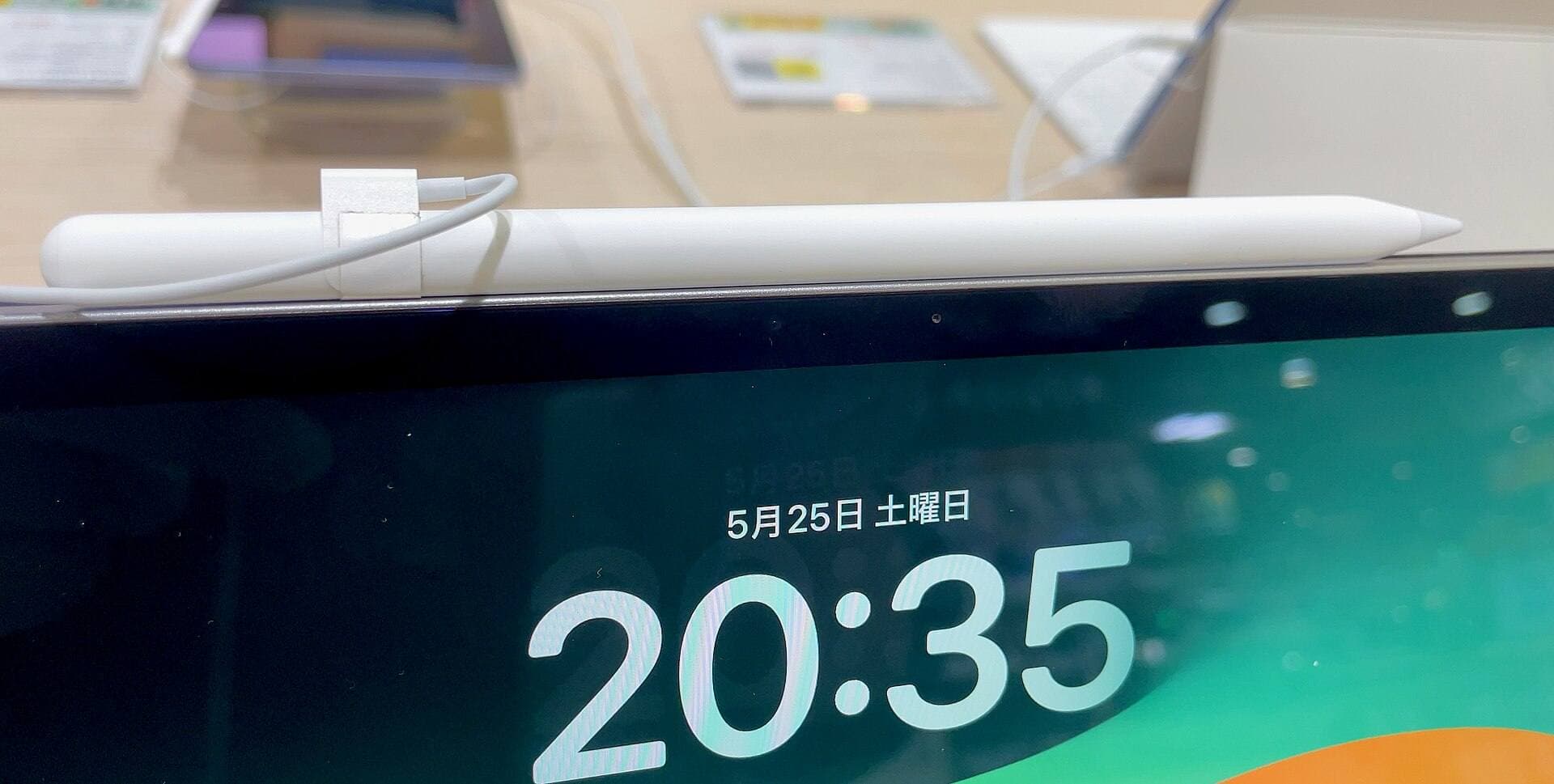
Your choice of stylus and tablet determines how accurately you can trace fine embroidery lines [6], [7], [8]. The Apple Pencil lineup includes multiple models with different feature profiles [6], [7].
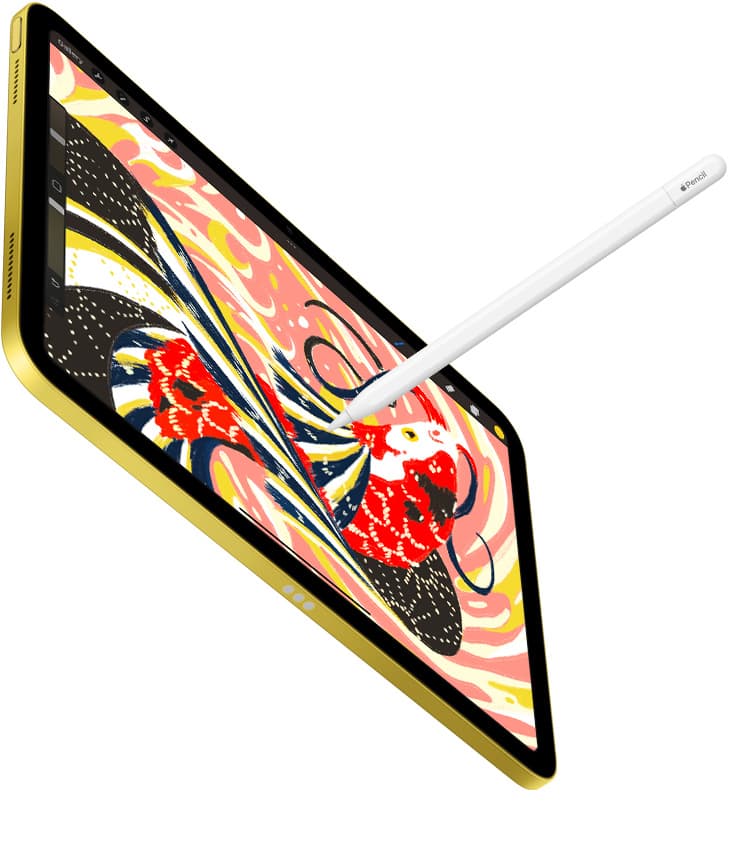
The Apple Pencil Pro supports tilt detection, pressure sensitivity, Apple Pencil hover, barrel roll, squeeze gestures, and haptic feedback [6]. Barrel roll lets you rotate shaped brushes by twisting the pencil barrel, while squeeze brings up tool palettes near your nib [6]. These advanced features work exclusively with compatible newer tablets, including the iPad Air (M4) [6], [7], [8]. The Apple Pencil (USB-C) provides tilt sensitivity and magnetic attachment, but it lacks pressure sensitivity, barrel roll, and squeeze [6]. If your embroidery drawing style relies heavily on varying line thickness through hand pressure, choose a pressure-sensitive Pencil model [6].
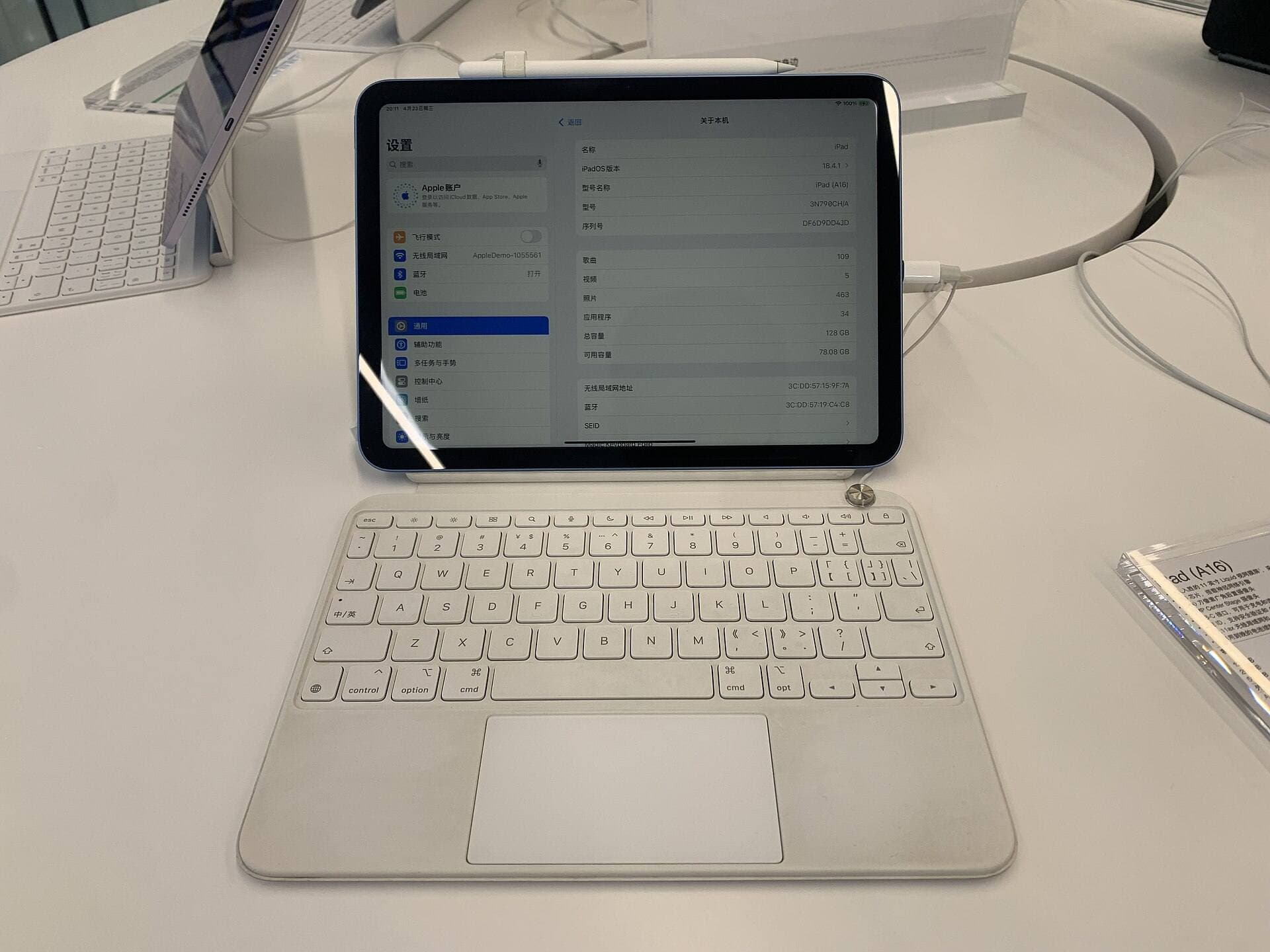
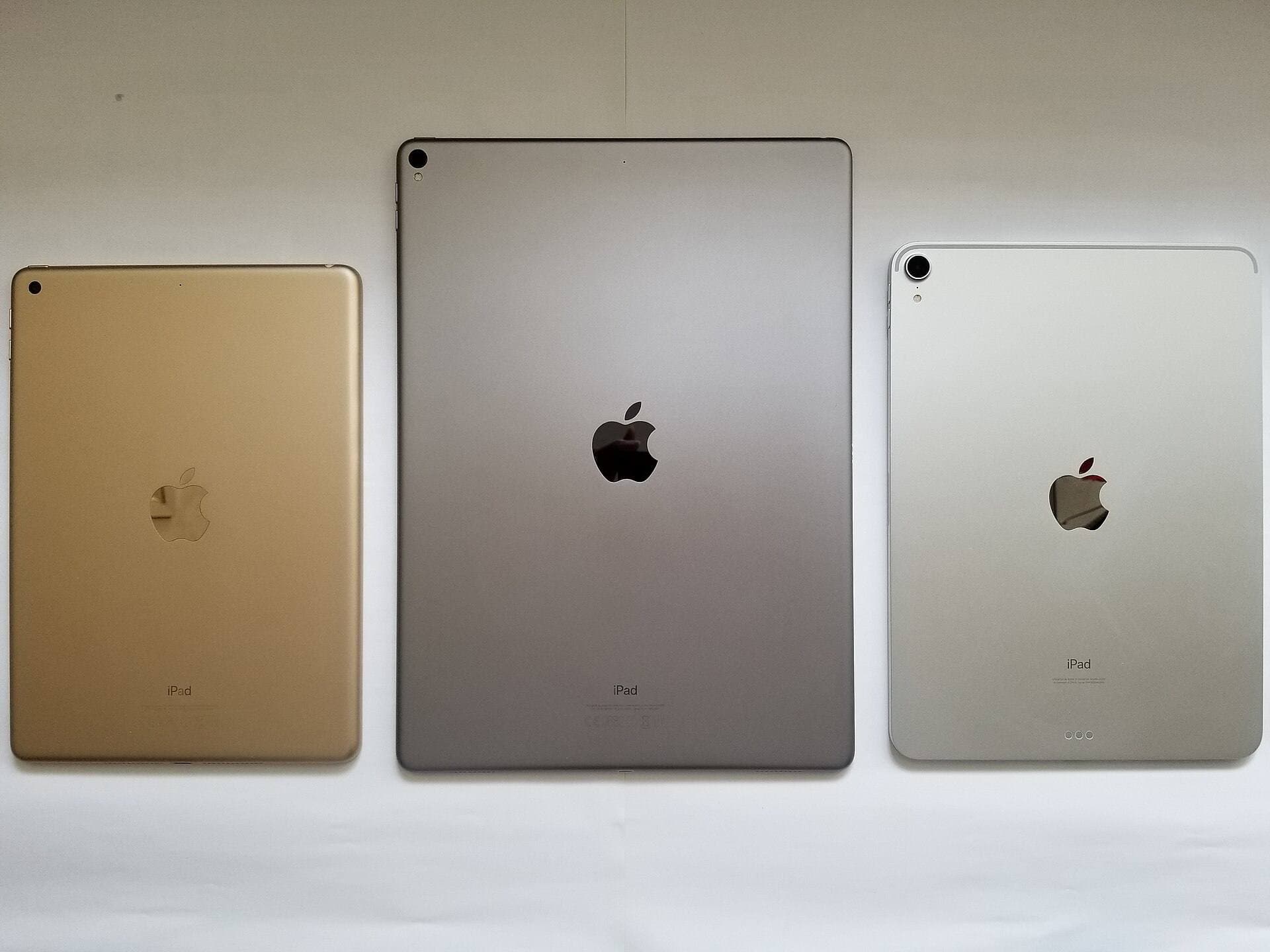
For the tablet itself, the iPad Air (M4) provides a capable balance of headroom and display size [8]. It supports the Apple Pencil Pro and comes in 11-inch and 13-inch sizes with Liquid Retina displays running at 60Hz [8]. The 11-inch model is portable for tracing on the couch, while the 13-inch display gives you extra room to view 1:1 scale hoop transfers alongside reference photos [8]. Because Procreate's layer counts are tied to available system memory, modern Apple silicon chips provide comfortable canvas margins for high-resolution print files [5], [8].
Bottom line
For most people drafting embroidery designs, Procreate remains the best iPad app to buy [1]. Its one-time purchase structure, straightforward layer stack, and responsive brush engine make tracing line patterns and hoop layouts direct and pleasant [1], [5]. If you need vector paths that scale cleanly or advanced symmetry rulers for complex geometric work, Clip Studio Paint is the stronger alternative despite its subscription setup [2]. Pair either app with an Apple Pencil model that features pressure sensitivity, such as the Apple Pencil Pro on an iPad Air (M4), so your digital lines translate accurately to physical stitches [6], [7], [8].
Sources
[1] https://apps.apple.com/us/app/id425073498 [2] https://apps.apple.com/us/app/id1262985592 [3] https://apps.apple.com/us/app/id560586497 [4] https://apps.apple.com/us/app/id1458660369 [5] https://help.procreate.com/articles/zlexav-ipad-compatibility [6] https://www.apple.com/apple-pencil/ [7] https://support.apple.com/en-us/108937 [8] https://www.apple.com/ipad/compare/
Recommended gear
Procreate
apps.apple.comPro: One-time purchase
Con: iPad-only
Clip Studio Paint
apps.apple.comPro: Deep comics, vector, ruler, and animation toolset
Con: iPad plan model is less simple than Procreate
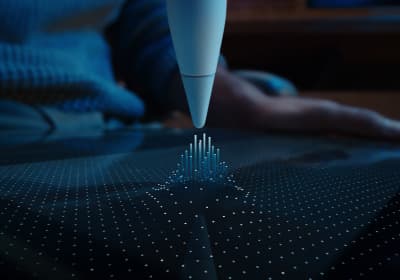
Apple Pencil Pro
amazon.comThe best Apple stylus for serious digital art workflows. Expensive, but the control upgrades are real.
Pro: Best brush-control and hover workflow
Con: Highest price in the lineup
Works only with newer iPad models. Check compatibility.
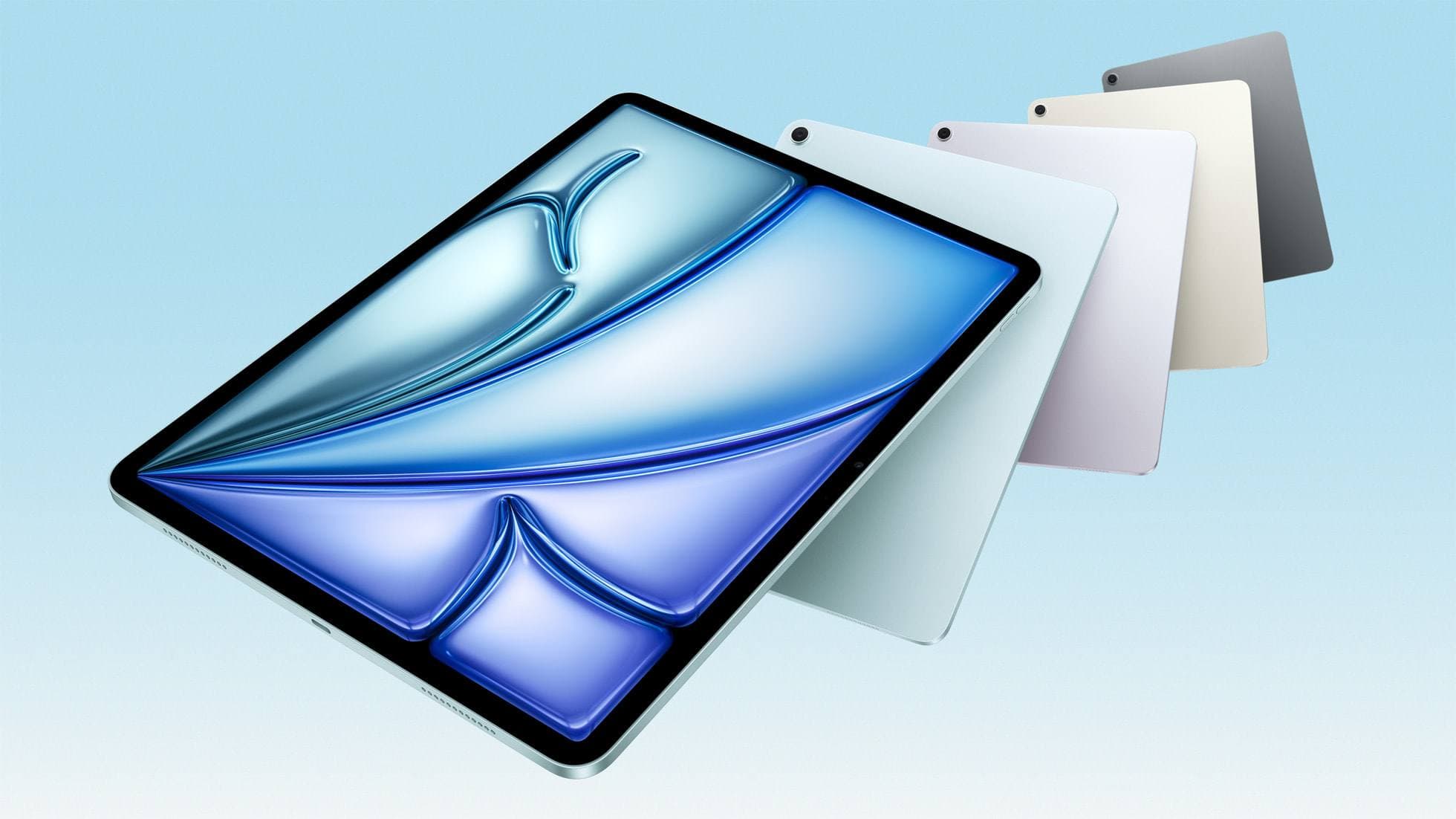
iPad Air (M4)
apple.comThe clean current Air recommendation for most serious hobby artists. Stronger buy logic than old-stock M3 when pricing is close.
Pro: Best current balance of price, headroom, and Pencil support
Con: Still 60Hz
Current Air lineup. Choose size, storage, and keyboard path before checkout.
Related buying picks
More in this collectionBuyer guide
Best iPad app for character design
Procreate delivers the cleanest raster workflow for turnaround sheets, while Clip Studio Paint offers deeper vector and comic tooling.
Buyer guide
Best iPad app for comics: Clip Studio Paint vs Procreate and alternatives
Clip Studio Paint is the best overall iPad app for multi-page comics and paneling, while Procreate remains the top one-time purchase for standalone illustration.
Buyer guide
Best iPad app for figure drawing practice
Procreate is the top pick for dedicated figure drawing drills, while Clip Studio Paint suits artists needing deep multi-page anatomy study tools.
Buyer guide
Best iPad app for concept art: Procreate versus Clip Studio Paint
Procreate is the top pick for standalone raster concept sketching, while Clip Studio Paint suits complex production pipelines.