Choose Clip Studio Paint if your main goal is creating multi-page comics, serialized webtoons, or print-ready manga pages on an iPad [1]. Download Procreate instead if you make single-panel illustrations, individual covers, or standalone character sheets and want to avoid subscription pricing [2]. Artists who need dedicated comic production tools will find that Clip Studio Paint provides page managers, panel dividers, text tools, and vector layers specifically designed for publishing [1], [3]. If you only need a digital sketchbook or an illustration canvas, Procreate offers a one-time purchase model that avoids recurring fees [2], [4].
Dedicated comic tooling versus single canvas design
Creating a complete comic book requires a different set of features than painting a single canvas [1], [3]. Clip Studio Paint is distributed on the App Store by CELSYS, where it's categorized under Graphics and Design and offers a free 30-day trial [1]. Its desktop heritage gives it dedicated multi-page project management, allowing artists to view an entire chapter or issue at once rather than organizing files individually in folders [1], [3]. The software includes built-in panel borders that slice pages into framed layouts, specialized speech balloon generators, and perspective rulers designed for architectural backgrounds [3].
Procreate, developed by Savage Interactive, approaches digital drawing as a single-canvas studio [2], [4]. It's a paid download categorized under Graphics and Design on the App Store [2]. While it excels at fluid digital painting and sketch work, it lacks native multi-page project files, native paneling tools, and automated speech bubble shapes [2], [4]. Artists who draw comic pages inside Procreate must manually create frame borders on separate raster layers, hand-letter their text, and manage each page file as an independent document in the gallery [4]. If you produce full issues, managing dozens of individual files in Procreate requires extra organizational steps [2], [4].
Inking accuracy and vector line workflows
Inking is a major step in comic art, and vector line handling is where workflow requirements separate these applications [1], [3]. Clip Studio Paint includes vector layers that record brush strokes as editable mathematical paths [3]. When you ink on a vector layer, you can erase overlapping line tails with a dedicated vector eraser, adjust stroke thickness after drawing, or move individual line points without redrawing the contour [3]. This vector infrastructure enables clean line work for detailed panels and print reproduction [1], [3].
Procreate works exclusively with raster layers [4], [5]. When you draw an ink line in Procreate, the pixels are burned directly into that layer [4]. You can stabilize the stroke using StreamLine settings, but you can't adjust the underlying path points or automatically trim intersecting lines with a vector eraser [4]. Furthermore, raster canvases are bounded by pixel dimensions, meaning scaling up a low-resolution ink stroke will produce visible pixelation [4], [5]. For artists who want absolute control over their finished line weight across high-resolution print pages, Clip Studio Paint provides distinct technical advantages [1], [3].
Memory management and layer limitations
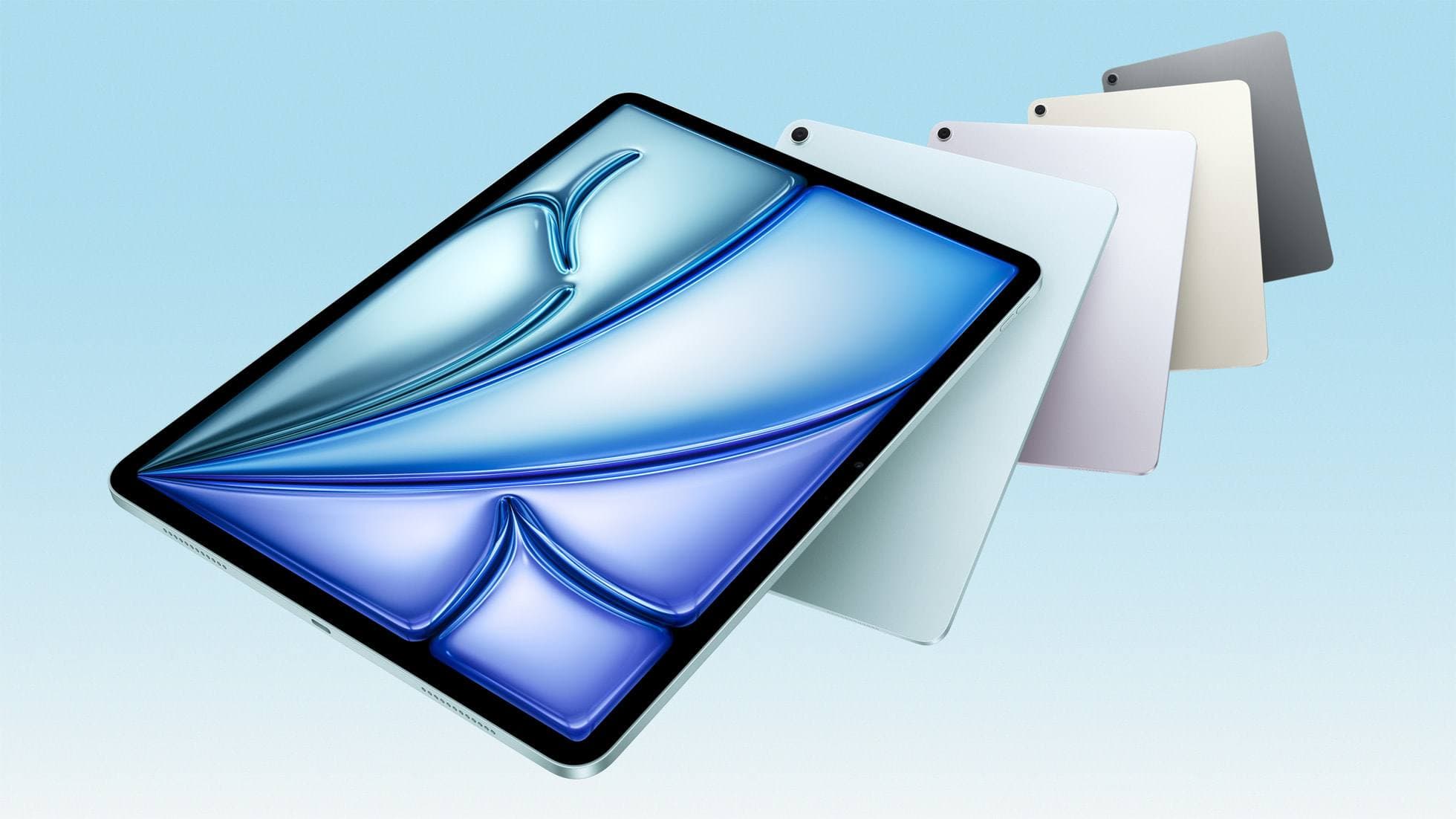
Hardware resources determine how large your comic pages can be and how many layers you can use [5], [6]. Procreate ties maximum layer limits directly to the amount of working RAM available on your specific iPad model and the pixel dimensions of your document [5]. On hardware like the iPad Air with the M4 chip, system memory allows for higher layer counts at print dimensions, but hardware limits remain fixed [5], [6]. If you build complex pages with separate layers for pencils, inks, flat colors, shading, highlights, panel frames, balloons, and sound effects, hitting a strict layer ceiling can interrupt your workflow [4], [5].
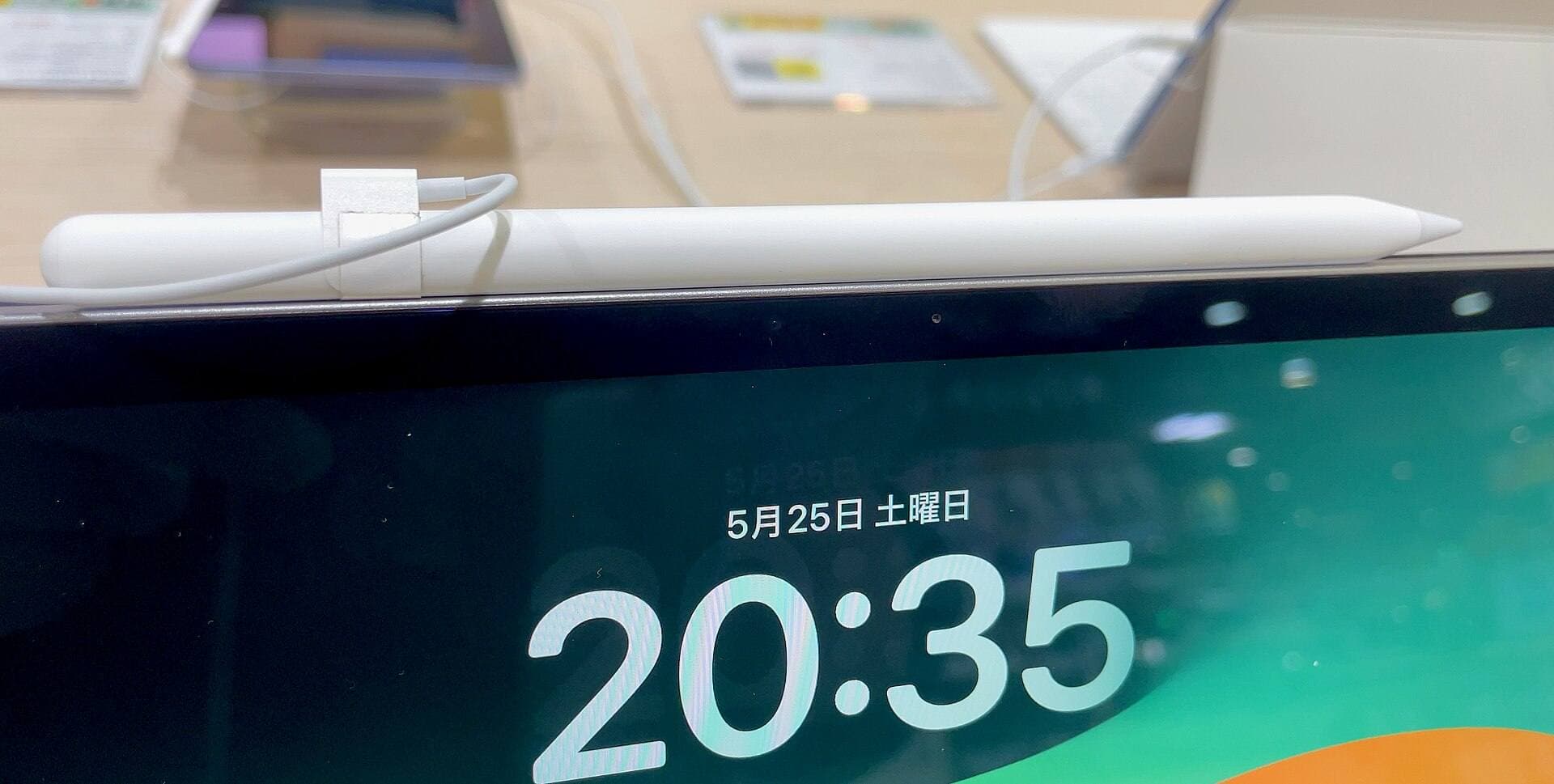
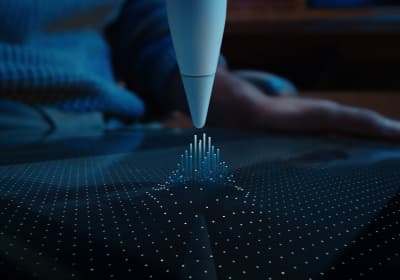
Clip Studio Paint handles memory management differently, allowing artists to create layers beyond rigid hardware formulas, although project size remains subject to device stability and available system resources [1], [3]. For long-form artists who build elaborate multi-layer pages, Clip Studio Paint gives you more flexibility to organize coloring, text, and effects on dedicated layers [1], [3]. Paired with accessories like the Apple Pencil Pro, which features squeeze, barrel roll, haptics, and hover functionality, both apps provide responsive input, but their canvas engines handle the resulting data through different architectures [5], [7].
Alternative comic apps on the App Store
Beyond the two market leaders, other applications on the App Store cater to comic creators with varying toolsets and pricing structures [8], [9], [10]. MediBang Paint is a free download from MediBang inc. on the App Store that focuses directly on comic and manga creation [8]. It includes built-in comic page templates, comic panel creation tools, and screentone materials [8]. For creators who need dedicated comic production utilities without committing to a paid subscription, MediBang Paint serves as a functional alternative [8].
ibis Paint X is another widely used option, offered as a free download by ibis inc. on the App Store [9]. It includes extensive brush libraries, screentone patterns, and drawing filters suited for digital illustration and manga styles [9]. While ibis Paint X is popular for mobile sketching and character art, its interface is primarily geared toward single-canvas illustration rather than managing long multi-page print publications [9].
Comic Draw by plasq is a dedicated comic creation app categorized under Productivity on the App Store [10]. It's designed specifically for comic creation on the iPad, featuring a distinct sketching layer, inking tools, multi-page project layouts, and built-in typography and lettering tools [10]. Creators who want an iPad-native comic workflow without desktop software complexity can look at Comic Draw as a specialized middle ground [10].
Bottom line
If you are drawing continuous comic issues, serialized graphic novels, or manga with multi-page structures and panel borders, subscribe to Clip Studio Paint [1], [3]. The dedicated paneling tools, speech balloon creators, and vector inking capabilities directly support the mechanics of comic publishing [1], [3]. Buy Procreate if you prioritize a one-time purchase for standalone art, digital painting, cover illustrations, or web strips where complex page management isn't required [2], [4]. For creators seeking free alternatives with dedicated manga paneling, test MediBang Paint or Comic Draw before making a financial commitment [8], [10].
Sources
[1] https://apps.apple.com/us/app/id1262985592 [2] https://apps.apple.com/us/app/id425073498 [3] https://www.clipstudio.net/en/ [4] https://apps.apple.com/us/app/procreate/id425073498 [5] https://help.procreate.com/articles/zlexav-ipad-compatibility [6] https://www.apple.com/ipad/compare/ [7] https://www.apple.com/apple-pencil/ [8] https://apps.apple.com/us/app/id1003588804 [9] https://apps.apple.com/us/app/id450722833 [10] https://apps.apple.com/us/app/id947061777
Recommended gear
Clip Studio Paint
apps.apple.comPro: Deep comics, vector, ruler, and animation toolset
Con: iPad plan model is less simple than Procreate
Procreate
apps.apple.comPro: One-time purchase
Con: iPad-only
Apple Pencil Pro
amazon.comThe best Apple stylus for serious digital art workflows. Expensive, but the control upgrades are real.
Pro: Best brush-control and hover workflow
Con: Highest price in the lineup
Works only with newer iPad models. Check compatibility.
iPad Air (M4)
apple.comThe clean current Air recommendation for most serious hobby artists. Stronger buy logic than old-stock M3 when pricing is close.
Pro: Best current balance of price, headroom, and Pencil support
Con: Still 60Hz
Current Air lineup. Choose size, storage, and keyboard path before checkout.
Related buying picks
More in this collectionBuyer guide
Best iPad app for drawing anime: Clip Studio Paint versus Procreate
Pick Clip Studio Paint for dedicated manga and anime production toolsets, or choose Procreate for a streamlined one-time purchase on iPad.
Buyer guide
Best coloring app for iPad kids: guided pages or open digital canvas
Choose Lake for structured coloring books or step up to Procreate when older kids outgrow premade templates.
Buyer guide
Best iPad app for watercolor painting: top choices and stylus pairings
Pick the right iPad watercolor app based on pricing model, live brush needs, and Apple Pencil hardware compatibility.
Buyer guide
Best iPad app for pixel art: dedicated tools compared to Procreate
Choose dedicated pixel editors like Pixquare, Pixel Studio, or Pixaki over general illustration software for low-resolution iPad art.