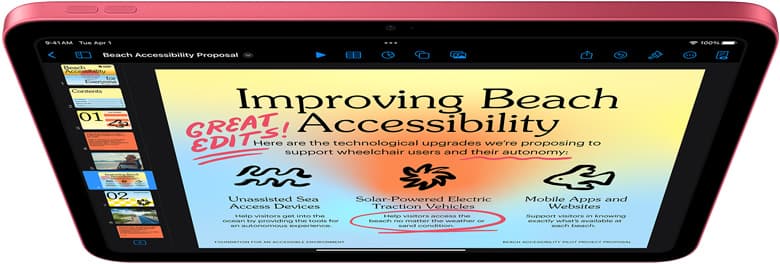
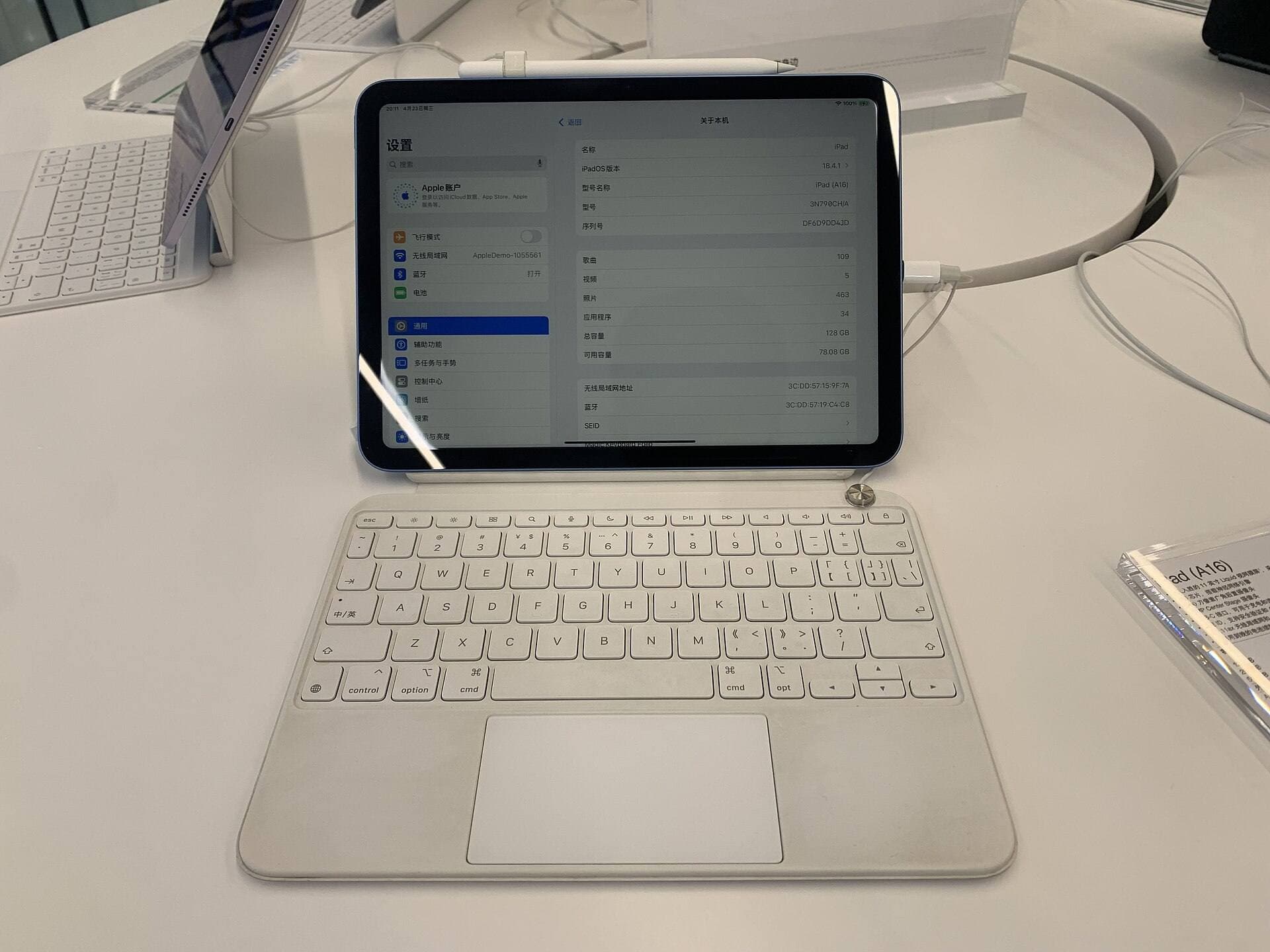
Quick answer: iPad Pro for watercolor feel, iPad Air for budget
If watercolor is your core workflow, iPad Pro is usually the better pick. If price matters more than perfect stroke feel, iPad Air is still excellent.
For watercolor, this decision is mostly about:
- refresh responsiveness (how attached strokes feel),
- contrast and brightness (how clearly washes separate),
- glare control (how reliably you can judge edges in real lighting).
Raw chip speed matters less than those three in day-to-day painting.
Related reads
- iPad Air vs iPad Pro for Hobby Artists (2026): Which Should You Buy?
- The Best iPad Models for Beginners on a Budget
- 64GB vs 256GB: How Much Storage Do You Really Need for Digital Art?
What “watercolor on iPad” actually demands
Digital watercolor isn’t just “drawing with a watery brush.” It’s a stack of illusions:
- a textured paper base (often a grain or cold-press overlay),
- transparent pigment behavior (glazes),
- controlled bleeding/feathering (edge softness),
- smooth gradients (wash transitions),
- and “happy accidents” you choose (blooming, backruns, speckle).
On a tablet, those illusions are interpreted through:
- your stylus signal (pressure/tilt/rotation),
- your display’s ability to show faint differences,
- and the responsiveness of the stroke as it tracks your hand.
So the right question isn’t “which one is more powerful?” It’s:
Which iPad is the better piece of digital paper?
1) The display: your paper, your lighting, your pigment honesty
iPad Pro (M5): OLED paper that can get properly bright
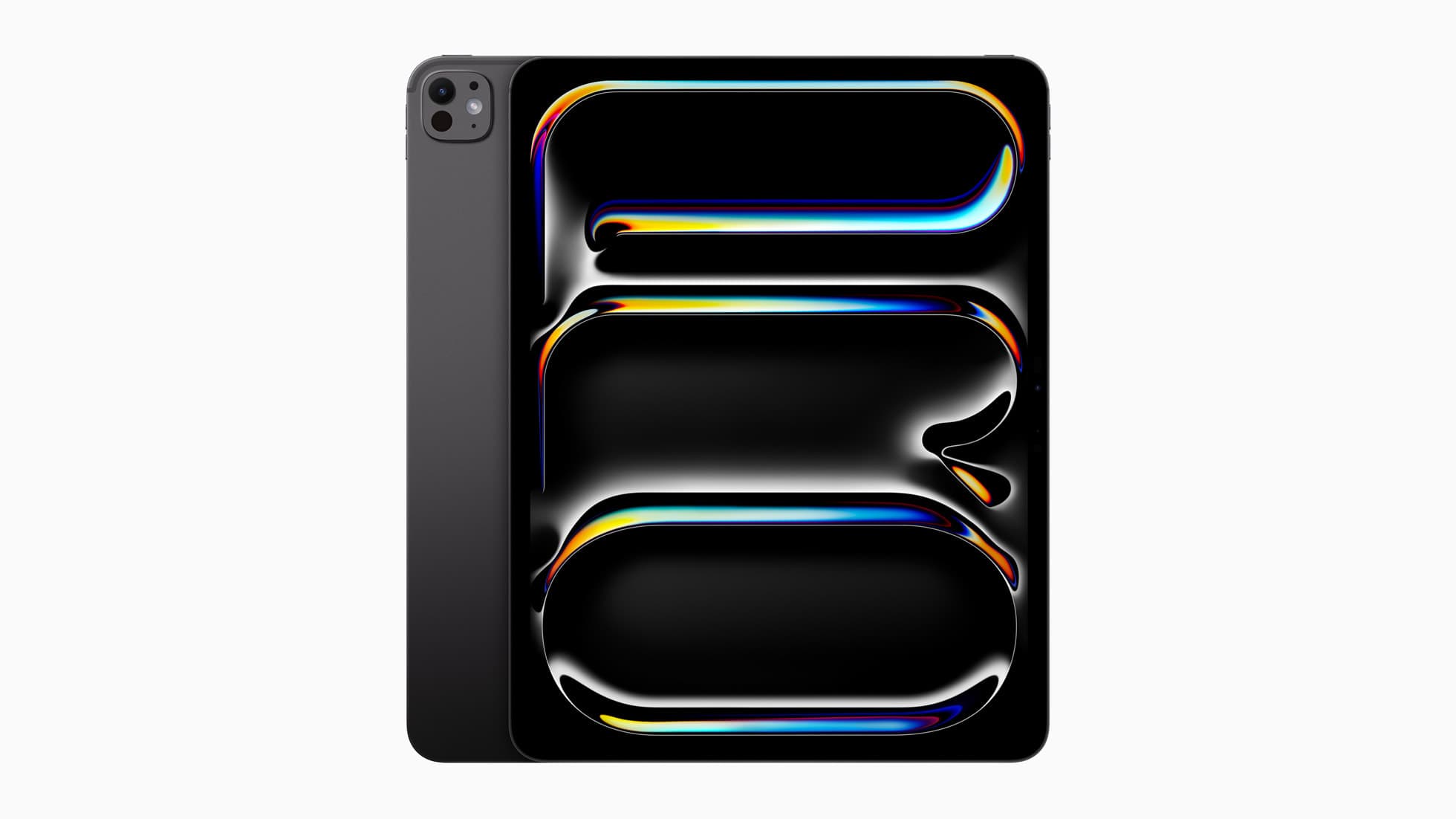
The current iPad Pro uses Apple’s Ultra Retina XDR display with tandem OLED, plus ProMotion that ramps from 10Hz to 120Hz. It also hits 1000 nits SDR, and up to 1600 nits peak for HDR highlights, with a 2,000,000:1 contrast ratio and even a 1 nit minimum brightness for dark-room work. [1]
Translated into watercolor-speak:
- Dark washes look deep without turning into mush.
- Light pencil glazing stays visible because the screen can separate near-identical values.
- Your “paper white” looks cleaner in bright environments because the screen can overpower ambient light, instead of surrendering to it.
And if you paint in places where light is messy, windows, cafes, studio lamps, the Pro has something the Air simply doesn’t: nano-texture display glass (optional, only on 1TB/2TB models). [1]
That option matters because watercolor is a medium you often “read” at an angle, checking blooms, catching texture, judging how a wash is sitting. A glossy screen can turn that into “guessing through reflections.”
iPad Air (M3): very good LCD paper… with a ceiling
The current iPad Air sticks with a Liquid Retina (LCD) display: laminated, anti-reflective, wide P3 color, True Tone, still genuinely good. The 11-inch Air is rated 500 nits, and the 13-inch Air 600 nits. [2]
But: the Air is also widely criticized for staying at a 60Hz refresh rate. [3]
This matters more than people expect, because your hand doesn’t draw in frames-per-second, it draws in continuous motion. A watercolor stroke isn’t a line; it’s a gesture. If the screen updates half as often, the stroke feels slightly less “locked” to your hand.
You can absolutely paint beautiful work on the Air. But the Pro makes it easier to paint delicate work without feeling like you’re steering through a faint layer of latency.
2) ProMotion is the hidden upgrade watercolor artists feel instantly
Let’s get brutally concrete:
For watercolor, the wins show up in three micro-moments:
A. Feathered edges and slow gradients When you slowly drag a wet edge to soften it, you’re watching the edge evolve. Higher refresh means you perceive that evolution more continuously, less “stair-step,” more “butter.”
B. Fast flicks for texture Watercolor brushes often rely on quick wrist flicks for spatter, dry-brush, foliage. The more the display can keep up, the more those gestures feel like you made them, not the software approximating you.
C. Zoom + stroke + rotate Real watercolor is “move the paper, not the brush.” On iPad, that becomes pinch-zoom, rotate canvas, stroke, rotate again. On a 60Hz panel, the whole loop feels slightly thicker, like paint that’s started to tack up.
This is why artists who move from Pro to Air often describe the Air as “fine,” but rarely as “silky.”
3) Glare control and “tooth”: nano-texture vs matte protectors
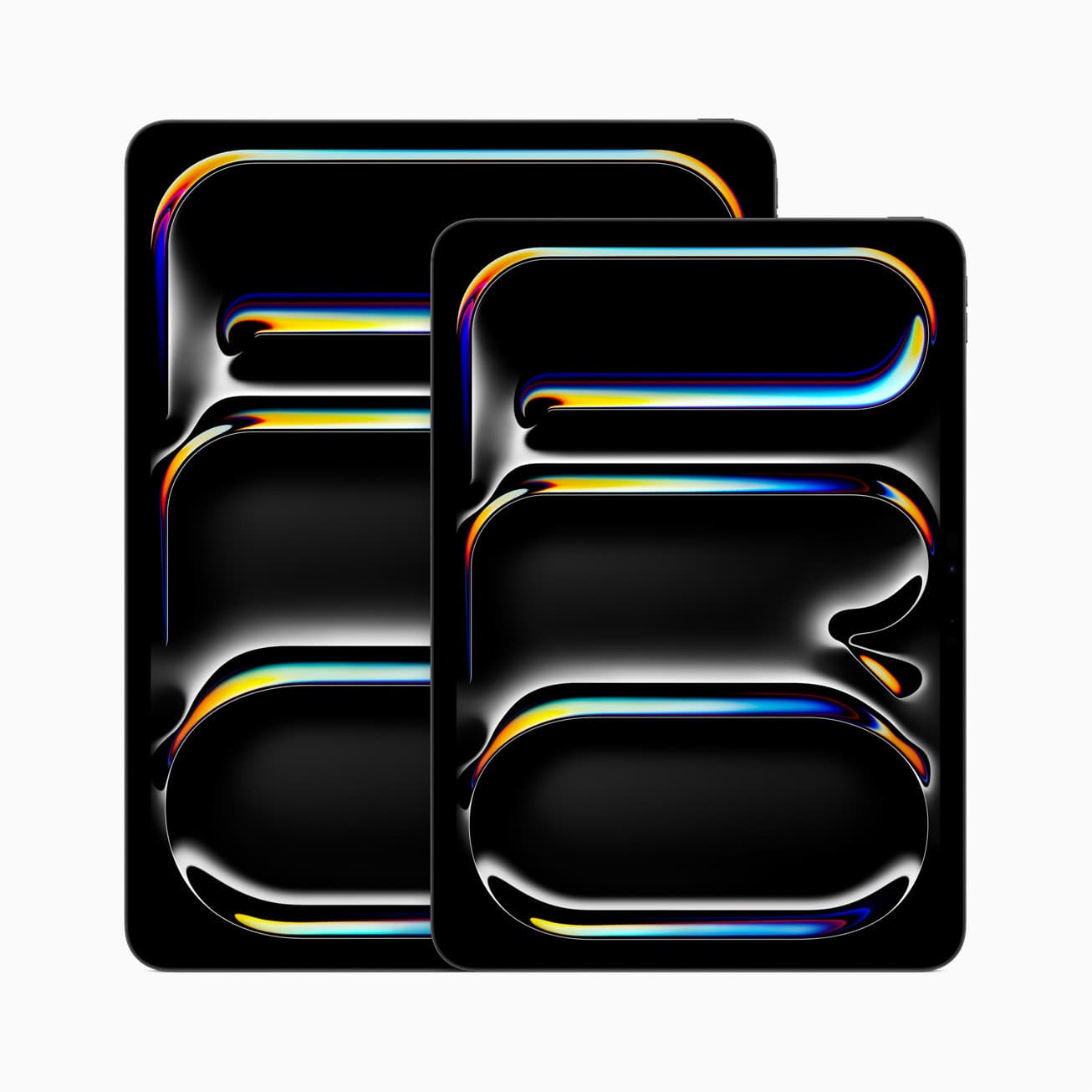
iPad Pro’s nano-texture: glare reduction without the cheap-matte look
Apple’s nano-texture option exists for a reason: glossy glass is amazing in a showroom and annoying in the real world.
Independent hands-ons describe nano-texture as dramatically reducing glare, but also note tradeoffs: a slight hit to crispness/contrast compared to glossy, and it’s a premium feature gated behind higher storage tiers. [1]
For watercolor artists, there’s another, sneakier effect: feel. Nano-texture can add a whisper of resistance, less “ice skating.” Some people love that; some prefer a slick surface and add their own texture via a screen protector.
The Air doesn’t offer nano-texture, so if you paint in bright spaces, you’re basically in matte-protector territory.
Matte screen protectors: the affordable “paper feel” hack (with real costs)
A matte protector gives you tooth, great. It also:
- reduces sharpness a bit,
- can slightly haze dark values,
- and changes the way highlights sparkle.
For watercolor, that’s a trade: you gain brush feel, but potentially lose some of the display subtlety you bought the iPad for in the first place. Nano-texture is basically Apple’s “do it in glass” version of that compromise.
4) Apple Pencil Pro: both iPads can use the same “brush,” but the features matter differently for watercolor
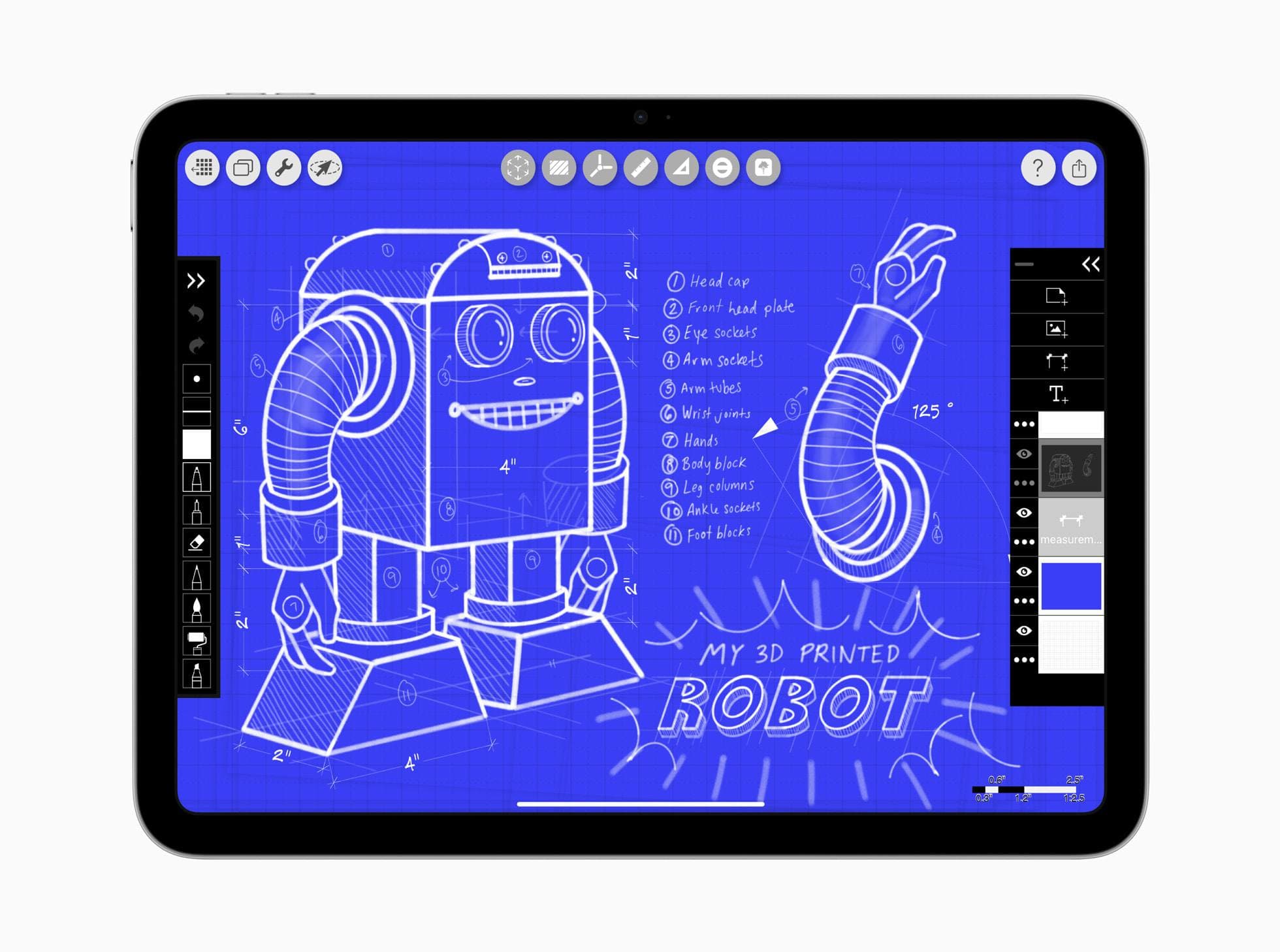
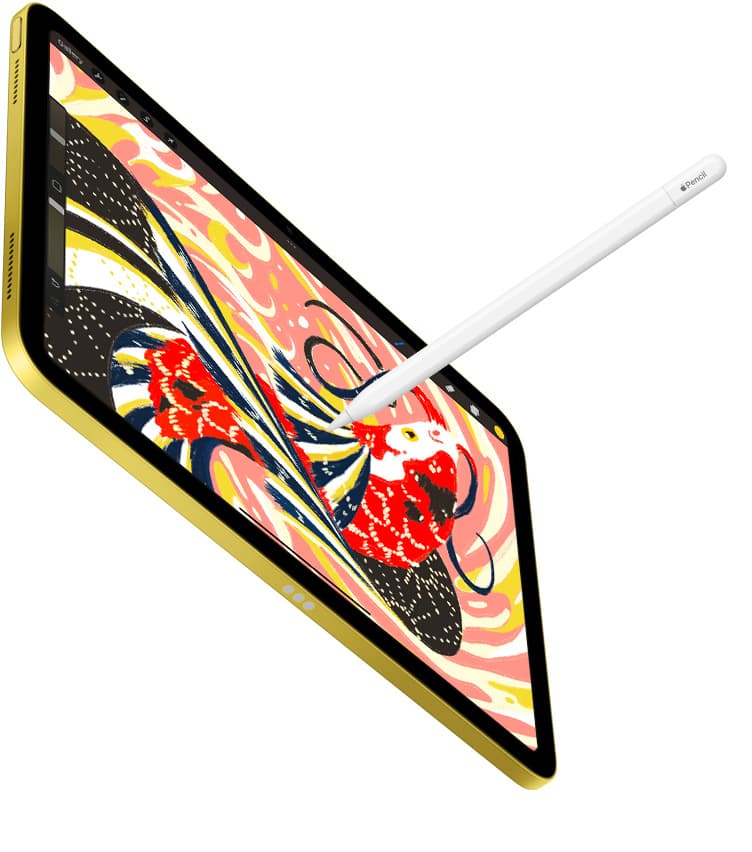
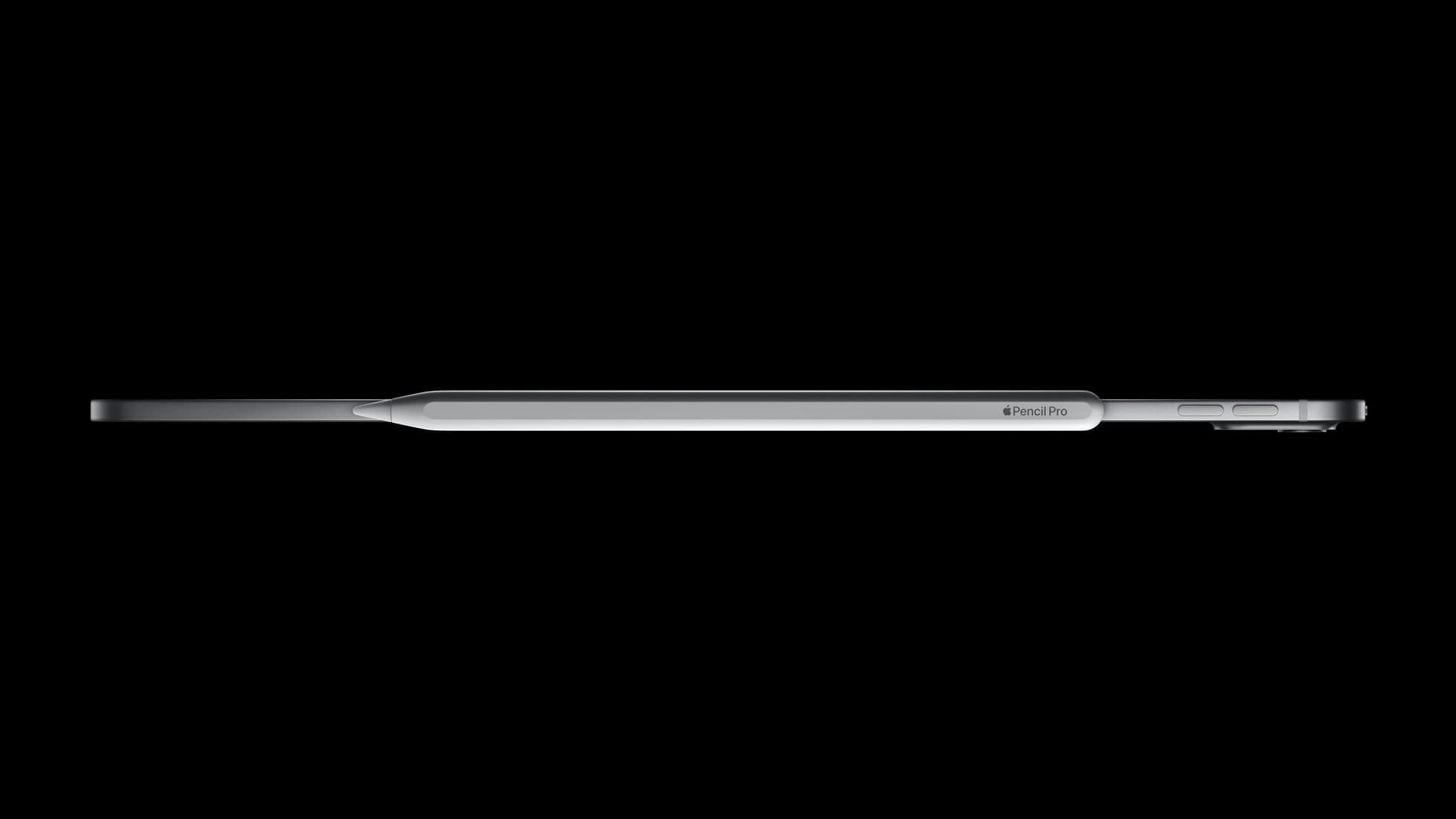
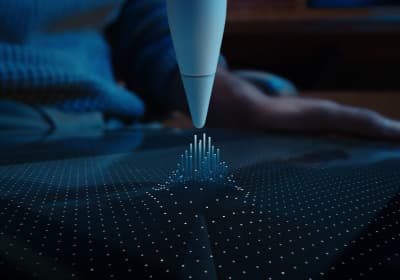
Good news: both iPad Air (M3) and iPad Pro (M5) support Apple Pencil Pro, and both support Apple Pencil hover. [4]
Apple Pencil Pro adds four things that are unusually relevant to watercolor:
- Squeeze (quick palette/tool access)
- Barrel roll (rotate shaped brush tips precisely)
- Haptic feedback (confirmation without looking away)
- Hover (preview exactly where the tip will land) [5]
Watercolor-specific payoff:
- Barrel roll is the closest thing iPad has to rotating a flat brush or chisel tip for expressive marks. If your brush set uses shaped tips, this is huge. [5]
- Hover is a cheat code for controlled edges, especially on textured paper brushes where the first contact point matters. [5]
A sharp warning, because it’s easy to miss: Apple Pencil (USB-C) is tilt-sensitive, but it’s not the “artist Pencil.” Apple’s own guidance calls out pressure sensitivity specifically for Apple Pencil (1st/2nd gen) and Pencil Pro, not for the USB-C model. For watercolor-style brushes where pressure controls pigment load/opacity/size, you want Pencil Pro. [6]
5) Layers, big canvases, and the “glaze stack” problem
Watercolor painters don’t always use 200 layers, but digital watercolor often uses structured layering:
- paper texture layer,
- pigment layers,
- adjustment/glaze layers,
- splatter layers,
- masking layers,
- sometimes separate “wet edge” experiments.
In Procreate specifically, maximum layers depend on your iPad’s RAM and the pixel dimensions of the canvas. [7]
That matters because the iPad Pro now publicly lists 12GB RAM on 256/512GB models (with a higher-tier config for 1TB/2TB). [1] Apple doesn’t make the Air’s RAM as front-and-center on its marketing pages, but in practice the Pro line tends to sustain larger, layered canvases more comfortably.
For watercolor, you’ll feel this when you:
- paint at poster/print sizes,
- keep a lot of “safety layers,”
- or use heavy brushes that stamp complex texture.
If you mostly paint social/web resolution, the Air will rarely choke. If you paint “gallery print” sizes and keep your entire process non-destructive, the Pro is the calmer studio.
6) Ergonomics: the Pro is literally easier to hold for long sessions
This one surprises people because “Air” sounds like it should be the lighter one.
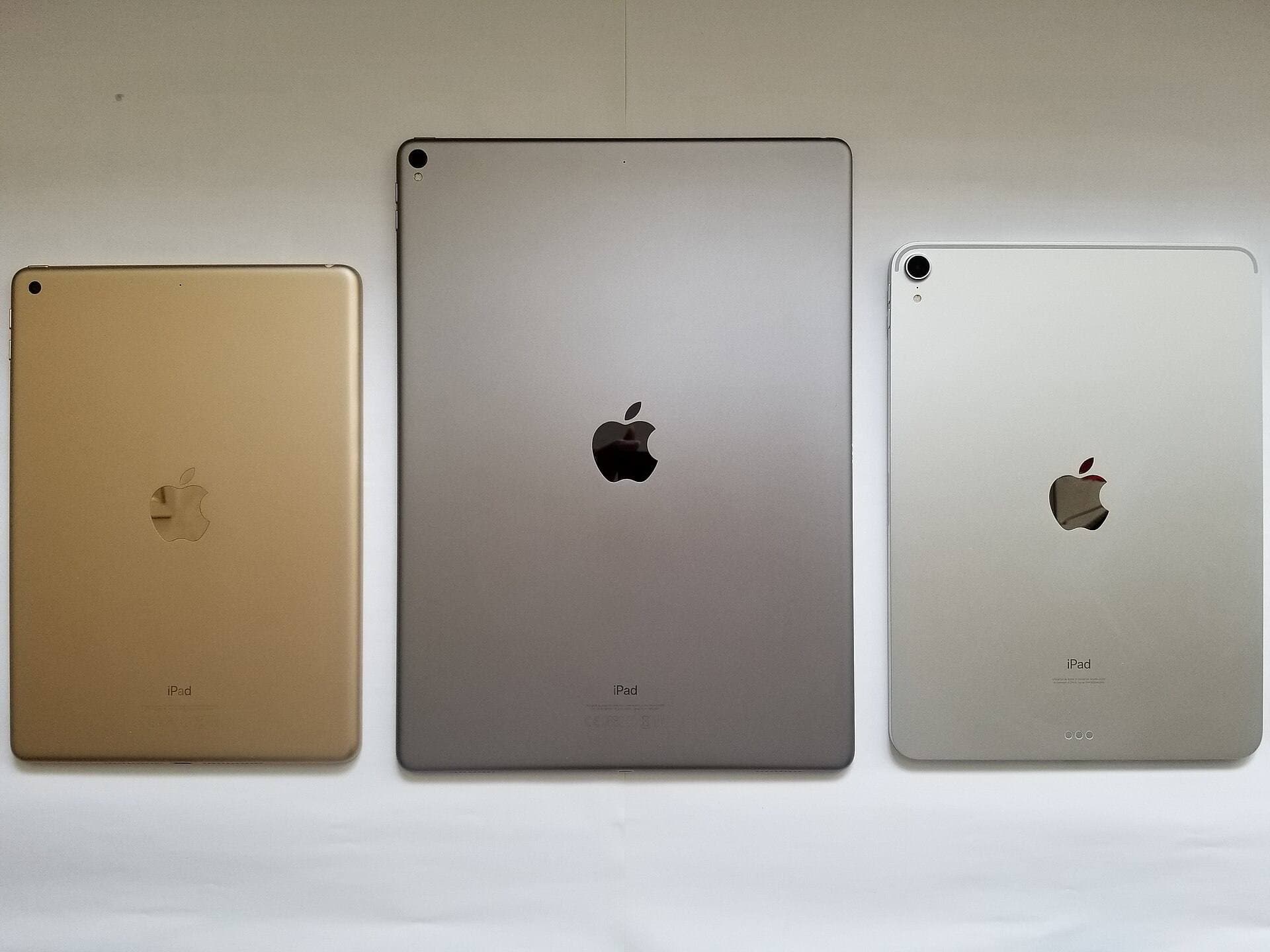
Size/weight reality (Wi-Fi models)
-
iPad Pro 13" (M5): 579g, 5.1mm thick [1]
-
iPad Air 13" (M3): 616g, 6.1mm thick [8]
-
iPad Pro 11" (M5): 444g, 5.3mm thick [9]
-
iPad Air 11" (M3): 460g, 6.1mm thick [9]
For watercolor, that weight difference isn’t about carrying it in a bag. It’s about:
- wrist fatigue when you sketch holding the tablet,
- shoulder fatigue when you paint on a couch,
- micro strain from constantly repositioning.
On the 13-inch models especially, the Pro is the “bigger canvas” option that’s paradoxically more comfortable to hold.
7) Color accuracy and “does it print like it looks?”
If you paint watercolor digitally and then print (or deliver client work where color matters), the iPad Pro has a Pro-only trick: Reference Mode, meant for color-managed workflows. [10]
This doesn’t magically solve print matching, you still need good profiles and a sane workflow, but it’s part of why the Pro is taken seriously as a display tool as well as a canvas.
The Air’s screen is absolutely color-capable (P3, True Tone), but it doesn’t position itself as a reference display the way the Pro does.
So… which is better for watercolor digital art?
The iPad Pro is better.
Not “slightly.” Meaningfully. Because the qualities that separate a satisfying watercolor experience from a merely functional one are mostly display-and-feel problems, and the Pro is built to win those:
- 120Hz ProMotion makes strokes track your hand with a “continuous” sensation. [1]
- Tandem OLED + XDR brightness makes delicate value shifts and deep washes look more convincing. [1]
- Optional nano-texture is a real advantage if you paint in uncontrolled lighting (and you care about glare). [1]
- More explicitly specced RAM supports bigger glaze stacks and higher-res canvases with fewer compromises. [1]
- And it’s thinner/lighter in both sizes, which matters for long sessions. [1]
Where the iPad Air still shines
If you want the most “watercolor-per-dollar,” the Air is strong because:
- it still supports Apple Pencil Pro + hover, so the brush experience can be high-end, [4]
- and its laminated P3 screen is legitimately good. [2]
But for watercolor, where you spend hours staring at barely-there transitions, the Air’s 60Hz ceiling is the one spec that keeps it from feeling like a true painting instrument. [3]
A practical “artist’s” recommendation (not a spec-sheet one)
If watercolor is a core part of what you do, buy the iPad like you’d buy paper:
- The Pro is the sheet you want to touch every day.
- The Air is the sheet you can absolutely make great work on, but it’ll remind you, subtly, constantly, that it’s a tier below.
And whichever you choose: for watercolor, don’t cheap out on the stylus. Apple Pencil Pro is the difference between “nice digital sketching” and “brush control.” [5]
Sources
Recommended gear
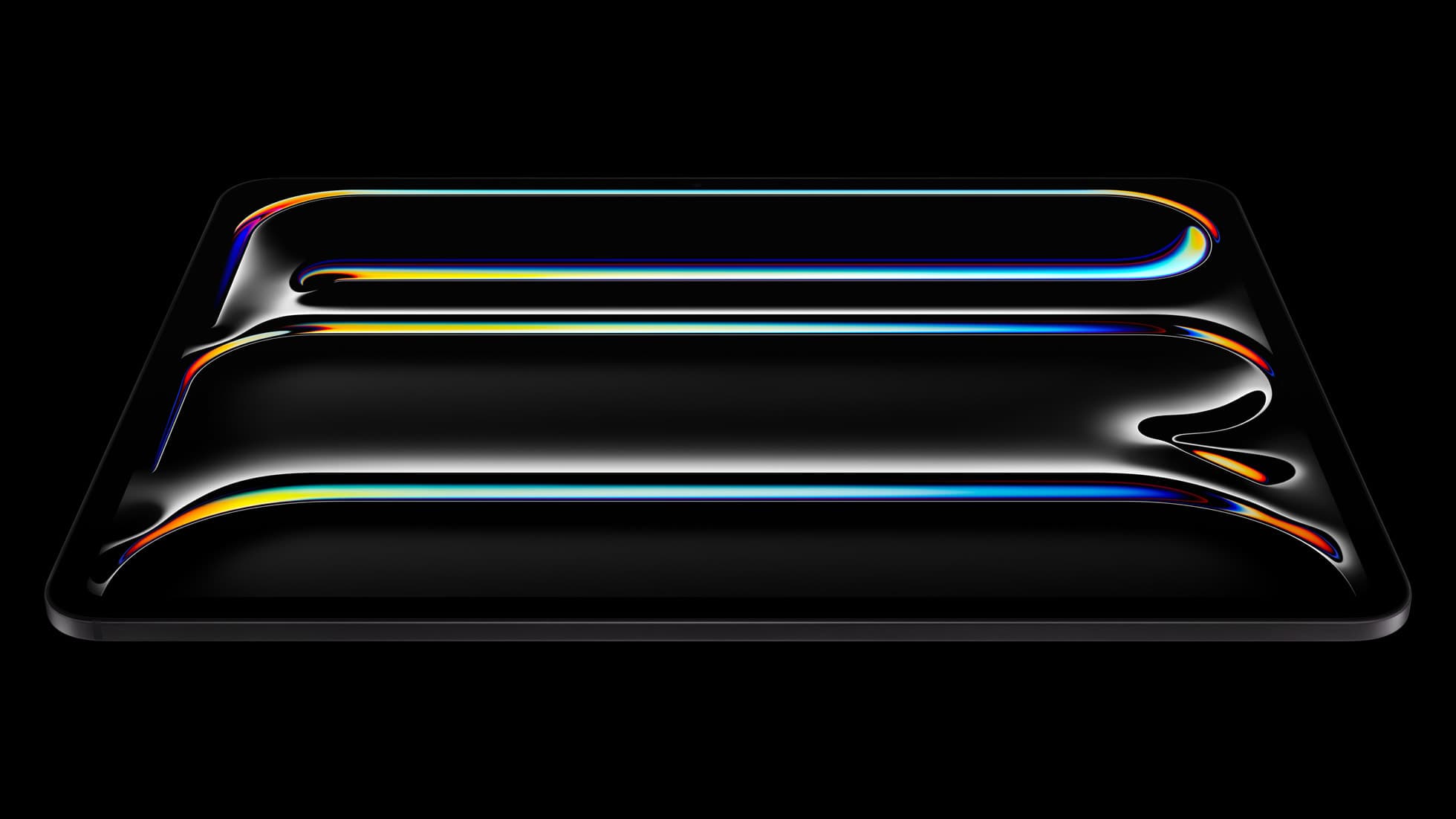
iPad Pro (M5)
amazon.comThe best iPad for drawing feel and premium workflow comfort, but many buyers still overpay for it.
Pro: Best iPad display and ProMotion feel
Con: Highest price in the lineup
Search opens with iPad Pro terms. Check year, chip, and screen size.
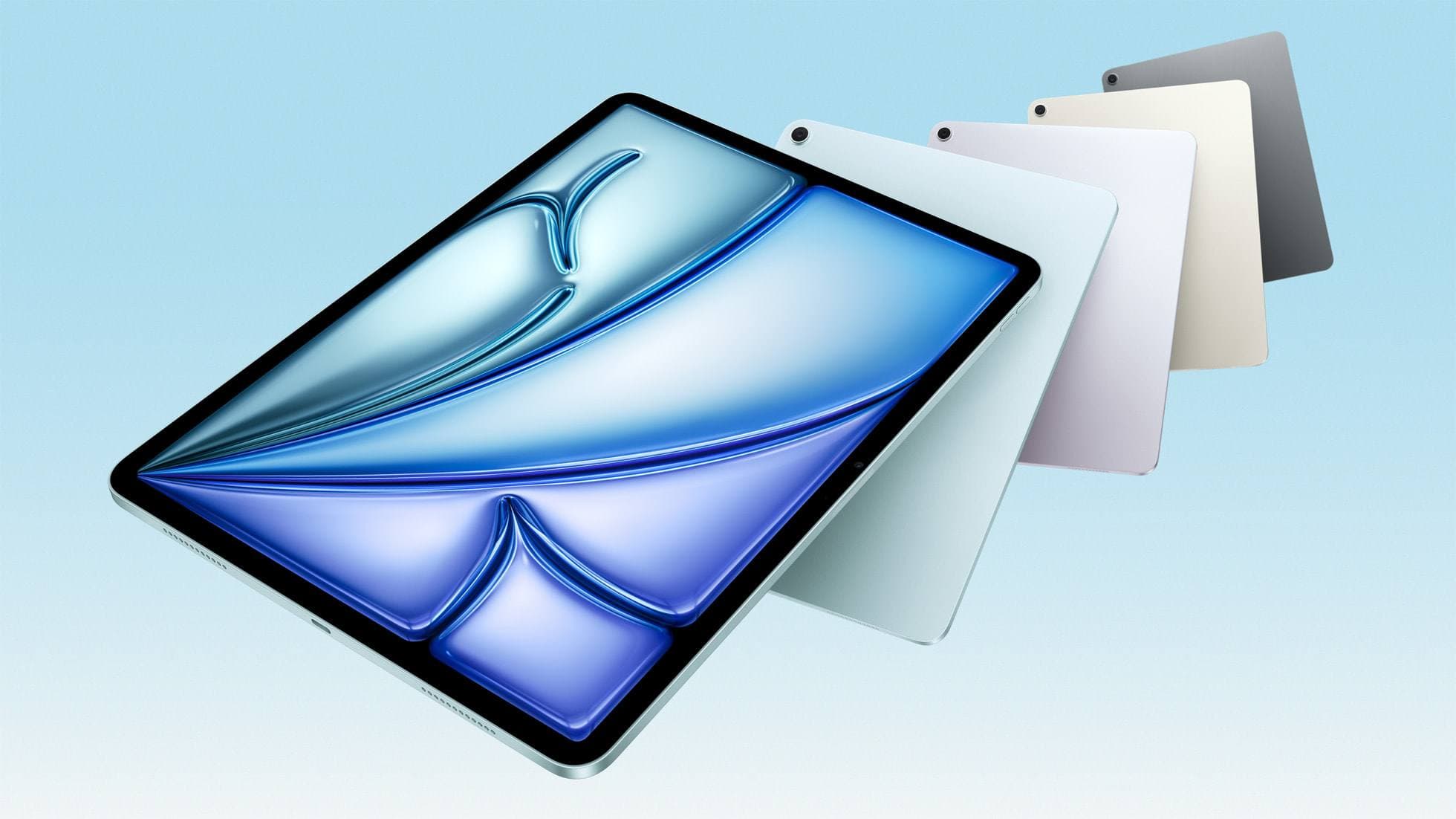
iPad Air (M3)
amazon.comStill a smart Air buy when the discount is real. Harder to justify when pricing drifts too close to the current model.
Pro: Strong prior-gen value when the discount is real
Con: Not the current Air lineup
This is the prior-gen Air. Confirm the discount against the current Air before checkout.
Apple Pencil Pro
amazon.comThe best Apple stylus for serious digital art workflows. Expensive, but the control upgrades are real.
Pro: Best brush-control and hover workflow
Con: Highest price in the lineup
Works only with newer iPad models. Check compatibility.
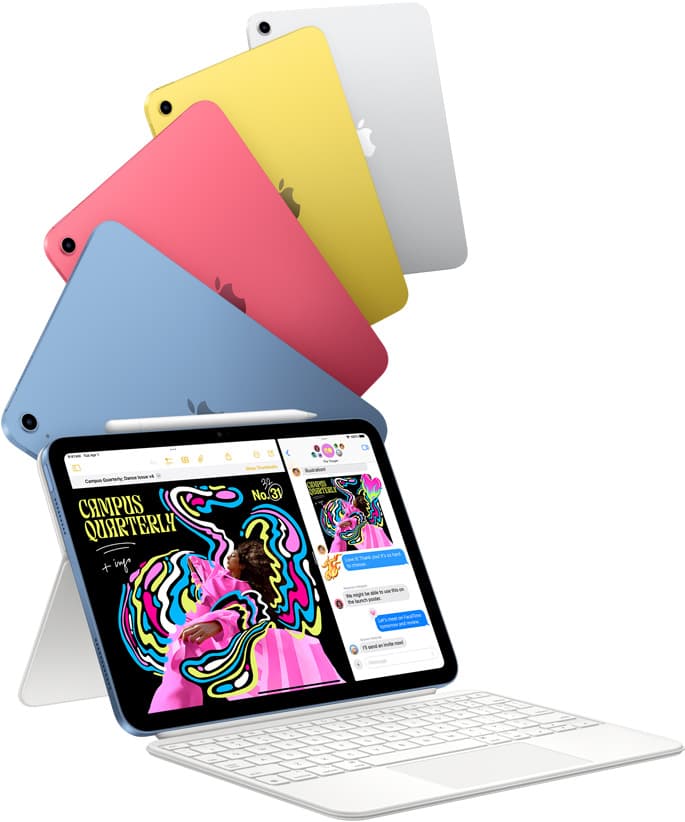
iPad (A16, 11th gen)
amazon.comThe best entry iPad for most artists on a budget. It is not premium, but it is very hard to beat on value.
Pro: Best value iPad right now
Con: No ProMotion display
Search opens with the exact model keywords. Verify size and storage before checkout.
iPad Air (M4)
apple.comThe clean current Air recommendation for most serious hobby artists. Stronger buy logic than old-stock M3 when pricing is close.
Pro: Best current balance of price, headroom, and Pencil support
Con: Still 60Hz
Current Air lineup. Choose size, storage, and keyboard path before checkout.
Related buying picks
More in this collectionBuyer guide
iPad mini for Procreate in 2026: should artists buy the small one?
The iPad mini (A17 Pro) is a strong portable Procreate sketchbook, especially with Apple Pencil Pro, but most artists should choose iPad Air if it will be their only serious drawing canvas.
Buyer guide
Is 128GB iPad Enough for Procreate in 2026?
A 128GB iPad can be enough for Procreate if you draw casually and export finished work, but 256GB is the low-stress choice for frequent art, large canvases, timelapse, and client files.
Buyer guide
Best iPad for Note-Taking Plus Drawing in 2026
The safest mixed-use iPad in 2026 is the 11-inch iPad Air (M4), while the base iPad wins stricter budgets, the mini wins portability, and the Pro only makes sense when drawing is no longer the secondary job.
Buyer guide
Best iPad for Students Who Also Draw in 2026
The safest student-plus-drawing buy in 2026 is the 11-inch iPad Air (M4), while the base iPad wins stricter budgets and the mini or Pro make sense only for narrower cases.