The quick answer
- Buy 256GB if your iPad is a serious tool. Procreate projects, exports, reference photos, and a couple of videos will turn 64GB into regular housekeeping.
- 64GB only works if you treat the device like a sketchbook: fewer apps, fewer downloads, frequent offloading, and timelapse recording disabled most of the time.
- If you don't enjoy managing storage, don't romanticize it.
For the narrower Procreate buyer question, read Is 128GB iPad Enough for Procreate in 2026?.
Storage is not a spec. It's friction.

The most expensive part of digital art isn't hardware. It's interrupted attention.
When people ask whether 64GB is "enough," they're usually asking something else:
How often will this device get in my way?
Storage doesn't fail like a battery. It fails mid-flow, when you try to update, export, duplicate a layered file, or keep a few timelapses for a portfolio.
For digital artists, storage isn't about hoarding. It's about protecting momentum:
- brushes you rely on
- references you want offline
- versions you may need to roll back to
- exports you need to deliver
The inconvenient truth: "64GB" isn't 64GB
"Actual usable storage" is always lower than the number on the box.
Two practical consequences matter:
- Small storage hurts twice. You lose space to the OS/formatting, then you lose more to the free-space buffer iPadOS needs for updates, caches, and temporary working files.
- Full storage isn't usable storage. Working near zero makes everything fragile.
Mental model: treat storage like a studio closet. You don't want it full. You want it comfortably usable.
What actually eats storage for digital artists
1) Working files (the ones that still have layers)
Procreate files, layered PSDs, animation projects: these are usually the biggest files you own, and they multiply because versioning is normal.
2) Timelapse recordings (the silent multiplier)
If you use Procreate, timelapse is a real lever. Higher timelapse quality can make larger project files, and you can't change timelapse settings mid-project. If you want storage sanity on a small device, timelapse is one of the first knobs to turn.
3) Exports and duplicates (the "why is it twice the size?" problem)
Final art tends to exist as multiple exports: PNG, JPEG, PDF, PSD, maybe TIFF. That's multiple large files representing the same piece.
4) Reference libraries (the innocent hoard)

Screenshots, boards saved offline, anatomy packs, textures, brushes, fonts. Each item is small. The library isn't.
5) Everything else you forgot you installed
Offline music, video downloads, games, message threads full of videos, system cache. Your art storage competes with your life storage.
A realistic way to think about storage
Plan in active projects, not total capacity.
If you keep a rolling set of sketches, alternates, exports, and references locally, 64GB starts feeling tight fast.
64GB: the discipline tax
64GB can work, but it demands a workflow:
- keep one main art app (or two, max)
- export + archive finished projects on a schedule
- avoid heavy offline video downloads
- treat the iPad as a working surface, not an archive
- tame timelapse (or turn it off)
If that sounds like you, it's fine. If that sounds like a fantasy version of you, don't buy the fantasy.
256GB: the boringly correct choice for most artists
256GB is rarely about storing a quarter-terabyte of finished art. It's about not being forced to optimize your life around storage.
With 256GB, you can:
- keep a meaningful reference library offline
- record timelapses without panicking (still be sensible)
- maintain versions and client revisions without constant cleanup
- install multiple serious apps without living on the edge
How to cheat storage without making your workflow miserable

Use cloud storage for archives, not active work
Cloud is great for long-term storage and backups, but it doesn't replace local working space. If your real problem is hotspot data burn rather than total capacity, use a tiered setup instead of downloading everything: Save Hotspot Data on iPad: Local Library + iCloud Setup (2026).
Use external drives like a project freezer

iPadOS supports external storage via the Files app. Treat it like cold storage: move finished projects out of your hot workspace.
A simple offload rhythm
- Weekly: export finals into a folder by month; move finished project files into an Archive folder
- Monthly: copy Archive to an external drive (or a cloud folder not marked "keep offline")
- Always: keep some free space; treat "almost full" as a problem, not normal
Procreate-specific: set timelapse defaults on your templates
If you mostly want final art (not process videos), make a default canvas/template with timelapse disabled or set low.
Bottom line
If digital art is a serious part of your week, 256GB is the sensible default. It's not a flex. It's insurance against workflow friction.
64GB can work, but only if you already run a tight ship: fewer apps, controlled timelapse, regular offloading, and a willingness to delete.
Sources & further reading
- Apple Support: How storage capacity is measured on Apple devices
- Procreate Handbook: Video (timelapse defaults and settings)
- Apple iPad User Guide: Connect external storage devices to iPad
Scenario-based recommendations
For 64GB vs 256GB: How Much Storage Do You Really Need for Digital Art?, choose based on operating context, not abstract feature lists. If you run longer focused sessions, prioritize consistency and reduced interruption. If your workflow is mixed and mobile, prioritize portability and fast setup. For Artists deciding between 64GB and 256GB storage on iPad., the best option is usually the one that minimizes repeated friction across a full week of use, not the one that wins a single benchmark.
Decision checklist
Before selecting one side of this comparison, answer these questions:
- Which option reduces the most frequent bottleneck in your current workflow?
- Which option remains reliable under your real environment constraints?
- Which option keeps upgrade and replacement costs predictable over 3 to 6 months?
- Which option improves output speed without increasing setup complexity?
If one option wins at least three checks, that is your practical choice.
Common misreads in comparisons
Misread 1: treating headline specs as workflow outcomes
A higher spec does not always produce higher output if setup friction rises.
Misread 2: testing only in ideal conditions
Real usage includes noisy environments, limited outlets, and time pressure.
Misread 3: ignoring transition costs
Switching tools or accessories can create hidden retraining and compatibility overhead.
Misread 4: deciding from short trial windows
Use at least 10 to 14 days to capture reliability and fatigue effects.
Validation plan
Run both options through the same test blocks: 45-minute session, export/backup step, and one travel or mobile setup. Measure interruptions, setup time, and hand comfort. Pick the option with lower interruption frequency and better repeatability.
Recommended gear
Samsung T7 Portable SSD
amazon.comOne of the safest SSD buys for iPad creators. Fast, stable, and easy to trust for backup routines.
Pro: Fast and reliable backup drive
Con: Extra cable to carry
Choose capacity (1TB/2TB) based on project size.
SanDisk Extreme Portable SSD
amazon.comPro: Rugged and compact
Con: Can run hot under heavy copy
Good for large Procreate backup workflows.
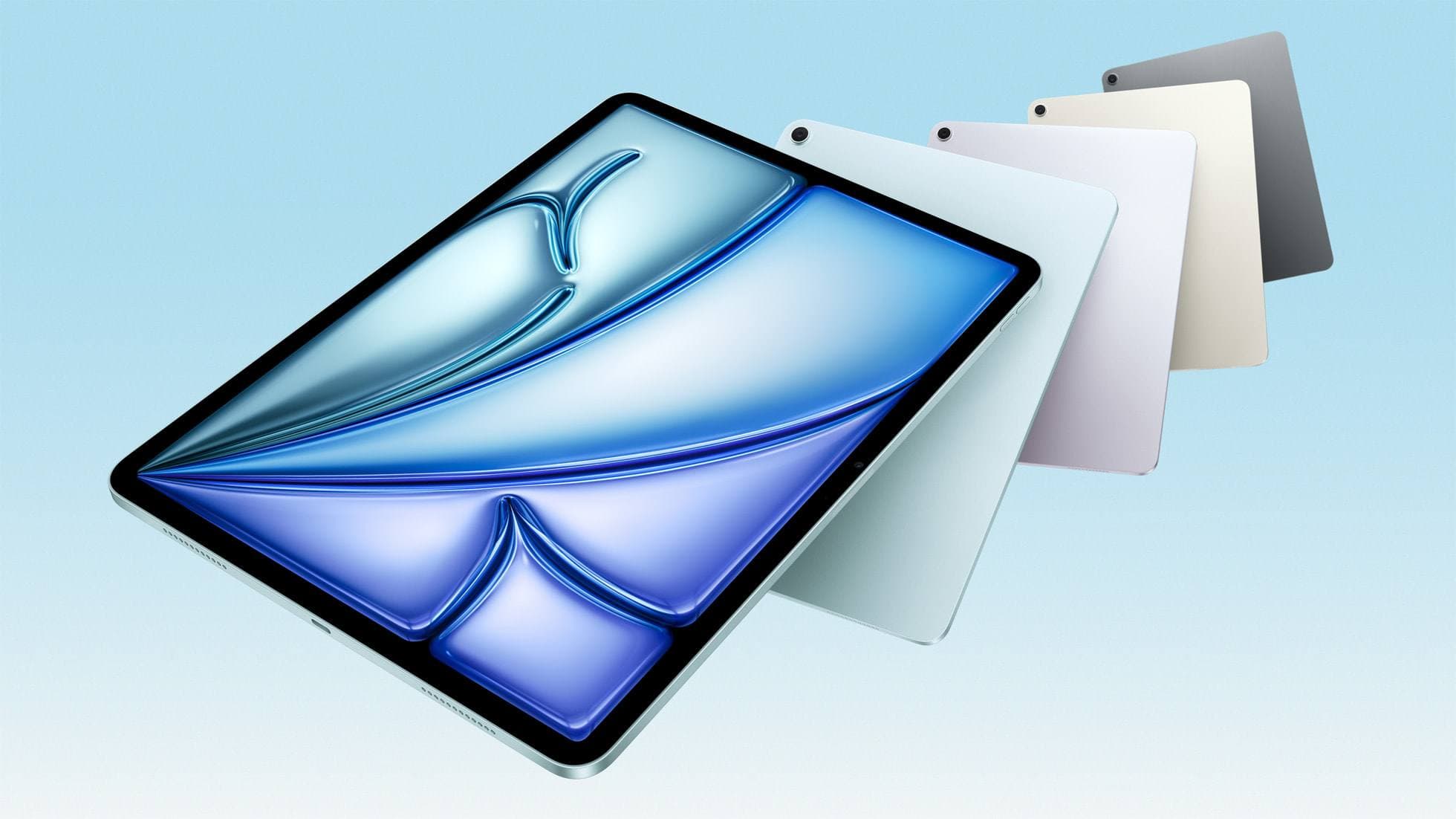
iPad Air (M3)
amazon.comStill a smart Air buy when the discount is real. Harder to justify when pricing drifts too close to the current model.
Pro: Strong prior-gen value when the discount is real
Con: Not the current Air lineup
This is the prior-gen Air. Confirm the discount against the current Air before checkout.
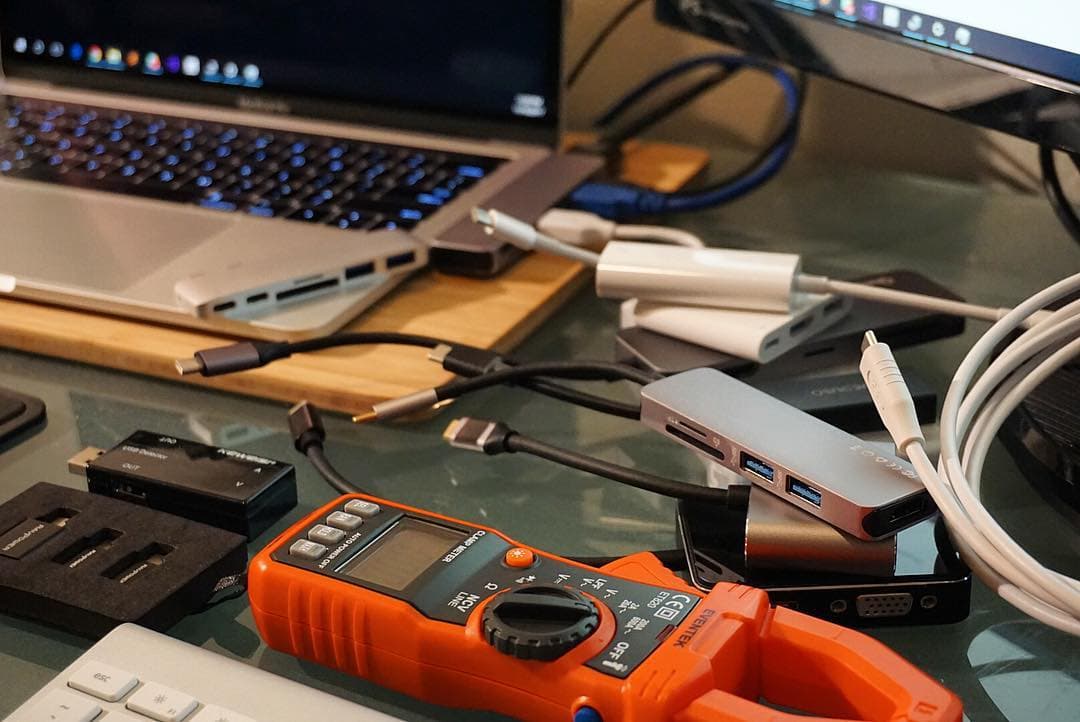
Anker 341 USB-C Hub (7-in-1)
amazon.comA strong everyday port hub for iPad workflows. Good value and layout, with expected bandwidth limits.
Pro: Solid all-around port mix for iPad setups
Con: Not Thunderbolt bandwidth
Check host power pass-through and display output before buying.
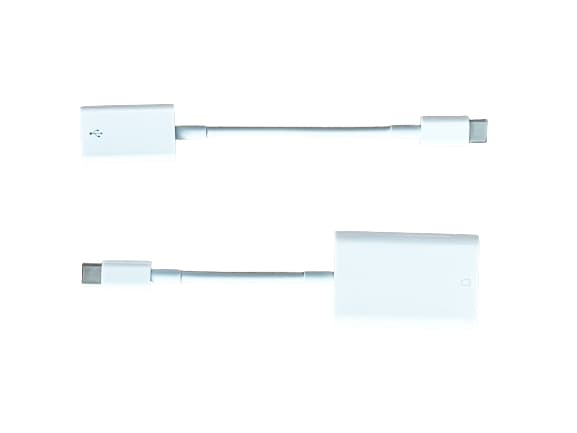
Apple USB-C to SD Card Reader
apple.comPro: Strong compatibility with iPadOS import flow
Con: No built-in microSD slot
Simple and stable option for SD workflows on iPad.
Related buying picks
More in this collectionBuyer guide
Is 128GB iPad Enough for Procreate in 2026?
A 128GB iPad can be enough for Procreate if you draw casually and export finished work, but 256GB is the low-stress choice for frequent art, large canvases, timelapse, and client files.
Buyer guide
Best iPad Deals for Digital Artists (March 2026): What to Buy and What to Skip
The best iPad deal is not the lowest sticker price. Use this guide to pick the right iPad and Apple Pencil combo for real drawing workflows without overpaying.
Buyer guide
iPad Buying Timing in 2026: Buy Now or Wait?
An evidence-first timing guide for iPad artists: when to buy immediately, when to wait for announcements, and how to avoid compatibility regret.
Buyer guide
Best iPad mini Accessory Bundle for Drawing (2026)
iPad mini is strongest when you keep the setup light. This buyer guide picks three pieces that add utility without killing portability.