






If you notice brush stroke delay in Clip Studio Paint on your iPad, keep your current setup before spending money on a new tablet. You should keep Clip Studio Paint if you depend on its dedicated comic panel tools, multi-page story management, rulers, and vector layers [6], [7]. You can resolve most stroke delays by lowering brush stabilization and balancing your document resolution [6]. Switch to Procreate if you prefer a one-time purchase that strictly caps canvas layers according to your hardware memory to avoid overloading the system [4], [5]. Only buy an iPad Air (M4) or iPad Pro (M5) if your older iPad cannot run modern releases or lacks support for tools like Apple Pencil Pro [1], [2], [3].
How canvas resolution and vector tools affect responsiveness
Clip Studio Paint gives illustrators deep functionality, including multi-page story projects, perspective rulers, and vector drawing layers [6], [7]. Vector layers record every stroke as mathematical data rather than simple pixels, which lets you resize or adjust lines freely later [7]. However, working on extremely large canvas dimensions with complex vector calculations requires substantial real-time processing [6], [7]. If your document uses an ultra-high resolution alongside several active vector layers, the system must calculate anchor points and brush textures simultaneously during rapid strokes [7].
To troubleshoot this behavior, check your active canvas dimensions in the app preferences [6]. Artists working on print illustration often create canvases at 600 DPI, but running high resolutions alongside textured brushes can increase the processing time needed for each mark [6], [7]. Raster layers require less continuous vector recalculation during active drawing, so testing your lines on a standard raster layer can reveal whether vector overhead causes your delay [7]. Keeping your working resolution matched strictly to your delivery requirements helps manage this processing workload across any supported iPad model [1], [6].
Managing brush settings and stabilization in Clip Studio Paint
Another frequent cause of stroke delay is brush stabilization [6]. Clip Studio Paint includes adjustable stabilization on almost every inking and painting brush to help artists produce smooth, steady line work [6], [7]. When stabilization is set to a high numeric value, the software intentionally delays the rendered mark so it can calculate the average path of your Apple Pencil input [2], [6]. This processing lag can feel like your tablet is stuttering, even though the brush engine is simply waiting for additional input coordinates before placing the ink [6].
Opening the sub tool detail palette lets you inspect stabilization settings directly [6]. Reducing stabilization down to a moderate level provides a more immediate response from the Apple Pencil [2], [6]. You should also inspect brush tip spacing and texture settings in the sub tool menu [6], [7]. Brushes that use complex ribbon textures or tight stamp intervals require more draw calls per millimeter of movement [6]. Lowering unnecessary texture calculations helps streamline brush delivery on the iPad without forcing you to abandon your chosen software [6], [7].
Comparing Clip Studio Paint and Procreate memory limits
Understanding how different apps manage iPad resources helps determine whether you should switch tools [4], [6]. Procreate handles device resources by enforcing strict layer maximums based on your iPad model's available RAM and the pixel dimensions of your canvas [4]. Because Procreate restricts your layer count up front, it prevents users from creating documents that exceed hardware limits during active drawing sessions [4], [5]. Procreate also operates on a one-time purchase model, which appeals to illustrators who dislike recurring software subscriptions [5].
In contrast, Clip Studio Paint uses a subscription or update pass model on iPadOS and permits open-ended multi-page projects and flexible layer structures [6], [7]. This makes Clip Studio Paint the superior choice for comic creators, animators, and artists who need continuous desktop file interoperability [6], [7]. But because Clip Studio Paint does not enforce strict, proactive layer ceilings in the same manner as Procreate, it is easier for a project to grow heavy enough to stress available hardware memory [4], [6]. Creators who do not need vector lines, paneled pages, or animation timelines might prefer Procreate for its focused, memory-capped approach to solo illustration [4], [5], [7].
When upgrading your iPad hardware actually makes sense
If you have optimized your brush stabilization and canvas dimensions but your iPad still struggles with general execution, upgrading hardware becomes a reasonable consideration [1], [6]. The iPad Air (M4) is the practical choice for most digital artists seeking a modern baseline [1]. It features the M4 chip, comes in 11-inch and 13-inch sizes, and supports Apple Pencil Pro features like barrel roll, squeeze gestures, and haptic feedback [1], [2]. The iPad Air uses a 60Hz display, but its modern processor provides plenty of headroom for multi-layer illustration and complex projects [1].
Artists who demand higher refresh rates should consider the iPad Pro (M5) instead [1]. The iPad Pro features an Ultra Retina XDR display with ProMotion technology, which supports refresh rates up to 120Hz [1]. It also pairs with the Apple Pencil Pro, allowing tilt sensitivity, pressure sensitivity, and hover preview capabilities [1], [2], [3]. However, the iPad Pro carries a much higher purchase price than the iPad Air [1]. You should skip the iPad Pro unless you specifically require its tandem OLED screen tech and ProMotion refresh rates for demanding daily workloads [1]. If your current tablet already supports the Apple Pencil Pro or an equivalent stylus, tweaking app configurations inside Clip Studio Paint should always be your first troubleshooting step before replacing your machine [2], [3], [6].
Bottom line
Do not rush to replace your iPad if Clip Studio Paint feels unresponsive [1], [6]. Most stroke latency is resolved by dialing down brush stabilization and avoiding excessively dense canvas resolutions on vector layers [6], [7]. Keep Clip Studio Paint if you depend on its dedicated comic production, vector paths, and ruler systems [6], [7]. Choose Procreate if you want a one-time purchase with strict layer limits that prevent you from overtaxing system memory [4], [5]. If your existing tablet is several generations old and cannot run modern accessories, choose the iPad Air (M4) for an ideal balance of Apple Pencil Pro support and performance headroom, or select the iPad Pro (M5) if you specifically require ProMotion display technology [1], [2], [3].
Sources
[1] https://www.apple.com/ipad/compare/ [2] https://www.apple.com/apple-pencil/ [3] https://support.apple.com/en-us/108937 [4] https://help.procreate.com/articles/zlexav-ipad-compatibility [5] https://apps.apple.com/us/app/procreate/id425073498 [6] https://apps.apple.com/us/app/clip-studio-paint/id1262985592 [7] https://www.clipstudio.net/en/
Recommended gear
Clip Studio Paint
apps.apple.comPro: Deep comics, vector, ruler, and animation toolset
Con: iPad plan model is less simple than Procreate
Procreate
apps.apple.comPro: One-time purchase
Con: iPad-only
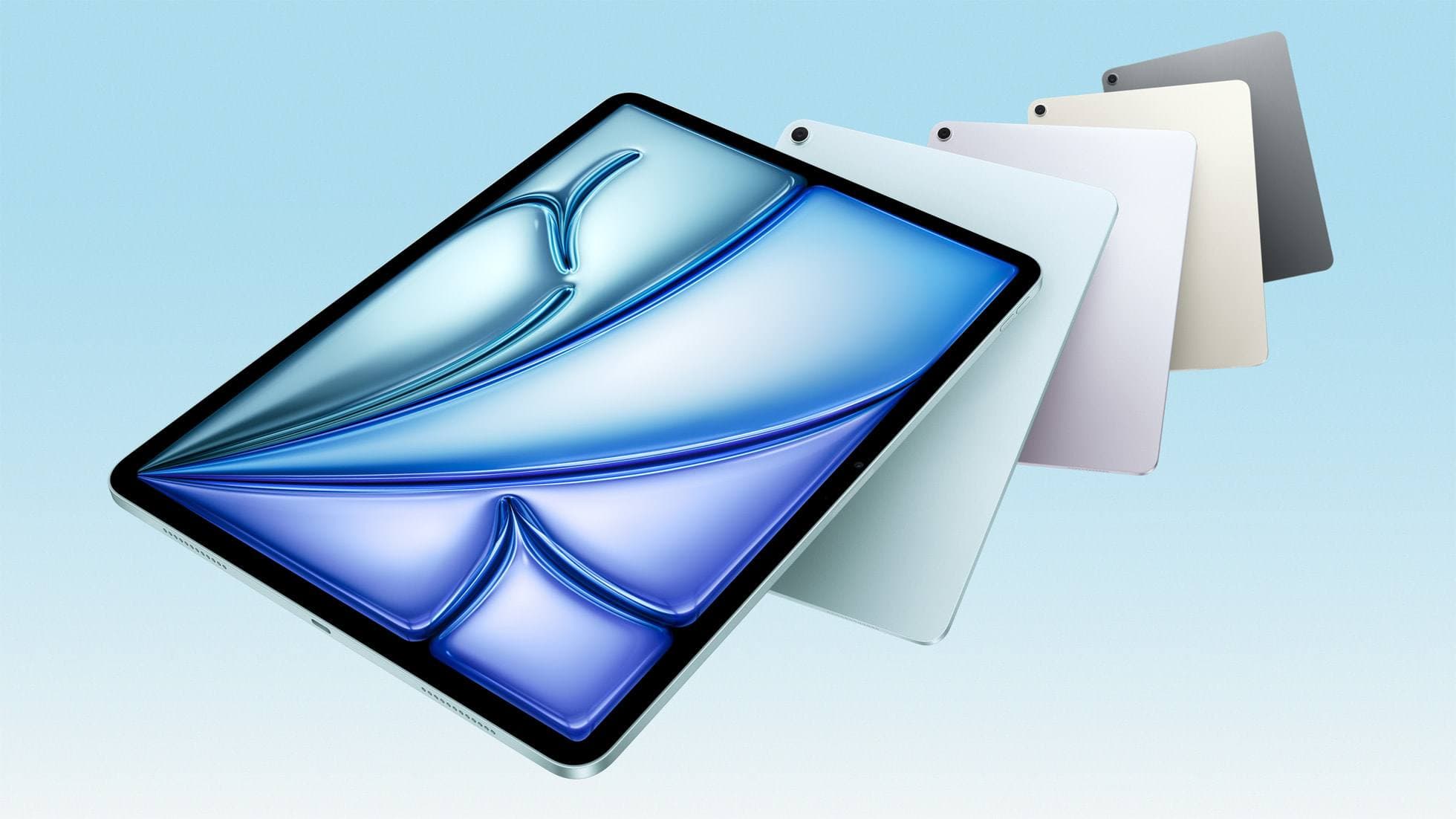
iPad Air (M4)
apple.comThe clean current Air recommendation for most serious hobby artists. Stronger buy logic than old-stock M3 when pricing is close.
Pro: Best current balance of price, headroom, and Pencil support
Con: Still 60Hz
Current Air lineup. Choose size, storage, and keyboard path before checkout.
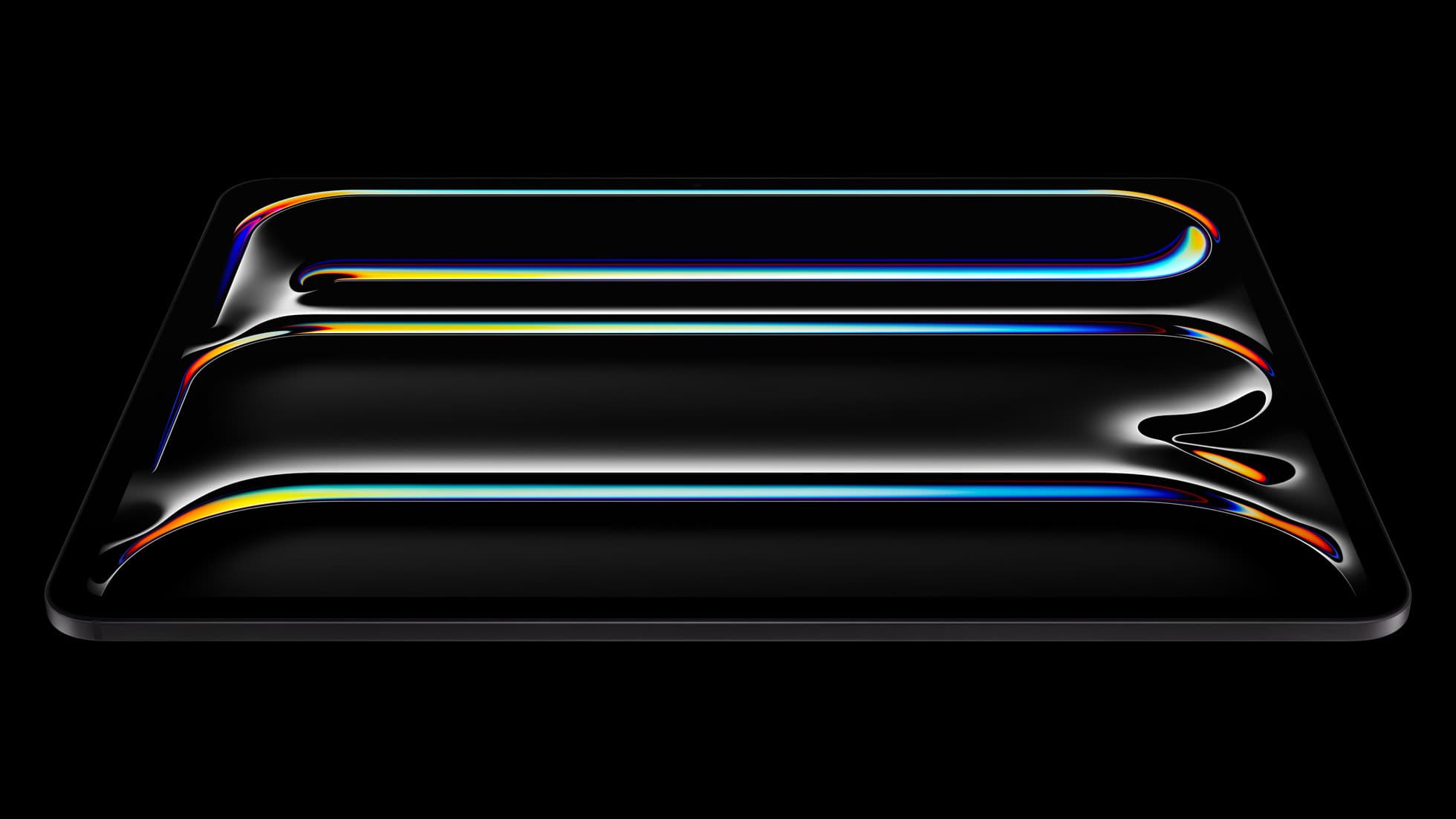
iPad Pro (M5)
amazon.comThe best iPad for drawing feel and premium workflow comfort, but many buyers still overpay for it.
Pro: Best iPad display and ProMotion feel
Con: Highest price in the lineup
Search opens with iPad Pro terms. Check year, chip, and screen size.
Related buying picks
More in this collectionBuyer guide
Best iPad app for drawing anime: Clip Studio Paint versus Procreate
Pick Clip Studio Paint for dedicated manga and anime production toolsets, or choose Procreate for a streamlined one-time purchase on iPad.
Buyer guide
Best iPad app for surface pattern design: Procreate versus Clip Studio Paint
Choose Procreate for standalone raster pattern motifs or pick Clip Studio Paint for vector assets and complex pattern tile structures.
Buyer guide
Best iPad app for interior design sketching
Choose Procreate for simple one-time pricing and fast concept illustration, or pick Clip Studio Paint for multi-page floor plans and deep ruler systems.
Buyer guide
Best iOS app for graphic design: Choosing between vector and raster tools
Choose Affinity Designer 2 or Adobe Illustrator for vector graphic design on iPadOS, and keep Procreate primarily for raster drawing.