






Buy the Apple Pencil Pro if you own a compatible recent iPad, or choose the Apple Pencil (2nd generation) if your iPad supports it, because manga inking depends on hardware pressure sensitivity [2], [3]. Skip the Apple Pencil (USB-C) for finished manga pages, since Apple omits pressure sensitivity from that model entirely [2].
Manga artwork relies on expressive brush strokes, screentone shading, and varied line weights for characters and backgrounds. While standard sketching or basic note-taking works fine with flat line inputs, creating classic G-pen line dynamics requires a stylus that responds to how firmly your hand presses down against the glass [2], [6].
Why pressure sensitivity dictates your inking setup
Traditional manga inking relies on nibs like the G-pen or maru pen to produce sharp taper points and swelling line weight in a single stroke. In digital drawing software like Procreate, brush engines rely directly on stylus pressure data to replicate those organic thickness changes [2], [5].
The Apple Pencil Pro and Apple Pencil (2nd generation) both include hardware pressure sensitivity [2]. When you bear down during a contour stroke, compatible apps read that pressure input to expand the brush radius or increase ink opacity [2], [7].
In contrast, the Apple Pencil (USB-C) includes tilt sensitivity but lacks pressure sensitivity [2]. If you use the USB-C model to ink line art, your lines remain a uniform width regardless of how hard you press [2]. You can manually adjust brush sizes or use software velocity settings, but you lose immediate physical stroke modulation [2], [7]. For that reason, artists planning to draw finished manga panels should avoid the USB-C version as their primary inking tool [2].
Matching your stylus to your iPad model
Choosing between the Apple Pencil Pro and Apple Pencil (2nd generation) is strictly dictated by your iPad hardware. Apple does not make these styluses cross-compatible across all generations [1], [3].
The Apple Pencil Pro works exclusively with specific recent devices, including newer iPad Pro and iPad Air models [1], [3]. It features advanced interaction tools, including squeeze detection, barrel roll orientation, and haptic feedback alongside pressure sensitivity [2], [6].
The Apple Pencil (2nd generation) pairs with and charges on supported previous-generation iPad Pro, iPad Air, and iPad mini models [1], [3]. It provides magnetic pairing, wireless charging, and double-tap tool switching, alongside full pressure sensitivity [2], [3]. However, it will not pair with newer iPads designed specifically for the Apple Pencil Pro [1], [3].
Before ordering, check your exact iPad model in your system settings to confirm which stylus hardware connects to your tablet [1], [3]. Buying an incompatible Pencil leaves you without pairing or charging capabilities [3].
Barrel roll, squeeze, and gesture shortcuts for manga pages
Efficiency matters when you are working across multiple panels, dialogue balloons, and background perspective grids. The Apple Pencil Pro introduces physical controls that streamline software interactions without requiring you to reach for on-screen menus [2], [6].
Squeeze detection on the Apple Pencil Pro senses when you pinch the sides of the stylus body [2], [6]. In supported apps, squeezing opens contextual palettes or tool selectors right at your stroke position [6], [7]. You can switch between an inking pen, an eraser, or a selection lasso quickly [6], [7].
Barrel roll utilizes an internal gyroscope to detect rotational movement as you spin the stylus barrel between your fingers [2], [6]. For manga creators, this feature allows shaped brushes, such as flat calligraphy tips or textured hatching nibs, to rotate naturally with your hand angle [2], [6]. Hover support on compatible iPads also lets you preview brush diameter, shape, and active color before your tip touches the canvas surface [2], [6].
Artists using the Apple Pencil (2nd generation) still receive a double-tap sensor on the flat edge of the stylus [2], [6]. In drawing applications like Procreate, double-tapping toggles between your active brush and the eraser, or invokes your primary color palette [6], [7]. While it lacks squeeze and barrel roll, it provides rapid tool swapping for production work [2], [7].
Canvas management and screen texture considerations
Manga production involves multi-layer files with pencils, inks, screentones, word balloons, and sound effects. Digital apps manage these projects by allocating layers based on available system memory and canvas pixel dimensions [4].
In Procreate, higher canvas resolutions and higher layer counts require sufficient system memory on your iPad [4], [5]. If you plan to ink print-ready pages at standard manga resolutions, your iPad hardware dictates your maximum allowed layers [4]. Checking these canvas constraints helps prevent workflow roadblocks when building complex multi-panel spreads [4].
Drawing on slick display glass can feel unfamiliar if you learned line art with traditional paper and dipping pens. Accessories like the Paperlike screen protector add a textured matte finish that creates tactile resistance against the Apple Pencil tip [8]. This textured friction simulates paper tooth, giving artists more physical control over fine hatching and small detail work [8].
Keep in mind that textured screen protectors can slightly diffuse ambient light and soften display clarity [8]. If you value pristine screen sharpness for checking fine screentone dot patterns, evaluate whether you prefer pure glass or textured tooth [8].
Who should buy each option
Choose the Apple Pencil Pro if you own a compatible iPad and want complete hardware capabilities, including pressure sensitivity, squeeze menus, barrel roll tip orientation, and haptics [2], [3]. It is the premier option for dedicated manga creators using modern iPad hardware [1], [2].
Choose the Apple Pencil (2nd generation) if you already own a compatible iPad Air, iPad Pro, or iPad mini from the supported list [1], [3]. It delivers the pressure sensitivity and double-tap functionality essential for dynamic inking without forcing a tablet upgrade [2], [3].
Choose the Apple Pencil (USB-C) only if you focus on scriptwriting, thumbnail storyboards, flat-width drafting, or budget-restricted sketching where line modulation is unnecessary [2], [3]. Skip it if your goal is expressive, pressure-dependent inking [2].
Add a Paperlike screen protector if you struggle with stylus slip on smooth glass and want controlled physical resistance while hatching [8]. Skip it if you prefer uncompromised screen clarity for evaluating tone patterns and final color artwork [8].
Bottom line
For drawing manga on an iPad, dynamic line weight requires an Apple Pencil with built-in pressure sensitivity [2]. Pick the Apple Pencil Pro if your tablet supports it, or rely on the Apple Pencil (2nd generation) on compatible hardware, and leave the USB-C model for non-inking tasks [1], [2], [3].
Sources
[1] https://www.apple.com/ipad/compare/ [2] https://www.apple.com/apple-pencil/ [3] https://support.apple.com/en-us/108937 [4] https://help.procreate.com/articles/zlexav-ipad-compatibility [5] https://apps.apple.com/us/app/procreate/id425073498 [6] https://support.apple.com/guide/ipad/draw-with-apple-pencil-ipadc55b6c7a/ipados [7] https://help.procreate.com/procreate/handbook/5.2/interface-gestures/pencil [8] https://paperlike.com/products/paperlike-for-ipad
Recommended gear

Apple Pencil Pro
amazon.comThe best Apple stylus for serious digital art workflows. Expensive, but the control upgrades are real.
Pro: Best brush-control and hover workflow
Con: Highest price in the lineup
Works only with newer iPad models. Check compatibility.
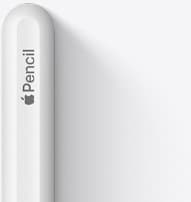
Apple Pencil (2nd generation)
amazon.comStill a strong stylus on compatible iPads. Good pressure control, but compatibility is the main trap.
Pro: Pressure support without Pro pricing
Con: Not compatible with newest Pro-only iPads
Only for iPads that support 2nd generation pairing.
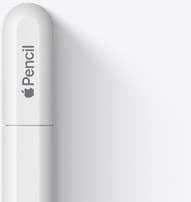
Apple Pencil (USB-C)
amazon.comA practical low-cost Apple stylus with broad compatibility, but limited for advanced art control.
Pro: Lowest official Apple Pencil cost
Con: No pressure sensitivity for brush work
Compatible with many recent iPads. No pressure support.
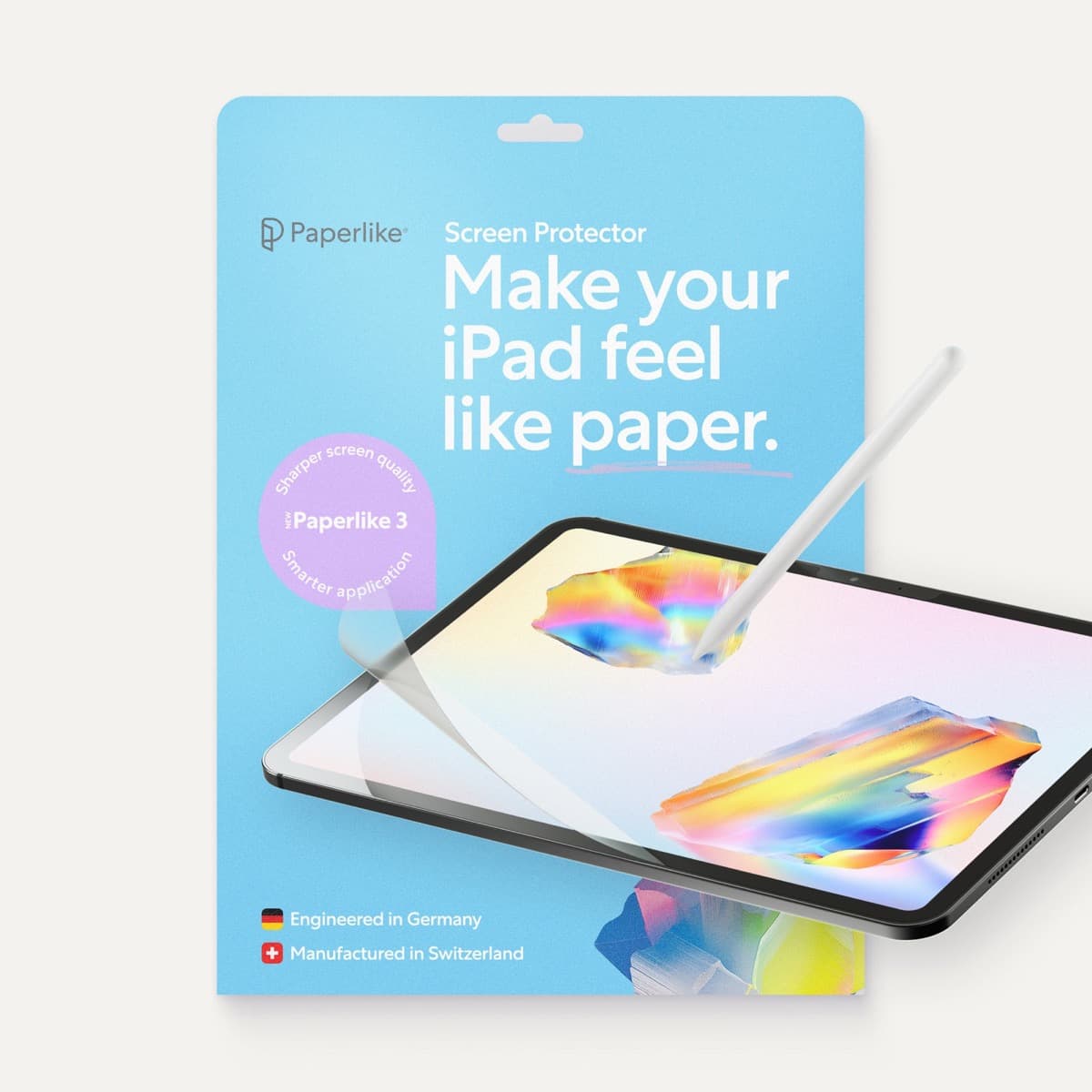
Paperlike 3 (11-inch, 2-pack)
amazon.comA strong surface-feel upgrade for drawing control. Clarity tradeoff is real and should be expected.
Pro: Adds controlled paper-feel friction
Con: Slightly reduces perceived display sharpness
11-inch fit only. Confirm generation before checkout.
Related buying picks
More in this collectionBuyer guide
Choosing an Apple Pencil for logo design
Compare Apple Pencil models and drawing surfaces to find the right stylus setup for drafting logos and brand marks.
Buyer guide
Best Apple Pencil for tattoo design: which stylus should you buy?
Choose between the Apple Pencil Pro and Apple Pencil 2 based on your iPad model, and skip the USB-C version for tattooing.
Buyer guide
Choosing the best Apple Pencil for medical illustration
Medical illustrators need pressure sensitivity and precise hardware compatibility, making the Apple Pencil Pro or 2nd generation pencil essential over the USB-C model.
Buyer guide
Best Apple Pencil for urban sketching: what to buy and what to skip
Choose the Apple Pencil that matches your sketching style and iPad model without paying for extra features you won't use outdoors.