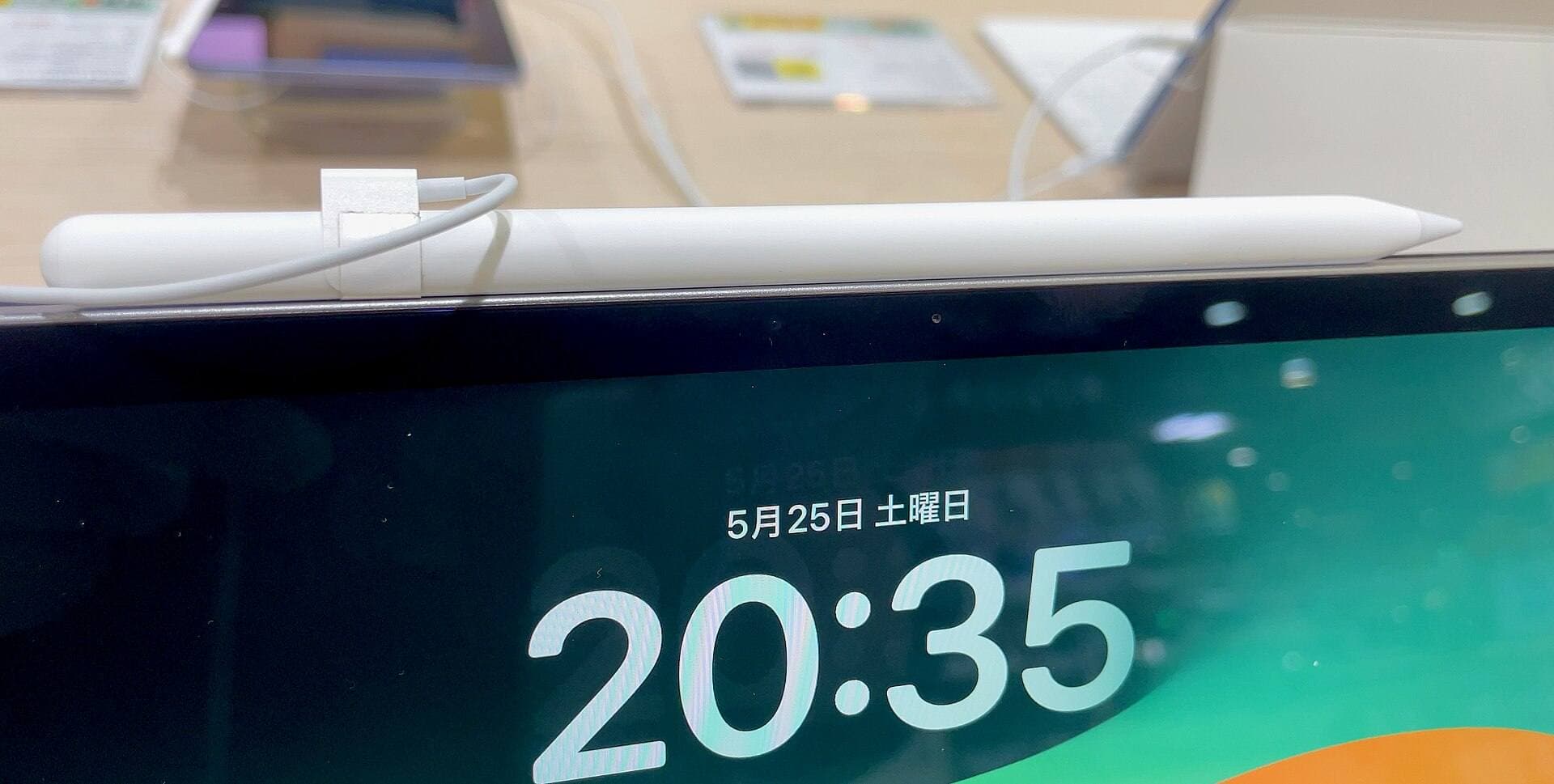
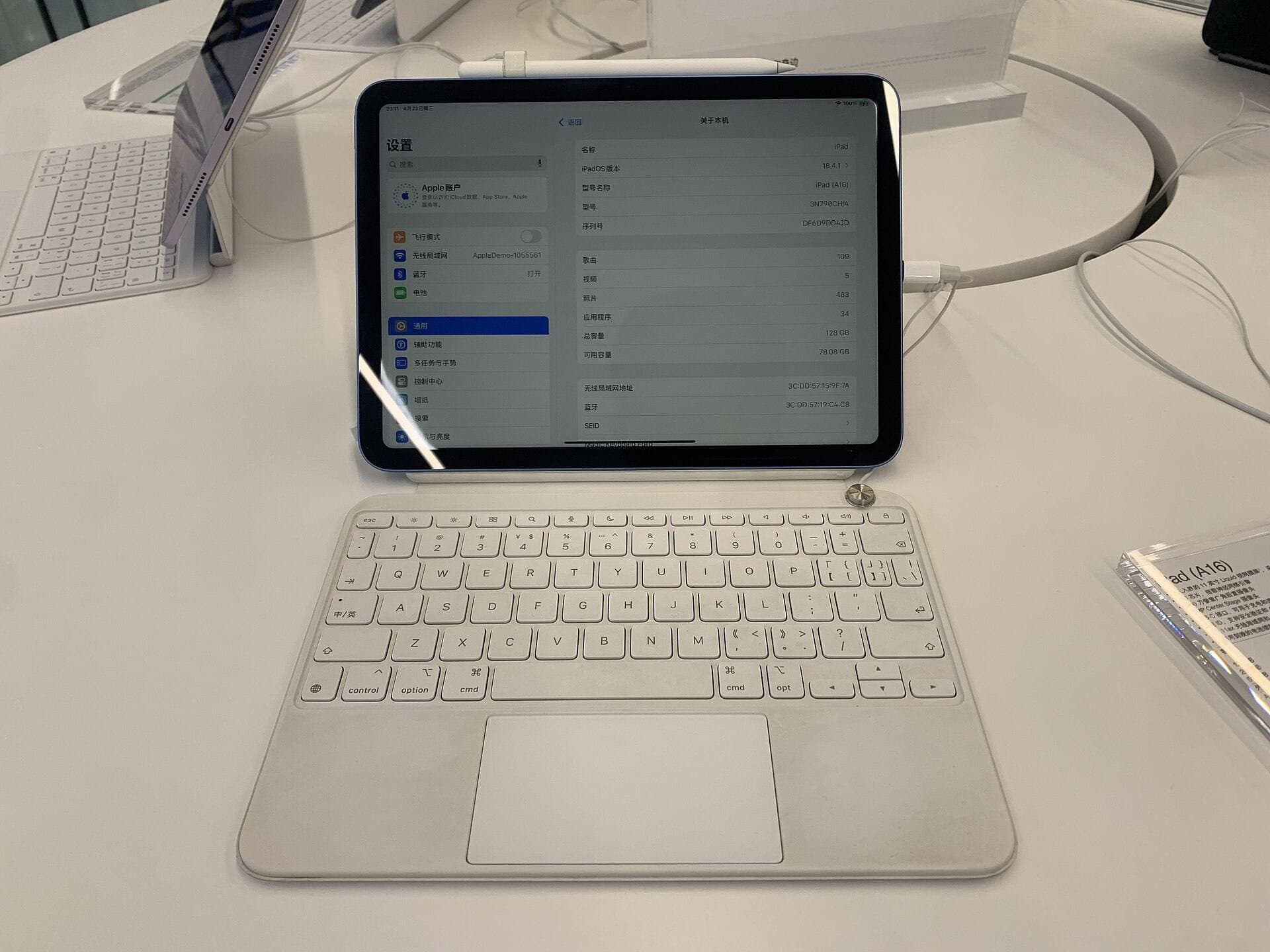
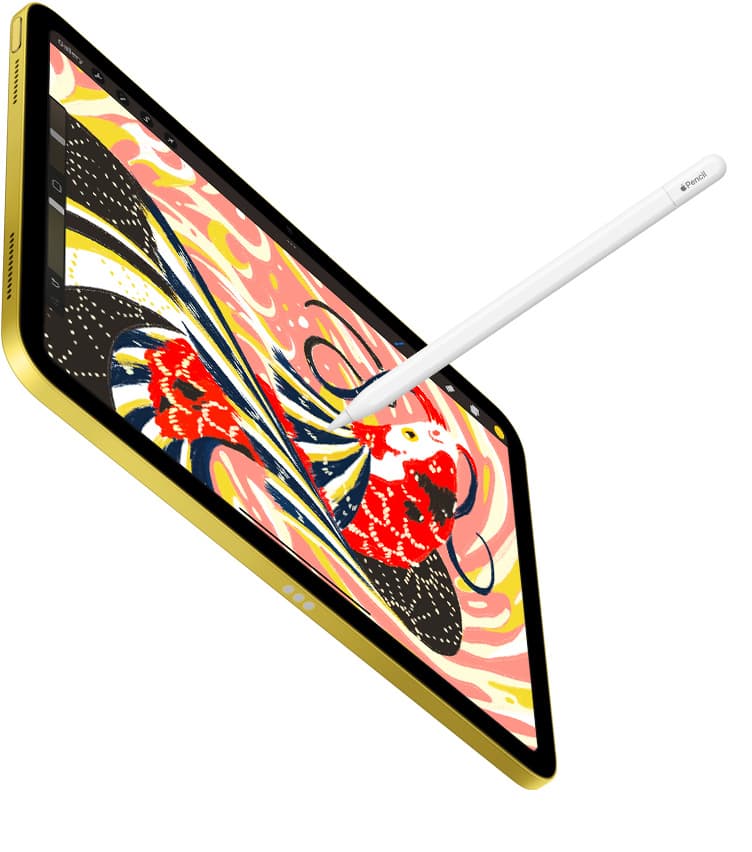
Choose the Apple Pencil Pro if your iPad is on Apple's list for it and your boards leave the studio as finished frames, because its squeeze palette, double tap, and hover cut the tool switching that eats a board artist's afternoon [1], [2]. Keep the Apple Pencil (2nd generation) if you already have one; it draws the same pressure line and still has double tap [1]. Go with the Apple Pencil (USB-C) if all you draw is rough boards and shot lists, since a uniform line is fine for a thumbnail and it's the lowest-cost official Pencil [1]. Skip the Pro when the only thing you'd use it for is roughs on an iPad you don't plan to replace [2].
What storyboards need from a Pencil
A storyboard frame is a fast drawing: a camera rectangle, two figures, an arrow for the move, a line of dialogue. The line quality that matters is legibility at thumbnail size rather than the tapering stroke of an illustration [3]. That changes the Pencil math. Apple lists pressure sensitivity for the Pencil Pro and the 2nd generation Pencil and leaves it off the USB-C model, which is why painters skip the USB-C one, but a board drawn at a single line weight reads fine on a shot list [1].
What boards need is speed between tools: pen, eraser, lasso to move a figure, a fill for a silhouette, back to the pen. Double tap, squeeze, and hover are the features that shorten those trips, and Apple's guide describes each as a system gesture that apps can pick up [1], [3]. Procreate's handbook shows where you assign double tap and squeeze to the tools you switch between most [4].
Where the Pencil Pro earns its price
The Pencil Pro has squeeze, barrel roll, haptic feedback, hover, and double tap on the iPads that support it [1], [2]. For boards, squeeze is the one you'll use: it opens a tool palette at the tip so you swap pen, eraser, and lasso without looking at the toolbar [1], [3]. Hover shows the brush footprint before the tip lands, which helps when you're placing a character against a background plate you've already drawn [3]. Haptics give a small click on some actions, so you know a gesture registered without checking the screen [1].
Buy the Pro if you board on a compatible iPad and your frames also carry tone, shading, or finished line for a pitch deck, because then the pressure and the gestures both pay off [1], [2]. Skip it if your iPad isn't on the list, because the Pencil won't pair and no feature list changes that [2].
Why the 2nd generation Pencil is the keeper
If you already own the Apple Pencil (2nd generation), keep it. Apple lists pressure sensitivity, tilt, double tap, and magnetic pairing and charging for it, and double tap mapped to the eraser is most of what a board artist wants from a gesture [1]. You give up squeeze, hover, and barrel roll, and in a board session that means a toolbar tap where a Pro would have a squeeze [1], [3].
Don't replace a working 2nd generation Pencil with a Pro for boards alone. The difference shows on finished frames and dense tool switching, and even there it's convenience rather than a new capability [1], [4]. Spend the money on the iPad or the app instead, and let the Pro come with your next compatible iPad [2].
When the USB-C Pencil is enough
The Apple Pencil (USB-C) pairs over a cable with many recent iPads, supports tilt, and has no pressure sensitivity or double tap [1], [2]. For rough boards that's a tolerable list of gaps: the line is uniform, you tap the toolbar to erase, and the frames still read [1]. It's the right Pencil for a student boarding on an entry-level iPad, or for a director who sketches shot ideas and hands them to a board artist [1], [2].
Choose the USB-C Pencil when your boards never need shading or a varying line and when your iPad takes only this model [2]. Use it knowing you'll want a pressure-capable Pencil the first time a client asks for toned frames, and check Apple's list to see which Pencil your next iPad would allow [1], [2].
Surface feel for fast drawing
Boards are drawn fast, and some artists find bare glass too slippery for quick confident strokes. Paperlike markets its protector as adding a paper-like drawing feel and sells model-specific fits, and that feel is a vendor claim to test rather than a measured gain [5]. It slightly softens how sharp the display looks, which matters less for boards than for color work [5]. Try it if your lines skate, and skip it if you also review footage on the same iPad and want the display unchanged [5].
Bottom line
For storyboarding, the Pencil follows the deliverable. Choose the Apple Pencil Pro if your iPad supports it and your boards go out as finished frames, since squeeze, hover, and pressure all earn their place there [1], [2], [3]. Keep the Apple Pencil (2nd generation) if you own one, because pressure and double tap cover nearly everything a board needs [1]. Go with the Apple Pencil (USB-C) for rough boards on a budget or on an iPad that takes only that model [1], [2]. Paperlike is optional and a matter of feel [5].
Sources
[1] https://www.apple.com/apple-pencil/ [2] https://support.apple.com/en-us/108937 [3] https://support.apple.com/guide/ipad/draw-with-apple-pencil-ipadc55b6c7a/ipados [4] https://help.procreate.com/procreate/handbook/5.2/interface-gestures/pencil [5] https://paperlike.com/products/paperlike-for-ipad
Recommended gear
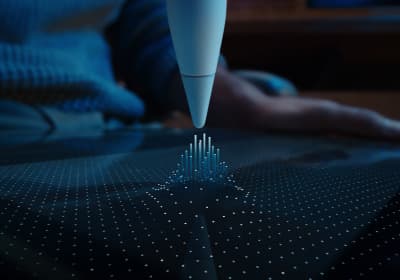
Apple Pencil Pro
amazon.comThe best Apple stylus for serious digital art workflows. Expensive, but the control upgrades are real.
Pro: Best brush-control and hover workflow
Con: Highest price in the lineup
Works only with newer iPad models. Check compatibility.
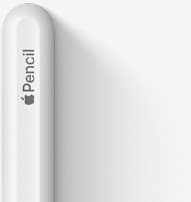
Apple Pencil (2nd generation)
amazon.comStill a strong stylus on compatible iPads. Good pressure control, but compatibility is the main trap.
Pro: Pressure support without Pro pricing
Con: Not compatible with newest Pro-only iPads
Only for iPads that support 2nd generation pairing.
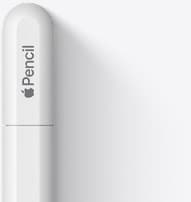
Apple Pencil (USB-C)
amazon.comA practical low-cost Apple stylus with broad compatibility, but limited for advanced art control.
Pro: Lowest official Apple Pencil cost
Con: No pressure sensitivity for brush work
Compatible with many recent iPads. No pressure support.
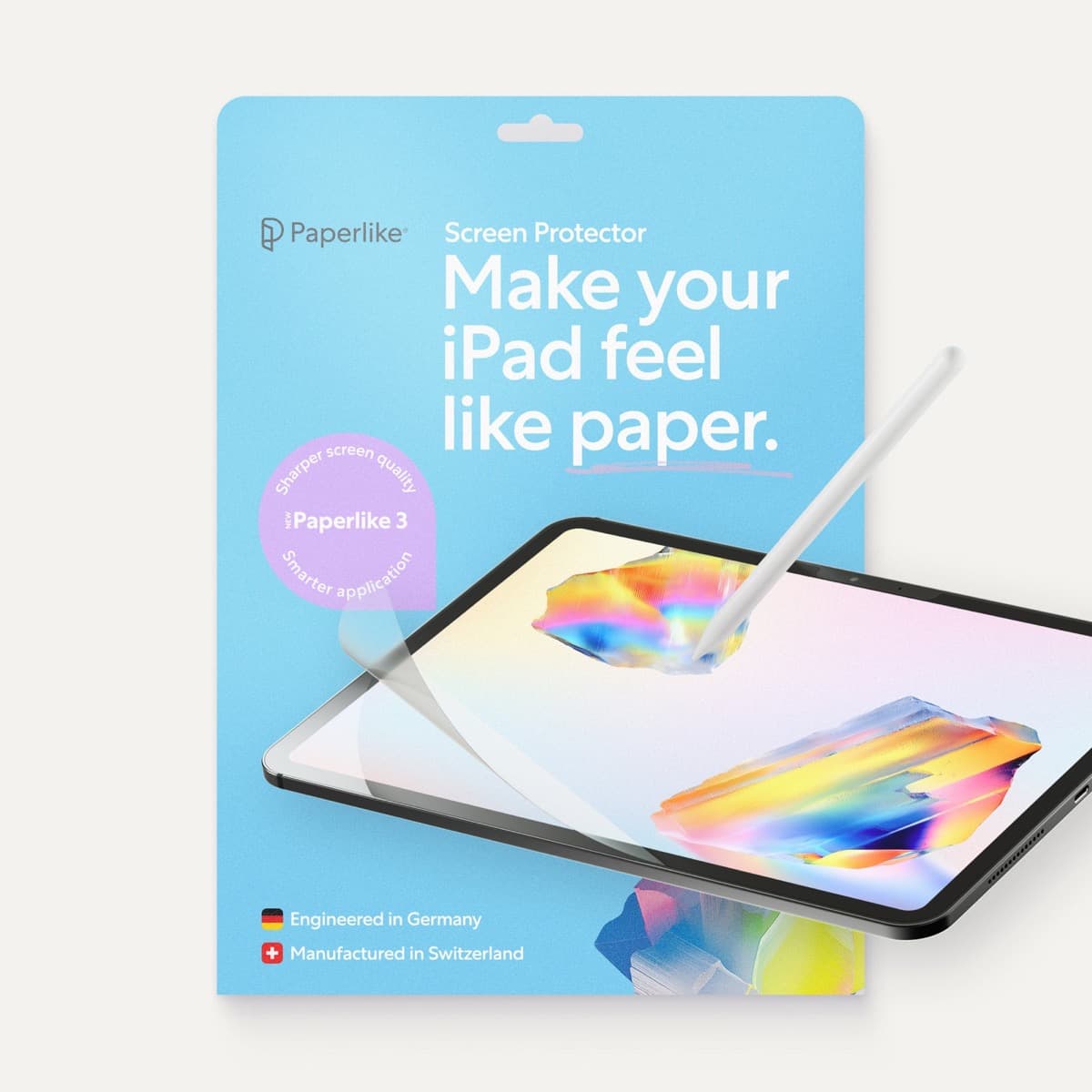
Paperlike 3 (11-inch, 2-pack)
amazon.comA strong surface-feel upgrade for drawing control. Clarity tradeoff is real and should be expected.
Pro: Adds controlled paper-feel friction
Con: Slightly reduces perceived display sharpness
11-inch fit only. Confirm generation before checkout.
Related buying picks
More in this collectionBuyer guide
Best Apple Pencil for manga drawing
Choose an Apple Pencil with pressure sensitivity for manga inking, matching the stylus directly to your iPad model.
Buyer guide
Best Apple Pencil for urban sketching: what to buy and what to skip
Choose the Apple Pencil that matches your sketching style and iPad model without paying for extra features you won't use outdoors.
Buyer guide
Best Apple Pencil for fashion illustration: Stylus guide for designers
Choose the right Apple Pencil for fashion illustration based on pressure sensitivity, barrel roll, iPad compatibility, and screen texture.
Buyer guide
Best Apple Pencil for children's book illustration
For character line art and painted spreads, buy the Apple Pencil Pro on a compatible iPad, keep a 2nd generation Pencil, and reserve the USB-C model for layouts and lettering.